
How to Change Your Telegram Password: Clear Steps for Every Device
This guide covers how to change your Telegram password on Android, iPhone, and desktop, explaining the platform's password and passcode system.

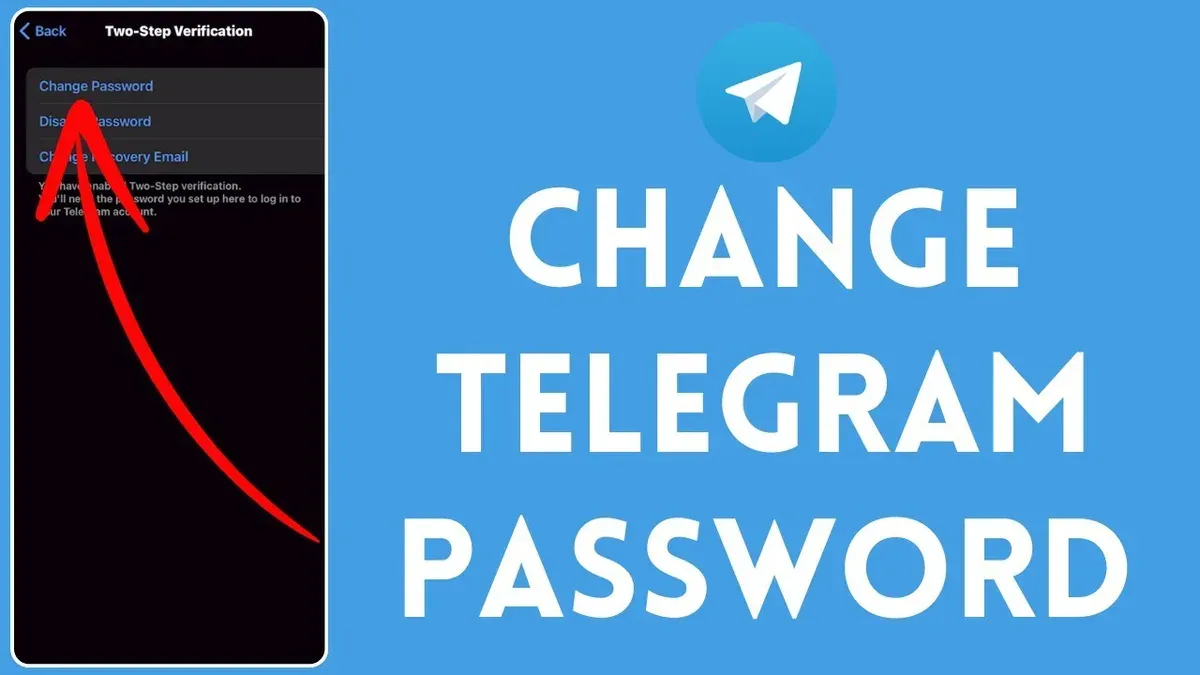
This guide explains how to change Telegram password across different devices, addressing the platform's unique password and passcode system. Telegram uses Two-Step Verification to add an extra layer of security beyond SMS codes, requiring a password set by the user. Additionally, Telegram Passport stores personal identification data protected by its own password, distinct from the login password.
Understanding these distinctions is key when learning how to change Telegram password or reset it if forgotten. This article covers step-by-step instructions for Android, iPhone, and desktop apps, including how to manage the screen lock passcode. It also clarifies common confusions and offers practical tips to ensure account security and regain access when needed.
Before you start: Understanding Telegram’s password and passcode system
Telegram users log in primarily using their phone number combined with a verification code sent via SMS or Telegram app. This method alone does not require a traditional password. However, an optional Two-Step Verification password can be added for enhanced account security. This additional password acts as a secondary layer beyond phone number verification.
Separately, Telegram offers a passcode feature, often called the screen lock, which protects the app itself on a device. This passcode is different from the Two-Step Verification password and only controls access to the locally installed Telegram app.
| Feature | Login Method | Purpose | Requirement to Change/Reset |
|---|---|---|---|
| Phone Number Verification | SMS or Telegram code | Primary login authentication | Access to phone number (SIM or device) |
| Two-Step Verification Password | Password set by user | Additional account security layer | Password knowledge or recovery email access |
| Passcode (Screen Lock) | PIN or biometric on device | Protects app access locally | Prior passcode or app reinstall |
For example, logging into Telegram without Two-Step Verification requires only phone number verification: entering the phone number prompts a code sent via SMS or Telegram app, which grants access. If Two-Step Verification is enabled, after entering the code, the user must input the set password to complete login.
Tip: Understanding these distinctions helps avoid confusion when managing passwords and passcodes across devices.
How to change Telegram password on Android and iPhone
- Open the Telegram app and tap the three-line menu icon on Android or the Settings tab at the bottom on iPhone; this opens the main menu or settings page.
- Select Settings, then tap Privacy and Security. This section contains security-related options including Two-Step Verification.
- Scroll down and tap Two-Step Verification. If two-step verification is enabled, the current password prompt appears; otherwise, options to set it up show.
- Enter the current password when prompted; this verifies the user’s identity. If the password is forgotten, use the reset steps instead.
- Tap Change Password or Set Password depending on status. Enter a new password twice to confirm and press Next.
- Set or update a password hint to help recall the password later. This hint appears when the password is requested but does not reveal the password itself.
- Optionally, add or update a recovery email to enable password reset via email if the password is forgotten. Telegram sends a confirmation code to this email.
- Confirm all changes to finalize the password update. The app returns to the Two-Step Verification screen showing the updated status.
The entire process typically takes less than five minutes on both Android and iPhone devices, depending on typing speed and network conditions.
Tip: Ensure the recovery email is current and accessible to avoid lockout if the password is forgotten.
How to change Telegram password in the app on desktop platforms
Telegram Desktop and Telegram Web provide access to security settings, but users will find the process and interface differ significantly from mobile apps. The desktop app offers a more comprehensive settings menu, while the web version has limited options for managing passwords.
- Open the Telegram Desktop app and click the three horizontal lines in the top-left corner to open the main menu. You should see a sidebar with various options.
- Select Settings from the sidebar. This opens the full settings window where personal and security options are accessible.
- In the settings window, click on Privacy and Security. This section contains options related to account protection, including two-step verification.
- Scroll down to find Two-Step Verification and click on it. The interface will show whether a password is currently set and provide options to change it.
- Click Change Password. Enter the current password, then type the new password twice to confirm. You may also update the password hint and recovery email if desired.
- Save the changes. Upon successful update, the app will confirm the password change.
- Log out and log back in to test the new password. The desktop app will prompt for the updated two-step verification password after phone number verification.
Telegram Web has limited support for managing two-step verification passwords. Users generally need to use the desktop or mobile app to change passwords securely. Web users can access basic settings but cannot change the two-step verification password directly within the web interface.
Tip: The desktop app’s settings interface groups privacy and security options clearly, making it easier to manage passwords compared to mobile and web versions.
How to reset Telegram password if forgotten
If the two-step verification password is forgotten, Telegram offers reset options depending on account recovery settings. The password can be reset using the registered recovery email if available, or by relying on phone number access with some limitations.
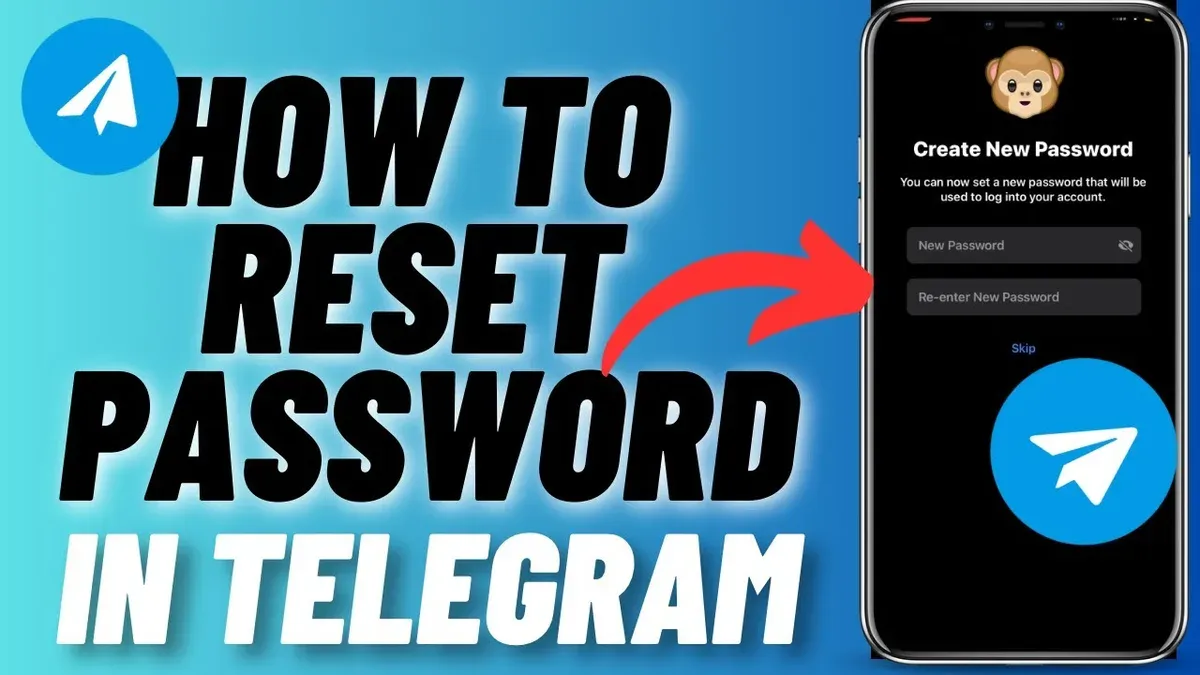
Reset using recovery email
- Open Telegram and attempt to log in with the phone number.This prompts the two-step verification password entry.
- Click the "Forgot password?" link below the password field.The option to send a confirmation code to the recovery email appears.
- Choose to send the code to the recovery email and check the inbox for the code.Receiving the code confirms access to the recovery email.
- Enter the received code into Telegram.The system allows resetting the two-step verification password afterward.
- Set a new password and confirm.Telegram confirms password reset and grants access to the account.
Example: A user who forgot their two-step verification password but had previously set a recovery email received a reset code at that email and successfully created a new password following the steps above.
Reset without recovery email but with phone number access
If no recovery email is set, Telegram does not allow password reset solely via phone number. Users must wait for a recovery period, which can be several days, during which access to the account is limited. This delay is a security measure to prevent unauthorized resets.
If both recovery email and phone number access are unavailable
Without access to the recovery email or phone number, Telegram cannot reset the two-step verification password. Telegram's official policy states that the password cannot be bypassed or reset without these recovery options, emphasizing the security of user accounts.
Security implications: The two-step verification password adds an important security layer; resetting it requires either the recovery email or waiting periods to prevent unauthorized access. Users should ensure recovery email settings are up to date to avoid lockouts.
How to reset Telegram passcode (screen lock) when forgotten
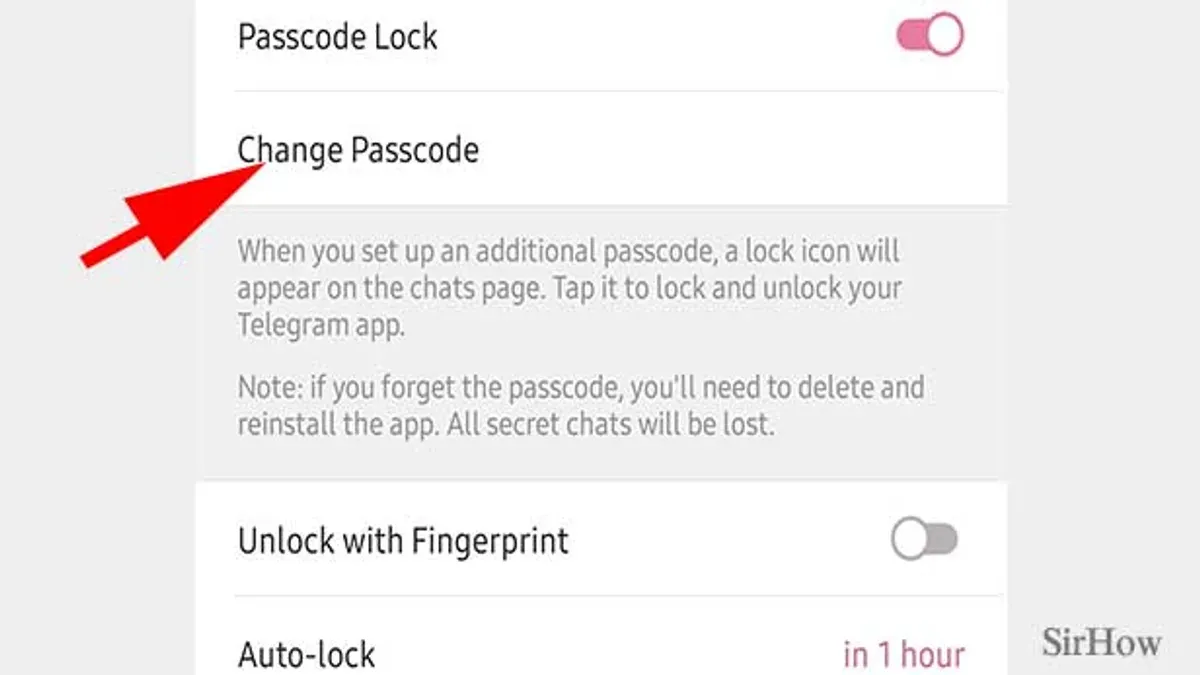
The Telegram passcode, also known as the screen lock PIN, is distinct from the two-step verification password and secures access to the app locally. If the passcode is forgotten, it can be reset or disabled through the app settings, but this process requires knowledge of the current passcode or, alternatively, app reinstallation, which may risk data loss if cloud backups are not in place.
- Open the Telegram app and attempt to enter the passcode; after multiple failed attempts, the app will prompt options for resetting or disabling the passcode.
- If the current passcode is remembered, go to Settings > Privacy and Security > Passcode Lock, then select "Turn Passcode Off" or change the passcode; entering the current passcode is required.
- If the passcode is forgotten and cannot be entered, the only option is to uninstall and reinstall Telegram. Upon reinstalling, the app will require login via phone number verification.
- Reinstalling does not delete cloud-stored messages and contacts but will erase locally stored data, such as unsynced media or cache; it is recommended to back up any important data externally before reinstalling.
- After reinstalling and logging in, set a new passcode by navigating to Settings > Privacy and Security > Passcode Lock.
Tip: Regularly backing up important media outside Telegram reduces the risk of data loss if a passcode reset requires app reinstallation.
How to find Telegram password or passcode
Telegram passwords, specifically the two-step verification password, and passcodes (screen lock PINs) are not stored in the app or accessible through Telegram’s interface. This is a deliberate security design to prevent unauthorized access. Unlike some apps that may store passwords encrypted within device keychains or password managers, Telegram does not offer a way to retrieve these credentials once set.
Checking password hints: If a user set a password hint during two-step verification setup, it can be viewed in Telegram’s Privacy and Security settings under “Two-Step Verification.” This hint may help recall the password but is only useful if previously configured.
Using external password managers or device keychains: Passwords can sometimes be saved externally if the user chose to store them in a password manager app or the device’s built-in keychain (e.g., Apple iCloud Keychain or Google Password Manager). Checking these services might reveal the password if previously saved.
Security expert perspective: Security professionals caution against apps storing passwords in retrievable formats to reduce hacking risks. Telegram’s approach aligns with best practices by requiring users to remember or securely record their passwords rather than relying on recoverable storage.
Tip: Use a reliable password manager to save Telegram passwords securely and avoid future loss.
Troubleshooting common issues when changing or resetting Telegram passwords
Users often face challenges such as lack of access to their recovery email or phone number when resetting passwords. Telegram's support advises that without these recovery options, resetting the two-step verification password is not possible, requiring patience for the waiting period if no email is set.
Error messages during password updates commonly occur due to weak passwords, mismatched confirmation entries, or connectivity issues. Ensuring a strong password that meets Telegram's complexity requirements and stable internet access typically resolves these problems.
App crashes or interface glitches during password changes may stem from outdated app versions or device software conflicts. Updating Telegram to the latest version and restarting the device can often fix these issues.
If suspicious activity is detected while managing passwords, Telegram usually prompts a security alert. It is recommended to review active sessions via Settings > Devices, terminate unfamiliar sessions, and immediately change the password through Two-Step Verification settings.
- Confirm access to the recovery email or phone number; if unavailable, prepare to wait the recovery period, signaled by Telegram's reset interface.
- When encountering an error message, re-enter the new password carefully and check for app updates; a successful update will display a confirmation message.
- If the app crashes, close and reopen it, then update Telegram from the app store; successful resolution is indicated by smooth navigation to password settings.
- Upon receiving a security alert, open Settings > Devices, identify unknown sessions, and revoke them; afterward, change the password, which should show a success notification.
Tip: Regularly updating recovery email and phone number in Telegram settings reduces reset complications.
Security considerations when managing Telegram passwords and passcodes
The strength and uniqueness of the Telegram two-step verification password are vital in preventing unauthorized account access. Reusing passwords from other services or choosing weak passcodes significantly increases the risk of compromise. Cybersecurity guidelines consistently recommend creating complex passwords that combine letters, numbers, and symbols, and avoiding predictable patterns.
Setting and regularly updating the recovery email linked to two-step verification is crucial. Without a valid recovery email, users face lengthy waiting periods to regain access if the password is lost, increasing vulnerability to prolonged account lockout or targeted attacks.
Changing the two-step verification password does not guarantee full protection against breaches if the recovery email is compromised or if malware is present on the device. Attackers with access to the recovery email or device can bypass password changes, underscoring the importance of securing all related accounts and devices.
- Create a strong, unique two-step verification password by navigating to Settings > Privacy and Security > Two-Step Verification > Set Additional Password. A confirmation message will appear indicating the password has been updated.
- Set or update the recovery email in the same menu under "Recovery Email Address" to ensure password reset options are available. A verification email will confirm the update.
- Use a reputable password manager to store passwords and passcodes securely, reducing the risk of reuse or weak combinations. The password manager will confirm successful storage.
- Regularly audit device and account security, including enabling device lock and malware scans, to prevent unauthorized access that could circumvent password protections. Security apps should report no threats found.
Further reading
- How to Change Your YouTube Password on Any Device: Step-by-Step Guide
- How to Change WeChat Password: Complete Step-by-Step Instructions
- How to Change Your Viber Password and Manage Accounts on Any Device
- How to Change Your TikTok Password on Any Device: A Complete Guide
Frequently asked questions
How to reset forgotten telegram password?
If the Telegram password set via Two-Step Verification is forgotten, it cannot be reset through the app directly. Users must log out from all devices and request a password reset link sent to the registered email address, provided an email was set up during password creation. Without this email configured, regaining access requires contacting Telegram support or deleting the account and starting anew.
how to change telegram password hint
Telegram does not provide a password hint feature for the Two-Step Verification password. Users are encouraged to choose a memorable password or store it securely elsewhere. The app focuses on password strength and security rather than hint prompts.
how to reset telegram password with phone number
Resetting the Telegram Two-Step Verification password using only a phone number is not possible. The phone number allows login via SMS code, but the password reset requires access to the recovery email set up when enabling Two-Step Verification. Without this email, password reset cannot be completed solely via phone number.
how to reset telegram password without email
If no recovery email is linked to the Two-Step Verification password, Telegram does not offer a direct method to reset it. The only option is to delete the Telegram account after losing access, which removes all chats and data. Users should ensure an email is added when setting the password to avoid this risk.
forgot my telegram password
Forgetting the Telegram password used in Two-Step Verification requires using the recovery email to reset it. Without the email, access cannot be restored, and the account may need to be deleted and recreated. Regular login via phone number alone does not bypass the password if Two-Step Verification is active.
Limits of this advice
This advice does not cover Telegram account recovery if the phone number and recovery email are completely inaccessible, as Telegram does not offer password reset without them. Users locked out without access to these recovery methods should contact Telegram support directly or consider creating a new account.
For those seeking to recover deleted messages or manage data stored in Telegram Passport, this guide does not provide detailed instructions, as those processes involve distinct steps beyond password and passcode management.
Users experiencing technical issues unrelated to password or passcode changes, such as app crashes or connectivity problems, should consult Telegram’s official help resources or device-specific troubleshooting guides.
The most useful next step is to enable Two-Step Verification within Telegram settings if not already done. This adds an additional layer of security beyond the password or passcode and is accessible via Settings > Privacy and Security > Two-Step Verification, where a strong password can be set and recovery email configured. Regularly reviewing and updating this setting helps maintain account security over time.



