
How to Change Your TikTok Password on Any Device: A Complete Guide
This guide explains how to change your TikTok password on any device with clear steps and tips for account security.

This article explains how to change TikTok password on any device, covering all necessary steps for mobile apps and desktop browsers. It provides clear instructions for users with access to their email or phone, as well as solutions for those who cannot use these recovery methods.
Changing the TikTok password is essential for maintaining account security, especially after suspicious activity or password sharing. The process varies slightly depending on the device and account settings, so understanding the specific menu options and verification steps is key.
The guide also addresses common issues encountered during password changes and offers security tips to manage TikTok passwords effectively. Additionally, it clarifies how to change the TikTok username separately, as this often causes confusion among users.
Before you start: What is needed to change a TikTok password
Changing a TikTok password requires several prerequisites to ensure a smooth and secure process. First, an active TikTok account login is necessary. This typically means having the current password or access to recovery options such as a registered email address or phone number linked to the account.
Access to the device where the password will be changed is also essential. TikTok supports password changes on multiple platforms including the mobile app on Android and iOS devices, as well as desktop browsers on PCs, laptops, or desktops. A stable internet connection is critical to interact with TikTok’s servers and validate changes.
Many users face difficulties when recovery options are unavailable. For instance, without access to the registered email or phone number, regaining account control can be complicated, as these methods are commonly used to verify identity during password changes.
Before proceeding, ensure the following steps:
- Confirm possession of the current TikTok login credentials or access to recovery methods. Successful confirmation allows entry into account settings.
- Prepare the device intended for changing the password, ensuring TikTok is installed or accessible via a browser. Once accessed, the account profile should be visible.
- Verify that the device has a reliable internet connection. A stable connection will enable communication with TikTok’s servers and prevent interruptions during the process.
How to change TikTok password on phone
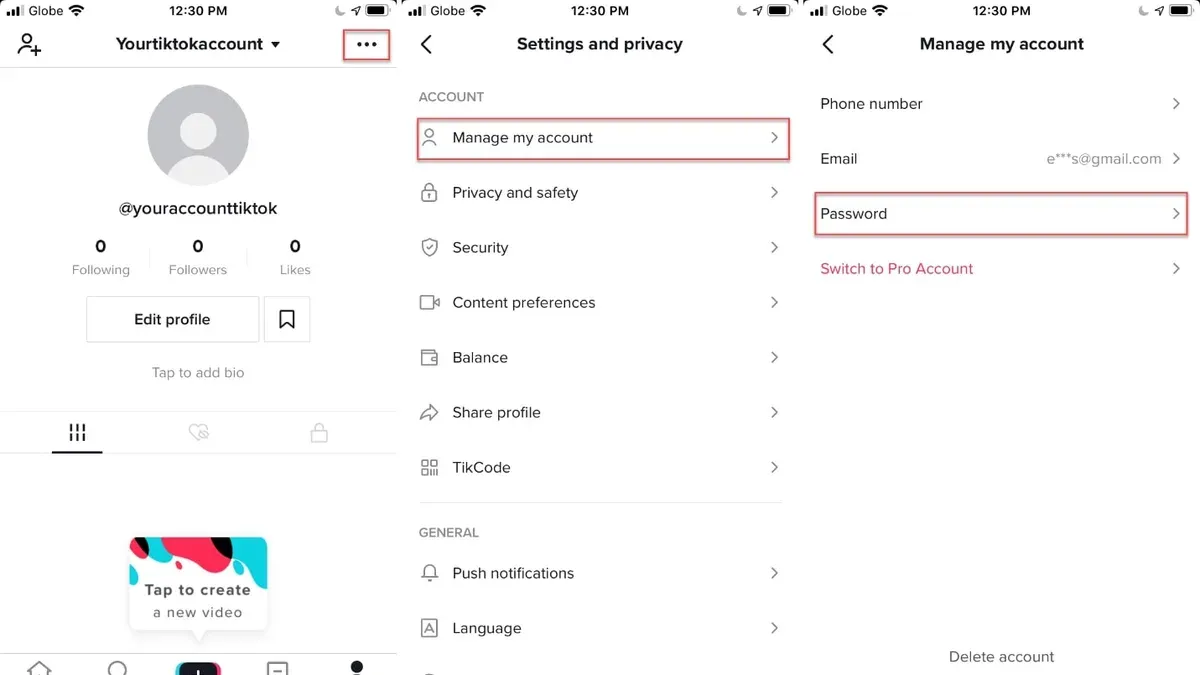
- Open the TikTok app on the Android or iOS device. The home screen with the video feed should appear.
- Tap the Profile icon, usually located at the bottom right corner. This opens the user profile page.
- Tap the three horizontal lines or the Settings and privacy icon in the upper right to access the menu.
- Select Manage account from the list of options. This section contains key account settings including password management.
- Tap Password. The app prompts for the current password to verify identity.
- Enter the current password and then type the new password twice to confirm it. Password requirements typically include a mix of letters and numbers and a minimum length.
- Tap Save or Confirm. A success message or notification should indicate the password was updated.
Tip: The steps and interface are largely consistent between Android and iOS versions, though icon placement may vary slightly.
Following these steps securely updates the TikTok password directly within the mobile app, ensuring continued account access and security.
How to change TikTok password on PC, laptop, or desktop via browser
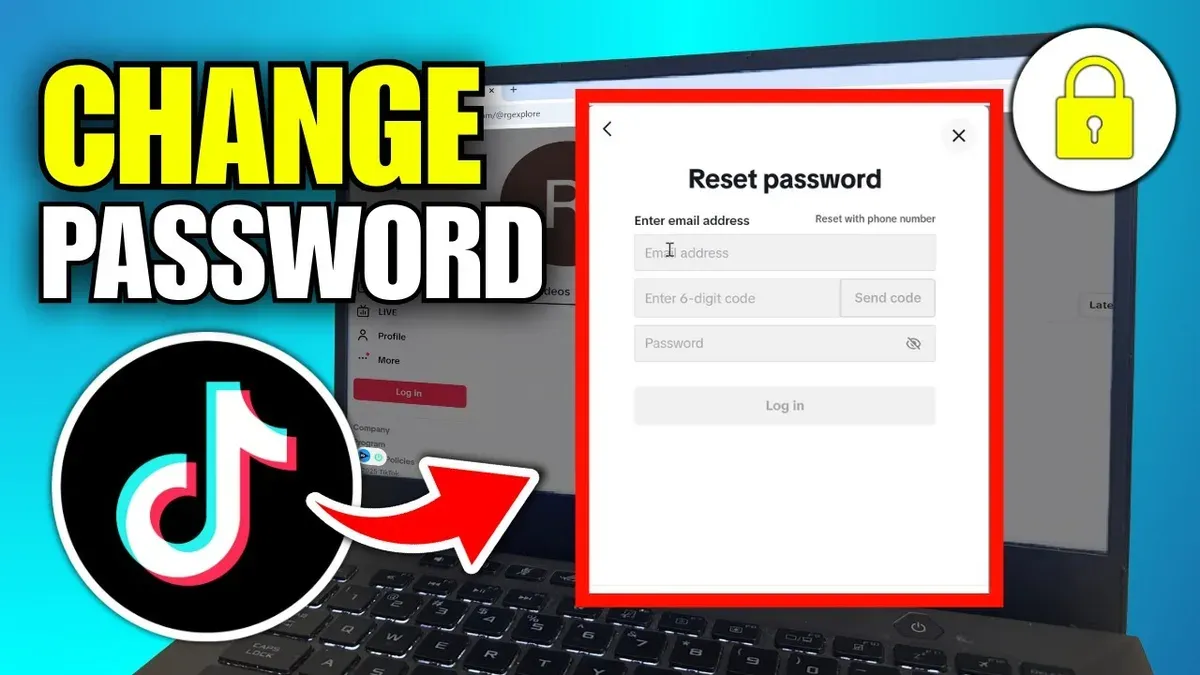
- Open a supported web browser such as Google Chrome, Mozilla Firefox, Microsoft Edge, or Safari and navigate to www.tiktok.com. The TikTok homepage should load.
- Click the Log in button at the top right corner of the page. Enter your username, email, phone number, or TikTok ID along with your current password to sign in. Successful login redirects to your TikTok feed or profile.
- Once logged in, click your profile picture or avatar at the top right to open a dropdown menu, then select Settings from the list. The account settings page appears.
- In the settings menu on the left sidebar, select Privacy and settings or directly find the Manage account section. User interface variations may exist depending on browser or TikTok updates.
- Within the Manage account section, locate and click the Password option. This opens the password change interface.
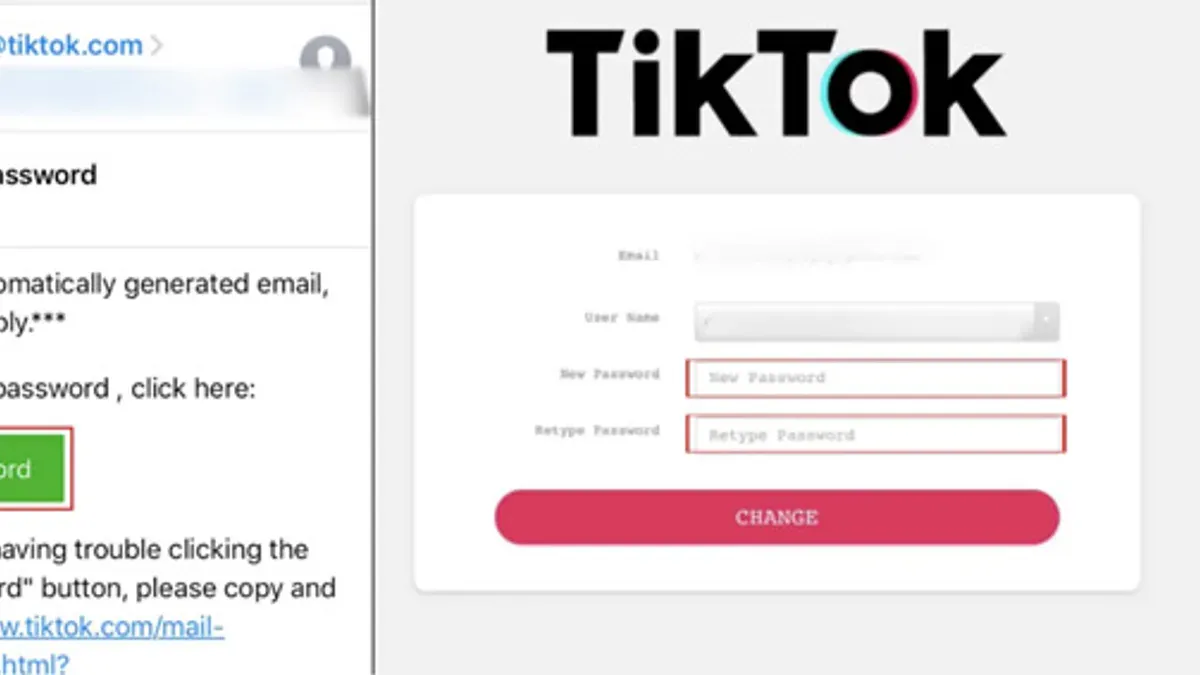
- Enter the current password in the first field as verification. Then input the new desired password in the next field and confirm it by retyping the new password in the final field.
- Click the Save or Confirm button to finalize the password change. A confirmation message or notification should appear indicating the password was successfully updated.
Note: The TikTok web interface may receive updates that slightly alter menu names or layout, but the overall process remains consistent across supported browsers.
Tip: Use a strong, unique password and consider a password manager to store it securely.
How to change TikTok password without email or phone access
When access to the registered email or phone number is unavailable, TikTok provides alternative recovery options to regain account control and change the password. These methods primarily rely on username verification or linked social accounts and may involve contacting TikTok support.
- Open the TikTok app or visit the TikTok login page on a browser and select "Forgot password?". This action initiates the recovery process.
- Choose the "Use username" option if available, then enter the TikTok username associated with the account. A prompt will appear to verify identity.
- If the account is linked to social media platforms like Facebook, Google, or Apple ID, select the corresponding option to verify ownership through those accounts. Successful verification usually grants password reset access.
- If username or social login verification is insufficient, proceed to TikTok’s Help Center or Support within the app or website. Submit a request providing detailed information such as previous passwords, account creation date, and linked devices to confirm identity.
- Wait for TikTok’s response. Official guidance indicates that verification through manual support is possible but can take several days and may not always succeed, especially if information is incomplete.
TikTok’s support responses typically emphasize thorough verification and caution users about potential delays or rejections. Users report varied success, often depending on the amount and accuracy of recovery information provided.
Limitations and risks: This recovery route may be slower and less certain than using email or phone access. There is also a risk of account loss if verification fails, so maintaining up-to-date recovery options is advisable.
Tip: Keeping linked social accounts active and secure can serve as valuable backup methods for account recovery.
Troubleshooting common issues when changing TikTok password
Users often encounter error messages when their new password does not meet TikTok's security requirements. Passwords must typically be at least 8 characters long and include a mix of letters, numbers, and symbols. If the error persists, try choosing a password without commonly used sequences or repeated characters.
Verification issues with email or phone can block password changes. This usually happens if the linked email address or phone number is outdated or inaccessible. TikTok sends a verification code during the process; failure to receive this may require checking spam folders or ensuring the correct contact information is linked to the account.
Some users report seeing the message "TikTok can’t change password for security reasons." This message appears if TikTok detects suspicious activities or potential security threats on the account. In such cases, TikTok may temporarily restrict password changes to protect the user. Waiting 24 to 48 hours before attempting again or contacting TikTok support directly is recommended.
If the password change option is greyed out or unavailable, it often indicates that the user is logged in via a third-party service like Google or Facebook. Password management in such cases must be done through the third-party provider’s settings rather than TikTok.
- Ensure the new password meets TikTok’s criteria: at least 8 characters with letters, numbers, and symbols. Upon success, no error message should appear.
- Confirm email and phone number linked to the account are current and accessible. Receiving the verification code confirms this step.
- If the "security reasons" message appears, wait 24-48 hours before retrying or reach out to TikTok support. Successful resolution allows password changes without restrictions.
- Check login method: if logged in via social accounts, adjust password through that provider. The password change option on TikTok will be enabled when logged in with TikTok credentials.
Security tips for managing TikTok passwords
Maintaining a secure TikTok account involves more than just changing the password regularly. Selecting a strong, unique password significantly reduces the risk of unauthorized access. Passwords should combine uppercase and lowercase letters, numbers, and symbols, avoiding common phrases or easily guessable information.
Enabling two-factor authentication (2FA) adds a critical layer of security. TikTok offers 2FA via SMS or an authenticator app, requiring a verification code in addition to the password during login. This step effectively prevents many account breaches caused by compromised passwords.
Regularly reviewing linked devices and active sessions helps identify unfamiliar access. TikTok users can find this under Settings > Security > Manage devices, where active sessions are listed. Logging out of devices not recognized or no longer in use minimizes vulnerability.
Promptly updating recovery information such as the linked email address and phone number ensures account recovery options remain valid. Outdated recovery details can delay or prevent regaining access if locked out.
Security reports have shown that many TikTok account compromises stem from reused or weak passwords combined with missing 2FA. Following these practices helps safeguard accounts against such risks.
How to change TikTok name separately from password
The TikTok username or display name is distinct from the account password and changing one does not affect the other. Users often confuse these two settings, but the username is the visible identity on the profile, while the password controls account access and security.
To change the TikTok display name, follow these steps:
- Open the TikTok app and go to the profile tab by tapping the "Profile" icon at the bottom right. The profile page will appear.
- Tap the "Edit profile" button located near the top of the page. This opens profile customization options.
- Tap the "Name" field to edit the display name. This is the name shown on the profile and videos.
- Enter the desired new display name. TikTok allows a name up to 30 characters long, including letters, numbers, and emojis.
- Tap "Save" or the checkmark icon to confirm the change. The updated name will immediately display on the profile.
Limitations: TikTok users can change their display name multiple times, but the username (the @handle) can only be changed once every 30 days. The display name change does not affect login credentials or account security.
The TikTok Help Center clarifies that changing the display name is simply a cosmetic update and does not require password re-entry or impact authentication settings.
Users typically change their display name to reflect new branding, personal updates, or to correct spelling errors, while their password remains unchanged for security reasons.
Tip: Keep the display name consistent with your brand or personal identity to help followers recognize your account easily.
Further reading
- How to Change Your Snapchat Password: Complete Steps and Troubleshooting
- How to Change Instagram Password: Step-by-Step Guide for All Devices
- How to Change Your Bumble Password: Step-by-Step Instructions
Frequently asked questions
How to change TikTok password on PC?
Changing a TikTok password on a PC involves logging into the TikTok website, accessing the profile icon at the top right, selecting "Settings and privacy," then navigating to "Account" and "Password." After entering the current password, set a new one and confirm. This process requires the current password or access to the linked email or phone for verification.
How to change TikTok password on website or browser?
On the TikTok website via a browser, go to your profile, click the three dots or profile icon to open "Settings and privacy," then select "Account" followed by "Password." Enter the existing password and then the new password. If two-factor authentication is enabled, complete the verification step before saving changes.
How to change TikTok password on laptop or desktop?
On a laptop or desktop, use a browser to visit TikTok.com, log in, and access "Settings and privacy" through the profile menu. Choose "Account," then "Password," and follow prompts to enter the current password and create a new one. If the current password is forgotten, use the "Forgot password?" option for recovery.
How to change TikTok password without email and phone?
If neither email nor phone access is available, changing the TikTok password requires account recovery through the app or website using identity verification methods such as submitting an ID or answering security questions. TikTok support can be contacted for help, but this process may take time and is not guaranteed to succeed without verification.
How to change TikTok password online or on web?
To change the TikTok password online or on the web, log into your account on TikTok.com, go to "Settings and privacy," then "Account" and "Password." Enter the current password, then input and confirm the new password. Ensure any two-factor authentication steps are completed to finalize the change securely.
What this guide does not cover and when to seek further help
This guide does not cover password recovery if the TikTok account has been permanently banned or deleted, as those accounts cannot be accessed or changed. Users without any linked recovery options such as email, phone number, or social media accounts may face significant challenges in regaining access and should consider contacting TikTok support directly via the app or website for personalized assistance.
For users who encounter persistent issues beyond password changes, including account security breaches or locked accounts, professional help from TikTok support or cybersecurity experts is recommended to ensure account safety.
The most useful next step after changing a TikTok password is to review and update the account’s two-factor authentication settings found under Profile > Settings and privacy > Security > Two-step verification. Enabling this adds an extra layer of protection by requiring a verification code in addition to the password, significantly reducing the risk of unauthorized access.



