
How to Change Signal Password: Step-by-Step Guide for Secure Messaging
This guide explains how to change your Signal password, including the Signal PIN and app passcode, to keep your messaging secure and private.

This article explains how to change Signal password and other related security credentials, clarifying common confusions between Signal’s PIN, device passcodes, and network passwords. Signal uses a PIN to protect registration lock and user privacy across devices, which differs from the passcode used to unlock the app or the wireless password for internet access.
Understanding these distinctions is essential for maintaining secure messaging without risking data loss or account lockout. The guide outlines clear, step-by-step instructions for updating the Signal PIN, changing the app passcode on iPhone, switching accounts safely, and addressing network or computer password changes that can affect Signal’s operation.
Following these steps helps Signal users keep their communications secure while avoiding common pitfalls during password or PIN updates.
Before you start: Understanding Signal’s security credentials
Signal employs distinct security credentials to protect user privacy: the Signal PIN, device passcodes, and wireless or network passwords. Each serves a different purpose and is managed separately.
>
| Credential | Function | Where to Change | Notes |
|---|---|---|---|
| Signal PIN | Registration lock; secures message history and profile settings | Within Signal app settings under "Privacy" > "Registration Lock" | Unique to Signal; replaces traditional password concept |
| Device Passcode | Unlocks the phone or tablet; secures all apps including Signal | Device system settings (e.g., iOS Settings > Face ID & Passcode) | Protects device access; does not affect Signal account directly |
| Wireless/Network Password | Access to Wi-Fi or cellular network | Router or device network settings | Indirectly affects Signal by securing internet access |
Signal does not use a traditional password for account access. Instead, the Signal PIN safeguards registration and message data, while device passcodes control access to the hardware. Wireless or network passwords protect the connection that Signal uses but are unrelated to Signal account security.
Before attempting any changes, ensure Signal is installed and accessible on the device. Changing the Signal PIN requires access to the app, while device passcodes are managed via the operating system settings.
How to change Signal PIN to enhance account security
- Open the Signal app on the Android device. The main chat screen will appear.
- Tap the profile icon or the three-dot menu in the top-right corner to access settings. The Settings menu will open.
- Select Privacy from the list of options. This opens privacy-related controls.
- Scroll down and tap Registration Lock. This leads to the PIN management screen.
- Choose Change PIN. The app will prompt for the current PIN.
- Enter the existing PIN, then tap Next. The screen will prompt for a new PIN.
- Input a new PIN, ideally a combination of numbers not easily guessable, then tap Next. The app will ask to confirm the new PIN.
- Re-enter the new PIN and tap Confirm. A confirmation message will show that the PIN has been updated.
Tip: Choose a PIN that is unique and memorable; forgetting the Signal PIN can result in loss of certain data and restrictions on re-registering the account.
Changing the PIN updates the registration lock, preventing unauthorized users from registering the number on a new device without the new PIN. Linked devices will continue to function but require the updated PIN to manage registration lock settings.
How to change Signal passcode on iPhone
The Signal PIN is distinct from the iPhone passcode, which controls device access and can also lock the Signal app itself. Changing the iPhone passcode adds a layer of security to prevent unauthorized access to the phone and its apps.
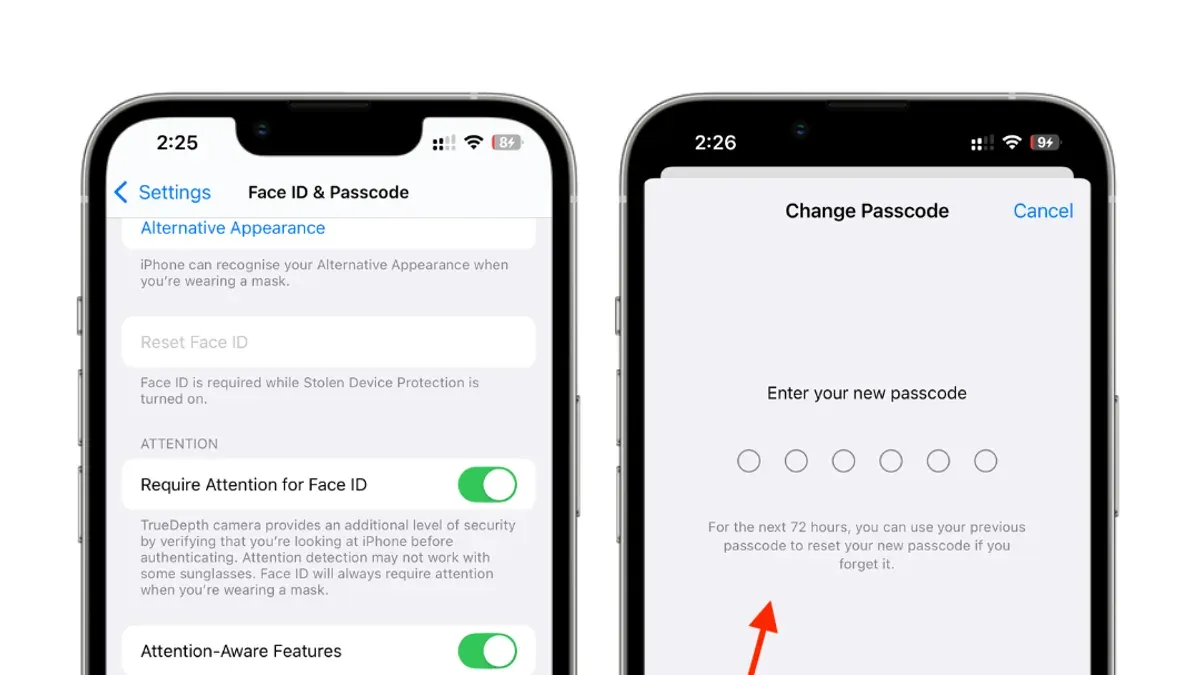
- Open the Settings app on the iPhone. The main settings menu appears.
- Scroll down and tap Face ID & Passcode or Touch ID & Passcode depending on the model. A screen prompts for the current passcode.
- Enter the existing passcode to access passcode settings. The options to change or disable the passcode will be visible.
- Tap Change Passcode. The phone asks for the current passcode again.
- Enter the current passcode, then enter a new six-digit passcode or choose Passcode Options to select a custom numeric or alphanumeric code. Confirm the new passcode by entering it again.
- After confirmation, the new passcode is active and required to unlock the device.
To add or modify Signal’s Screen Lock, which locks the app independently, open Signal, tap Settings, then Privacy, and choose Screen Lock. Enable it if off or select Change Passcode to update. Signal uses the device passcode or biometric authentication here.
Tip: Using a strong alphanumeric passcode or enabling Face ID/Touch ID for Signal’s Screen Lock enhances security while maintaining quick access.
How to change account on Signal safely without losing data
Switching Signal accounts on a device requires careful steps to preserve message history and contacts. Signal associates data with the registered phone number, so changing accounts involves unregistering the current number and registering a new one, which can cause data loss if not managed properly.
To minimize data loss, exporting and backing up Signal data before changing accounts is essential. Signal's built-in backup feature allows exporting encrypted message history, which can be restored when registering the new account on the same device.
- Open Signal and go to Settings > Chats & media > Chat backups. Enable backups and create a backup file, noting the 30-digit passphrase displayed. A confirmation message will appear once the backup completes.
- Unregister the current number by navigating to Settings > Account > Delete account. Confirm the deletion. This removes the current registration but does not delete the backup file.
- Register the new phone number in Signal by following the registration prompts. When prompted to restore from a backup, select the previously created backup file and enter the passphrase. Upon successful restoration, message history and contacts linked to the backup will reappear.
- Verify that messages and contacts are intact. Note that any messages received on the old number after backup creation will not transfer, so perform the backup as close to the switch as possible.
- For multi-device Signal accounts, syncing message history across devices depends on the registration lock and linked devices. When switching accounts, unlink old devices and link new ones to maintain synchronization.
Data retention comparison: Users who create and restore backups maintain most message history and contacts, while those who skip backups typically lose local data and must rebuild contacts manually.
Tip: Keep the backup passphrase secure and accessible; losing it makes restoring messages impossible.
How to change wireless password and why it matters for Signal security
The wireless network password controls access to the internet connection that Signal uses to send and receive messages. Securing this password is crucial because a weak or default password can allow unauthorized users to intercept network traffic, potentially exposing Signal communications despite the app's encryption.
Changing the wireless password typically involves accessing the router’s web interface. Although interfaces vary, the general steps are:
- Connect to the wireless network and open a web browser.
- Enter the router’s IP address, commonly 192.168.1.1 or 192.168.0.1, into the address bar and press Enter. The router’s login page should appear.
- Log in with the router’s admin username and password. These are often printed on the router or set by the user during installation.
- Navigate to the wireless settings or Wi-Fi security section of the interface.
- Locate the field labeled “Wireless Password,” “WPA2 Key,” or “Pre-shared Key.”
- Enter a new strong password that is at least 12 characters long, combining uppercase and lowercase letters, numbers, and symbols.
- Save or apply the changes; the router may restart or disconnect connected devices temporarily.
Tip: Regularly updating the wireless password reduces exposure to unauthorized access and helps maintain the confidentiality of Signal messages.
Weak or default wireless passwords are commonly exploited in network breaches, contributing to many unauthorized intrusions each year. Even though Signal encrypts messages end-to-end, a compromised network password can expose metadata or allow attackers to intercept traffic for analysis. Therefore, a strong, unique wireless password complements Signal’s security by safeguarding the network layer.
How to change sign in password on computer related to Signal usage
The password used to sign in to a computer is distinct from Signal app credentials but plays a crucial role in securing Signal Desktop access. A strong computer password helps protect locally stored Signal data and prevents unauthorized use of the app.
To change the Windows 10 sign-in password, follow these steps:
- Click the Start menu and select Settings (gear icon). You should see the Windows Settings window.
- Choose Accounts from the Settings options. The Accounts page will open.
- In the left sidebar, click Sign-in options. The right pane will display password and security options.
- Under the Password section, click the Change button. A password change wizard will launch.
- Enter the current password when prompted and click Next. This verifies the user's identity.
- Type the new password, re-enter it to confirm, and optionally add a password hint. Then click Next. The system will update the password.
- Click Finish to complete the process. The new password will be required at next sign-in.
Tip: Use a complex password combining letters, numbers, and symbols to enhance security.
In environments using Single Sign-On (SSO), password changes might be managed centrally through an organization's identity provider. Users should follow their IT department's guidelines to update passwords affecting Signal Desktop access.
Maintaining a strong computer sign-in password complements Signal's encryption by securing the device itself, reducing risks of unauthorized Signal access.
Troubleshooting common issues when changing Signal PIN or passcode
Forgetting the current Signal PIN is a common issue that prevents updating it. Signal allows resetting the PIN after a waiting period, typically 7 days without using the PIN for registration lock. Resetting deletes existing PIN-protected data, so it should be used cautiously.
- Open Signal and attempt to enter the PIN when prompted; if forgotten, select “Forgot PIN?”.
- Follow the prompts to reset the PIN; after the waiting period, create a new PIN.
- Confirm the new PIN is set by checking the Registration Lock settings under Privacy.
Tip: Regularly updating the PIN minimizes the risk of lockout and improves security.
Errors when changing the passcode on iPhone or Android often arise from device restrictions or software glitches. For example, an error message like “Unable to change passcode” may indicate insufficient permissions or conflicting security policies.
- Ensure the device operating system is updated to the latest version.
- Restart the device and attempt the passcode change again through Signal’s Screen Lock option in Privacy settings.
- If errors persist, temporarily disable any device management profiles or security apps that might block passcode changes.
Messages prompting to “consider changing your password” often result from security alerts about potential breaches or outdated credentials. Such prompts should be addressed promptly by verifying account activity and updating credentials as needed.
When issues remain unresolved after these steps, contacting Signal Support is recommended. Provide detailed descriptions of error messages and device information for efficient assistance.
Further reading
- How to Change Messenger Password: Complete Guide for All Devices
- How to Change Instagram Password: Step-by-Step Guide for All Devices
- How to Change Your Discord Password: Complete Step-by-Step Guide
- How to Change Your Bluesky Password and Manage Your Account
Frequently asked questions
How to change sign password?
Changing a sign password depends on the specific service or device referred to. For online accounts, access the account settings or security section, then select the option to change the password, often requiring the current password and a new one. For device sign-ins, such as Windows or macOS, password change is done through system settings under user accounts or security. Always ensure the new password meets complexity requirements to maintain security.
How to change sign in passcode?
To change a sign-in passcode, commonly used on mobile devices, open the device's settings app, navigate to security or passcode settings, and select the option to change the passcode. Verification of the current passcode is usually required before entering a new one. On iPhones, this is typically found under Settings > Face ID & Passcode or Touch ID & Passcode.
How to change single sign on password?
Single Sign-On (SSO) passwords are managed through the identity provider or the service managing authentication. To change the SSO password, log into the identity provider's portal or account management page, then locate the password or security settings to update the password. Changes here affect access across all services using that SSO account.
How to change sign in computer password?
On a computer, changing the sign-in password is done through the user account settings. For Windows, go to Settings > Accounts > Sign-in options > Password > Change. For macOS, open System Preferences > Users & Groups, select the user, and click Change Password. The process requires entering the current password and then setting a new one.
How to change signal password on iphone?
Signal does not use a traditional password but relies on a PIN for registration lock and privacy. To change the Signal PIN on an iPhone, open Signal, tap the profile icon, select Privacy, then Registration Lock, and choose Change PIN. Enter the current PIN followed by the new one to update it securely.
Limits of this guide and when to seek other help
This guide does not cover resetting or changing passwords for third-party services linked to Signal, such as Google or Apple IDs. Changing the Signal PIN frequently may lead to account lockout if the PIN is forgotten and no backups are available. Device passcodes and wireless network passwords are managed separately from Signal and require following device or router-specific instructions.
For users encountering persistent issues with Signal account recovery or multi-device syncing, contacting Signal Support or consulting official Signal documentation is recommended. Additionally, network administrators should handle wireless password changes to ensure secure and uninterrupted Signal connectivity.
The next best step is to periodically verify that the Signal PIN and device passcodes are both memorable and securely stored, ensuring uninterrupted access while maintaining strong security.



