How to Check Your iPhone’s App Privacy Report
Discover how to check the App Privacy Report on your iPhone to monitor app access to your data and enhance your privacy.

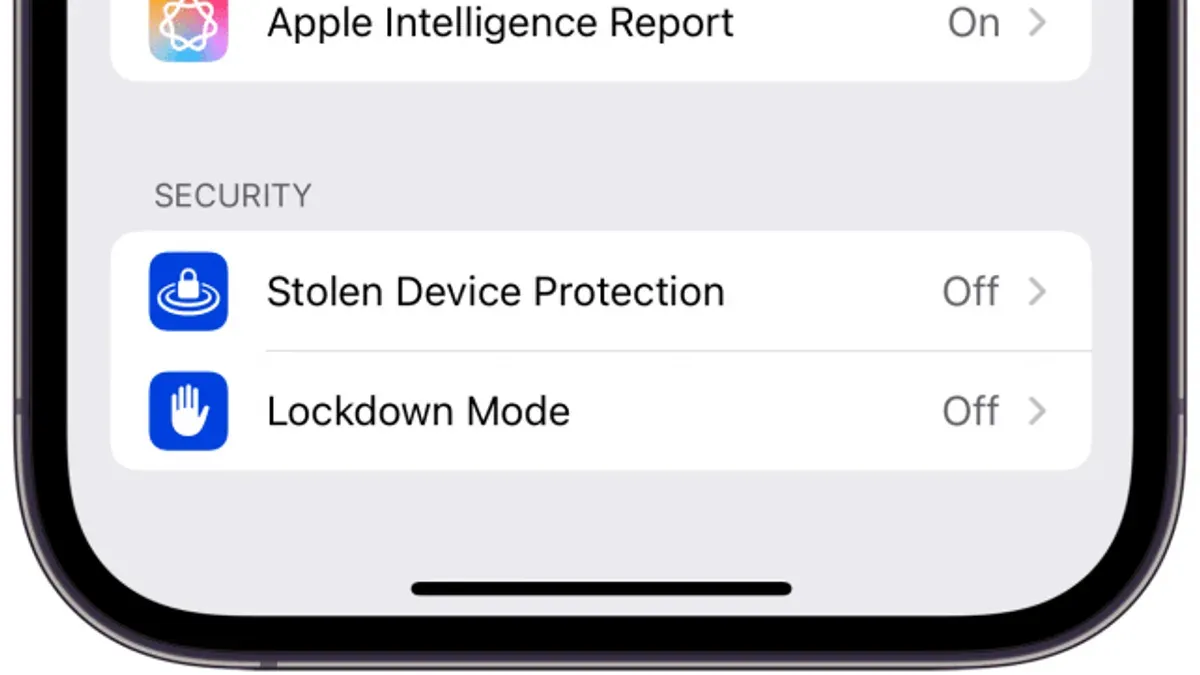
Understanding how to check the App Privacy Report on your iPhone is essential for maintaining control over your personal data. This feature reveals which apps access sensitive information and how often, helping you decide which apps to trust or remove.
What is the App Privacy Report on iPhone and Why It Matters
The App Privacy Report is a transparency tool introduced by Apple with iOS 15 and enhanced in iOS 17. It records how apps access sensitive data such as your location, microphone, camera, contacts, and more. Additionally, it tracks the domains apps contact, providing insight into their network activity.
This report helps users detect suspicious or excessive data access. For example, a messaging app might legitimately use your microphone and contacts, while a simple calculator app accessing your location frequently could raise concerns. Many apps access sensitive data more often than users expect, making this report a valuable tool for privacy awareness.
How to Enable and Access the App Privacy Report on Your iPhone
To enable the App Privacy Report on iOS 17 or later, follow these steps:
- Open the Settings app.
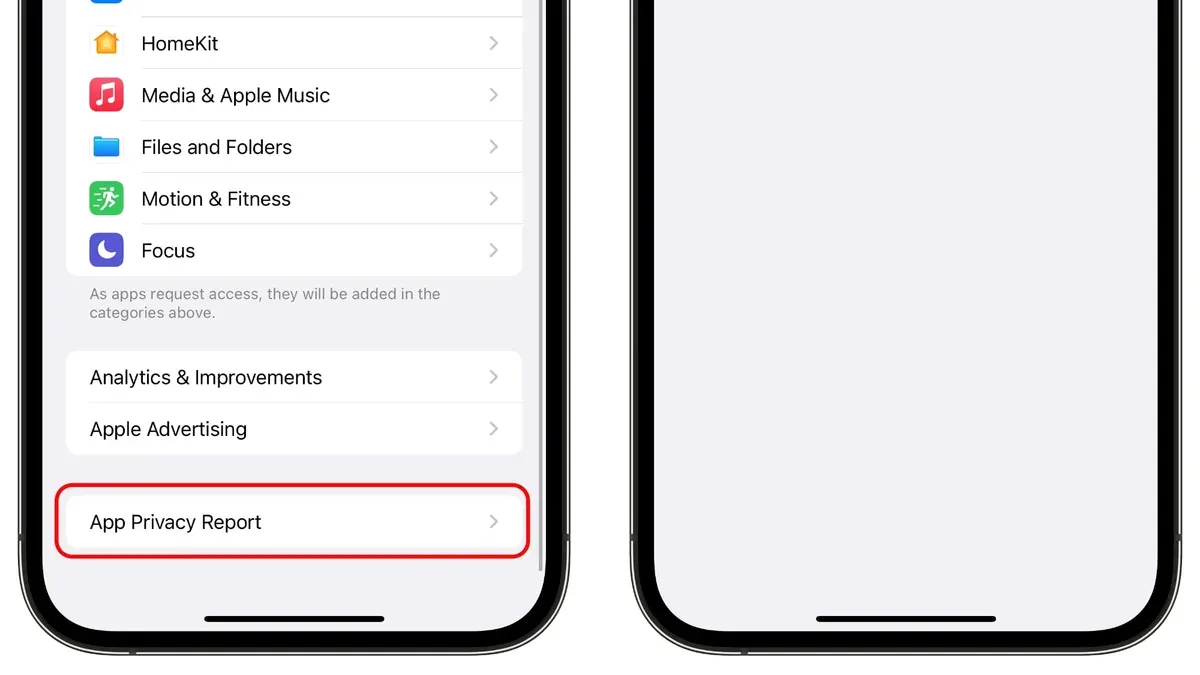
- Scroll down and tap Privacy & Security.
- Scroll to the bottom and select App Privacy Report.
- If the report is off, tap Turn On App Privacy Report to enable it.
- Data collection starts immediately, but it may take several hours before the report shows detailed activity.
Note: The report updates roughly every 24 hours and retains data for the past seven days, allowing you to observe patterns over time rather than isolated events.
Understanding the Data: How to Interpret What the Report Shows
The App Privacy Report organizes data into key categories:
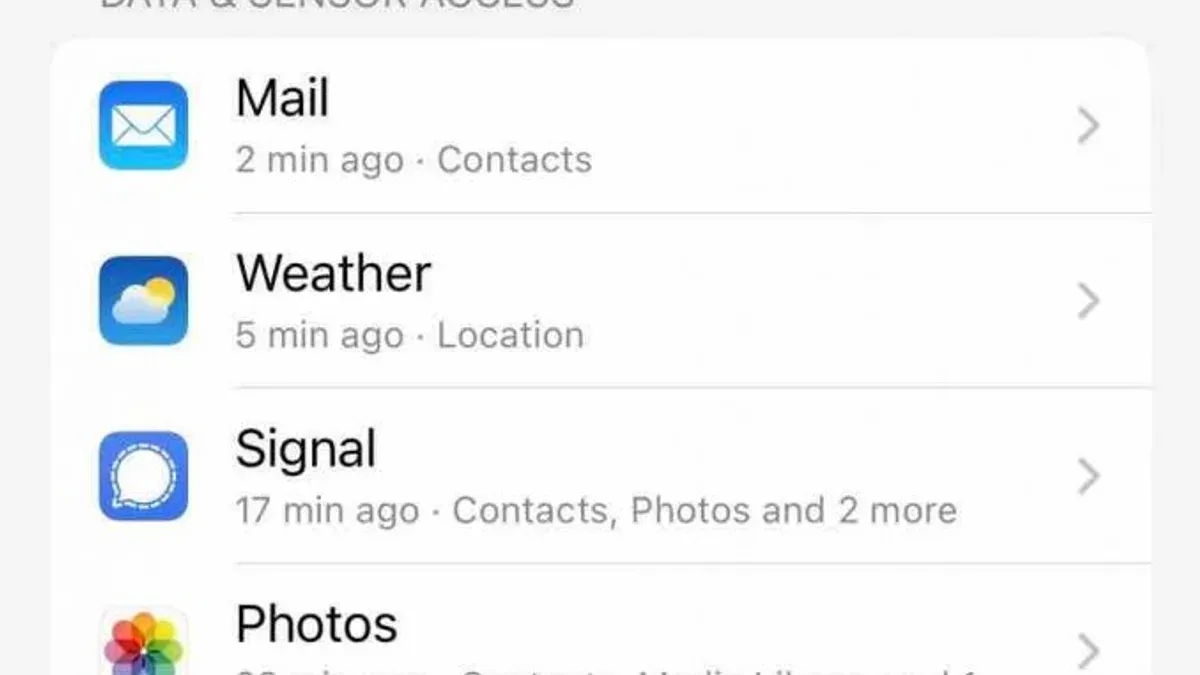
- Sensor Access: Shows when apps use the camera, microphone, or location.
- App Network Activity: Lists domains contacted by each app, revealing the servers they communicate with.
- Data and Sensor Requests: Displays the number of times an app requested permission-protected data.
Normal usage varies by app type. For example, social media apps often access the camera and contacts and connect to multiple domains for content delivery. Utility apps like flashlights should have minimal sensor access and network activity.
Look for suspicious behavior such as:
- Unexpected sensor access, like a game using your microphone without explanation.
- Frequent communication with unknown or unrelated domains.
- Data requests occurring outside typical app usage times.
Example: A weather app typically accesses location and a few trusted domains. If it contacts numerous advertising domains or accesses sensors unnecessarily, this may warrant further scrutiny.
Using the App Privacy Report to Make Decisions About Your Apps
After reviewing the report, take these steps to protect your privacy:
- Revoke permissions: Go to Settings > Privacy & Security and select the relevant permission (e.g., Location Services) to adjust or revoke access for specific apps.
- Uninstall apps: Remove apps that show persistent suspicious or excessive data access.
- Report concerns: Use the “Report a Problem” feature in the App Store or contact Apple Support to flag suspicious app behavior.
- Balance needs: Consider if the app’s functionality justifies its data use. Sometimes limiting permissions without uninstalling is sufficient.
| App | Before Permission Change | After Permission Change |
|---|---|---|
| Example Social App | Accessed location, microphone, camera frequently | Location access limited to While Using; microphone disabled |
| Utility App | Accessed location continuously | Location access revoked completely |
What the App Privacy Report Does Not Show and When to Seek Additional Tools
The App Privacy Report has limitations:
- It does not show real-time data usage by background processes or system-level data transfers.
- It cannot reveal data Apple collects or shares internally.
- It lacks detailed forensic information on data content or exact usage beyond permissions and network contacts.
For advanced monitoring, consider reputable third-party privacy or security apps. These can provide real-time alerts, malware scanning, and detailed network analysis beyond Apple's built-in tools.
Frequently asked questions
Can the App Privacy Report help me identify malware on my iPhone?
The report can highlight unusual app behavior, such as unexpected data access, which may indicate malware. However, it is not designed as a malware detection tool and should be used alongside other security measures.
How often does the App Privacy Report update its data?
The report updates approximately every 24 hours, continuously collecting data over a rolling seven-day period.
Does the App Privacy Report track all app permissions or only some?
It tracks key privacy-sensitive permissions like location, camera, microphone, contacts, and network activity, but does not cover every permission or all system interactions.
Can I export or share my App Privacy Report data?
Currently, Apple does not offer a built-in option to export the full report. You can take screenshots or manually document findings for sharing.
Guide Limitations
This guide focuses on the built-in App Privacy Report feature available on iOS 15 and later. It does not cover third-party privacy tools or detailed forensic analysis techniques.