How to Stop Spam Texts on iPhone
Discover effective ways to stop spam texts on iPhone using native iOS features and practical tips to safeguard your privacy.

Spam texts remain a persistent nuisance for iPhone users. Knowing how to stop spam texts on iPhone requires combining built-in iOS features, careful habits, and selective third-party tools. This guide explains practical steps that respect your privacy without sacrificing usability.
Understanding the Nature of Spam Texts
Spam texts include unsolicited messages such as phishing attempts, scams, and advertisements. Phishing texts try to trick you into revealing sensitive information, scam texts may promise false rewards or request money, and ad messages promote products or services without consent.
Spammers acquire iPhone numbers through data breaches, public listings, and automated guessing techniques. They often use methods to bypass Apple's anti-spam filters, such as sending messages from frequently changing numbers or masking their identity.
Despite Apple’s advanced spam filtering, spam volume continues to grow due to the scale and evolving tactics of spammers. Apple’s filtering system uses machine learning models that analyze message content and sender behavior to classify spam, but no system can catch every unwanted message due to the constantly changing methods used by spammers.
Using iPhone’s Built-in Tools to Block and Filter Spam Texts
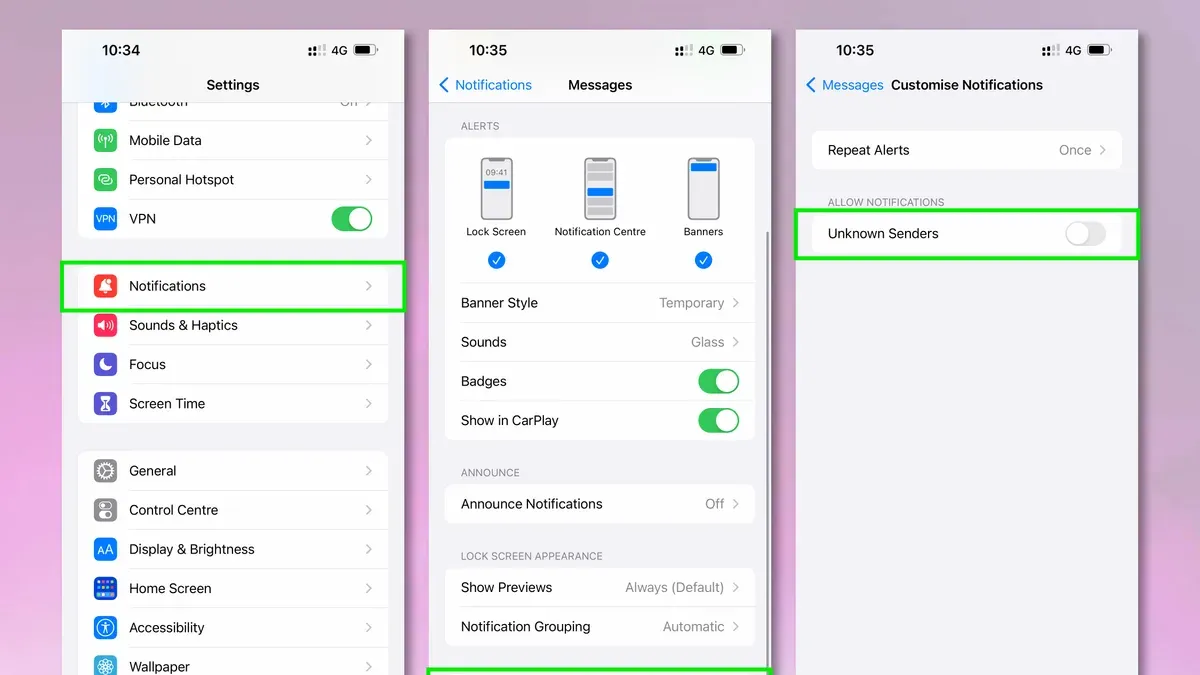
iOS offers native tools that significantly reduce unwanted texts without extra apps. Setting up the Message Filtering feature is a good first step:
- Open Settings, then tap Messages.
- Enable Filter Unknown Senders. Messages from numbers not in your contacts appear in a separate list under the Unknown Senders tab in the Messages app.
- Review the filtered messages periodically to avoid missing legitimate texts, as this filter does not notify you of messages from unknown senders.
Blocking specific numbers is straightforward and effective for repeat offenders:
- In the Messages app, open a conversation with the spammer.
- Tap the contact name or number at the top of the screen.
- Select Info, then scroll down and tap Block this Caller.
You can also report spam texts to Apple by forwarding the message to 7726 (which spells "SPAM"). This helps Apple improve its filters, but reporting is voluntary and does not guarantee immediate blocking.
Enabling Silence Unknown Callers under Settings > Phone sends calls from unknown numbers directly to voicemail and can reduce interruptions, but it does not block texts from unknown numbers.
Using Focus mode allows you to limit message notifications to known contacts during specific times, reducing interruptions from potential spam. To customize, go to Settings > Focus, select a Focus, then under Allowed Notifications, choose People and add your contacts.
Third-Party Apps and Services: When and How to Use Them Safely
Several reputable spam-blocking apps complement iPhone’s built-in features. These apps often use large databases and community reports to identify spam numbers more aggressively.
| App | Key Features | Privacy Notes | User Rating |
|---|---|---|---|
| SpamShield | Automatic filtering, real-time updates | Requires access to messages; data encrypted | 4.5/5 |
| TextGuard | Customizable filters, number blocking | Minimal data sharing; no contact access | 4.3/5 |
| SafeText | Community reports, phishing detection | Aggregates anonymous reports | 4.2/5 |
Privacy is critical. Some apps require access to your messages or contacts to function fully, which may expose your data. Review each app’s privacy policy carefully before installation and consider the trade-off between protection and privacy.
These apps can catch spam missed by iOS and provide additional reporting tools. However, they may overlap with iOS filters, so monitor how they affect your inbox to avoid overblocking or missing legitimate messages.
Behavioral Changes and Phone Number Hygiene to Minimize Spam Exposure
Personal habits strongly influence spam volume. Avoid posting your primary phone number on public websites, forums, or social media, as spammers scrape these sources for targets.
Use temporary or secondary numbers—such as virtual phone numbers or services like Apple’s built-in Relay for Sign In with Apple—when signing up for online accounts to protect your main number.
Learn to recognize phishing and scam messages by noting unusual links, requests for personal information, or urgent language asking for immediate action.
Regularly check and update your blocked numbers and review filtered messages so you do not miss legitimate contacts accidentally caught in filters.
What These Methods Can’t Do: Understanding the Limits of Spam Prevention on iPhone
No method can stop all spam texts entirely. Some spam will get through due to new tactics or technical limits in filtering technology.
Blocking and filtering rely on known spammers and patterns; unknown or rapidly changing sources may evade detection.
Excessive blocking risks missing legitimate messages from unknown contacts, such as delivery services or new acquaintances.
If spam persists despite your efforts, consider contacting your mobile carrier for additional filtering options or reporting to law enforcement if scams involve fraud or threats.
How to Stop Spam Texts on iPhone: A Practical Checklist
- Enable Filter Unknown Senders in Settings > Messages.
- Block repeat spam numbers directly in Messages.
- Report spam texts by forwarding to
7726(SPAM). - Consider third-party apps after reviewing privacy policies and permissions.
- Avoid sharing your number publicly; use secondary numbers online.
- Use Focus mode to limit notifications from unknown contacts.
- Review blocked contacts and filtered messages regularly.
Frequently Asked Questions
Can blocking a number stop all spam texts from that sender?
Blocking prevents messages from that specific number, but spammers often change numbers frequently, so blocking one number may not stop all spam from the same sender.
Does Apple share my spam reports with carriers or third parties?
Apple uses spam reports to improve its filtering algorithms but does not share personally identifiable information with carriers or third parties without user consent.
Are third-party spam blocking apps safe to use with my iPhone?
Many are safe, but you should carefully review the data they access and their privacy policies before installing to ensure they align with your privacy preferences.
How can I tell if a spam text is trying to steal my personal information?
Look for urgent requests, unfamiliar links, spelling errors, or messages asking for passwords or financial details—these are common signs of phishing attempts.
Limitations to Keep in Mind
This advice cannot guarantee complete elimination of spam texts. Some spam messages may still reach your inbox despite best efforts. Third-party apps may require message or contact access, which could affect your privacy. Some behavior changes, like limiting number sharing, may not be practical for users who must share their number widely.