How to Manage Messenger Privacy Settings for Secure Messaging
This guide explains how to find and adjust Messenger privacy settings to protect your personal conversations and data effectively.

This guide explains how to find, understand, and adjust Messenger privacy settings to protect personal conversations and data. Messenger privacy settings control who can see profile information, message delivery options, and interaction permissions. These settings vary across platforms like Messenger for mobile, desktop, and the web, making it essential to know where to look and what each option means for real security. Adjusting settings without understanding their practical impact can create a false sense of privacy or leave conversations exposed. This article provides a clear, direct approach to managing Messenger privacy settings with realistic expectations about the level of protection they offer.
How private is Messenger?
Messenger uses standard encryption for most messages, which protects data as it travels between devices and Facebook’s servers. However, this is not end-to-end encryption by default, meaning Facebook can technically access message content. Users who want stronger privacy must activate "Secret Conversations," which use end-to-end encryption, ensuring only participants can read the messages.
Facebook collects data from Messenger usage including contacts, message metadata, device information, and interaction patterns. This data supports features like ad targeting and service improvement but raises privacy concerns since message content (outside Secret Conversations) is accessible to Facebook. Unlike Signal, which uses end-to-end encryption for all messages and collects minimal metadata, and WhatsApp, which applies end-to-end encryption by default, Messenger’s default settings trade stronger data control for integrated service features.
For example, a user sending a regular message about a medical appointment through Messenger can expect it to be encrypted in transit, but Facebook has access to the message content. In contrast, sending the same message in a Secret Conversation or on Signal means only the sender and recipient can read it. A common misconception is that all Messenger chats are automatically private and encrypted end-to-end; this is not the case unless Secret Conversations are specifically enabled.
How to get to Messenger settings
To manage Messenger privacy settings, first open the Messenger app on iOS or Android. On both platforms, tap the profile picture icon in the top-left corner of the main screen to access settings. This opens a menu where privacy controls are grouped under sections like "Privacy" or "Account Settings." iOS and Android apps have similar layouts, but some options may be named differently or positioned in slightly varied orders.
Within the Facebook app, Messenger settings are accessed differently. Tap the hamburger menu (three horizontal lines) at the bottom-right on iOS or top-right on Android, then select "Settings & Privacy," followed by "Settings." Scroll down to find "Messenger" or "Messaging" settings, which will link to Messenger-specific privacy controls or open the Messenger app’s settings directly.
On desktop, open Messenger via the Facebook website or messenger.com. Click the gear icon or the profile picture in the top-left corner of the Messenger interface. A dropdown menu appears with options including "Settings," where privacy and security controls can be found. The desktop UI consolidates fewer options than mobile, so some advanced privacy settings may require the app.
For example, to adjust message requests on Android, open Messenger, tap the profile picture, select "Privacy," then "Message Delivery." This path varies slightly on iOS where "Message Delivery" might appear directly under "Privacy." Recognizing these platform differences helps users find the right controls faster.
Tip: If privacy options seem missing or hard to find, ensure the app is updated to the latest version, as UI changes can relocate settings.
How to check Messenger privacy settings
Start by reviewing active Secret Conversations, which indicate end-to-end encryption. In the Messenger app, tap a chat, then the contact's name at the top to see if "Go to Secret Conversation" appears—this confirms encrypted messaging. If no Secret Conversation is active, messages are encrypted only in transit, exposing content to Facebook’s systems.
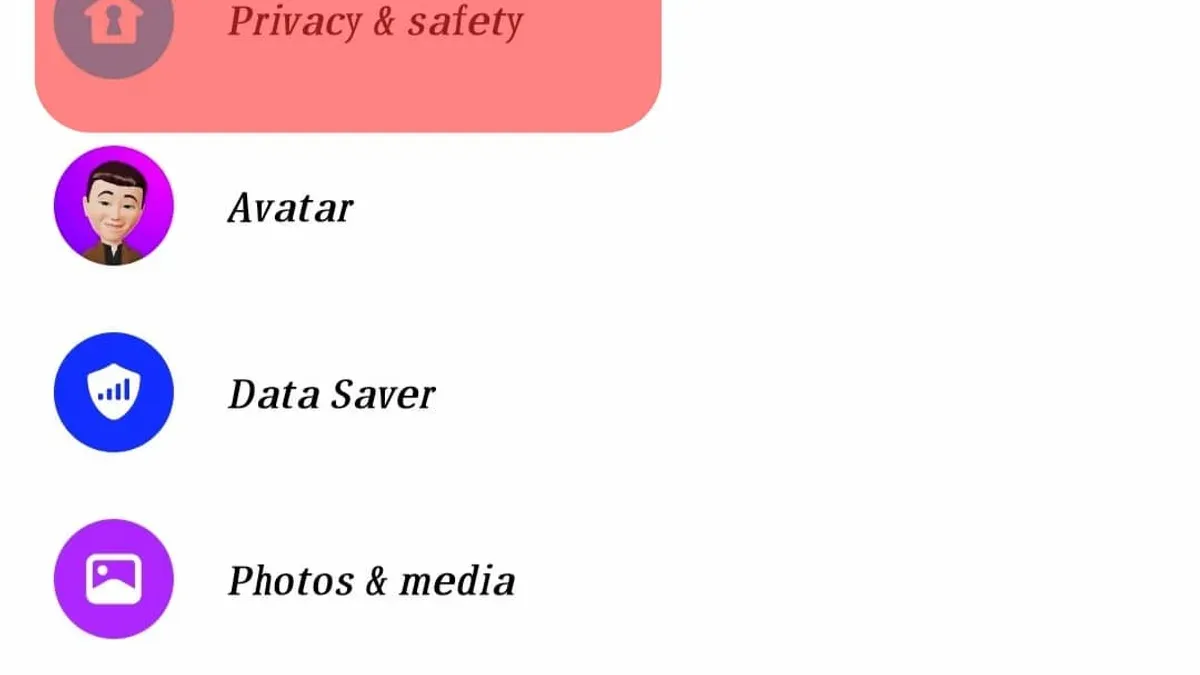
Next, check blocked contacts by opening Settings > Privacy > Blocked Accounts. Here, all blocked users are listed, preventing them from contacting or seeing activity. This section also controls message filtering, where message requests from unknown senders can be sorted into "Message Requests" or "Spam" folders, limiting unwanted visibility.
Verify who can see the online status by accessing Settings > Privacy > Active Status. Turning this off hides presence from all, but disables others from seeing if the user is active. Story privacy is adjustable under Settings > Privacy > Story, where audiences can be set to "Public," "Friends," or custom lists to restrict views.
Finally, confirm data sharing settings at Settings > Privacy > Data Sharing. Messenger may share information with Facebook apps or third parties for personalization and ads. Review toggles like "Allow sharing info with Facebook companies" to control this. Disabling sharing increases privacy but may limit some integrated features.
Tip: Regularly reviewing these settings helps balance privacy with Messenger’s social features and alerts users to unexpected changes.
How to change Messenger privacy settings
To enable end-to-end encryption, open a chat, tap the contact's name at the top, and select Go to Secret Conversation. This switches the chat to a Secret Conversation with a lock icon, ensuring messages are fully encrypted. Remember, Secret Conversations are device-specific and do not sync across devices.
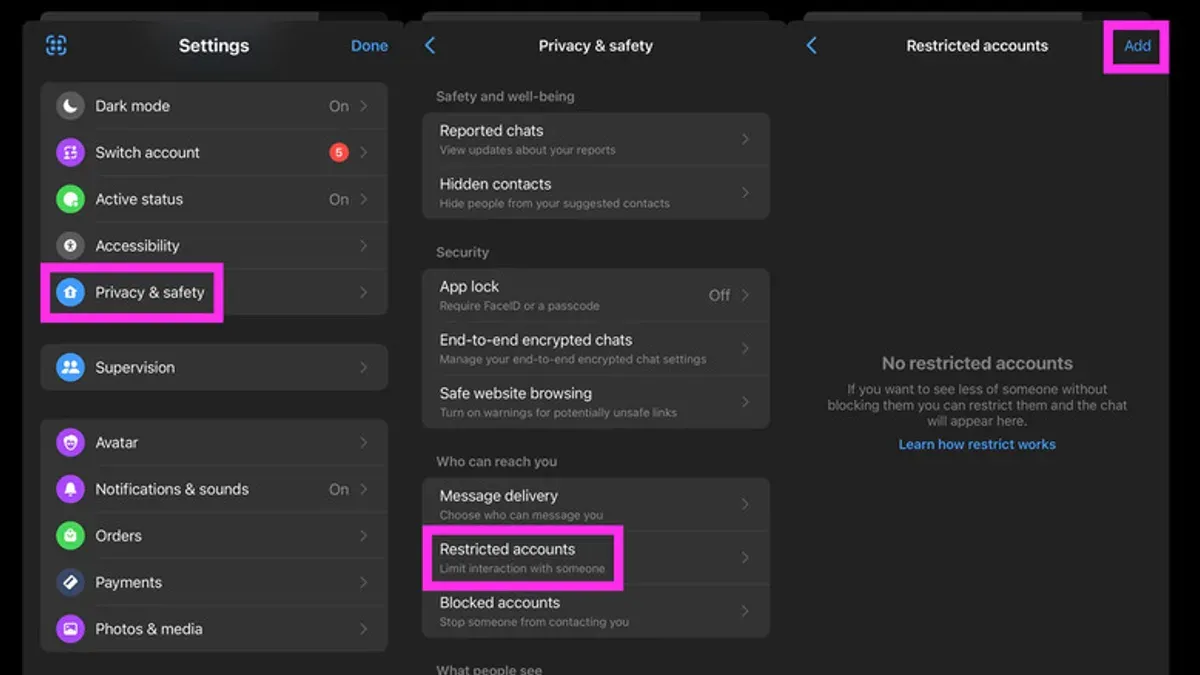
Adjust message requests by tapping your profile picture, choosing Privacy, then Message Delivery. Here, control who can send message requests by selecting options under People with your phone number, Friends of friends, and Others on Facebook. Filtering can be set to Standard or Strict, with Strict sending more messages to the Message Requests folder.
Change active status visibility via Privacy > Active Status. Toggle visibility on or off or select specific people who can see when you’re online. Story privacy can be adjusted under Stories > Story Privacy to decide who views shared stories, with options like Public, Friends, or Custom.
Block contacts by going to Privacy > Blocked Accounts. Add contacts to block to stop them from messaging or seeing your profile. If privacy concerns arise, use Report a Problem in the Help & Support section to notify Messenger.
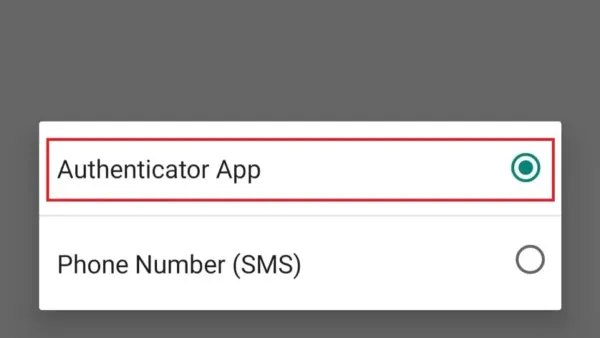
Secure the account further by enabling two-factor authentication (2FA). Access this via Security and Login > Two-Factor Authentication on the Facebook app or website linked to Messenger. Choose an authentication method like an app code or SMS to add a second security layer.
For example, enabling Secret Conversations and setting message delivery to Strict filters reduces unsolicited messages and ensures sensitive chats stay private on the device used. Blocking unwanted contacts prevents repeated harassment, while 2FA guards against account takeover.
Tip: After changing settings, restart the app to ensure updates take effect.
How can I keep my Messenger private from others using my device?
Protecting Messenger conversations from others with physical access to a device requires a combination of app-specific features and device-level security. Enabling an app lock—such as Face ID, Touch ID, or a PIN within Messenger’s settings—adds a barrier that prevents immediate access without proper authentication. Some devices also offer third-party app lockers that can secure Messenger independently of the device’s main lock screen.
Disabling message previews on the device lock screen stops message content from appearing when notifications arrive. On iOS, this is found under Settings > Notifications > Messenger > Show Previews, set to "Never" or "When Unlocked." On Android, go to Settings > Apps > Messenger > Notifications > Lock Screen, and choose "Hide sensitive content." This prevents casual glance access while the phone remains locked.
Logging out of Messenger on devices shared with others is a direct way to block access. This is especially useful on tablets or public computers. Messenger allows users to log out via the app or through Facebook’s Security & Login settings, which also lists active sessions to terminate remotely.
Deleting sensitive conversations or using disappearing messages within Secret Conversations reduces local data storage that could be exposed if the device is unlocked. For example, one might enable disappearing messages set to delete after a short time, limiting the window during which messages remain readable.
Consider a family tablet shared among several users: without app lock or disabling previews, anyone can open Messenger or see incoming notifications. With app lock and hidden previews enabled, messages stay protected even if the tablet is unlocked by another family member. Balancing convenience and security depends on how much access others have to the device and how sensitive the conversations are.
How secure is Messenger compared to other messaging apps?
Messenger uses transport encryption to protect messages while in transit but does not enable end-to-end encryption (E2EE) by default. In contrast, apps like Signal and WhatsApp use E2EE for all conversations automatically, meaning only participants can read messages. Messenger requires users to start Secret Conversations manually to gain E2EE, which limits its baseline security compared to these alternatives.
Ownership and data policies also shape security. Facebook (Meta) owns Messenger and collects metadata, which can be used for targeted advertising and data analysis. Signal, run by a nonprofit, minimizes data collection and has undergone independent audits confirming its privacy claims. WhatsApp, also owned by Meta, shares some metadata but keeps E2EE as a default, offering a stronger default privacy posture than Messenger.
Messenger provides unique features like integration with the Facebook ecosystem, and controls over active status and story privacy, but these come with trade-offs. For example, Messenger Kids has parental controls but lacks strict E2EE, reflecting a focus on supervision over encryption. Max privacy settings on Messenger can help but require user action and do not fully match the security guarantees offered by apps designed primarily for privacy.
A practical example: a user who forgets to enable Secret Conversations on Messenger exposes their chats to Facebook’s servers, whereas the same conversation on Signal or WhatsApp is encrypted end-to-end by default. This difference is crucial for users prioritizing confidentiality without extra setup.
| Feature | Messenger | Signal | Microsoft Messaging | |
|---|---|---|---|---|
| Default End-to-End Encryption | No (manual for Secret Conversations) | Yes | Yes | No |
| Metadata Collection | Extensive | Moderate | Minimal | Varies |
| Independent Security Audits | Limited | Yes | Yes | Limited |
| Parental Controls | Messenger Kids (no E2EE) | None | None | None |
| Privacy Settings Granularity | Moderate | Moderate | High | Low |
How to get help on Messenger privacy
Messenger includes a built-in Help & Support section accessible via the profile icon in the app. Users can tap “Help & Support” then “Help Center” to search specific privacy topics or report issues related to messages and account access. This feature offers step-by-step guides and troubleshooting tips designed to resolve common privacy concerns without external assistance.
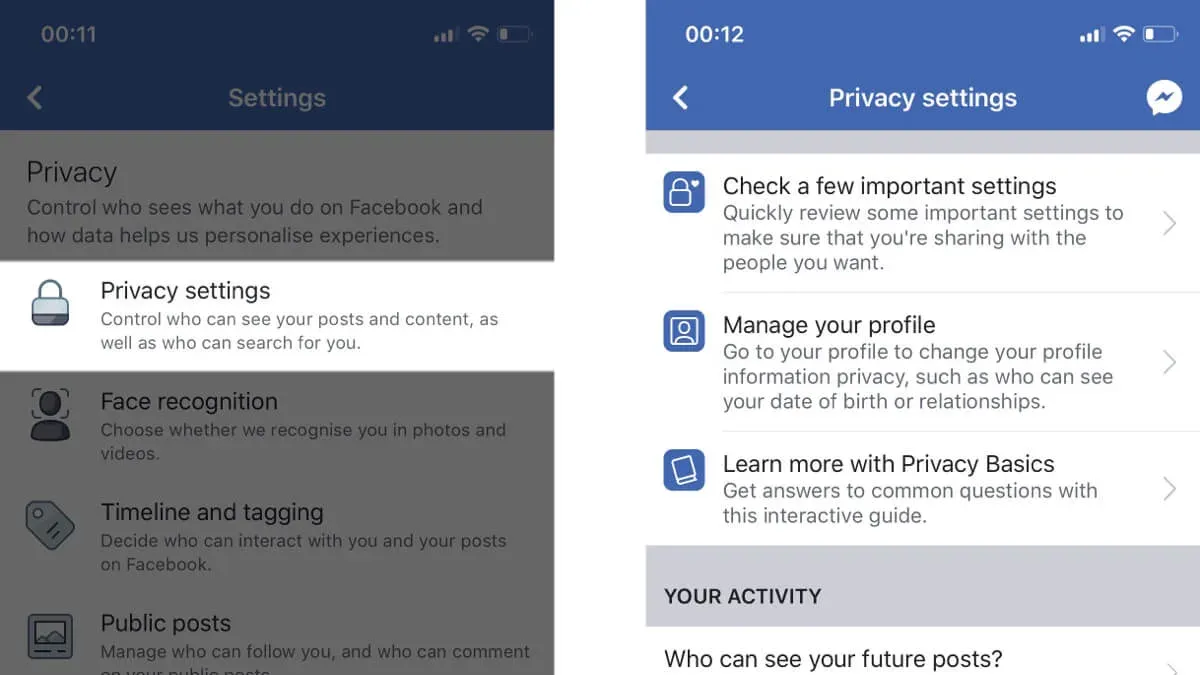
For broader issues or detailed guidance, Facebook’s Privacy Help Center at facebook.com/help/privacy provides official resources including explanations of data use, settings, and policy updates. The site also links to community forums where users share solutions and experiences. Typical response times in the forums vary but active threads often receive replies within a few days.
In cases of suspected account compromise or a privacy breach, users should immediately visit the Facebook Help page for hacked accounts at facebook.com/hacked. This portal guides through securing the account, changing passwords, and reviewing recent activity, which is critical if someone else accessed Messenger messages or settings.
Parents managing privacy on Messenger Kids can find dedicated support at facebook.com/help/messengerkids. This resource offers controls overview and instructions to set up monitoring and content restrictions, helping keep children’s conversations safe.
Example: If a user notices unexpected message deletions or unfamiliar contacts, starting with Messenger’s Help Center to report the problem and then moving to the hacked account page can speed up recovery and prevent further privacy loss.
Frequently asked questions
How to change facebook messenger privacy settings?
Open the Messenger app, tap your profile picture in the top left corner to access settings, then select "Privacy." From there, adjust options like "Message Delivery" to control who can send messages or "Blocked People" to manage blocked contacts. Changes take effect immediately but review each setting carefully to understand its impact.
How to open messenger settings?
Launch the Messenger app and tap the profile picture icon in the top left corner of the screen. This opens the settings menu where privacy, notifications, and account options are located.
How to find messenger settings?
Messenger settings are found by tapping the profile icon in the top left corner after opening the app. On desktop, click your profile picture or the gear icon to access settings.
How to open Messenger settings quickly?
The fastest way is to open Messenger and tap the profile picture in the top left immediately. For those using Messenger via Facebook, clicking the Messenger icon then the gear symbol leads to settings swiftly.
How to change Facebook Messenger privacy settings on mobile?
On mobile, open Messenger, tap the profile picture at the top left, select "Privacy," then adjust settings such as "Active Status," "Message Requests," and "Blocked Accounts." Confirm changes by navigating back; they save automatically.
What this advice does not cover and when to seek specialized help
This guide does not cover advanced threat protection or legal privacy rights, which require specialized advice from cybersecurity professionals or legal experts. Privacy settings alone cannot guarantee complete anonymity or security against sophisticated attacks such as targeted hacking or state-level surveillance. Messenger’s privacy depends not only on app settings but also on user behavior, device security, and network safety.
Users concerned about high-risk privacy scenarios should consider additional measures like encrypted messaging apps with end-to-end encryption enabled by default, using VPNs, or consulting experts on digital security. For legal privacy concerns or data breaches, contacting a legal professional is recommended.
The most practical next step is to regularly review and adjust the “Privacy” and “Security” options within Messenger’s settings menu, focusing on who can contact, see activity status, and message delivery receipts. Pair this with strong device security measures, such as screen locks and app-level authentication, to maintain a realistic level of messaging privacy and control.
See also: How to Control and Protect Your LinkedIn Privacy Settings · How to Manage Kik Privacy Settings and Use Kik on PC Effectively · Mastering Mastodon Privacy Settings: A Clear User Guide