How to Manage Kik Privacy Settings and Use Kik on PC Effectively
This guide explains how to manage Kik privacy settings and use Kik on PC effectively to secure your messaging experience.

This guide explains how to manage Kik privacy settings and use Kik on a PC effectively, focusing on secure and versatile access beyond mobile devices.
Kik privacy settings control who can contact the user, view profile details, and access shared content. Adjusting these settings is essential to prevent unwanted messages and protect personal information. The app offers features such as anonymous usernames and selective chat blocking, which are critical for maintaining privacy.
Using Kik on a PC or laptop requires specific steps to ensure security and smooth functionality. This includes installing an Android emulator or accessing Kik through web-compatible methods, plus configuring privacy settings to suit the desktop environment. The following sections break down these processes in detail.
What is the Kik app and why do privacy settings matter?
Kik is a social messaging app that allows users to communicate anonymously using usernames instead of phone numbers. This core feature attracts a diverse user base, particularly younger audiences, who value the ability to connect without sharing personal contact details. However, this anonymity also introduces privacy challenges, as anyone with a username can attempt to initiate contact.
Privacy concerns on Kik often stem from its public username system, which can expose users to unsolicited messages or contacts. Users may receive spam, unwanted friend requests, or messages from strangers, increasing risks such as harassment or exposure to inappropriate content. The app’s design makes it easy for users to appear accessible, which amplifies the need for strong privacy controls.
Privacy settings on Kik help mitigate these risks by allowing users to control who can contact them and what information is visible. For example, users can block specific contacts, restrict who can find them by username, or disable chat previews. Without these settings properly configured, a user’s messages and media might be vulnerable to unwanted access or data exposure.
Consider a teenager who shares their Kik username on a public forum: without adjusting privacy settings, they could receive messages from strangers, some of which may be inappropriate or malicious. By using Kik’s privacy controls, they can limit interactions to trusted contacts and reduce exposure to potentially harmful situations.
How does Kik app work and what are its key features?
Kik operates through a username-based system, eliminating the need to share a phone number during account creation. This approach enhances user anonymity and simplifies contact management. After setting a unique username, users can start messaging immediately by searching for friends’ usernames or joining group chats.
Messaging on Kik includes individual chats and group conversations with up to 50 participants. Users can send text, photos, videos, GIFs, and emojis directly through the chat interface. Multimedia sharing is seamless: tapping the “+” icon in a chat opens options to send images from the gallery or capture new pictures and videos. For example, to send a video, select the camera icon, record, and tap send; the video appears instantly in the chat.
Kik also supports live streaming and video features that enhance interaction. Users can start a live stream by entering a chat, tapping the video camera icon, and selecting “Go Live.” This feature allows broadcasting to friends or groups, with viewers able to comment in real time. Compared to other messaging apps like WhatsApp or Telegram, Kik’s focus on username anonymity and integrated live streaming sets it apart, providing more dynamic social interaction without requiring phone number exchange.
How to use Kik on PC, Windows PC, or laptop?
Kik does not offer an official desktop app or a full-featured web client, limiting direct use on PCs via the official website. The primary method to run Kik on a Windows PC or laptop is through Android emulators, which simulate a mobile environment and allow installation of the Kik mobile app. Popular emulators include BlueStacks, NoxPlayer, and LDPlayer, each with slightly different performance and resource requirements.
To install Kik on a Windows PC using an emulator, first download and install the emulator software from its official website. After launching the emulator, open the Google Play Store inside it, sign in with a Google account, then search for and install Kik. Open Kik within the emulator and log in using a username, email, or Google account, replicating the mobile app login process. This allows full access to messaging, media sharing, and live streaming features.
Emulator performance depends on PC hardware; a modern processor and at least 8GB of RAM improve responsiveness. Emulators may slightly lag compared to native mobile apps due to resource overhead and input method differences. For example, typing and navigation with mouse and keyboard are often faster, but video streaming may require adjusting emulator graphics settings for smooth playback.
Tip: When logging in via an emulator, ensure the Google account used matches the one linked to Kik for seamless access and syncing of contacts and chats.
How to set and adjust Kik privacy settings for safer use?
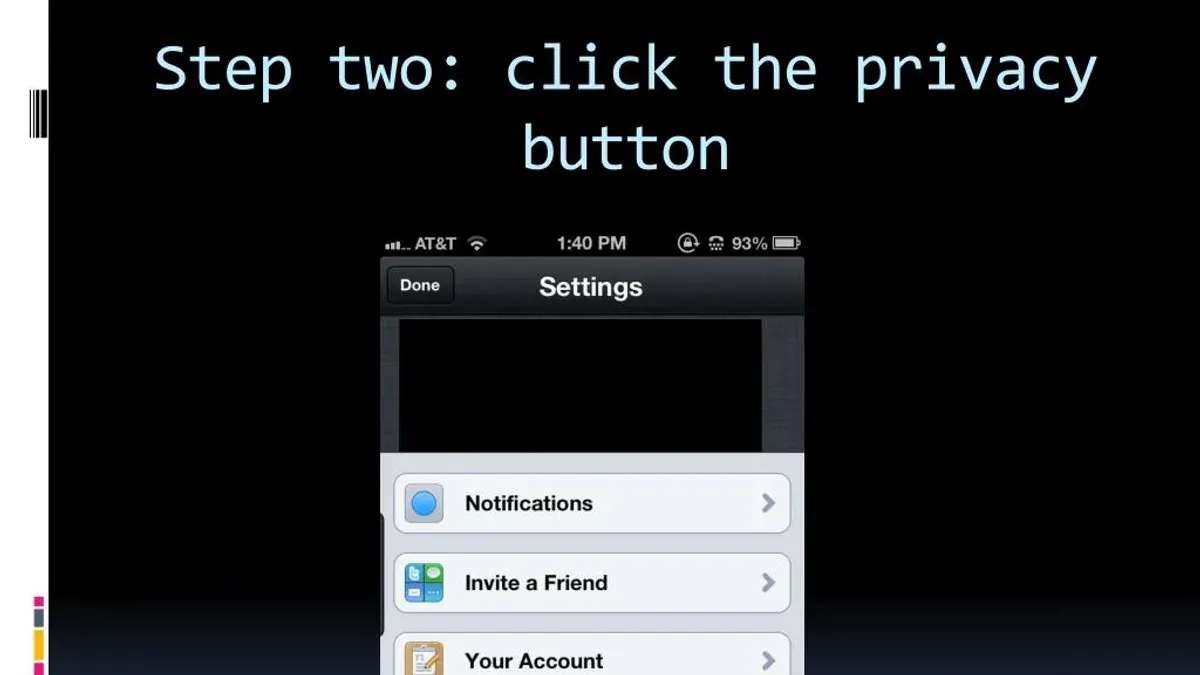
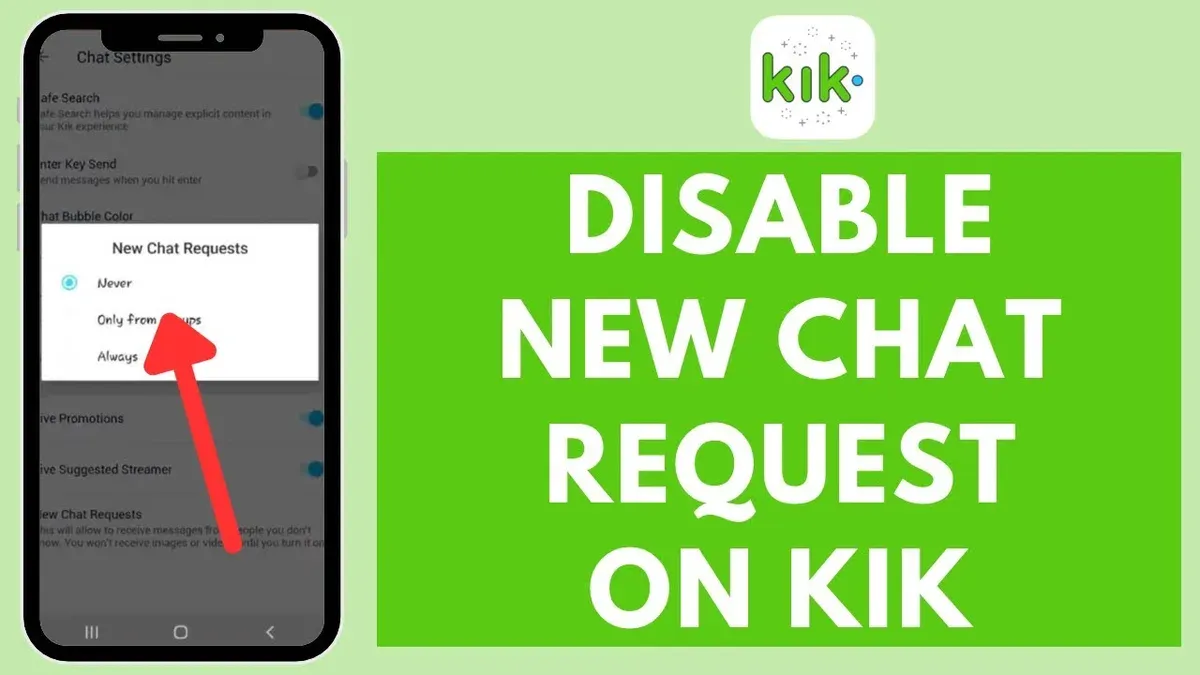
Access the privacy settings by tapping the gear icon in the app, then navigating to Settings > Privacy. The first option, "Who can contact me," lets users choose between Everyone, People I’ve chatted with, or Friends only (contacts saved in the phone). Selecting "Friends only" restricts incoming messages to known contacts, reducing unsolicited messages.
Next, "Who can find me" controls discovery via username or phone number. Disabling "Allow others to find me by phone number" hides the account from phone-based searches, while limiting username search to friends can be done by setting this to "People I’ve chatted with". For example, if a user sets "Who can find me" to "People I’ve chatted with," only prior contacts can locate their profile, increasing privacy but limiting new connections.
Under "Read Receipts," turning this off disables others from seeing when messages are read, but it also prevents the user from seeing read receipts themselves. The "Last Seen" setting controls profile visibility regarding recent activity; choosing "Nobody" keeps activity private but may reduce engagement with known contacts.
For safety, the "Blocked Users" list is accessible in the same menu. Adding a user here prevents all contact and message delivery from them. Reporting users is available by selecting their chat and choosing "Report"; this flags accounts for Kik’s moderation team to review. Blocking and reporting are essential tools to maintain privacy and safety, especially against spam or harassment.
Worked example: A user concerned about unwanted contacts sets "Who can contact me" to "Friends only," disables "Allow others to find me by phone number," and turns off "Read Receipts." This combination prevents unknown users from messaging or finding the account by phone, and keeps message read statuses private. However, it also means new contacts must be initiated through other means, and the user won’t see if messages to others are read.
How to use a picture on Kik and manage media privacy?
Kik allows uploading profile pictures and sending photos in chats to enrich communication. Profile pictures are visible to all contacts and anyone who can find the username, so choosing an image that balances personal expression and privacy is crucial. To upload or change a profile picture, tap the profile icon, select “Edit Pic,” and choose an image from the device or take a new photo.
When sending photos in chats, users can share images directly from their gallery or capture new ones within the app. However, once sent, the recipient can save or forward the picture, making it important to consider the audience before sharing sensitive images. Kik does not provide an option to restrict which chat participants can see a specific picture after sending; therefore, sharing should be limited to trusted contacts.
Media privacy implications become clear when comparing settings before and after sharing pictures. For example, if a user’s profile is discoverable and their profile picture is visible to anyone, this image can be accessed by unknown users. Conversely, blocking unknown contacts and limiting who can find the profile reduces exposure. For sent photos, the risk lies in recipients potentially distributing images beyond the original chat.
To manage saved media, users should periodically review their device’s gallery and Kik’s cache. Deleting sensitive images from the device after sending can prevent unintended access if the phone is shared or lost. Additionally, advising contacts not to forward photos adds a layer of social control, though it cannot be enforced technically.
Tip: Use neutral or non-identifying photos for profiles and share sensitive images only in private, trusted chats to minimize unwanted distribution risks.
How to stream on Kik and how to go live on Kik safely?
Kik live streaming allows users to broadcast video content to their contacts or a broader audience in real time. To start a live stream, open a chat or group, tap the camera icon, then select the live stream option. Before going live, adjust the audience settings by choosing who can view the stream—options typically include friends only, specific groups, or public. Setting the audience correctly is crucial to maintain control over who sees the broadcast.
During the live stream, moderation tools such as muting or blocking viewers help manage interactions and prevent harassment. Users can also disable comments if desired. For example, a user streaming a gaming session might limit viewers to friends and mute unknown participants to avoid distractions and protect privacy.
Privacy settings for live streams are found under the app’s settings menu, often labeled as “Live Stream Privacy” or similar. Users should review these before broadcasting and update them regularly to reflect their comfort level. This includes managing who can send private messages, who can join streams, and whether the stream is recorded or saved.
To ensure safety, avoid sharing location or identifiable information during live broadcasts. Users should also be aware that even with privacy controls, content shared live can be recorded or captured by viewers. Regularly using the block and report features during streams helps maintain a secure environment on the platform.
Tip: Before starting a live stream, test audience settings with a trusted friend to confirm only intended viewers have access.
How to get help from Kik and troubleshoot common issues?
Kik provides support primarily through its Help Center, accessible via the app or website. Users can browse FAQs and troubleshooting articles covering topics like account recovery, messaging problems, and privacy concerns. For direct assistance, the "Contact Us" form allows submission of queries, though response times can vary from a few days to longer depending on volume.
Common login problems include difficulty signing in with Google accounts or accessing Kik on PC via an emulator. If Google sign-in fails, verifying the Google account credentials and ensuring two-factor authentication settings do not block app access often resolves the issue. For PC login hiccups, confirming emulator compatibility and updating both the emulator and the Kik app can help. Restarting the emulator or reinstalling Kik is a practical step often missed.
Security-wise, users should be wary of phishing attempts mimicking Kik support via unofficial channels. Never share login credentials or verification codes outside official Kik interfaces. Enabling two-step verification on associated Google accounts adds a layer of protection. If suspicious activity appears, immediately changing the password and reporting to Kik can prevent account compromise.
For example, a user unable to log in on PC due to repeated authentication errors found success by updating the Android emulator and clearing app cache within the emulator settings. This restored smooth access without reinstalling the entire system.
Frequently asked questions
How to use kik on windows pc?
Kik does not offer a standalone Windows PC app, but it can be used on a Windows PC through an Android emulator like BlueStacks. Install the emulator, then download and install Kik from the Google Play Store within it. This method allows full access to Kik's features on a PC.
How to use kik on laptop?
Using Kik on a laptop typically involves the same process as on a Windows PC: running an Android emulator such as BlueStacks or Nox Player. After setting up the emulator, download Kik from its app store and log in. This setup provides a mobile-like Kik experience on a laptop.
Does kik have a website?
Kik does not have a traditional website for messaging or account management. Its platform is primarily app-based, focusing on mobile devices. Account creation and messaging require the mobile app or an emulator on PC.
Does Kik have a website for messaging?
No, Kik does not offer a web-based messaging platform. Messaging is only available through the mobile app or via third-party Android emulators on desktop. This limits direct browser access to Kik chats.
Can Kik be used on a laptop without downloading an app?
Direct use of Kik on a laptop without any app download is not possible since Kik lacks a web client. Using Kik on a laptop requires downloading an Android emulator app, which then hosts the Kik app. There are no official browser-based or native desktop Kik apps.
What this advice does not cover and who should seek other help
This article does not cover advanced hacking or account recovery techniques, which require specialized support from Kik’s official channels or cybersecurity professionals. Kik's official support for PC use is limited, so third-party emulators or solutions may vary in reliability and security—users should proceed cautiously with such tools. Privacy settings can reduce exposure to unwanted contacts and content but cannot guarantee complete anonymity or protection from all online threats, especially from determined malicious actors.
Tip: Regularly updating the Kik app and any PC software used to access it helps maintain security and privacy protections.
The most practical next step is to review and adjust the privacy settings directly within the Kik app under Settings > Privacy. Focus on options like "Who Can Message Me," "Block List," and "Read Receipts" to tailor communication controls. For PC users, ensure any third-party software used to run Kik is from a trusted source and configured to limit unnecessary permissions. This approach balances usability and privacy effectively for everyday Kik users.
See also: Kick Account Hacked: What Happened and How to Recover It · How to See Where You're Logged Into Kik: Step-by-Step Guide