LinkedIn Two-Factor Authentication Code Not Working: How to Fix It Fast
Learn how to quickly diagnose and fix LinkedIn two-factor authentication code not working problems without compromising your account security.

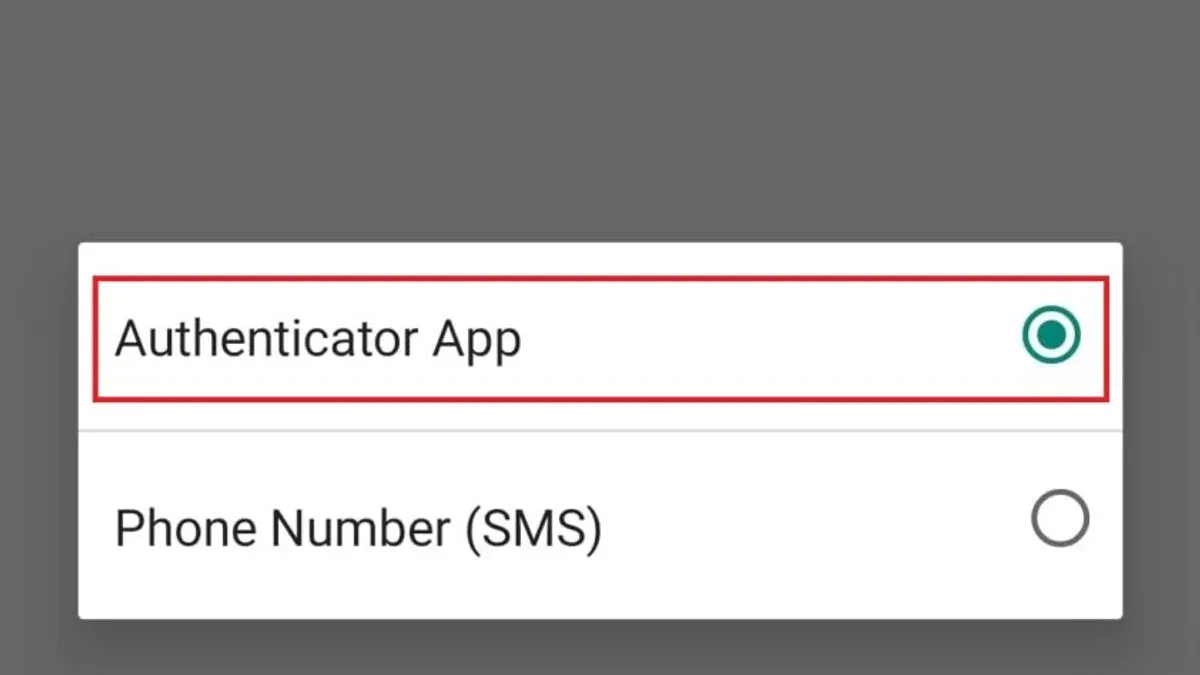
This article explains how to quickly diagnose and fix LinkedIn two-factor authentication code not working issues without compromising account security.
LinkedIn users relying on two-factor authentication (2FA) often face problems receiving or verifying codes, blocking access to their accounts. Common signs include no code delivery, incorrect code errors, or timeouts during verification. The guide prioritizes fast, safe solutions tailored to real-world scenarios rather than generic advice.
Start by identifying the exact symptom, then apply targeted fixes such as checking device time synchronization, verifying phone number accuracy, or ensuring authentication app settings are correct. Understanding the root cause speeds resolution and avoids unnecessary security risks.
How to Recognize LinkedIn Two-Factor Authentication Code Issues
LinkedIn two-factor authentication (2FA) problems typically manifest as one of three core symptoms: no code received, code rejected, or code expired. Users may see error messages like "Invalid authentication code," "Code has expired," or "Too many attempts. Please try again later." LinkedIn codes usually remain valid for 30 seconds to 1 minute; delays beyond this window often cause expiration errors.
Distinguishing between LinkedIn server delays and device-related issues is critical. If no code arrives within a minute, server-side delays or network problems are likely. Conversely, immediate rejections often point to incorrect code entry or timing discrepancies on the user's device. Checking device time sync settings can clarify whether the issue is local or remote.
To confirm the problem lies with 2FA codes, test the following:
- Attempt login and note if the code prompt appears.
- Wait up to 60 seconds for the code via SMS or authenticator app.
- If no code arrives, check network connectivity and spam filters for SMS or app notifications.
- If a code arrives but is rejected, verify device time accuracy and re-enter the code carefully.
- Successful login after code entry confirms the fix.
Tip: Ensure device clock is set to automatic network time to avoid timing-related code rejection.
What Causes LinkedIn Two-Factor Authentication Codes to Fail?
Time synchronization errors are a common cause of 2FA code failures, especially when using authenticator apps like Google Authenticator or Microsoft Authenticator. These apps generate codes based on device time, so if the device clock is off by even a few minutes, codes can be rejected. Verifying and correcting system time settings resolves this in most cases.
Network or SMS delivery delays are another frequent culprit. Mobile carriers may experience temporary outages or delays, causing SMS codes to arrive late or not at all. Users relying on SMS codes should consider switching to authenticator apps for faster, more reliable code generation.
Using an incorrect authentication method—such as attempting app-generated codes when SMS is set up, or vice versa—can lead to repeated failures. Confirming the active 2FA method in LinkedIn's Security Settings under Account > Two-step verification prevents this mismatch.
Account misconfigurations, including outdated phone numbers or email addresses linked to 2FA, also cause code rejection. Checking and updating contact information ensures codes are sent to the correct destination.
Security software interference is less common but notable. VPNs, firewalls, or security apps with aggressive filtering can block code delivery or validation processes. Temporarily disabling these or whitelisting LinkedIn domains may restore proper function.
Fix example for time synchronization issues:
- Open the device's Date & Time settings.
- Enable automatic date and time settings or manually correct the time to match the correct time zone.
- Restart the authenticator app and generate a new code.
- Attempt LinkedIn login with the new code.
Success is confirmed when LinkedIn accepts the new code without error.
Tip: When switching between authentication methods, always disable the previous method in LinkedIn's settings to avoid conflicts.
What Are the Quickest and Safest Fixes for 2FA Code Problems?
Start by verifying the device’s time settings. If the time or time zone is incorrect, two-factor authentication codes may be rejected. Navigate to Settings > General > Date & Time and enable “Set Automatically” or “Sync with Network Time.” Successful synchronization is confirmed when the device time matches the official network time, allowing code acceptance.
When codes fail, request a new one and wait at least 30 seconds before entering it. Rapidly entering multiple codes can trigger temporary blocks. Receiving and entering the new code within the recommended interval typically results in successful login.
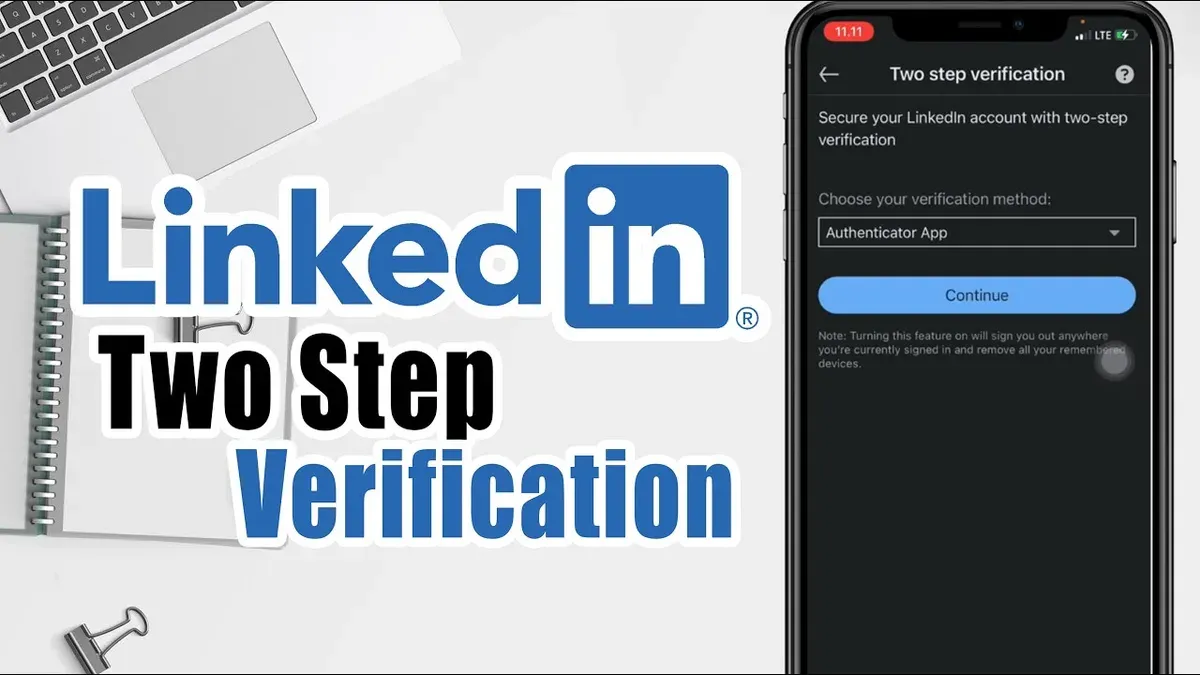
If both SMS and an authenticator app are enabled, switch methods to bypass delivery or app issues. For example, request an SMS code if the authenticator app fails, or generate a code via the app if SMS delays occur. Successful authentication after switching confirms the issue lies with one method.
Restarting the device and confirming a stable internet connection resolves many transient glitches. After reboot, connect to a reliable Wi-Fi or cellular network. Enter a fresh code once the network is stable; success indicates the problem was temporary connectivity or device state.
Temporarily disable VPNs, firewalls, or security apps that may block code delivery or verification. If disabling these allows the code to work, adjust their settings to whitelist LinkedIn services. Re-enable security apps afterward to maintain protection.
How to Troubleshoot More Involved Causes of 2FA Failures
When quick fixes fail, deeper troubleshooting is necessary. Reconfiguring or resetting the authenticator app can resolve persistent syncing or code generation issues. This requires rescanning the LinkedIn 2FA QR code and re-linking the account within the app.
- Open the authenticator app and delete the existing LinkedIn account entry.
- Log in to LinkedIn on a trusted device and navigate to Settings > Account > Two-Step Verification.
- Select the option to set up a new authenticator app and scan the provided QR code.
- Enter the freshly generated code from the app to confirm setup.
Success is confirmed when LinkedIn accepts the new code and grants access.
Updating the phone number or email linked to two-factor authentication in LinkedIn's settings is crucial if contact information has changed. Navigate to Settings > Account > Two-Step Verification > Manage to update delivery methods.
Clearing the LinkedIn app cache or reinstalling the app can fix glitches causing 2FA failures. On mobile, this typically involves app settings > storage > clear cache, or uninstalling and reinstalling the app.
If 2FA repeatedly blocks access, LinkedIn provides backup codes for emergency login. These should be stored securely and used by selecting the backup code option on the 2FA prompt.
Finally, verify LinkedIn service status through their official channels or outage trackers to rule out platform-wide issues impacting 2FA.
When Is It Time to Get Professional Help or Contact LinkedIn Support?
Persistent failure to receive or validate two-factor authentication codes after exhausting all troubleshooting steps signals the need for expert intervention. Continued issues can lead to account lockout or increased security risks if unresolved. Immediate professional help is essential when there is suspicion of account compromise or phishing attempts targeting the authentication process, as this may indicate unauthorized access attempts.
Lost access to both the authenticator app and backup codes leaves no alternative for code retrieval, necessitating direct support from LinkedIn. Similarly, if the account is flagged or restricted during login attempts, it reflects a security action that requires LinkedIn’s involvement to resolve.
To contact LinkedIn support safely, use the official LinkedIn Help Center or the app’s support feature. Prepare to provide precise account details, recent login activity, and a clear description of the problem. Avoid sharing sensitive information beyond what is requested by official channels.
Steps to follow when professional help applies:
- Confirm that all self-service fixes have failed.
- Gather relevant account information and evidence of the problem.
- Access LinkedIn Help Center through https://www.linkedin.com/help/linkedin.
- Submit a support request detailing the 2FA issue and any suspected security concerns.
- Follow instructions from LinkedIn support and provide additional information if requested.
- Verify resolution by successfully logging in with the restored two-factor authentication process.
Tip: Timely escalation to professional support improves recovery odds and prevents extended lockouts.
Frequently asked questions
Why am I not receiving my LinkedIn two-factor authentication code?
Common reasons include network issues, incorrect phone number or email linked to the account, and delays in the SMS or email provider. Check that the contact information in LinkedIn’s security settings is current and that the device has a stable signal or internet connection. Also, verify that the messages are not blocked by spam filters or carrier restrictions.
How do I reset my LinkedIn authenticator app if codes don’t work?
Access LinkedIn's security settings and locate the two-factor authentication section. Use the option to disable 2FA, then re-enable it to link a new authenticator app. If the authenticator app is lost or malfunctioning, use backup codes saved during setup or LinkedIn’s recovery process to regain access before resetting the app.
Can VPNs or security apps block LinkedIn 2FA codes?
Yes, VPNs or security apps can interfere with the delivery or verification of 2FA codes by altering IP addresses or blocking certain network traffic. Temporarily disable VPNs and security software to test if they are causing the issue. Adjust settings or whitelist LinkedIn services if confirmed to prevent future disruptions.
What should I do if I lose access to my LinkedIn 2FA methods?
Immediately use backup verification options such as recovery codes or linked email addresses to regain account access. If those are unavailable, contact LinkedIn support with proof of identity to initiate account recovery. Avoid disabling 2FA without proper reconfiguration to maintain account security.
What This Guide Does Not Cover
This guide does not cover bypassing two-factor authentication or account recovery methods that compromise security. Users must follow LinkedIn’s official procedures for account recovery to maintain account integrity and prevent unauthorized access. If the account is locked due to multiple failed attempts or if authentication devices are permanently lost, contacting LinkedIn support directly is necessary.
For persistent issues beyond troubleshooting steps, professional IT assistance is recommended to avoid accidental data loss or security breaches. Avoid third-party tools claiming to fix 2FA problems without verification, as these can expose accounts to risks.
The most effective next step for resolving LinkedIn two-factor authentication code problems is to disable and then re-enable 2FA within account settings after confirming device time synchronization and notification settings are correct. This resets the authentication process without weakening security and often resolves hidden configuration errors.
See also: How to See Where You're Logged Into LinkedIn: Step-by-Step Guide · How to Control and Protect Your LinkedIn Privacy Settings