How to Install Next.js on Mac: A Step-by-Step Guide
This guide walks you through installing Next.js on Mac, from Node.js setup to creating projects and using VSCode effectively.

You want to build a modern web application using Next.js but aren’t sure how to set up your Mac for development. Maybe you’ve heard about Node.js and VSCode but don’t know how they fit together or how to avoid common installation pitfalls.
This guide covers how to install Next.js on Mac by walking you through installing Node.js via the terminal, setting up a Next.js project with create-next-app, and integrating everything smoothly within VSCode. It also compares this process with Windows setup to give you a broader perspective on environment differences you might encounter.
Key takeaways
- Start by installing Node.js through the Mac terminal using official installers or package managers like Homebrew.
- Use the create-next-app command to quickly scaffold a Next.js project with sensible defaults.
- Set up VSCode with recommended extensions to streamline development and debugging.
- Common issues often relate to Node version mismatches or PATH settings; this guide highlights how to troubleshoot them.
- Windows installation involves similar steps but differs mainly in terminal commands and environment configuration.
Before you start: What you need to install Next.js on Mac
Next.js requires Node.js to run, so having Node.js installed on your Mac is essential. Node.js provides the runtime environment that executes JavaScript outside the browser, enabling Next.js to build and serve your web applications.
You should have basic familiarity with using the Mac terminal to enter commands, navigate directories, and manage files. This will help you smoothly follow the installation steps and troubleshoot if needed.
For the best compatibility, use a Mac running macOS Catalina (10.15) or later. These versions support the latest stable releases of Node.js and ensure fewer compatibility issues. Older macOS versions might still work but can require additional configuration.
While optional, installing Visual Studio Code (VSCode) is recommended for a streamlined Next.js development experience. VSCode offers robust JavaScript and React support, integrated terminal access, and helpful extensions that enhance productivity.
Before proceeding, ensure you have the following:
- macOS Catalina (10.15) or newer
- Basic terminal command knowledge
- Access to the official Node.js installer (https://nodejs.org/en/download/)
- Optional: Visual Studio Code (https://code.visualstudio.com/download)
How to install Node.js on Mac using the terminal
Node.js is a prerequisite for running Next.js, and installing it via the terminal on your Mac is a preferred method among developers for its speed and control. The recommended way to install Node.js on Mac is through Homebrew, a popular package manager. Alternatively, you can use the official Node.js package installer if you prefer a graphical setup.
- Open the Terminal app on your Mac. You can find it in Applications > Utilities or search via Spotlight.
- Check if Homebrew is installed by typing brew --version and pressing Enter. If Homebrew is installed, you will see its version number. If not, install Homebrew first by running /bin/bash -c "$(curl -fsSL https://raw.githubusercontent.com/Homebrew/install/HEAD/install.sh)" and follow the prompts.
- Once Homebrew is ready, install Node.js by typing brew install node and pressing Enter. Homebrew will download and install the latest stable Node.js version along with npm, the Node package manager.
- After installation, verify Node.js is installed by typing node -v. You should see a version number like v18.16.0 indicating a successful install.
- Verify npm installation by typing npm -v. This will display the npm version, confirming it is installed alongside Node.js.
Alternatively, you can download the official Node.js macOS installer from nodejs.org. This method uses a graphical installer and might be preferable if you are less comfortable with the terminal. However, it lacks the convenience of version management and easy upgrades that Homebrew provides.
Using the terminal with Homebrew is preferred for developers because it simplifies updates and integrates well with other development tools. Homebrew allows you to keep Node.js current with a single command, brew upgrade node, minimizing compatibility issues during development.
How to install Next.js on Mac with the create-next-app command
Creating a new Next.js project is straightforward using the create-next-app command. This utility scaffolds a complete Next.js application with sensible defaults, saving you from manual setup.
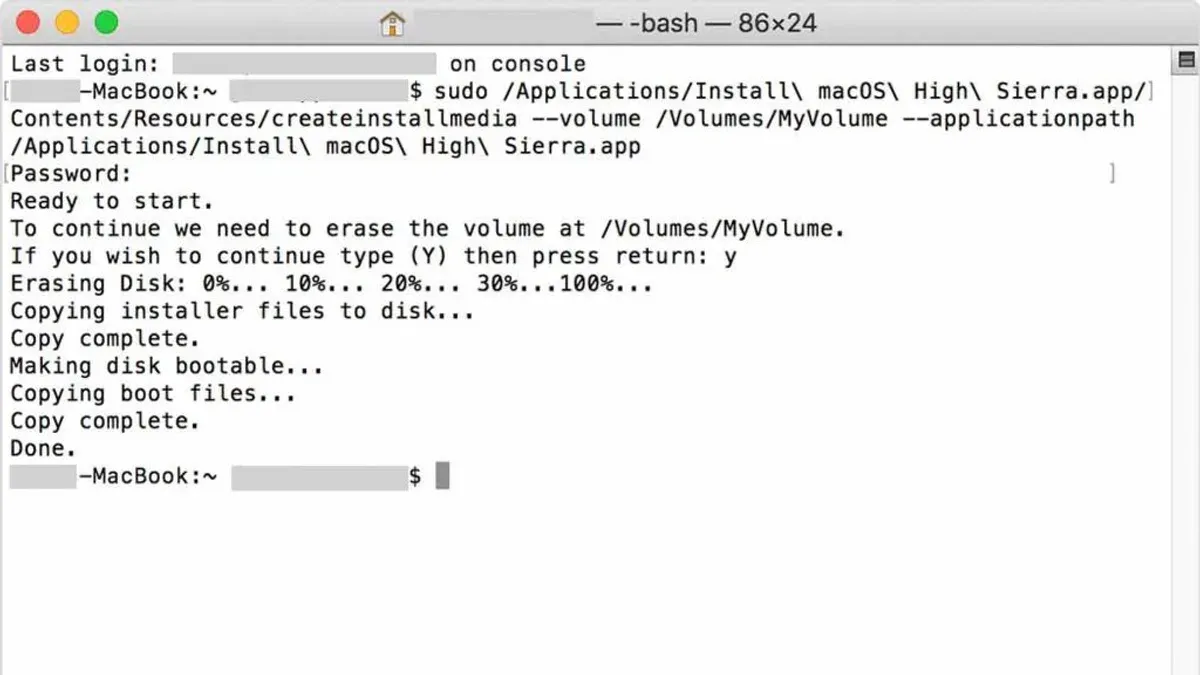
- Open your Mac terminal.
- Run the command npx create-next-app@latest my-nextjs-app, replacing my-nextjs-app with your desired project name.
- Wait as the tool downloads dependencies and generates the project structure. You'll see folders like
pages,public, and files includingpackage.json. - Navigate into the project folder using
cd my-nextjs-app. - Start the development server with
npm run devoryarn dev. - Your terminal will confirm the server is running and provide a local URL, typically
http://localhost:3000, where your new Next.js app is accessible.
The create-next-app command handles installing necessary dependencies, setting up React and Next.js configurations, and creating essential files like next.config.js automatically. It also offers template options; for example, you can add --typescript to set up a TypeScript-based project.
This approach differs significantly from manual installation, where you would initialize a Node.js project, install Next.js and React packages separately, and configure build and routing settings yourself. Using create-next-app streamlines these tasks, making it ideal for those new to the framework or aiming for rapid project start.
Example terminal session:
user$ npx create-next-app@latest demo-app
Creating a new Next.js app in /Users/user/demo-app.
Installing packages. This might take a couple of minutes....
Success! Created demo-app at /Users/user/demo-app
Inside that directory, you can run several commands:
npm run dev - Starts the development server
npm run build - Builds the app for production
npm start - Runs the built app in production mode
Happy hacking!
How to install Next.js in VSCode on Mac
- Open Visual Studio Code and use the built-in terminal by selecting View > Terminal or pressing Ctrl + `. This terminal will run commands inside your project directory, keeping all development tasks in one place.
- Install the recommended VSCode extensions for Next.js by opening the Extensions pane (View > Extensions or Shift + Command + X) and searching for key extensions: ES7+ React/Redux/React-Native snippets, Prettier - Code formatter, and vscode-styled-components. Install these to enhance code completion, formatting, and styling support.
- Open your Next.js project folder in VSCode via File > Open Folder. This lets VSCode index your project and provide IntelliSense tailored to Next.js files.
- Set up debugging by creating a launch.json file: open the Debug pane (View > Run or Command + Shift + D), click the gear icon, and select Node.js. Replace the default configuration with:{ "name": "Launch Next.js", "type": "node", "request": "launch", "program": "${workspaceFolder}/node_modules/next/dist/bin/next", "args": ["dev"], "cwd": "${workspaceFolder}", "console": "integratedTerminal" }. Saving this allows you to run and debug Next.js directly in VSCode.
- Start your Next.js app inside VSCode by running the debug configuration you just created. The integrated terminal will show the development server output, and breakpoints set in your code will be hit during execution.
Using VSCode centralizes your Next.js workflow—code editing, running commands, and debugging—making development smoother. Its extensions improve productivity with syntax highlighting and snippets, while the integrated terminal avoids switching apps. Compared to Windows, VSCode's interface and shortcuts remain consistent, but Mac users benefit from Unix-based terminal commands within VSCode, streamlining package management and script execution.
Note: Screenshots showing the Extensions pane with recommended extensions installed, the integrated terminal running Next.js, and the Debug pane with the launch configuration active help visualize these steps.
How to use Next.js after installation
Once you have installed Next.js, you can start developing your application by running the development server and exploring the project structure. This enables you to see live updates as you make changes.
- Open your terminal and navigate to your Next.js project directory.
- Open
pages/index.jsin your code editor (for example, VSCode). This file defines the homepage component. - Edit the text inside the
<h1>tag, for example, change it from "Welcome to Next.js!" to "Hello from Next.js on Mac!". - Save the file and switch to your browser at http://localhost:3000. You will see the page reload automatically with your changes reflected, demonstrating Next.js’s hot-reloading feature.
- Explore the project folder structure:
pages/contains route components,public/holds static assets, andstyles/includes CSS files. - Continue learning Next.js by experimenting with new pages in
pages/, adding components, and referring to the official documentation for routing, data fetching, and API routes.
Run the command npm run dev. You should see terminal output similar to:
ready - started server on http://localhost:3000
This means the development server is running and your app is accessible in the browser.
Using the development server and understanding the project layout are fundamental steps to efficiently build and iterate on your Next.js application.
How to install Next.js on Windows compared to Mac
Installing Next.js on Windows involves similar steps to Mac but with distinct differences in terminal commands and environment setup. Windows users commonly use PowerShell or Command Prompt, while Mac users rely on the Unix-based Terminal. This difference affects how commands are executed and how environment variables are managed.
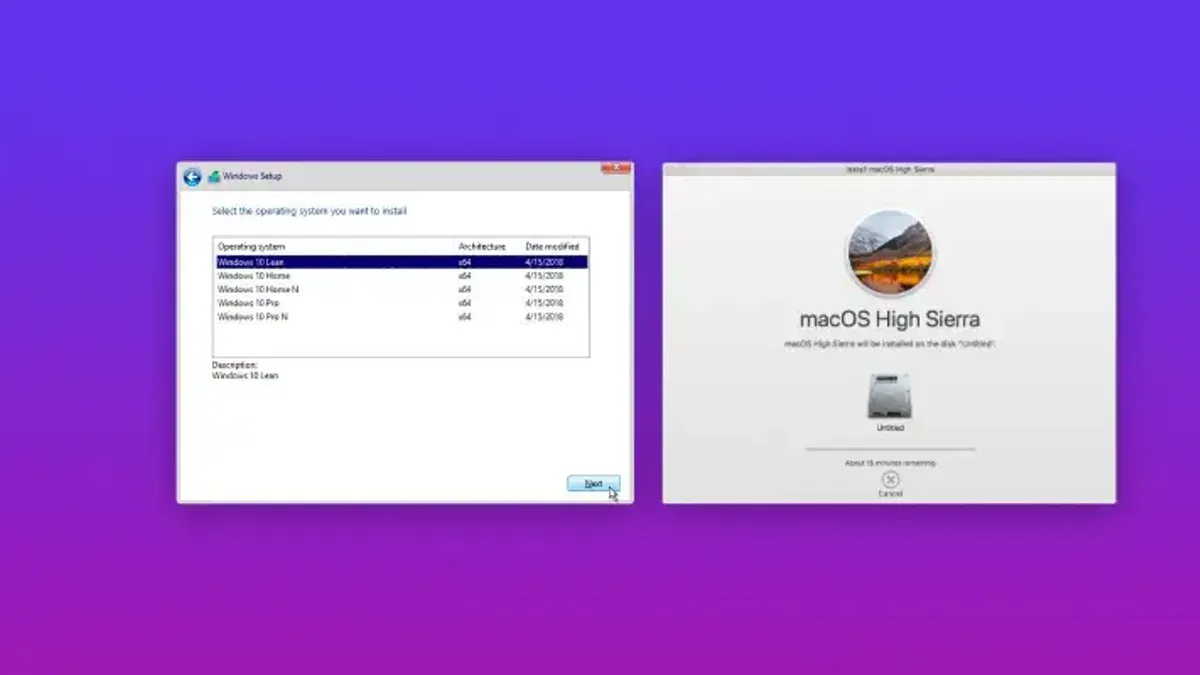
Windows requires Node.js installation through the official installer or package managers like Chocolatey, contrasting with Mac’s popular Homebrew method. Additionally, Windows users may face issues related to path length limits and permission errors that Mac users typically avoid due to macOS's Unix foundation.
| Step | Mac Terminal Command | Windows PowerShell/Command Prompt Command | Common Windows Issues |
|---|---|---|---|
| Install Node.js | brew install node | Download from nodejs.org or choco install nodejs | Installer conflicts or PATH variable not updating |
| Create Next.js app | npx create-next-app@latest my-app | npx create-next-app@latest my-app | Script execution policy restrictions in PowerShell |
| Run development server | npm run dev | npm run dev | Firewall blocking localhost ports |
For cross-platform development, consider using Windows Subsystem for Linux (WSL) on Windows to mimic Mac’s Unix-like environment. This approach reduces discrepancies in command behavior and file system handling.
Pay attention to environment variables and line-ending differences when sharing code between Mac and Windows. VSCode’s integrated terminal can switch between shells, helping unify the development experience across platforms.
Troubleshooting common installation issues on Mac
Fixing permission errors during installation
If you encounter permission denied errors while installing Node.js or Next.js packages, it typically means your user account lacks the required rights to write to certain directories.
- Run the installation command with sudo prefix, for example, sudo npm install -g create-next-app. You should be prompted for your password and see the installation proceed.
- Alternatively, configure npm to use a different directory by running npm config set prefix ~/.npm-global and updating your PATH variable accordingly. After this, running npm commands should not require elevated permissions.
Resolving PATH issues for Node.js
If your terminal does not recognize node or npm commands, your PATH might not include Node.js binaries.
- Check if Node.js is installed with which node. If it returns no path, Node.js is not correctly linked.
- Add Node.js to your PATH by editing your shell profile file (e.g., ~/.zshrc or ~/.bash_profile) and appending export PATH=/usr/local/bin:$PATH or the path where Node.js is installed.
- Reload the terminal or run source ~/.zshrc to apply changes. Running node -v should then display the installed version.
Dealing with outdated npm versions
An outdated npm version can cause unexpected errors during package installation.
- Check your npm version using npm -v. If it is older than the current stable release, update it with npm install -g npm.
- Verify the update by running npm -v again. The version number should increase.
What to do if create-next-app fails or hangs
If the create-next-app command does not complete or hangs indefinitely, it might be due to network issues or corrupted cache.
- Clear the npm cache by running npm cache clean --force. You should see a confirmation that the cache was cleaned.
- Try running npx create-next-app@latest your-app-name again to force using the latest package.
- If it still hangs, check your internet connection or try switching networks, as create-next-app downloads dependencies online.
- As a last resort, manually clone the Next.js starter from its GitHub repository and install dependencies using npm install.
- How to Install Yarn on Mac: A Clear Step-by-Step Guide
- How to Install Vue CLI on Mac: A Clear Step-by-Step Guide
- How to Install Angular CLI on Mac: A Clear Step-by-Step Guide
- How to Install Docker on Mac: A Clear Step-by-Step Guide
Frequently asked questions
How to install next js macos?
To install Next.js on macOS, first ensure you have Node.js installed via the Terminal. Then use the npx create-next-app@latest command to scaffold a new Next.js project. This approach sets up everything needed without global installations, streamlining the process on Mac.
How to install node js on macbook?
Install Node.js on a MacBook by downloading the official installer from the Node.js website or using a package manager like Homebrew with brew install node. After installation, verify by running node -v in Terminal to confirm the version is correctly installed.
How to install next js on mac?
Installing Next.js on Mac involves opening Terminal, confirming Node.js is present, and running npx create-next-app@latest to create a new project folder. This method automatically installs Next.js dependencies, after which you can start development immediately.
How to install node js on mac terminal?
Use Terminal on your Mac to install Node.js via Homebrew by entering brew install node. If Homebrew is not installed, first install it using the command from brew.sh. Once done, verify installation with node -v.
How to use next js?
After installing, use Next.js by navigating to your project directory in Terminal and running npm run dev to launch the development server. Open the displayed localhost URL in your browser to see your app, then edit files in VSCode to update your site live.
What this guide does not cover and who should look elsewhere
This guide does not cover advanced Next.js configuration, such as custom server setups or API routes, nor does it address deployment processes or performance optimization. If you need to integrate complex backend services, perform server-side rendering optimizations, or deploy your application to platforms like Vercel or AWS, consider consulting specialized resources focused on those topics.
For developers already familiar with Node.js and looking to customize Next.js beyond initial setup, official Next.js documentation and community tutorials provide deeper insights.
The most useful next step after completing your installation is to create a basic Next.js page and run it locally. This practice helps verify your environment is correctly configured and familiarizes you with the development workflow before adding complexity. Open your VSCode terminal, navigate to your project folder, and use npm run dev to start the development server, then open http://localhost:3000 in your browser to see your app in action.