How to Install Vue CLI on Mac: A Clear Step-by-Step Guide
This guide shows how to install Vue CLI on your Mac, create Vue 3 projects, add Vue Router, and troubleshoot common installation problems.

You want to start building Vue.js applications on your Mac, but setting up the right tools can feel confusing. Knowing exactly how to install Vue CLI on Mac helps you avoid version conflicts and ensures a smooth development experience.
This guide walks you through installing Vue CLI globally on your Mac, creating a new Vue 3 project, and adding Vue Router for navigation. It also covers troubleshooting common installation problems, explains the differences between Vue CLI versions, and shows how to manage plugins effectively. By following these clear steps, you will gain confidence in setting up or upgrading your Vue development environment without common pitfalls.
Key takeaways
- Install Node.js and npm before installing Vue CLI globally with
npm install -g @vue/cli. - Create new Vue 3 projects using
vue createand select Vue 3 preset during setup. - Add Vue Router using
vue add routerto manage routing in your app. - Common issues include permission errors and outdated npm versions; updating npm or using sudo can help.
- Vue CLI plugins simplify adding features; always check plugin compatibility with your Vue version.
Before you start: what you need to install Vue CLI on Mac
To install Vue CLI on your Mac smoothly, you need to prepare a few essential tools. Vue CLI depends on Node.js and npm (Node Package Manager), so verifying their presence and versions is the first step.
- Open Terminal and type node -v. If it returns a version number (e.g., v16.13.0), Node.js is installed. Vue CLI generally requires Node.js version 12 or higher.
- Next, check npm by typing npm -v. You should see a version number (e.g., 8.1.0). npm comes bundled with Node.js, so this confirms both are available.
- If either command fails or versions are outdated, install or upgrade Node.js from the official website or use Homebrew, a popular Mac package manager. If you don't have Homebrew, install it by running /bin/bash -c "$(curl -fsSL https://raw.githubusercontent.com/Homebrew/install/HEAD/install.sh)" in Terminal.
- Homebrew simplifies managing packages and dependencies, making future updates easier.
- Ensure you have basic Terminal knowledge, including how to run commands and manage permissions. Some installations might require sudo for administrator access.
Having these prerequisites set ensures a smooth, error-free Vue CLI installation on your Mac.
How to install Vue CLI globally on your Mac
Installing Vue CLI globally allows you to access Vue commands from any directory, making it easier to manage multiple Vue projects. Follow these steps to install Vue CLI using npm:
- Open Terminal on your Mac.
Verify the installation by running vue --version. The terminal should display the installed Vue CLI version, for example:
5.0.8
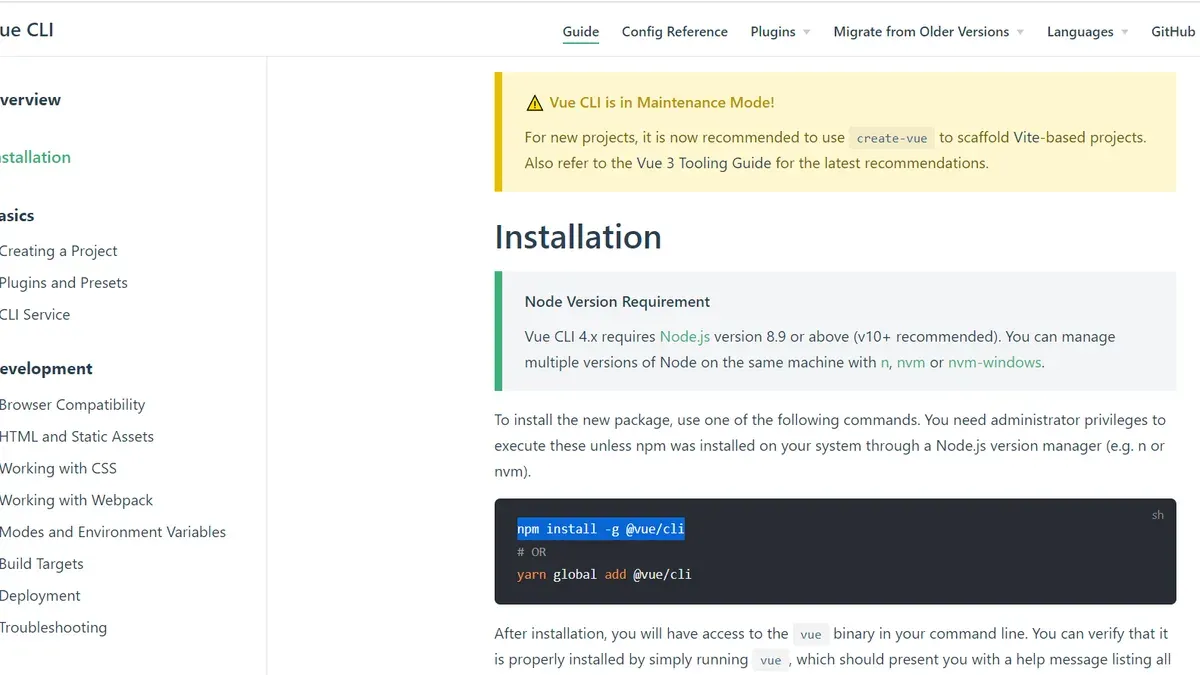
Run the command npm install -g @vue/cli. This installs the latest Vue CLI globally. You should see output indicating successful installation, such as:
npm WARN deprecated... + @vue/[email protected] added 123 packages from 456 contributors in 12.3s
Note that the older vue-cli versions (3 or 4) were installed via the package name vue-cli, while the newer and actively maintained Vue CLI 5.x uses @vue/cli. The newer version offers improved plugin management, better defaults for Vue 3, and enhanced performance.
| Version | Key Features | Package Name |
|---|---|---|
| 3 & 4 | Basic Vue 2 support, limited plugins | vue-cli |
| 5.x | Vue 3 ready, enhanced plugin system, faster builds | @vue/cli |
Global installation benefits include quick project creation anywhere and consistent CLI tool versions across your development environment.
How to create a new Vue 3 project using Vue CLI
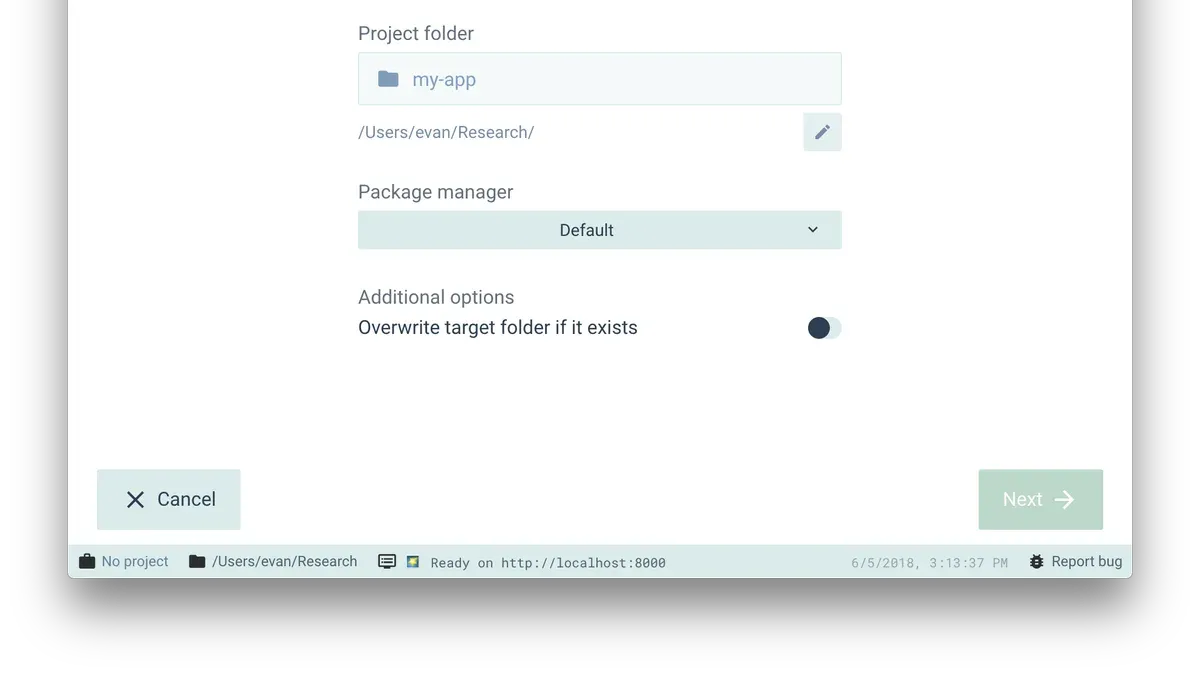
- Open your Terminal and run vue create your-project-name. This command starts the Vue CLI project creation wizard.
- When prompted to pick a preset, choose Manually select features to configure your project settings.
- In the feature selection menu, ensure you include Babel, Router, and any other features you need. After this, Vue CLI will ask which version of Vue.js you want to use. Select 3.x to create a Vue 3 project.
- Complete the prompts by selecting history mode for the router if desired, and confirm other settings as needed.
- Once the setup finishes, navigate into your project folder with cd your-project-name. You will see a folder structure including
src/(your source code),public/(static assets), and configuration files likevue.config.js. - This structure differs from Vue 2 projects mainly in the default configuration and dependencies aligned with Vue 3 features such as Composition API support and updated router versions.
- Run npm run serve to start a development server and verify your Vue 3 project is running successfully.
How to install Vue Router in your Vue project
- Open your project directory in the terminal. Run npm install vue-router@4 to add Vue Router compatible with Vue 3. You should see npm completing the installation without errors.
- Create a router folder inside your src directory, then add a file named index.js or index.ts if you use TypeScript. This file will configure your routes.
- In src/router/index.js, import Vue Router and define routes. For example:
- import { createRouter, createWebHistory } from 'vue-router';
- const routes = [{ path: '/', component: () => import('@/views/Home.vue') }];
- const router = createRouter({ history: createWebHistory(), routes });
- export default router;
- Open your main.js or main.ts file where you create your Vue app. Import the router: import router from './router'. Then add .use(router) when creating the app instance, like:You should now have routing enabled in your Vue 3 project.
- const app = createApp(App);
- app.use(router);
- app.mount('#app');
- Run npm run serve or npm run dev to start the development server. Navigating to the root URL (/) should load the Home component, confirming Vue Router is working.
Vue Router version 4 is designed for Vue 3 and uses the composition API internally, so ensure you install version 4 to avoid compatibility issues. This setup supports dynamic routing and history mode by default, helping you manage navigation smoothly in your app.
Troubleshooting common Vue CLI installation issues on Mac
When installing Vue CLI on Mac, you may encounter permission errors like EACCES: permission denied. Fix this by running sudo npm install -g @vue/cli or by adjusting npm directory permissions with sudo chown -R $(whoami) $(npm config get prefix)/{lib/node_modules,bin,share}. Successful permission fixes show no error messages after the command.
Conflicts from multiple Node.js versions can cause unexpected failures. Use nvm (Node Version Manager) to switch between versions: nvm use stable sets a stable Node.js version for Vue CLI compatibility. After switching, verify with node -v and npm -v.
If the terminal responds with vue: command not found, it usually indicates a PATH issue. Add Vue CLI’s global npm bin directory to your PATH by appending export PATH=$(npm bin -g):$PATH to your ~/.zshrc or ~/.bash_profile, then reload the shell.
Outdated npm or Node.js versions can break installation. Confirm you’re running supported versions using node -v and npm -v. Update Node.js from nodejs.org or via Homebrew with brew upgrade node. After updating, reinstall Vue CLI to ensure compatibility.
Using Vue CLI plugins and managing versions
You can extend Vue CLI functionality by adding plugins with the vue add command. Plugins automate setup for features like UI frameworks, testing tools, or platform integrations.
- Run
vue add vue-cli-plugin-unito add the uni-app plugin, which supports cross-platform development. You should see output confirming plugin installation and configuration updates. - Verify the plugin is added by checking
package.jsondependencies or by runningvue inspectto see updated webpack config. - Check your global Vue CLI version with
vue --version. For example, 5.0.8 indicates the installed version. - Check the local CLI version in a project by running
npx vue --versioninside the project folder. This may differ if the project uses a specific version. - Upgrade the global CLI using
npm install -g @vue/clito get the latest features and fixes. After upgrading, recheck the version to confirm.
Global Vue CLI versions affect your command-line tools, while local versions control project-specific builds. Plugins like vue-cli-plugin-uni add tailored configurations and dependencies, simplifying complex setups through automated scripts.
- How to Install Angular CLI on Mac: A Clear Step-by-Step Guide
- How to Install Yarn on Mac: A Clear Step-by-Step Guide
- How to Install Deno on Mac: A Complete Step-by-Step Guide
- How to Install Docker on Mac: A Clear Step-by-Step Guide
Frequently asked questions
How to install vue js?
To install Vue.js, you can either include it via a CDN in your HTML file or install it through a package manager like npm. For development, using npm with the command npm install vue in your project directory is common. This method integrates Vue.js into your build system and allows easier updates and plugin use.
What is vue cli?
Vue CLI is a command-line interface tool that streamlines the process of setting up and managing Vue.js projects. It provides project scaffolding, plugin management, and built-in development servers, helping you quickly configure Vue applications with modern tooling and best practices.
How to install vue 3?
Vue 3 can be installed by creating a new project using Vue CLI and selecting Vue 3 during setup, or by running npm install vue@next for an existing project. Using Vue CLI ensures you get the latest Vue 3 version with compatible tooling and recommended configurations.
How to install vue3?
Installing Vue 3 involves using Vue CLI to scaffold a new app configured for Vue 3 or manually installing it with npm via npm install vue@next. Vue CLI simplifies the process by setting up dependencies and project structure tailored to Vue 3’s features.
How to install vue js on Mac?
On a Mac, first ensure you have Node.js and npm installed. Then, open Terminal and run npm install -g @vue/cli to install Vue CLI globally. After that, create Vue projects using Vue CLI commands to manage Vue.js installations efficiently on your Mac.
What this guide does not cover
This guide assumes basic familiarity with the command line and does not cover alternative installation methods like Yarn or pnpm. It does not address advanced configuration options or integration with backend services. Users with highly customized Node.js environments or those working within corporate network restrictions may encounter additional challenges that fall outside the scope of this article.
The single most useful next step is to familiarize yourself with the Vue CLI documentation specific to the plugins and features you plan to use. This will help you stay up to date with version changes and best practices, enabling you to tailor your Vue.js projects confidently and troubleshoot issues as they arise.