How to Install Yarn on Mac: A Clear Step-by-Step Guide
This guide provides clear, step-by-step instructions to install Yarn on Mac, covering methods, common issues, and integration with VSCode.

You’ve decided to use Yarn for package management on your Mac, but you’re unsure of the best way to install it. Whether you prefer using Homebrew or a manual setup, choosing the right method can affect your workflow and compatibility with tools like Visual Studio Code.
This guide explains how to install Yarn on Mac with clear, step-by-step instructions. It compares installation methods, highlights common pitfalls to avoid, shows how to install Yarn globally, and includes tips for integrating Yarn with VSCode to streamline your development environment.
Key takeaways
- Homebrew offers a quick and simple Yarn installation with automatic updates.
- Manual installation requires downloading and configuring Yarn but allows more control over versions.
- Installing Yarn globally ensures it’s available across all projects and terminal sessions.
- Integrating Yarn with Visual Studio Code enhances package management and script running.
- Common installation issues typically involve path configuration and can be resolved by verifying environment variables.
Before you start: what you need to install Yarn on Mac
Yarn is a popular package manager that serves as an alternative to npm, designed to improve speed, reliability, and security in managing JavaScript dependencies. Before installing Yarn on your Mac, ensure your system meets basic requirements and has necessary tools installed.
- Check your macOS version. Yarn supports macOS versions that are currently maintained by Apple, typically the last two to three major releases. You can check your version by clicking the Apple menu and selecting About This Mac.
- Verify Node.js and npm installation. Yarn depends on Node.js, so you need it installed first. Open Terminal and run
node -vandnpm -v. You should see version numbers indicating they are installed, for example,v16.14.0for Node.js and a corresponding npm version. If these commands return errors, install Node.js first from nodejs.org or via a package manager. - Decide on your package manager method. While you can install Yarn manually, using a package manager like Homebrew simplifies updates and dependencies. If you prefer Homebrew, confirm it is installed by running
brew -v. If not installed, visit brew.sh to set it up. - Understand Yarn’s advantages. Compared to npm, Yarn offers faster package installs through caching, deterministic dependency resolution, and offline capabilities. This can improve development workflow, especially in larger projects.
Having these prerequisites ready will ensure a smooth and efficient Yarn installation process tailored to your Mac development environment.
How to install Yarn on Mac using Homebrew
- Check if Homebrew is installed by running
brew --versionin your Terminal. If installed, you will see a version number displayed, confirming Homebrew is available. If not, proceed to install it. - Install Homebrew by pasting the official installation command into your Terminal:
/bin/bash -c "$(curl -fsSL https://raw.githubusercontent.com/Homebrew/install/HEAD/install.sh)". The script will guide you through the installation process, ending with a message confirming successful installation. - Once Homebrew is ready, install Yarn by running
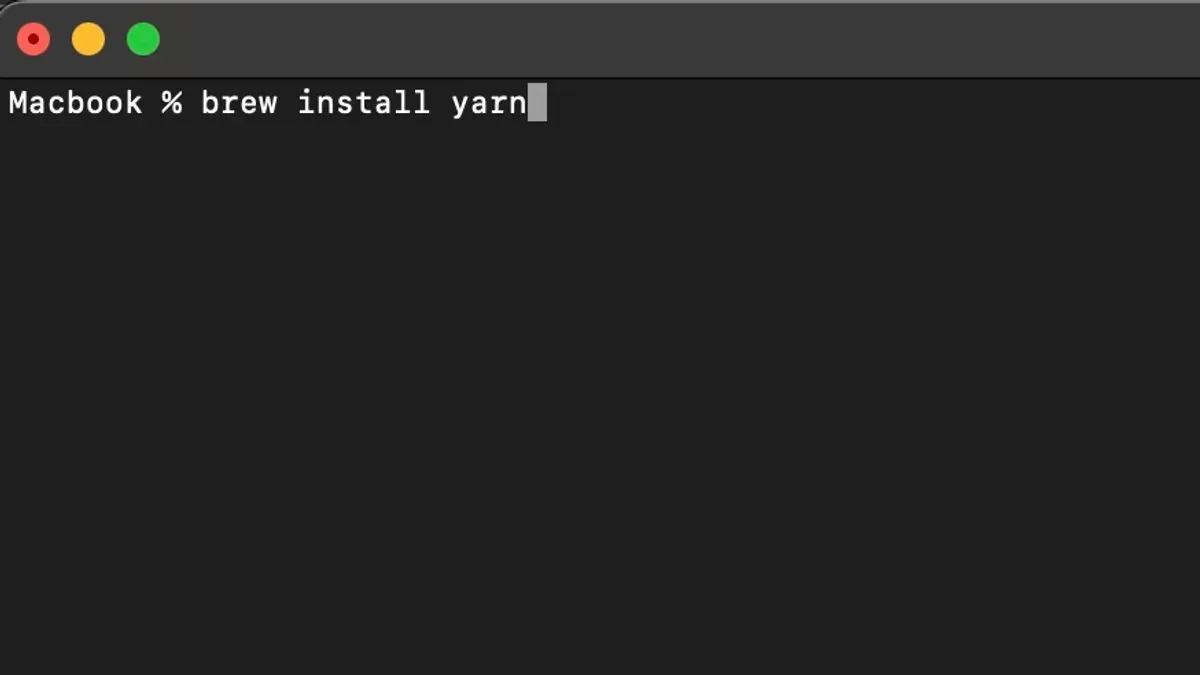
brew install yarn. The Terminal will show progress messages as it downloads and installs Yarn and its dependencies. - Verify Yarn installation by executing
yarn --version. A version number output indicates a successful install and that Yarn is ready to use.
Homebrew is a reliable and widely used package manager on Mac that simplifies software installation and management. Installing Yarn through Homebrew typically completes quickly and integrates smoothly with your system paths. Compared to manual installation methods, Homebrew reduces the chance of version conflicts or missing dependencies, providing a stable environment for your development tools.
How to install Yarn on Mac without Homebrew
If you prefer not to use Homebrew, you can install Yarn either by downloading the official installer or by using npm to install it globally. Both methods are effective but require careful configuration of your PATH environment variable.
Installing Yarn via npm globally
- Open your Terminal app and run npm install -g yarn. This command installs Yarn globally on your system.
Success looks like: npm completes without errors, and the terminal prompt returns. - Verify the installation by running yarn --version. You should see the version number displayed.
Success looks like: a version number such as 1.22.19 appears, confirming Yarn is accessible. - If the command is not found, you may need to add npm’s global binaries to your PATH. Run npm config get prefix to find the global installation path.
Success looks like: a directory path such as /usr/local or /Users/yourname/.npm-global is shown. - Add the bin directory under this path to your PATH variable. For example, if the prefix is /Users/yourname/.npm-global, add
export PATH=$PATH:/Users/yourname/.npm-global/binto your shell profile file (e.g., ~/.zshrc or ~/.bash_profile).
Success looks like: after restarting the terminal,yarn --versionworks without errors.
Downloading and running the official Yarn installer
- Visit the official Yarn website and download the macOS installer package (.pkg).
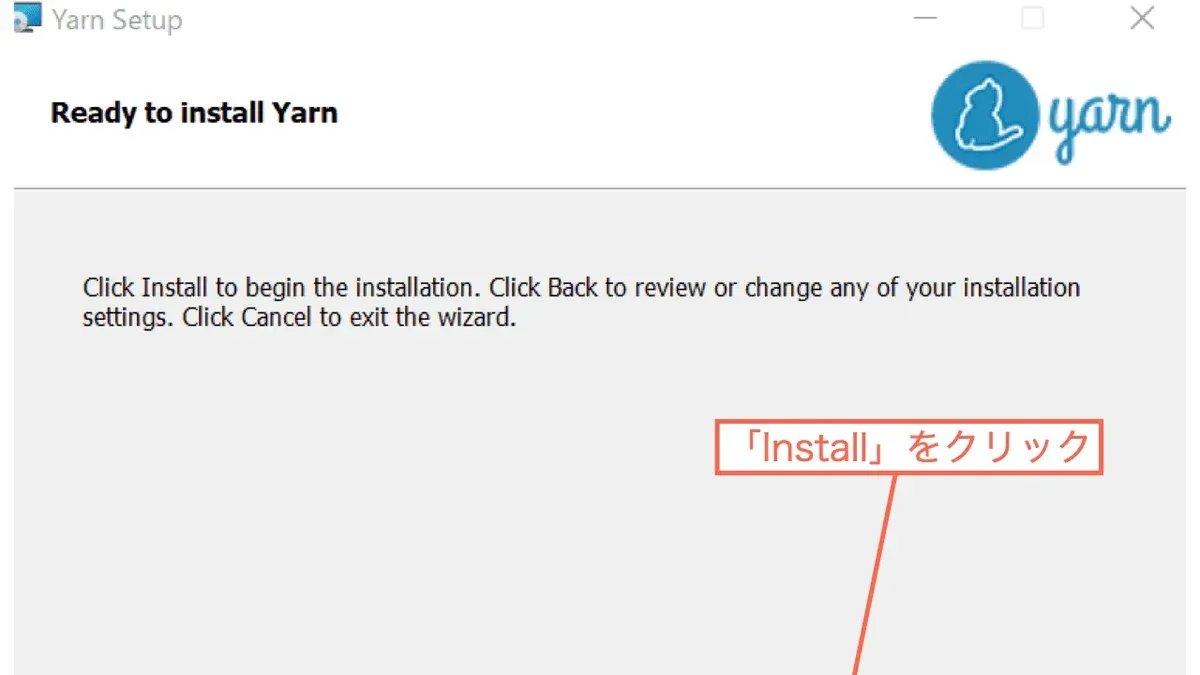
Success looks like: the installer file is saved to your Downloads folder. - Open the.pkg file and follow the installation wizard prompts.
Success looks like: the installer completes without errors. - Open Terminal and run yarn --version to confirm installation.
Success looks like: Yarn version number displayed.
Pros of manual/npm installation: No dependency on Homebrew; flexible if you already use npm heavily.
Cons: You might encounter PATH configuration issues that Homebrew handles automatically; updates need to be managed manually.
How to install Yarn globally on Mac
Installing Yarn globally means making it accessible system-wide, allowing you to run Yarn commands from any terminal session regardless of your current directory. This contrasts with local installations, where Yarn is only available within a specific project folder.
To install Yarn globally, you typically use either npm or Homebrew, ensuring that the Yarn executable is added to your system PATH for universal access.
- Open your Terminal application.
- To install Yarn globally using npm, enter the command
npm install -g yarn. When successful, your terminal will show output indicating Yarn and its dependencies have been added globally. - Alternatively, if you prefer Homebrew, run
brew install yarn. Homebrew handles the global setup and PATH configuration automatically. - After installation, verify Yarn is globally accessible by opening a new terminal window and running
yarn --version. You should see the installed Yarn version number, confirming availability across sessions. - Test further by running
yarn initin any directory; it should prompt you to set up a new project without errors. - If you encounter permission errors during npm global installation, avoid using sudo directly. Instead, configure npm to use a directory within your home folder by following npm’s official fix-permissions guide, preventing system-wide permission conflicts.
By following these steps, Yarn will be globally installed and ready for use in multiple terminal windows, streamlining your development workflow on Mac.
How to use Yarn in Visual Studio Code on Mac
Integrating Yarn with Visual Studio Code (VSCode) on your Mac streamlines your development workflow by enabling direct command execution and package management within the editor.
- Open VSCode and launch the integrated terminal via View > Terminal. You should see a terminal prompt at the bottom of the window.
- Verify Yarn is recognized by typing yarn --version in the terminal. A version number indicates VSCode’s terminal correctly accesses Yarn.
- Use the integrated terminal to run Yarn commands like yarn install. When successful, you will see progress logs and completed dependency installation messages.
- Ensure your project folder is open in VSCode so Yarn commands apply to the correct context.
- Install the Yarn extension from the Extensions Marketplace (View > Extensions, then search “Yarn”). This provides syntax highlighting for Yarn lockfiles and command snippets.
- Enable the npm or Yarn scripts explorer by opening the Command Palette (Cmd + Shift + P) and running Tasks: Run Task. This lets you run defined Yarn scripts with a click.
- If VSCode does not recognize Yarn commands, check your terminal path settings at Code > Preferences > Settings, searching for terminal.integrated.env.osx. Add Yarn’s bin directory if missing.
- Restart VSCode after changes to environment variables to apply the new PATH settings.
By following these steps, you gain efficient control over Yarn within VSCode, minimizing context switching and improving productivity.
Troubleshooting common issues when installing Yarn on Mac
When installing Yarn on Mac, you may encounter permission errors, PATH conflicts, or version mismatches that hinder the setup. Addressing these issues quickly ensures a smooth development experience.
Fixing permission denied errors
Errors like "EACCES: permission denied, access '/usr/local/lib/node_modules'" often occur when npm tries to write to directories without sufficient rights. To fix this:
- Run sudo chown -R $(whoami) /usr/local/lib/node_modules to change ownership of the global npm directory.
- Try reinstalling Yarn globally using npm or Homebrew after this change.
- You should no longer see permission denied errors when running Yarn commands.
Resolving PATH environment variable conflicts
If Yarn commands fail to run or the system uses an old version, your PATH variable might be misconfigured. This is common when multiple Node.js or Yarn installations exist.
- Check your PATH by running echo $PATH in the terminal.
- Ensure the directory containing Yarn binaries (e.g.,
/usr/local/binor your npm global bin path) appears before conflicting paths. - Edit your shell config file (
~/.zshrcor~/.bash_profile) to prioritize the correct Yarn path. - Reload the shell or run source ~/.zshrc (or equivalent) and verify by yarn --version.
Dealing with conflicting Node.js versions
Multiple Node.js versions can cause issues with Yarn. If you use version managers like nvm, ensure your active Node version is compatible:
- Check Node.js version with node -v.
- Switch Node versions using nvm (e.g., nvm use stable) if needed.
- Reinstall or relink Yarn after switching Node versions.
When Homebrew installation fails
Homebrew installation errors may show messages like "Error: Could not create lock file" or "Homebrew not found". To fix:
- Ensure Homebrew is installed and updated by running /bin/bash -c "$(curl -fsSL https://raw.githubusercontent.com/Homebrew/install/HEAD/install.sh)" and then brew update.
- Fix permissions in Homebrew directories: sudo chown -R $(whoami) $(brew --prefix)/*.
- Try the Yarn installation again with brew install yarn.
Errors are generally less frequent with Homebrew installations compared to manual npm-based setups, largely due to automated dependency and path management handled by Homebrew.
Comparing Yarn installation on Mac with other platforms
While this guide centers on macOS, developers working across multiple operating systems should understand how Yarn installation varies on Windows and Linux. Each platform has distinct commands, prerequisites, and recommended approaches documented officially.
| Platform | Common Installation Method | Key Command | Prerequisites |
|---|---|---|---|
| Mac | Homebrew or npm | brew install yarn or npm install -g yarn | Node.js, Homebrew (optional) |
| Windows | Chocolatey, Scoop, or MSI installer | choco install yarn or use official MSI | Node.js, PowerShell, or Command Prompt |
| Linux | Package manager (apt, yum) or npm | sudo apt install yarn or npm install -g yarn | Node.js, repository setup |
On Windows, using Chocolatey or the official MSI installer is common; Chocolatey simplifies updates, while the installer provides a GUI-driven setup. PowerShell or Command Prompt is used for commands, differing from macOS Terminal. The official Yarn documentation advises ensuring Node.js is installed beforehand.
Linux users often rely on their distribution's package manager, such as apt for Debian-based or yum for Red Hat-based systems. Proper repository configuration is necessary, or alternatively, npm can install Yarn globally. Command syntax and environment variables can differ notably from macOS.
For details and the most current instructions, refer to the official Yarn installation documentation. This article’s focus on macOS installation offers a foundation, but cross-platform developers should consult platform-specific guidance to ensure smooth setup and integration.
- How to Install Bun on Mac: A Clear Step-by-Step Guide
- How to Install Deno on Mac: A Complete Step-by-Step Guide
- How to Install Git on Mac: Step-by-Step Guide for Every Setup
- How to Install Docker on Mac: A Clear Step-by-Step Guide
Frequently asked questions
How to install yarn on macos?
You can install Yarn on macOS using Homebrew by running brew install yarn in the Terminal. Alternatively, you can install it manually by downloading the Yarn installer from the official website or by configuring npm with npm install -g yarn. Homebrew is recommended for easier updates and dependency management.
How to install yarn on linux?
On Linux, Yarn installation typically involves adding the Yarn APT or YUM repository, depending on your distribution, then installing with your package manager, for example, sudo apt install yarn on Debian-based systems. You can also install via npm globally with npm install -g yarn if preferred.
How to install yarn on windows?
Windows users can install Yarn by downloading the official installer from the Yarn website or by using the Chocolatey package manager with the command choco install yarn. Another option is installing via npm globally using npm install -g yarn. The installer method is straightforward for most users.
How to install yarn for windows?
Installing Yarn for Windows mirrors the general Windows process: use the official MSI installer for a guided setup or install via Chocolatey with choco install yarn. Ensure your system PATH is updated properly so the yarn command is recognized in the command prompt or PowerShell.
How to install yarn in vscode mac?
To use Yarn in VSCode on Mac, first ensure Yarn is installed via Homebrew or npm. Then, open VSCode and access the integrated Terminal, where you can run Yarn commands directly. For enhanced integration, consider installing extensions like "Yarn" or "npm Intellisense" to improve command accessibility and package management within VSCode.
What this guide does not cover and who should do something else
This guide does not cover advanced Yarn configurations or troubleshooting for complex CI/CD environments. If you require detailed customization, performance tuning, or integration with enterprise-level pipelines, consult Yarn’s official documentation or specialized resources tailored for those scenarios.
For users managing multiple versions of Node.js or Yarn across various projects, tools like nvm (Node Version Manager) or Yarn version managers might be more appropriate than the global installation methods discussed here.
To get started immediately, open your Terminal and install Yarn via Homebrew by running brew install yarn. This method is typically the most straightforward and maintains compatibility with macOS system updates and VSCode integration.