
How to Install Bun on Mac: A Clear Step-by-Step Guide
This guide shows you how to install Bun on Mac using official methods and Homebrew for both Apple Silicon and Intel machines.

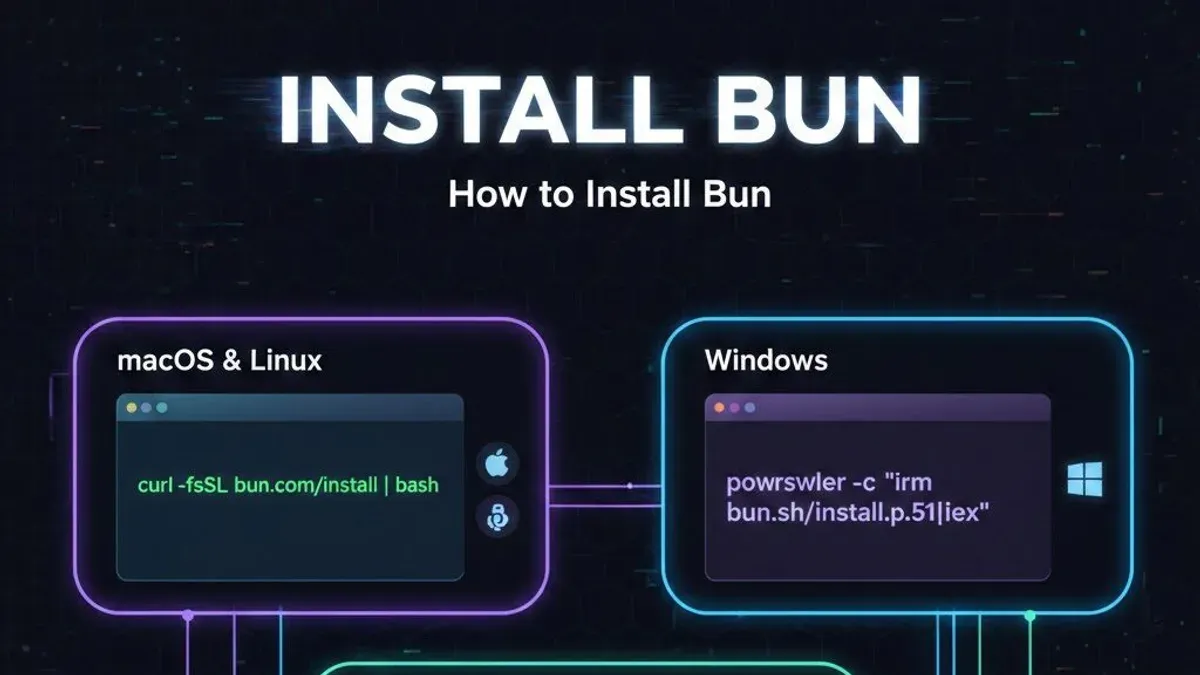
Installing Bun on your Mac can streamline your JavaScript and TypeScript development, but deciding on the best installation method can be confusing. Whether you're working on an Intel-based Mac or one with Apple Silicon, understanding how to install Bun on Mac correctly will save you time and headaches.
This guide walks you through the steps to install Bun using the official installer and Homebrew, explains the differences between Apple Silicon and Intel installations, and clarifies Bun’s package management commands compared to other tools. By the end, you’ll know which approach fits your setup and how Bun stands out from other package managers.
Key takeaways
- You can install Bun on Mac using either the official installer or Homebrew, depending on your preference.
- Apple Silicon and Intel Macs require slightly different installation steps to ensure compatibility.
- Understanding the difference between bun install and bun add helps manage packages effectively.
- Installing specific Bun versions is possible for projects requiring consistency.
- Common installation issues on Mac often relate to environment path settings and permissions.
Before you start: What you need to install Bun on Mac
Bun is a modern JavaScript runtime and package manager that aims to provide fast performance and streamlined workflows. Before installing Bun on your Mac, ensure your system meets the necessary requirements to avoid installation issues.
Supported macOS versions: Bun supports macOS 11 Big Sur and later versions. If your Mac runs an earlier version, you will need to upgrade to at least Big Sur to use Bun effectively.
Hardware considerations: While there are no strict minimum hardware specs, Bun runs best on Macs with at least 8GB of RAM and a recent processor. Both Intel-based Macs and Apple Silicon (M1, M2) Macs are supported, but installation steps may vary slightly.
Command line tools required: You will need access to the Terminal app on your Mac. Additionally, having Homebrew installed is recommended if you prefer installing Bun through it, though it’s not mandatory if you use the official installer script.
Network connection and permissions: A stable internet connection is necessary to download Bun and its dependencies. You may also need administrative privileges or permission to install software on your Mac, especially if using Homebrew or modifying system PATH variables.
Confirm your macOS version by clicking the Apple menu > About This Mac. Open Terminal from Applications > Utilities to verify command line tool access. Having these prerequisites in place prepares you for a smooth Bun installation tailored to your Mac environment.
How to install Bun on Mac using the official installer
The official Bun installer offers a reliable and straightforward way to get Bun running on your Mac. This method downloads a script that handles setup and configuration automatically, ensuring you have the latest stable Bun version.
- Open the Terminal app on your Mac. You can find it in Applications > Utilities or search via Spotlight.
- Run the following command to download and execute the Bun install script:
curl -fsSL https://bun.sh/install | bash
When successful, you will see output showing Bun downloading and installing its components. - Once the script finishes, restart your Terminal or run source ~/.bun/env to update your environment variables if they weren't set automatically.
- Verify the installation by typing bun --version. A version number will confirm Bun is properly installed. If you see a "command not found" error, revisit step 3 to ensure your environment variables are configured correctly.
The entire installation typically takes under a minute on modern Macs, which compares favorably to other installation methods that may require manual dependency management or longer setup times.
This official script supports both Intel and Apple Silicon Macs, automatically selecting the correct binary for your architecture. It also handles path exports, reducing the manual configuration steps needed.
How to install Bun on Mac using Homebrew
If you prefer managing software through the Mac ecosystem, Homebrew offers a straightforward alternative to the official Bun installer. Homebrew integrates well with macOS, simplifying updates and dependencies management.
- Check if Homebrew is installed by opening Terminal and running brew --version. If you see a version number, Homebrew is installed; if not, proceed to install it.
- To install Homebrew, run the command /bin/bash -c "$(curl -fsSL https://raw.githubusercontent.com/Homebrew/install/HEAD/install.sh)". Follow the on-screen instructions until the process completes.
- Install Bun by running brew install bun in Terminal. You should see Homebrew download and install Bun along with any necessary dependencies.
- Verify the installation by running bun --version. This command should print the installed Bun version, confirming the installation.
Compared to the official Bun installer script, Homebrew installation may involve more initial setup if Homebrew is not present. However, Homebrew excels at managing updates and dependencies, allowing you to update Bun along with other packages using brew upgrade. The official script is quicker for first-time installation but requires manual update steps.
If you encounter issues, ensure Homebrew's environment variables are correctly set, especially if you are using non-standard shell configurations. Running brew doctor can help identify common problems. Also, confirm your macOS permissions allow Homebrew to write to necessary directories.
How to install Bun on MacBook and macOS with Apple Silicon vs Intel
To install Bun effectively on your Mac, you first need to identify your processor type: Apple Silicon (such as M1 or M2) or Intel. This distinction affects installation commands and compatibility considerations.
- Check your processor type: Click the Apple menu () > About This Mac. The Overview tab displays your processor information. If you see "Apple M1" or "Apple M2," you have Apple Silicon; otherwise, it’s Intel.
- Run the official Bun installer script: The installation script automatically detects your architecture, so on either Apple Silicon or Intel, use curl -fsSL https://bun.sh/install | bash. Successful execution shows Bun’s version confirmation.
- Using Homebrew on Apple Silicon: Homebrew installs to /opt/homebrew by default on Apple Silicon. Ensure your terminal session loads this path by adding
eval "$(/opt/homebrew/bin/brew shellenv)"to your shell profile. Then runbrew install bun. Bun will be installed natively for Apple Silicon. - Using Homebrew on Intel Macs: Homebrew installs to /usr/local by default. Run
brew install bunas usual. Bun installs with full support for Intel architecture. - Rosetta 2 considerations: If you have an Apple Silicon Mac but rely on Intel-based tools, you may run your terminal under Rosetta 2. In this case, Bun installs correctly but runs under Rosetta translation. For best performance, use the native Apple Silicon terminal without Rosetta.
By following these steps, you ensure Bun is installed correctly and optimized for your Mac’s processor, whether Apple Silicon or Intel.
How to install specific versions of Bun on Mac
If you need a particular Bun version for compatibility or testing, the official installer script supports specifying versions via environment variables. This method lets you install or switch between versions without affecting global settings immediately.
- Open your Terminal.
- Run the installer command with the BUN_INSTALL_VERSION environment variable set to the desired version, for example:
BUN_INSTALL_VERSION=0.6.13 curl -fsSL https://bun.sh/install | bash
You should see output confirming the installation of Bun version 0.6.13. - Verify the installed version by running:
bun --version
This confirms the active Bun version. - To manage multiple versions manually, you can keep separate Bun binaries installed in different directories and adjust your
PATHvariable accordingly before running Bun commands.
Unlike Node.js or Python, which have dedicated version managers like nvm or pyenv, Bun currently lacks an official version manager. This means you must handle version switching by reinstalling or manually managing binaries.
Homebrew users face limitations here: Homebrew installs only the latest stable Bun release, so installing specific versions via Homebrew isn’t supported. For precise version control, the installer script approach is preferable.
In summary, use the environment variable with the installer script to install specific Bun versions and manage multiple versions manually if needed, since automated version management tools for Bun are not yet widely available.
Understanding bun install vs bun add: What you need to know
Bun’s package management commands bun install and bun add serve distinct purposes that can prevent confusion if used correctly.
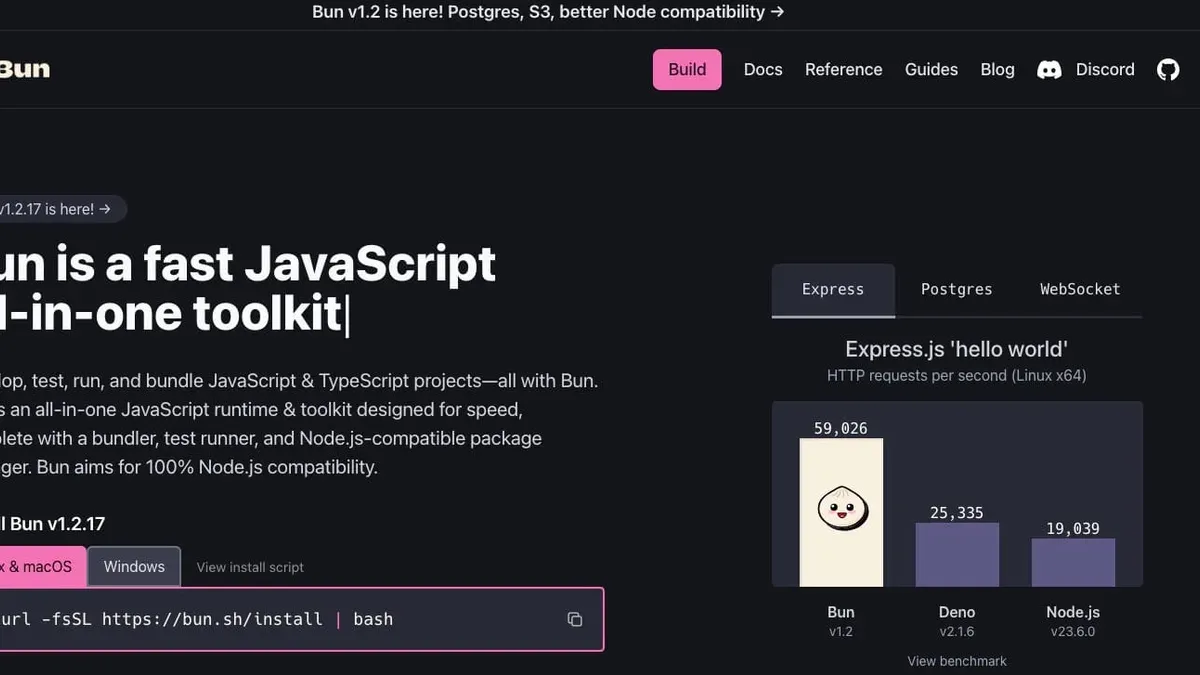
bun install
The bun install command installs all dependencies listed in your package.json and bun.lockb files. If you already have dependencies defined, running this command sets up your node_modules directory quickly and efficiently.
Typical use case: After cloning a project or updating dependencies, you run:
bun install- You should see Bun resolving and installing all required packages with output confirming successful installation.
bun add
The bun add command adds a new package to your project’s dependencies and installs it immediately. It also updates your package.json and lockfile automatically.
Typical use case: To add a new dependency such as lodash, run:
bun add lodash- Bun installs
lodashand updatespackage.jsonand the lockfile withlodashlisted under dependencies.
How Bun differs from npm and yarn
| Action | bun | npm | yarn |
|---|---|---|---|
| Install all dependencies | bun install | npm install | yarn install |
| Add new package and update manifest | bun add package-name | npm install package-name --save | yarn add package-name |
Bun combines installation and manifest update in bun add, streamlining the process compared to npm’s separate flags. Both bun install and bun add run faster due to Bun’s native implementation.
Troubleshooting common Bun installation issues on Mac
When installing Bun on your Mac, some common issues may arise that can interrupt the process. Understanding typical error messages and their fixes helps you get Bun running smoothly.
Fixing permission errors
If you encounter errors like "Permission denied" or "Operation not permitted", it usually means your user account lacks rights to write to necessary directories.
- Run the installer command prefixed with sudo to grant temporary admin privileges.
Expected result: The installation proceeds without permission errors. - If you prefer not to use sudo, adjust directory permissions using
chmodorchownon affected folders like/usr/local/bin.
Expected result: Your user can write to these directories and install Bun.
Resolving PATH environment variable issues
After installation, if bun commands are not recognized, the PATH variable may be missing Bun’s binary location.
- Check your PATH by running
echo $PATHin the terminal.
Expected result: You see a list of directories including/usr/local/binor wherever Bun was installed. - If missing, add Bun’s path to your shell config file (e.g.,
~/.zshrcor~/.bash_profile) withexport PATH=$PATH:/path/to/bun.
Expected result: Restarting the terminal allows runningbuncommands successfully.
Handling conflicts with Node.js or other package managers
Conflicts can occur if multiple package managers try to manage dependencies or binaries.
- Verify if Node.js or npm are globally installed by running
node -vandnpm -v.
Expected result: Versions display without error. - If there are path conflicts, consider temporarily disabling conflicting tools or adjusting PATH priorities so Bun’s binaries take precedence.
Expected result: Bun commands execute without interference.
Dealing with network or firewall issues during installation
The Bun installer script fetches files from the internet, so network restrictions can cause failures.
- Check your internet connection and firewall settings to ensure
curlorwgetcan access Bun’s download URLs.
Expected result: You can manually download necessary files. - If behind a corporate firewall or proxy, configure your terminal or use VPN to bypass restrictions.
Expected result: Installer downloads and runs without timing out.
- How to Install Deno on Mac: A Complete Step-by-Step Guide
- How to Install.NET SDK on Mac: A Clear Step-by-Step Guide
- How to Install Docker on Mac: A Clear Step-by-Step Guide
- How to Install Git on Mac: Step-by-Step Guide for Every Setup
Frequently asked questions
How to install bun on ubuntu?
To install Bun on Ubuntu, you typically use the official Bun install script via the terminal. Run curl -fsSL https://bun.sh/install | bash to download and execute the installer. Ensure you have the necessary build tools and permissions, and restart your terminal after installation to apply changes.
How to install bun on windows?
Bun can be installed on Windows through Windows Subsystem for Linux (WSL) or a compatible terminal like Git Bash. Inside WSL or your Unix-like shell, run the official install script with curl -fsSL https://bun.sh/install | bash. Native Windows installations without WSL are not officially supported.
How to install bun on windows 11?
On Windows 11, Bun installation is best done via Windows Subsystem for Linux (WSL). After setting up WSL with a Linux distribution like Ubuntu, open the WSL terminal and run the Bun install script using curl. This approach leverages Linux compatibility within Windows 11 for smooth operation.
How does windows install bun?
Windows does not have a native Bun installer; instead, it relies on WSL or Unix-like environments to run Bun. The installation involves running the official Bun installation script inside these environments. Direct installation on Windows Command Prompt or PowerShell is not supported.
What is bun install?
bun install is a command used to install all dependencies listed in a project's package configuration file. Unlike bun add, which adds a specific package, bun install efficiently installs all required packages, often faster than traditional package managers. This command is optimized for Bun's package management system.
What this guide does not cover and who should look elsewhere
This guide focuses on installing Bun on Mac and does not cover comprehensive usage or advanced configuration of Bun. Users with highly customized Mac environments or unusual security settings may encounter different installation challenges not covered here. Installing Bun on other operating systems involves different steps and tools; this article only summarizes those briefly for context.
The single most useful next step is to familiarize yourself with Bun’s core commands and workflow after installation. Starting with bun init to create a project and understanding the difference between bun install and bun add will help you integrate Bun smoothly into your development process on Mac.



