
How to Install.NET SDK on Mac: A Clear Step-by-Step Guide
Discover easy methods to install.NET SDK on Mac, verify installations, uninstall cleanly, and set up for mobile development.

You want to start developing with.NET on your Mac but aren’t sure where to begin. Whether you are setting up a new development environment or updating an existing one, knowing how to install.NET SDK on Mac correctly is essential to avoid conflicts and ensure smooth workflows.
This guide covers multiple installation methods, including the official installer and Homebrew, and details how to install specific.NET SDK versions like.NET 8 and.NET 10. You will also learn how to verify your installation, uninstall the SDK cleanly, integrate with Visual Studio for Mac, and set up the Android SDK for mobile development. Troubleshooting tips are included to resolve common issues during the installation process.
Key takeaways
- The official installer and Homebrew are both reliable ways to install the.NET SDK on Mac; choose based on your workflow preferences.
- Specific SDK versions can be installed side by side to support different projects.
- Use the 'dotnet --list-sdks' command to verify installed SDKs.
- Uninstalling requires removing SDK folders and related environment variables to avoid conflicts.
- Visual Studio for Mac requires separate SDK installation for full.NET development support, including mobile with Android SDK setup.
Before you start: What you need to install.NET SDK on Mac
The.NET Software Development Kit (SDK) provides the tools and libraries needed to build applications across various platforms. On Mac, it enables development with languages like C# and F#, supporting both console and graphical projects.
The.NET SDK supports macOS versions 12.0 (Monterey) and later. It is compatible with both Intel-based Macs and Apple Silicon (M1, M2) architectures. Make sure your system meets these requirements to avoid compatibility issues.
Before installation, you should be familiar with basic command line usage, as the Terminal app is often used for installation and verification. Having Homebrew, a popular package manager for macOS, can simplify installation and version management.
Understand that the.NET SDK differs from the.NET Runtime: the SDK includes compilers and tools for development, while the Runtime is only for running existing applications. Installing the SDK covers both needs for developers.
If you plan to develop mobile apps with.NET, particularly using Xamarin or.NET MAUI, you will also need the Android SDK. This is essential for building and testing Android applications alongside your.NET projects.
How to install.NET SDK on Mac using the official installer
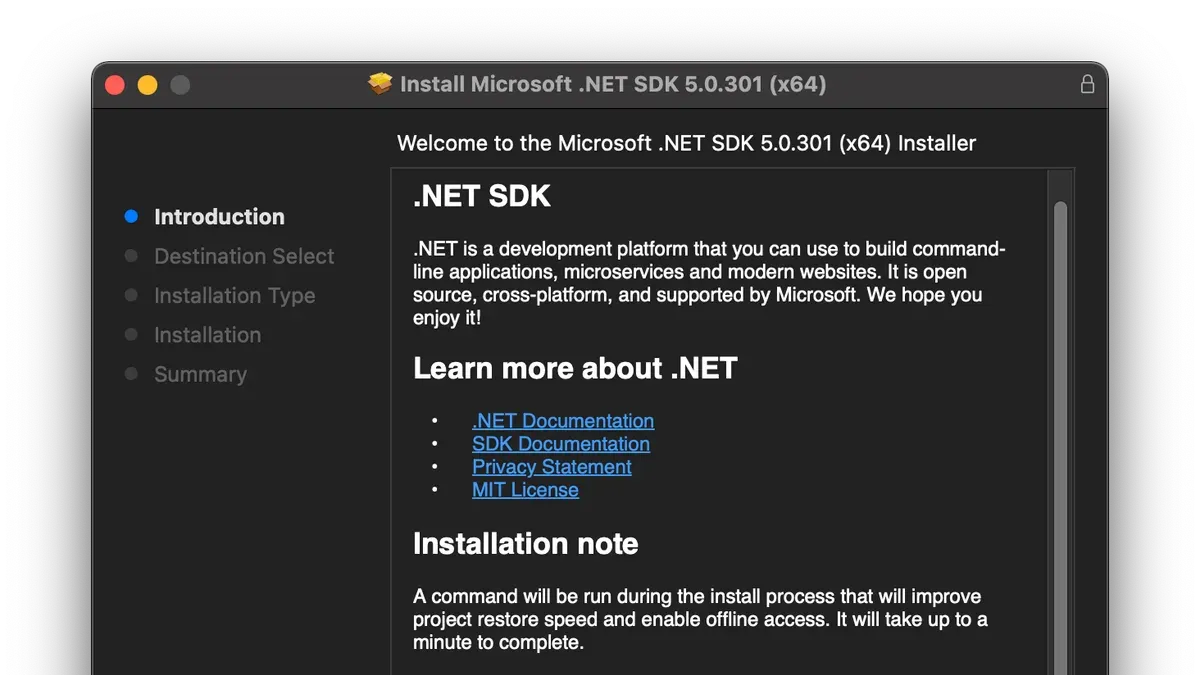
To install the.NET SDK on your Mac using the official Microsoft installer, begin by visiting the official.NET download page at https://dotnet.microsoft.com/en-us/download/dotnet. Choose the macOS version that matches your Mac’s architecture: Intel-based Macs require the x64 installer, while Apple Silicon Macs use the ARM64 installer.
- Download the appropriate.pkg installer for your Mac’s architecture.
- Double-click the downloaded.pkg file to launch the installer.
- Follow the on-screen prompts: agree to the license terms, choose the installation location (default is recommended), and proceed with the installation.
- Once the installer completes, close the installer window.
- Open Terminal and type dotnet --version to verify the installation.
Successful installation will output the installed SDK version number, confirming the setup. For example, you might see 8.0.100 if you installed.NET 8 SDK.
Note that the official installer configures environment paths automatically, so no manual PATH edits are usually necessary. However, if you have multiple SDK versions installed or run into version conflicts, verify your shell environment variables.
Below is a typical Terminal output after installation:
$ dotnet --version
8.0.100
Following these steps ensures a reliable and straightforward.NET SDK installation tailored to your Mac’s hardware.
How to install.NET SDK on Mac using Homebrew
Homebrew is a popular package manager on Mac that developers comfortable with the command line often prefer for installing and managing software like the.NET SDK. If you don’t have Homebrew installed, you can add it easily before proceeding.
- Check if Homebrew is installed by running brew --version in Terminal. If it returns a version number, you’re ready. If not, install it with /bin/bash -c "$(curl -fsSL https://raw.githubusercontent.com/Homebrew/install/HEAD/install.sh)". You should see a message confirming the successful installation.
- Install the latest.NET SDK by executing brew install --cask dotnet-sdk. This command downloads and installs the current stable SDK version. When done, Terminal will show a success message.
- Verify the installation by running dotnet --version. The output displays the installed SDK version, confirming a successful setup.
- If you have multiple SDK versions and want to switch between them, use dotnet --list-sdks to see all installed versions, then set the active version per project with a global.json file specifying the desired SDK version.
Using Homebrew streamlines updates and uninstallation with simple commands. However, it may lag slightly behind official releases, and the installer approach sometimes offers more control over specific versions. Choose based on your workflow preference.
How to install specific.NET SDK versions on Mac (including.NET 8 and.NET 10)
You may need to install specific.NET SDK versions to ensure compatibility with your project's framework requirements or to test features unique to certain releases. Microsoft maintains an archive of all.NET SDK versions, allowing you to download and install exactly what your work demands.
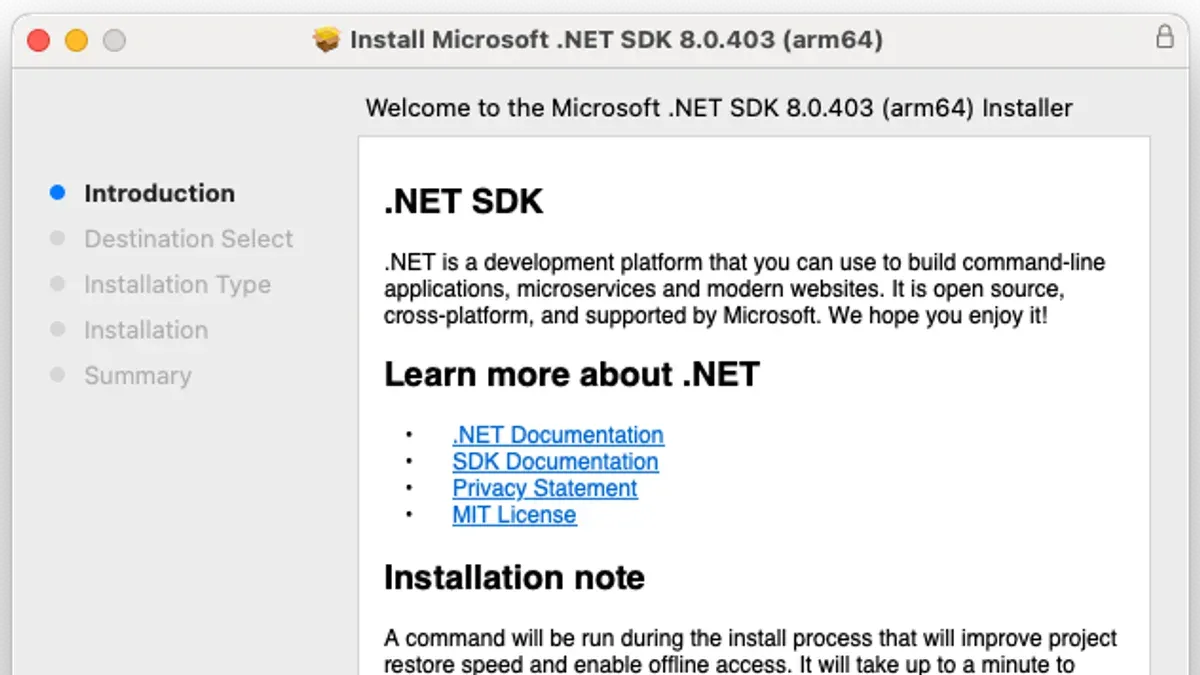
- Visit the official Microsoft.NET download archive and locate the desired version, such as.NET 8 or.NET 10 SDK installers for macOS.
- Download the appropriate.pkg installer for your Mac's architecture (Intel or Apple Silicon). Once downloaded, run the installer and follow the on-screen prompts until completion.
- After installation, open Terminal and run dotnet --list-sdks to verify the new version appears alongside any existing SDKs.
To switch between installed SDK versions for your projects, use a global.json file in your project's root directory specifying the desired SDK version. For example:
{ "sdk": { "version": "10.0.100" }}
This ensures consistent builds across environments.
Note that.NET 8 introduced improved native support for Apple Silicon, potentially offering better performance compared to earlier versions..NET 10 continues this trend with further optimizations and new APIs, but confirm your project's compatibility before upgrading.
| Version | Key Features | Considerations |
|---|---|---|
| .NET 8 | Enhanced Apple Silicon support, improved cloud-native tools | May require updated dependencies; better performance on M1/M2 chips |
| .NET 10 | Expanded APIs, improved performance, long-term support | Check third-party library compatibility before upgrading |
Installing multiple SDK versions side-by-side is fully supported; you can maintain legacy projects on older SDKs while using the latest for new development.
How to uninstall.NET SDK on Mac cleanly
To fully remove the.NET SDK from your Mac and avoid conflicts or free up disk space, follow these steps carefully. Uninstalling might be necessary when troubleshooting installation issues or resolving version conflicts.
- Open Terminal and list installed SDK versions with
ls /usr/local/share/dotnet/sdk. You should see folders named by version numbers. - Remove the SDK directory completely by running
sudo rm -rf /usr/local/share/dotnet. This deletes all SDK versions and runtime files in that location. - Check for any related symlinks by listing
/usr/local/binwithls -l /usr/local/bin | grep dotnet. Remove these symlinks usingsudo rm /usr/local/bin/dotnetor any other matching links. - Verify removal by running
dotnet --list-sdks. You should see no SDKs listed or an error indicating the command is not found. - Optionally, check for leftover caches or NuGet packages in your home directory under
~/.nuget/packagesor~/.dotnetand remove them if you want a completely clean uninstall.
Common pitfalls include missing symlinks that keep dotnet commands active, or leaving cached files that might cause version conflicts after reinstallation.
How to check what.NET SDK is installed on your Mac
To verify which.NET SDK versions are installed on your Mac, use the Terminal command dotnet --list-sdks. This command displays all installed SDK versions along with their installation paths.
- Open Terminal.
- Type
dotnet --list-sdksand press Enter. - Review the output, which lists SDK versions followed by their installation directories.
For example, you might see:
6.0.100 [/usr/local/share/dotnet/sdk]
7.0.200 [/usr/local/share/dotnet/sdk]
8.0.101 [/usr/local/share/dotnet/sdk]
Each line indicates a different installed SDK version. The version number reflects the major, minor, and patch releases, helping you ensure you have the required SDK for your projects.
To confirm which SDK version a specific project uses, check if it contains a global.json file. This file specifies the exact SDK version the project will run with, overriding the default.
If you want to verify the SDK location manually, navigate to the installation path shown in the output. This is helpful for troubleshooting or cleaning up old SDK versions.
How to install.NET SDK in Visual Studio for Mac
Visual Studio for Mac includes built-in support for the.NET SDK, simplifying development by automatically configuring compatible SDK versions. Usually, you do not need to install the.NET SDK separately if you rely solely on Visual Studio's integrated environment.
However, if you need to work with specific SDK versions or handle projects outside Visual Studio, manual installation of the.NET SDK on your Mac might be necessary.
- Open Visual Studio for Mac.
- Go to the Visual Studio menu and select Preferences. You should see the Preferences dialog.
- In Preferences, navigate to Projects >.NET Core & SDKs. This section lists the SDK versions Visual Studio detects.
- Check the displayed SDK versions and ensure they match the ones your projects require. If the required SDK is missing, consider installing it manually.
- To avoid version mismatches, open your project’s
global.jsonfile (if present) and verify that the SDK version specified aligns with those listed in Visual Studio preferences. - After installation or changes, restart Visual Studio for Mac to refresh SDK detection and ensure your projects build correctly.
Screenshots of the Preferences > Projects >.NET Core & SDKs panel and the SDK version dialogs help verify installed SDKs and confirm compatibility.
How to install Android SDK on Mac for.NET mobile development
When developing mobile apps with.NET using Xamarin or MAUI, the Android SDK is essential alongside the.NET SDK. It provides the necessary tools, APIs, and emulator support for building and testing Android apps.
The recommended way to install the Android SDK on Mac is via Android Studio, which includes the SDK Manager for managing SDK components. Alternatively, you can install the command-line tools directly if you prefer minimal setup.
- Download and install Android Studio from the official website. Once installed, launch Android Studio and open the SDK Manager from the Preferences > Appearance & Behavior > System Settings > Android SDK menu.
- In SDK Manager, ensure the latest Android SDK Platform and SDK Tools (especially Android SDK Build-Tools and Android Emulator) are selected and installed. You should see these components listed with checkmarks after installation.
- Set environment variables so.NET tooling can locate the Android SDK. Add the following lines to your shell profile (e.g.,
~/.zshrcor~/.bash_profile):export ANDROID_SDK_ROOT=$HOME/Library/Android/sdk
export PATH=$PATH:$ANDROID_SDK_ROOT/emulator:$ANDROID_SDK_ROOT/platform-tools:$ANDROID_SDK_ROOT/tools - Apply the changes by running
source ~/.zshrc(or your shell profile name). Then verify the setup withadb --versionin Terminal; it should display the Android Debug Bridge version. - Finally, test integration by running
dotnet workload install mauiordotnet workload install androidto confirm.NET recognizes the Android SDK tools.
Properly installing and configuring the Android SDK ensures smooth mobile app development with.NET on your Mac.
Troubleshooting common.NET SDK installation issues on Mac
When installing the.NET SDK on Mac, several issues may arise. Below are common problems and how to fix them.
Fixing PATH environment variable issues
If the 'dotnet' command returns command not found, your PATH variable likely lacks the SDK location.
- Open Terminal and run
echo $PATHto check if/usr/local/share/dotnetor/usr/local/binis included. - If missing, add
export PATH=$PATH:/usr/local/share/dotnetto your shell profile file (e.g.,~/.zshrcor~/.bash_profile). - Reload the profile with
source ~/.zshrcor restart Terminal. - Run
dotnet --versionto confirm it now recognizes the command.
Resolving conflicts with multiple SDK versions
If you see errors like multiple SDKs found or unexpected version usage, verify installed SDKs with dotnet --list-sdks.
Use a global.json file in your project directory to specify which SDK version to use, preventing conflicts.
Handling permission errors during installation
Permission errors such as operation not permitted can occur if the installer lacks rights.
- Ensure you're running the installer with an administrator account.
- Use
sudoin Terminal when running manual installations. - Check and adjust folder permissions of
/usr/local/share/dotnetusingsudo chown -R $(whoami) /usr/local/share/dotnet.
Known issues with Apple Silicon Macs and Rosetta 2 requirements
Some.NET SDK versions require Rosetta 2 on Apple Silicon Macs.
- If you get errors running
dotneton an M1 or M2 Mac, install Rosetta 2 usingsoftwareupdate --install-rosettain Terminal. - Run Terminal in Rosetta mode by selecting the app in Finder, pressing Cmd+I, and checking Open using Rosetta.
- After installation, retry your SDK commands to confirm compatibility.
- How to Install OpenJDK on Mac: A Complete Step-by-Step Guide
- How to Install Maven on Mac: A Clear Step-by-Step Guide
- How to Install Gradle on Mac: A Step-by-Step Guide
- How to Install Git on Mac: Step-by-Step Guide for Every Setup
Frequently asked questions
How to install.net on mac?
To install.NET on Mac, you can download the official.NET SDK installer from Microsoft's website or use Homebrew by running brew install --cask dotnet-sdk. After installation, ensure you add the SDK path to your shell profile if needed. Verifying the installation involves running dotnet --version in Terminal.
How to install.net sdk 10?
Installing.NET SDK 10 on Mac requires downloading the specific SDK version installer from Microsoft's official site under.NET 10 releases. Alternatively, if using Homebrew, you may need to tap a custom repository or specify the version explicitly because the default Homebrew cask usually installs the latest stable SDK.
How to install.net 10 sdk on mac?
To install.NET 10 SDK on Mac, visit the Microsoft.NET download page, select the macOS installer for.NET 10 SDK, and follow the guided installation. Afterward, confirm installation by running dotnet --list-sdks to see all installed SDK versions.
How to install.net 8 sdk on mac?
For.NET 8 SDK, download the macOS installer from Microsoft's official.NET downloads section. You can also use Homebrew with brew install --cask dotnet-sdk if it currently points to version 8. Then verify by executing dotnet --version in Terminal to ensure the SDK installed correctly.
How to uninstall dotnet sdk on mac?
To uninstall the.NET SDK on Mac, remove the SDK directories typically located in /usr/local/share/dotnet and any related symlinks in /usr/local/bin. You can do this via Terminal using rm -rf /usr/local/share/dotnet and removing the symlinks with rm /usr/local/bin/dotnet. Also, check for SDK versions in ~/.dotnet and delete if necessary.
What this guide does not cover and who should do something else
This guide does not cover advanced.NET SDK customization or development environment setup beyond installation and basic verification. If you require environment-specific configurations, multi-targeting, or automation scripts, consider referring to official Microsoft documentation or specialized resources.
Users on very old macOS versions or unsupported hardware may not be able to install the latest.NET SDK versions. In these cases, evaluating alternative development machines or virtual environments is advisable.
Installing the Android SDK is only necessary for mobile development scenarios and may require additional setup beyond this guide, such as configuring emulators, device provisioning, and platform-specific tools.
To move forward confidently, verify your installed.NET SDK version by running dotnet --list-sdks in Terminal. This simple check ensures your installation matches your development needs before you start building projects or integrating with Visual Studio for Mac.



