
How to Install OpenJDK on Mac: A Complete Step-by-Step Guide
This guide explains how to install OpenJDK on Mac, covering multiple versions and methods for a tailored Java development setup.

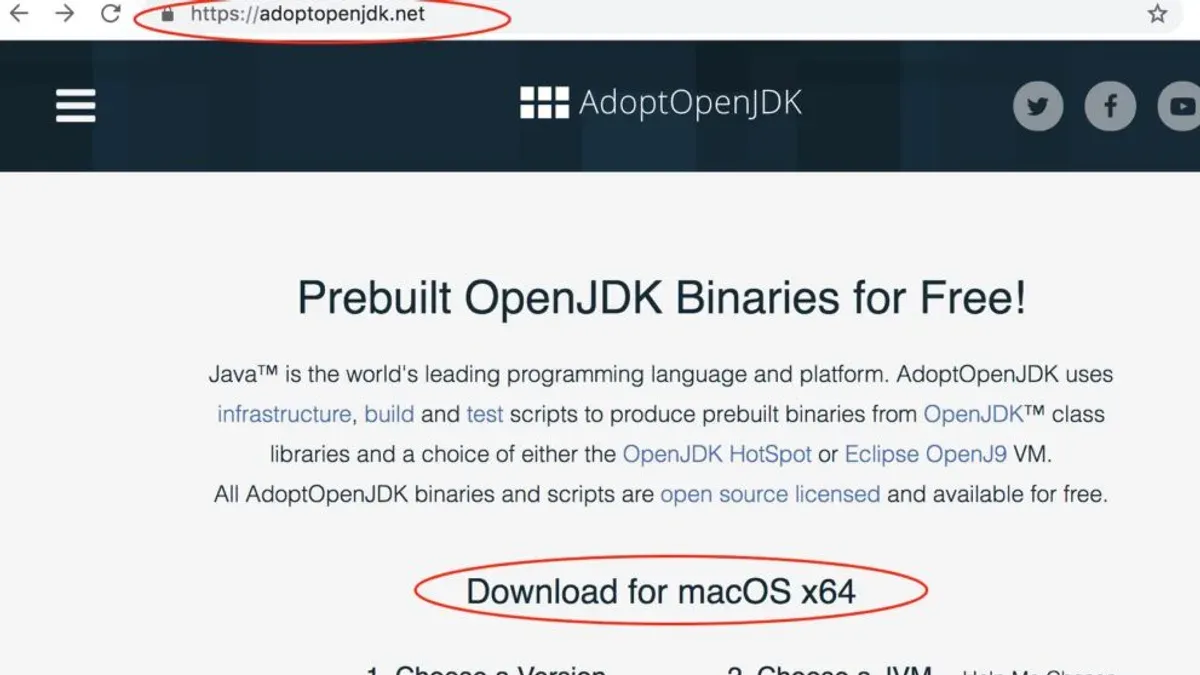
You want to start developing Java applications or run Java-based tools on your Mac, but you're unsure which OpenJDK version to choose or how to install it efficiently. The variety of OpenJDK builds and installation methods can be overwhelming, especially if you want a setup tailored to your development needs.
This guide explains how to install OpenJDK on Mac, comparing multiple OpenJDK versions and installation approaches. You will learn step-by-step how to install OpenJDK using Homebrew or without it, select specific OpenJDK versions, and configure your environment for smooth Java development or runtime.
Key takeaways
- Homebrew offers a quick way to install OpenJDK but may install the latest default version only.
- Manual installation lets you pick specific OpenJDK builds like AdoptOpenJDK or Liberica.
- Setting JAVA_HOME correctly is essential for development tools to recognize your JDK.
- Multiple OpenJDK versions can coexist, managed via tools or manual environment switching.
- Installing OpenJDK on Mac differs from Windows, mainly in installation tools and environment setup.
Before you start: What you need to install OpenJDK on Mac
To install OpenJDK on your Mac, first confirm your macOS version is compatible with popular OpenJDK builds. Most OpenJDK distributions support macOS 10.13 (High Sierra) and later. If your system is older, you may encounter installation or runtime issues.
You will need access to the Terminal app, located in /Applications/Utilities/Terminal.app, to run installation commands. Optionally, installing Homebrew, a popular macOS package manager, simplifies managing OpenJDK versions but is not mandatory.
OpenJDK comes in several versions; choosing the right one depends on your needs. Long-Term Support (LTS) versions, such as OpenJDK 17 and OpenJDK 11, offer stable updates and extended maintenance, ideal for production environments. More recent releases like OpenJDK 20 provide the latest features but with shorter support cycles, better suited for testing or development where cutting-edge capabilities matter.
| Version | LTS Status | Typical Use Case |
|---|---|---|
| OpenJDK 11 | Yes | Stable production use |
| OpenJDK 17 | Yes | Current LTS, recommended for most users |
| OpenJDK 20 | No | Latest features, short-term projects |
After installation, you should set the JAVA_HOME environment variable to point to your OpenJDK installation path. This ensures Java-based applications and development tools locate the correct runtime.
Before proceeding, make sure you have:
- Checked your macOS version is 10.13 or newer — you can verify this by clicking the Apple menu > About This Mac.
- Opened Terminal and tested that it launches without error.
- Decided whether to install Homebrew from brew.sh if you want an easier installation process.
- Chosen the OpenJDK version that fits your needs, balancing stability and features.
- Prepared to set
JAVA_HOMEafter installation to avoid runtime issues.
How to install OpenJDK on Mac using Homebrew
Homebrew is the most popular package manager for macOS and provides a straightforward way to install OpenJDK. Follow these steps to install OpenJDK via Homebrew or verify its installation if you already have Homebrew installed.
- Check if Homebrew is installed: Open Terminal and run brew --version. If Homebrew is installed, this command outputs the version number. If not, proceed to the next step to install it.
- Install Homebrew if needed: Run the following command in Terminal:
/bin/bash -c "$(curl -fsSL https://raw.githubusercontent.com/Homebrew/install/HEAD/install.sh)"
When finished, you should see a message confirming Homebrew installation. - Search for available OpenJDK versions: Run brew search openjdk. The terminal will list OpenJDK versions like openjdk@8, openjdk@11, openjdk@17, openjdk@21, and openjdk (usually the latest stable version).
- Install a specific OpenJDK version: For example, run brew install openjdk@17 to install OpenJDK 17. The output shows download progress and installation success messages.
- Link the installed version: Some versions require you to link them manually. Run brew link --force --overwrite openjdk@17 to set the installed OpenJDK as the default.
- Verify your Java installation: Run java -version. You should see output indicating the installed OpenJDK version, such as:
openjdk version "17.0.x" 202x-xx-xx
Set JAVA_HOME environment variable: After installation, configure your shell to use the correct JAVA_HOME path. For example, in zsh, add to ~/.zshrc:
export JAVA_HOME=$(/usr/libexec/java_home -v 17) export PATH=$JAVA_HOME/bin:$PATH
For bash, add the same lines to ~/.bash_profile or ~/.bashrc.
This method provides flexibility to install multiple OpenJDK versions side-by-side and switch between them by adjusting your JAVA_HOME and PATH settings.
How to install OpenJDK on Mac without Homebrew
If you prefer not to use package managers like Homebrew, you can manually install OpenJDK by downloading binaries directly from trusted vendors and configuring your system paths yourself.
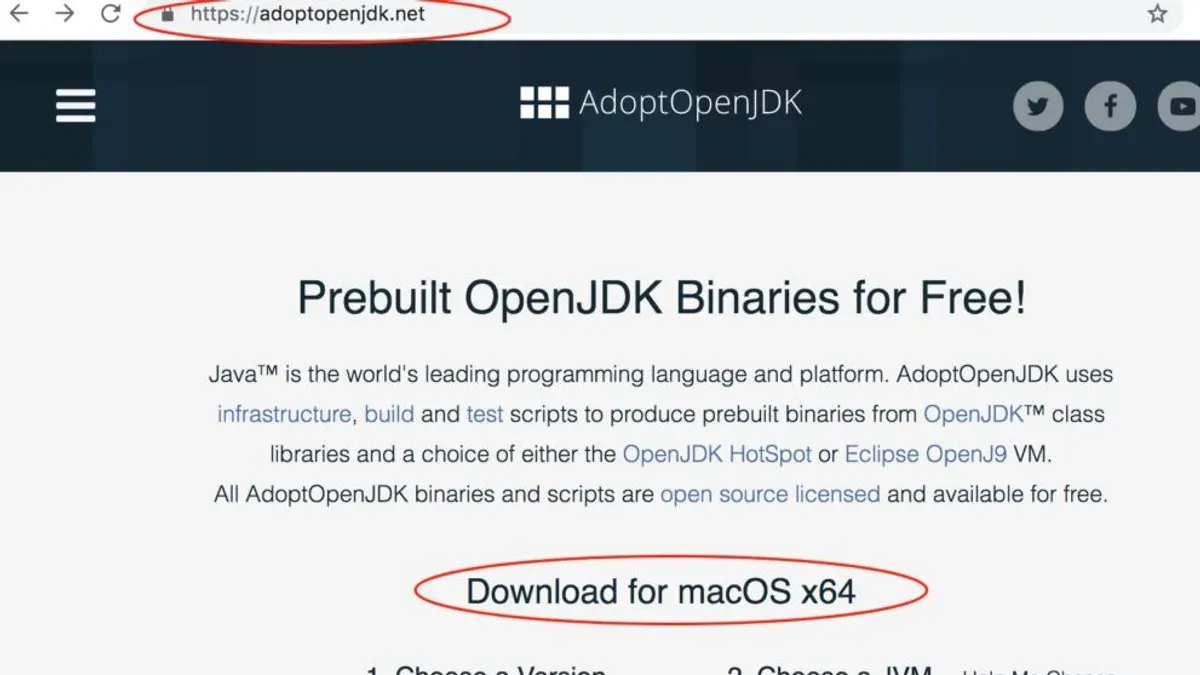
- Download the OpenJDK binary: Visit a trusted vendor's website such as Adoptium, Oracle, or Amazon Corretto. Choose the macOS version and JDK release that suits your development needs and download the.tar.gz or.pkg file.
- Verify the integrity of the download: Most vendors provide SHA256 or MD5 checksums. After downloading, open Terminal and run a hash command like shasum -a 256 filename.tar.gz to confirm the checksum matches the vendor’s published value, ensuring the file is untampered.
- Extract and install the JDK: For.tar.gz files, extract the archive using Terminal with tar -xzf filename.tar.gz -C /Library/Java/JavaVirtualMachines/. This installs the JDK to the standard location. For.pkg installers, follow the guided installation wizard.
- Set the JAVA_HOME environment variable: Add a line to your shell configuration file (e.g., ~/.zshrc or ~/.bash_profile) such as export JAVA_HOME=/Library/Java/JavaVirtualMachines/jdk-version/Contents/Home. Replace jdk-version with the actual folder name.
- Update the PATH variable: Append export PATH=$JAVA_HOME/bin:$PATH to the same shell configuration file. This ensures that Java commands run from the Terminal use the installed JDK version.
- Apply changes and verify installation: Run source ~/.zshrc (or the appropriate file) to reload your environment. Then execute java -version to confirm the correct OpenJDK version is active.
How to install specific OpenJDK versions on Mac
Choosing the right OpenJDK version depends on your development needs. Long-Term Support (LTS) versions like OpenJDK 8, 11, 17, and 21 offer stability and extended support, while newer versions such as OpenJDK 25 provide the latest features but may have shorter support cycles.
| OpenJDK Version | Release Type | LTS Status |
|---|---|---|
| 8 | Legacy | Yes |
| 11 | LTS | Yes |
| 17 | LTS | Yes |
| 21 | LTS | Yes |
| 25 | Latest Feature Release | No |
You can install these versions either via Homebrew or manual download from trusted OpenJDK vendors. Using Homebrew, simply specify the version formula (e.g., openjdk@11) to install that release. Manual installation involves downloading the appropriate JDK package, extracting or running the installer, and configuring your environment variables accordingly.
To switch between multiple installed OpenJDK versions, tools like sdkman offer convenient version management. Alternatively, you can manually update your JAVA_HOME environment variable.
- List installed JDKs using /usr/libexec/java_home -V and note paths.
- To switch manually, edit your shell profile file (e.g., ~/.zshrc) and set export JAVA_HOME= to the desired JDK path.
- Run source ~/.zshrc and verify with java -version that the correct version is active.
- Using sdkman, run sdk list java to see available versions, then sdk install java <version-identifier> to install and sdk use java <version-identifier> to switch.
This approach lets you tailor your Java environment for testing, legacy support, or access to cutting-edge language features.
How to use OpenJDK on Mac after installation
After installing OpenJDK, you need to verify the installation and start using Java development tools. Begin by checking your Java version in the Terminal to confirm the installation.
- In Terminal, navigate to the directory where you saved HelloWorld.java using the cd command.
- Compile the program by running javac HelloWorld.java. If successful, this creates a HelloWorld.class file with no error messages.
Ensure your environment variables are set for persistent Java usage. Add the following lines to your shell configuration file (~/.zshrc or ~/.bash_profile):
export JAVA_HOME=$(/usr/libexec/java_home)
export PATH=$JAVA_HOME/bin:$PATH
This makes commands like java and javac available in new Terminal sessions.
Run the compiled program by typing java HelloWorld. You should see the output:
Hello, OpenJDK on Mac!
Create a simple Java program using a text editor like TextEdit or Visual Studio Code. Save the file as HelloWorld.java with the following content:
public class HelloWorld {
public static void main(String[] args) {
System.out.println("Hello, OpenJDK on Mac!");
}
}
Open Terminal and type java -version. You should see output showing the installed OpenJDK version, for example:
openjdk version "17.0.3" 2021-10-19
OpenJDK Runtime Environment (build 17.0.3+7)
OpenJDK 64-Bit Server VM (build 17.0.3+7, mixed mode, sharing)
Using the java and javac commands lets you compile and run Java applications directly from the command line, enabling you to build and test your projects efficiently on macOS.
Common troubleshooting when installing OpenJDK on Mac
If you encounter a command not found error for java or javac, it usually means your system cannot locate the OpenJDK executables. Confirm that your JAVA_HOME and PATH environment variables are correctly set by running echo $JAVA_HOME and echo $PATH in Terminal. The Java binaries should be in a directory listed in PATH.

Conflicts may arise if multiple Java versions are installed. Running /usr/libexec/java_home -V lists all installed JDKs. To resolve version conflicts, explicitly set JAVA_HOME to your desired JDK path with export JAVA_HOME=$(/usr/libexec/java_home -v 11) for version 11, for example.
Permission issues, such as permission denied errors during installation or execution, often occur if you lack rights to certain directories. Running commands with sudo can help, but be cautious. Also, ensure downloaded installers or packages are verified and not corrupted.
Missing dependencies might cause runtime errors. Verify you have the necessary system libraries and that macOS updates are installed.
- Check if
javacommand works by typingjava -versionin Terminal. You should see the installed OpenJDK version. - If not found, verify environment variables: run
echo $JAVA_HOMEandecho $PATH. Confirm$JAVA_HOME/binis in yourPATH. - List installed Java versions with
/usr/libexec/java_home -V. Identify any conflicting versions. - Set
JAVA_HOMEexplicitly:export JAVA_HOME=$(/usr/libexec/java_home -v 17)to select Java 17, for example. Rerunjava -versionto confirm. - If permission errors occur, try reinstalling with administrative rights or adjust directory permissions using
chmodcarefully.
How to install OpenJDK on Windows: a brief comparison
Installing OpenJDK on Windows differs significantly from the macOS process, mainly due to the distinct operating system environments and tooling. Windows users typically rely on executable installers or package managers like Chocolatey or Scoop, while macOS users often use Homebrew or manual tarball methods.
Popular OpenJDK distributions for Windows include AdoptOpenJDK (now Eclipse Temurin), Amazon Corretto, and Oracle JDK installers. These come as.msi or.exe files that provide guided installation wizards, simplifying the setup for users unfamiliar with command-line operations.
Windows installations usually involve downloading the installer, running it with administrator privileges, and optionally setting the JAVA_HOME environment variable via the System Properties panel. In contrast, macOS users configure environment variables in shell configuration files like.zshrc or.bash_profile.
The table below summarizes key differences between OpenJDK installation on macOS and Windows:
| Step | macOS | Windows |
|---|---|---|
| Common tools | Terminal, Homebrew | Command Prompt/PowerShell, Chocolatey, Scoop, Installer wizards |
| Installation methods | Homebrew install, manual tarball extraction | Executable installers (.msi/.exe), Chocolatey/Scoop packages |
| Environment variables setup | Shell profile files (.zshrc,.bash_profile) | System Properties > Environment Variables UI |
| Version management | brew commands, jenv | Manual PATH edits, Chocolatey version pinning |
For Windows users wanting to install OpenJDK, here is a typical procedure using the official installer:
- Download the OpenJDK.msi installer from a trusted vendor such as Eclipse Temurin. Once downloaded, double-click the installer to launch it.
- Follow the installation wizard, selecting the installation path and agreeing to license terms. When complete, the installer will confirm a successful setup.
- Open the Windows Start menu, search for "Environment Variables", and select "Edit the system environment variables." In the System Properties window, click "Environment Variables."
- Under System Variables, click New and create a variable named JAVA_HOME pointing to your OpenJDK installation folder, for example, C:\Program Files\Eclipse Adoptium\jdk-17.
- Find the Path variable, click Edit, and add %JAVA_HOME%\bin to the list. Click OK to save and close all dialogs.
- Open Command Prompt and enter
java -versionto verify the installation. You should see the OpenJDK version displayed, confirming the setup.
These Windows steps highlight the graphical installer and system-wide environment configuration, contrasting with macOS's reliance on command-line tools and shell profiles. Understanding these differences helps you manage Java environments effectively across platforms.
- How to Install Rosetta 2 on Your Mac: A Clear Step-by-Step Guide
- How to Install Git on Mac: Step-by-Step Guide for Every Setup
- How to Install GitHub CLI on Mac: A Complete Step-by-Step Guide
- How to Install Miniconda on Mac: A Clear Step-by-Step Guide
Frequently asked questions
How to install openjdk on macos?
You can install OpenJDK on macOS using Homebrew by running brew install openjdk. Alternatively, download the official OpenJDK binaries from vendors like Adoptium or Azul and follow their installation instructions. After installation, set the JAVA_HOME environment variable to point to the OpenJDK directory for proper usage.
How to install openjdk 17 on mac?
To install OpenJDK 17 on a Mac, use Homebrew with the command brew install openjdk@17. You may need to add the installed version to your PATH or set JAVA_HOME to /usr/local/opt/openjdk@17 or the appropriate location. For manual installation, download the OpenJDK 17 package from a trusted vendor and follow their setup steps.
How to install openjdk 21 on mac?
Installing OpenJDK 21 on Mac can be done via Homebrew if the version is available by running brew install openjdk@21. If Homebrew does not yet support it, download the OpenJDK 21 binaries from official sources like Eclipse Adoptium and install them manually. Remember to update your JAVA_HOME to the new version’s path after installation.
How to install openjdk 25 on mac?
OpenJDK 25 may not be widely available yet via package managers. In this case, download the latest OpenJDK 25 build from official vendor websites once released. Follow the vendor’s installation instructions, and set your JAVA_HOME environment variable to point to the installed OpenJDK 25 directory for it to be recognized system-wide.
How to install openjdk 8 on mac?
To install OpenJDK 8 on Mac, use Homebrew with brew install openjdk@8. Note that OpenJDK 8 is older and may require manual linking to your PATH or JAVA_HOME. Alternatively, download OpenJDK 8 from vendors like Azul Zulu or Adoptium and follow their install guidelines to ensure compatibility with legacy Java applications.
What this guide does not cover and who should look elsewhere
This guide focuses on installing OpenJDK on Intel and Apple Silicon Macs running supported macOS versions. If you use Macs with heavily customized system settings, older macOS versions, or require specialized OpenJDK builds for enterprise environments, you may encounter additional steps not covered here. Also, developers needing specific vendor distributions or those integrating OpenJDK into complex CI/CD pipelines should consult vendor or platform-specific documentation.
The single most useful next step after installation is verifying your OpenJDK setup by running java -version in Terminal. This confirms the active JDK version and helps avoid common pitfalls like PATH misconfiguration. From there, configure your IDE or build tools to use the installed JDK, ensuring your development environment aligns with your project requirements.



