
How to Install Rosetta 2 on Your Mac: A Clear Step-by-Step Guide
This guide explains how to install Rosetta 2 on your Mac to run Intel-based apps seamlessly on Apple Silicon devices.

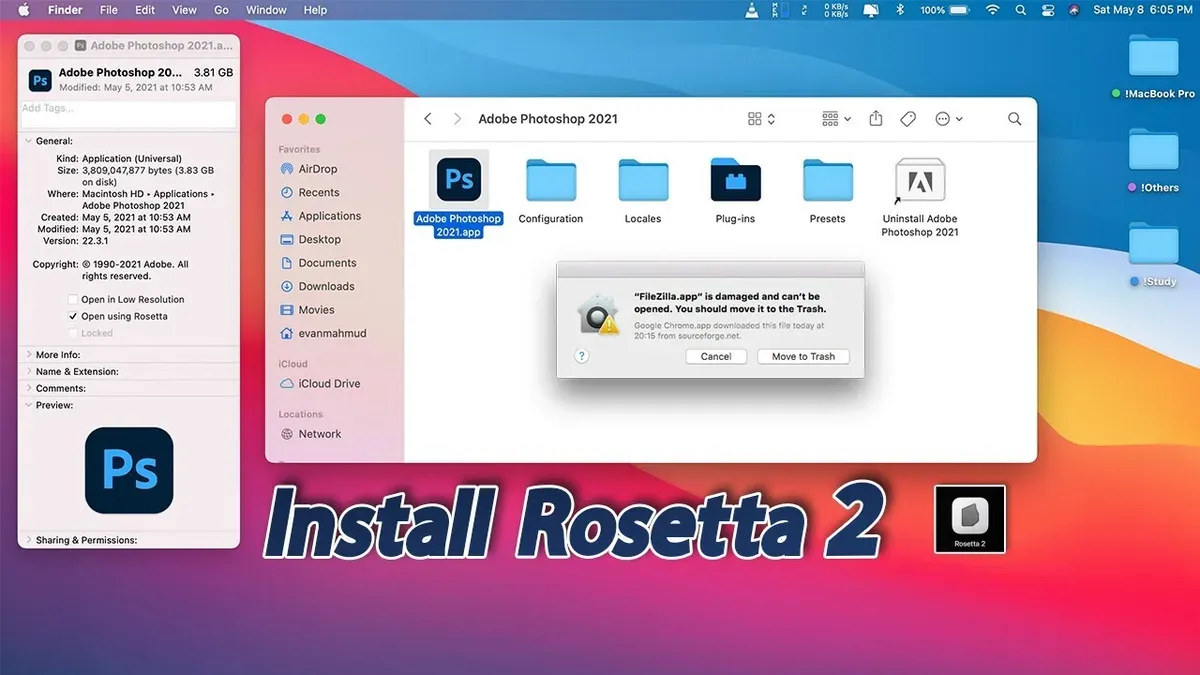
You’ve recently switched to an Apple Silicon Mac, like an M1 or M4 model, and encounter an app that won’t open. This often happens because the app is built for Intel-based Macs, requiring Rosetta 2 to run on your new system.
This article explains what Rosetta 2 is, whether you need it, and guides you through how to install Rosetta 2 on Mac models including MacBook Air, MacBook Pro, and other Apple Silicon Macs. You’ll also learn how to check if it’s already installed, plus troubleshooting tips when the installation doesn’t go as planned.
Key takeaways
- Rosetta 2 enables Intel-based apps to run on Apple Silicon Macs by translating code in real time.
- You only need to install Rosetta 2 if you run apps not yet optimized for Apple Silicon.
- Installation can be triggered automatically or manually via Terminal commands.
- Different Apple Silicon models share the installation process but may show subtle differences during setup.
- Common installation issues often relate to internet connectivity or system permissions and have straightforward fixes.
Before you start: What you need to install Rosetta 2
To install Rosetta 2, you first need to confirm that your Mac is equipped with an Apple Silicon chip, such as the M1 or the newer M4. Rosetta 2 is specifically designed to enable Intel-based applications to run on these Apple Silicon processors.
Next, ensure your Mac is running a compatible version of macOS. Rosetta 2 requires macOS Big Sur or later, so check for system updates by going to Apple menu > System Preferences > Software Update. Installing the latest macOS version improves compatibility and security.
You must have administrator access to your Mac to install Rosetta 2. Without admin privileges, the installation will not proceed.
The following steps will help you verify prerequisites before installation:
- Check your Mac model and chip by selecting Apple menu > About This Mac. You should see the chip type listed, such as M1 or M4. If it says Intel, Rosetta 2 is not applicable.
- Open System Preferences > Software Update to confirm your macOS version is Big Sur or newer. If an update is available, install it and restart your Mac.
- Verify you have administrator rights by attempting to open a system setting or install any software. If prompted for an admin password, you have the necessary access.
Meeting these prerequisites ensures a smooth Rosetta 2 installation and compatibility with Intel-based apps you want to run on your Apple Silicon Mac.
What is Rosetta 2 on Mac and why it matters
Rosetta 2 is a translation layer developed by Apple that enables Intel-based applications to run on Macs equipped with Apple Silicon processors, such as the M1 and M4 chips. This technology bridges the gap between the new ARM architecture and existing software built for Intel's x86 architecture, ensuring continuity and compatibility without requiring developers to immediately update their apps.
It is important to distinguish Rosetta 2 from the original Rosetta. The original Rosetta was designed for the PowerPC to Intel transition and is no longer supported. Rosetta 2, introduced when Apple began transitioning to Apple Silicon starting in 2020, is specifically tailored for the ARM-based architecture of these newer Macs.
You might need Rosetta 2 when you use applications that have not yet been optimized for Apple Silicon. Common examples include certain professional software, older utilities, or niche apps that rely on Intel-only code. Without Rosetta 2, these apps would fail to run or experience significant performance issues.
Apple officially explains that Rosetta 2 works automatically behind the scenes when launching Intel apps, translating their instructions into a form compatible with Apple Silicon. This process is mostly seamless, though some apps with specialized hardware dependencies or system extensions may still face compatibility challenges.
Should I install Rosetta on my Mac? Making the right choice
If you rely on Intel-only apps, installing Rosetta 2 is necessary for them to run on your Apple Silicon Mac. Many widely used applications, such as Adobe Photoshop (non-native versions), Microsoft Office legacy editions, and some professional audio software, still require Rosetta 2 for compatibility.
On the other hand, apps developed or updated to run natively on Apple Silicon do not need Rosetta 2. These native apps fully utilize the performance advantages of Apple’s chips without translation overhead.
Installing Rosetta 2 does not negatively impact the performance of native Apple Silicon apps. It acts only as a translation layer for Intel-based software and remains inactive otherwise, so there is no performance penalty if you primarily use native apps.
Users with newer Mac models, such as the Mac M4, should verify their critical apps' compatibility. Some software vendors may have released native Apple Silicon versions, but others continue to rely on Intel code. Checking app support ensures you install Rosetta 2 only if needed.
- Identify your frequently used apps. If any are listed as Intel-only in the Mac App Store or developer notes, you will need Rosetta 2. When done: You have a clear list of apps requiring Rosetta.
- Check the app details by right-clicking its icon in Finder, selecting Get Info, and looking at the "Kind" field. "Application (Intel)" indicates Rosetta 2 is required. When done: You can confirm app architecture for each app.
- Decide based on your app list: if none require Intel architecture, you can skip installing Rosetta 2. If one or more do, plan to install it. When done: You have a definitive decision about installing Rosetta.
- Consider your Mac model: on Mac M4 and other newer Apple Silicon devices, verify whether your apps have native updates before relying on Rosetta 2. When done: You understand app compatibility for your specific Mac model.
Performance benchmarks consistently show Rosetta 2 delivers nearly native speeds for many Intel apps, though some high-demand software may run slightly slower. This trade-off is generally acceptable for accessing essential apps not yet optimized for Apple Silicon.
How to install Rosetta 2 on MacBook Air, MacBook Pro, and Apple Silicon Macs
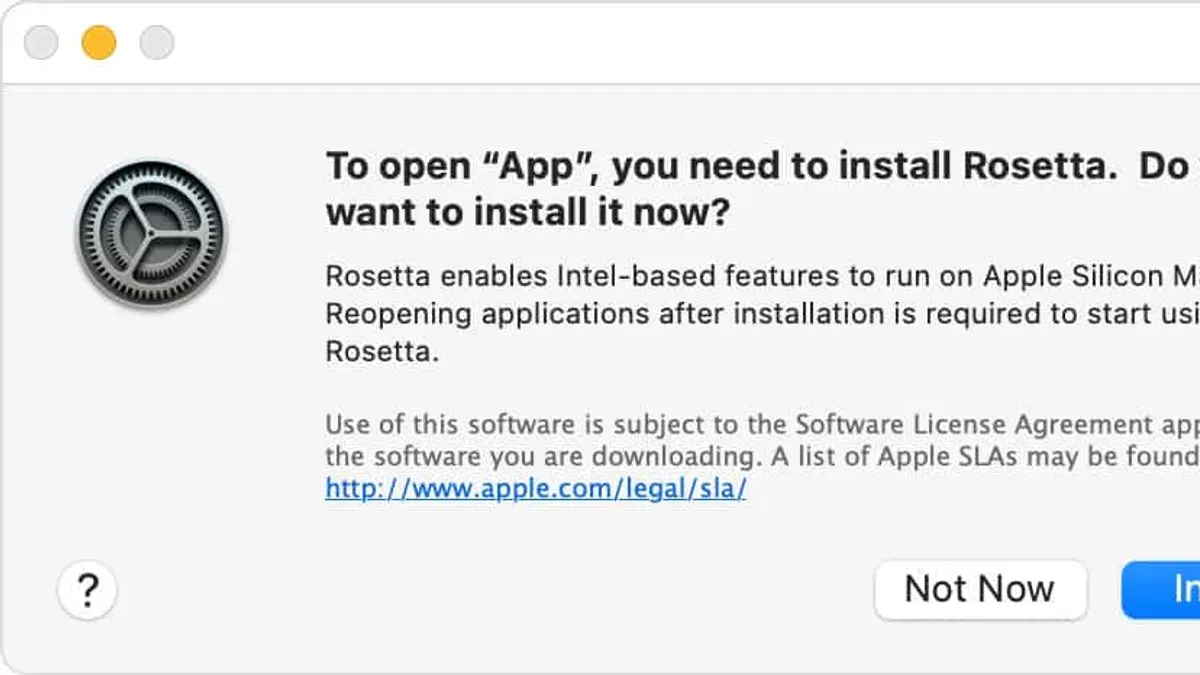
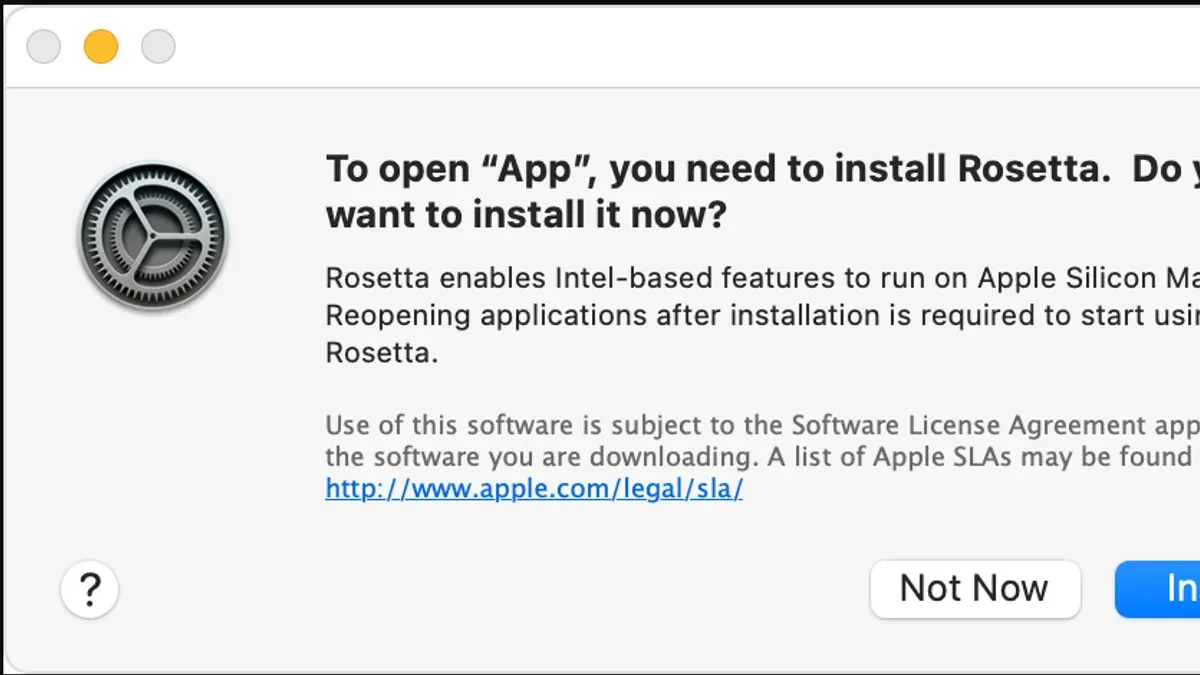
When you open an Intel-based application on an Apple Silicon Mac such as MacBook Air, MacBook Pro, or models with M1 and M4 chips, macOS automatically prompts you to install Rosetta 2 if it is not already installed. This prompt guides you through a straightforward installation process.
- Launch the Intel-only app you want to use.
What you see: A dialog box appears asking if you want to install Rosetta.
Action: Click "Install" to proceed. - Agree to the software license terms.
What you see: The installation begins automatically and completes within a few moments.
Note: You may be asked to enter your administrator password. - Once installation finishes, the app will launch as expected.
If you prefer to install Rosetta 2 proactively without waiting for the prompt, use the Terminal command:
- Open the Terminal app from Applications > Utilities.
Action: Type sudo softwareupdate --install-rosetta and press Enter.
What you see: Terminal will prompt for your administrator password; enter it to continue. - Follow any on-screen instructions to accept the license agreement.
What you see: The installation completes, confirmed by a success message in Terminal.
This method works uniformly across all Apple Silicon Macs including MacBook Air, MacBook Pro, and desktops with M1 or M4 chips running compatible macOS versions.
To verify Rosetta 2 installation:
- Open Terminal and enter /usr/libexec/rosetta/runtime.
What you see: No error means Rosetta is present. - Alternatively, check System Information under Software > Applications; Intel apps will indicate if Rosetta is in use.
Commonly missed step: Rosetta 2 installation requires administrator privileges, so ensure you have the proper access before starting.
How to check if Rosetta is installed on your Mac
Before attempting to install Rosetta 2, you can confirm whether it is already present on your Apple Silicon Mac. This saves time and avoids redundant installation. There are several practical ways to verify Rosetta's status.
- Open the Terminal application from Applications > Utilities.
- If Rosetta is installed, the Terminal will display a message such as "Rosetta 2 update is not needed" or it will quickly indicate that the software is already present. If it is not installed, this command will initiate the installation process.
Type the following command and press Return:
softwareupdate --install-rosetta --agree-to-license
Alternatively, you can check app compatibility:
- Find an Intel-based app you want to run. Right-click it and select Get Info.
- Look for the Kind label. If it says Application (Intel), this app requires Rosetta 2 to run on Apple Silicon.
- Try launching the app. If Rosetta is not installed, macOS will prompt you to install it automatically.
Lastly, system information provides a quick Rosetta status check:
- Click the Apple menu and choose About This Mac, then click System Report.
- Under Software, select Applications. Locate an Intel app and check its Kind in the list.
- If Rosetta is installed, Intel apps will run seamlessly; if missing, attempting to open one triggers the installation prompt.
These methods ensure you know your Mac’s Rosetta 2 status, helping you manage app compatibility without guesswork.
Troubleshooting common Rosetta 2 installation issues
Rosetta 2 installation or operation can fail due to several reasons, including system conflicts, incomplete installations, or macOS update incompatibilities. Common symptoms include apps failing to launch with error messages like "Rosetta installation failed" or "App requires Rosetta to open." Another frequent issue is the system not prompting to install Rosetta when launching Intel-based applications.
Fixing Rosetta 2 installation failures
- Restart your Mac to clear temporary glitches. After reboot, try launching the Intel app again to trigger Rosetta installation automatically.
- If automatic installation fails, open Terminal and enter softwareupdate --install-rosetta --agree-to-license. You should see a message confirming successful installation.
- If the above command returns errors such as "softwareupdate: No such update found," ensure your macOS is up to date by checking System Preferences > Software Update, then repeat the command.
- Check for conflicting security settings under System Preferences > Security & Privacy > General. If an installation was blocked, you may see an "Allow" button to permit Rosetta’s installation.
- Verify disk space availability; low free space can cause installation to stall. Aim for at least 10GB free on your startup disk.
Resolving issues after macOS updates or on newer Apple Silicon Macs
After a macOS update, Rosetta may require reinstallation or repair, especially on newer chips like the M4. Repeat the Terminal installation command or reinstall the affected Intel app. If errors persist, boot into Safe Mode (hold Shift during startup), then attempt installation again.
If you encounter persistent error logs mentioning "error 36" or "permission denied" during installation, resetting the NVRAM/PRAM and SMC on your Mac may help resolve underlying hardware-related conflicts.
When to seek further help
If these steps do not resolve your issue, collect error messages from Terminal or Console logs and contact Apple Support. Advanced troubleshooting might involve reinstalling macOS or consulting Apple-authorized service providers to rule out hardware faults.
Alternatives and limitations of Rosetta 2
Rosetta 2 is a powerful translation layer but it has clear limitations that affect its suitability for certain tasks. It does not support virtualization technologies, meaning you cannot run Intel-based virtual machines or hypervisors through Rosetta 2. This restricts workflows that rely on virtual environments or certain development tools.
Certain low-level software such as kernel extensions, system drivers, or apps requiring direct hardware access often fail to run or perform poorly under Rosetta 2. Examples include some VPN clients, hardware dongle drivers, and specialized audio or video processing tools that depend on kernel-level operations.
For users needing full compatibility or better performance, native Apple Silicon versions of applications are the best alternative. Many popular software vendors have released or are developing universal binaries optimized for Apple Silicon, which avoid the translation overhead.
If native versions are not available, virtualization software like Parallels Desktop or VMware Fusion can run Intel-based operating systems and apps on Apple Silicon Macs without relying on Rosetta 2. These solutions support virtual machines directly and provide more complete compatibility for complex Intel apps.
| App Type | Rosetta 2 Compatibility | Alternative Approach |
|---|---|---|
| Virtualization software (e.g., VMware, VirtualBox) | Not supported | Use Apple Silicon-native virtualization tools like Parallels Desktop |
| Kernel extensions and drivers | Often incompatible or unstable | Find updated native drivers or avoid hardware requiring Intel-only drivers |
| Intel-only productivity apps | Generally compatible with some performance overhead | Install native Apple Silicon versions when possible |
| Specialized audio/video processing tools | Variable; some run poorly or fail | Use native alternatives or dedicated hardware/software solutions |
For critical workflows, relying solely on Rosetta 2 is not recommended. If your work demands high stability, real-time processing, or virtualization, seek native Apple Silicon software or virtualization platforms designed for the architecture. Rosetta 2 serves best as a transitional tool rather than a permanent solution.
- How to Install Wine on Mac: A Step-by-Step Guide for Smooth Setup
- How to Install Docker on Mac: A Clear Step-by-Step Guide
- How to Install Git on Mac: Step-by-Step Guide for Every Setup
- How to Install Miniconda on Mac: A Clear Step-by-Step Guide
Frequently asked questions
What is rosetta 2 mac?
Rosetta 2 on Mac is a translation layer that allows apps designed for Intel-based Macs to run on Apple Silicon Macs, such as those with M1 or M4 chips. It automatically converts Intel app instructions into a format compatible with the ARM architecture, enabling smoother app performance without requiring developers to update their software immediately.
What is rosetta on mac?
Rosetta on Mac refers generally to Apple's technology that translates software built for different processor architectures. The original Rosetta supported the transition from PowerPC to Intel processors, while Rosetta 2 handles translation from Intel to Apple Silicon. It works behind the scenes to ensure compatibility across different Mac hardware.
Why isn't rosetta working on mac?
Rosetta may not work on Mac if it has not been installed properly or if an app requires a specific version of Rosetta that is missing. Other causes include system software incompatibilities, corrupted installation files, or using an app that does not support Rosetta translation. Verifying installation and restarting your Mac often resolves common issues.
What is Rosetta 2 Mac?
Rosetta 2 Mac is the current translation software Apple provides to run Intel-based applications on Macs equipped with Apple Silicon chips. It is essential for users who rely on older apps not yet optimized for the ARM-based processors, bridging the gap to maintain app functionality during the transition.
Why isn't Rosetta working on Mac?
Rosetta might not work on Mac if there are permission problems, incomplete installation, or conflicts with macOS versions. Some apps might also be incompatible with Rosetta due to security settings or because they require native support on Apple Silicon. Checking system preferences and reinstalling Rosetta can help address these issues.
What this guide doesn’t cover and when to look elsewhere
This guide does not cover running non-Mac software or advanced virtualization setups that may require different solutions beyond Rosetta 2. If you need to run Windows applications or complex virtual machines, consider dedicated virtualization tools like Parallels Desktop or VMware Fusion. Additionally, some specialized software designed for Intel Macs may not function perfectly under Rosetta 2, so consult the software vendor’s recommendations for Apple Silicon compatibility.
The single most useful next step is to open the Terminal app and run softwareupdate --install-rosetta to initiate Rosetta 2 installation if you haven’t done so already. This command triggers the official installer and ensures you have the latest compatible version. If you encounter issues during installation, revisit the troubleshooting section or check Apple’s support resources for updated guidance tailored to your specific Mac model.



