
How to Install Wine on Mac: A Step-by-Step Guide for Smooth Setup
This guide shows how to install Wine on Mac to run Windows applications smoothly on both Intel and Apple Silicon Macs.

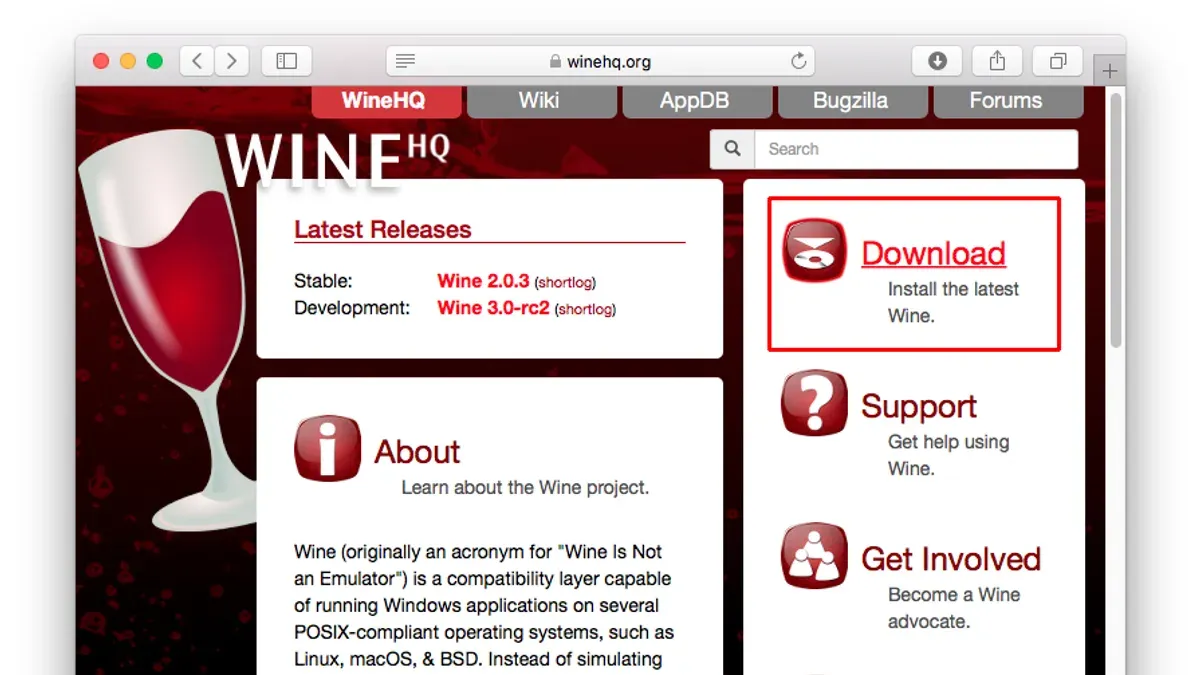
You have a Mac but need to run a Windows application that doesn't have a Mac version. Installing Wine can provide a way to run many Windows programs without setting up a full Windows environment. Knowing how to install Wine on Mac is essential if you want to avoid using heavy virtualization software or purchasing a Windows license.
This guide covers the step-by-step process for installing Wine on both Intel-based Macs and Apple Silicon models like M1 and M4. It explains where Wine places Windows applications on your Mac, evaluates its effectiveness across macOS versions such as Monterey and Tahoe, and offers practical advice to help you decide if Wine suits your needs.
Key takeaways
- Wine runs Windows apps directly on macOS, avoiding the need for full Windows OS installation.
- Installation processes differ between Intel Macs and Apple Silicon (M1, M4) due to architecture.
- Wine stores Windows applications within user directories, typically in hidden folders like ~/.wine.
- Compatibility varies by macOS version; Monterey and Tahoe may require additional adjustments.
- Alternatives like virtualization or Boot Camp might be better for complex or resource-intensive Windows software.
Before you start: What you need to run Wine on Mac
Wine functions as a compatibility layer, enabling you to run Windows applications on macOS without installing Windows itself. It is not a full emulator or virtual machine, so some Windows programs may have limited functionality or require additional configuration.
Your Mac's hardware architecture influences how Wine runs. Intel-based Macs generally support Wine more straightforwardly, while Apple Silicon models (such as M1 and M4 chips) need additional steps or compatibility layers due to their ARM-based design.
You need a compatible macOS version for Wine to function properly. Below is a comparison table outlining common macOS versions and their compatibility with Wine:
| macOS Version | Wine Compatibility | Notes |
|---|---|---|
| Monterey | Supported | Stable with Intel Macs; Apple Silicon requires Rosetta 2 or alternative methods |
| Big Sur | Supported | Similar to Monterey; Apple Silicon needs Rosetta 2 |
| Tahoe | Limited | Some compatibility issues, especially on Apple Silicon |
| Catalina and earlier | Supported | Intel Macs only; 32-bit app support dropped after Catalina |
Before installation, you should install Homebrew or another package manager like MacPorts. These tools simplify installing Wine and its dependencies. Without them, manual setup can be complex and error-prone.
Ensure you have at least 2GB of free disk space to accommodate Wine, its dependencies, and Windows applications. Additionally, you will need appropriate permissions to install software and run scripts, which usually means administrator privileges.
How to install Wine on Mac
Installing Wine on your Mac requires using the Terminal and a package manager like Homebrew to ensure compatibility across Intel and Apple Silicon architectures.
- Check if Homebrew is installed. Open Terminal and enter
brew --version. If Homebrew is installed, you will see the version number, for example, Homebrew 4.0.0. If not installed, proceed to step 2. - Install Homebrew (if needed). Paste this command into Terminal and press Enter:
/bin/bash -c "$(curl -fsSL https://raw.githubusercontent.com/Homebrew/install/HEAD/install.sh)"
You will see installation progress messages. When complete, the Terminal will return to the prompt. - Install Wine using Homebrew. Enter the command
brew install --cask wine-stableand press Enter. Homebrew will download and install Wine with messages indicating progress, ending with ==> Caveats or a success confirmation. - Verify Wine installation. Type
wine --versionin Terminal. The output should display the Wine version, like wine-7.0, confirming a successful install.
Alternative methods: You can also install Wine via WineBottler, which packages Wine with a graphical interface for easier use but may not have the latest Wine updates. Precompiled binaries are available but often require manual configuration and may lack full compatibility on Apple Silicon Macs.
| Method | Ease of Installation | Update Frequency | Compatibility | Estimated Time |
|---|---|---|---|---|
| Homebrew | Moderate (Terminal commands required) | High | Intel and Apple Silicon | 5-10 minutes |
| WineBottler | Easy (Graphical installer) | Moderate | Mostly Intel, limited Apple Silicon | 5 minutes |
| Precompiled Binaries | Challenging (Manual setup) | Low | Varies, less Apple Silicon support | 10+ minutes |
Homebrew installation is recommended for a balance of up-to-date Wine versions and broad hardware support.
How to install Wine on Mac M1 and M4 chips
Apple Silicon Macs with M1 and M4 chips require special handling to run Wine, as Wine is primarily built for Intel architecture. To bridge this gap, you typically need Rosetta 2, Apple's translation layer that enables Intel apps to run on ARM-based Macs.
If Rosetta 2 is not already installed, you can add it via Terminal. When you attempt to run an Intel app without Rosetta, macOS usually prompts for installation, but you can manually install it by entering the command:
- Open Terminal and type softwareupdate --install-rosetta and press Enter.You should see a prompt to agree to the license. After acceptance, the installation completes with a success message.
- Once Rosetta is installed, install Homebrew for the Intel architecture by running Terminal in Rosetta mode. To do this, find Terminal in Finder, duplicate it, rename it (e.g., Terminal Rosetta), then right-click, choose Get Info, and check "Open using Rosetta."Launching this Terminal variant lets you install or run Intel-based Homebrew packages.
- Use this Rosetta-enabled Terminal to install Wine via Homebrew with arch -x86_64 brew install --cask wine-stable. This ensures Homebrew installs the Intel-compatible version of Wine.You will see Homebrew downloading and installing Wine and its dependencies.
- After installation, test Wine by running arch -x86_64 winecfg in the Rosetta Terminal. The Wine configuration window should open, confirming a successful setup.
Alternatively, check for any native ARM versions of Wine or forks optimized for Apple Silicon, though these may be less mature and have limited compatibility.
Performance on Apple Silicon using Rosetta is generally good for many Windows applications but can vary. Some users report slower speeds or graphical glitches compared to running on native Intel Macs. Compatibility with complex or resource-intensive Windows programs may be limited.
How to use Wine on Mac to run Windows applications
Once Wine is installed, you can launch Windows applications directly from the Terminal using Wine commands. The typical command to run a Windows executable is wine /path/to/application.exe. For example, if you have a program called setup.exe in your Downloads folder, use wine ~/Downloads/setup.exe to start the installer.
- Open the Terminal app on your Mac.
- Navigate to the directory containing your Windows application using cd /path/to/folder. For example, cd ~/Downloads.
- Run the program with wine application.exe. You should see the Windows app launch if the command works.
Wine creates a virtual Windows environment called a Wine prefix, which stores installed Windows programs and related files. By default, this prefix is located at ~/.wine. Inside this folder, you will find a structure resembling a Windows drive, including folders like drive_c where programs are installed, often under Program Files or Program Files (x86).
To locate installed programs, open Finder, press Cmd + Shift + G, and enter ~/.wine/drive_c/Program Files or ~/.wine/drive_c/Program Files (x86). You can run executables directly from this location using Wine commands.
To manage multiple Wine prefixes (useful for isolating applications), use the environment variable WINEPREFIX. For example, WINEPREFIX=~/myappprefix wine setup.exe installs the program into a separate folder ~/myappprefix.
Improving compatibility often requires configuring Wine settings. Run winecfg in Terminal to open the Wine Configuration window. Here, you can adjust Windows version emulation (e.g., Windows 7 or 10), libraries, graphics, and audio settings. Some programs need specific DLL overrides or display tweaks to run correctly.
Wine compatibility with macOS versions like Monterey and Tahoe
Wine’s performance and stability on macOS can vary depending on the specific macOS version you are running. Both Monterey and Tahoe introduce unique challenges and improvements that affect Wine’s operation.
Issues and limitations on Monterey
Monterey's increased security measures and system integrity protections can interfere with Wine's ability to create and modify necessary files. Users often report problems with Wine failing to launch or install applications due to sandboxing and permission restrictions. Additionally, Monterey introduced changes to the graphics subsystem that may cause rendering issues in some Windows applications running under Wine.
According to the official WineHQ AppDB and changelogs, users should apply the latest Wine updates, which include patches addressing certain Monterey-specific bugs. Running Wine with full disk access enabled in System Preferences > Security & Privacy > Privacy can mitigate some permission-related problems.
Behavior on Tahoe
macOS Tahoe, a more recent release, has brought further system refinements that can affect Wine's compatibility. The updated kernel and tightened security policies have resulted in some Wine features being less stable or slower to respond. Wine developers have noted in release notes that workarounds and compatibility fixes are progressively added to handle Tahoe's new environment.
Some users need to adjust Wine’s graphics settings using winecfg, such as disabling Direct3D acceleration or enabling software rendering, to improve application stability on Tahoe. Full system permissions for Wine remain essential.
Recommendations and workarounds
- Ensure you have the latest Wine version installed, as it includes fixes for recent macOS updates. You should see improved application launch success rates.
- Grant Wine full disk access by navigating to System Preferences > Security & Privacy > Privacy > Full Disk Access, then add Wine or Terminal. When successful, Wine will have increased ability to read and write necessary files.
- Use winecfg to adjust graphics settings: disable Direct3D and enable software rendering to resolve display issues, especially on Tahoe.
- If you encounter crashes or freezes, consult the WineHQ bug tracker for specific patches or community-submitted workarounds tailored to your macOS version.
- Consider running Wine within a virtual machine if persistent compatibility issues arise, as this isolates Wine from macOS system-level restrictions.
Troubleshooting common Wine installation and usage problems on Mac
When installing or running Wine on your Mac, you may encounter permission errors, crashes, missing dependencies, or issues specific to Apple Silicon. Addressing these problems often involves adjusting system settings or installing additional components.
Dealing with permission errors and security blocks
- Open System Preferences and go to Security & Privacy > General.
- Look for messages about blocked software from unidentified developers or Wine-related components.
- Click Allow to grant permission.
- Restart Wine or your Terminal session.
- If you see a “Permission denied” message in Terminal, use
chmod +xon the Wine binaries to make them executable. You should then be able to launch Wine without errors.
Fixing Wine not launching or crashing
Crashes or failure to launch can result from incompatible Wine versions or conflicting macOS security settings. Try running Wine from Terminal with winecfg to see error output.
- Ensure you have the latest Wine version via Homebrew (
brew update && brew upgrade wine). - If the app crashes immediately, run
winecfgand navigate to the Graphics tab to disable Allow the window manager to control the windows and Emulate a virtual desktop. - Try launching your Windows app again. Successful launch means the problem was a graphics or window manager conflict.
Handling missing dependencies or libraries
Missing DLLs or libraries often cause Wine to fail loading programs.
- Check the Terminal output for messages like “err:module:import_dll Library [name].dll not found”.
- Use
winetricks(install via Homebrew if needed) to add common Windows components likedotnetorvcrun. - Run
winetrickscommands such aswinetricks dotnet48orwinetricks vcrun2019to install missing dependencies. - After installation, relaunch your Windows application to verify resolution.
Resolving issues specific to Apple Silicon Macs
On M1 and M4 Macs, Wine runs under Rosetta 2, which can cause unique problems.
- Confirm Rosetta 2 is installed by running
softwareupdate --install-rosettain Terminal. - Use a Terminal session launched with Rosetta enabled (right-click Terminal app > Get Info > check Open using Rosetta).
- Reinstall Wine within this Rosetta Terminal to ensure Intel binaries are used.
- If Wine fails with errors about architecture mismatch, verify the Terminal session and Wine installation are both running under Rosetta.
Following these steps will resolve most common Wine installation and usage problems on Mac, allowing you to run Windows applications more smoothly.
Alternatives to Wine for running Windows apps on Mac
If Wine does not meet your needs, several alternatives offer different balances of performance, ease, and cost for running Windows applications on Mac.
Virtualization tools: Parallels Desktop and VMware Fusion
Parallels Desktop and VMware Fusion create virtual machines (VMs) that run full Windows installations on your Mac. These provide near-native compatibility and allow running most Windows software without modification.
Pros: Seamless integration with macOS, support for DirectX and OpenGL, relatively straightforward setup.
Cons: Require more disk space and RAM, can be costly (Parallels and VMware licenses typically require purchase), and performance depends on Mac hardware.
Boot Camp for Intel Macs
Boot Camp enables dual-booting Windows alongside macOS on Intel Macs. This approach runs Windows natively, delivering the best performance for demanding applications and games.
Pros: Full access to hardware resources, free to use.
Cons: Only available on Intel Macs, requires rebooting to switch OS, no support on Apple Silicon Macs.
CrossOver: A commercial Wine variant
CrossOver is a paid product based on Wine offering improved compatibility and customer support. It includes a user-friendly interface and preconfigured settings for many popular Windows programs.
Pros: Easier setup than Wine, better support, and regular updates.
Cons: Costs money, may not support all Windows applications, performance similar to Wine.
Feature and cost comparison
| Solution | Cost | Performance | Compatibility | Ease of Use |
|---|---|---|---|---|
| Wine | Free | Variable; good for lightweight apps | Limited with complex apps | Requires command-line knowledge |
| CrossOver | Paid | Similar to Wine | Improved over Wine | User-friendly GUI |
| Parallels Desktop | Paid | High; depends on Mac specs | High; full Windows | Easy installation |
| VMware Fusion | Paid | High; depends on Mac specs | High; full Windows | Moderate |
| Boot Camp (Intel Macs only) | Free | Highest; native Windows | Full | Requires reboot |
Choosing the right option depends on your Mac's hardware, your budget, and which Windows applications you need to run. Virtualization and Boot Camp offer broader compatibility at higher resource cost, while Wine and CrossOver appeal to those seeking lightweight or no-cost solutions.
- How to Install Docker on Mac: A Clear Step-by-Step Guide
- How to Install Git on Mac: Step-by-Step Guide for Every Setup
- How to Install Miniconda on Mac: A Clear Step-by-Step Guide
- How to Install Arduino IDE on Mac: A Step-by-Step Guide
Frequently asked questions
Does wine work on mac?
Yes, Wine allows you to run many Windows applications on a Mac by translating Windows system calls into macOS calls. However, its effectiveness varies depending on the application and your Mac’s hardware, with better compatibility generally seen on Intel Macs than on Apple Silicon models without additional setup.
Where does wine install programs mac?
Wine installs Windows programs in a hidden directory within your user folder, typically ~/.wine/drive_c/Program Files/ or Program Files (x86). This simulates the Windows file structure, allowing your Mac to manage the Windows applications separately from native macOS software.
How to install wine on mac 2026?
To install Wine on a Mac, first ensure you have the XQuartz X11 server installed. Then, download the latest Wine package compatible with your Mac’s architecture from a reliable source, and follow the installation prompts. For Apple Silicon Macs, additional steps such as installing Rosetta 2 or using Wine wrappers might be necessary.
How to install wine on mac m4?
Installing Wine on Macs with M4 chips requires using a version of Wine built for ARM architecture or running Wine within a compatibility layer like Rosetta 2. You should first install Rosetta 2 via softwareupdate --install-rosetta in Terminal, then proceed with the Wine installation, potentially using third-party tools like WineBottler or CrossOver that support Apple Silicon.
How to install wine on macos monterey?
On macOS Monterey, start by installing XQuartz since Wine relies on X11. Next, download a Wine build compatible with Monterey and your Mac’s CPU (Intel or Apple Silicon). Follow the installer instructions and allow necessary security permissions in System Preferences under Security & Privacy.
What Wine does not cover and when to consider other solutions
Wine does not provide perfect compatibility with all Windows applications and may not support complex software or games requiring advanced Windows features like DirectX 12 or certain DRM protections. If you rely on resource-intensive programs or need full Windows system integration, consider virtualization solutions like Parallels Desktop or Boot Camp instead. These alternatives offer more seamless Windows experiences but require more system resources and a valid Windows license.
The single most useful next step after installing Wine is to verify the exact installation path of your Windows applications, typically located within a hidden folder named .wine in your home directory. Knowing this allows you to manage your Windows programs, troubleshoot issues, and clean up installations effectively. You can explore this folder via Finder by pressing Command + Shift +. to show hidden files and navigate to ~/.wine/drive_c/Program Files. This step helps maintain control over your Wine environment and avoid confusion when running or uninstalling Windows apps on your Mac.



