
How to Install Arduino IDE on Mac: A Step-by-Step Guide
This guide walks you through installing Arduino IDE on Mac, covering downloads, permissions, and troubleshooting for a smooth setup.

Getting started with Arduino on your Mac can be daunting if you're unsure about the installation process or encounter unexpected permission prompts. Whether you have a MacBook Pro or an iMac, understanding the nuances of macOS security and compatibility is key to a smooth setup.
This guide covers how to install Arduino IDE on Mac, walking you through each step from downloading the correct version to configuring your board. It also includes practical tips for common Mac-specific issues like gatekeeper restrictions and USB driver permissions, ensuring you can start programming your Arduino without delay.
Key takeaways
- Download the Arduino IDE from the official Arduino website to avoid compatibility problems.
- Adjust macOS security settings to allow installation of software from identified developers.
- Use the macOS System Preferences > Security & Privacy pane to grant USB permissions when connecting your Arduino board.
- Verify the correct serial port is selected in the IDE under Tools > Port before uploading code.
- Consider alternative installation methods like Homebrew for advanced users who prefer command-line management.
Before you start: What you need to install Arduino IDE on Mac
Ensure your Mac runs a compatible macOS version before installing the Arduino IDE. The Arduino IDE 2 supports macOS 10.15 Catalina and later, while Arduino IDE 1.x versions work back to macOS 10.11 El Capitan. Confirm your macOS version by clicking the Apple menu, selecting "About This Mac," and checking the version number.
Check that you have a stable internet connection to download the IDE and any necessary libraries. Also, verify you have at least 500 MB of free disk space to accommodate the Arduino IDE installer and additional files.
You will need an Arduino board compatible with macOS, such as Arduino Uno, Mega, or Nano, and a suitable USB cable (usually USB-A to USB-B or USB-C depending on your Mac model). Some Arduino clones may require additional drivers, which you should download from the manufacturer’s website.
Understand the difference between the Arduino IDE 1.x and Arduino IDE 2. The older 1.x versions offer a simpler, classic interface, while the newer IDE 2 provides a modern editor, advanced debugging, and better performance but requires newer macOS versions.
Optional tools include serial port drivers or libraries for specific boards. These might be necessary if your Mac does not recognize the Arduino board automatically. Check the Arduino website or your board’s documentation for recommended drivers.
- Open the Apple menu and select "About This Mac" to confirm your macOS version (should be at least 10.11 for IDE 1.x or 10.15 for IDE 2). Success: version number displayed.
- Verify you have a working internet connection by opening a browser and visiting a website. Success: website loads correctly.
- Check available disk space by clicking the Apple menu, selecting "About This Mac," then "Storage." Success: at least 500 MB free space shown.
- Gather your Arduino board and USB cable. Success: physical hardware ready.
- Research your board for any required Mac drivers. Success: download link identified or confirmed unnecessary.
Download the Arduino IDE for Mac safely
To ensure a secure and reliable installation, always download the Arduino IDE from the official Arduino website. Avoid third-party sites, as they may offer outdated or tampered files that could compromise your Mac's security.
- Open your preferred web browser and go to https://www.arduino.cc/en/software. You should see the official Arduino software download page.
- Scroll down to the section for macOS downloads. Here, you will find options for two main Arduino IDE versions: the classic Arduino IDE 1.x and the newer Arduino IDE 2.
- Review the comparison table below the download options to understand the differences. IDE 1.x offers a simpler interface and broad compatibility, while IDE 2 provides an updated editor, improved debugging, and auto-completion features but requires more system resources.
- Choose the IDE version that fits your needs and click the corresponding download button. For Mac, you usually get two file formats: DMG and ZIP. The DMG file is a disk image that mounts automatically and simplifies installation. The ZIP archive requires manual extraction but can be preferable if you want to keep the IDE portable or avoid mounting images.
- After clicking the download button, your browser will prompt you to save the file. Wait for the download to complete fully. You should see the file appear in your Downloads folder or the location you specified.
Comparison of IDE versions and file formats for Mac
| Feature | Arduino IDE 1.x | Arduino IDE 2 |
|---|---|---|
| Interface | Simple, classic | Modern, feature-rich |
| Performance | Lightweight | Requires more resources |
| Features | Basic code editing and uploading | Advanced editor, debugging, auto-complete |
File format details:
- DMG: Mounts as a virtual disk; easy drag-and-drop installation.
- ZIP: Compressed archive; extract to a folder to run without installation.
Downloading from official sources ensures you get the latest updates and security patches, reducing the risk of compatibility or permission issues on your Mac.
Install the Arduino IDE on your Mac
- Locate the downloaded file, which is either a .dmg disk image or a .zip archive. For a DMG, double-click it to mount the disk image and open a new Finder window showing the Arduino IDE app. For a ZIP file, double-click to extract it, then find the Arduino.app in the extracted folder.
- Drag the Arduino.app icon into the Applications folder shortcut in the same window or in Finder’s sidebar. This copies the app to your system’s main applications directory, making it accessible to all users.
- Before launching, check the app’s permissions. Right-click (or Control-click) Arduino.app in Applications, select Get Info, and under Sharing & Permissions, ensure your user account has Read & Write access. Adjust if necessary by clicking the lock icon and entering your admin password.
- When you open Arduino.app for the first time, macOS Gatekeeper may block it because the app is from an unidentified developer. You will see a dialog stating the app can’t be opened. To override this, go to System Preferences > Security & Privacy > General tab. At the bottom, click Open Anyway next to the message about Arduino.
- After allowing it, launch Arduino.app again; a prompt will ask you to confirm opening the app. Click Open. The Arduino IDE should now start successfully.
- During launch, the IDE might perform initial setup, indicated by a progress bar or splash screen. Wait for this to complete before proceeding to connect your board or explore the software.
Following these steps ensures a smooth installation process tailored to macOS security features and permissions, helping avoid common pitfalls like blocked apps or improper access rights.
Connect your Arduino board and configure the IDE
After installing the Arduino IDE, connecting your Arduino board and configuring the software correctly are essential steps before programming.
- Connect your Arduino board via USB cable. Use a USB cable compatible with your board to plug it into your Mac. When connected properly, the board's power LED should light up, indicating it is receiving power.
- Install any required Mac drivers. Many official Arduino boards like the Arduino Uno, Mega, and Leonardo use native USB drivers included in macOS and require no additional setup. However, some clone boards or older models may need drivers such as CH340 or FTDI. Check your board's documentation and, if needed, download and install the appropriate driver from the manufacturer's site. After installing drivers, restart your Mac to ensure proper recognition.
- Open the Arduino IDE and select your board. In the IDE, go to the Tools menu, then Board, and select the exact model of your Arduino. This step ensures the IDE compiles code correctly for your hardware.
- Select the correct serial port. Under Tools > Port, choose the port that corresponds to your Arduino. It typically appears as a device name including "usbmodem" or "usbserial" on Mac. If no port appears, verify your USB connection and driver installation.
- Test the setup by uploading the 'Blink' example sketch. Go to File > Examples > 01.Basics > Blink. Click the Upload button (right arrow icon). When the IDE shows "Done uploading," the onboard LED should start blinking at one-second intervals. This confirms successful communication between the IDE and your board.
Following these steps will connect your Arduino board to your Mac and configure the IDE for programming, readying you for development and experimentation.
How to use the Arduino IDE software on Mac
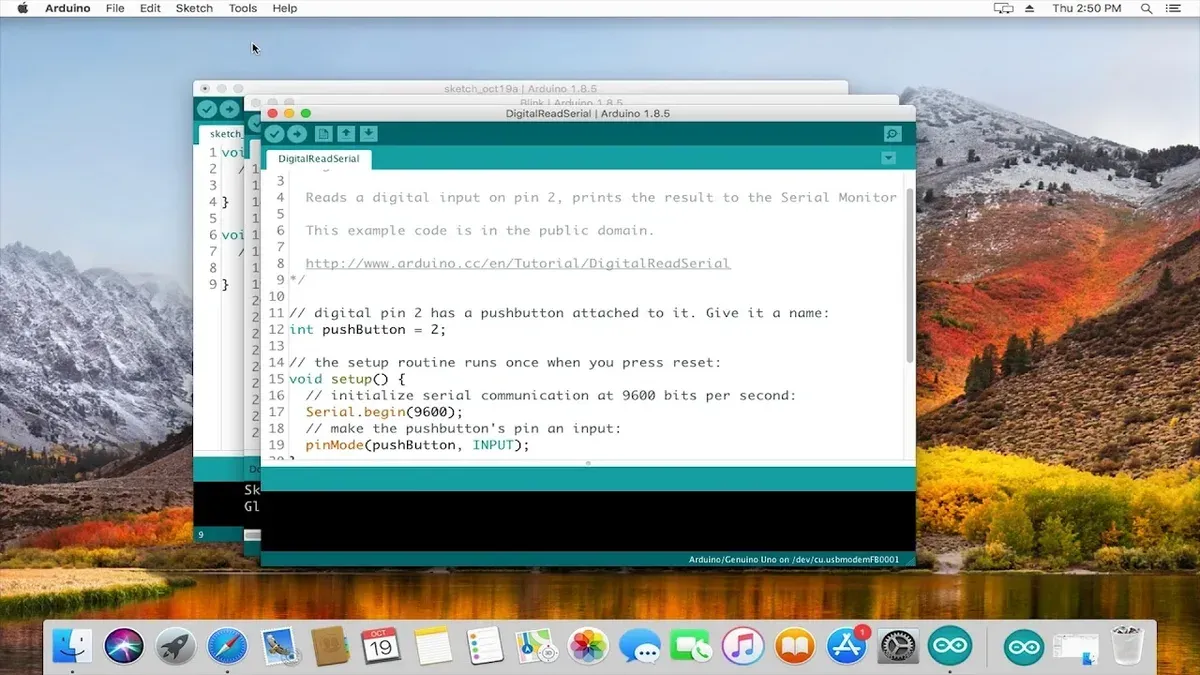
After installing and configuring the Arduino IDE on your Mac, you can start writing, verifying, and uploading code to your Arduino board. The IDE interface consists of a menu bar at the top, a toolbar with shortcut buttons, the code editor window, and a message console at the bottom.
The menu bar includes options like File for managing sketches, Edit for text editing, Sketch for verifying and uploading code, Tools for board and port settings, and Help for documentation.
- Open the Arduino IDE. You should see a blank sketch with default functions setup() and loop().
- Write or paste your Arduino code in the editor window. For example, start with the classic blink sketch:
void setup() { pinMode(LED_BUILTIN, OUTPUT); }
void loop() { digitalWrite(LED_BUILTIN, HIGH); delay(1000); digitalWrite(LED_BUILTIN, LOW); delay(1000); } - Click the Verify button (checkmark icon) on the toolbar to compile your code. The console below will show compilation progress and errors if any.
- Click the Upload button (right arrow icon) to send the compiled code to your connected Arduino board. The console will confirm successful upload.
- Access the Serial Monitor from the Tools menu or by clicking the magnifying glass icon. This opens a window where you can view serial output or send input to your board, useful for debugging.
- Manage libraries by going to Sketch > Include Library > Manage Libraries. Here you can install, update, or remove libraries to extend functionality.
- Use Tools > Board > Boards Manager to install additional board packages if you use third-party or less common Arduino-compatible boards.
- Save your projects via File > Save As and organize them in folders for easy access later.
Understanding the IDE interface and workflow helps you efficiently develop, test, and manage Arduino projects on your Mac.
Troubleshooting common installation and connection issues on Mac
When installing or connecting Arduino IDE on your Mac, you may encounter issues such as Gatekeeper blocks, USB recognition failures, permission errors, or software crashes. These problems often relate to macOS security settings, driver compatibility, or software conflicts.
Resolving Gatekeeper 'unidentified developer' blocks
If the error ""Arduino IDE" can’t be opened because it is from an unidentified developer" appears, follow these steps to bypass Gatekeeper:
- Open System Preferences and go to Security & Privacy > General.
- At the bottom, locate the message about the blocked app and click Open Anyway.
- Confirm by clicking Open in the dialog that appears.
- The Arduino IDE should now launch successfully.
If this is not visible, temporarily disable Gatekeeper by running sudo spctl --master-disable in Terminal, but remember to re-enable it after installation with sudo spctl --master-enable.
Fixing USB port or driver recognition issues
If your Mac doesn’t recognize the Arduino board or shows errors like "Port not found" or "Permission denied", try these steps:
- Disconnect and reconnect the USB cable, testing different USB ports to rule out hardware faults.
- Check if the board appears in /dev/ as
/dev/cu.usbmodem*or/dev/cu.usbserial*. - Install or update drivers for boards using CH340 or FTDI chips, available from the manufacturer’s site.
- Grant Terminal or Arduino IDE access to removable volumes and input monitoring under System Preferences > Security & Privacy > Privacy.
Dealing with permission errors when uploading sketches
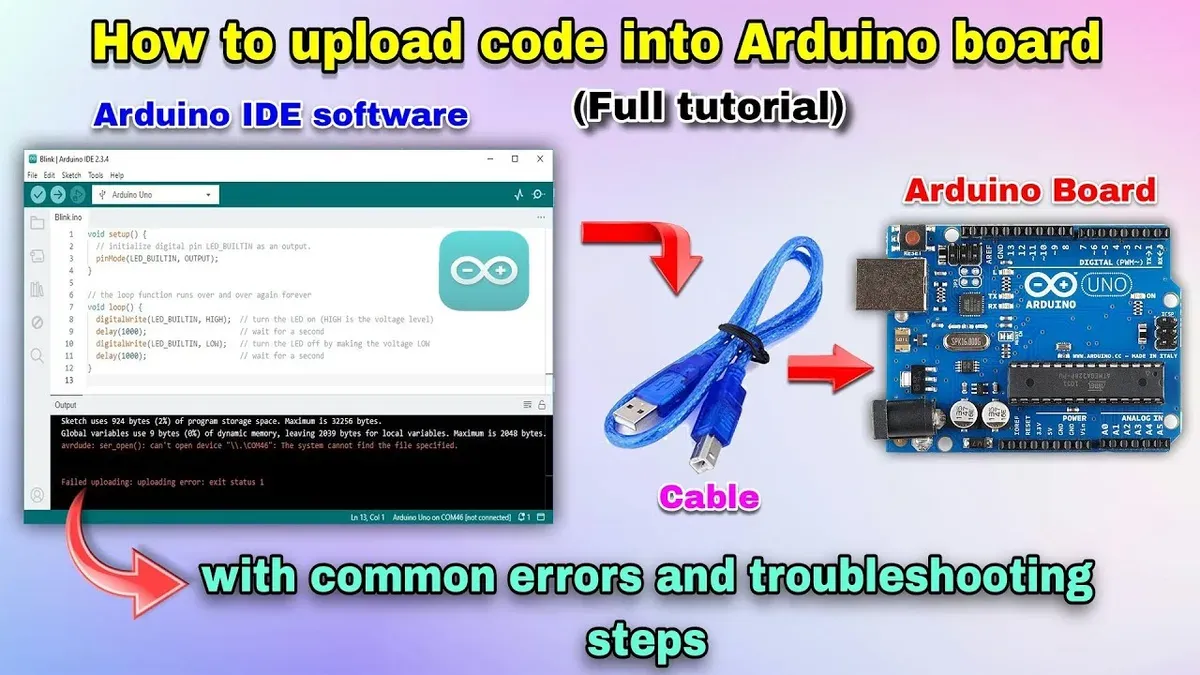
Errors like "Permission denied" during upload often stem from insufficient access to the serial port:
- Close Arduino IDE.
- Open Terminal and run
ls -l /dev/cu.*to check device permissions. - If necessary, add your user to the
dialoutor relevant group or adjust permissions temporarily withsudo chmod 666 /dev/cu.*. - Restart Arduino IDE and try uploading again.
What to do if the IDE crashes or won’t open
When Arduino IDE crashes or fails to start, consider the following:
- Force quit the app from Activity Monitor and relaunch.
- Delete the Arduino preferences folder at
~/Library/Arduino15to reset settings. - Ensure you have the latest IDE version compatible with your macOS.
- Check for conflicting software such as antivirus or firewalls that may block the app.
Checking for software conflicts or outdated macOS
An outdated macOS or conflicting background apps can cause issues:
- Go to System Preferences > Software Update and install any available macOS updates.
- Temporarily disable or uninstall third-party security software.
- Reboot your Mac after updates or changes.
Following these steps can resolve most common installation and connection challenges on Mac, ensuring a smoother Arduino development experience.
Alternatives and additional installation options
Beyond the traditional download-and-install method, you can install Arduino IDE on your Mac using package managers like Homebrew. This approach streamlines installation and updates but requires familiarity with command-line tools. Installing via Homebrew involves running brew install --cask arduino, which handles dependencies and places the IDE in your Applications folder.
Other platforms such as Ubuntu, Windows, and Raspberry Pi offer their own installation packages and methods tailored to their environments. On Linux, for example, you might use apt or snap packages, while Windows users typically download an installer executable. Raspberry Pi users can leverage ARM-compatible builds or use the web-based IDE to avoid local installation.
The web-based Arduino IDE is a notable alternative that runs entirely in your browser. It removes installation complexity and ensures you’re always using the latest version. However, it depends on a stable internet connection and may have limited offline capabilities and slower response times compared to the desktop IDE.
| Installation Method | Time | Complexity | Stability |
|---|---|---|---|
| Official Download | Moderate | Low | High |
| Homebrew | Fast | Moderate (command line) | High |
| Web-based IDE | Instant | Low | Moderate (internet dependent) |
Choosing the right method depends on your comfort with command-line tools, need for offline access, and desire for automated updates. Homebrew suits users who want quick upgrades and integration with other packages, while the web IDE is ideal for beginners or those avoiding installations. The official download remains the most stable and fully featured option for most Mac users.
- How to Install Unity on Mac: A Complete Step-by-Step Guide
- How to Install Godot on Mac: A Complete Step-by-Step Guide
- How to Install Git on Mac: Step-by-Step Guide for Every Setup
- How to Install Docker on Mac: A Clear Step-by-Step Guide
Frequently asked questions
How to install arduino ide?
To install Arduino IDE, download the installer from the official Arduino website. Run the installer and follow the on-screen prompts, accepting defaults unless you have specific needs. After installation, launch the IDE and connect your Arduino board to start programming.
How to install arduino ide on ubuntu?
On Ubuntu, you can install Arduino IDE using the Snap package by running sudo snap install arduino in the terminal. Alternatively, download the Linux version from Arduino’s website, extract the files, and run the install script. Make sure to add your user to the dialout group to access serial ports with sudo usermod -a -G dialout $USER.
How to install arduino ide in linux?
For Linux generally, download the appropriate package from Arduino’s site, extract it, and run the install.sh script in the terminal. You may need to install dependencies like gcc and make. Granting user permissions to access USB ports is often necessary for uploading code to your board.
How to install arduino ide in windows?
Download the Windows installer from the Arduino website and run it with administrator privileges. Choose whether to install USB drivers during setup, which is recommended for most users. After installation, connect your Arduino board via USB and verify the correct COM port is selected in the IDE’s tools menu.
How to install arduino ide in laptop?
Installing Arduino IDE on a laptop follows the same process as on desktops: visit the official site, download the installer compatible with your operating system, and run it. Ensure your laptop meets minimum OS requirements and has available USB ports to connect the Arduino board. After installation, check device permissions or driver installation based on your OS.
What this guide does not cover and who should look elsewhere
This guide focuses exclusively on installation and initial setup on Mac; it does not cover advanced Arduino programming or troubleshooting hardware beyond common connectivity issues. If you need help with complex coding, custom board configurations, or debugging hardware faults, consider dedicated Arduino programming tutorials or hardware-specific forums.
For users working with non-Apple silicon Macs or requiring command-line installation methods, specialized resources may provide more tailored instructions.
To move forward confidently, open the Arduino IDE after installation and start with the built-in example sketches under File > Examples. This hands-on step helps verify your installation and familiarize you with the interface before writing your own code or connecting more complex projects.



