
How to Install Unity on Mac: A Complete Step-by-Step Guide
Step-by-step guide to installing Unity on Mac, covering compatibility, Unity Hub setup, CLI installation, and Mac-specific tips.

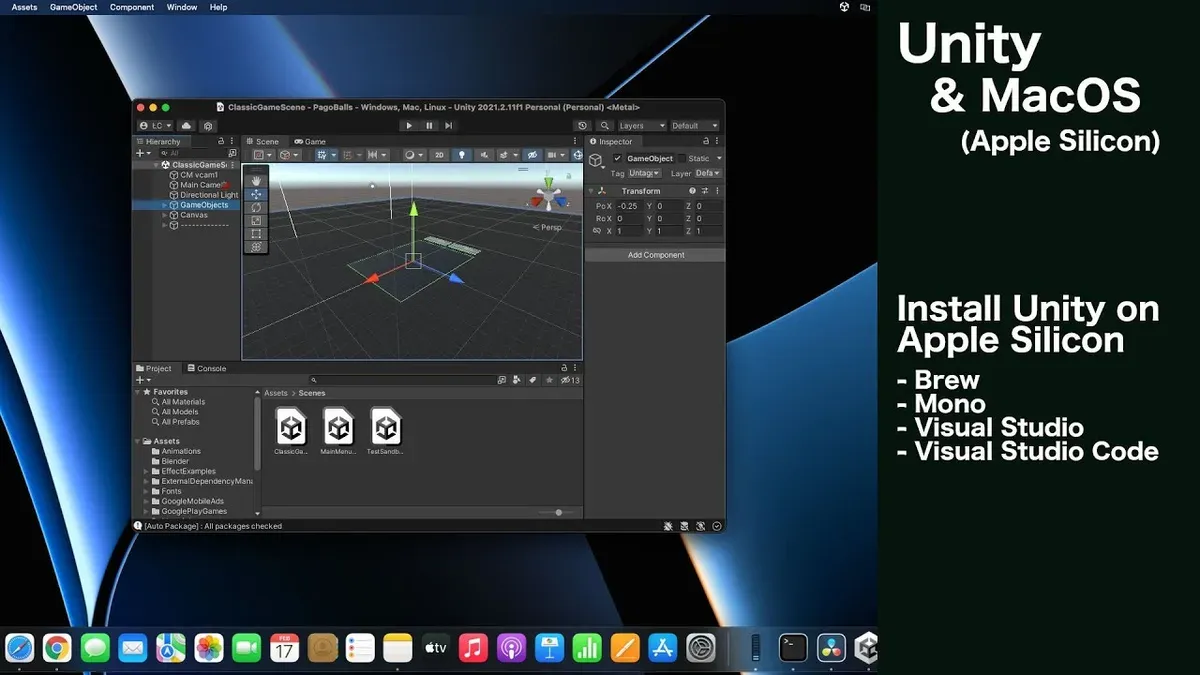
You’ve decided to explore game development or interactive experiences using Unity, but you’re unsure if your Mac hardware and operating system will support it smoothly. Many guides gloss over key compatibility details and the specific steps required to install Unity and its related tools on macOS.
This article explains how to install Unity on Mac, focusing on hardware and macOS compatibility nuances, clear step-by-step setup using Unity Hub, and practical instructions for installing the Unity CLI. You’ll also find guidance on alternatives to Unity Explorer on Mac and considerations for MacBook and MacBook Pro users.
Key takeaways
- Verify macOS version and hardware specs meet Unity’s requirements before installation.
- Use Unity Hub for a streamlined installation and project management process.
- The Unity CLI can be installed via Unity Hub for command-line workflows on Mac.
- Unity Explorer is Windows-only; Mac users can use Finder with Unity packages or third-party tools.
- MacBook models with limited storage or older GPUs may require specific settings for optimal Unity performance.
Before you start: What you need to install Unity on Mac
Installing Unity on your Mac requires meeting specific system requirements and preparing essential tools. Unity supports macOS 10.15 Catalina or later, but for best performance and compatibility, macOS 11 Big Sur or newer is recommended. Your Mac should have at least 8 GB of RAM, though 16 GB or more is ideal for complex projects.
Unity runs on both Intel-based Macs and Apple Silicon models. However, Unity versions prior to 2021.2 offer limited native support for Apple Silicon, meaning you might rely on Rosetta 2 translation, which can affect performance. Using the latest Unity versions ensures better Apple Silicon compatibility.
Ensure you have a stable internet connection for downloading Unity Hub and Unity Editor components. Disk space requirements vary by Unity version and installed modules, but typically expect to allocate at least 5 to 10 GB for the core editor and additional space for projects and assets.
You will need an Apple ID to download Unity Hub from the Mac App Store or directly from Unity’s website. Unity Hub serves as the recommended installer and management tool, simplifying the installation of multiple Unity versions, modules, and licenses.
- Verify your macOS version by clicking the Apple menu and selecting "About This Mac"; you should see the version number displayed.
- Check your hardware specs under the same "About This Mac" window, focusing on processor type (Intel or Apple Silicon) and available RAM.
- Ensure you have at least 10 GB of free disk space by opening Finder, selecting your drive, and pressing Command + I to view available space.
- Confirm your internet connection is active and stable by opening a web browser and loading a website.
- Prepare your Apple ID credentials to sign in to the Mac App Store or the Unity Hub application during installation.
How to install Unity on Mac: Step-by-step using Unity Hub
- Download Unity Hub: Visit the official Unity website at https://unity.com/download and click on "Download Unity Hub for macOS." Once downloaded, open the.dmg file and drag Unity Hub to your Applications folder. After installation, launch Unity Hub; you should see the sign-in screen.
- Sign in or create a Unity account: In Unity Hub, enter your Unity ID credentials to sign in. If you do not have an account, choose "Create Account" and follow the prompts to register. Successful sign-in takes you to the Unity Hub dashboard.
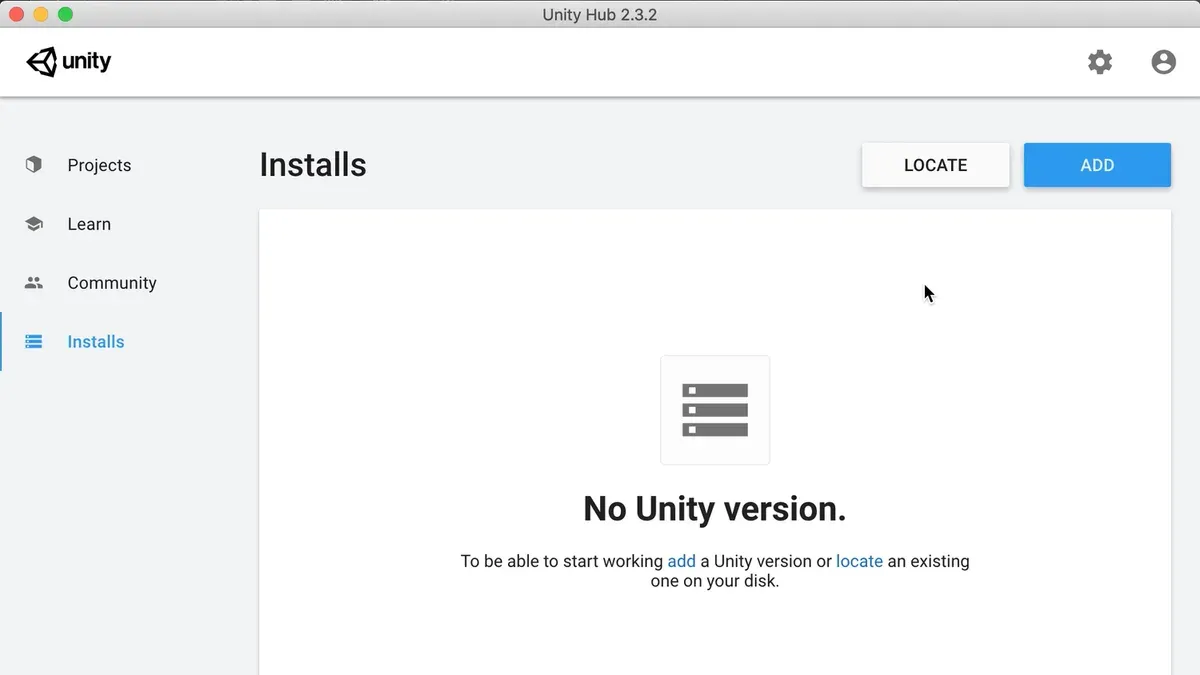
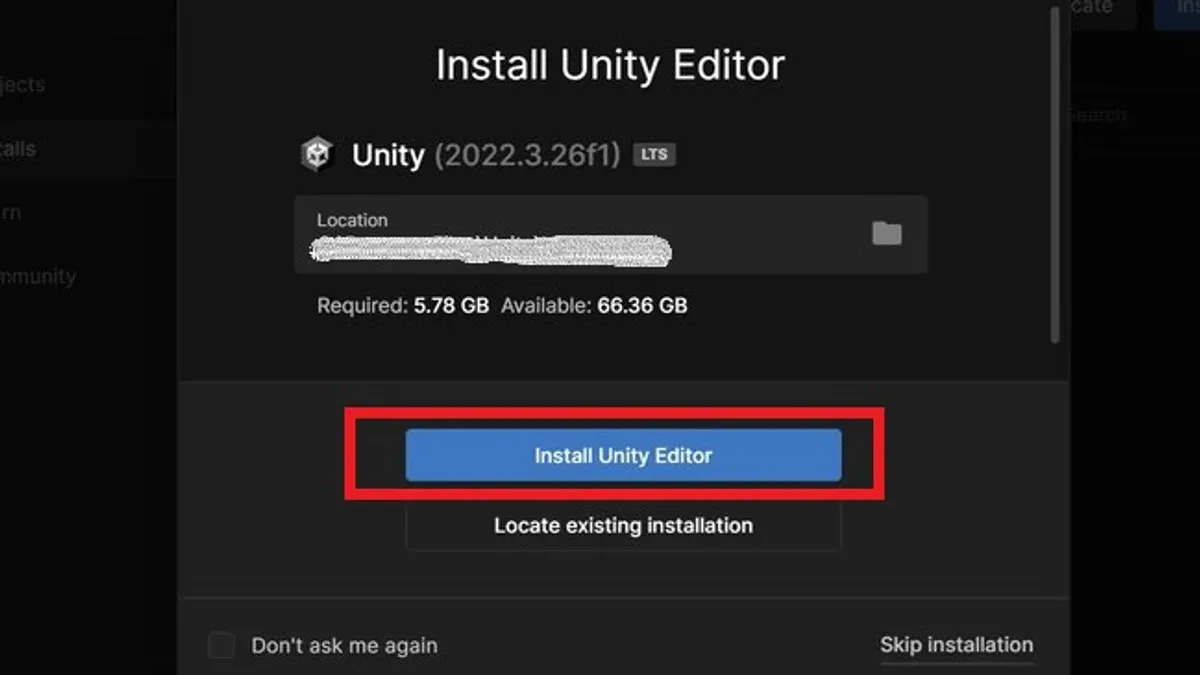
- Select and install a Unity Editor version: Click on the "Installs" tab on the left sidebar, then press the "Add" button. Unity Hub presents a list of available Editor versions; for most Mac users, the latest Long Term Support (LTS) version is recommended, such as 2020.3.x or 2021.3.x, depending on compatibility. Choose a version compatible with your macOS and Mac hardware, then click "Next."
- Add build support modules: On the next screen, select additional modules like "iOS Build Support" or "macOS Build Support" if you plan to build apps for those platforms. These modules add necessary tools and SDKs. Click "Done" to start the installation.
- Wait for installation to complete: Unity Hub shows progress for downloading and installing the Editor and selected modules. Once finished, the installed version appears under the "Installs" tab with a green checkmark.
- Launch Unity Editor: Switch to the "Projects" tab and click "New Project" or open an existing project. Under "Unity Version," select the installed Editor version. Clicking "Create" or "Open" launches the Unity Editor, confirming a successful installation.
Commonly, Mac users choose the LTS versions because of their stability and support for macOS features. Unity Hub also handles updates and multiple Editor versions, allowing you to switch as needed.
Note that during installation, downloading additional modules can take considerable time depending on your internet speed. Also, ensure your macOS security settings allow Unity Hub to install and run applications.
Does Unity work on Mac and can I use Unity on Mac effectively?
Unity supports macOS versions from macOS 10.15 Catalina onward in recent Unity releases, ensuring compatibility with both Intel-based and Apple Silicon Macs. However, the experience can differ depending on your Mac's processor.
Compatibility on Intel vs Apple Silicon Macs
Intel Macs run Unity natively without requiring translation layers. Apple Silicon Macs use Rosetta 2 to run Intel-compiled Unity versions, which generally provides good compatibility but may introduce some performance overhead. Unity has been releasing native Apple Silicon support in its newer versions, improving performance on M1 and M2 chips, though some modules or plugins may still rely on Intel binaries.
Performance Considerations
Unity performance on Mac is often reported as slightly slower compared to Windows PCs with similar specifications, primarily due to driver optimization and some rendering pipeline limitations on macOS. Macs with dedicated GPUs (such as discrete AMD GPUs in some MacBook Pros) can offer better performance than those relying solely on integrated graphics. Certain features like ray tracing have limited support on macOS because of hardware and driver constraints.
Feature Limitations and Support
Some Unity features and third-party assets may not be fully supported or optimized for macOS. For example, certain VR SDKs and Windows-specific plugins are unavailable on Mac. Official Unity documentation notes that macOS support is mature but may lag behind Windows in cutting-edge graphics features.
User Experiences and Official Notes
User testimonials often highlight that Unity on Mac is suitable for most 2D and 3D development workflows, especially for mobile and web targets. However, large-scale projects or those requiring the latest graphics features might encounter limitations. Unity's official support pages acknowledge these differences and recommend testing your specific workflow on Mac hardware before committing.
How to install Unity CLI on Mac for command-line workflows
The Unity Command Line Interface (CLI) lets you automate tasks such as building projects, running tests, and managing packages without opening the Unity Editor GUI. This is useful for scripting, continuous integration, and advanced development workflows on macOS.
- Open Terminal on your Mac.
- Verify that Unity is installed via Unity Hub and locate the Unity Editor application path, usually under /Applications/Unity/Hub/Editor/[version]/Unity.app. You will need this path for CLI commands.
- To enable command-line usage, add the Unity executable to your shell path by creating a symbolic link:
ln -s /Applications/Unity/Hub/Editor/[version]/Unity.app/Contents/MacOS/Unity /usr/local/bin/unity
Replace [version] with your installed Unity version folder. After this, running unity in Terminal should invoke Unity. - Test the CLI by running unity -help. You should see a list of available command-line options and usage instructions.
- Try a common command, for example, building a project:
unity -projectPath /path/to/your/project -buildOSXPlayer /path/to/output/game.app -quit -batchmode -nographics
This command builds a macOS player for the specified project and quits Unity afterward without opening the GUI. - Integrate Unity CLI commands into your shell environment by adding aliases or scripts in your shell profile (e.g., .zshrc or .bash_profile) for easier access and automation.
Using Unity CLI can streamline repetitive tasks and fits well with automated build pipelines, whereas GUI workflows are better for visual editing and debugging. The CLI requires familiarity with command syntax but offers more control and scalability for advanced users.
How to install Unity on MacBook and MacBook Pro: Specific considerations
Installing Unity on MacBook and MacBook Pro models requires attention to portable hardware nuances to maintain performance and stability during development.
- Optimize battery and performance settings: Go to System Preferences > Battery, then select "Battery" and "Power Adapter" tabs. Adjust settings to prevent your Mac from sleeping during builds by enabling "Prevent computer from sleeping automatically when the display is off" under Power Adapter. This ensures uninterrupted compilation and smoother Unity operations.
- Manage storage effectively: Unity projects can consume significant disk space. Regularly check storage via Apple menu > About This Mac > Storage. Clear caches and unused assets in Unity's Preferences under Cache Server to free space. Consider using external SSD drives for large projects to avoid slowing down your internal drive.
- Control thermal load to prevent overheating: Intensive Unity tasks can raise MacBook temperatures. Use apps like macOS Activity Monitor to track CPU load and close unnecessary background apps. Elevate your MacBook on a stand to improve airflow, and avoid using it on soft surfaces. If needed, an external cooling pad can help maintain optimal temperatures during long builds.
- Enhance your workflow with external accessories: Connecting an external monitor via Thunderbolt or USB-C can expand your workspace, improving productivity when working with Unity's interface. Using a full-sized keyboard and mouse or trackpad can also reduce fatigue during extended sessions.
Users working on MacBook Pro models with M1 or M2 chips report smoother editor performance but note that thermal throttling can still occur during prolonged rendering. Balancing performance settings and thermal management is key to maintaining a stable Unity development environment on portable Macs.
How to get Unity Explorer for Mac alternatives
Unity Explorer is a Windows-only tool designed to browse and manage Unity assets and project files efficiently. Since it is not available for macOS, Mac users need alternative methods to handle asset and project navigation.
One basic but effective approach is using the macOS Finder alongside Unity Editor’s built-in Project window. Finder allows you to view and organize raw asset files directly, while the Project window provides a filtered, Unity-specific view of assets and scenes within your project.
For more advanced asset management, several third-party tools and plugins can approximate Unity Explorer’s functionality on Mac. These include asset management plugins available via the Unity Asset Store that offer enhanced search, tagging, and preview features. Community scripts and open-source tools also exist that add custom views or index project files for faster lookup.
| Tool | Platform | Key Features | Usage Notes |
|---|---|---|---|
| Finder | macOS | File browsing, tagging, quick preview | Basic file-level operations outside Unity |
| Unity Editor Project Window | macOS | Asset filtering, search, drag-and-drop | Integrated with Unity workflow |
| Asset Hunter Pro (Asset Store) | macOS | Asset cleanup, search, unused asset detection | Requires purchase, improves project size management |
| Project Auditor (Open Source) | macOS | Code and asset auditing, optimization hints | Helpful for large projects |
To use Finder and Unity Editor effectively together, follow these steps:
- Open your Unity project folder in Finder to access raw asset files. You should see folders like Assets, Library, and ProjectSettings.
- In Unity Editor, use the Project window’s search bar to filter assets by name, type, or label. This helps locate specific files within the project structure.
- Install asset management plugins from the Asset Store if you need advanced features such as unused asset detection or bulk renaming. After installation, open the plugin window from Unity’s menu and follow its instructions.
- Explore community scripts or open-source tools on repositories like GitHub by searching for “Unity asset management Mac” to find utilities that fit your workflow.
Using these alternatives will help you maintain productivity on macOS despite the absence of Unity Explorer.
Troubleshooting common Unity installation issues on Mac
Unity installation on Mac can encounter several common issues, including permission errors, crashes, missing modules, and build support errors. This guide helps you resolve these problems step-by-step.
Fixing permission errors and security settings
macOS may block Unity or Unity Hub due to security settings. If you see messages like "Unity Hub can’t be opened because Apple cannot check it for malicious software," adjust your settings:
- Open System Settings and go to Privacy & Security.
- Scroll to the Security section and find the message about Unity Hub or Unity.
- Click Allow Anyway beside the app name.
- Try launching Unity Hub again; you should see an option to Open it despite the warning.
Resolving Unity Hub crashes or failed downloads
If Unity Hub crashes or downloads fail, clear its cache and check your network:
- Quit Unity Hub completely.
- Open Finder, press Cmd + Shift + G, and enter
~/Library/Application Support/UnityHub. - Delete the
Cachefolder. - Restart Unity Hub and retry your download.
- If the problem persists, test your internet connection or try a wired connection.
Handling missing modules or build support errors
Occasionally, modules like iOS or Android Build Support fail to install or are not detected:
- Open Unity Hub and navigate to Installs.
- Click the three dots next to your Unity version and select Add Modules.
- Ensure required modules are checked and reinstall them.
- If errors continue, uninstall the Unity version (see below) and reinstall with all necessary modules selected.
Uninstalling and reinstalling Unity cleanly on Mac
A clean reinstall fixes persistent issues:
- Quit Unity Hub and Unity Editor.
- Delete Unity Hub: drag it from /Applications to Trash.
- Remove Unity Editor versions: delete folders in
/Applications/Unityor wherever installed. - Clear Unity and Unity Hub support files by deleting
~/Library/Application Support/Unityand~/Library/Application Support/UnityHub. - Empty Trash and restart your Mac.
- Download the latest Unity Hub from the official website and reinstall Unity Editor with required modules.
- How to Install Jekyll on Mac: A Practical Step-by-Step Guide
- How to Install Hugo on Mac: A Clear Step-by-Step Guide
- How to Install Octave on Mac: A Clear Step-by-Step Guide
- How to Install MATLAB on Mac: A Clear Step-by-Step Guide
Frequently asked questions
Does unity run on mac?
Yes, Unity runs on Mac but with some compatibility nuances. Unity supports macOS versions 10.15 Catalina and later, and it requires a Mac with Metal-capable graphics hardware. Performance may vary depending on your Mac model and GPU, so check Unity's system requirements before installation.
How to install unity on windows?
To install Unity on Windows, download the Unity Hub installer from the official Unity website. Run the installer, launch Unity Hub, and use it to download and manage Unity Editor versions. Make sure your Windows OS is compatible—typically Windows 10 64-bit or later—and check hardware requirements like GPU support.
How to install unity on macos?
Download Unity Hub for macOS from the Unity website and open the.dmg file. Drag Unity Hub to the Applications folder, then launch it. Use Unity Hub to install the Unity Editor and required modules. Ensure your macOS version is 10.15 Catalina or newer and that your Mac supports Metal graphics.
How to install Unity on Windows?
Visit Unity's official site to get the Unity Hub installer for Windows. After running the installer, open Unity Hub to manage Unity versions and projects. Confirm your Windows system meets the requirements, including a 64-bit OS and compatible graphics hardware.
Does Unity run on Mac?
Unity does run on Mac with support for recent macOS versions and Metal-capable GPUs. While most features work well, some advanced editor tools or plugins may have limited macOS support. Always verify Unity's stated system requirements for your Mac model before proceeding.
What this guide does not cover and who should consider other options
This guide does not cover advanced Unity development topics or detailed performance optimization beyond installation and basic setup. If you are planning complex Unity projects requiring specific plugins, custom render pipelines, or deep performance tuning, additional specialized resources will be necessary.
Users with very old Mac hardware or unsupported macOS versions may not be able to install or run the latest Unity versions effectively. In such cases, consider upgrading your hardware or using alternative development environments compatible with your system.
The most useful next step is to download and install Unity Hub from the official Unity website. Unity Hub manages Unity Editor versions and projects efficiently, giving you control over installations and updates while ensuring compatibility with your macOS version. After installing Unity Hub, follow the prompts to select the Unity Editor version best suited for your Mac’s hardware and macOS, paying attention to system requirements and optional modules needed for your project type.



