
How to Install Octave on Mac: A Clear Step-by-Step Guide
This guide shows how to install Octave on Mac using Homebrew or the app bundle, plus tips on managing packages and starting Octave coding.

Installing GNU Octave on a Mac can seem daunting if you’re new to numerical computing or macOS software management. You might be wondering how to balance a straightforward installation with the need to manage Octave packages effectively and avoid common macOS-specific issues.
This guide explains how to install Octave on Mac, covering two main installation methods: using Homebrew and without it. You’ll also get practical advice on installing and managing Octave packages and a beginner-friendly introduction to Octave coding on your Mac. Whether you want to perform matrix operations, run simulations, or explore numerical analysis, this step-by-step guide will help you set up Octave correctly and start coding efficiently.
Key takeaways
- Use Homebrew for a simple Octave installation, especially if you already have Homebrew on your Mac.
- If you prefer not to use Homebrew, the official Octave app bundle provides a reliable alternative.
- Install Octave packages using the pkg install command inside Octave to extend functionality.
- Watch out for macOS security settings that may block Octave or its packages during installation.
- Start coding by learning basic Octave commands and scripts to perform numerical tasks.
Before you start: What you need to install Octave on Mac
To install Octave on your Mac, ensure your macOS version is compatible. Official Octave documentation recommends macOS 10.13 (High Sierra) or later for smooth operation. You can check your macOS version by clicking the Apple menu and selecting "About This Mac." Octave requires at least 3 GB of free disk space to accommodate the software and additional packages.
A stable internet connection is necessary to download Octave and any supplementary packages. Since installation often involves using the command line, familiarity with basic Terminal commands will help you navigate the process efficiently.
Many Mac users prefer to install Octave using Homebrew, a popular package manager that simplifies software installation and management. While Homebrew is optional, it streamlines updates and dependencies. Homebrew has a large user base among macOS developers and is actively maintained.
If you choose to use Homebrew, first verify if it is installed by opening Terminal and typing brew --version. If installed, it will display the current version; otherwise, you will see a command not found message. Installing Homebrew requires running a script from the official website and takes a few minutes.
- Check your macOS version by clicking the Apple menu and selecting "About This Mac." You should see a version number 10.13 or higher.
- Verify you have at least 3 GB of free disk space by opening Finder, selecting your main drive, and pressing Command+I to view available space.
- Confirm your internet connection is active by opening a browser and visiting any website.
- Test if Homebrew is installed by opening Terminal and typing brew --version. Seeing a version number means it’s ready to use.
- If Homebrew is not installed and you want to use it, visit https://brew.sh and follow the installation instructions.
How to install Octave on MacBook using Homebrew
- Check if Homebrew is installed by opening Terminal and entering brew --version. If installed, you will see the version number; otherwise, the command will not be found.
- If Homebrew is not installed, install it by pasting the following command in Terminal:
/bin/bash -c "$(curl -fsSL https://raw.githubusercontent.com/Homebrew/install/HEAD/install.sh)". When successful, Terminal shows "Installation successful!" and adds Homebrew to your PATH. - Update Homebrew to ensure you have the latest package lists by running brew update. You should see a progress of fetching updates and a confirmation when done.
- Install Octave by running brew install octave. This command downloads and compiles Octave and all necessary dependencies. The process can take several minutes depending on your Mac’s performance and internet speed.
- Verify the installation by typing octave --version in Terminal. You should see the installed Octave version number displayed.
Using Homebrew is the recommended method because it automates dependency management and keeps Octave updated easily. Compared to manual installation, Homebrew significantly reduces setup time and complexity. Manual methods often require downloading multiple separate packages and configuring paths, which can be error-prone on macOS.
Homebrew also simplifies future upgrades with a single brew upgrade octave command. This convenience and reliability make it the preferred choice for most Mac users installing Octave.
How to install Octave on macOS without Homebrew
If you prefer not to use Homebrew, you can install Octave on your Mac by downloading the official application package. This method uses the.dmg file distributed by the GNU Octave project or other trusted sources.
- Visit the official GNU Octave download page at https://www.gnu.org/software/octave/download.html. You should see options for different platforms; select the macOS section.Here, you will find links to the latest stable Octave.dmg files. Screenshots on the page show the available versions and their release dates.
- Download the latest compatible.dmg file for macOS. Once the download completes, open the.dmg file in Finder.A window will appear showing the Octave app and an Applications folder shortcut.
- Drag the Octave app icon into the Applications folder shortcut to install Octave on your Mac.After copying finishes, eject the.dmg by right-clicking and selecting Eject.
- Open the Applications folder and double-click the Octave app to launch it.You might see a security warning since the app is from an unidentified developer. In System Preferences > Security & Privacy, under the General tab, click "Open Anyway" to proceed.
- To use Octave from the terminal, you may need to set environment variables. Open Terminal and add the Octave binary path (typically /Applications/Octave.app/Contents/Resources/usr/bin) to your PATH variable by editing your shell profile (e.g., ~/.zshrc or ~/.bash_profile).After saving, run
source ~/.zshrc(or appropriate file) and test by typingoctave --version. It should display the installed Octave version. - Confirm the installation by launching Octave either from the Applications folder or the terminal. The Octave GUI should open, ready for numerical computing tasks.
Note that versions available via the.dmg method might lag slightly behind those offered through Homebrew, but this approach avoids dependency management complexities. This method works well for users who want a straightforward graphical installation without additional package managers.
How to install Octave packages on your Mac
Octave packages extend the core functionality by adding specialized tools and functions. You manage these packages directly within the Octave environment using the pkg command.
- Open Octave on your Mac. You should see the Octave command prompt, usually displayed as
octave:1>. - To list all available packages you can install, type
pkg list. This displays installed packages, but to see available packages online, usepkg describe -forge. This shows packages you can add, such as control (for control systems) or image (for image processing). - To install a package from Octave Forge, use
pkg install -forge package_name. For example,pkg install -forge controldownloads and installs the Control Systems package. Successful installation is confirmed by messages ending with "installed successfully". - After installation, load the package into your current session with
pkg load package_name. For example,pkg load controlenables you to use its functions immediately. - To update packages to their latest versions, use
pkg update package_name. This fetches and installs updates if available. - If you no longer need a package, remove it with
pkg uninstall package_name. For instance,pkg uninstall controldeletes the Control Systems package from your system.
Best practices: Always load packages as needed rather than at startup to save memory. Use pkg list regularly to monitor installed packages. Some packages depend on others; installing dependencies usually happens automatically, but check error messages carefully. For common users, recommended packages include control, image, and signal for numerical computing tasks.
How to code in Octave: A beginner’s primer
Once you launch Octave, you can use either the Graphical User Interface (GUI) or the Command Line Interface (CLI) to start coding. The GUI provides an editor, command window, and workspace viewer, making it easier for beginners to write and test scripts visually.
- Open Octave from your Applications folder or via terminal with octave --gui. You should see the main window with the command prompt.
- To write a script, click File > New > Script in the GUI. A blank editor window opens where you can type your code.
- Save your script with File > Save As and give it a .m extension, for example, square.m. This allows easy organization and reuse.
- Run the script by pressing the green Run button in the editor or typing square at the command prompt. The output appears in the command window.
- Use built-in help by typing help function_name in the command window to see usage details, such as help disp.
Enter a simple script like:
x = 5;
y = x^2;
disp(['The square of ', num2str(x), ' is ', num2str(y)]);
You should see the script display the calculated result when run.
Basic Octave syntax mimics MATLAB: statements end with a semicolon to suppress output, variables are case-sensitive, and comments start with the percent sign %.
To organize your work, create separate script files for different tasks and use the cd command or GUI file browser to manage directories. This keeps your projects structured and easy to navigate.
How to download Octave for Windows 11 and other platforms
If you are using Windows 11 or other operating systems, downloading and installing Octave differs from the Mac process but remains straightforward. The official and safest source for Windows versions of Octave is the GNU Octave official website at https://www.gnu.org/software/octave/download.html, where you can find direct links to Windows installers.
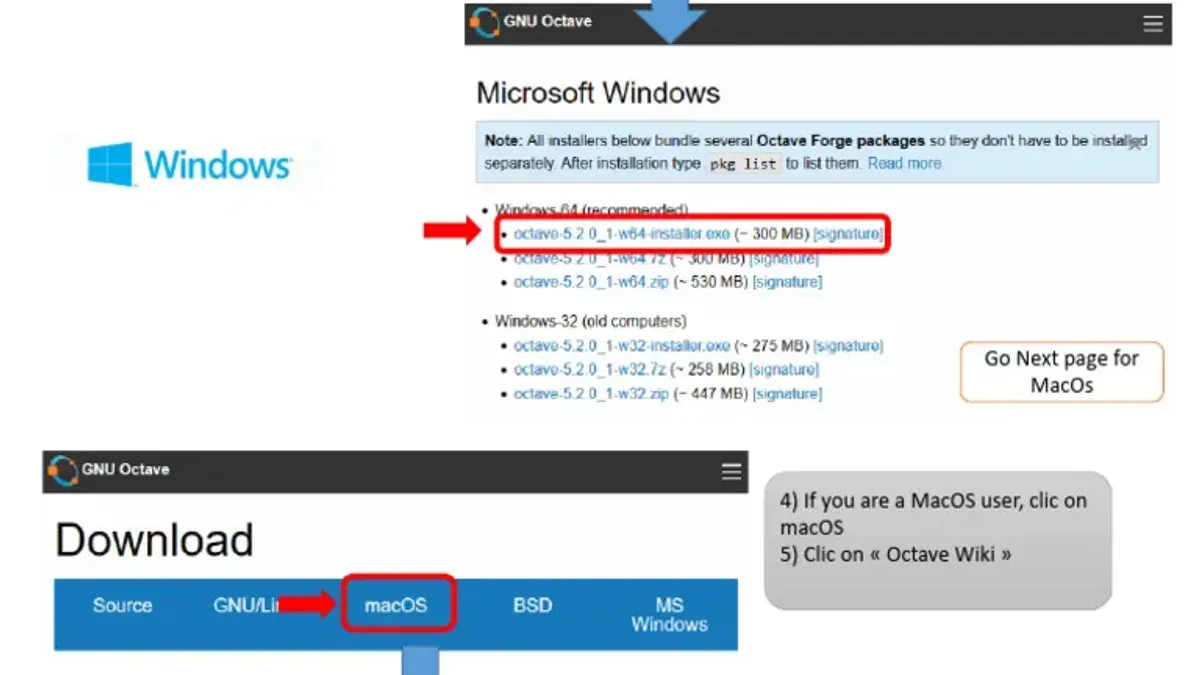
The Windows installer supports both Windows 10 and Windows 11, ensuring compatibility across recent Microsoft operating systems. Unlike Mac installations, the Windows setup typically comes as an executable (.exe) file that guides you through the installation with a familiar wizard interface, making it accessible even for beginners.
- Visit the GNU Octave download page and locate the Windows section with the latest stable installer. You should see the filename ending in.exe.
- Click the installer link to download the file. Once downloaded, double-click the.exe file to launch the installation wizard.
- Follow the on-screen prompts to accept the license, choose the installation directory, and select optional components. A progress bar indicates installation status.
- When completed, open the Start menu and search for "Octave" to launch the program. The Octave command window should appear, ready for your computations.
For other platforms like Linux, Octave is usually available through your distribution’s package manager, such as apt for Ubuntu or yum for Fedora. Installing via package managers handles dependencies automatically but might not always provide the latest version.
Cross-platform users should be aware that while Octave's core functionality remains consistent, some GUI features and package management may vary slightly between Mac, Windows, and Linux. Checking the official documentation for platform-specific notes can help avoid common issues.
Troubleshooting common Octave installation issues on Mac
Octave installation on Mac can encounter some typical issues related to environment settings, permissions, dependencies, and GUI operation. Addressing these problems systematically helps ensure a smooth setup.
Fixing PATH and environment variable issues
If Octave commands are unrecognized in the Terminal, your PATH variable might not include Octave’s binary directory. Verify your PATH by running echo $PATH in Terminal.
- Open Terminal and type which octave. You should see a valid path like /usr/local/bin/octave or similar.
- If you get no output, add Octave’s bin folder to PATH by editing your shell configuration file (e.g., ~/.zshrc or ~/.bash_profile) with a line like export PATH="/usr/local/bin:$PATH".
- Reload the shell config with source ~/.zshrc or restart Terminal, then retry which octave.
Once the correct path is recognized, Octave commands should run.
Resolving permission errors during installation
Permission errors often occur if Octave is installed in protected directories. Avoid running installation commands with sudo unless explicitly required.
- Check the ownership and permissions of Octave’s install directory using ls -ld /usr/local/bin or the target folder.
- If permissions are restrictive, change ownership with sudo chown -R $(whoami) /usr/local/bin, then reinstall Octave.
This ensures you have the necessary write access.
Handling missing dependencies or libraries
Octave depends on libraries like gnuplot and GUI frameworks. Missing dependencies cause errors such as "library not found" or "symbol not found".
- Check for missing libraries by running Octave from Terminal and noting error messages.
- Install missing dependencies via Homebrew (if used) with commands like brew install gnuplot.
- Restart Octave to confirm the issue is resolved.
Dealing with GUI launch failures
Octave’s GUI may fail to launch with messages like "Failed to connect to X server" or crashes immediately.
- Ensure XQuartz is installed and updated, as Octave’s GUI depends on it for windowing systems.
- Download XQuartz from https://www.xquartz.org/ and install it.
- Restart your Mac after installation, then try launching Octave GUI again.
Where to find logs and community support
If issues persist, check Octave’s log files located in ~/.octave_history or run Octave with verbose flags to capture detailed errors.
For community help, visit the official Octave mailing lists or forums at https://octave.org/support.html and the GitHub issues page at https://github.com/gnu-octave/octave/issues.
Searching or posting your exact error messages there often leads to solutions from experienced users and developers.
- How to Install MATLAB on Mac: A Clear Step-by-Step Guide
- How to Install R and RStudio on Mac: A Clear Step-by-Step Guide
- How to Install Jupyter Notebook on Mac: A Clear Step-by-Step Guide
- How to Install Miniconda on Mac: A Clear Step-by-Step Guide
Frequently asked questions
How to install gnu octave?
To install GNU Octave, you can use a package manager like Homebrew on Mac by running brew install octave in Terminal. Alternatively, download the official installer from the GNU Octave website and follow the setup instructions. Make sure your macOS version is compatible and any dependencies like XQuartz are installed if required.
How to download gnu octave?
Download GNU Octave from the official website at octave.org. Choose the macOS installer or a source package depending on your preference. Verifying the download's integrity with provided checksums helps ensure a safe installation.
How to download octave on mac?
To download Octave on Mac, visit the official GNU Octave website and select the macOS installer. You can also install it via Homebrew by opening Terminal and typing brew install octave. Both methods provide a reliable way to set up Octave on your Mac.
How to install Octave packages?
Install Octave packages using the built-in package manager by typing pkg install -forge package-name in the Octave command window. Replace package-name with the desired package's name. After installation, load the package with pkg load package-name to start using it.
How to download GNU Octave?
GNU Octave can be downloaded from its official site at octave.org. Select the appropriate version for your operating system and download the installer. For macOS users, the site provides a dedicated installer or you can opt for Homebrew installation for easier updates.
What this guide does not cover
This guide does not cover advanced Octave configuration for specific scientific computing needs or integration with other development environments like MATLAB or Jupyter notebooks. If your work involves complex simulations, high-performance computing, or custom package development, consider consulting specialized resources or forums dedicated to those topics. Users requiring seamless integration with other software stacks may also want to explore paid alternatives or professional support options.
The single most useful next step is to open Octave on your Mac and familiarize yourself with its command window. Try running simple commands such as disp('Hello, Octave') or basic calculations like 2 + 2. This hands-on approach helps you get comfortable with the interface and confirms that your installation works properly before moving on to installing packages or writing more complex scripts.



