
How to Install R and RStudio on Mac: A Clear Step-by-Step Guide
This guide walks you through installing and updating R and RStudio on your Mac for efficient data analysis and coding.

You have just downloaded a dataset and want to analyze it using R, but you're not sure how to set up the necessary tools on your Mac. Or perhaps you need to update your existing installation to the latest versions for better compatibility and features.
This article guides you through how to install R and RStudio on Mac, covering everything from initial setup to updating and troubleshooting. You'll learn the essential system requirements, step-by-step installation instructions, and common pitfalls to avoid on macOS. Additionally, practical tips will help you start using R and RStudio effectively once installed.
Key takeaways
- Ensure macOS version is compatible before installing R and RStudio.
- Download R from the Comprehensive R Archive Network (CRAN) and RStudio from its official site.
- Update both R and RStudio regularly to maintain compatibility with packages.
- Check security settings if installations are blocked by macOS Gatekeeper.
- Verify R version from Terminal using R --version and RStudio version from the About menu.
Before you start: What you need to install R and RStudio on Mac
Before installing R and RStudio on your Mac, ensure your system meets the necessary requirements to avoid installation errors and performance issues.
- Check your macOS version. The latest R versions typically support macOS 10.14 (Mojave) and later, while RStudio requires macOS 10.15 (Catalina) or later. Confirm your macOS version by clicking the Apple menu > About This Mac. Seeing the version number will help determine if you need to update your system or look for legacy software versions.
- Ensure a stable internet connection. You will need to download installers for both R and RStudio, which are approximately 80–150 MB each. A reliable connection helps prevent corrupted downloads and saves time.
- Verify sufficient disk space and permissions. Allow at least 500 MB of free disk space to accommodate the software and temporary files during installation. You must have administrator privileges on your Mac to install software in the Applications folder or system directories.
- Understand the software roles. R is the programming language and environment for statistical computing, while RStudio is an integrated development environment (IDE) that provides a user-friendly interface to write code, visualize data, and manage projects. Installing both is recommended for an efficient workflow.
- Check your system specifications. A Mac with at least 4 GB of RAM and a recent processor (Intel or Apple Silicon) will provide a smoother experience. Older hardware can still run R and RStudio but might encounter performance limitations.
How to install R and RStudio on Mac
- Visit the official CRAN website at https://cran.r-project.org/ and select the “Download R for (Mac) OS X” link. You should see a page listing the latest R version available for macOS.
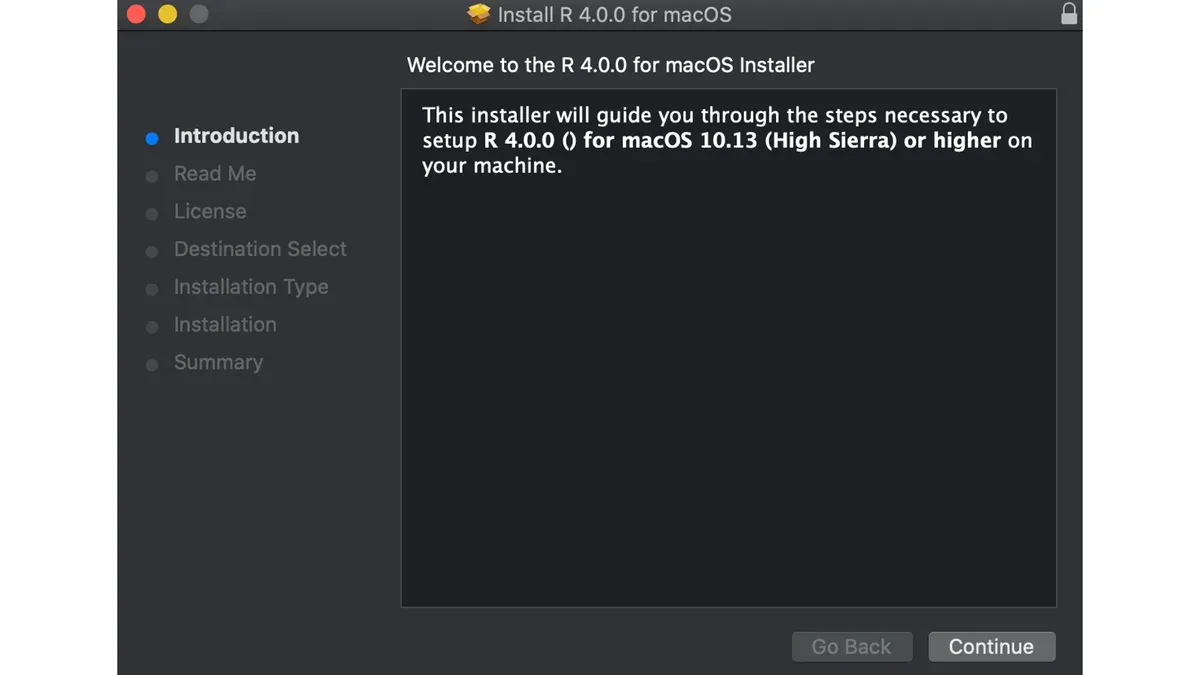
- Click the package file link matching the latest R version (usually a.pkg file). Once downloaded, open it to launch the macOS Installer.
- Follow the installer prompts by clicking “Continue,” agreeing to the license, and selecting the destination disk. When installation completes, you will see a confirmation message.
- Next, go to the official RStudio website at https://posit.co/download/rstudio-desktop/. Scroll to the macOS section and download the free RStudio Desktop installer (.dmg file).
- Open the downloaded.dmg file and drag the RStudio icon into the Applications folder shortcut in the installer window. This installs RStudio on your Mac.
- Open Finder, navigate to Applications, and double-click the R app to launch the basic R console. The console window confirms R is installed properly.
- Then, open RStudio from Applications. On first launch, you may be prompted to customize the interface. Set your desired pane layout and appearance under “Preferences” in the RStudio menu.
- To verify R and RStudio integration, open the “Console” pane in RStudio and type version, then press Enter. The output should display installed R version details, confirming successful setup.
How to download RStudio on Mac
Before downloading RStudio, ensure that R is already installed on your Mac, as RStudio depends on R to function. Without R installed, RStudio will not run properly.
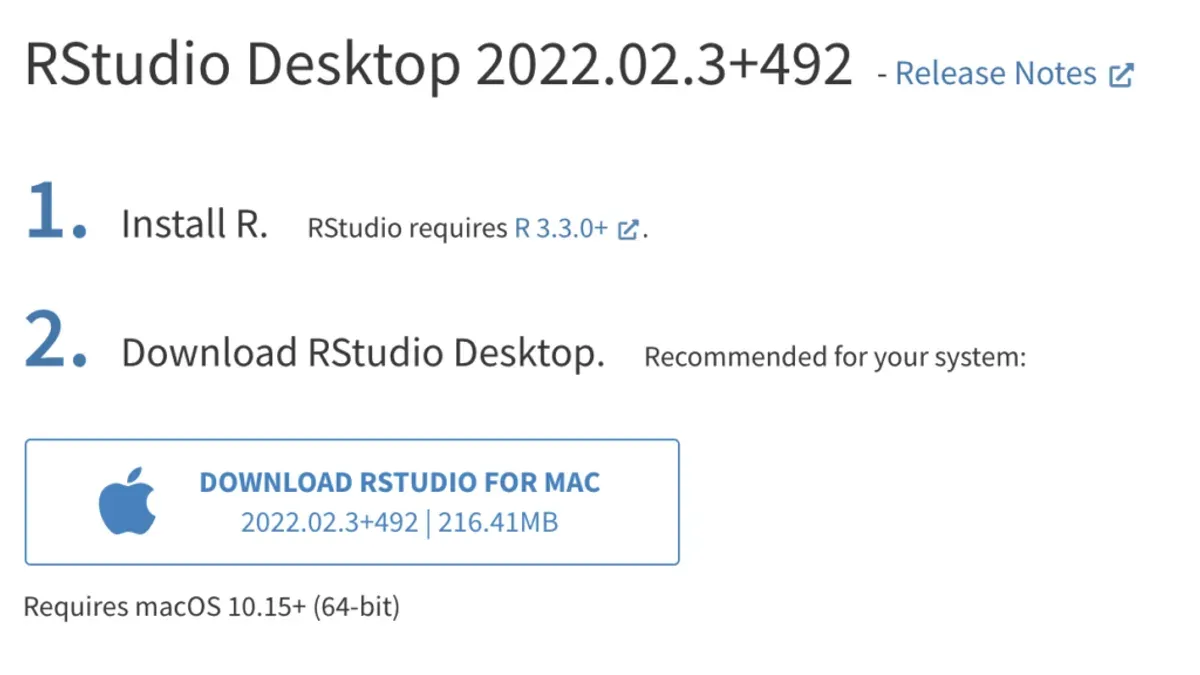
- Open your preferred web browser and go to the official RStudio website at https://posit.co/download/rstudio-desktop/. You should see options for different operating systems.
- Under the macOS section, select the installer that matches your Mac’s architecture (Intel-based or Apple Silicon). The file usually has a name like "RStudio--macOS.dmg". Once downloaded, locate the file in your Downloads folder.
- Double-click the.dmg file to mount the installer disk image. A window will appear showing the RStudio application icon.
- Drag the RStudio icon into your Applications folder shortcut within the same window. This copies RStudio to your system’s Applications directory.
- Navigate to the Applications folder and double-click RStudio to launch it. The first time you open it, macOS may display a security prompt since the app is downloaded from the internet. Click "Open" on the prompt to allow it to run.
- If macOS blocks the app with a message like "RStudio can’t be opened because Apple cannot check it for malicious software," open System Preferences, go to Security & Privacy > General tab, and click "Open Anyway" next to the RStudio app notification.
- Once opened, RStudio should detect the installed R version automatically. If it does not, verify your R installation or restart your Mac.
RStudio offers both free and paid versions. The free Desktop version is sufficient for most users starting data analysis. Paid versions provide additional professional features like enhanced support and collaboration tools, which may be relevant for enterprise environments.
How to update R and RStudio on Mac
Keeping both R and RStudio updated on your Mac ensures access to the latest features and security improvements while maintaining compatibility with packages and projects. Follow these steps to update safely.
- Check your current R version: Open the Terminal app and type R --version. You should see output like R version 4.2.0 (2023-04-15). This confirms your installed R version.
- Check your current RStudio version: Launch RStudio, then go to the menu bar and select RStudio > About RStudio. A window will display your current version number.
- Backup your R projects: Before updating, copy important R scripts, data, and workspace files to an external drive or cloud storage. This protects your work if an update causes issues.
- Download the latest R version: Visit the Comprehensive R Archive Network (CRAN) website and download the newest R installer for macOS. Run the installer; it will install the new version alongside the old one without deleting existing packages.
- Preserve installed packages: After installing the new R version, open R and run old.packages() to check if packages need updating. Use update.packages(ask = FALSE) to update all packages automatically, keeping your environment consistent.
- Update RStudio: Download the latest RStudio installer from the official website. Open the installer and replace the existing application. When you relaunch RStudio, it will detect the updated R version automatically.
- Verify updates: Reopen Terminal and RStudio to confirm the updated versions. Running R --version and checking About RStudio should now show the latest numbers.
Following these steps minimizes disruption, keeps your analytical tools current, and safeguards your projects during updates.
How to use R and RStudio on Mac after installation
Once you have installed R and RStudio, the next step is to become familiar with the RStudio interface and perform basic tasks to start your data analysis smoothly.
- Open RStudio: Launch RStudio from your Applications folder or Dock. You should see four main panes: Source (top-left), Console (bottom-left), Environment/History (top-right), and Files/Plots/Packages/Help (bottom-right).
- Run simple R commands: Click inside the Console pane and type print("Hello, R!") then press Enter. You should see the output [1] "Hello, R!" displayed immediately below your command, confirming R is working interactively.
- Create and save scripts: Go to File > New File > R Script to open a script editor in the Source pane. Type commands such as summary(c(1, 2, 3, 4, 5)). Save the script via File > Save, choosing a meaningful name with a.R extension. You can run lines by placing the cursor on them and pressing Cmd+Enter, with results appearing in the Console.
- Install packages within RStudio: Open the Packages tab in the bottom-right pane, then click Install. Type the package name (e.g., ggplot2) and click Install. You can also install packages by running install.packages("ggplot2") in the Console. Installed packages will be available for immediate use with library(ggplot2).
Familiarizing yourself with these basic steps will help you start coding efficiently and managing your projects in RStudio. The interface components provide convenient access to your scripts, outputs, packages, and help resources, streamlining your workflow.
Troubleshooting common issues installing R and RStudio on Mac
Installation or updates of R and RStudio on Mac can encounter some typical issues. Here are solutions for common problems you might face.
Resolving permission errors during installation
If you see an error like "You do not have permission to install software on this computer", it means the installer lacks the necessary rights.
- Right-click the installer file and select Get Info.
- Under Sharing & Permissions, ensure your user account has Read & Write access.
- If not, click the lock icon, authenticate, and change permission to Read & Write.
- Close the info window and run the installer again; it should proceed without permission errors.
Fixing RStudio not launching or crashing
Common causes include corrupted preferences or incompatible R versions.
- Force quit RStudio if it is unresponsive via Apple menu > Force Quit.
- Delete RStudio preferences by removing the folder
~/.config/rstudiousing Terminal or Finder’s Go to Folder. - Restart RStudio; a fresh preferences folder will be created.
- Ensure your installed R version is compatible by checking RStudio's recommended R version on the official RStudio download page.
Addressing version incompatibilities
If RStudio shows errors like "No compatible version of R was found", verify that your R version matches RStudio requirements.
- Open Terminal and type
R --versionto check your R version. - Compare with the latest supported R version listed on RStudio's site.
- If outdated, update R first, then update RStudio.
Dealing with missing packages or library errors
Errors such as "package not found" or "library not loaded" often mean packages need to be reinstalled or libraries are misplaced.
- In RStudio, run
install.packages("packageName")for missing packages. - Check your library paths with
.libPaths()to ensure R is looking in correct directories. - If you moved R versions, copy packages from the old library folder to the new one or reinstall.
For additional help, consult the official R community forums at RStudio Community or the R Installation manual for macOS.
R and RStudio on Mac: Compatibility and performance considerations
R and RStudio both support Macs with Intel processors as well as those with Apple Silicon chips (M1 and M2). The official R project provides native ARM builds that fully leverage Apple Silicon, resulting in improved performance compared to running Intel versions through Rosetta 2 emulation.
User reports and benchmarks generally show faster startup times and more efficient memory usage when running the native ARM versions of R on Apple Silicon Macs. RStudio also offers a native version optimized for Apple Silicon, which should be your choice if you have an M1 or M2 Mac to maximize compatibility and speed.
Performance tips for Mac users include closing unnecessary applications to free RAM and monitoring CPU usage via Activity Monitor when running intensive R scripts. Using the native ARM versions reduces overhead, but some R packages may still require compilation or run slower if not yet fully optimized for ARM architecture.
Known limitations on macOS include occasional graphical glitches in RStudio related to hardware acceleration and minor delays in package installation when using source packages that require compilation tools. macOS security features can sometimes block RStudio components initially, requiring manual permission adjustments in System Preferences under Security & Privacy.
To ensure optimal performance and compatibility, always download the latest R and RStudio releases from official sources, selecting ARM builds for Apple Silicon Macs and Intel builds for older Macs. Regularly updating macOS also helps maintain stability and compatibility with these tools.
- How to Install Anaconda on Mac: A Clear Step-by-Step Guide
- How to Install Jupyter Notebook on Mac: A Clear Step-by-Step Guide
- How to Install PyTorch with MPS Support on Mac: A Step-by-Step Guide
- How to Install TensorFlow with Metal on Mac: A Step-by-Step Guide
Frequently asked questions
How to download r studio on mac?
To download RStudio on a Mac, visit the official RStudio website and navigate to the download section. Select the macOS installer compatible with your system architecture (Intel or Apple Silicon). Download the.dmg file, open it, and drag the RStudio app into your Applications folder.
Can you use rstudio on mac?
Yes, RStudio is fully supported on macOS and provides a robust environment for R programming. It runs efficiently on most modern Macs, including those with Apple Silicon chips, offering the same features available on other platforms.
How to download r and rstudio?
First, download R from the Comprehensive R Archive Network (CRAN) by choosing the macOS version matching your system. After installing R, download RStudio from the official RStudio website, selecting the macOS installer. Install both sequentially to ensure RStudio can locate the R installation properly.
How to install r studio on mac?
After downloading the RStudio.dmg file, open it and drag the RStudio icon into the Applications folder. Ensure you have installed R beforehand, as RStudio depends on R to function. Once installed, launch RStudio from Applications to begin using it.
Does r studio work on mac?
RStudio works well on Mac systems, providing a stable and feature-rich interface for R programming. Compatibility extends across various macOS versions, though checking for the latest updates is advisable to maintain smooth performance and access new features.
What this guide does not cover
This guide does not cover installing R and RStudio on Windows or Linux systems. If you need to set up R on these platforms, seek platform-specific instructions. Users requiring advanced R configurations, such as setting up custom package repositories or configuring R for specialized environments, may need additional resources beyond this guide. Some third-party R packages may have limited support or require extra installation steps on macOS, so be prepared to consult package-specific documentation if you encounter issues.
The most useful next step after installing and updating R and RStudio is to familiarize yourself with the Integrated Development Environment (IDE) settings. Explore the Preferences menu in RStudio under Tools > Global Options to customize your workflow, including setting your default working directory, enabling syntax highlighting, and configuring package repositories. Tailoring these settings early on helps ensure a smoother and more efficient data analysis experience on your Mac.



