
How to Install Jekyll on Mac: A Practical Step-by-Step Guide
This guide provides practical, step-by-step instructions to install Jekyll on Mac, covering prerequisites, installation, and troubleshooting tips.

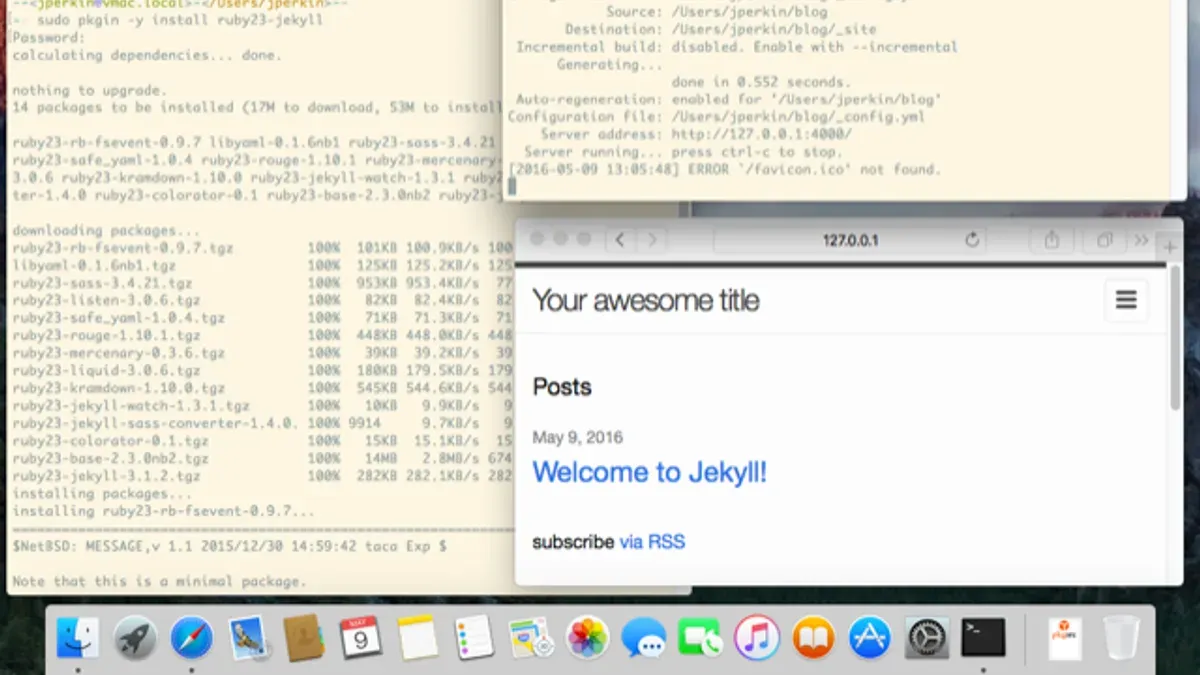
Setting up a static site generator like Jekyll on a Mac can feel daunting if you haven't done it before. You might find yourself unsure about the necessary tools, dependencies, and the exact installation steps.
This guide covers how to install Jekyll on Mac with clear, practical instructions. You will learn about the required prerequisites, installing Homebrew and Ruby gems, running your first Jekyll site locally, and troubleshooting common issues that often cause confusion or delays.
Key takeaways
- Install Homebrew first to manage essential software packages on your Mac.
- Use the Terminal to install Ruby gems: Jekyll and Bundler are key for your site setup.
- Run
bundle exec jekyll serveto preview your site locally and auto-refresh changes. - Common errors often stem from missing dependencies or conflicting Ruby versions.
- Separate Jekyll installation from unrelated Mac tools like Xcode to avoid confusion.
Before you start: what you need to install Jekyll on Mac
Installing Jekyll on your Mac requires a few essential components to ensure a smooth setup. First, you need a compatible Ruby environment since Jekyll is built on Ruby. The recommended Ruby version is 2.7 or higher; macOS usually includes Ruby preinstalled, but it may be outdated.
Next, the Xcode Command Line Tools must be installed as they provide necessary compilers and libraries. You'll also need Homebrew, a popular package manager for macOS, to easily manage dependencies like Ruby and other libraries.
Basic terminal skills are necessary since you'll be running commands to check versions and install software. Knowing how to open Terminal and enter commands will help avoid confusion during installation.
- Open Terminal (found in Applications > Utilities).
- Check your Ruby version by typing ruby -v and pressing Enter. You should see a version number like ruby 2.7.x or higher; if it is below 2.7 or missing, you will need to update Ruby.
- Verify if Xcode Command Line Tools are installed by running xcode-select -p. If you see a file path, the tools are installed; otherwise, install them with xcode-select --install.
- Check if Homebrew is installed by typing brew --version. If not installed, visit https://brew.sh to install it.
Preparing these prerequisites before installing Jekyll will reduce errors and streamline the process.
Install Homebrew and essential dependencies
- Open the Terminal app on your Mac.
- Install Homebrew by running /bin/bash -c "$(curl -fsSL https://raw.githubusercontent.com/Homebrew/install/HEAD/install.sh)". When successful, you will see "Installation successful!" or instructions to add Homebrew to your PATH.
- Verify Homebrew installation with brew --version. A response like "Homebrew 4.0.0" confirms it is installed.
- Check your system Ruby version by typing ruby -v. If the version is below 2.7, install an updated Ruby via Homebrew: brew install ruby. You should see "ruby 3.x.x" after installation.
- Ensure that your shell uses the Homebrew Ruby by adding export PATH="$(brew --prefix ruby)/bin:$PATH" to your shell profile file (e.g.,.zshrc or.bash_profile), then reload the terminal.
- Confirm the active Ruby version with ruby -v. It should now match the Homebrew-installed Ruby, typically 3.x.
- Install GCC and build tools with brew install gcc. Successful installation will display the installed GCC version, such as "gcc-13.1.0".
- Install Node.js to handle asset compilation by running brew install node. Verify with node -v, which should return a version like "v20.x.x".
This setup ensures you have Homebrew managing your packages, an up-to-date Ruby environment, necessary build tools, and Node.js for full Jekyll functionality.
Install Jekyll and Bundler gems
- Open Terminal on your Mac.
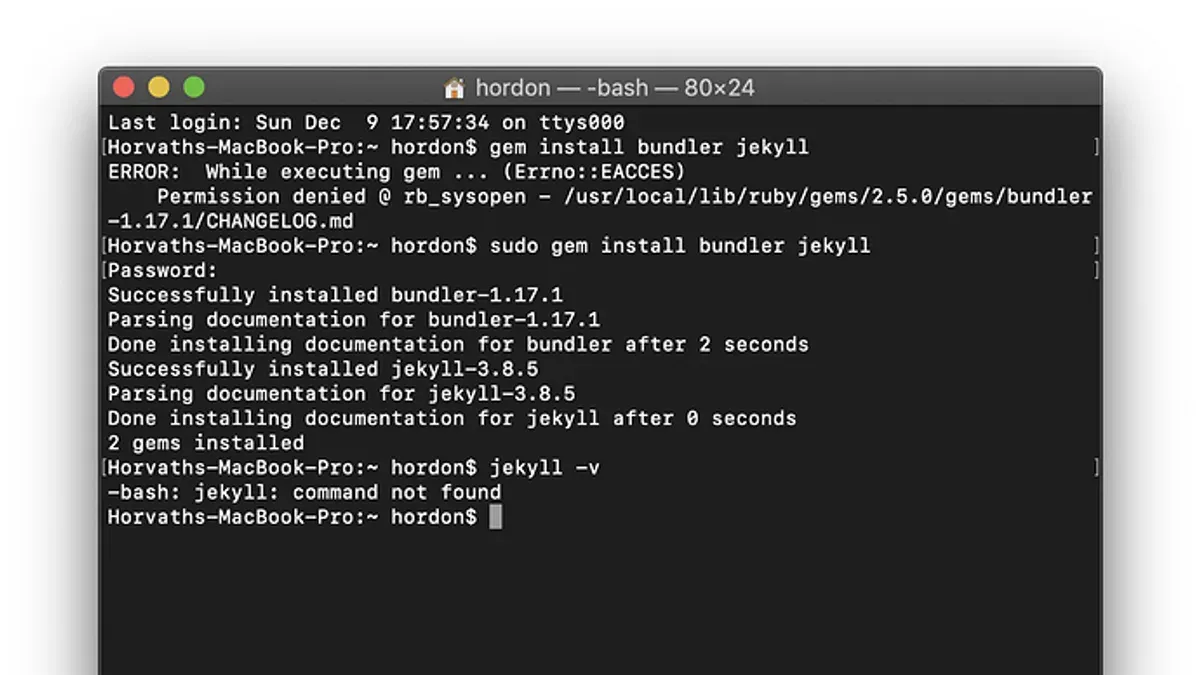
- If you encounter permission errors (e.g., "ERROR: While executing gem... You don't have write permissions"), avoid using sudo right away as it can cause conflicts. Instead, fix permissions by running:
sudo chown -R $(whoami) $(gem env gemdir)
Then retry the gem install commands.
Verify the installations by typing jekyll -v in Terminal. A successful installation outputs:
jekyll 4.3.2
Next, install Jekyll by typing gem install jekyll and pressing Enter. Expect output like:
Fetching jekyll-4.3.2.gem
Successfully installed jekyll-4.3.2
Parsing documentation for jekyll-4.3.2
Done installing documentation for jekyll after 3 seconds
1 gem installed
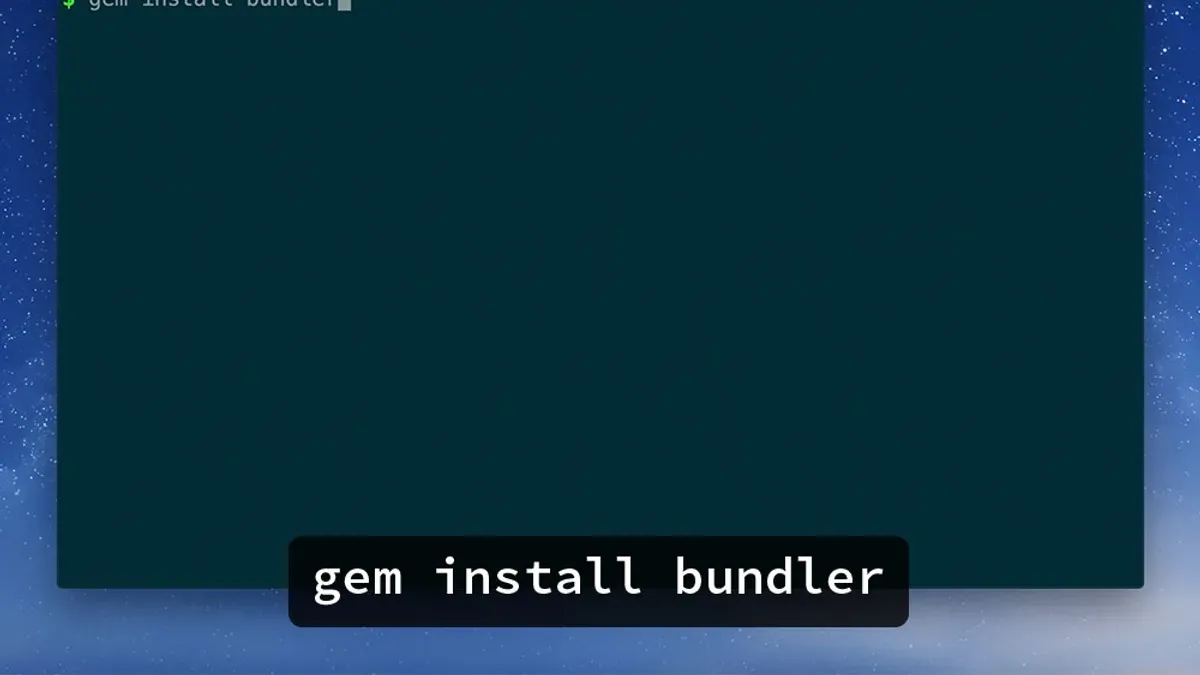
Install Bundler by typing gem install bundler and pressing Enter. You should see output similar to:
Fetching bundler-2.4.15.gem
Successfully installed bundler-2.4.15
Parsing documentation for bundler-2.4.15
Done installing documentation for bundler after 1 seconds
1 gem installed
Following these steps ensures that both Bundler and Jekyll are installed correctly and ready for use on your Mac.
How to run Jekyll locally on your Mac
- Open your Terminal app. Type jekyll new my-site and press Enter. This command creates a new Jekyll site in a folder named my-site. You should see output confirming files created and dependencies installed.
- Navigate into your site directory by typing cd my-site. When successful, your prompt changes to show you are inside the my-site folder.
- Start the local server by running bundle exec jekyll serve. This builds the site and serves it locally. The terminal output ends with a line like Server address: http://127.0.0.1:4000/ or http://localhost:4000/.
- Open your web browser and visit http://localhost:4000/. You will see the default Jekyll site homepage, confirming the server is running and accessible.
- While the server runs, any changes you make to files in the site directory automatically update on the browser page when refreshed. This lets you preview edits in real time.
- To stop the server, return to Terminal and press Control + C. This halts the Jekyll process and frees up the port.
These steps enable you to create, build, and serve a Jekyll site locally on Mac for development and testing. The jekyll serve command both builds site files and runs a live preview server on port 4000 by default.
Troubleshooting common Jekyll installation and runtime issues
Encountering errors during Jekyll setup or when running jekyll serve is common but usually fixable with targeted steps.
Fixing permissions errors with gem installs
If you see errors like "You don't have write permissions for the RubyGems directory" when installing gems, first avoid using sudo to install Jekyll gems to prevent system conflicts. Instead:
- Run
gem install --user-install jekyll bundler. You should see messages indicating gems installed to your user directory. - Add your gem binary path to your shell environment, typically
~/.gem/ruby/X.X.0/bin(replace X.X with your Ruby version). Once done,jekyll -vshould report the installed version.
Resolving missing dependencies or build failures
Errors mentioning missing libraries or failed native extensions often relate to missing build tools or libraries. For example, a message like "Failed to build gem native extension" usually means Xcode Command Line Tools or related dependencies are missing or outdated. Run xcode-select --install to ensure these tools are present. Then retry the gem install until no errors appear.
Addressing conflicts with system Ruby
If your system Ruby version is older than 2.7, you might get incompatibility errors. Using Homebrew to install a newer Ruby version and configuring your shell to prioritize it avoids conflicts. Confirm with ruby -v that the version is 2.7 or higher before installing Jekyll gems.
What to do if jekyll serve fails to start
Common runtime errors include port conflicts or missing dependencies. If you see "Address already in use - bind(2) for 127.0.0.1:4000", another service is using port 4000. Specify a different port with jekyll serve --port 4001. If errors mention missing gems, run bundle install in your site directory to ensure all dependencies are installed.
Following these steps helps resolve the majority of installation and runtime issues, letting you run Jekyll smoothly on your Mac.
- How to Install Hugo on Mac: A Clear Step-by-Step Guide
- How to Install Docker on Mac: A Clear Step-by-Step Guide
- How to Install Git on Mac: Step-by-Step Guide for Every Setup
- How to Install GitHub CLI on Mac: A Complete Step-by-Step Guide
Frequently asked questions
How to install matlab on mac?
To install MATLAB on your Mac, first download the installer from MathWorks' official website using your MathWorks account. Once downloaded, open the.dmg file and run the installer, following the prompts to enter your license information. The process requires administrator privileges and a stable internet connection for activation.
How to install dmg file on mac from usb?
Insert the USB drive into your Mac and open the Finder to locate the.dmg file on the USB. Double-click the.dmg file to mount it, then follow any installation instructions inside the mounted volume. After installation, eject the USB drive safely using Finder before removal.
How to install Matlab on Mac
Installing MATLAB on a Mac involves downloading the official installer from MathWorks, opening the downloaded.dmg file, and running the installation wizard. You will need to provide license credentials and accept the license agreement. Ensure your macOS version meets MATLAB's system requirements for smooth installation.
How to install dmg file on Mac from USB
To install a.dmg file from a USB on Mac, connect the USB and open Finder to find the file. Double-click the.dmg to open it, then drag the application to your Applications folder or run the installer package if available. Always eject the USB after completing the installation to prevent data corruption.
Wie installiert man Jekyll
Jekyll wird auf einem Mac installiert, indem Sie zunächst Homebrew installieren, falls noch nicht vorhanden. Danach installieren Sie Ruby und die Gems Jekyll und Bundler über das Terminal mit den Befehlen gem install jekyll bundler. Abschließend können Sie mit jekyll new Projektname ein neues Projekt erstellen und es lokal mit bundle exec jekyll serve starten.
What this guide does not cover and who should look elsewhere
This guide does not cover deploying Jekyll sites to hosting services like GitHub Pages, Netlify, or custom servers, nor does it address advanced Jekyll plugin development or customization beyond basic setup. If your goal is to manage hosting configurations, automate continuous integration, or develop custom plugins for Jekyll, you should consult specialized resources focused on those topics.
For users who prefer not to work in a command-line environment or want a fully managed solution, considering website builders or hosted static site platforms might be more suitable.
To get started effectively, the most useful next step is to create a new Jekyll site using the jekyll new my-site command, then navigate into that directory and run bundle exec jekyll serve. This will let you preview your site locally and verify your setup is working correctly before moving on to content creation or customization.