
How to Install Godot on Mac: A Complete Step-by-Step Guide
This guide walks you through downloading, installing, and configuring Godot on Mac, including plugin setup and VS Code integration.


You’ve decided to explore game development on your Mac and want to use Godot, but the installation process isn’t straightforward at first glance. You’re wondering exactly how to install Godot on Mac, including setting up plugins and ensuring smooth integration with your development tools.
This guide walks you through the steps to download, install, and configure Godot specifically for macOS. It also covers managing plugins and addons, integrating with Visual Studio Code, and troubleshooting common Mac-specific issues that might arise during setup.
Key takeaways
- Download the official Godot macOS build from the Godot Engine website to ensure compatibility and security.
- Set the app’s permissions in System Preferences > Security & Privacy to run it without issues.
- Use the Asset Library within Godot to install plugins and addons efficiently.
- Integrate Godot with VS Code by enabling the Godot VS Code extension for streamlined coding and debugging.
- Common issues often relate to macOS Gatekeeper settings and can be resolved by adjusting app permissions.
Before you start: What you need to install Godot on Mac
To ensure a smooth Godot installation on your Mac, check that your system meets the minimum requirements. Godot runs on macOS 10.12 Sierra or later, but for better performance, macOS 10.15 Catalina or newer is recommended. Your Mac should have at least 4 GB of RAM, though 8 GB or more is ideal for complex projects. A modern multi-core processor will also improve performance.
You will need a stable internet connection to download the Godot engine and any additional plugins or addons. The Godot download package is typically under 100 MB, but allow at least 500 MB of free disk space to accommodate the engine, project files, and extras.
For enhanced scripting and debugging, consider installing Visual Studio Code (VS Code). It integrates well with Godot and supports GDScript with extensions available through the VS Code marketplace.
Godot is open-source software released under the MIT license. This means you can use, modify, and distribute it freely, with no licensing fees or restrictions. Familiarizing yourself with this can help when managing plugins or contributing to the engine.
How to download Godot on Mac
To obtain the official Godot engine safely and correctly, start by visiting the official website at https://godotengine.org/download. This page offers the latest stable versions for various operating systems including macOS.
- Open your preferred web browser and navigate to the Godot download page. You should see download options clearly labeled for different platforms.
- Under the macOS section, choose the appropriate version based on your Mac's architecture. For Intel-based Macs, select the 64-bit version labeled "macOS 64-bit". For Apple Silicon (M1, M2) Macs, download the "macOS ARM64" version designed for better performance on ARM processors.
- Click the download button for your chosen version. The file is typically a.dmg disk image that contains the Godot application.
- After the download completes, verify the integrity of the file by checking its checksum. The download page provides SHA256 hashes next to each version. Use Terminal commands like shasum -a 256 followed by the file path to generate a checksum. Confirm it matches the official value to ensure a secure download.
- If you prefer a command-line method, you can use Homebrew, a popular macOS package manager. Open Terminal and enter brew install --cask godot. This installs the stable Godot version automatically and handles updates.
- Once installed via Homebrew, confirm the installation by launching Godot from the Applications folder or by typing open /Applications/Godot.app in Terminal.
Direct downloads from the official website provide straightforward access to specific architectures, while Homebrew offers convenience and easy updates but may lag slightly behind the latest stable release. Choose the method that fits your workflow best.
How to install Godot on Mac
- Locate the downloaded Godot zip file in your Downloads folder or the location you chose for the download. You should see a file named similar to Godot_v3.x.x-stable_osx.zip.
- Double-click the zip file to extract it. macOS will create the Godot app bundle, typically named Godot.app, in the same folder. Ensure the extraction completes without errors.
- Move the Godot.app to the Applications folder by dragging it from the extraction location to the /Applications directory in Finder. This step centralizes the app and helps with permissions and future updates.
- Grant permissions when prompted. The first time you open Godot, macOS may display a security warning because the app is downloaded from the internet. Click Open in the dialog to proceed. If you see a message that the app cannot be opened, go to System Preferences > Security & Privacy > General tab and click Open Anyway next to the blocked app notice.
- Launch Godot.app from the Applications folder or Launchpad. The app will open its project manager window, confirming a successful installation.
- Configure the initial settings if prompted, such as input preferences or editor layout. You can adjust these later, but this setup helps you start your first project smoothly.
Following these steps ensures that Godot is properly installed on your Mac with the correct permissions and ready for development.
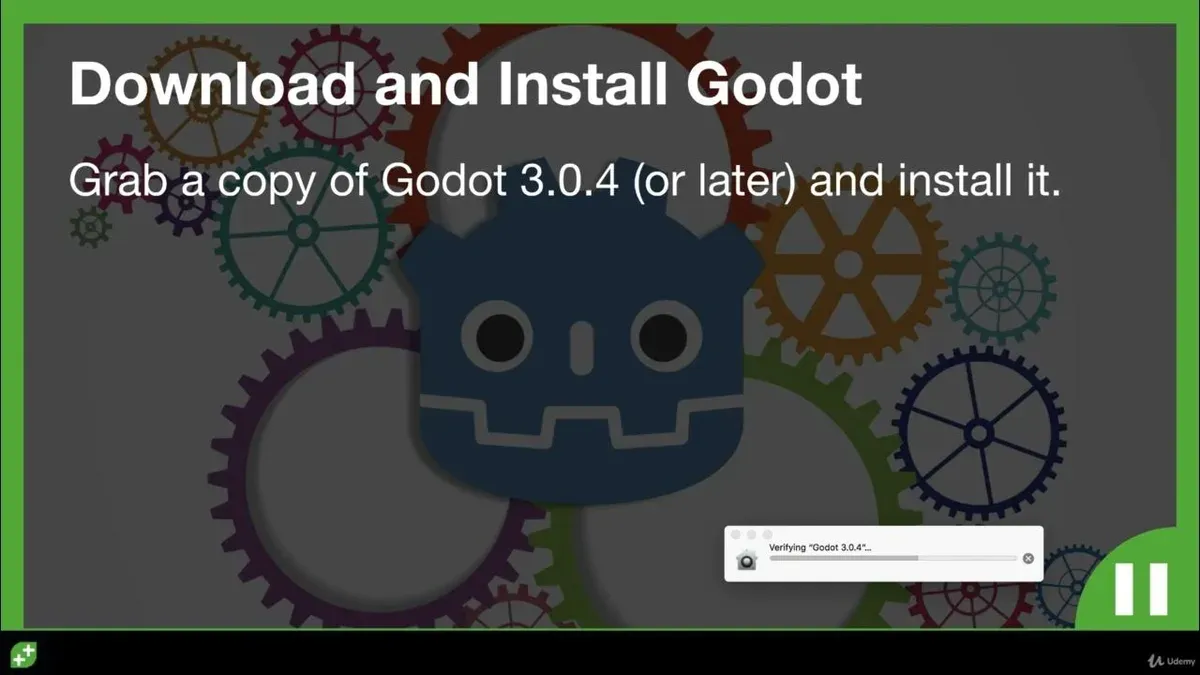
How to set up Godot for your first project on Mac
- Open Godot and click New Project. You will see a dialog prompting you to enter a project name and select a project directory. Choose a descriptive name and a folder location where you want your project files stored, then click Create & Edit. A new project window will open, confirming successful creation.
- Configure editor settings tailored for macOS by navigating to Editor > Editor Settings from the top menu. Under the Interface section, adjust font sizes and themes for readability on Retina displays. Under Filesystem, ensure that case sensitivity matches your Mac’s file system to avoid path issues.
- If you plan to export your game, download and install the official export templates via Project > Install Export Templates. This step enables building your game package for different platforms right from the Mac.
- To integrate VS Code for scripting, open Editor > Editor Settings > Text Editor > External. Enable Use External Editor and set the executable path to your VS Code app (usually
/Applications/Visual Studio Code.app/Contents/Resources/app/bin/code). When you open a script from Godot, it will launch in VS Code, allowing for enhanced editing and debugging. - Open a GDScript file from your project by double-clicking in the FileSystem dock. VS Code should launch with the script loaded. This integration streamlines code editing and debugging with features like IntelliSense and breakpoints, improving your workflow compared to Godot’s built-in editor alone.
Does Godot work on Mac? Performance and compatibility overview
Godot supports both Intel-based and Apple Silicon Macs, with native builds optimized for each architecture. Apple Silicon Macs benefit from improved performance and energy efficiency due to native ARM support, while Intel Macs run Godot smoothly using the standard macOS build.
In terms of GPU support, Godot on macOS primarily relies on the Metal API, which has been integrated since Godot 3.2. This enables efficient rendering on Macs, though some advanced rendering features available on Windows or Linux may have limited support or require workarounds on Mac.
Performance benchmarks and user reports generally indicate that Godot runs comparably on Mac hardware to other platforms for typical 2D and 3D projects. However, Macs with dedicated GPUs usually outperform those relying solely on integrated graphics. Apple’s transition to its own silicon has improved compatibility, but some plugins or third-party addons originally designed for Windows or Linux may not work seamlessly on macOS.
Known limitations include occasional issues with external input devices and some export template quirks unique to macOS. The Godot community actively discusses these topics on official forums and GitHub, and the Godot development team maintains macOS support in official releases.
Overall, Godot is a viable choice for game development on Mac, combining solid native support with ongoing improvements tailored to macOS hardware and software environments.
How to install Godot plugins and addons on Mac
In Godot, addons extend the editor or project functionality by adding new features, while plugins usually refer to active scripts or tools you enable within the editor. Installing these on Mac follows the same process as other platforms but requires attention to macOS file permissions.
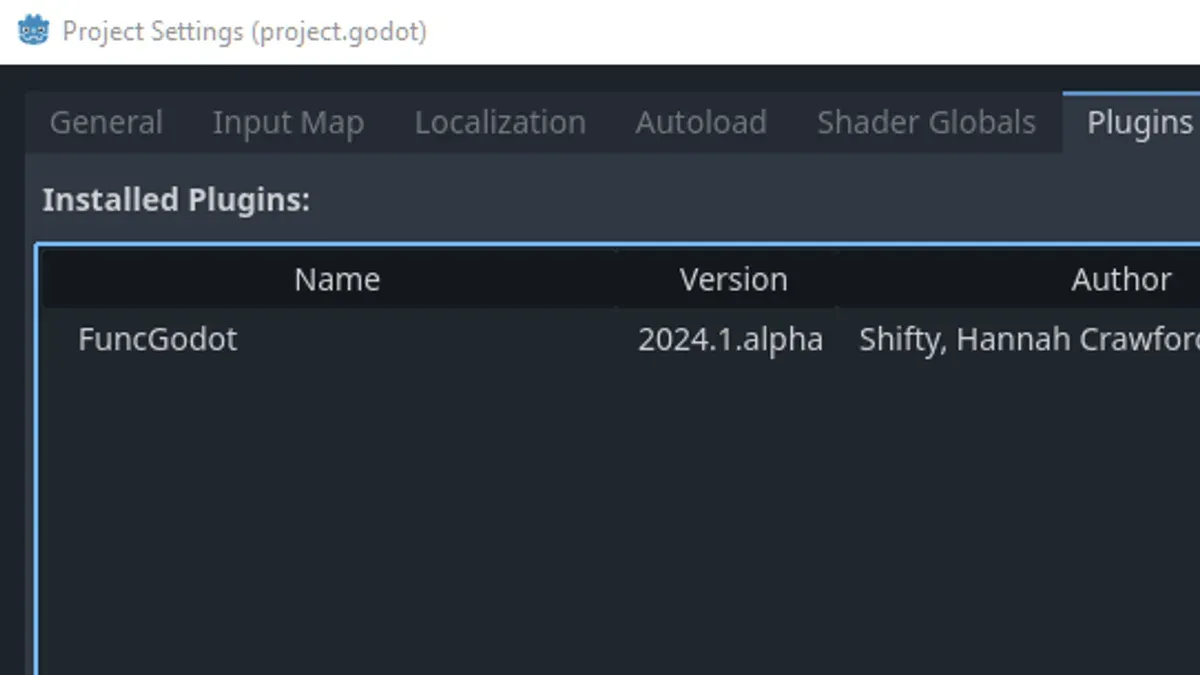
- Open your project in Godot and go to the Asset Library tab in the editor's main window. You should see a list of available plugins and addons.
- Use the search bar to find a plugin, for example, "Godot Steam". Click on it and press Download. Once downloaded, click Install. You should see the plugin appear in your project's addons folder.
- For manual installation, download the plugin zip file from the developer's repository or the Asset Library website. Extract it and copy the folder into your project's
res://addons/directory using Finder or Terminal. - Back in Godot, open Project > Project Settings > Plugins tab. Find the new plugin in the list and toggle its status from Inactive to Active. You should see the plugin's tools or interface elements appear as described in its documentation.
- Configure plugin options if available, usually found under Editor or Project Settings. For example, the "Godot Steam" plugin requires setting your Steam App ID.
Common pitfalls include forgetting to activate the plugin in the settings or placing files outside the addons folder, which prevents Godot from recognizing the plugin. Popular plugins like "Godot Steam" or "Dialogue System" follow this standard installation routine.
Enabling plugins properly ensures you can manage game features or editor enhancements smoothly while keeping your Mac’s security intact.
Troubleshooting common Godot installation issues on Mac
Installing Godot on macOS may trigger security warnings or launch failures due to system protections and permission settings. Addressing these issues ensures a smooth start.
Handling macOS security blocks and Gatekeeper warnings
- When you see "macOS cannot verify the developer of ‘Godot.app’" or "Godot.app was blocked from opening because it is not from an identified developer," open System Preferences > Security & Privacy > General.
- Click Open Anyway next to the message about Godot. You should then get a prompt to confirm opening; click Open.
- After this, launching Godot should proceed without Gatekeeper blocking it.
Fixing launch failures due to missing libraries or permissions
- If Godot fails to launch with errors like "Library not loaded" or "Permission denied," open Terminal.
- Run
sudo xattr -rd com.apple.quarantine /Applications/Godot.appto remove quarantine flags that block execution. - Ensure Godot has execute permissions by running
chmod +x /Applications/Godot.app/Contents/MacOS/Godot. Relaunch Godot; it should start without errors.
Resolving plugin installation errors
- If plugins fail to activate or show errors like "Could not load addon scripts," verify that the plugin files are placed correctly under
res://addons/. - In the Godot editor, go to Project > Project Settings > Plugins, and ensure the plugin is enabled.
- If issues persist, delete the
.importfolder in your project directory to force Godot to re-import plugin assets.
Dealing with VS Code integration problems
- If VS Code does not launch from Godot or scripts don’t open correctly, check that the VS Code executable path is set properly under Editor Settings > Text Editor > External.
- Set the path to
/Applications/Visual Studio Code.app/Contents/Resources/app/bin/codefor Apple Silicon or Intel Macs. - Restart Godot; clicking script files should now open them in VS Code.
- How to Install Unreal Engine on Mac: A Complete Step-by-Step Guide
- How to Install Unity on Mac: A Complete Step-by-Step Guide
- How to Install Docker on Mac: A Clear Step-by-Step Guide
- How to Install Git on Mac: Step-by-Step Guide for Every Setup
Frequently asked questions
How to install godot on windows?
To install Godot on Windows, visit the official Godot website and download the Windows version. After downloading, unzip the file to a preferred folder; Godot is portable, so no traditional installation is necessary. You can run the Godot executable directly from the extracted folder.
How to install godot on windows 11?
Installing Godot on Windows 11 follows the same steps as other Windows versions. Download the latest Windows build from the official site, unzip it, and launch the Godot.exe file. Windows 11 compatibility is supported without additional configuration.
How to download godot on windows?
Go to the Godot Engine's official download page and select the Windows platform. Choose the standard version (usually labeled as a ZIP or EXE) suitable for your system architecture, then save the file locally. No installation wizard is required; just unzip and run the executable.
Can godot run on mac?
Yes, Godot runs natively on macOS with full support for Mac hardware and system features. You can download the macOS version from the official site and run it as a standalone app. Performance and compatibility are generally stable, though some plugins might require Mac-specific adjustments.
How to install godot addons?
To install addons in Godot on Mac, download the addon files and extract them into your project's res://addons/ directory. Then, open the Project Settings, navigate to the Plugins tab, and enable the addon by checking its box. Some addons may require restarting the editor to activate fully.
What this guide does not cover
This guide does not cover advanced Godot engine customization, in-depth scripting techniques, or setting up multi-platform exports beyond the Mac environment. If you need detailed guidance on creating complex game logic, optimizing performance for platforms other than macOS, or configuring continuous integration workflows, consider specialized resources or official Godot documentation tailored to those topics.
For your next step, focus on exploring the Godot Editor's Project Settings menu to customize the engine behavior for your game. Begin by adjusting basic options such as window size, input mappings, and debugging preferences to fit your project needs. This practical step helps solidify your understanding of the environment and prepares you for efficient development on Mac.



