How to Install Angular CLI on Mac: A Clear Step-by-Step Guide
This guide shows how to install Angular CLI on Mac with clear steps for global and local setups, including troubleshooting tips.

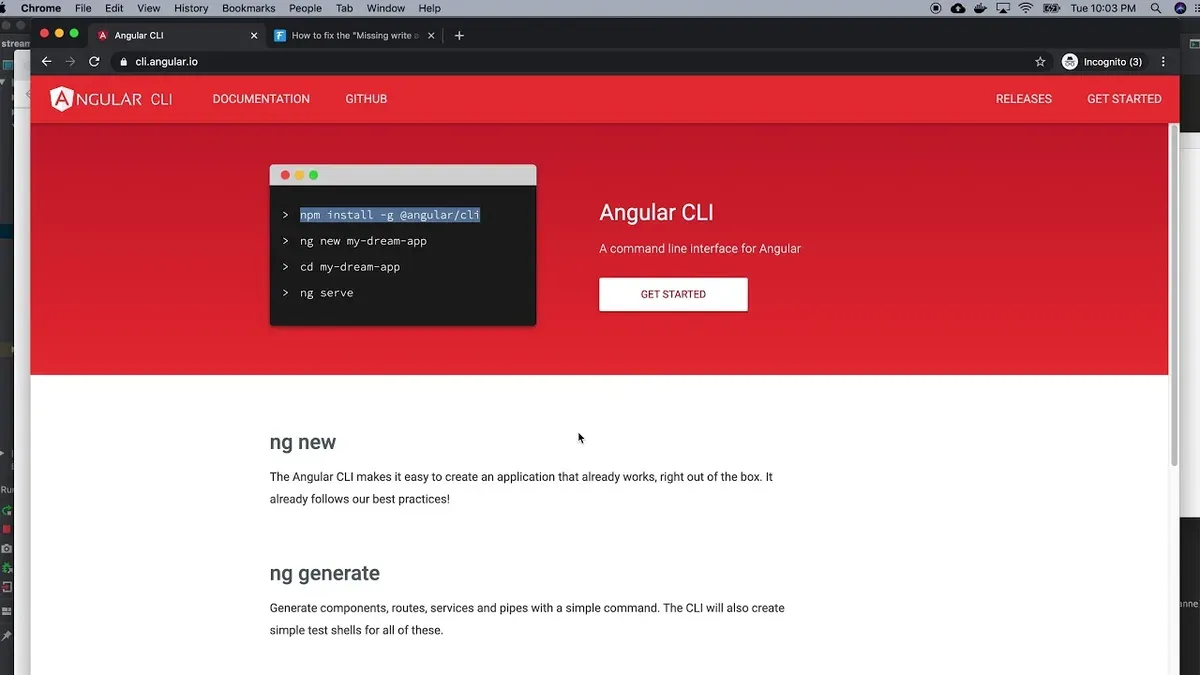
You have a Mac ready for Angular development, but installing the Angular CLI can feel confusing if you're unsure which commands or setup steps to follow. Whether you want to set up the CLI globally or for a specific project, knowing the right approach saves time and avoids common pitfalls.
This article guides you through how to install Angular CLI on Mac with clear, step-by-step instructions tailored to Mac environments. You will learn how to perform global and version-specific installations, set up the CLI locally within projects, and troubleshoot frequent problems encountered during installation.
Key takeaways
- Ensure Node.js and npm are installed before installing Angular CLI on Mac.
- Use npm install -g @angular/cli to install Angular CLI globally.
- Install specific Angular CLI versions with npm install -g @angular/cli@version.
- Local project installs keep CLI versions isolated per project.
- Common issues include permission errors and outdated npm; solutions involve using sudo carefully or updating npm.
Before you start: What you need to install Angular CLI on Mac
To install Angular CLI on your Mac successfully, ensure you have the right prerequisites. Angular CLI depends on Node.js, which provides the runtime environment, and npm, the Node package manager that handles CLI installation and updates.
- Open Terminal.
- Check your Node.js version by typing node -v. The output should display version 14.15.0 or higher, as this is the minimum recommended for Angular CLI.
- Verify npm is installed and updated by typing npm -v. A version 6.0.0 or higher is advised for smooth package management.
- If Node.js or npm are missing or outdated, download the latest stable Node.js from https://nodejs.org/ and follow installation instructions.
- Confirm your MacOS is version 10.13 (High Sierra) or later, since older versions may lack necessary system libraries. Check this via the Apple menu > About This Mac.
- Ensure you have administrative rights or sudo permissions, needed for global Angular CLI installations.
- Decide on your preferred command line interface, default Terminal app or an alternative like iTerm2, to execute commands.
For complete official Angular CLI requirements, visit https://angular.io/cli.
How to install Angular CLI globally on Mac
Installing Angular CLI globally on your Mac allows you to run Angular commands from any directory, providing system-wide access to the tool. This is recommended for CLI tools because it avoids repeated installations for each project and simplifies command usage.
- Open the Terminal app on your Mac.
- If the ng command is not found, it usually means your system PATH does not include npm global binaries. Add the npm global path (commonly
/usr/local/binor your npm prefix's bin folder) to your PATH environment variable in your shell profile (e.g.,~/.zshrcor~/.bash_profile), then restart Terminal.
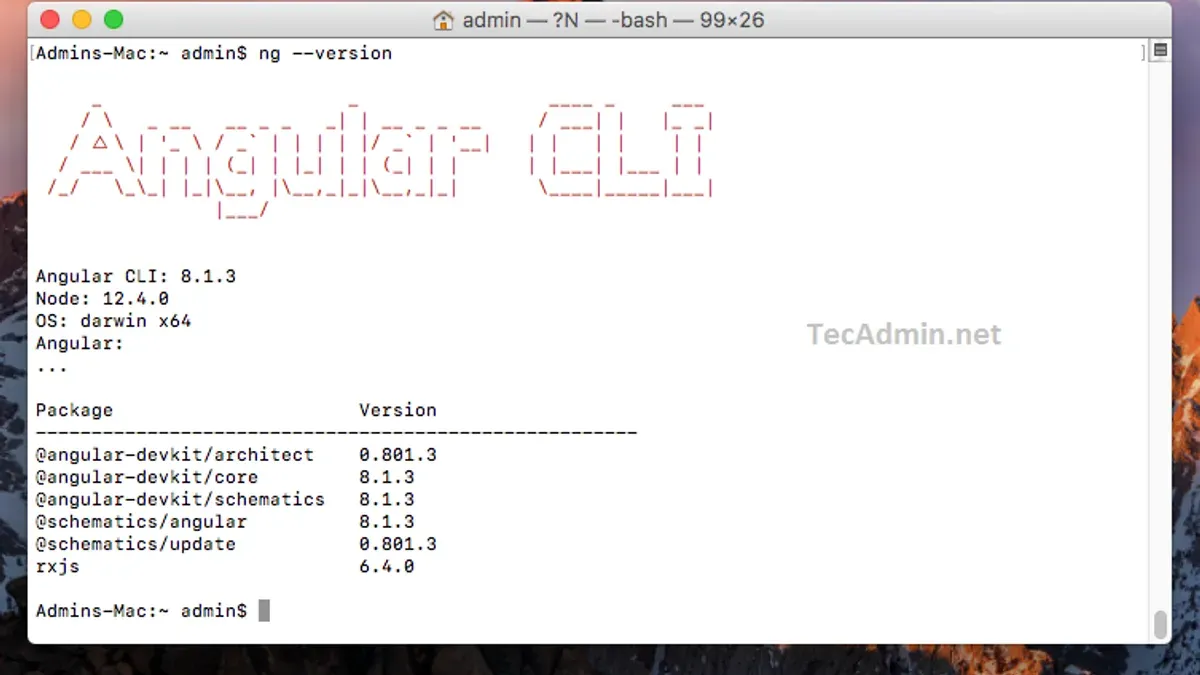
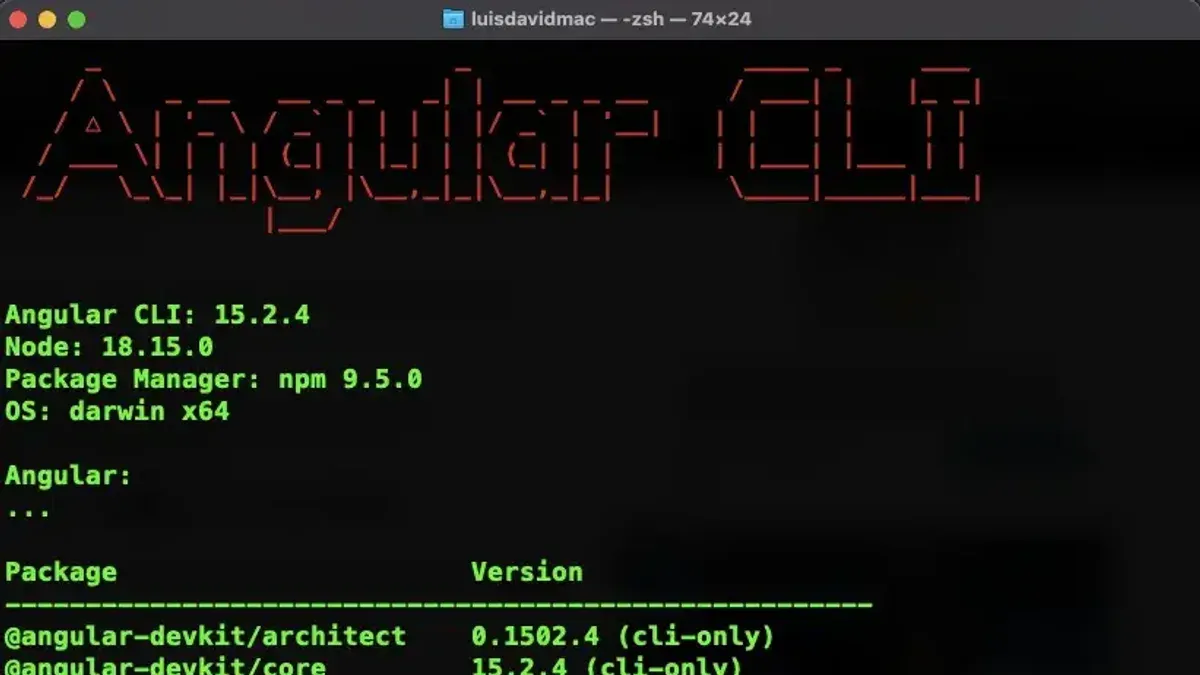
Verify the installation by typing ng version or ng help. You should see Angular CLI version details and a list of available commands.
Example output:
Angular CLI: X.Y.Z
Node: v16.13.0
Package Manager: npm X.Y.Z
...
Run the command sudo npm install -g @angular/cli to install Angular CLI globally. You will be prompted to enter your Mac password.
Expected output:
+ @angular/[email protected]
added 123 packages from 456 contributors in 30s
How to install a specific version of Angular CLI on Mac
Installing a specific version of Angular CLI can be necessary when working on existing projects that require compatibility with certain Angular versions or when testing features without upgrading globally. You can install a particular version either globally or locally within a project.
- Open Terminal on your Mac.
- To install a specific version globally, run the command npm install -g @angular/[email protected], replacing X.Y.Z with the desired version number. For example,
npm install -g @angular/[email protected]. You should see output confirming the installation and the new version. - To install a specific version locally in your project, navigate to your project folder and run npm install @angular/[email protected]. This adds the CLI version only to that project, preventing conflicts with other global versions.
- Verify the installed version globally by running ng version or ng v. The output will show the Angular CLI version currently active.
- If you need to switch between versions frequently, consider using version managers like nvm for Node.js or use local project installations to isolate versions per project.
How to install Angular CLI locally on a Mac project
Installing Angular CLI locally as a project dependency ensures that your project uses a consistent CLI version, avoiding conflicts across different development environments. This approach is especially useful in team settings where maintaining version consistency is critical.
- Open the Terminal and navigate to your project folder. You should see your project files here.
- Run npm install @angular/cli --save-dev. This installs Angular CLI as a development dependency and updates your package.json.
- Run Angular CLI commands using npx ng [command] inside your project folder. For example, npx ng serve starts your Angular development server using the locally installed CLI version.
Alternatively, add npm scripts in your package.json to simplify commands:
| package.json |
|---|
| { "scripts": { "start": "ng serve", "build": "ng build" } } |
Then run npm start to execute ng serve.
Check your package.json file; you will see a devDependencies section containing @angular/cli with the installed version number, for example:
| package.json |
|---|
| { "devDependencies": { "@angular/cli": "^15.0.0" } } |
Local installations isolate CLI versions per project, preventing accidental upgrades or mismatches that can disrupt builds or deployments in team projects. This method supports better version management and reproducibility.
How to use Angular CLI on Mac after installation
Once Angular CLI is installed on your Mac, you can start creating and managing Angular projects using its commands. Follow these steps to begin:
- Create a new Angular project: Run
ng new my-angular-appin your terminal. This command scaffolds a new project named my-angular-app. You will be prompted to choose features like routing and stylesheet format (CSS, SCSS, etc.). When completed, you will see a success message confirming project creation. - Navigate into your project folder: Use
cd my-angular-appto enter your new project directory. - Start the development server: Execute
ng serve. The terminal will compile the app and display a message such as "** Angular Live Development Server is listening on localhost:4200, open your browser to http://localhost:4200/". - Open the app in a browser: Visit
http://localhost:4200/in your preferred browser. You should see the Angular welcome page or your app’s home screen, confirming the server is running properly. - Use other common commands:
ng generate component component-namecreates new components;ng buildcompiles the app for production. These commands help you develop and prepare your app for deployment. - Find further resources: The official Angular CLI documentation at angular.io/cli provides comprehensive details on all commands and options.
Troubleshooting common Angular CLI installation issues on Mac
When installing Angular CLI globally, you may encounter permission errors such as "EACCES: permission denied". To fix this, either prepend sudo to your install command (e.g., sudo npm install -g @angular/cli) or change npm’s default directory to a user-writable location by following npm’s official guide on fixing permissions.
If after installation you see "command not found: ng", this usually indicates a PATH issue. Verify that /usr/local/bin or the npm global bin directory is included in your PATH environment variable by running echo $PATH. You may need to add export PATH=$PATH:$(npm bin -g) to your shell profile.
Conflicting Angular CLI versions or corrupted installs can cause unexpected behavior. To resolve this, uninstall Angular CLI globally with npm uninstall -g @angular/cli and then clear npm’s cache using npm cache clean --force. Reinstall the CLI afterward.
Network issues or proxy restrictions may interfere with npm installs, leading to errors like "ETIMEDOUT" or "ECONNRESET". Configure npm to use the correct proxy settings via npm config set proxy http://proxyaddress:port and npm config set https-proxy http://proxyaddress:port. Testing connection with npm ping helps verify network access.
- How to Install Yarn on Mac: A Clear Step-by-Step Guide
- How to Install Git on Mac: Step-by-Step Guide for Every Setup
- How to Install Docker on Mac: A Clear Step-by-Step Guide
- How to Install Deno on Mac: A Complete Step-by-Step Guide
Frequently asked questions
How to download and install angular cli?
To download and install Angular CLI, you first need Node.js and npm installed on your system. Then, use the command npm install -g @angular/cli in your terminal to install Angular CLI globally. This ensures you can access Angular commands from any directory on your machine.
How to install angular cli cmd?
On Mac, open the Terminal application to run commands. Use npm install -g @angular/cli to install Angular CLI globally. If you need a specific version, append the version number like @angular/cli@ to the command.
How to install angular cli in mac?
Installing Angular CLI on a Mac requires having Node.js and npm installed first. Open Terminal and execute npm install -g @angular/cli to install the CLI globally. This command sets up Angular CLI for use across your Mac system.
How to install angular cli in macbook'
The process on a MacBook is the same as on any Mac: ensure Node.js and npm are installed, then open Terminal. Run npm install -g @angular/cli to install the CLI globally. This prepares your MacBook for Angular development.
How to install latest angular cli?
To install the latest version of Angular CLI, use the command npm install -g @angular/cli without specifying a version number. npm will fetch and install the most current stable release available. You can verify the version with ng version after installation.
What this guide does not cover and who should look elsewhere
This guide does not cover Angular CLI installation on Windows or Linux systems; the instructions and environment specifics here are tailored for Mac users. Mac-specific environment and permission settings may differ depending on your macOS version and configuration. It assumes a basic familiarity with Terminal and command-line operations — complete beginners may need additional foundational tutorials on using the Terminal and managing Node.js environments before proceeding.
The single most useful next step is to verify your Angular CLI installation by running ng version in your Terminal. This command confirms that Angular CLI is correctly installed and shows the installed version. From there, you can initiate a new Angular project or open an existing one to start using the CLI commands effectively.