
How to Install ESP32 Drivers on Mac: A Clear Step-by-Step Guide
This guide explains how to install ESP32 drivers on Mac, ensuring proper USB driver setup and device connectivity for smooth development.

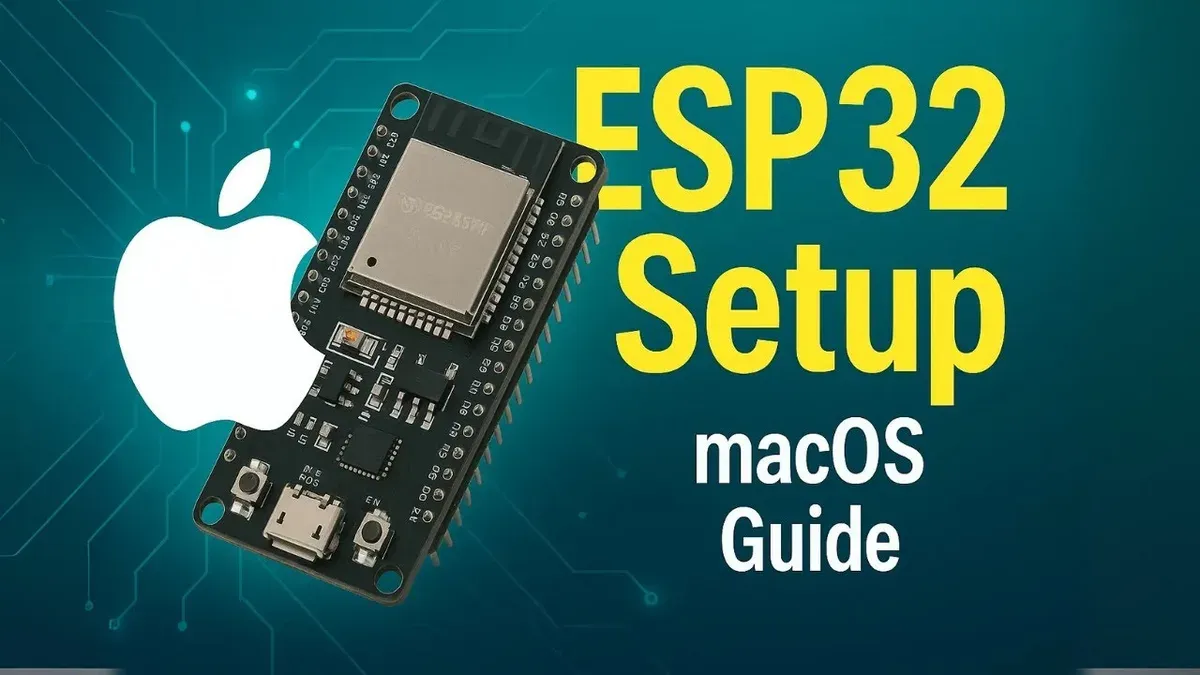
Connecting an ESP32 device to your Mac can quickly become frustrating if the system doesn’t recognize the hardware. You may have followed generic instructions only to find that your Mac fails to communicate with the ESP32 board properly.
This article focuses on how to install ESP32 drivers on Mac, addressing specific challenges such as USB driver compatibility and verifying device connectivity. You will find clear, step-by-step guidance tailored to Mac users, ensuring that you can set up your development environment without unnecessary trial and error.
Key takeaways
- Ensure you have the correct USB-to-serial drivers compatible with your Mac’s chipset.
- Grant necessary security permissions in System Preferences to allow driver installation.
- Install the ESP32 development tools via the Arduino IDE or PlatformIO for reliable programming.
- Verify ESP32 connectivity using the terminal command
ls /dev/cu.*to detect the device. - Common issues often relate to USB cable quality and macOS security settings blocking unsigned drivers.
Before you start: What you need to install ESP32 drivers on Mac
To successfully install ESP32 drivers on your Mac, you first need the right hardware and software setup. Ensure you have an ESP32 development board with USB connectivity, such as the ESP32 DevKitC, ESP32-WROOM, or ESP32-WROVER modules. These models are widely tested and supported across recent macOS versions.
Your Mac should be running a macOS version that supports these drivers; generally, macOS 10.13 High Sierra and later versions provide compatible USB driver support. Verify your macOS version by clicking the Apple menu and selecting About This Mac.
Use a USB cable that supports data transfer. Some cables only provide charging functionality and will not allow communication between your ESP32 board and Mac. A USB-A to USB-C or USB-C to USB-C cable with data lines is recommended depending on your Mac's ports.
Basic familiarity with terminal commands is necessary. You will need to open the Terminal app to run installation commands and verify driver functionality.
Before installing drivers, have your ESP32 development environment ready. This usually means installing an ESP32 toolchain or IDE such as the ESP-IDF framework or the Arduino IDE configured for ESP32. This context ensures the drivers you install will be compatible and usable immediately.
How to install drivers on ESP32 for Mac
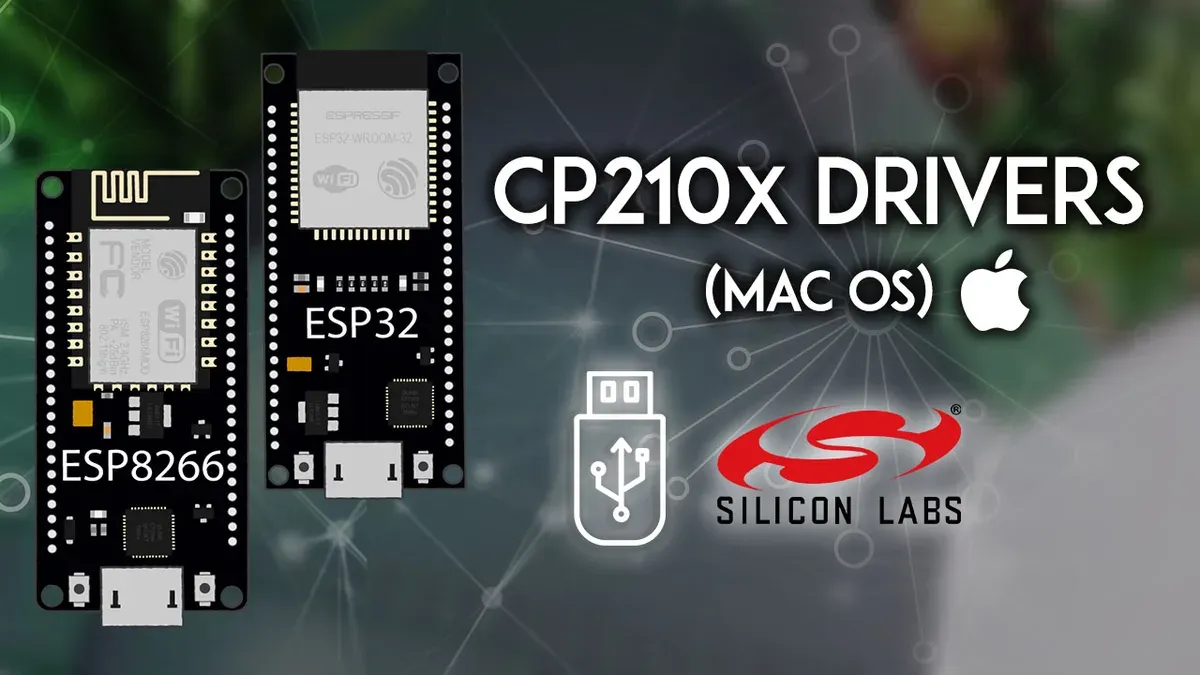
- Identify the USB-to-serial chip on your ESP32 board. Check the board’s documentation or look for markings on the chip itself to see if it uses Silicon Labs CP210x or the CH340/CH341 chipset. This determines which driver you need.
- Download the appropriate driver. For CP210x, visit the Silicon Labs official driver page. For CH340/CH341, download the Mac driver from a reputable source such as the WCH website. Ensure you download the latest stable version compatible with your macOS.
- Install the driver package by opening the downloaded installer and following the on-screen prompts. You may be asked to enter your Mac administrator password.
- After installation, macOS security settings may block the driver. Open System Preferences > Security & Privacy > General tab. If there is a message saying software from the developer was blocked, click Allow to enable the driver.
- Verify the driver installation. Open the Terminal app and enter
kextstat | grep -E "(silabs|wch)". If the driver appears in the list, it is loaded. Alternatively, list serial devices withls /dev/tty.*and check for entries like/dev/tty.SLAB_USBtoUART(CP210x) or/dev/tty.wchusbserial*(CH340). - If the driver does not appear or the device is not listed, reboot your Mac. Some drivers require a restart to activate properly.
Following these steps ensures your Mac recognizes the ESP32 board’s USB connection, enabling reliable communication and programming.
How to install ESP32 IDE on Mac
You have two primary options for ESP32 development environments: ESP-IDF, the official development framework, and Arduino IDE, known for its simplicity and extensive library support. Choose ESP-IDF for advanced projects requiring fine control, or Arduino IDE for quicker prototyping.
- Download the latest Arduino IDE for Mac from the official Arduino website. Once downloaded, open the.dmg file and drag the Arduino app into your Applications folder. You should now see Arduino in your Applications.
- Launch Arduino IDE. Navigate to Arduino > Preferences from the top menu. In the Additional Boards Manager URLs field, enter
https://raw.githubusercontent.com/espressif/arduino-esp32/gh-pages/package_esp32_index.jsonand click OK. - Go to Tools > Board > Boards Manager. Search for "ESP32" and install the package named "esp32 by Espressif Systems." After installation, close the Boards Manager.
- Select your ESP32 board under Tools > Board. Then, under Tools > Port, choose the serial port corresponding to your ESP32 device. This port typically includes "usbserial" or "cu.SLAB_USBtoUART."
- To verify setup, open File > Examples > 01.Basics > Blink. Change the LED pin in the sketch to match your ESP32 board's built-in LED pin, commonly GPIO 2.
- Click the upload arrow button. If the sketch uploads successfully with "Done uploading" confirmation, your IDE and driver configuration are correct.
How to get ESP32 MAC address on Mac
After installing the necessary drivers and connecting your ESP32 to your Mac, you can retrieve its MAC address through serial communication. This is useful for networking purposes, such as identifying your device on a local network.
- Connect your ESP32 board to your Mac using a data-capable USB cable.
- Open the Arduino IDE or your preferred ESP32 IDE and launch the Serial Monitor from the Tools > Serial Monitor menu or by clicking the magnifying glass icon.
- Upload the following example sketch to your ESP32 board. This code prints the MAC address to the serial output:
void setup() {
Serial.begin(115200);
delay(1000);
uint8_t mac[6];
esp_read_mac(mac, ESP_MAC_WIFI_STA);
Serial.print("ESP32 MAC Address: ");
for (int i = 0; i < 6; i++) {
if (i > 0) Serial.print(":");
if (mac[i] < 16) Serial.print("0");
Serial.print(mac[i], HEX);
}
Serial.println();
}
void loop() {} - Alternatively, if you use ESP-IDF tools, open Terminal and run the command
idf.py monitorafter flashing firmware that outputs the MAC address, or useesptool.pyto query device information if supported.
Once uploaded, ensure the Serial Monitor baud rate is set to 115200. You should see output similar to:
ESP32 MAC Address: 24:6F:28:AB:CD:EF
This is your device's unique MAC address used for Wi-Fi communication.
By following these steps, you can reliably retrieve and verify the MAC address of your ESP32 device directly on your Mac.
Troubleshooting common issues installing ESP32 drivers on Mac
macOS often blocks driver installations for security reasons. If you see an "Installation blocked" message, open System Preferences > Security & Privacy and click "Allow" next to the blocked software notification. You must do this within 30 minutes of the install attempt.
If the serial port does not appear in your IDE, verify the device is properly connected and powered. Open Terminal and run ls /dev/cu.*. Look for entries like /dev/cu.SLAB_USBtoUART or /dev/cu.usbserial-*. If none appear, the driver isn't recognized.
Permission issues may require running your IDE or terminal commands with sudo. Alternatively, check System Preferences > Security & Privacy > Privacy > Full Disk Access and add your terminal or IDE app.
Conflicts can arise if multiple USB-to-serial drivers are installed, such as CH340 and Silicon Labs simultaneously. Remove unused drivers by deleting their kernel extensions from /Library/Extensions and rebooting.
- Check for blocked driver installation in Security & Privacy. You should see an "Allow" button if blocked.
- Run ls /dev/cu.* in Terminal. Confirm your ESP32’s serial device appears.
- If permission errors occur, add your IDE or Terminal to Full Disk Access in Privacy settings.
- Remove conflicting drivers by deleting unused kext files in /Library/Extensions and reboot.
- If issues persist, uninstall and reinstall the latest driver version from the manufacturer’s site.
Common error messages include "Resource busy" when the port is in use, or "Permission denied" when lacking access rights. Resolving these usually involves closing conflicting applications or adjusting security settings.
- How to Install Raspberry Pi Imager on Mac: A Clear Step-by-Step Guide
- How to Install Nmap on Mac: A Clear Step-by-Step Guide
- How to Install Docker on Mac: A Clear Step-by-Step Guide
Frequently asked questions
How to install ESP32 driver Windows 10?
On Windows 10, installing the ESP32 driver usually involves downloading the USB-to-serial driver, commonly the CP210x or CH340 driver, depending on your ESP32 board. After downloading, run the installer and follow the prompts. You may need to allow the driver installation in the Windows Security prompt and restart your computer to complete the setup.
What are the ESP32 drivers for Windows 11?
Windows 11 supports the same USB-to-serial drivers as Windows 10 for ESP32 devices. The most common drivers are Silicon Labs' CP210x and the WCH CH340 drivers. Ensure you download the latest versions compatible with Windows 11 from the official Silicon Labs or WCH websites to avoid compatibility issues.
How to install ESP32 USB driver?
To install the ESP32 USB driver, first identify the USB-to-serial chip on your board (usually CP210x or CH340). Download the corresponding driver from the chip manufacturer's website. After downloading, run the installer and follow on-screen instructions. On Mac or Windows, you might need to grant permission for the driver to load or restart the system for the changes to take effect.
How to download driver for ESP32?
You can download ESP32 drivers from the official chip manufacturer websites: Silicon Labs for CP210x drivers or WCH for CH340 drivers. Always choose the version matching your operating system and architecture. Avoid third-party websites to reduce the risk of outdated or unsafe software.
What this guide does not cover and who should seek other resources
This guide focuses on installing and verifying ESP32 drivers and basic tools on macOS versions starting from Catalina. It does not cover advanced ESP32 firmware flashing, custom bootloader configurations, or in-depth programming tutorials. If you are working with macOS versions earlier than Catalina, you may experience different driver behaviors and should consult resources specific to those versions. Developers needing detailed firmware development or debugging advice should refer to specialized ESP32 development documentation.
For reliable ESP32 connectivity on a Mac, the most useful next step is to verify your device’s serial port recognition through the macOS Terminal using ls /dev/cu.*. Confirm your ESP32 appears as a USB serial device (often named like cu.SLAB_USBtoUART or cu.usbserial-*). This simple check ensures your driver installation is successful before proceeding to programming or flashing your ESP32 with the IDE.



