
How to Install Raspberry Pi Imager on Mac: A Clear Step-by-Step Guide
Step-by-step guide to install Raspberry Pi Imager on Mac and flash OS images to your SD card with ease and troubleshooting tips.

You have a Raspberry Pi but need to prepare an SD card with the right operating system. Using your Mac, you want a straightforward way to write Raspberry Pi OS or other compatible images onto your SD card without hassle. This can be confusing if you're unfamiliar with the software options available for Mac.
This article explains how to install Raspberry Pi Imager on Mac, a dedicated and official tool for flashing operating system images. You will find clear, step-by-step instructions on installation, practical usage tips, and how to resolve common issues that Mac users encounter. Additionally, the guide highlights differences Mac users should be aware of compared to other platforms, ensuring you set up the tool efficiently and avoid typical pitfalls.
Key takeaways
- Download Raspberry Pi Imager directly from the official Raspberry Pi website to ensure authenticity.
- Install the app by dragging it into your Mac's Applications folder for easy access.
- Use Raspberry Pi Imager to select and flash OS images to your SD card in just a few clicks.
- Grant necessary permissions in System Preferences if the app cannot access your SD card.
- Common issues include SD card detection failures and permission blocks, both solvable through Mac settings adjustments.
Before you start: What you need to install Raspberry Pi Imager on Mac
To install Raspberry Pi Imager on your Mac, ensure your system meets specific hardware and software requirements. The imager supports macOS versions starting from macOS 10.15 (Catalina) and later, which is a slightly higher minimum requirement than some other imaging tools that may support macOS 10.13 or above. Confirm your Mac runs a compatible macOS version by clicking the Apple menu and selecting "About This Mac."
You will also need a stable internet connection to download the Raspberry Pi Imager installer and operating system images reliably. Interruptions during these downloads can cause corrupted files or incomplete installations.
Ensure your Mac has an SD card reader—either a built-in slot or an external USB reader—to write the OS images onto your SD cards. Using a high-quality SD card with adequate capacity (at least 8 GB) is recommended for smooth operation.
Basic familiarity with Raspberry Pi is helpful. This includes knowing the purpose of flashing OS images onto SD cards and understanding your intended use case, such as running Raspberry Pi OS or other compatible systems.
- Check your macOS version: Click the Apple menu > About This Mac. You should see macOS 10.15 or newer displayed.
- Verify your internet connection stability by visiting a reliable website or running a speed test; a consistent connection avoids download interruptions.
- Confirm your SD card reader is connected and recognized: Insert your SD card and check if it appears in Finder under Devices.
- Prepare an SD card with at least 8 GB of free space to store the OS image. Avoid using damaged or low-quality cards to prevent write errors.
How to install Raspberry Pi Imager on Mac
- Open your web browser and navigate to the official Raspberry Pi website at https://www.raspberrypi.com/software/. You should see the software download options prominently displayed.
- Locate the download link for macOS. The file is typically named imager_latest_mac.dmg or similar, with a file size around 30 MB. Click the link to download the installer package to your Downloads folder or preferred location.
- Once the download completes, verify the file's integrity if you want to ensure a secure installation. The Raspberry Pi website often provides a SHA256 checksum on the download page; use the Terminal command
shasum -a 256 /path/to/imager_latest_mac.dmgand compare the output to the published checksum. - Double-click the downloaded.dmg file to mount the installer volume. A new Finder window should appear showing the Raspberry Pi Imager app icon.
- Drag the Raspberry Pi Imager icon into your Applications folder. This copies the app to your Mac’s main applications directory.
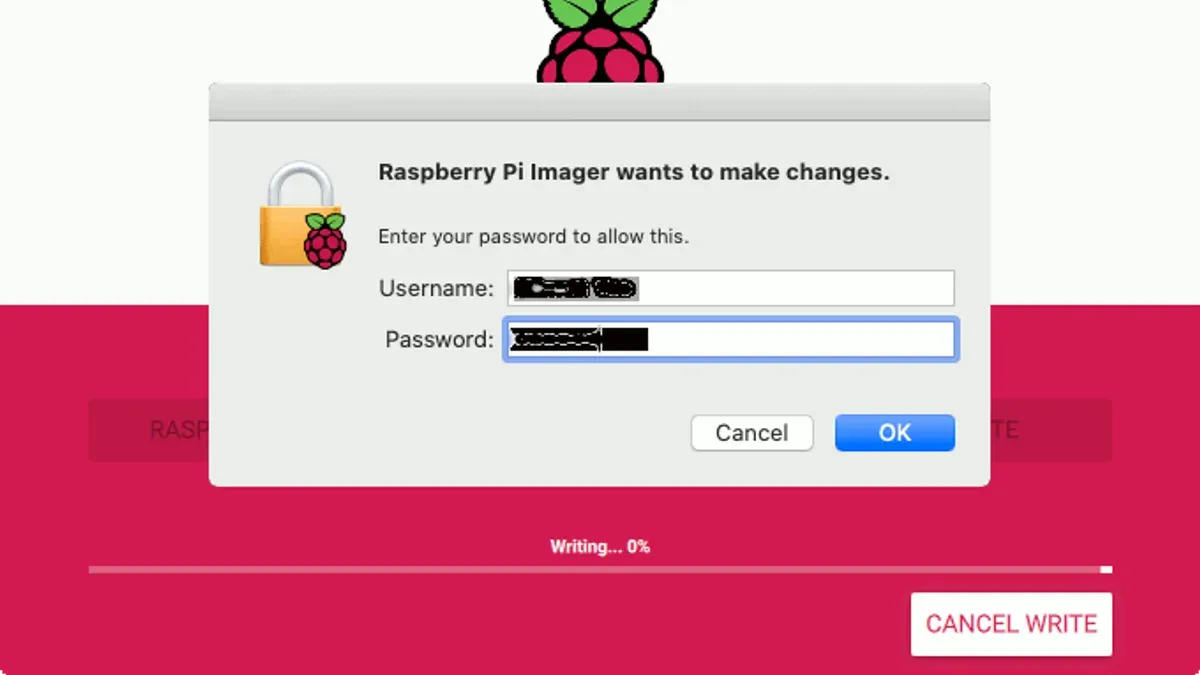
- Open the Applications folder and double-click Raspberry Pi Imager to launch the app. The first time you open it, macOS may prompt you with a security warning. Click "Open" to grant permission and proceed.
- If macOS requests additional permissions, such as access to removable volumes or network, grant them to allow Raspberry Pi Imager to function properly.
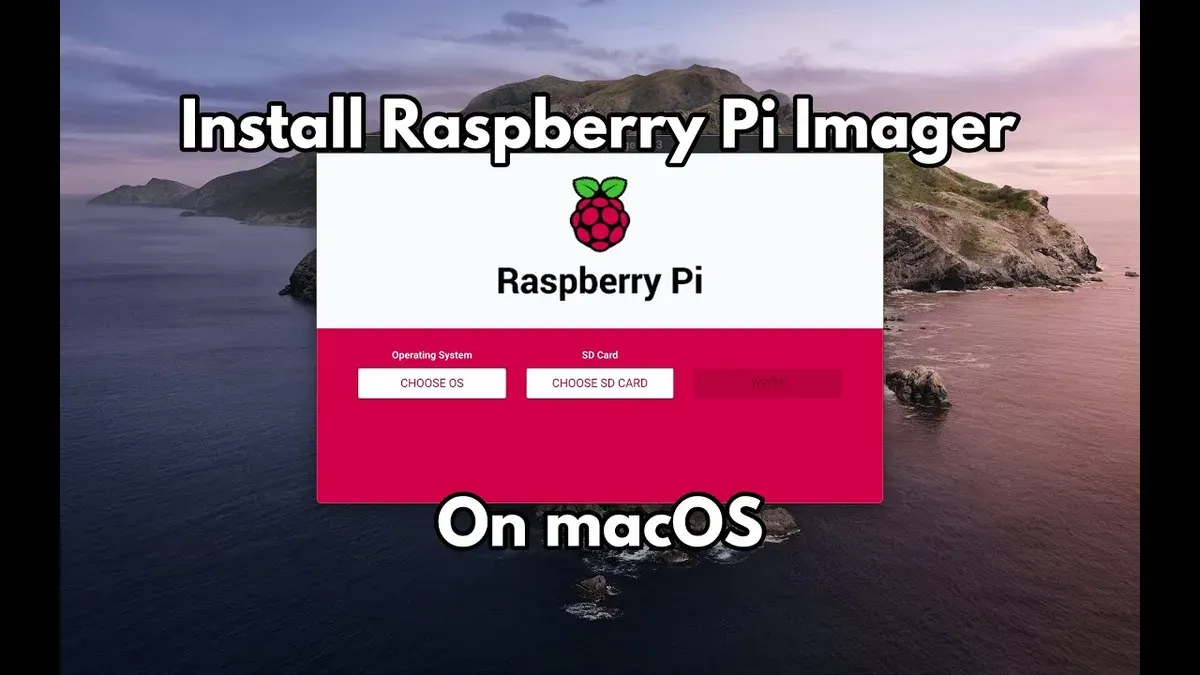
- Once launched, Raspberry Pi Imager displays its main interface, ready for you to select operating systems and write images to SD cards.
How to use Raspberry Pi Imager on Mac
- Open Raspberry Pi Imager on your Mac. You will see a simple interface with three main buttons: Choose OS, Choose SD Card, and Write.
- Click Choose OS to select the operating system image you want to flash. The menu offers official Raspberry Pi OS versions, including Raspberry Pi OS (32-bit), Raspberry Pi OS Lite, and other recommended systems. You can also select Use custom to flash a downloaded image file. Once selected, the chosen OS name appears on the main screen.
- Click Choose SD Card and carefully select the SD card you have inserted into your Mac’s card reader. Confirm you pick the correct device to avoid overwriting other drives. The selected card’s size and name display on the interface.
- Press Write to start flashing the OS image to the SD card. A progress bar will show the writing status and estimated remaining time, usually between 5 to 15 minutes depending on the card speed. The app also verifies the write to ensure data integrity.
- When the process completes, a confirmation message will appear stating the image was written successfully. You can then safely eject the SD card by clicking the eject icon next to the card name or using Finder to avoid data corruption.
For example, flashing the standard Raspberry Pi OS (32-bit) to a Class 10 16GB SD card generally takes around 8 to 10 minutes. Success confirmation ensures the SD card is ready to boot your Raspberry Pi without additional setup steps.
Troubleshooting common issues when installing or using Raspberry Pi Imager on Mac
If the Raspberry Pi Imager installer does not open, macOS security settings are often the cause. You may see a message like "Installer cannot be opened because the developer cannot be verified." To fix this, go to System Preferences > Security & Privacy > General, then click "Open Anyway" next to the blocked installer notification. Relaunch the installer afterward.
If your SD card is not detected by Raspberry Pi Imager, first confirm it is properly inserted and recognized by your Mac (check Disk Utility). If not visible there, try a different card reader or USB port. Some SD cards formatted in unsupported schemes may not appear in the Imager.
Write errors or incomplete flashing often show messages like "Error writing image to disk." This can be caused by insufficient permissions or a corrupted SD card. Run Raspberry Pi Imager with administrator privileges by right-clicking the app and selecting "Open." Also, verify the SD card's health using Disk Utility's First Aid.
App crashes or freezes during operation might occur due to conflicts with other disk utilities or outdated macOS versions. Closing other disk-related apps and ensuring your macOS is up to date can help. If crashes persist, uninstall and reinstall Raspberry Pi Imager from the official source.
How to install Doom on Raspberry Pi using Raspberry Pi Imager
Doom can be installed on your Raspberry Pi by flashing a compatible OS image that supports the game or its ports, such as a RetroPie or Lakka image. These operating systems come preconfigured with emulators and ports that enable you to run Doom smoothly.
- Open Raspberry Pi Imager and select Choose OS.
- Scroll to Emulation and game OS and select either RetroPie or Lakka image, both of which provide Doom support.
- Insert your SD card and select it under Choose SD Card.
- Click Write to flash the selected OS image to your SD card. You should see a progress bar and a confirmation message when the write completes successfully.
- Insert the SD card into your Raspberry Pi and power it on. The OS will boot, presenting you with an interface to launch games and emulators.
- Navigate to the Doom port or emulator (e.g., PRBoom on RetroPie) and follow on-screen instructions to start playing.
RetroPie and Lakka have high success rates among users for running Doom on Raspberry Pi, providing a ready-to-use environment without manual configuration of game files or dependencies.
- How to Install Arduino IDE on Mac: A Step-by-Step Guide
- How to Install Docker on Mac: A Clear Step-by-Step Guide
- How to Install Git on Mac: Step-by-Step Guide for Every Setup
- How to Install Jupyter Notebook on Mac: A Clear Step-by-Step Guide
Frequently asked questions
How to use Raspberry Pi Imager for Windows?
To use Raspberry Pi Imager on Windows, download the installer from the official Raspberry Pi website and run it to install the application. Launch the Imager, select the desired OS from the list, choose the target SD card, and click "Write" to begin flashing. Make sure to run the program with administrator privileges to avoid permission issues during writing.
What is Raspberry Pi Imager installer for Mac OS?
The Raspberry Pi Imager installer for Mac OS is a downloadable package that contains the Raspberry Pi Imager application optimized for macOS. It simplifies the installation process by providing a signed and verified app that you can drag into your Applications folder. This installer ensures compatibility with Mac security settings and enables you to prepare SD cards for your Raspberry Pi efficiently.
Where can I find Raspberry Pi OS Imager download?
You can find the Raspberry Pi OS Imager download on the official Raspberry Pi website under the Software section. It is available for multiple platforms including macOS, Windows, and Linux. Always download from the official source to ensure you get the latest and safest version of the software.
Can I run Raspberry Pi Imager on Raspberry Pi itself?
Yes, Raspberry Pi Imager can be run directly on a Raspberry Pi running a compatible operating system. This allows you to write images to SD cards without needing a separate computer. The Imager is available through the Raspberry Pi OS repositories and can be installed via the Add / Remove Software tool or using terminal commands like sudo apt install rpi-imager.
What this guide does not cover and who should do something else
This guide does not cover advanced image customization or command-line alternatives to Raspberry Pi Imager, which may be preferred by advanced users who require more granular control over OS images or want to automate deployments. It also does not address setting up headless Raspberry Pi configurations or network booting, which involve additional steps beyond the scope of this article.
If you need to create highly customized images or automate your Raspberry Pi setups, consider exploring tools like PiShrink, Berryboot, or using terminal-based utilities such as dd or rpi-imager CLI. For those unfamiliar with command-line interfaces, sticking with the graphical Raspberry Pi Imager remains the simplest approach.
As the next step, open Raspberry Pi Imager on your Mac and select the operating system you want to install. Carefully choose your SD card from the storage list, then click "Write" to start the installation process. This straightforward action sets the foundation for your Raspberry Pi experience and helps ensure your SD card is correctly prepared.



