
How to Install Nmap on Mac: A Clear Step-by-Step Guide
This guide provides clear steps to install Nmap on your Mac using Homebrew or the official installer, plus tips for basic commands and troubleshooting.

You want to explore network security or perform system diagnostics on your Mac but aren't sure how to get started with Nmap. Maybe you've heard it’s a powerful tool on Linux and Windows, but wonder how to install Nmap on Mac effectively using your terminal.
This guide walks you through clear, straightforward steps to install Nmap on your Mac or MacBook. It covers both the popular Homebrew method and the official installer package, showing you how to run basic commands afterward. You’ll also find a brief comparison with Linux and Windows installations and tips for troubleshooting common issues.
Key takeaways
- Use Homebrew for the easiest terminal-based Nmap installation on Mac.
- The official installer offers a GUI-based alternative with a straightforward setup.
- Basic Nmap commands on Mac align closely with those on Linux and Windows.
- Common installation issues often relate to permissions or missing dependencies.
- Keeping Nmap updated ensures access to the latest features and security fixes.
Before you start: What you need to install Nmap on Mac
To install Nmap on your Mac, first ensure your system runs macOS 10.13 (High Sierra) or later, as these versions have been tested for compatibility. Earlier macOS versions may encounter issues with Nmap functionality. You will need administrator privileges to install software and access the Terminal app, which is located in /Applications/Utilities/Terminal.app. Terminal is essential since the installation and use of Nmap rely on command-line operations.
While not mandatory, installing Homebrew—an open-source package manager for macOS—can streamline the installation process. Homebrew is used by a large portion of Mac users for managing software installations effectively and safely. It handles dependencies automatically and simplifies future updates.
Nmap is a powerful network scanning tool primarily used for security auditing, network inventory, and detecting open ports on devices. On macOS, it is commonly used by system administrators and security professionals but can also be helpful for personal network troubleshooting.
- Check your macOS version by clicking the Apple menu and selecting About This Mac. You should see the version number, which must be 10.13 or newer.
- Confirm you have administrator rights by attempting to install any software or by checking your user account in System Preferences > Users & Groups.
- Open the Terminal app and verify access by typing
echo $SHELL. You should see a shell prompt like/bin/zshor/bin/bash. - Optionally, verify if Homebrew is installed by typing
brew --version. If not installed, you can add it later for easier Nmap installation.
How to install Nmap on Mac using Homebrew
Homebrew is the most popular package manager for macOS, offering a simple way to install and manage software like Nmap. If you don't have Homebrew installed, follow these steps first.
- Open Terminal and paste the following command to install Homebrew:
/bin/bash -c "$(curl -fsSL https://raw.githubusercontent.com/Homebrew/install/HEAD/install.sh)"
When finished, you should see a message indicating Homebrew was installed successfully. - Update Homebrew to ensure you have the latest package definitions:
brew update
The terminal will show progress and end with a prompt when complete. - Install Nmap by entering:
brew install nmap
You will see output downloading and compiling Nmap, ending with "==> Summary" and "🍺 /usr/local/Cellar/nmap/... installed" confirming success. - Verify Nmap is installed and working by running:
nmap --version
Output should display the Nmap version, license information, and supported features.
Using Homebrew simplifies installation and future updates by managing dependencies and allowing easy upgrades with one command. This method avoids manual downloading and configuring, reducing potential errors compared to other installation methods on macOS.
How to install Nmap on Mac using the official installer package
If you prefer a graphical installation method over using the Terminal, the official Nmap macOS installer package offers a straightforward alternative. This method is suitable if you want to avoid command-line steps and get a visual installation process.
- Visit the official Nmap download page at https://nmap.org/download.html and scroll to the macOS section.
- Download the latest stable macOS installer package, which is typically around 15-20 MB in size. The file name generally follows the pattern nmap-.dmg.
- Once downloaded, double-click the .dmg file to mount it. You should see a window displaying the Nmap installer package.
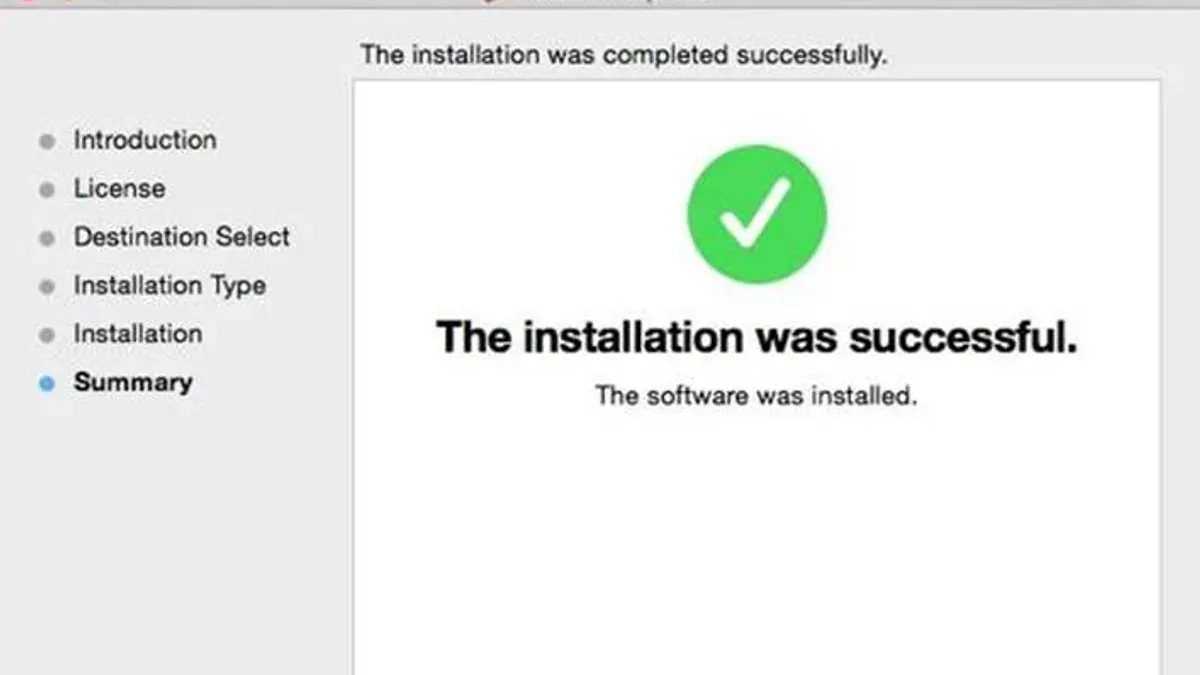
- Double-click the .pkg installer icon to launch the graphical installation wizard.
- Follow the on-screen prompts: Agree to the software license, select the installation destination (usually your main drive), and click Install. Administrator credentials will be requested.
- After installation, the wizard will confirm completion. The entire process usually takes 1-3 minutes depending on your system.
- To verify the installation, open Terminal and type nmap --version. You should see version details confirming a successful install.
- Optionally, ensure your PATH environment variable includes the directory where Nmap was installed (commonly /usr/local/bin) to run Nmap without specifying its full path.
This GUI-based installation provides a familiar setup experience for Mac users uncomfortable with Terminal commands. However, it lacks the convenience of Homebrew’s automatic updates and dependency management. The graphical installer also does not integrate with package managers, which can make future upgrades or uninstalls less streamlined.
How to use Nmap on Mac: Basic commands and examples
After installing Nmap, you run it from the Terminal to perform network scans. Basic commands start with nmap followed by the target IP address or hostname.
- Open Terminal and type nmap 192.168.1.1 to scan a single host. You should see a list of open ports and services on that device.
- To scan a range of IPs on your local network, use nmap 192.168.1.1-254. The output will show which hosts are up and their open ports.
- To save scan results in a normal human-readable format, append -oN output.txt to your command. This creates a text file you can review later.
- For more detailed output, including OS and version detection, use sudo nmap -A 192.168.1.1. This requires administrator privileges and gives comprehensive information about the target host.
To detect the MAC address of devices on your local network, run sudo nmap -sn 192.168.1.0/24. This performs a ping scan and displays MAC addresses and vendor information. For example, you might see:
Host: 192.168.1.10 (device-name) MAC Address: 00:1A:2B:3C:4D:5E (Apple)
These commands illustrate Nmap’s versatility on Mac. Scanning local networks helps you identify connected devices and their status, while remote scans provide insight into server security. Output formats let you choose between quick checks and in-depth analysis.
How to install Nmap on Mac Terminal for MacBook and MacBook Pro
The commands to install Nmap via Terminal are identical across MacBook and MacBook Pro models. Both use macOS and the same Terminal environment, so no device-specific commands are needed.
- Open Terminal from Applications > Utilities. You should see a prompt with your username and device name.
- Ensure you have administrator privileges by typing sudo -v. Enter your password when prompted; no output means permission is granted.
- Check your network connectivity by running ping -c 3 google.com. Successful replies confirm your network is active, which is essential for downloading Nmap.
- Run the Homebrew installation command for Nmap (if not already installed): brew install nmap. You should see a progress bar followed by a completion message.
- If using the official installer, execute the installer package from Finder and then verify installation by typing nmap -v in Terminal; it should display the version number.
Hardware differences like Touch Bar or processor type do not affect Terminal commands or Nmap functionality. However, ensure your macOS version meets minimum requirements, as older versions might cause compatibility issues.
Terminal permissions sometimes require you to grant full disk access or network access under System Preferences > Security & Privacy > Privacy. Verify these settings if you encounter permission errors during installation.
How to install Nmap on Linux and Windows: A brief comparison
Installing Nmap on Linux typically involves using package managers tailored to each distribution. For Debian-based systems like Ubuntu, apt is used; for Red Hat-based systems like CentOS or Fedora, yum or dnf are common. On Windows, users can choose the official installer or leverage package managers such as Chocolatey and winget to install Nmap via the command line.
| Operating System | Installation Method | Example Command | Complexity Level |
|---|---|---|---|
| Linux (Debian/Ubuntu) | apt package manager | sudo apt install nmap | Low |
| Linux (Fedora/CentOS) | yum or dnf package manager | sudo dnf install nmap | Low |
| Windows | Official installer or package managers | choco install nmap or winget install Nmap | Medium |
Linux installations usually require sudo or root permissions, similar to macOS, but the environment is more uniform when using package managers. Windows installations often involve GUI-based installers or require enabling command line package managers. Unlike macOS, which benefits from tools like Homebrew to manage dependencies and updates, Linux package managers handle these tasks natively.
Mac installation differs because of its unique Unix-based environment combined with Apple's security features, which can affect permissions and require specific steps to grant Terminal access. Overall, Linux offers the most straightforward command-line installation, Windows provides multiple approaches with some manual setup, and Mac balances between ease and system-specific configurations.
Troubleshooting common issues when installing Nmap on Mac
When installing or running Nmap on your Mac, you may encounter permission errors, Homebrew issues, or network restrictions. Here are the common problems and how to fix them.
Resolving permission denied errors in Terminal
If you see "Permission denied" when running Nmap commands, it usually means you lack the necessary privileges. Run the command with sudo to execute it as an administrator.
- Type
sudo nmap [options]and press Enter. - Enter your Mac administrator password when prompted.
- If the command runs successfully, you will see the scan output.
Fixing Homebrew-related issues
Issues like outdated packages or missing dependencies can cause installation to fail or Nmap to malfunction.
- Update Homebrew by running
brew update. - Upgrade outdated packages with
brew upgrade. - Check for and fix missing dependencies by reinstalling Nmap:
brew reinstall nmap. - Successful completion means no error messages and Nmap is ready to use.
Addressing network permission prompts and firewall restrictions
macOS may prompt you to allow network access for Nmap or block it via the firewall. If scans fail or hang, check these settings:
- Go to System Preferences > Security & Privacy > Firewall > Firewall Options.
- Ensure Terminal or Nmap is allowed incoming connections.
- If prompted during the first scan, click Allow to grant network permissions.
Nmap command not recognized
If Terminal returns "command not found: nmap", the installation path may not be in your shell’s PATH variable.
- Verify Nmap is installed:
brew list nmapor check the Applications folder if using the official installer. - Find Nmap's location:
which nmapshould return a path like/usr/local/bin/nmapor/opt/homebrew/bin/nmap. - If no path is returned, add Nmap’s bin directory to your PATH by editing
~/.zshrcor~/.bash_profile(e.g.,export PATH="/usr/local/bin:$PATH"), then restart Terminal. - Run
nmap --versionto confirm it is recognized.
Keeping Nmap up to date on your Mac
Maintaining an up-to-date Nmap installation ensures you have the latest features and security improvements essential for accurate network scanning. Regular updates also address vulnerabilities, making your scanning more reliable and secure.
If you installed Nmap using Homebrew, updating is straightforward and safe. Follow these steps:
- Open Terminal and run brew update. This refreshes Homebrew’s package list and confirms you have access to the latest software versions. You should see messages indicating updated formulae and taps.
- Run brew upgrade nmap. This command upgrades Nmap if a newer version is available. Successful upgrades display progress and a confirmation message once completed.
- Verify the installed version by running nmap --version. The output shows the current Nmap version, confirming the update.
Checking Nmap’s official changelog at https://nmap.org/changelog.html helps you understand new features and fixes in each release. Staying informed about updates improves your ability to leverage Nmap effectively for security assessments.
- How to Install Git on Mac: Step-by-Step Guide for Every Setup
- How to Install Docker on Mac: A Clear Step-by-Step Guide
- How to Install Wireshark on Mac: A Clear Step-by-Step Guide
- How to Install Miniconda on Mac: A Clear Step-by-Step Guide
Frequently asked questions
How to install nmap on windows?
To install Nmap on Windows, download the official installer from the Nmap website, typically named like "nmap-setup.exe." Run the installer and follow the prompts to complete the installation. The process includes installing the Nmap command-line tool and the Zenmap GUI if desired.
How to install nmap on macos?
You can install Nmap on macOS using Homebrew by running brew install nmap in the Terminal. Alternatively, download the official Mac installer package from the Nmap website and follow the installation wizard. Both methods provide a fully functional Nmap environment on your Mac.
How to install nmap on macbook?
Installing Nmap on a MacBook is the same as on any Mac. Use the Terminal with Homebrew by entering brew install nmap or download the official installer package. Ensure you have administrator privileges to complete the installation smoothly.
How to install nmap on macos terminal?
Open the Terminal app and first check that Homebrew is installed by typing brew --version. If it’s missing, install Homebrew from its official website. Then, run brew install nmap to install Nmap directly via the command line.
How to install nmap on macbook pro?
Installing Nmap on a MacBook Pro involves the same steps as on other Mac models. Use the Terminal with Homebrew by typing brew install nmap or download and run the official installer package. This approach ensures compatibility across macOS versions on MacBook Pro hardware.
What this guide does not cover and who should look elsewhere
This guide does not cover advanced Nmap scripting, detailed network security auditing, or the use of Nmap in professional penetration testing environments. If your goal is in-depth security analysis or complex network reconnaissance, you should consult specialized resources or professional training materials dedicated to those topics.
The single most useful next step is to familiarize yourself with Nmap’s basic scan options and output formats by running simple commands such as nmap -sS or nmap -O on your local network. This hands-on practice will build your understanding of how Nmap works on your Mac and prepare you to safely expand into more advanced features as needed.



