
How to Install Wireshark on Mac: A Clear Step-by-Step Guide
Follow this clear guide to install Wireshark on your Mac using multiple methods and configure permissions for effective network analysis.

You need to analyze network traffic on your MacBook, whether for troubleshooting or learning, but aren't sure where to start. Wireshark is a powerful tool for capturing and inspecting packets, yet installing it on macOS can be confusing due to system permissions and different installation options.
This article guides you through how to install Wireshark on Mac using multiple methods including the official installer and Homebrew. It also covers macOS-specific setup steps, such as granting the necessary permissions for packet capture, and introduces options for running Wireshark inside a virtual machine if preferred. By following this clear, practical guide, you can choose the installation method that fits your needs and get Wireshark running smoothly on your Mac.
Key takeaways
- Wireshark can be installed on Mac via the official installer or Homebrew for flexibility.
- Granting packet capture permissions in System Preferences is essential for proper operation.
- Running Wireshark inside a virtual machine is an alternative if direct installation is problematic.
- Homebrew installation requires command line familiarity but simplifies updates.
- Common setup issues often involve macOS privacy settings and can be resolved by adjusting Security & Privacy preferences.
Before you start: What you need for Wireshark on Mac
Ensure your Mac runs macOS 10.15 Catalina or later, as Wireshark supports these versions. Your hardware should meet at least a dual-core Intel or Apple Silicon processor with 4GB of RAM to handle packet analysis smoothly.
You must have administrator access on your Mac to install software and grant necessary permissions, especially for packet capture. Additionally, Wireshark requires permissions to access network interfaces, so be prepared to approve security prompts during setup.
A reliable internet connection is necessary to download Wireshark and any dependencies, such as libraries or tools used by Homebrew if you choose that installation method.
If you plan to install Wireshark using Homebrew, familiarity with the Terminal application is helpful. You will use command-line instructions to install and update software, which is faster but less graphical than the official installer.
- Check your macOS version by clicking the Apple menu and selecting "About This Mac." You should see the version number 10.15 or higher. If not, consider upgrading macOS before proceeding.
- Verify you have administrator rights by going to System Preferences > Users & Groups. Your account should say "Admin" under your username.
- Confirm your internet is working by opening Safari or another browser and loading a webpage successfully.
- Optionally, open Terminal via Applications > Utilities > Terminal and type brew --version. If Homebrew is installed, it will display the version number; if not, you can install it later as part of the guide.
How to install Wireshark on Mac using the official installer
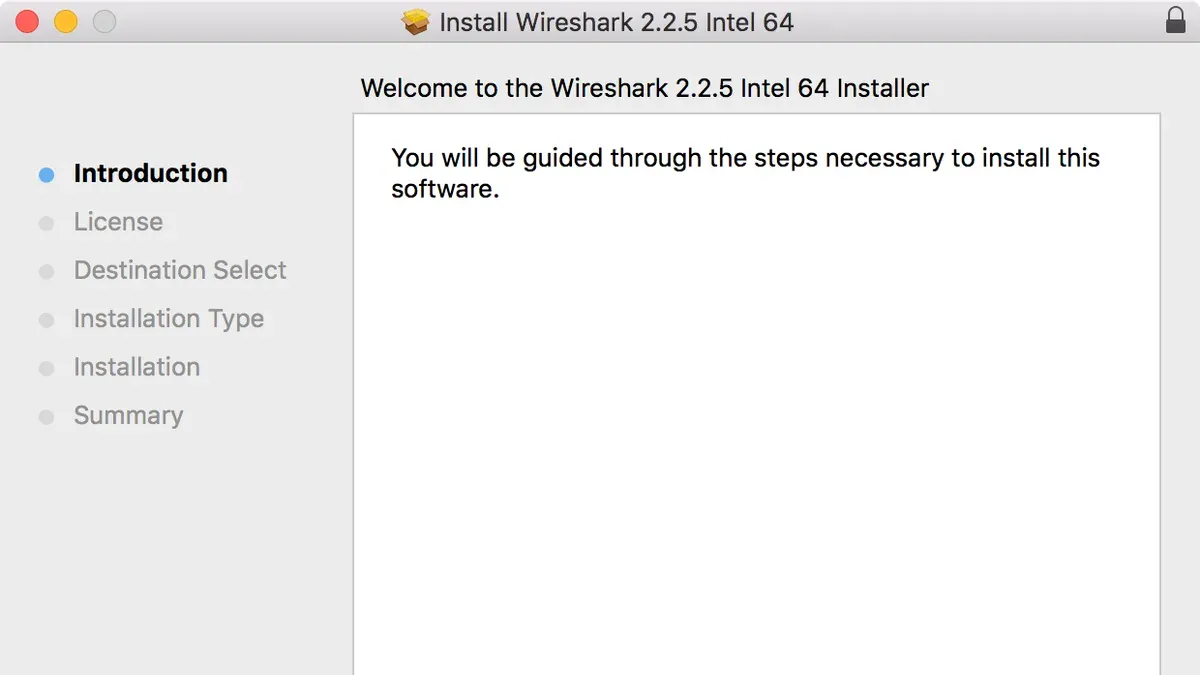
- Visit the official Wireshark website at https://www.wireshark.org/download.html and click the macOS installer link to download the latest stable package. You should see a file named similar to Wireshark-x.x.x.dmg in your Downloads folder.
- Open the downloaded.dmg file to mount the installer volume. A window will appear showing the Wireshark icon and a shortcut to the Applications folder.
- Drag the Wireshark icon into the Applications folder shortcut. This copies the application to your Mac’s main applications directory.
- Navigate to the Applications folder and double-click the Wireshark app to launch it. The first time you open it, macOS will warn about opening an app downloaded from the internet; click Open to proceed.
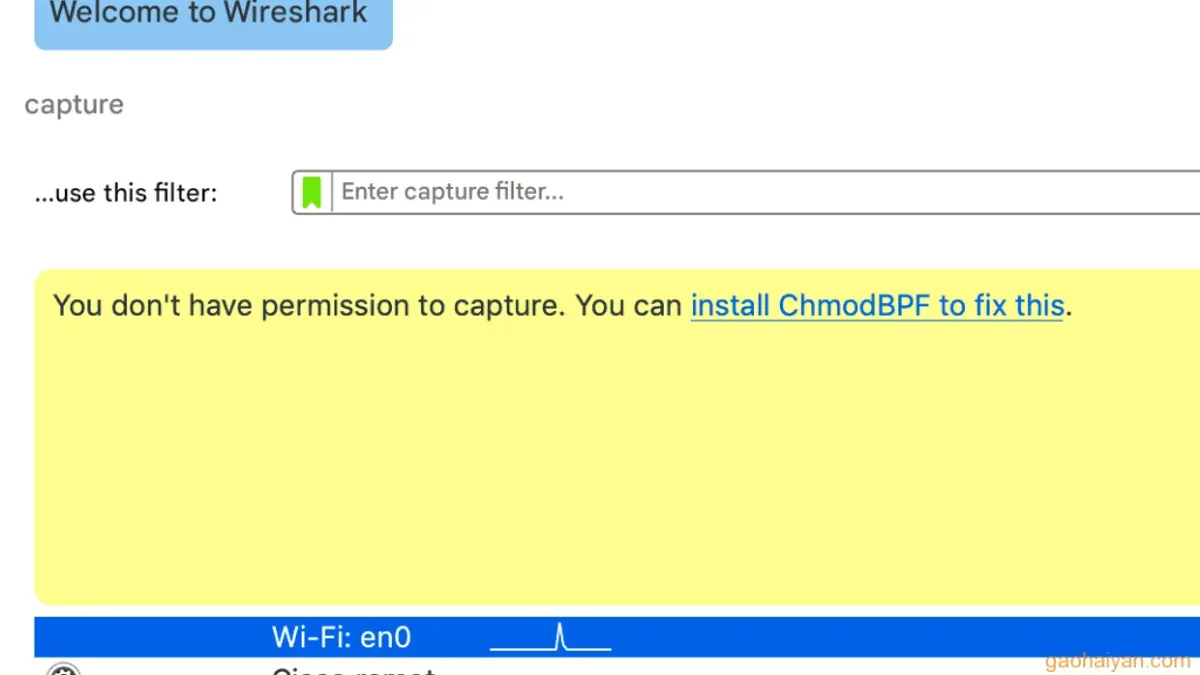
- During initial launch, Wireshark will prompt you to install additional components for packet capture, such as ChmodBPF scripts. Approve these requests, which will require entering your administrator password. This grants the necessary permissions for network interface access.
- After installation, Wireshark will open its main window. Verify that your network interfaces appear in the capture options, indicating that permissions and setup completed successfully.
This process uses the official macOS package, ensuring compatibility and straightforward updates. The installer prompts for permissions clearly, though granting them is essential to capture packets properly. Missing this step can result in Wireshark showing no interfaces or failing to capture.
How to install Wireshark on Mac using Homebrew
If you prefer managing software through the command line, Homebrew offers an efficient way to install Wireshark on your Mac. Follow these steps to install and configure Wireshark using Homebrew.
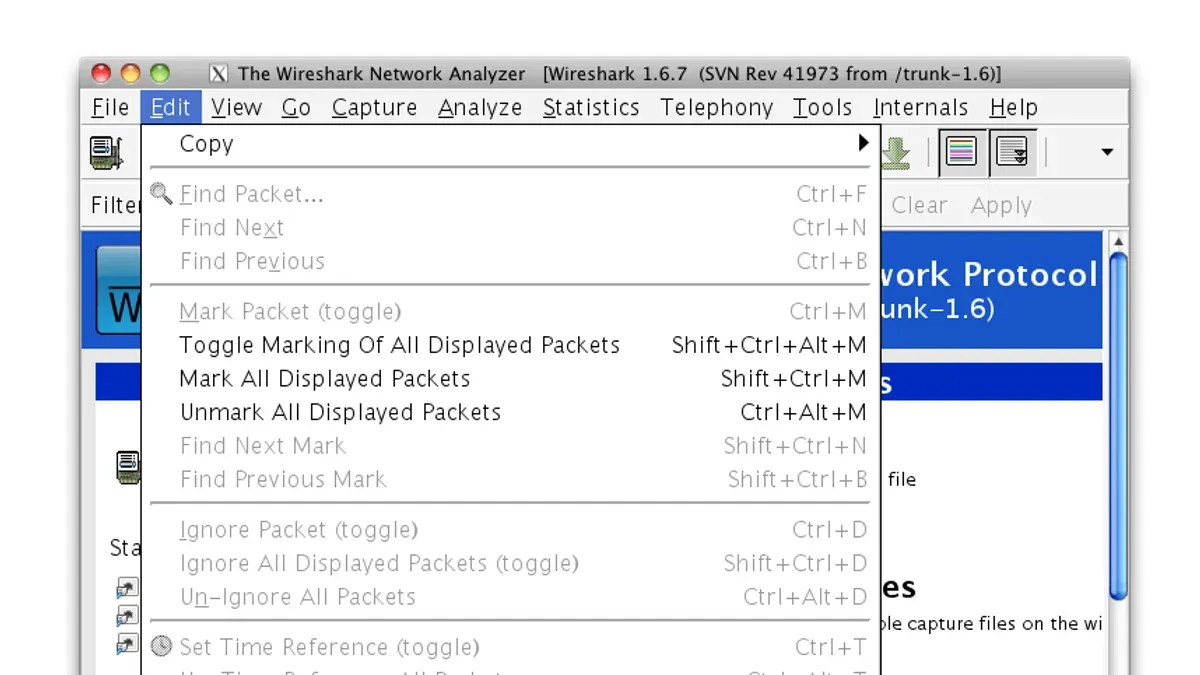
- Check if Homebrew is installed. Open Terminal and run brew --version. If Homebrew is installed, you will see its version number. If not, proceed to the next step.
- Install Homebrew. Paste the following command into Terminal and press Enter:
/bin/bash -c "$(curl -fsSL https://raw.githubusercontent.com/Homebrew/install/HEAD/install.sh)"
When the installation completes, you should see messages confirming a successful install. - Update Homebrew to ensure you have the latest package information. Run:
brew update
You will see output indicating the update process and a message like "Already up-to-date." when finished. - Install Wireshark. Run:
brew install wireshark
The Terminal will display the installation progress. Once done, the command prompt returns without errors. - Grant the necessary privileges for packet capture. After installation, you need to allow Wireshark to capture packets by enabling the 'ChmodBPF' launch daemon:
sudo /usr/libexec/ApplicationFirewall/socketfilterfw --add /usr/local/bin/dumpcap
Then load the service:
sudo chmod +x /usr/local/bin/dumpcap and sudo launchctl load -w /Library/LaunchDaemons/org.wireshark.ChmodBPF.plist
This setup lets Wireshark capture packets without requiring root access each time. - Verify the installation. Run:
wireshark --version
You should see Wireshark version information confirming a successful install.
Advantages: Homebrew simplifies updates and dependency management, allowing easy Wireshark upgrades via brew upgrade wireshark. It suits users comfortable with Terminal and package managers.
Limitations: The Homebrew version may lag slightly behind the official releases, and manual setup of permissions is required. Additionally, the graphical interface depends on XQuartz if you choose to run older versions or need X11 support, which might complicate usage for some users.
How to set up Wireshark on Mac for packet capture
To capture packets effectively on macOS, Wireshark needs explicit permissions to access network interfaces. Follow these steps to configure your system properly.
- Open System Preferences and navigate to Security & Privacy > Privacy.
- Select Full Disk Access from the sidebar, click the lock icon to make changes, then add Wireshark by clicking the + button. Ensure Wireshark is checked afterward. This grants Wireshark necessary access to system resources.
- Still in the Privacy tab, select Network (or Network Extensions) and add Wireshark to allow network interface usage.
- Install ChmodBPF if it was not included during installation. This tool adjusts permissions on the Berkeley Packet Filter (BPF) devices that Wireshark uses to capture packets. Usually, the official installer or Homebrew takes care of this, but verify with the command
ls -l /dev/bpf*in Terminal to ensure devices have group read/write permissions set toadminorwheel. - If permissions appear incorrect, run
sudo chmod 660 /dev/bpf*andsudo chgrp admin /dev/bpf*to correct them. You may automate this with a launch daemon or script for persistent permissions. - Launch Wireshark and select an interface from the list. To test capture functionality, start a capture on your main network interface, then visit a website or ping an IP address using Terminal (
ping google.com). You should see packets appearing in real time.
When done, stop packet capture and analyze the data. If no packets appear, revisit the permissions and security settings to ensure Wireshark has full access.
How to use Wireshark on Mac: Basic usage tips
Starting a capture session in Wireshark is straightforward once you select the correct network interface. The interface list shows active connections like Wi-Fi or Ethernet. Choose the one carrying the traffic you want to analyze.
- Open Wireshark and locate the interface list on the main screen. You should see names like "en0" for Wi-Fi or "en1" for Ethernet.
- Double-click the desired interface to begin capturing packets. You will see live traffic statistics and packets scrolling in real time.
- To stop capturing, click the red square stop button at the top. The captured packets will remain displayed for analysis.
Applying filters helps narrow down the data to relevant packets. For example, enter http in the filter bar to show only HTTP traffic, or ip.addr == 192.168.1.1 to view packets sent to or from a specific IP.
Click any packet to see detailed information in the panes below, including protocol layers and hexadecimal data. Expanding the sections reveals headers and payload details.
Saving your capture lets you preserve data for later review or sharing. Use File > Save As and choose formats like.pcapng, which is widely compatible.
Wireshark’s built-in analysis tools include statistics summaries under the Statistics menu. Options like "Protocol Hierarchy" and "Conversations" provide insights into traffic distribution and communication pairs.
How to install Wireshark on a virtual machine on Mac
Running Wireshark inside a virtual machine (VM) on your Mac allows you to isolate network analysis or use OS environments better suited for specific tasks. First, choose VM software compatible with macOS such as Parallels Desktop, VMware Fusion, or the free Oracle VirtualBox.
Next, install a guest operating system within the VM that supports Wireshark well—popular choices are Linux distributions like Ubuntu or a Windows version compatible with your VM software.
After setting up the guest OS, install Wireshark inside the VM by downloading it from the official site or using the OS package manager.
Configuring network interfaces for packet capture in a VM is crucial. VM software usually provides several network modes:
- Bridged mode: The VM acts like a separate device on the same network as your Mac, allowing Wireshark to capture traffic on the physical network interface.
- NAT mode: The VM shares the Mac's IP address with network address translation; packet capture is usually limited to VM traffic only.
- Host-only mode: The VM communicates only with the host Mac, restricting capture to this isolated network.
For full network visibility, bridged mode is generally best, though it may require extra VM permissions. Confirm your VM network adapter is set accordingly before starting packet capture.
- Install your chosen VM software and create a new VM with your preferred guest OS. You should see the guest OS installation screen after booting the VM.
- Complete the guest OS installation and update it. The OS desktop or login screen should appear.
- Download and install Wireshark inside the guest OS. After installation, Wireshark should launch without errors.
- Configure the VM network adapter settings to bridged mode via the VM software's settings panel. The VM should now have an IP address on the same network as your Mac.
- Start Wireshark in the VM and select the appropriate network interface for capturing. You should see live network packets if the configuration is correct.
Comparing Wireshark installation on Mac, Windows, and Linux
Wireshark installation varies notably across Mac, Windows, and Linux, each presenting distinct ease, permission models, and performance considerations.
| Aspect | Mac | Windows | Linux |
|---|---|---|---|
| Installation Steps | Download official.dmg or use Homebrew; requires admin rights and network permissions setup. | Run executable installer; usually straightforward with automated driver installation. | Install via package manager (e.g., apt, yum); may require manual dependency resolution. |
| Permissions and Capture Setup | Requires granting access to BPF devices and network interfaces; manual permission adjustments often needed. | Uses Npcap driver, which installs as part of setup; permissions generally less restrictive. | Depends on distribution; often requires adding user to wireshark group or running with sudo for capture. |
| Common Issues | Permission errors and macOS security prompts; SIP can complicate driver-level access. | Driver conflicts or outdated Npcap versions can cause capture failures. | Dependency or kernel module issues; varied by distro and kernel version. |
| Performance and Driver Support | Good performance; limited by macOS driver model and sandboxing. | High performance with Npcap; stable driver support. | Potentially superior performance on Linux due to native driver and kernel integration. |
Choosing the best platform depends on your environment and needs. Mac users benefit from seamless integration but must manage macOS security. Windows offers easy setup with Npcap, suitable for most users. Linux provides the most control and performance but requires comfort with command-line and permission management.
Troubleshooting common Wireshark installation and setup problems on Mac
If Wireshark is not capturing packets or missing interfaces, it often relates to permission issues or macOS security settings. One common error is “Permission denied,” which indicates Wireshark lacks access to capture network traffic. Another frequent problem arises when macOS blocks kernel extensions or network permissions due to security restrictions.
Fixing permission denied errors and missing interfaces
- Open System Preferences and go to Security & Privacy > Privacy.
- Ensure Wireshark is added to Full Disk Access and Network permissions. If not, click the lock icon, authenticate, and add Wireshark.
- Restart Wireshark and check if interfaces appear for capture.
If interfaces are still missing, run sudo chgrp admin /dev/bpf* and sudo chmod g+rw /dev/bpf* in Terminal to grant group access to Berkeley Packet Filter devices. Then, add your user to the admin group if not already a member.
Resolving macOS security restrictions
macOS may block Wireshark’s packet capture components, especially kernel extensions. Watch for messages like “System Extension Blocked” in Security & Privacy preferences. To fix this:
- Go to Security & Privacy and click Allow next to the blocked message.
- Restart your Mac to apply changes.
Conflicts with other network tools or firewalls
Other network utilities or firewall software can interfere with Wireshark’s ability to capture packets. Temporarily disable third-party firewalls or VPN clients to test if they cause conflicts. If errors persist, check for software updates or uninstall conflicting tools.
Following these steps typically resolves common installation and setup issues on Mac, enabling Wireshark to capture and analyze network traffic effectively.
- How to Install Postman on Mac: A Clear Step-by-Step Guide
- How to Install Docker on Mac: A Clear Step-by-Step Guide
- How to Install Git on Mac: Step-by-Step Guide for Every Setup
- How to Install GitHub CLI on Mac: A Complete Step-by-Step Guide
Frequently asked questions
How to install wireshark on windows?
Download the official Wireshark installer from the Wireshark website. Run the executable file and follow the installation wizard, which includes options for adding WinPcap or Npcap for packet capturing. After installation, launch Wireshark from the Start menu.
How to install wireshark on linux?
Use your distribution’s package manager to install Wireshark. For example, on Ubuntu, run sudo apt install wireshark in the terminal. You may need to configure user permissions to allow packet capture without root access by adding your user to the wireshark group.
How to install wireshark on virtual machine?
First, set up a virtual machine with an operating system that supports Wireshark, such as Windows or Linux. Install Wireshark inside the VM using the standard method for that OS. Configure the VM’s network adapter settings (e.g., bridged mode) to ensure it can capture relevant network traffic.
How to install wireshark mac homebrew?
Open the Terminal and ensure Homebrew is installed. Run brew install wireshark to install Wireshark via Homebrew. After installation, run brew install --cask wireshark-chmodbpf to set correct permissions for packet capturing on macOS.
How properly install wireshark on a macbook?
Download the official Wireshark installer for macOS and run the.dmg file. Follow the installation prompts, making sure to install the ChmodBPF launch daemon for correct permissions. Alternatively, use Homebrew with the additional permission setup to ensure Wireshark can capture packets without issues.
What this guide does not cover and special considerations
This guide does not cover advanced Wireshark usage or deep network analysis techniques; users seeking those should consult specialized resources focused on protocol analysis and security. Some installation steps may vary depending on macOS updates or specific Mac hardware configurations, so you may need to adjust commands or permissions accordingly. Additionally, virtual machine setups may not capture all network traffic due to VM network mode limitations, such as NAT or host-only modes restricting packet visibility.
The most useful next step is to open Wireshark after installation and verify that your Mac’s network interfaces appear in the capture options. If they do, try capturing traffic on your primary network interface while conducting normal network activity. This hands-on approach helps confirm your setup is functioning and familiarizes you immediately with the interface and capture workflow.



