
How to Install Postman on Mac: A Clear Step-by-Step Guide
This guide shows you how to install Postman on Mac using multiple methods including direct download, Homebrew, and terminal commands.

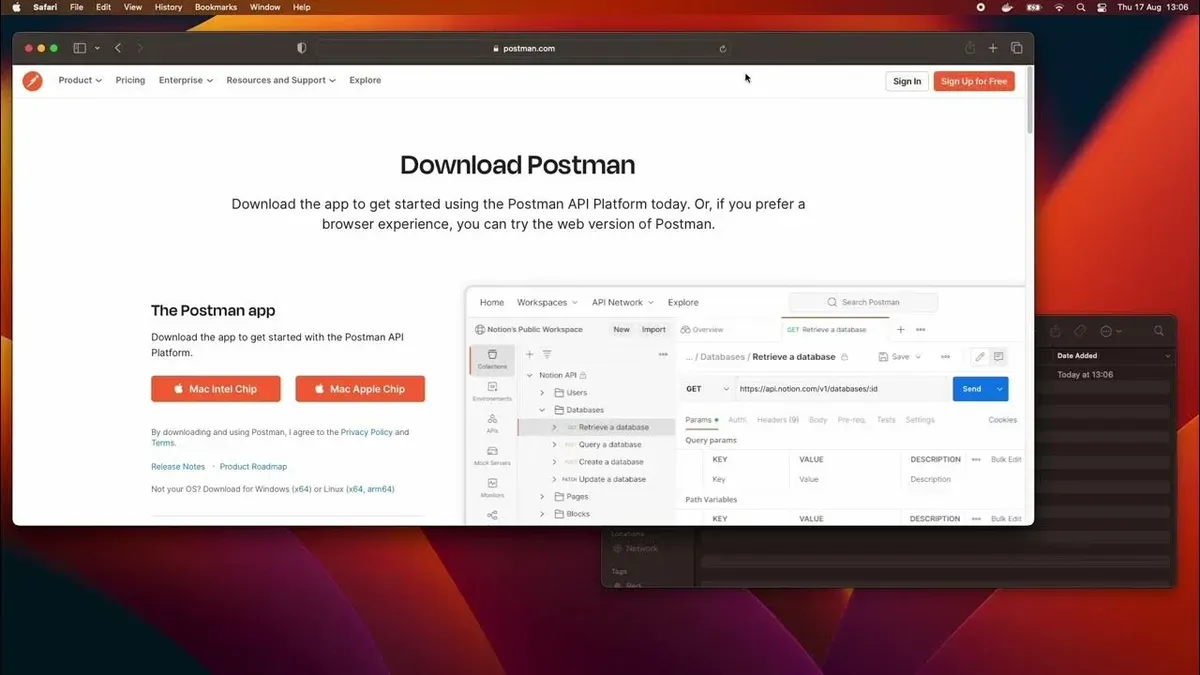
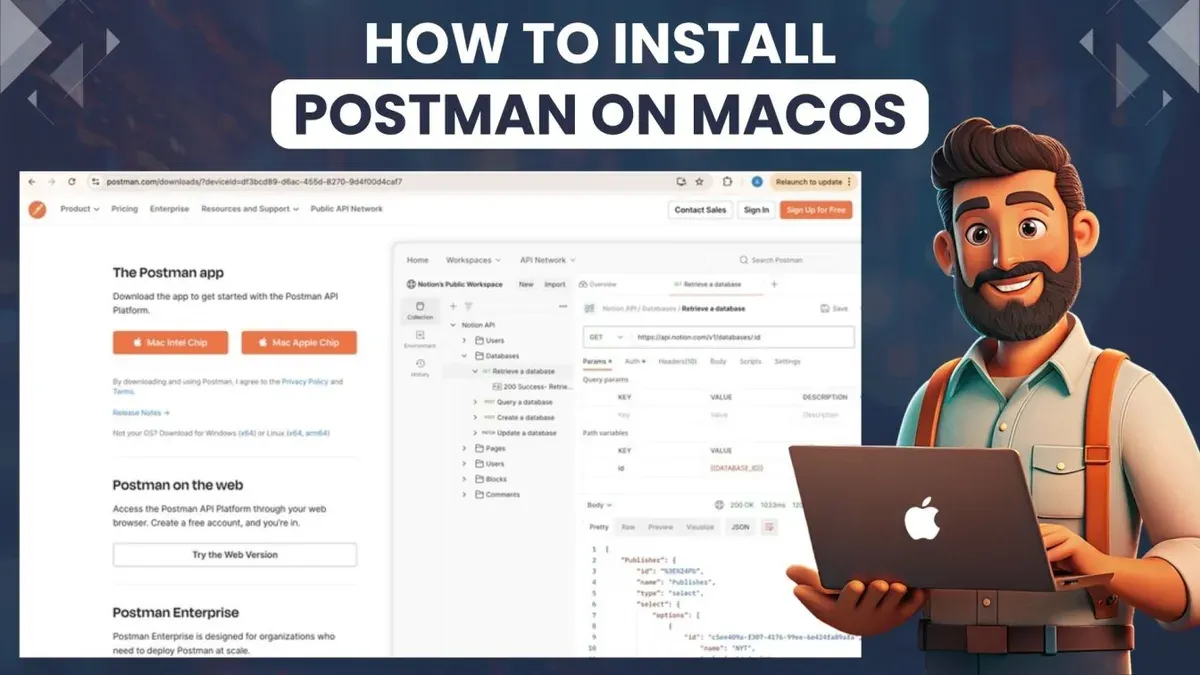
If you are a Mac user looking to work with APIs, you have likely heard about Postman. Whether you want to test APIs or automate workflows, knowing how to install Postman on Mac is essential to get started quickly and efficiently.
This guide covers multiple installation methods tailored for macOS, including downloading directly from the official website and using Homebrew, the popular package manager. You will also find detailed steps for installing Postman via the Mac terminal and specific advice for MacBook and MacBook Pro users. Along with installation instructions, troubleshooting tips for common issues and basic usage pointers for beginners are included to help you set up Postman without hassle.
Key takeaways
- Download Postman directly from getpostman.com for a straightforward installation.
- Use Homebrew with the command
brew install --cask postmanfor easy updates and management. - Check macOS security settings if Postman fails to launch after installation.
- Terminal installation offers a flexible alternative for advanced users comfortable with command line.
- Post-installation, create a free Postman account to sync your work across devices.
Before you start: What you need to install Postman on Mac
To install Postman on your Mac, first confirm your macOS version meets Postman's compatibility requirements. Postman supports macOS 10.14 (Mojave) or later, ensuring the app runs smoothly on most recent Macs. Older versions may not be compatible.
Next, ensure your internet connection is stable. A reliable connection is necessary to download the Postman app or set up Homebrew, a popular package manager. Downloads can be several hundred megabytes, so a slow or interrupted connection may cause issues.
Check if Homebrew is already installed by opening Terminal and typing brew --version. If installed, it will display the version number; if not, you will see a command-not-found message. Installing Homebrew requires administrator access and a working internet connection.
Understand the difference between the Postman app and the Postman web version. The app offers offline access and local environments, while the web version runs in your browser without installation but requires constant internet access.
Regarding hardware, Postman runs best with at least 4GB of RAM and a dual-core processor or better. Insufficient memory or processing power may affect performance, especially when working with large API collections.
- Open the Apple menu and select About This Mac. You should see your macOS version displayed clearly.
- Launch Terminal and type brew --version. If a version number appears, Homebrew is installed.
- Test your internet connection by visiting a website or running ping www.google.com in Terminal. Successful responses confirm connectivity.
How to install Postman on macOS using the official website
Installing Postman manually via the official website is the most straightforward method for many Mac users. Follow these steps to download and set up the application.
- Navigate to the official Postman website: Open your preferred browser and go to https://www.postman.com/downloads/. You will see options for different operating systems.
- Download the macOS application: Click the “Download” button under the macOS section. The site will automatically detect your Mac’s architecture (Intel or Apple Silicon) and provide the appropriate version. A DMG file will begin downloading—its size is typically around 100 MB.
- Open the downloaded DMG file: Locate the DMG file in your Downloads folder and double-click it to open. A window will appear showing the Postman app icon and a shortcut to the Applications folder.
- Drag Postman to Applications: Drag the Postman icon onto the Applications folder shortcut. This copies the app to your Mac’s main application directory.
- Launch Postman: Open the Applications folder and double-click Postman to start it. On first launch, macOS may display a security prompt; choose "Open" to confirm. Postman will then load and prompt you to sign in or create an account.
- Set up initial preferences: After signing in, configure any workspace or notification preferences as needed. Postman automatically checks for updates and installs them in the background, so you don’t need to manually update the app.
- Permissions and notifications: When prompted, allow Postman to send notifications or access the network if you want to receive update alerts and sync your data across devices.
This method provides a direct and reliable way to install Postman, ensuring you have the latest official version without relying on package managers.
How to install Postman on Mac using Homebrew
Homebrew is a popular package manager for macOS that simplifies installing software via the terminal. If you prefer managing applications through command-line tools, installing Postman with Homebrew is a convenient choice.
- Check if Homebrew is installed by opening Terminal and entering brew --version. If installed, you will see the version number, such as Homebrew 4.0.0. If not installed, proceed to the next step.
- Install Homebrew by running the command /bin/bash -c "$(curl -fsSL https://raw.githubusercontent.com/Homebrew/install/HEAD/install.sh)". Follow the on-screen prompts, which include entering your administrator password. Successful installation ends with a message confirming Homebrew is ready.
- Install Postman by typing brew install --cask postman in Terminal. The process will download and install the Postman app. Successful installation displays messages indicating the app was installed in your Applications folder.
- Verify the installation by typing open -a Postman or searching for Postman in the Launchpad. The app should open without errors.
- To update Postman later, use brew upgrade --cask postman. This fetches the latest version if available.
- If you want to uninstall Postman, run brew uninstall --cask postman. This removes the app cleanly.
Benefits of using Homebrew: It offers quick installation and easy updates directly from the terminal, ideal for users comfortable with command-line tools. Homebrew manages dependencies and keeps your system organized.
Limitations: Homebrew requires familiarity with the terminal and may not suit users who prefer graphical installers. Additionally, the cask version depends on Homebrew’s repository updates, which might lag slightly behind the official website releases.
How to install Postman on MacBook or MacBook Pro
Before installing Postman on your MacBook or MacBook Pro, confirm that your device runs a compatible macOS version and has sufficient storage space, typically at least 500 MB free. Both manual and Homebrew installation methods apply similarly to MacBook models, but hardware-specific considerations can affect performance and user experience.
Installation times on MacBook Air models with SSDs are generally faster than on older MacBook Pros with traditional hard drives. The manual installation usually takes a minute or two, while Homebrew installation depends on your internet speed and can take slightly longer due to dependency checks.
Battery management is important during installation. To avoid slowdowns or interruptions, connect your MacBook to power. Installing resource-heavy apps on battery alone may trigger macOS energy-saving modes, affecting installation speed.
Postman supports keyboard shortcuts that enhance productivity on MacBook keyboards. For MacBook Pros with a Touch Bar, Postman does not yet have dedicated Touch Bar controls, but you can customize the Touch Bar to include frequently used shortcuts through System Preferences > Keyboard > Customize Control Strip.
- For manual installation, download the Postman macOS app from the official website. After the download completes, open the.dmg file and drag the Postman app into the Applications folder. You should see Postman appear in Launchpad or Applications once this step finishes.
- If using Homebrew, open Terminal and run brew install --cask postman. Upon completion, verify installation by launching Postman from the Applications folder or Spotlight search.
- After installation, open Postman and allow any necessary permissions requested by macOS, such as accessibility or network access, to ensure full functionality.
- To optimize performance on MacBook models, close other heavy applications during installation. This prevents CPU throttling and maximizes available memory.
- Customize Touch Bar shortcuts by navigating to System Preferences > Keyboard > Customize Control Strip, adding shortcuts like Launchpad or specific Postman shortcuts you use frequently.
How to install Postman in Mac terminal
Using the terminal exclusively to install and manage Postman on your Mac involves primarily Homebrew commands, which provide a straightforward and efficient approach. This method allows you to handle installation, updates, launching, and troubleshooting directly from the command line.
- Open the Terminal app. You should see a prompt ending with a $ symbol, ready to accept commands.
- To install Postman via Homebrew, type brew install --cask postman and press Enter. Successful installation will show messages including "==> Installing Cask postman" and end with "==> Successfully installed!".
- To launch Postman from the terminal after installation, enter open -a Postman. If Postman opens, the launch was successful.
- To update Postman, run brew upgrade --cask postman. The terminal will display progress messages or indicate if Postman is already up-to-date.
- If you face errors such as "Error: Cask 'postman' is not installed" when upgrading or uninstalling, first verify installation with brew list --cask. If Postman is missing, reinstall it with step 2.
- Alternative terminal-based methods include using direct download and installation via command-line tools like curl and tar, but these require manual setup and are less streamlined than Homebrew.
- Common errors during installation include network timeout or permission denied. For network issues, ensure your internet connection is stable. For permission errors, rerun the terminal with administrator privileges using sudo before the command.
Terminal logs indicating a successful install look like this:
==> Installing Cask postman
==> Linking Binary 'Postman.app' to '/Applications/Postman.app'
==> Successfully installed!
Errors such as Error: Cask 'postman' is not installed or Permission denied should be addressed by verifying installation status or adjusting permissions respectively.
How to install and use Postman after installation
Once Postman is installed, you can start by creating a Postman account or continue as a guest. Having an account enables syncing your data across devices and accessing team collaboration features, while guest mode allows immediate use without sign-up.
- Open Postman. On the welcome screen, choose Sign Up to create an account or Skip to use as a guest. A successful sign-in or guest mode will take you to the main Postman interface.
- Familiarize yourself with the interface: the left sidebar lists your collections and history; the central workspace is for building requests; the right panel shows request details and test results.
- To import an existing collection, select File > Import from the menu, then choose a file or paste a raw text URL. A successful import displays the collection in the sidebar.
- To export a collection, right-click the collection name in the sidebar and choose Export. Select the desired format (usually JSON) and save it for backup or sharing.
- Run your first API request by clicking + New > Request. Enter the request name, select the HTTP method (e.g., GET), and type the API endpoint URL (for example, https://jsonplaceholder.typicode.com/posts). Click Send. You should see the response status, headers, and body in the lower panel.
- Access Postman’s extensive Documentation from the top menu under Help > Learning Center for tutorials and API testing guides. Community support is available via the Postman Community Forum linked at the bottom of the Learning Center page.
Including screenshots of the interface and example API responses can help confirm you are following these steps correctly.
Troubleshooting common Postman installation issues on Mac
If Postman refuses to install or download, first verify your internet connection and retry the download from the official website or via Homebrew. A common error like “Download failed” often signals connectivity problems or firewall restrictions.
Resolving permission errors and security blocks
macOS may block Postman during installation with messages such as “App can’t be opened because Apple cannot check it for malicious software.” To fix this, go to System Preferences > Security & Privacy > General and click Open Anyway next to the relevant message. If you encounter permission errors like “Operation not permitted,” ensure you have administrator rights and try running installation commands with sudo in Terminal.
Fixing Homebrew installation failures
When Homebrew installation commands fail with errors like “Error: Failed to download resource,” run brew update and then brew doctor to detect environment issues. Fix any warnings shown, then retry installing Postman. If Homebrew itself is outdated or corrupted, reinstall Homebrew following instructions on the official Homebrew site.
Handling crashes or failure to launch Postman
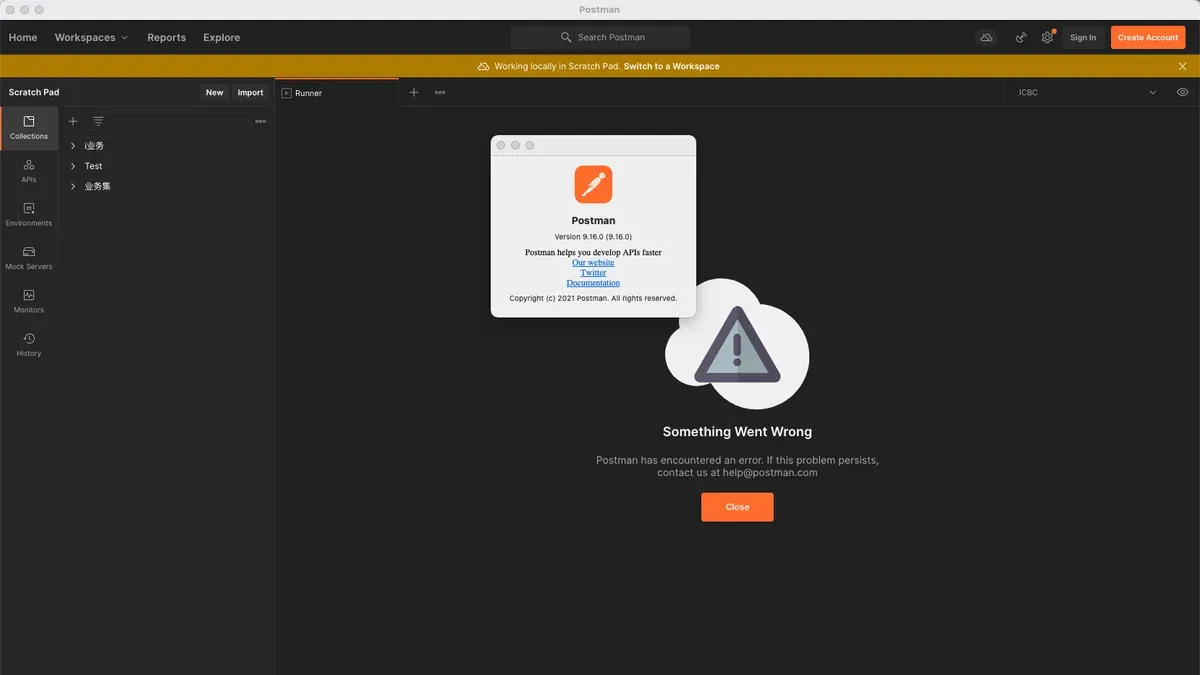
If Postman crashes immediately or won’t launch, clear its cache and settings by deleting the ~/Library/Application Support/Postman folder. Restart your Mac and try opening Postman again. Also, check Activity Monitor for lingering Postman processes and force quit them before relaunching.
Accessing logs and reporting bugs
For deeper troubleshooting, locate Postman logs at ~/Library/Logs/Postman. These logs contain error details helpful for support teams. If problems persist, report bugs through the Postman GitHub issues page or their official support channels, including log excerpts and macOS version details for faster resolution.
- How to Install Docker on Mac: A Clear Step-by-Step Guide
- How to Install Git on Mac: Step-by-Step Guide for Every Setup
- How to Install GitHub CLI on Mac: A Complete Step-by-Step Guide
- How to Install Jupyter Notebook on Mac: A Clear Step-by-Step Guide
Frequently asked questions
How to download postman on mac?
To download Postman on a Mac, visit the official Postman website and locate the macOS download link. Click the download button to get the Postman installer file, usually a.dmg. Once downloaded, open the file and drag the Postman app into your Applications folder to install.
How to download postman in mac?
Downloading Postman on a Mac involves accessing the Postman website using your preferred browser. After finding the macOS version, download the.dmg installer. Then, open this installer and move the Postman app to the Applications directory to complete the download and installation process.
Can t install postman on mac?
If you can't install Postman on your Mac, check if your macOS version meets Postman's minimum requirements and if you have sufficient disk space. Also, ensure you have allowed apps from identified developers in System Preferences under Security & Privacy. If installation still fails, try downloading the installer again or use Homebrew as an alternative method.
How to install Postman on macOS?
Installing Postman on macOS can be done by downloading the.dmg file from Postman's official site and dragging the application into the Applications folder. Alternatively, you can install it via Homebrew by running brew install --cask postman in the terminal. After installation, launch Postman from the Applications folder or Spotlight.
How to install Postman on Mac using brew?
To install Postman using Homebrew, first ensure Homebrew is installed on your Mac. Open the Terminal app and enter brew install --cask postman. Homebrew will download and install the latest Postman version. Once complete, you can open Postman from your Applications folder or via Spotlight search.
What this guide does not cover
This guide focuses solely on installing Postman on macOS devices, including MacBook and MacBook Pro models. It does not cover installation on Windows, Linux, or mobile platforms. Additionally, advanced Postman features such as API testing workflows, team collaboration, or integrating Postman with CI/CD pipelines are beyond the scope of this article. If you require guidance on these topics, consider consulting official Postman documentation or specialized tutorials.
The most useful next step after installation is to launch Postman and create a simple API request to familiarize yourself with its interface and basic functionality. For example, try sending a GET request to https://api.github.com to see how Postman handles responses. This hands-on approach helps you confirm that your installation is working correctly and sets a foundation for more complex tasks.



