
How to Fix WhatsApp Two-Factor Authentication Code Not Working
This guide helps diagnose and fix WhatsApp two-factor authentication code not working issues to restore secure account access safely and efficiently.

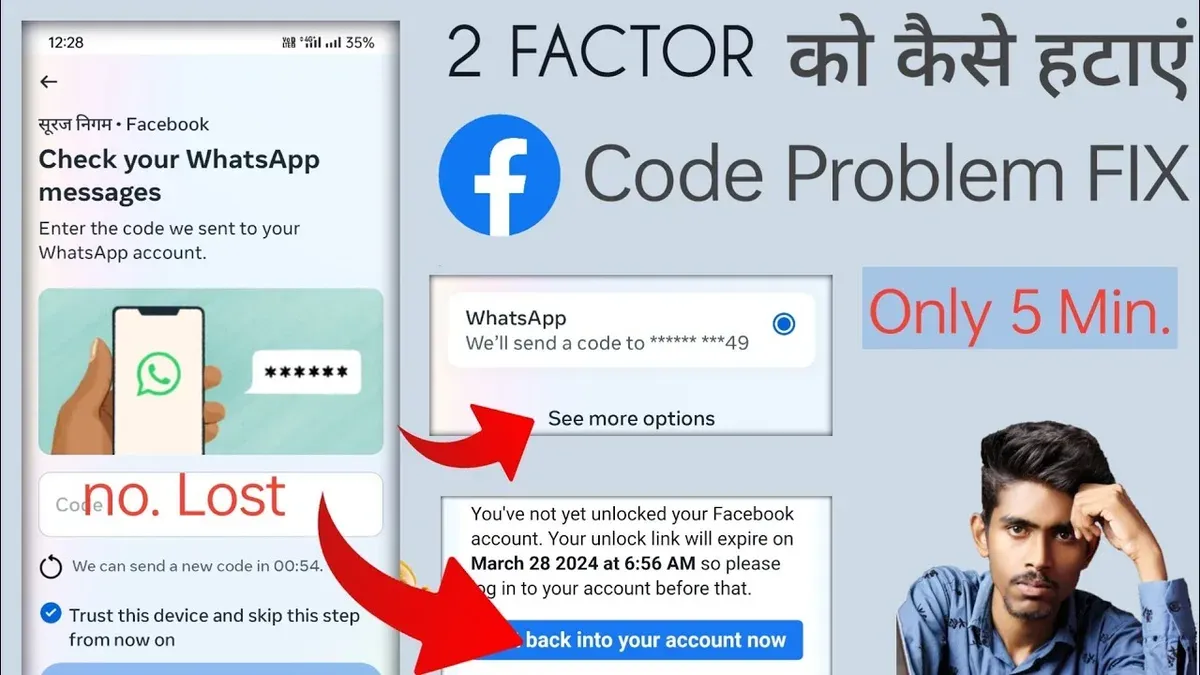
This guide explains how to diagnose and resolve issues when the WhatsApp two-factor authentication code is not working. It helps identify common symptoms such as code rejection, delays in receiving codes, or mismatch errors during verification. Understanding why these problems occur is key to selecting the safest and most efficient fixes.
WhatsApp’s two-factor authentication (2FA) adds an essential layer of security by requiring a PIN code during login. Problems with the 2FA code can lock users out or expose accounts to risk if improperly handled. This article prioritizes solutions based on safety and effort, highlighting when to try simple steps like verifying device settings and when to seek professional support.
How to Recognize WhatsApp Two-Factor Authentication Code Issues
WhatsApp two-factor authentication (2FA) code problems typically present as the code being rejected repeatedly, not received at all, or constant prompts to enter the code despite previous attempts. Common error messages include “Incorrect PIN,” “Authentication failed,” or “Unable to verify code.” These messages usually confirm issues with the 2FA code rather than other login or network problems.
Distinguishing 2FA code failure from other issues is critical. For example, if the problem is a forgotten PIN, WhatsApp will often give options to reset or recover it after a certain period. In contrast, app errors or network issues manifest as connection problems, inability to receive SMS or calls, or general app crashes, not code rejections.
To confirm the issue is specifically the 2FA code not working, follow these steps:
- Ensure the device has a stable internet connection and can receive SMS or calls.
- Attempt to enter the 2FA code received via SMS or generated by an authenticator app.
- Watch for specific error messages like “Incorrect PIN” or “Authentication failed.”
- If the code is rejected multiple times or not received, it likely points to a 2FA code issue.
Successful recognition occurs when the user consistently gets code-related errors despite proper network conditions and device functionality. This confirms the problem is with the 2FA process, not unrelated login or app errors.
What Causes WhatsApp Two-Factor Authentication Codes to Fail?
Incorrect device time and date settings are a common cause of 2FA code failures. WhatsApp's time-based one-time passwords (TOTPs) rely on accurate system clocks; even a few minutes of discrepancy can trigger code rejection. This issue often occurs after manual time changes or when automatic time sync is disabled.
Network and SMS delivery problems also prevent code receipt. Delays or blocks in receiving SMS messages can arise from poor cellular coverage, carrier restrictions, or temporary outages. Compared to time sync errors, network issues tend to cause more sporadic failures but are equally disruptive.
Using outdated WhatsApp versions incompatible with current 2FA protocols can cause code acceptance failures. WhatsApp regularly updates its security features, so running a version older than the latest two major releases increases the risk of incompatibility.
Conflicts arise when authentication apps or multiple devices are linked to the same account. For example, using different authenticator apps or desynchronized devices can generate mismatched codes. This complexity may confuse WhatsApp's verification process.
Account lockouts or security blocks imposed by WhatsApp due to suspicious activity or repeated failed attempts can also prevent successful 2FA code entry. These blocks require resolution through official support channels.
Fixing Incorrect Time and Date Settings
This fix applies when 2FA codes are consistently rejected despite correct entry.
- Open device Settings.
- Navigate to System > Date & Time (Android) or Settings > General > Date & Time (iOS).
- Enable "Set Automatically" or "Automatic Date & Time".
- Manually correct the time zone if necessary.
- Restart WhatsApp and attempt 2FA again.
Success is indicated by acceptance of the 2FA code without error messages.
Resolving Network or SMS Issues
Apply this when codes are not received within a reasonable time frame.
- Check cellular signal strength and switch to a better location if needed.
- Restart the phone to refresh network connections.
- Verify that SMS blocking or spam filters are disabled for WhatsApp messages.
- Request the code again after confirming network stability.
Receiving the 2FA code promptly confirms resolution.
What Are the Quickest and Safest Ways to Fix WhatsApp 2FA Code Problems?
Start by verifying that the device's date and time settings are accurate. WhatsApp relies on correct system time to validate two-factor authentication codes. If the device is set to manual time, switch to automatic date & time under Settings > System > Date & time, or a similar path depending on the device. After syncing, request a new 2FA code.
When this applies: If the authentication code is rejected immediately despite correct entry.
- Open device Settings and locate Date & Time.
- Enable “Use network-provided time” and “Use network-provided time zone.”
- Restart the WhatsApp app.
- Request a new two-factor authentication code via SMS or call.
- Enter the new code promptly.
How to know it worked: The code is accepted without error, allowing access to the account.
If time settings are correct but the code is not received, ensure the device has a stable cellular connection and can receive SMS or calls. Request a code resend after confirming signal strength. Restarting the device often resolves temporary network glitches affecting code delivery.
Next, confirm that the WhatsApp app is updated to the latest version available in the Google Play Store or Apple App Store. Outdated apps can cause authentication failures due to compatibility issues. Avoid using any third-party apps that claim to manage or intercept WhatsApp codes, as these can disrupt the authentication process and compromise security.
Tip: Restarting the device after adjusting settings can clear temporary glitches and improve app performance.
What Advanced Fixes Can Resolve Persistent WhatsApp 2FA Issues?
When quick fixes fail, more advanced troubleshooting steps can help resolve persistent WhatsApp two-factor authentication (2FA) problems. These methods require access to WhatsApp settings or prior setup, so they suit users who can still open the app or have prepared backup options.
Disable and Re-enable Two-Step Verification via Settings
If WhatsApp is accessible despite 2FA code issues, disabling and then re-enabling two-step verification can reset authentication challenges. This applies when 2FA codes repeatedly fail but the app is logged in.
- Open WhatsApp and go to Settings > Account > Two-step verification.
- Select Disable and confirm with the current 2FA PIN or backup code if requested.
- Restart the device, then return to the same menu to Enable two-step verification again, setting a new PIN and email address for recovery.
Success is indicated by the ability to receive and enter new 2FA codes without error during subsequent logins.
Clear App Cache or Reinstall WhatsApp Safely
Corrupted cache or app files can cause 2FA code failures. Clearing cache or reinstalling WhatsApp can fix this without data loss, provided chat backups exist.
- For Android: Go to Settings > Apps > WhatsApp > Storage and tap Clear Cache. Then restart WhatsApp.
- If issues persist, back up chats via Settings > Chats > Chat backup, uninstall WhatsApp, reinstall from the official store, and restore the backup.
This method is confirmed successful when WhatsApp accepts 2FA codes after reinstall and restored data appears intact.
Use Backup Codes if Previously Set Up
Backup codes are a critical fallback if 2FA codes are not received. Users who saved backup codes during 2FA setup can enter these codes instead of the SMS or app-generated code.
- Locate the saved backup codes, typically stored securely offline or in email.
- On the WhatsApp 2FA prompt, choose the option Use backup code and enter one code.
- Each backup code is single-use; ensure a new code is used each time this method is needed.
Successful entry restores account access without waiting for a new 2FA code.
Check SIM Card or Carrier Restrictions
Carrier-side issues like SMS blocking or SIM card problems can prevent 2FA codes from arriving. This applies when no codes are received despite multiple requests.
- Confirm the SIM card is active and properly inserted.
- Contact the mobile carrier to check for SMS blocking or filtering services affecting WhatsApp messages.
- If possible, test the SIM card in another device to verify SMS reception.
Resolution is confirmed when 2FA codes arrive promptly after carrier adjustments or SIM fixes.
Tip: Always keep backup codes stored securely offline to avoid lockout during 2FA failures.
When Should Professional Help or WhatsApp Support Be Contacted?
If all troubleshooting steps fail and WhatsApp account access remains blocked, escalating the issue to professional help or WhatsApp support becomes necessary. Persistent inability to enter the two-factor authentication code despite attempts to reset device time, request new codes, and reinstall the app signals a problem beyond routine fixes.
Suspected account compromise or hacking demands immediate contact with WhatsApp support to prevent unauthorized access or data loss. Signs include unexpected password changes, unfamiliar device logins, or security alerts from WhatsApp.
System errors affecting WhatsApp 2FA that persist despite device and network checks also require expert intervention. These issues may involve server-side problems or account flags that users cannot resolve independently.
To contact WhatsApp support effectively:
- Open WhatsApp and go to Settings > Help > Contact Us.
- Describe the issue clearly, including all troubleshooting steps taken.
- Attach relevant screenshots if possible to illustrate error messages.
- Submit the request and monitor email or in-app replies for follow-up.
The success rate of self-troubleshooting is high for common 2FA problems, but professional support is crucial when access remains denied after multiple attempts. Confirmation of a fix occurs when the 2FA code is accepted and the user regains full account access without error messages.
Warning: Avoid sharing verification codes or personal login information with anyone claiming to offer unofficial support to prevent scams or account theft.
Frequently asked questions
Why am I not receiving the WhatsApp two-factor authentication code?
Not receiving the 2FA code often results from network issues, incorrect phone number entry, or carrier delays. Ensure the phone number linked to WhatsApp is correct and the device has a stable cellular or Wi-Fi connection. Also, check for any SMS or call blocking settings and confirm the phone’s message inbox is not full.
Can incorrect phone time cause 2FA code errors on WhatsApp?
Yes, an incorrect device time can disrupt the generation and verification of time-sensitive 2FA codes. WhatsApp relies on accurate system time for authentication; setting the phone to automatic date and time updates from the network usually resolves this. Manual time settings that are off by even a few minutes can cause code rejection.
What if I forgot my WhatsApp two-step verification PIN?
If the two-step verification PIN is forgotten, WhatsApp allows a reset via the registered email address used during PIN setup. Without access to that email, the only option is to wait seven days before WhatsApp lets the user reverify the phone number without the PIN. This wait period is a security measure to prevent unauthorized access.
How do I disable two-factor authentication if the code is not working?
Disabling 2FA without the code requires access to the linked email to reset the PIN first. Open WhatsApp settings, navigate to Account > Two-step verification, and use the 'Forgot PIN?' option to receive a reset link. After resetting, 2FA can be disabled or reconfigured. Without email access, disabling 2FA is not possible, and contacting WhatsApp support is recommended.
What This Guide Does Not Cover and When to Seek Alternatives
This guide does not cover bypassing WhatsApp security measures, which could violate the app’s terms of service and compromise account safety. Users who have lost access to their registered phone number or email linked to two-factor authentication must follow WhatsApp’s official recovery processes or contact support directly. Attempting to circumvent two-factor authentication through unofficial tools or methods risks permanent account loss and potential data breaches.
For those encountering issues beyond authentication codes—such as hacked accounts, device malfunctions, or complex network restrictions—professional technical support or WhatsApp customer service is the appropriate resource. This ensures solutions maintain security and comply with WhatsApp’s policies.
The single most effective next step for troubleshooting WhatsApp two-factor authentication code problems is to verify the device’s date and time settings. Incorrect system time is a common cause of code validation failures. Ensuring automatic date and time synchronization is enabled and accurate often resolves the issue immediately.
See also: How to Fix Reddit Two-Factor Authentication Code Not Working · How to Fix TikTok Two-Factor Authentication Code Not Working · LinkedIn Two-Factor Authentication Code Not Working: How to Fix It Fast


