
How to Delete Alexa Recordings: A Complete Step-by-Step Guide
This guide explains how to delete Alexa recordings step-by-step and manage your voice data privacy with ease.

This article explains how to delete Alexa recordings with clear, step-by-step instructions and explores the privacy considerations involved.
Managing Alexa voice recordings is crucial for users concerned about personal data control. Amazon stores these recordings to improve voice recognition and personalize responses, but they also raise privacy questions. Knowing how to delete Alexa recordings helps limit the data retained, though complete erasure may not always be possible due to backups or system processes.
Readers will find detailed guidance on using the Alexa app and Amazon website to remove recordings, along with tips on stopping Alexa from continuously recording. The article also addresses how to listen to recordings before deletion and the limitations users face when managing their voice data.
Before you start: What is needed to delete Alexa recordings
Deleting Alexa recordings requires access to the Amazon account linked to the Alexa devices. This account stores voice recordings and user settings across all connected devices. Managing these recordings can be done through the Alexa app available on iOS and Android or via the Amazon website on a desktop or mobile browser.
Alexa supports a range of devices including Echo, Echo Dot, Echo Show, Echo Studio, and Echo Flex. Each device type records voice interactions that are stored in the cloud and handled through the centralized Amazon account. Understanding the type of device in use helps tailor the deletion process, especially when managing device-specific voice history.
It is important to note that deleting recordings removes them from the cloud storage accessible through the app or website, but may not erase all backups or internal logs maintained by Amazon for service improvement and compliance purposes.
There are differences between using the Alexa app and the Amazon website: the app provides a more streamlined interface for reviewing and deleting recordings by date or conversation, while the website offers bulk deletion options and access to additional privacy settings.
- Ensure the Amazon account credentials linked to the Alexa devices are available and can be logged in. Successful login shows the Alexa dashboard or account homepage.
- Download and install the Alexa app on a mobile device, or open the Amazon website and log into the same account. The app will show the devices list and voice history options; the website will show privacy settings under "Your Alexa Privacy."
- Verify the specific Alexa device types connected by checking the "Devices" section in the app or website, ensuring the recordings targeted for deletion correspond to the correct device.
- Understand that deletion actions remove stored voice recordings but may not fully eliminate all internal logs or backups retained by Amazon.
Tip: Having the Alexa app updated to the latest version ensures access to the newest privacy features and deletion options.
How to delete amazon alexa recordings using the Alexa app
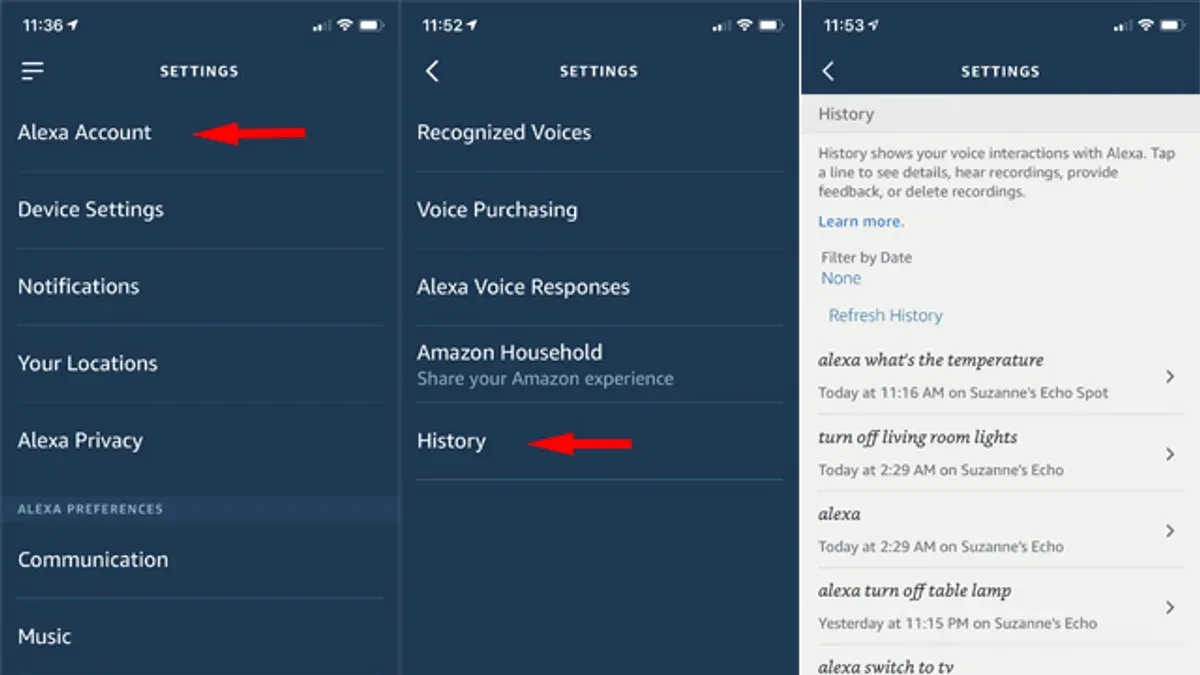
- Open the Alexa app and tap the menu icon (three horizontal lines) in the upper left corner. This reveals the main navigation menu.
- Select "Settings" from the menu, then scroll down and tap "Alexa Privacy." The Alexa Privacy page displays options related to voice recordings and data management.
- Tap "Review Voice History" to view recordings. By default, recordings are organized by date, with the most recent shown first.
- To delete a single recording, locate the specific entry, tap the three-dot icon next to it, and select "Delete Voice Recording." A confirmation prompt appears; confirm to remove that recording.
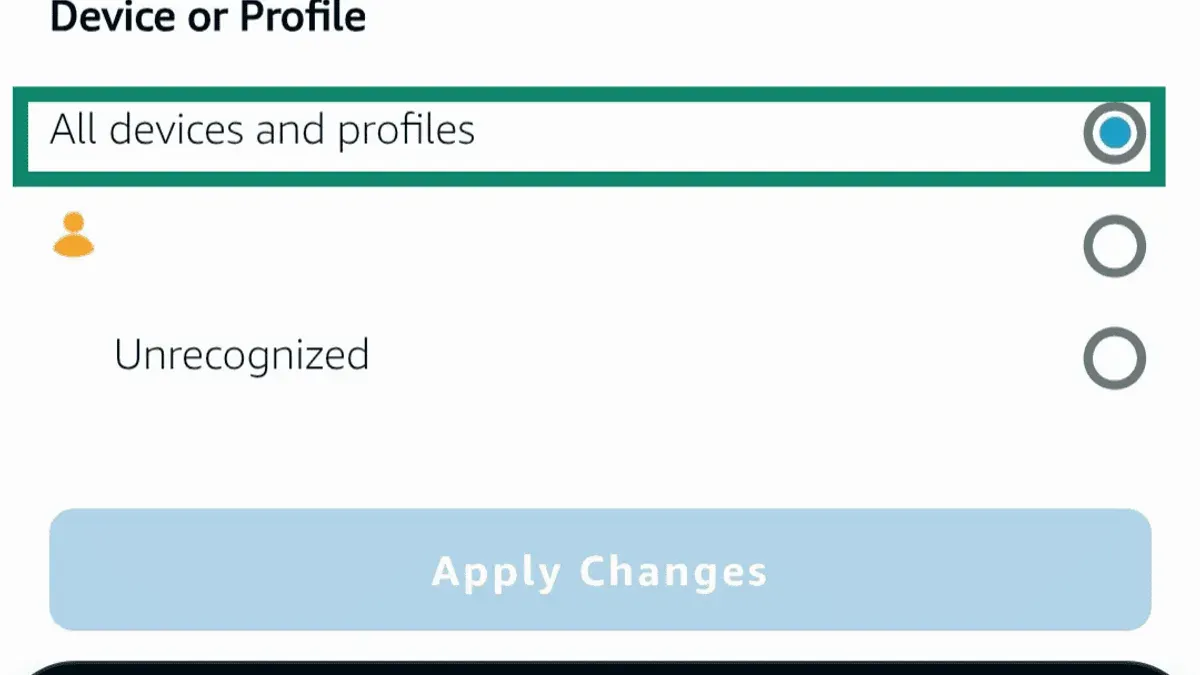
- For bulk deletion, tap "Delete All Recordings For All History" at the top of the voice history page. Alternatively, choose "Delete by Date" to specify a range, such as "Last 24 Hours," "Last 7 Days," or a custom date span.
- Confirm the deletion when prompted. The app will process the request and remove the selected recordings from Amazon's servers.
- After deletion, the deleted entries disappear from the list, but note that some data might remain temporarily in backup systems as part of Amazon's data retention policies.
Tip: To avoid accidental deletions, carefully review the confirmation prompts before proceeding, especially when deleting large date ranges or entire histories.
How to delete alexa voice recordings from the Amazon website
Managing Alexa voice recordings via the Amazon website offers an alternative to the Alexa app, with access to privacy controls and bulk deletion options. While the web interface provides many of the same functions, some users may find the layout and navigation different.
- Log in to the Amazon account associated with the Alexa devices. Upon successful login, the homepage or account dashboard should appear.
- Navigate to “Manage Your Content and Devices” by selecting “Accounts & Lists” near the top right, then choosing the option from the dropdown menu. This opens a page showing digital content management settings.
- Click on the “Privacy Settings” tab located within the “Manage Your Content and Devices” page. This directs to the Alexa privacy controls section.
- Select “Review Voice History” to view recorded Alexa interactions. Here, individual recordings are listed by date and time, with the option to listen to each before deciding on deletion.
- To delete recordings, choose a single recording and click “Delete,” or use the “Delete All Recordings for All History” button for bulk deletion. Note that the web interface allows deleting all recordings at once but does not support deleting multiple selected recordings in bulk.
The Amazon website facilitates easy access to recordings and simple bulk deletion, but it lacks some fine-grained controls available in the Alexa app, such as selecting multiple recordings for partial bulk deletion. Additionally, the web interface offers playback of recordings, helping users confirm which files to remove.
How to delete alexa recording conversations stored on devices
Alexa recordings are primarily stored in the cloud rather than locally on devices. Amazon Echo and other Alexa-enabled devices typically cache small amounts of temporary data for operational purposes, but the voice recordings themselves are uploaded to Amazon’s servers for processing and storage.
Because local devices do not maintain a comprehensive archive of voice recordings, there is no direct way to delete conversations from the device’s internal storage through settings or menus. However, some cached data and temporary files can be cleared by restarting or resetting the device.
When users want to ensure that all locally stored data related to Alexa recordings is removed, performing a factory reset is the most thorough method. This deletes all settings, personal preferences, and any locally held cache, returning the device to its original state.
Factory reset example on an Amazon Echo:
- Locate the action button on the device, usually a small round button.
- Press and hold the action button for about 25 seconds until the light ring on the device turns orange, then blue.
- The device will enter setup mode, indicating the reset was successful.
After a factory reset, Alexa will no longer retain any cached data or local settings; however, recordings stored in the cloud remain unaffected unless deleted through the app or website. Additionally, a reset means the device must be set up again, which can be inconvenient.
Tip: Regularly deleting recordings through the app or website is more effective for managing voice data than relying on device resets.
How to stop Alexa from recording everything
Controlling Alexa's recording behavior involves adjusting privacy settings, using device controls, and managing voice history retention to reduce unwanted data collection.
- Disable voice recordings: Open the Alexa app, go to Settings > Alexa Privacy > Manage Your Alexa Data, then turn off "Help Improve Alexa" and "Use Voice Recordings to Improve Amazon Services." When successful, Alexa will no longer save recordings to assist with service improvements.
- Use the microphone mute button: Press the microphone off button on the Alexa device. A red indicator light confirms the microphone is disabled and Alexa will not record any voice input until unmuted.
- Adjust voice history retention: In the Alexa app under Settings > Alexa Privacy > Manage Your Alexa Data > Choose How Long to Save Voice Recordings, select a shorter retention period, such as 3 months or 18 months. Shorter retention reduces the amount of stored data but may limit Alexa’s personalized responses.
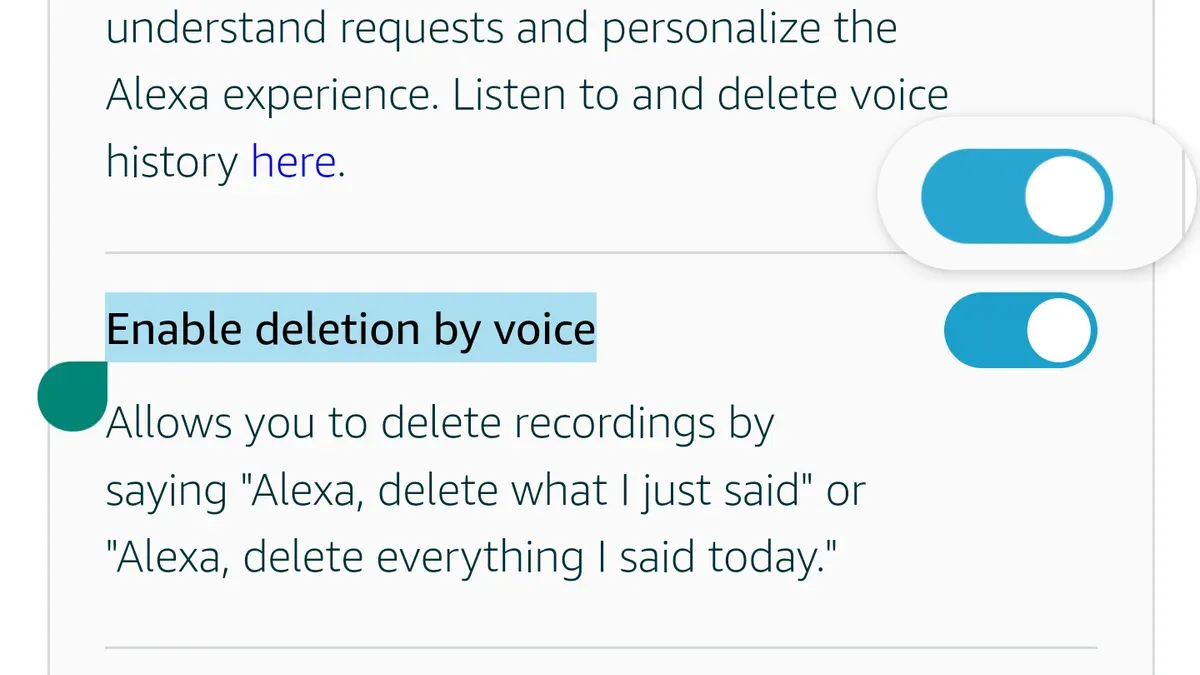
- Use voice commands to delete recordings: Say, "Alexa, delete what I just said" or "Alexa, delete everything I said today." Alexa confirms deletion and removes recent voice recordings automatically, providing a hands-free option to manage privacy.
Tip: Disabling recording features and muting the microphone provide immediate control, while retention settings and voice commands offer ongoing management of stored data.
How to listen to alexa recordings before deleting
Reviewing Alexa voice recordings before deletion helps users decide which recordings to keep or remove. Both the Alexa app and the Amazon website provide access to these recordings, allowing playback and examination of associated details.
- Open the Alexa app and tap More in the bottom menu, then select Settings.
- Navigate to Alexa Privacy and tap Review Voice History. The screen displays a list of recordings sorted by date.
- Tap any recording to play the voice clip. The interface shows the timestamp, device used, and the voice command or interaction type.
- To access recordings via the Amazon website, log in to the Amazon account, go to Manage Your Content and Devices, then select Privacy Settings under Alexa Privacy.
- Click Review Voice History to see a chronological list of recordings. Each entry can be played by clicking the play icon.
- Listening to recordings helps identify which clips might be unnecessary or sensitive, aiding informed deletion decisions.
Users often find that reviewing recordings reveals unexpected data captured by Alexa, reinforcing the importance of regular audits. However, reviewing sensitive recordings requires caution, as playing them aloud or in public spaces could expose private information.
Tip: Use headphones when listening to Alexa recordings to maintain privacy during review sessions.
Troubleshooting common issues when deleting Alexa recordings
Users sometimes face difficulties when managing Alexa recordings, such as recordings not deleting, reappearing after deletion, or experiencing delays between deletion requests and actual removal. These issues often stem from differences in how deletion propagates across devices and Amazon’s cloud services.
One common problem is that deleted recordings may temporarily reappear in the Alexa app or website. This usually resolves itself within a few hours as Amazon’s systems synchronize changes across all platforms. Patience is advised before assuming deletion failed.
Differences between devices and platforms can also cause confusion. For example, deleting recordings via the Alexa app may not immediately reflect on the Amazon website or other linked devices. This is due to backend processing delays and caching.
When recordings refuse to delete or present error messages such as "Unable to delete recordings" or "Action failed, try again later," users should first check for app updates, stable internet connection, and proper account login. Restarting the device or the app can also help clear temporary glitches.
If problems persist after these steps, contacting Amazon Customer Support is recommended. Support can verify account status, investigate potential backend issues, and provide specific troubleshooting tailored to the user's devices and account.
- Ensure the Alexa app is updated and the device has a stable internet connection. Successful action: the app opens without errors.
- Delete recordings again using the preferred method (app or website). Successful action: confirmation message or removal indication appears.
- Wait a few hours and refresh the app or website to confirm the deletion. Successful action: recordings no longer appear in history.
- If recordings still reappear or errors persist, restart the Alexa-enabled device and the controlling device (phone or computer). Successful action: devices reboot without issues.
- Contact Amazon Support through the Help & Customer Service section in the app or website for unresolved issues. Successful action: a support case is opened and assistance provided.
Privacy implications and limits of deleting Alexa recordings
Deleting Alexa voice recordings removes stored audio files and associated data from Amazon’s active servers, but it does not guarantee complete erasure from all backups or archives. According to Amazon’s privacy policy, deleted recordings are removed from customer-facing systems “within a reasonable period,” yet copies may remain in backup storage for a limited time to comply with legal and operational requirements.
Additionally, Alexa’s cloud-based architecture means some data may be shared with third-party services or used to improve speech recognition and other features. Deleting recordings does not retract insights already derived from voice data nor prevent Amazon from retaining anonymized or aggregated information.
Users should also be aware that deleting recordings may affect Alexa’s personalized responses. Voice profiles, preferences, and routines built on historical interactions could lose accuracy or require reconfiguration.
Compared with other voice assistants, Amazon’s retention and deletion practices are broadly similar, balancing user control with service functionality and legal compliance.
For users with heightened privacy concerns, recommendations include regularly deleting recordings, disabling voice purchasing, muting the microphone when not in use, and reviewing privacy settings frequently. Considering physical device controls and network-level protections can provide additional layers of privacy.
Further reading
- Can Hackers Steal Passwords Saved in Chrome? What You Should Know
- Can Hackers See You Through Your Phone Camera? What You Need to Know
- Can Hackers Hack Your Phone Through WiFi? What You Should Know
- Can Hackers Hack Your Phone Through Bluetooth? What You Need to Know
Frequently asked questions
How do i delete alexa recordings?
To delete Alexa recordings, open the Alexa app and go to Settings > Alexa Privacy > Review Voice History. From there, select recordings by date or all recordings, then choose Delete Voice Recordings. Alternatively, recordings can be deleted via the Amazon website under Manage Your Content and Devices > Alexa Privacy.
How to delete alexa history recordings?
Alexa history recordings can be deleted through the Alexa app by navigating to Settings > Alexa Privacy > Review Voice History. Select specific dates or all history to delete. Confirm the deletion to remove the recordings from Amazon's servers.
How do you delete alexa recordings?
Deleting Alexa recordings involves accessing the Alexa Privacy settings either in the app or on the Amazon website. Users can select individual recordings or entire date ranges and then delete them. It is important to note that some recordings may be retained by Amazon for service improvement unless the user opts out of voice recording storage.
How to delete recorded messages from alexa?
Recorded messages stored on Alexa devices can be deleted by opening the Alexa app, going to Conversations or Messages, then selecting the message to delete and choosing Delete. This removes the message from the device and the cloud, though the exact steps may vary slightly depending on the app version.
how do i delete alexa recordings
To delete Alexa recordings, access the Alexa app and go to Settings > Alexa Privacy > Review Voice History. Select recordings to delete by date or all recordings, then tap Delete Voice Recordings. Users can also use voice commands like "Alexa, delete what I just said" for recent recordings.
What this guide does not cover and who should seek other options
This guide focuses specifically on deleting Alexa voice recordings stored by Amazon through the Alexa app, the Amazon website, and on Alexa-enabled devices. It does not address data collected or stored by third-party Alexa skills, which often have separate privacy policies and data management controls. Additionally, it excludes other Amazon services where voice or interaction data might be retained, such as Amazon customer accounts or shopping history.
Users concerned about broader Amazon data privacy should review their Amazon account settings and privacy dashboards beyond Alexa-specific controls. For more comprehensive data deletion across Amazon services or legal requests, contacting Amazon customer support or reviewing Amazon’s privacy policies is recommended.
The single most useful next step is to regularly review and manage Alexa voice recordings directly through the Alexa app under Settings > Alexa Privacy > Review Voice History. This allows timely deletion of recordings and a better understanding of what Alexa stores, helping balance convenience with privacy.



