How to Convert Pages Documents to PDF on Mac: Step-by-Step Guide
Follow this step-by-step guide to convert Pages documents to PDF on your Mac for easy sharing and better compatibility.

You have a document created in Apple Pages on your Mac, and now you need to share it as a PDF. Whether you're using a MacBook Air, MacBook Pro, or another Mac model, knowing how to convert Pages to PDF on Mac is essential for compatibility and ease of sharing.
This article guides you step-by-step through the process of converting Pages documents to PDF, tailored to different MacBook models and Pages versions. It also clarifies common misconceptions about file compatibility and offers alternative methods if you prefer not to use the Pages app.
Key takeaways
- You can export PDFs directly from the Pages app via File > Export To > PDF.
- On MacBook Air and MacBook Pro, the conversion process is the same but watch out for software version differences.
- If you don’t have Pages installed, you can convert files using Preview or iCloud Pages online.
- PDFs created from Pages maintain formatting better than printing to PDF from other apps.
- Common issues include missing fonts and incompatible versions, which can be resolved by updating software or using alternative conversion methods.
Before you start: What you need to convert Pages to PDF on Mac
To convert Pages documents to PDF on your Mac, you need to ensure several prerequisites are met for a smooth process. First, have the Pages document ready and saved locally on your Mac. This means the file should not be open only in iCloud or another device but accessible on your current Mac.
Next, confirm your Mac is running a macOS version compatible with the Pages app. Generally, macOS Mojave (10.14) or later supports the latest versions of Pages with PDF export functionality. Older macOS versions may have limited or no support for recent Pages features.
Also, check that the Pages app is installed and updated. You can verify this by opening the App Store, searching for Pages, and seeing if an update option is available. Using the latest Pages version ensures all export options, including PDF conversion, function properly.
Finally, have a basic understanding of where your files are stored on your Mac. Knowing the folder or directory of your Pages document helps you locate it quickly during conversion.
| Supported macOS Version | Pages App Version | PDF Export Available |
|---|---|---|
| macOS Mojave (10.14) and later | Pages 7.x and later | Yes |
| Earlier than Mojave | Pages 6.x or older | Limited or no PDF export |
- Locate your Pages document saved on your Mac. You should see its.pages file extension in Finder.
- Open the Pages app from your Applications folder or Launchpad. The app should launch without errors.
- Verify Pages is updated in the App Store. If “Update” is visible next to Pages, click it and wait. Once updated, reopen Pages.
- Check your macOS version by clicking the Apple menu > About This Mac. Confirm it is Mojave or newer for best compatibility.
- Confirm you can open your Pages document in the app. It should display without errors or missing fonts.
Completing these steps ensures you have the necessary tools and environment to convert your Pages document to PDF reliably on your Mac.
How to convert Apple Pages to PDF using the Pages app
Converting a Pages document to PDF using the Pages app is the most direct and reliable method. Follow these steps to export your document quickly:
- Open your document in the Pages app. The document should appear in the main editing window.
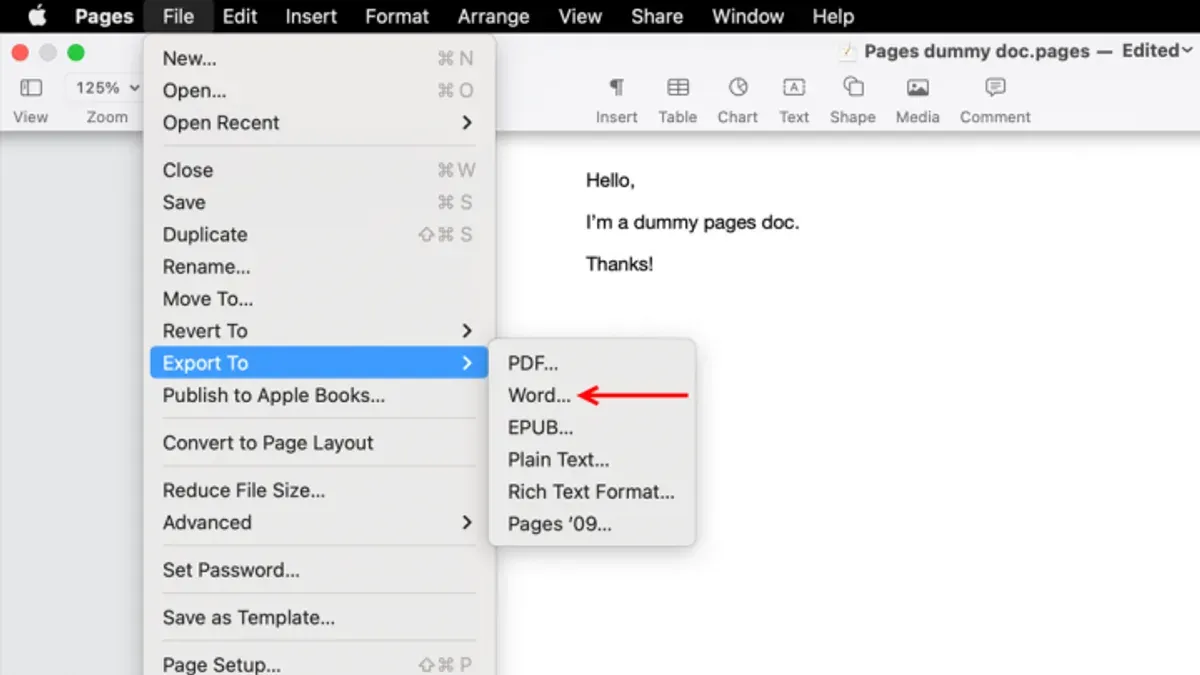
- Click File in the menu bar at the top of your screen to open the dropdown menu.
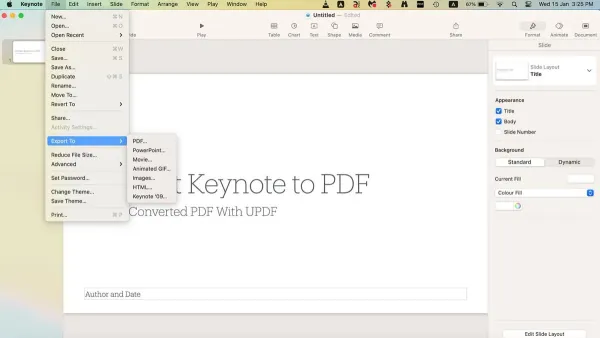
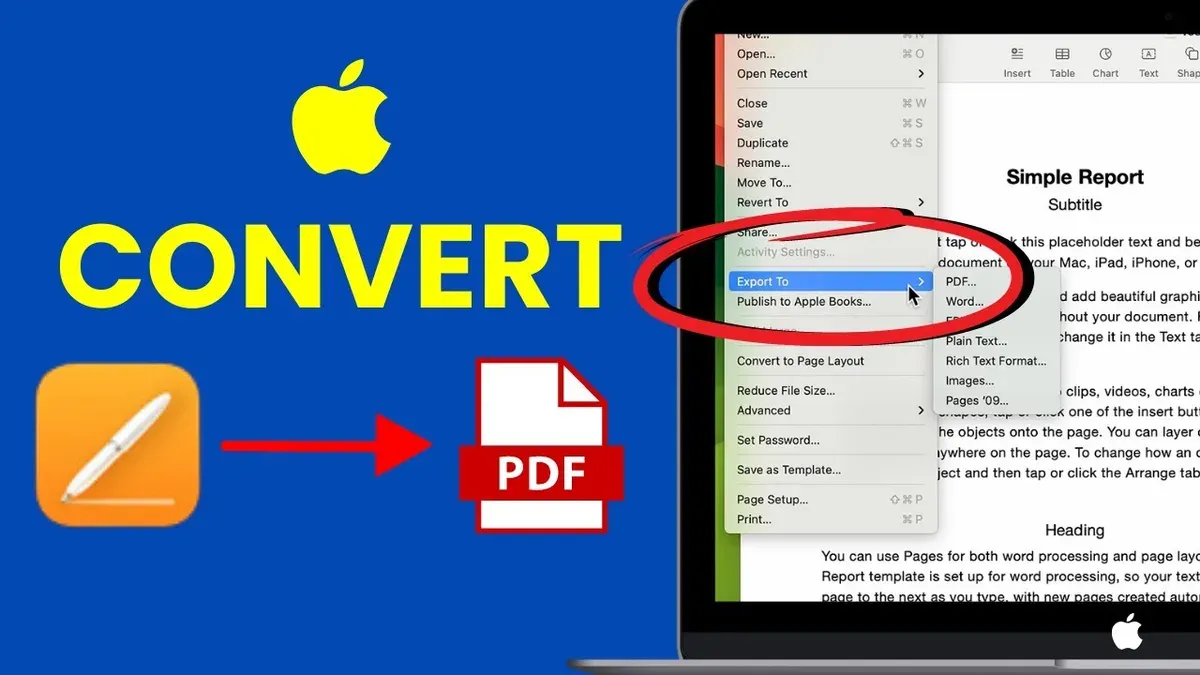
- Select Export To and then click PDF… from the submenu. This opens the export settings dialog.
- In the dialog, choose the PDF quality. Options typically include Good (smaller file size) or Best (higher resolution). Select the option that fits your needs.
- If you want to protect your PDF, click Security Options. Here, you can set a password to restrict opening or printing the PDF. Leave this blank if you do not want security.
- Click Next to proceed. A save dialog appears where you can name your file and choose the destination folder.
- After selecting the location and confirming the file name ends with
.pdf, click Export. Your PDF is saved to that location. - Locate the exported PDF in Finder and open it to verify the conversion was successful. It should open in Preview or your default PDF viewer.
This method preserves your document’s layout and formatting. It works consistently across MacBook Air, MacBook Pro, and other Macs with the Pages app installed.
How to convert Pages to PDF on MacBook Air, MacBook, and MacBook Pro
Before starting, verify your macOS and Pages app versions on your MacBook. Newer MacBook Air, MacBook, and MacBook Pro models running recent macOS versions usually handle PDF exports quickly, while older models might take slightly longer.
- Open your Pages document on your MacBook. You should see the document displayed and ready for editing.
- Press Command + P to open the print dialog. This shortcut works consistently across MacBook Air, MacBook, and MacBook Pro.
- In the print dialog, click the PDF button located at the bottom-left corner. A dropdown menu will appear.
- Select Save as PDF from the dropdown. A save dialog will pop up.
- Choose your desired file name and location, then click Save. Your PDF file will be created at the location you specified.
Trackpad users can use the standard macOS gestures to navigate menus quickly, but no specific gestures accelerate the export process.
On older MacBook models, especially those with limited RAM or slower processors, the export process might take a few extra seconds. Closing other applications can improve performance. The export steps and shortcuts remain the same across all models, ensuring a consistent experience.
Overall, the conversion speed depends more on document complexity than on the MacBook model. Simple documents convert almost instantly on any MacBook, while large, image-heavy documents may require more time regardless of device.
How to save Mac Pages as PDF without using the Pages app
If you don’t have the Pages app installed or prefer alternative tools, you can still convert Pages documents to PDF using Preview, iCloud, or third-party converters.
Using Preview or Print to PDF via the Print dialog
Though Preview cannot open.pages files directly, you can use the Print dialog to create a PDF from a Pages file if it is already open in another compatible app or if you use Quick Look.
- Locate your Pages document in Finder and select it.
- Press the Spacebar to open Quick Look showing a preview of the document.
- Click the Open with Preview button if available, or press Cmd+P to open the Print dialog.
- In the Print dialog, click the PDF button at the bottom-left corner.
- Select Save as PDF, choose a destination, and click Save.
This method works well for simple documents but may not support all Pages features perfectly. It is best for quick conversions without installing Pages.
Using iCloud Pages online to export PDF
You can convert Pages documents without the app by using the iCloud web version of Pages, accessible via any browser.
- Go to icloud.com and sign in with your Apple ID.
- Open the Pages app within iCloud and upload your.pages file by dragging it into the browser window or using the upload button.
- Once the document loads, click the wrench icon in the toolbar and select Download a Copy.
- Choose PDF as the format.
- The PDF version will download to your Mac, maintaining layout and formatting closely.
This is a reliable method if you have internet access and don’t want to install Pages, though it requires an Apple ID and may be slower for large files.
Third-party apps that convert Pages to PDF
Several third-party apps and online converters can transform Pages documents to PDF. Examples include Zamzar, CloudConvert, or PDF Expert.
- These tools often support drag-and-drop conversion and batch processing.
- They vary in privacy policy, cost, and conversion accuracy.
- Online converters require uploading your document, which may pose security concerns for sensitive files.
Use third-party options if you need quick conversion without Apple services but always review privacy terms and test output quality before relying on them regularly.
How to convert PDF to Pages on Mac for free
Converting PDFs back into editable Pages documents can be challenging because PDFs are primarily designed for fixed layouts, not editing. However, there are free methods you can use to extract content and recreate it in Pages, each with trade-offs in accuracy and formatting.
Using Preview to copy and paste text
- Open the PDF file in Preview on your Mac. You should see the document displayed clearly.
- Select the text you want to extract by clicking and dragging over the desired content. The selected text will be highlighted.
- Copy the selected text by pressing Command + C or choosing Edit > Copy from the menu.
- Open Pages and create a new document or open an existing one where you want to insert the text.
- Paste the copied text into Pages using Command + V or Edit > Paste. The text will appear in editable form.
This method works best for PDFs that primarily contain text. However, complex layouts, images, tables, and fonts often do not transfer perfectly. You may need to adjust formatting, reinsert images, or recreate tables manually.
Using online PDF to Pages converters
Several websites offer free PDF to Pages conversion services. You upload your PDF, and the site attempts to generate an editable Pages file. Examples include CloudConvert and Zamzar.
- Visit a trusted online converter site that supports PDF to Pages conversion.
- Upload your PDF file as instructed on the site.
- Start the conversion and wait for the file to be processed.
- Download the converted Pages document.
- Open it in Pages and review the content for accuracy and formatting issues.
While convenient, these services may have file size limits and privacy considerations. The conversion quality varies—text often converts reasonably well, but images and complex layouts frequently lose fidelity or require manual correction.
Keep in mind that no free method perfectly preserves all formatting and elements from PDFs when converting to Pages. Expect to spend some time cleaning up the converted document for professional use.
Troubleshooting common issues when converting Pages to PDF on Mac
When converting Pages documents to PDF, you may encounter crashes, export failures, formatting errors, or file access issues. Here are solutions for frequent problems.
Pages app crashes or won’t export PDF
- Restart your Mac to clear temporary glitches. After reboot, open Pages and try exporting again. Successful export means the issue was likely a temporary system resource conflict.
- Update macOS and Pages app to the latest versions via the App Store. Updated software often resolves bugs causing crashes.
- Duplicate the document by choosing File > Duplicate, then export the copy. If this works, the original file might be corrupted.
- Remove any third-party fonts recently installed, as incompatible fonts can cause export errors. Check if export works afterward.
Exported PDF missing images or formatting errors
- Ensure all images are fully embedded and not linked externally. In Pages, select images and check if they display properly.
- Use File > Export To > PDF and select "Best" quality to preserve layout and images.
- Open the exported PDF in Preview to verify if images appear correctly. If not, reinsert images in Pages and export again.
PDF file too large or low quality
- In the export dialog, select a lower image quality such as "Good" or "Medium" to reduce file size if the PDF is too large.
- If the PDF is low quality, choose "Best" quality to improve resolution, accepting larger file size.
File permission or access errors
- Check the document's file permissions by selecting the file in Finder, pressing Command+I, and reviewing Sharing & Permissions. Ensure you have Read & Write access.
- Save the document to a different folder, like Desktop, to avoid permission issues.
- If you see error messages such as "You do not have permission to save the file," try exporting with a different filename.
Editing PDFs on Mac with Pages and alternative workflows
Pages can open PDF files by importing them, but its editing capabilities for PDFs are very limited. You can select and edit text blocks if the PDF contains recognizable text, but complex layouts, images, and annotations often do not import correctly. This can result in formatting loss and make Pages unsuitable for thorough PDF editing.
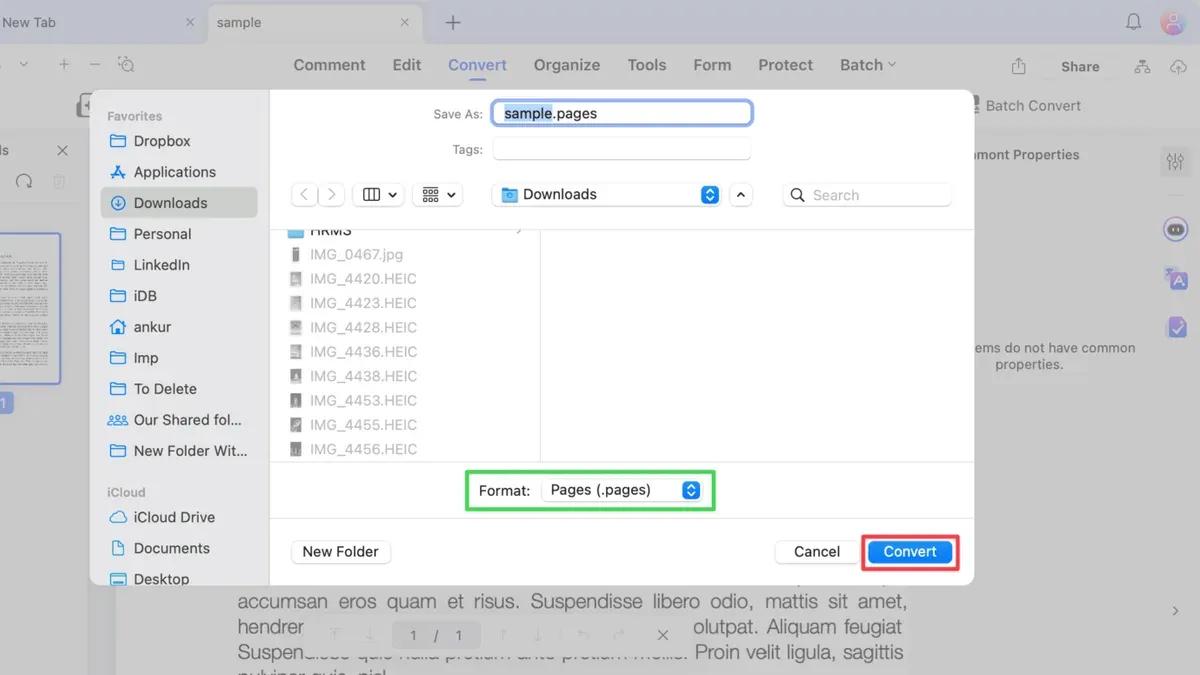
For better PDF editing, Preview—the built-in macOS app—offers more robust tools. Preview allows you to annotate, highlight, add signatures, and rearrange pages without altering the original content layout. However, Preview does not support deep text editing or layout changes within the PDF.
Dedicated PDF editors like Adobe Acrobat, PDF Expert, or Foxit PDF provide comprehensive editing functions, including text modification, image insertion, form filling, and advanced annotation. These tools preserve the PDF’s formatting and structure, making them preferable for professional or detailed edits.
If you need to extensively edit PDF text and layout, converting the PDF to a DOC or DOCX format for editing in Pages or Microsoft Word might be more effective. Conversion tools vary in accuracy, and some formatting may still require manual adjustment after conversion.
- Open Preview and load your PDF file. You should see the full document with navigation thumbnails on the side.
- Use the markup toolbar (View > Show Markup Toolbar) to add highlights, notes, or signatures. These edits appear as overlays on the PDF.
- For deeper edits, open a dedicated PDF editor, then open your PDF within it. You should see editable text fields and image objects accessible directly.
- To convert PDF to DOC, use an online converter or an app like Adobe Acrobat’s export feature. After conversion, open the DOC in Pages or Word and verify the layout and formatting.
- How to Convert Excel to PDF on Mac: Step-by-Step Guide
- How to Convert PNG to PDF on Mac: Simple Step-by-Step Methods
- How to Convert PDF to Word on Mac: Clear Step-by-Step Methods
Frequently asked questions
How to turn pages to pdf on mac?
Open your Pages document and click on the File menu. Select Export To and then choose PDF. Customize any export options if needed, then click Next to save the PDF file to your desired location.
How to convert pages document to pdf on mac?
Using the Pages app, open the document and navigate to File > Export To > PDF. Choose your PDF quality, then click Next and select where to save the file. This method works reliably across most macOS and Pages versions.
How to convert pages document to pdf on macbook?
On any MacBook model, including MacBook Pro and MacBook Air, open the Pages file and use File > Export To > PDF. If you don’t have Pages installed, you can upload the file to iCloud Pages via a browser and export it as PDF from there.
How to convert pages document to pdf on macbook air?
Open your document in the Pages app on your MacBook Air. Go to File, then Export To, and select PDF. After choosing your export settings, click Next and save the file to your preferred location.
How to convert pages document to pdf on MacBook Air?
The process is the same regardless of capitalization: open the document in Pages, then use File > Export To > PDF. Confirm your settings and save the PDF. This straightforward method requires no additional software and preserves formatting well.
Limits of this guide and when to seek alternatives
This guide does not cover converting encrypted or password-protected Pages or PDF files, as these require special access or software. While converting Pages documents to PDF generally preserves formatting, complex layouts, embedded videos, or interactive elements might not export perfectly. Additionally, editing PDFs directly in Pages offers only basic capabilities; for advanced PDF editing, consider dedicated applications like Adobe Acrobat or PDF Expert.
For users dealing with heavily formatted documents or needing robust PDF editing features, relying solely on Pages may not deliver optimal results. In those cases, exporting to PDF and then using specialized software is advisable.
The most effective next step is to open your Pages document, select File > Export To > PDF, and carefully check the exported PDF for any formatting issues. This ensures you catch any discrepancies early and decide if further editing or software is needed.