How to Convert Excel to PDF on Mac: Step-by-Step Guide
Discover easy steps to convert Excel spreadsheets to PDF on your Mac, ensuring your data stays consistent and accessible across devices.

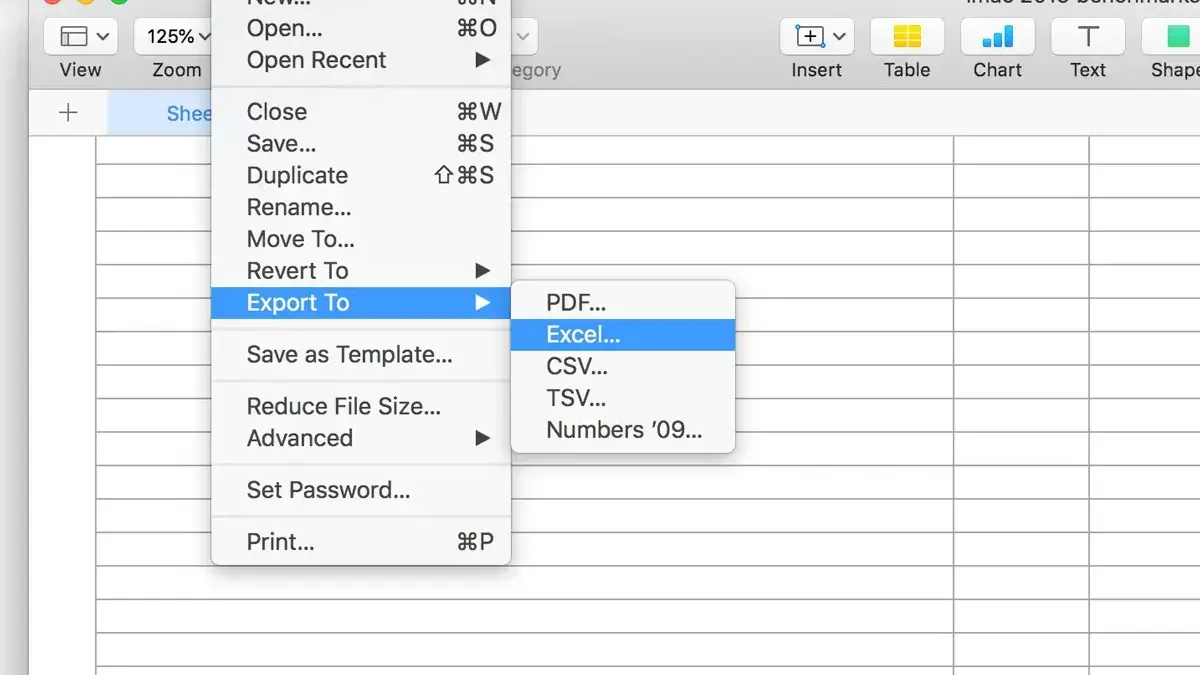
You have a detailed Excel spreadsheet on your Mac that needs to be shared or printed in a universally accessible format. Converting it to PDF ensures your data appears consistent across devices without requiring recipients to have Excel installed.
This article explains how to convert Excel to PDF on Mac using built-in Microsoft Excel features, including handling macro-enabled files. It also covers converting PDFs back to Excel format, offering practical guidance on both forward and reverse workflows. Whether you have a MacBook Air or a more powerful Mac model, you'll find clear, step-by-step instructions tailored to your needs.
Key takeaways
- You can export Excel files to PDF directly via Excel’s File > Save As or Export options on Mac.
- Macro-enabled Excel files require saving as standard PDF, as macros don’t transfer in PDF format.
- All Mac models, including MacBook Air, support these conversion steps without additional software.
- Free PDF to Excel conversion tools on Mac exist but may have limitations in accuracy or formatting.
- Using VBA macros can automate PDF to Excel reconversion but requires intermediate Excel skills.
Before you start: what you need to convert Excel to PDF on Mac
To convert Excel spreadsheets to PDF on your Mac, first confirm that Microsoft Excel is installed and updated. The latest version ensures compatibility with export features and file formats supported on macOS. Excel for Mac supports several file types, including standard workbooks (.xlsx), macro-enabled workbooks (.xlsm), and older Excel formats (.xls). Each format can affect conversion options, especially when dealing with macros or legacy files.
Conversion to PDF primarily relies on Excel’s built-in export or print-to-PDF functions, which are accessible within the app. Alternatively, third-party applications can handle conversions, especially when more advanced features or batch processing are needed. When converting PDFs back into Excel, dedicated tools such as PDF converters or OCR software are necessary since Excel does not support direct import of PDF content.
- Open Microsoft Excel on your Mac and verify the version by selecting Excel > About Excel from the menu. A recent version supports all export features.
- Locate your Excel file and check its extension (.xlsx,.xlsm, or.xls). You can view this in Finder by enabling file extensions.
- Ensure the file opens properly in Excel, with all macros enabled if applicable, to confirm compatibility before conversion.
- Decide whether you will use Excel’s built-in File > Export > PDF feature or a third-party app based on your needs.
- For reconverting PDFs to Excel, prepare to use a specialized converter or online service, as this process is not natively supported by Excel.
How to export Excel to PDF on Mac using Microsoft Excel’s built-in feature
- Open your Excel workbook on Mac. Confirm the spreadsheet you want to export is visible and ready for conversion.
- Click the File menu in the top menu bar. From the dropdown, select Export or Save As, depending on your Excel version.
- In the dialog box that appears, locate the File Format or Format dropdown menu. Select PDF as the export format.
- Set the Options or PDF Options button to customize the export: choose the page range (e.g., entire workbook, current sheet, or selected sheets) and adjust image quality or optimization settings if available.
- Choose the destination folder for the exported PDF file. Enter a file name that reflects the content for easy identification.
- Click Export or Save. Excel will generate a PDF version of your workbook and save it to the location you selected.
- Open the resulting PDF to verify the export quality. Check that the layout, fonts, and graphics match your original Excel content and that the file size is appropriate for your needs.
Using Excel’s built-in export feature ensures a straightforward workflow without additional apps. The PDF maintains high visual fidelity, including tables and charts, making it suitable for sharing or printing. However, customization options are limited to page selection and quality presets.
How to convert macro enabled Excel to PDF on Mac
When converting macro-enabled Excel files (.xlsm) to PDF on Mac, macros themselves do not directly affect the export process. However, macros can change the visible content of your spreadsheet, so ensuring all macros have run and data is updated before exporting is essential.
To convert your macro-enabled workbook to PDF, first save your file and enable all macros. This guarantees that any dynamic content generated by macros is visible and included in the PDF.
- Open your.xlsm file in Microsoft Excel on your Mac and enable macros if prompted. You should see all expected data and formatting updated according to your macros.
- Run any macros needed to refresh or generate content. Confirm that all the visible data you want in the PDF is displayed correctly.
- Go to the File menu, select Export, then choose PDF as the format. Set your preferred page range and quality options.
- Click Export. Excel will create a PDF of the current sheet or workbook view. Note that macros do not run within the PDF, so only static content appears.
Optionally, automate this process by using a VBA macro within Excel to export to PDF. For example, a simple VBA script to export the active sheet is:
Sub ExportSheetToPDF()
ActiveSheet.ExportAsFixedFormat Type:=xlTypePDF, Filename:="ExportedSheet.pdf", Quality:=xlQualityStandard
End Sub
This script will produce a PDF named "ExportedSheet.pdf" in your active folder.
Using VBA automation can save time when converting multiple sheets or workbooks, especially if you frequently update macro-driven content before exporting.
How to convert Excel to PDF on MacBook Air and other Mac models
The process of converting Excel files to PDF is largely consistent across MacBook Air, MacBook Pro, and desktop Macs running compatible versions of macOS. Microsoft Excel’s export feature works similarly on all devices, ensuring you can save spreadsheets as PDFs with the same menu options and settings.
However, performance differences do exist. MacBook Pro models with faster processors and more RAM generally convert large or complex Excel files to PDF more quickly than MacBook Airs, which might take a few extra seconds due to their lower processing power. The output quality and formatting remain identical across devices.
If your version of Excel or macOS does not support direct PDF export, you can use the macOS Print to PDF option as an alternative:
- Open your Excel file and choose File > Print. You should see the print dialog.
- In the lower-left corner of the print dialog, click the PDF dropdown menu.
- Select Save as PDF. A save dialog will appear.
- Choose your destination folder, enter a file name, and click Save. Your Excel sheet is now saved as a PDF file.
This method works uniformly across all Mac models and macOS versions and is helpful when Excel’s built-in export is unavailable or limited.
How to convert PDF to Excel on Mac for free
Converting PDF spreadsheets back to Excel format on Mac can be done using free methods, but each comes with trade-offs in accuracy and privacy. Free online converters like Smallpdf or iLovePDF offer quick results but require uploading your files to external servers; use them cautiously if your data is sensitive or if your files are large.
For simple tables, Preview on Mac provides a basic option. You can open the PDF, select table text, copy it, and paste directly into Excel. This works best for clean, uncomplicated tables but often loses formatting and cell structure.
Some free apps and scripts, such as Tabula or PDFTables’ limited free tiers, can extract tables into CSV or Excel formats. These tools usually require manual adjustments afterward and may struggle with complex layouts or scanned PDFs.
Accuracy varies widely: simple PDFs with clearly defined tables convert with reasonable fidelity, while PDFs containing merged cells, images, or non-standard fonts often require manual correction. Testing a few tools on sample files helps identify which suits your document’s complexity.
- Open your PDF file in Preview.
- Use the cursor to select the table data you want to convert.
- Copy the selection (Cmd+C).
- Open Microsoft Excel and paste (Cmd+V) the content into a worksheet.
- Adjust columns and rows as needed to restore table structure.
- If the table is complex, upload your PDF to a free online converter like Smallpdf, then download the Excel output.
- Review and correct any formatting or data errors in Excel.
How to convert PDF to MS Excel on Mac using VBA macros and automation
VBA on Mac cannot directly read or parse PDF files, but it can automate the use of external PDF-to-Excel conversion tools or scripts. This approach is useful for users who handle repetitive conversions and want to integrate the process into Excel workflows.
Here is a basic example of a VBA macro that calls an external command-line PDF converter (such as pdftoexcel or a custom script) using the MacScript function to run shell commands:
- Open the VBA editor in Excel (Tools > Macro > Visual Basic Editor).
- Insert a new module and paste this code:
Sub ConvertPDFtoExcel()
Dim pdfPath As String
Dim outputPath As String
Dim shellCommand As String
pdfPath = "/Users/yourusername/Documents/sample.pdf"
outputPath = "/Users/yourusername/Documents/output.xlsx"
shellCommand = "/usr/local/bin/pdftoexcel -i " & Chr(34) & pdfPath & Chr(34) & " -o " & Chr(34) & outputPath & Chr(34)
MacScript "do shell script """ & shellCommand & """"
MsgBox "Conversion completed: " & outputPath
End Sub - Replace the paths with your actual PDF and desired Excel output paths.
- Run the macro. You should see a message box confirming completion if the external tool runs successfully.
This setup requires you to install a reliable command-line PDF-to-Excel converter and ensure it is accessible at the specified path. You can also write AppleScripts that handle conversion apps and invoke them similarly.
Automation is ideal when processing many files or integrating PDF conversion into larger Excel-based tasks. However, it requires familiarity with VBA, shell scripting, and possibly installing third-party tools, which increases complexity and maintenance.
Workflow diagrams typically include: triggering the macro → VBA calls shell command → external converter processes PDF → Excel file is saved → VBA confirms completion.
Troubleshooting common issues when converting Excel to PDF on Mac
When converting Excel files to PDF on Mac, you may encounter missing data, formatting errors, or export failures related to macros. These issues often stem from incorrect print area settings or unsupported macro functions during export.
- Check the print area in Excel by going to Page Layout > Print Area > Clear Print Area, then reselect the range you want to export. If the PDF now includes all data, the print area was limiting the output.
- Ensure macros have fully run before exporting. Go to Developer > Macros, run necessary macros, then export. If errors persist, some macros may be incompatible with PDF export and require adjustment or disabling.
- If the PDF file size is too large, reduce image resolution by choosing File > Export > PDF and selecting a lower quality setting like Minimum Size (Publishing Online). This balances quality and size for easier sharing.
- Low PDF quality may result from incorrect export settings. Ensure you select Best for printing or Standard (publishing online and printing) in the export dialog for clearer output.
- Third-party tools can cause compatibility or installation issues. Verify the app is macOS compatible and updated. If the tool crashes or fails, reinstall it or use native Excel export as a fallback.
Users on forums report that clearing print areas and confirming macro execution resolve most export errors, while adjusting export quality settings effectively manages file size and clarity. For third-party apps, staying current and verifying permissions reduces installation problems.
Best tools and apps to convert Excel and PDF files on Mac
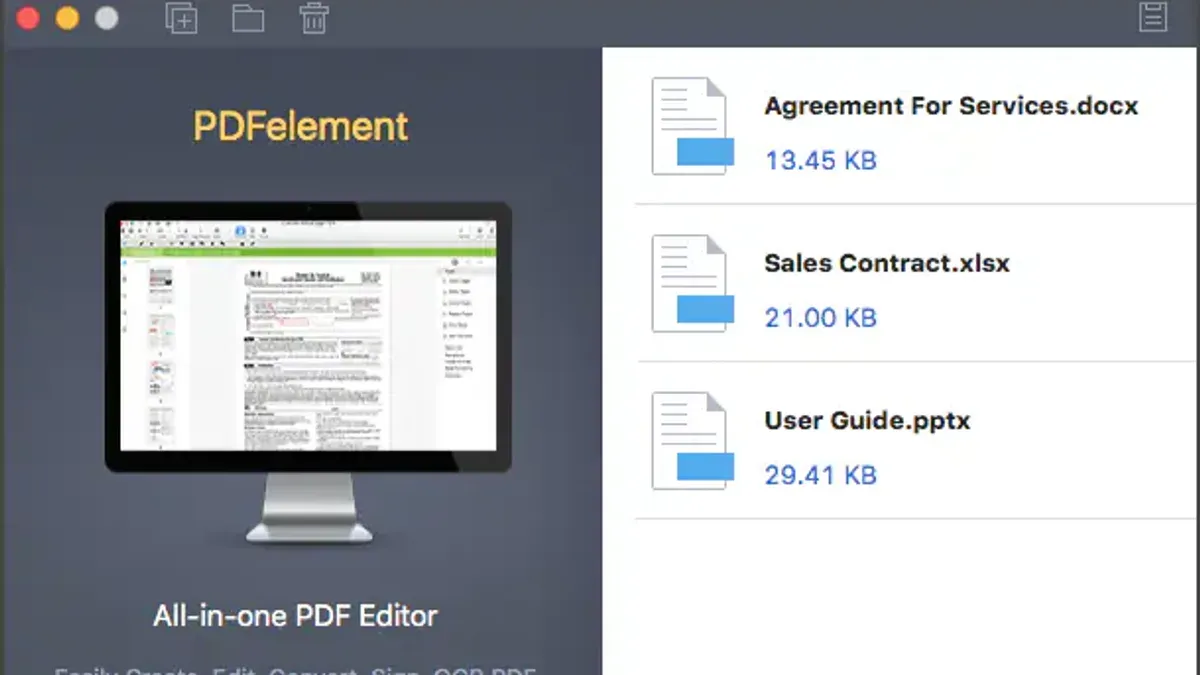
Several third-party tools excel in converting Excel to PDF and PDF back to Excel on Mac, offering varying levels of accuracy, privacy, and pricing. For PDF to Excel conversion, Adobe Acrobat Pro DC provides reliable and accurate extraction with support for macro-enabled files and batch processing, though it requires a subscription. PDF Expert, available on the Mac App Store, offers a streamlined interface with good accuracy for standard PDFs and reasonable pricing but lacks advanced macro support.
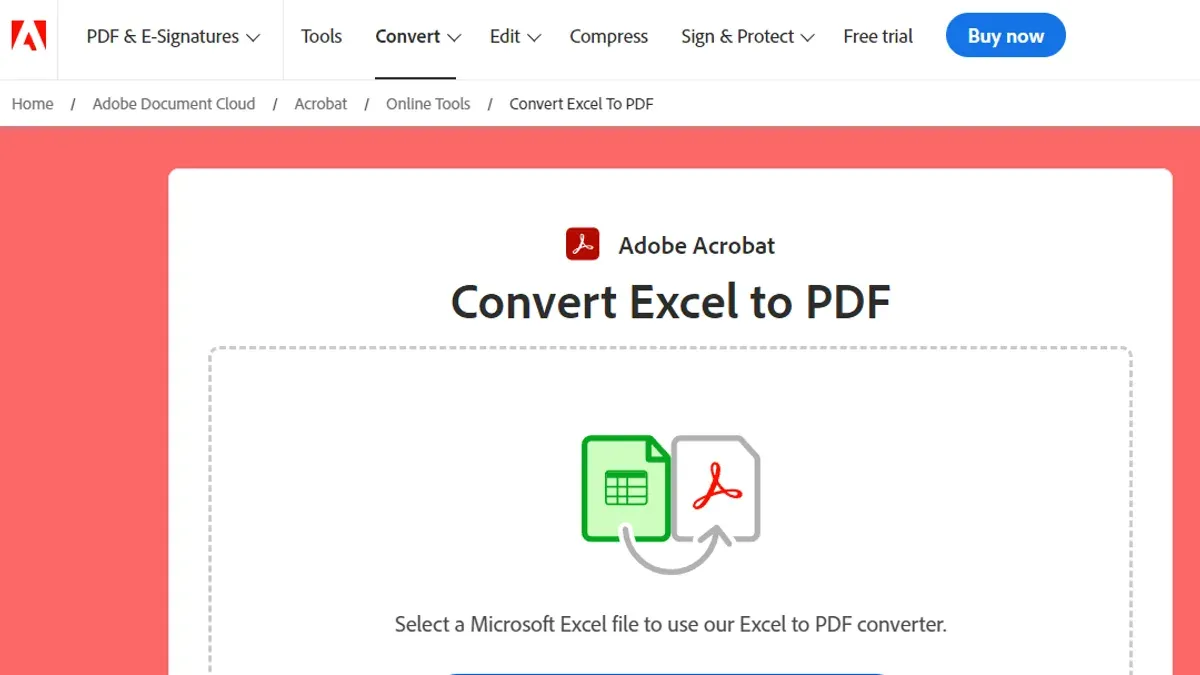
Smallpdf and iLovePDF are popular online converters with free tiers, suitable for quick tasks; however, they involve privacy considerations since files are uploaded to servers. For offline use, PDFPenPro supports batch conversion and integrates well with macOS, priced moderately and available through trusted download platforms.
When converting Excel files with macros to PDF, tools such as Automator workflows and VBA macro scripts can complement these apps by automating repetitive tasks. Batch processing is best handled by paid apps like Acrobat Pro or PDFPenPro, which maintain formatting and macro content fidelity.
| Tool | Conversion Direction | Macro Support | Batch Processing | Pricing | Privacy |
|---|---|---|---|---|---|
| Adobe Acrobat Pro DC | PDF ⇄ Excel | Yes | Yes | Subscription-based | High (offline) |
| PDF Expert | PDF → Excel | No | Limited | One-time purchase | High (offline) |
| Smallpdf / iLovePDF | PDF ⇄ Excel | No | Limited | Free / subscription | Low (online) |
| PDFPenPro | PDF → Excel | Partial | Yes | Moderate one-time | High (offline) |
To choose the best tool, consider whether you prioritize offline privacy, advanced macro support, or budget. Download apps directly from the Mac App Store or official developer websites to avoid security risks.
- How to Convert PNG to PDF on Mac: Simple Step-by-Step Methods
- How to Convert PDF to Word on Mac: Clear Step-by-Step Methods
- How to Convert PDF to JPG on Mac: Step-by-Step Methods
Frequently asked questions
How to convert xls to pdf on mac?
Open your XLS file in Microsoft Excel for Mac. Go to the File menu and select Export, then choose PDF as the file format. Adjust settings like page range and quality if needed, then click Export to save your Excel spreadsheet as a PDF.
How to change excel to pdf on mac?
To change an Excel file to PDF on Mac, use the Export feature in Excel. Navigate to File > Export, select PDF as the format, and confirm your export options before saving. This method preserves layout and formatting for easy sharing or printing.
How to convert pdf to excel for free on mac?
You can convert PDF to Excel for free on Mac using online converters like Smallpdf or Adobe’s free tools. Upload your PDF, select Excel output, and download the converted file. Be cautious with sensitive data when using online services, and check the conversion for accuracy.
How to export excel to pdf on macbook?
On a MacBook, open your Excel workbook and go to File > Export. Choose PDF as the file type, select your desired options, such as which sheets to include, then click Export. This works similarly across Mac models including MacBook Air and Pro.
What this advice does not cover and who should do something else
This article does not cover converting password-protected Excel or PDF files due to security restrictions. If your files are encrypted, specialized software or credentials are required.
Automated VBA macros for PDF to Excel conversion require advanced technical skills and may not work for all PDF formats, especially those with complex layouts or scanned images. Users without VBA experience might find manual or third-party tools more effective.
Free online converters can impose file size limits and raise privacy concerns. Avoid uploading sensitive or confidential data to these services unless you are confident in their security and data handling policies.
The simplest effective next step is to use Microsoft Excel’s built-in “Export” feature under the File menu, selecting “PDF” as the format, and specifying page range and quality settings. This method balances ease and reliability for most Mac users working with both standard and macro-enabled Excel files.