How to Change Yahoo Mail Password: Clear Steps for All Devices
Clear, step-by-step instructions to change your Yahoo Mail password on iPhone, Android, and desktop devices for better account security.

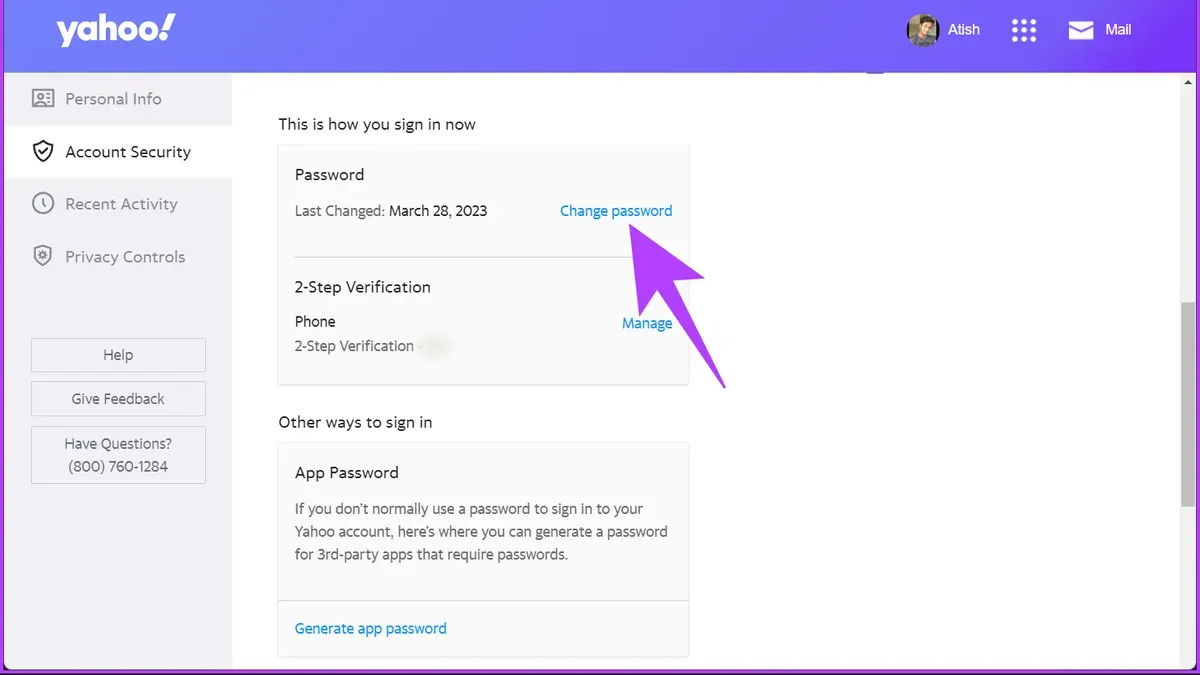
This article explains how to change Yahoo Mail password with clear, device-specific instructions. It covers common devices including iPhone, Android phones, and desktop computers to make the process straightforward.
Before changing the password, ensure access to the account’s recovery email or phone number for verification. The steps involve navigating to the Yahoo Account Security page and using precise menu options tailored for each device type. This guide also includes instructions for resetting a forgotten password and tips for troubleshooting common issues.
Following this step-by-step approach helps maintain account security and prevents unauthorized access. The instructions focus on exact settings and paths within the Yahoo Mail interface to avoid confusion.
Before you start: What is needed to change a Yahoo Mail password
Changing a Yahoo Mail password requires access to the account or its recovery options. Without access to the current password or recovery email and phone number, the process may fail or require a reset procedure. Ensure the device used to change the password has a stable internet connection to communicate with Yahoo servers. For mobile users, the Yahoo Mail app should be updated to the latest version to avoid compatibility issues during the password change.
Many users fail to complete password changes because recovery information is outdated or missing. Recovery email addresses and phone numbers must be accurate and accessible, as they are crucial for verification. Additionally, an outdated app version on iPhone or Android devices can block password change requests, resulting in error messages.
- Verify access to the Yahoo Mail account by signing in successfully. A successful sign-in confirms account access and readiness to change the password.
- Confirm that recovery email and phone number are current and accessible. This can be checked under Account Security settings where recovery options are listed.
- Ensure the device is connected to the internet. Test connectivity by opening a webpage or refreshing the inbox.
- Update the Yahoo Mail app if using a mobile device. On iPhone, check the App Store for updates; on Android, use Google Play Store. A successful update will show the app at the latest version.
How to change Yahoo Mail password on iPhone
- Open the Yahoo Mail app or launch Safari and go to mail.yahoo.com. If not signed in, enter the Yahoo ID and current password to log in. The inbox or Yahoo homepage should appear.
- In the app, tap the profile icon in the top-left corner, then select Manage accounts > Account Security. On the website, tap the profile icon in the upper-right, choose Account Info, then select Account Security from the sidebar.
- When prompted, enter the current Yahoo password again for verification. The password change screen will load.
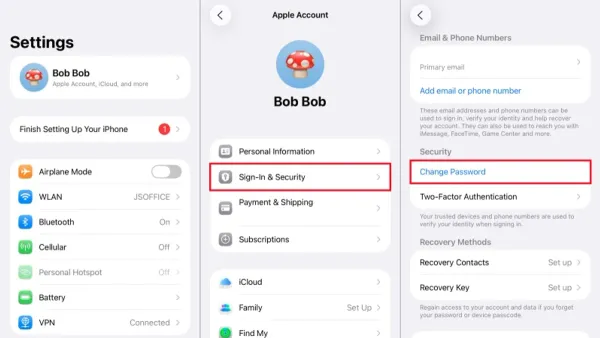
- Type the new password twice, ensuring it meets Yahoo’s security criteria: at least 8 characters, mix of letters, numbers, and symbols. The interface typically shows a checkmark or message when the password is valid.
- If two-factor authentication is enabled, approve the sign-in on the trusted device or enter the verification code sent via SMS or authenticator app.
- Tap Continue or Save to finalize the change. A confirmation message will appear.
- Return to the iPhone Settings > Passwords & Accounts > Yahoo (or Mail), and update the password there to maintain mail sync without errors.
Tip: If the password change does not sync immediately, force close the Yahoo Mail app and reopen it.
How to change Yahoo Mail password on Android
Changing the Yahoo Mail password on an Android device can be done through the Yahoo Mail app or a mobile browser. The app offers a streamlined experience, while the browser provides a more traditional interface. Both methods require signing in and navigating to account settings but differ in menu layouts and prompts.
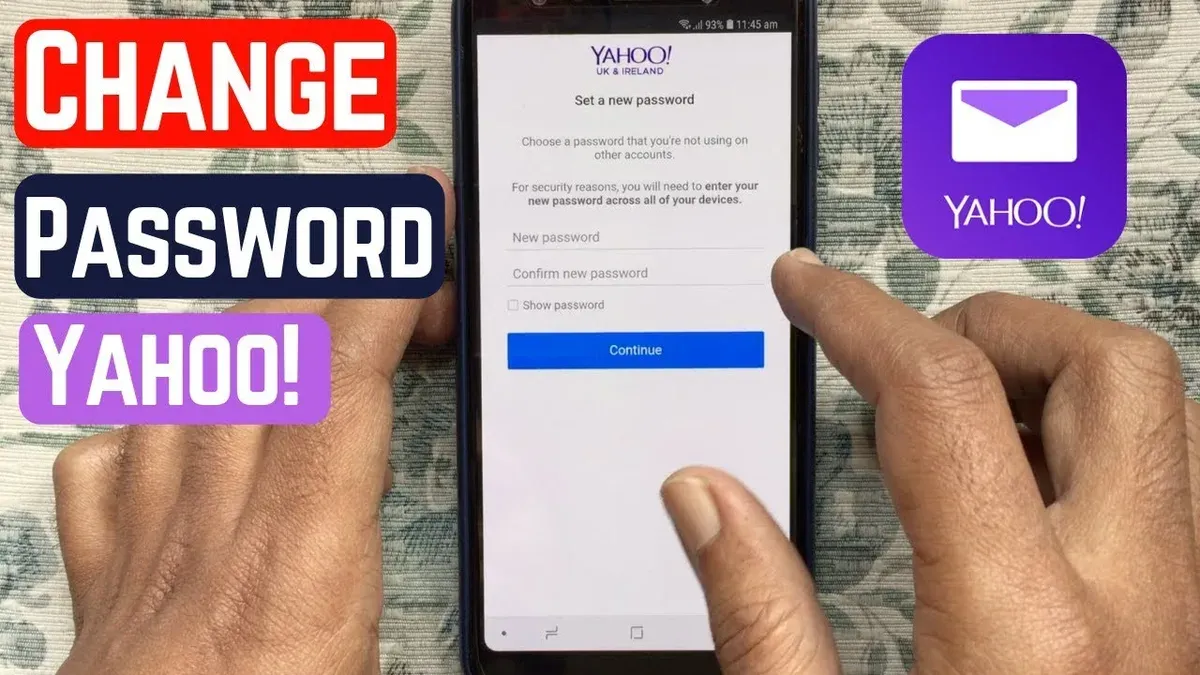
- Open the Yahoo Mail app or launch a preferred mobile browser and navigate to mail.yahoo.com. Sign in with the current Yahoo credentials; the inbox or Yahoo homepage confirms successful login.
- In the app, tap the profile icon in the top-left corner, then select Manage accounts followed by Account Info. On the browser, tap the profile icon and choose Account Info directly from the dropdown menu. The Account Info page should appear.
- Go to the Account Security section. The app and browser show this option similarly but may differ slightly in layout; the page titled "Account Security" confirms correct navigation.
- Enter the current password when prompted. This step verifies the user's identity before allowing a change.
- Type a new strong password that combines upper and lowercase letters, numbers, and symbols. Confirm the new password by re-entering it. A confirmation message indicates the password is accepted and changed.
- If Yahoo asks for identity verification, follow prompts using recovery email, phone, or security questions. Successful verification leads to finalizing the password change.
- If the Android device's native email app or other mail apps are linked to Yahoo Mail, update the saved password in those apps to maintain seamless mail synchronization.
Tip: The Yahoo Mail app typically offers faster navigation to account settings, but the browser method can be useful if the app experiences issues.
How to change Yahoo Mail password on laptop, desktop, or PC
- Open a web browser and go to the Yahoo Mail official website at https://mail.yahoo.com. Sign in using the current Yahoo Mail username and password. Successful login will display the inbox interface.
- Click the profile icon located in the upper-right corner of the page to open the account menu. Select Account Info from the dropdown. This will redirect to the Account Security page under the URL path https://login.yahoo.com/account/security.
- On the Account Security page, find and click the Change password option. A prompt appears requesting the current password for verification.
- Enter the current password to verify identity. Then, input the new password in the designated field and confirm it by typing the new password again in the confirmation box. The new password must meet Yahoo's security requirements, typically including a mix of letters, numbers, and symbols.
- Submit the change by clicking the Continue or Save button. If additional verification prompts appear, such as a code sent to a recovery email or phone, complete these steps to confirm the password change.
- After successful password update, sign out of Yahoo Mail. Sign back in using the new password to verify the change. It is recommended to log out and log back in on all devices where the Yahoo Mail account is used to ensure synchronization with the new password.
Tip: Use a strong, unique password and consider using a password manager to keep it secure and accessible.
How to change Yahoo Mail password if forgotten
- Go to the Yahoo Mail sign-in page and click on the Forgot password? link below the password field. This opens the password reset process.
- Enter the Yahoo Mail address that requires a password reset and click Continue. The system will prompt for verification to confirm account ownership.
- Choose a verification method from the available options: recovery email address, recovery phone number, or answering security questions. For example, selecting the recovery phone number will send a verification code via SMS.
- Enter the received verification code or answer the security questions correctly. Upon successful verification, Yahoo will allow setting a new password.
- Set a new password that meets Yahoo’s security criteria (usually at least 8 characters, mixing letters, numbers, and symbols). Confirm the new password and submit.
- Once the password is reset, sign in to the Yahoo Mail account using the new password. Update saved credentials on all connected devices and email apps to avoid sync errors.
Tip: If recovery options are outdated or inaccessible, visit the Yahoo Account Recovery Help page for additional guidance.
How to change Yahoo Mail password on the app
Changing the Yahoo Mail password directly within the app streamlines the process for both iPhone and Android users by combining identity verification and password update in one interface. The app settings offer a consistent layout across platforms, making navigation straightforward. The key steps involve accessing Account Security, verifying identity with current credentials or biometric authentication, and confirming the new password.
- Open the Yahoo Mail app and tap the profile icon or menu button, typically located in the top-left or top-right corner. The app settings menu appears.
- Select Account Security from the settings list. This opens the security options for the account.
- Verify identity by entering the current password or using biometric authentication if prompted (fingerprint or face recognition). Successful verification leads to the password change screen.
- Enter the new password twice in the provided fields to confirm accuracy. The app will indicate if the passwords do not match or do not meet complexity requirements.
- Tap Save or Update Password to finalize the change. A confirmation message should appear, indicating the password update was successful.
- Close and reopen the app to ensure the new password is active and sync is maintained without errors.
Tip: Keep the Yahoo Mail app updated to the latest version to avoid interface differences and ensure smooth password changes.
Troubleshooting common problems changing Yahoo Mail password
Users often face issues when changing their Yahoo Mail password, especially if recovery information is outdated or inaccessible. If the registered phone number or recovery email is unavailable, account recovery becomes difficult. In such cases, updating recovery options ahead of time or submitting an account recovery form on Yahoo's help site is necessary.
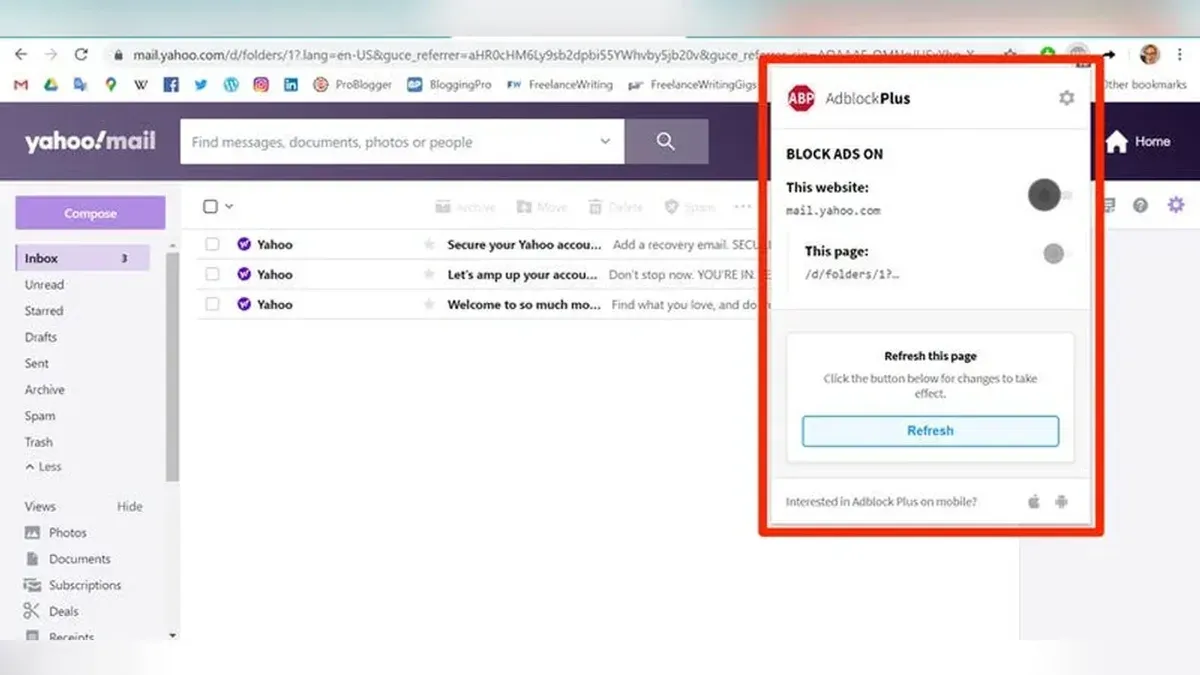
Yahoo server errors or timeouts can interrupt the password change process. These often occur due to server overload or connectivity problems. Refreshing the page, clearing browser cache, or trying again after some time usually resolves this. Using supported browsers like the latest versions of Chrome, Firefox, or Edge prevents compatibility issues with password change screens.
Outdated apps or browsers can block access to security settings where password changes occur. Keeping the Yahoo Mail app and browser updated ensures smooth navigation through account menus. If two-factor authentication (2FA) prevents access, users must have their authentication device or backup codes ready. Without these, resetting access requires contacting Yahoo support with proof of identity.
Tip: Avoid reusing old passwords and select strong, unique passwords combining letters, numbers, and symbols to enhance account security.
Security tips after changing Yahoo Mail password
Enabling two-factor authentication (2FA) significantly reduces the risk of unauthorized account access by requiring a secondary verification step during login. Yahoo's 2FA options include authenticator apps, SMS codes, or a hardware security key, which can be activated in the Account Security settings. Accounts with 2FA enabled have a notably higher resistance to breaches compared to those without.
Regularly updating passwords and avoiding common or reused passwords is essential. Use unique, complex passwords combining letters, numbers, and symbols. Password managers can help maintain strong passwords and prevent reuse across different accounts.
Review recent account activity by navigating to the Account Info page and selecting Recent Activity. Look for unfamiliar locations, devices, or login times. Promptly report and secure the account if suspicious activity appears.
Immediately update saved passwords in all connected apps and devices after changing the Yahoo Mail password to prevent sync errors and unauthorized access. This includes mail clients, third-party apps, and browsers.
Remain vigilant against phishing attempts targeting Yahoo Mail users. Do not click links or download attachments from unknown or suspicious emails. Yahoo never asks for passwords via email, so verify the sender before responding to any security-related messages.
Frequently asked questions
How to change Yahoo Mail password on phone?
To change the Yahoo Mail password on a phone, open the Yahoo Mail app and tap the profile icon. Select Manage accounts > Account info. This will open a browser window; then go to Account Security and choose Change password. Follow the prompts to set a new password.
How to change Yahoo Mail password on laptop?
On a laptop, sign in to Yahoo Mail via a web browser. Click the profile name or icon in the top-right corner and select Account Info. Navigate to Account Security, then click Change password. Enter the current password, then create and confirm the new one.
How to change Yahoo Mail password on desktop?
The process on a desktop is the same as on a laptop. Access Yahoo Mail through a web browser, go to the profile icon, and select Account Info. Under Account Security, choose Change password to update it. Completing this requires the existing password unless recovering a forgotten one.
How to change Yahoo Mail password if forgotten?
If the password is forgotten, go to the Yahoo sign-in page and click Forgot password?. Enter the Yahoo email address and follow verification steps, which may include a recovery phone number or email. Once identity is confirmed, create a new password to regain account access.
What This Guide Does Not Cover
This guide does not cover advanced account recovery scenarios where recovery options like secondary email addresses or phone numbers are lost, or accounts compromised through hacking. Users facing these issues should contact Yahoo support directly to verify identity and regain control of their accounts. Additionally, this article does not detail password management tools or third-party applications for password storage or autofill.
The single most useful next step after changing a Yahoo Mail password is to verify and update all account recovery options immediately. Confirm that the recovery email address and phone number linked to the account are current and accessible. This ensures the ability to reset the password in the future without difficulty and adds a critical layer of security to prevent unauthorized access.
See also: How to Change Your AOL Mail Password Across All Devices · How to Change Your Proton Mail Password: Clear Steps and Tips · How to Change iCloud Password: Step-by-Step Guide for Every Device · How to Change Gmail Password Across Devices: Complete Step-by-Step Guide