Fixes When Your Two-Factor Authentication Code Isn’t Working
Learn easy and reliable fixes when your two-factor authentication code isn’t working to regain secure access quickly.

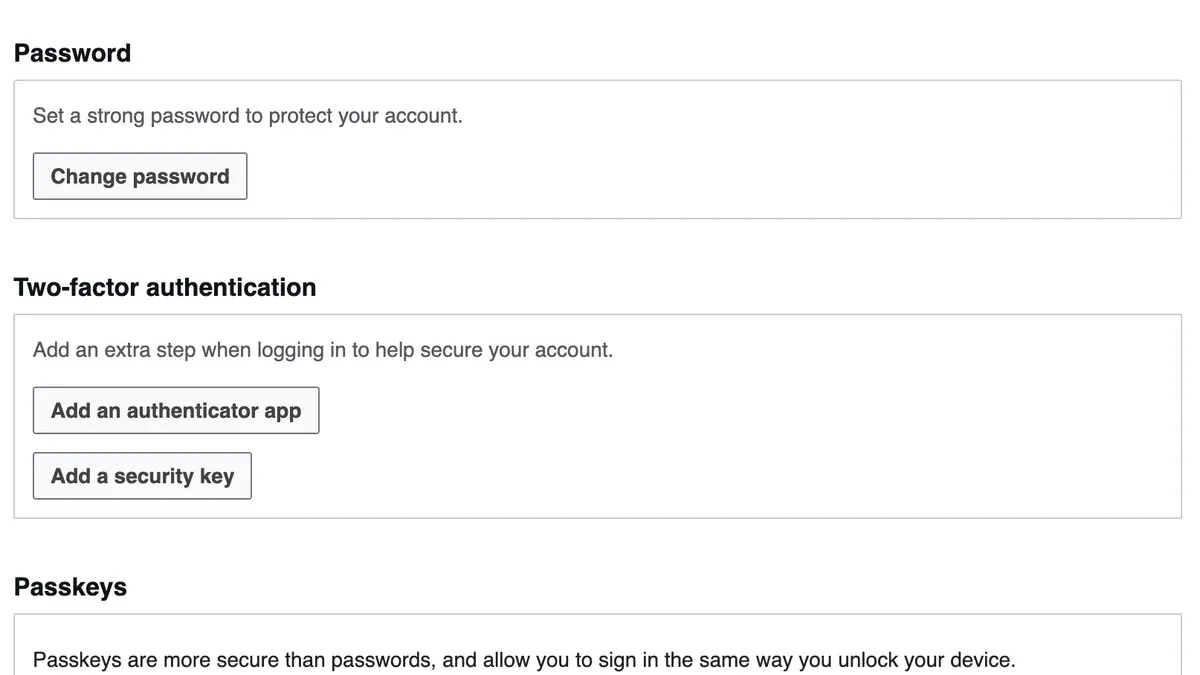
When these settings are off, your code is instantly invalid, causing frustrating failures. If you’re searching for two-factor authentication code not working fixes, the timing and syncing of your device is the first place to check.
The figures below come from GitHub Docs, ROIhacks.com, Online Tool Guides (full list at the end), as of November 2026.
Start by syncing your device’s time settings
Syncing time on Android with Google Authenticator
Android’s Google Authenticator app has a built-in option to correct its internal clock without waiting for your device’s system time to update. To use this, open the Google Authenticator app, tap the three dots in the top-right corner to open the menu, then select Settings. Next, tap Time correction for codes, and finally tap Sync now. This aligns the app’s time with the correct network time, ensuring generated codes are accurate.
Ensuring correct time settings on iPhone
On an iPhone, the authenticator app depends on the system time being correct. Go to Settings → General → Date & Time and make sure Set Automatically is enabled. This setting keeps your device’s clock synced to the network, preventing time drift that invalidates codes.
If your codes were rejected before, try generating a new code after syncing the time. If the new codes work, the issue was a time mismatch. This step resolves most problems with time-based one-time passwords and avoids unnecessary resets or lockouts.
- On Android, open Google Authenticator and navigate to Menu (three dots) → Settings → Time correction for codes → Sync now
- On iPhone, go to Settings → General → Date & Time and enable Set Automatically
- Generate a new 2FA code to confirm the time sync fixed the problem
Check for common mistakes that block code acceptance
One frequent cause of two-factor authentication code failures is using the wrong account entry within your authenticator app. Codes generated for a different account or an outdated setup will never be accepted. Always verify the account name or email next to the code before entering it.
Requesting multiple codes or authentication prompts in quick succession often backfires. This can trigger temporary blocks or delays, as the system attempts to prevent abuse or confusion. Having several pending codes or prompts may cause rejection or error messages, leaving you unsure which code to use.
Confusing old backup or recovery codes with current ones also leads to failure. Remember that generating new backup codes invalidates all previous ones, so using expired ones will not work.
| Symptom | Cause | Fix |
|---|---|---|
| Code rejected with "invalid code" message | Using code from wrong account or outdated setup | Check account label in authenticator app; enter code matching the correct account |
| Delay or error after multiple code requests | Repeated requests causing temporary block or confusion | Stop requesting codes rapidly; wait a minute, then request one new code |
| Codes not accepted despite being entered correctly | Using expired backup or recovery codes | Generate new backup codes and use a current one |
To fix these common mistakes:
- Confirm you are entering the code for the correct account entry in your authenticator app.
- If you requested multiple codes or prompts quickly, pause and wait for any temporary block to clear, usually within a few minutes.
- Use only current backup codes; if unsure, generate new ones and store them safely.
- Verify the account label next to your code matches the account you are logging into.
- Avoid requesting multiple codes or prompts in less than a minute.
Verify your SMS or voice call verification can arrive properly
When two-factor authentication codes sent via SMS don’t reach you, it often results from carrier filtering, weak cellular signal, roaming restrictions, or changes to your registered phone number. These factors can block or delay messages essential for your access.
If SMS codes fail, try switching to voice call verification. Voice calls sometimes bypass filtering mechanisms that block texts, improving your chances of receiving the code. However, voice calls can also be blocked by device call blocking or spam protection features, so reviewing these settings is important.
Always confirm your recovery phone number is current. An outdated number means codes are sent elsewhere, making them unreachable.
To troubleshoot and fix SMS or voice call 2FA delivery issues:
- Check your cellular signal strength and move to an area with better reception if needed.
- Review your device’s call blocking and spam protection settings to ensure voice calls from your service provider are allowed.
- If SMS messages don’t arrive, switch to voice call verification when prompted by your 2FA system.
- Update your recovery phone number in your account settings if it has changed.
More details on carrier and device issues causing 2FA failures.
Confirm push notification prompts can reach you
Without these, prompts will never appear, blocking your ability to approve a 2FA request.
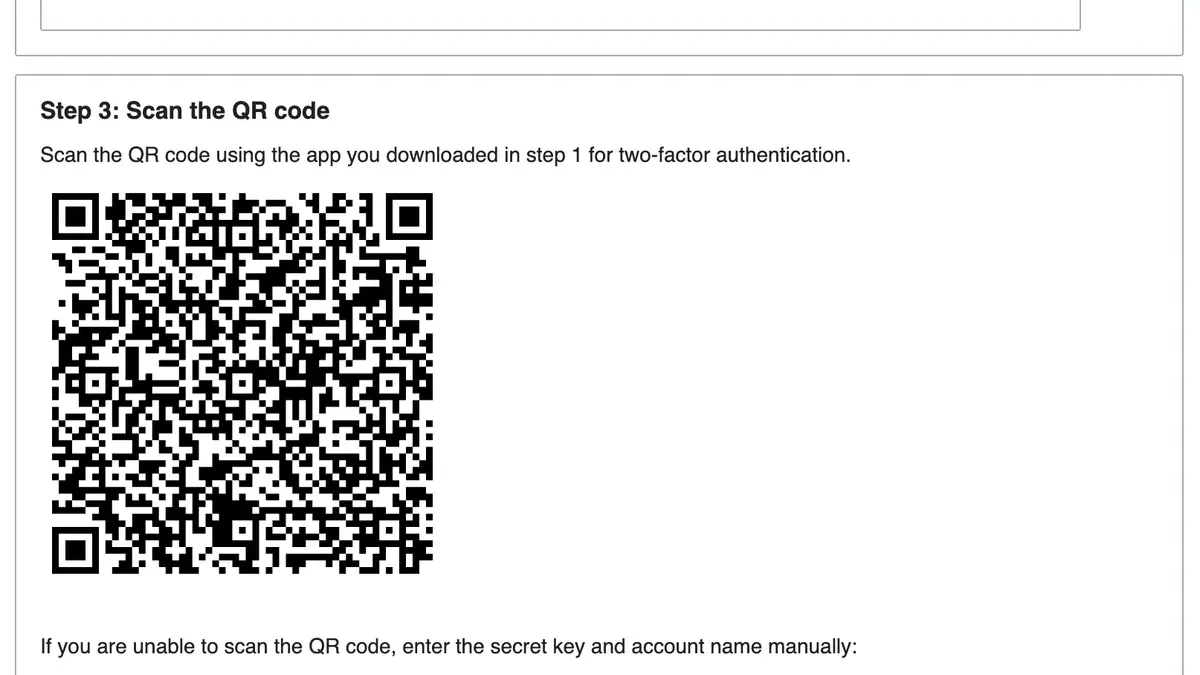
First, ensure the 2FA app has permission to send notifications. On Android, go to Settings > Apps & notifications > See all apps > [Your 2FA App] > Notifications, and confirm notifications are allowed. On iPhone, open Settings > Notifications > [Your 2FA App] and make sure Allow Notifications is enabled.
Next, verify your device has internet access when expecting a push prompt. Wi-Fi or cellular data must be active and stable. Without connectivity, the prompt cannot be delivered.
Temporary system modes like Do Not Disturb or Focus can silence notifications and prevent push prompts from appearing. Disable these modes before requesting a 2FA prompt to avoid missing it.
Battery optimization settings often delay or block background notifications to save power. On Android, check Settings > Battery > Battery Optimization and exclude the 2FA app. On iPhone, low power mode can affect notifications, so keep your device sufficiently charged or disable low power mode during 2FA use.
If the prompt appears promptly, you know the problem is resolved. If it still does not arrive, repeat the checks or consider switching to another 2FA method.
Use recovery and backup codes carefully
Backup codes serve as a critical fallback when your primary two-factor authentication (2FA) methods fail. Each backup code consists of 10 alphanumeric characters with a hyphen in the middle, following the format xxxxx-yyyyy. These codes are single-use only and must be stored securely to avoid losing access to your account.
If you lose or delete your authenticator app without having saved backup codes, you must rely on these recovery codes or initiate account recovery processes, as the app’s backup does not replace official account recovery and often excludes some accounts.
To find your backup codes for many services, navigate to the account's security settings. For example, in a Google Account, go to Security > 2-Step Verification > Backup codes. Download or print these codes and keep them in a secure location separate from your device.
When prompted, enter a backup code exactly as displayed.
- Access your account’s security settings and locate the backup codes section.
- Download, print, or write down the codes and store them securely offline.
- If primary 2FA fails, enter one unused backup code when prompted.
- After use, mark the code as spent and do not reuse it.
- Regenerate backup codes if you suspect they have been compromised or after using several.
Avoid deleting or resetting your authenticator app prematurely
If your 2FA codes stop working and syncing your device time doesn’t fix the issue, avoid uninstalling the app immediately. Instead, rely on backup codes or initiate account recovery processes.
App backups might seem like a safety net, but they do not replace official account recovery. Backup copies of the app often lack complete or current service entries, so restoring an app backup does not guarantee access to all your 2FA codes.
When you face code rejection and time sync is ineffective, follow these steps:
- Locate and use your stored backup codes, which have the format of 10 alphanumeric characters with a hyphen in the middle.
- If backup codes are unavailable or invalid, start the account recovery process offered by the service to regain access.
- Only after exhausting recovery options should you consider deleting the authenticator app, as this action removes your last working verification method.
Premature deletion risks extended lockout and complex recovery procedures.
- Use backup codes before deleting the authenticator app.
- Initiate account recovery if backup codes are unusable.
- Confirm 2FA access is restored before removing the app.
What to do after fixing your 2FA code issues
This step verifies that your device generates valid codes or that push notifications and SMS arrive as expected, preventing future lockouts.
Next, ensure your backup codes are up to date and securely stored. If you generated new backup codes during the fix, discard any previous sets because old codes become invalid once new ones are issued.
Review your trusted devices and linked 2FA methods. Remove any devices you no longer control and update your authentication settings to avoid confusion or unauthorized access. Use available recovery methods if you still have access to a trusted device or account recovery option to manage these settings safely.
Plan periodic maintenance by checking your device’s time settings and notification permissions regularly. Time drift or disabled notifications can silently cause 2FA failures over time, so early detection avoids repeated issues.
- Sign in with your fixed 2FA method to confirm it works.
- Store current backup codes securely and destroy old ones.
- Update or remove lost or unused trusted devices and 2FA methods via your account settings using another trusted device if available.
- Schedule regular checks on device time accuracy and notification permissions to maintain 2FA reliability.
How to choose the right 2FA recovery option for your situation
Choosing the appropriate recovery method depends on what access and options remain available to you. If you still have access to another trusted device or verification method, use it to sign in. From there, update or remove any lost or malfunctioning two-factor authentication methods to restore secure access.
Instead, use your backup codes or initiate the account recovery process provided by your service. These backup codes are unique 10-character alphanumeric strings with a hyphen, and only work once before being invalidated by new code sets.
When SMS or voice call codes fail due to carrier problems or device restrictions, first try switching from SMS to voice call verification. If your phone number has changed or is outdated, update it in your account settings to ensure codes can be delivered reliably.
If push notification prompts don’t appear, examine your device’s notification permissions, ensure a stable internet connection, and temporarily disable Do Not Disturb or Focus modes that might block alerts. Only after confirming these settings fail should you consider switching to a different 2FA method.
| Situation | Recommended Recovery Option | Determining Fact |
|---|---|---|
| Access to another trusted device or method | Use that device to sign in and update 2FA methods | Another device or method is accessible |
| Authenticator app codes not accepted; time sync ineffective | Use backup codes or account recovery process | Authenticator app verification fails even after time correction |
| SMS or voice codes not received consistently | Switch to voice call verification; update phone number as needed | Carrier/device issues block SMS delivery |
| Push notification prompts do not appear | Troubleshoot permissions and connectivity before switching methods | Push notifications blocked by settings or connection |
Follow these steps to confirm your chosen recovery method works:
- Attempt to sign in using the recovery method or backup codes.
- Once signed in, immediately update your 2FA settings to remove faulty methods.
- Confirm successful 2FA sign-in on subsequent attempts to ensure stability.
- Use another trusted device to regain account access if available.
- Apply backup codes or account recovery when authenticator app codes fail.
- Switch to voice call verification and update your phone number if SMS codes don’t arrive.
- Check and adjust push notification permissions and connectivity before changing methods.
Mistakes that cause repeated 2FA code failures and how to avoid them
- Ignoring device time synchronization: Not setting your device to use network-provided time or automatic time zone updates leads to code mismatches. To avoid this, on Android go to Settings > System > Date & time and enable Use network-provided time and Use network-provided time zone. On iPhone, open Settings > General > Date & Time and turn on Set Automatically.
- Entering expired or mistyped codes: Two-factor codes refresh every 30 seconds; using an outdated code or mistyping characters causes rejection. Always use the current code visible in your authenticator app and double-check each character before submission.
- Using invalid or regenerated backup codes without checking format: Backup codes must be exactly 10 alphanumeric characters with a hyphen in the middle (e.g., ABCD-1234EF). Generating new codes invalidates previous ones. Store them securely and confirm you use the latest set.
- Deleting or reinstalling the authenticator app prematurely: Removing the app before confirming recovery options can lock you out. Only consider reinstalling after verifying backup codes or alternative recovery methods.
- Overlooking SMS or call delivery issues: Network blocks, airplane mode, or carrier filtering can prevent verification messages. Ensure your device can receive SMS or calls uninterrupted before requesting codes.
Choosing the right recovery option depends on your current access and setup. If your device time is accurate and the authenticator app works, use generated codes directly. When authenticator access is lost but you have backup codes, rely on those ensuring they are the latest. If SMS or call verification is reliable for you, opt for that method; avoid it if you face network or blocking issues. Push notifications suit users with stable internet and linked apps but require prior enrollment. Assess your situation calmly to pick the method that avoids delays or lockouts.
References
- Troubleshooting two-factor authentication issues - GitHub Docs — GitHub Docs
- How To Fix Google Two-Factor Authentication Not Working - ROIhacks.com — ROIhacks.com
- Two-Factor Authentication Not Working? How to Fix It — Online Tool Guides
- How To Fix Gmail Two Factor Authentication Not Working - ROIhacks.com — ROIhacks.com