How to Check Where You're Logged In on Any Account Quickly and Thoroughly
Discover quick and thorough ways to see where you're logged in on any account, helping you monitor and secure your online sessions.

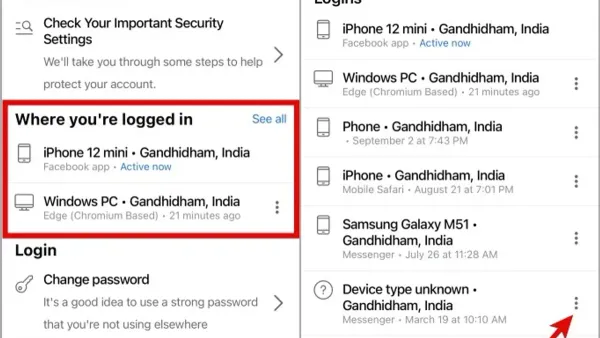
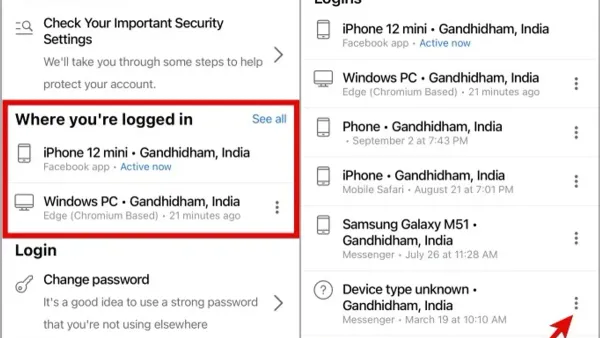
If you want to know how to see where you're logged in on any account, the quickest way usually involves navigating to menus named like 'Where You're Logged In' on Facebook or 'Login Activity' on Instagram, which list devices, locations, and timestamps of recent sessions.
The quickest way to see where you’re logged in across major platforms
Accessing active session details swiftly can save time and quickly confirm your account’s security status. For Google accounts, typing “myaccount.google.com/security” in your browser's address bar takes you directly to the Security page where you find the “Your devices” section listing recent activity by device, location, and last access time. Facebook users can go straight to the "Where You're Logged In" page by entering "facebook.com/settings?tab=security" and scrolling to that section. Microsoft accounts offer a direct link to “Recent activity” at "account.microsoft.com/security", showing sign-in history with device and geographic details.
On mobile apps, these pages are often under Security or Privacy settings, with some platforms like Instagram labeling it “Login Activity”. Using app shortcuts to security pages can reduce steps compared to navigating menus. Each session entry typically shows the device type, approximate location, and time of last activity, helping you spot unfamiliar logins.
- Open your browser or app and enter the direct URL or navigate to Security settings.
- Locate the session or login activity section: "Your devices" on Google, "Where You're Logged In" on Facebook, "Recent activity" on Microsoft.
- Review the listed sessions by device, location, and timestamp.
- If you spot an unfamiliar session, use the provided option to log out remotely or secure your account immediately.
Complete methods and options for every account type
To check where your account is logged in, you need to navigate to each platform’s specific security or privacy settings. These menus often include detailed session information such as device type, IP address, and login time. Here are steps for several common services.
- Gmail: Open Gmail, click your profile icon, select "Manage your Google Account," then go to "Security" > "Your devices." You’ll see all active sessions and can click "Manage devices" to sign out of any.
- Twitter: On the Twitter web or app, go to "Settings and privacy" > "Security and account access" > "Apps and sessions" > "Sessions." This page lists all devices currently logged in, with location and last activity time, allowing you to log out individually.
- Instagram: Access "Settings" > "Security" > "Login Activity." Instagram shows locations, device types, and times. You can tap a session and choose to log out remotely.
- Dropbox: In the Dropbox web interface, open "Settings" > "Security" > "Devices." Active sessions show device names and IP addresses. You can unlink devices to revoke access.
Common mistakes people make when checking where they’re logged in
One frequent error is overlooking session timestamps and assuming every listed login is recent. Sessions can remain active for days or weeks, so a device last used several days ago may still appear as logged in. This can cause confusion about whether a session is current or outdated.
VPNs and mobile networks often mask true locations and device names. A session might show a city or country that differs from where you actually are, or display unfamiliar device names. This happens because VPNs route traffic through different regions, and mobile IP addresses change dynamically, misleading session logs.
Failing to log out after using public or shared devices is another common mistake. Leaving a session open allows others to access your account without your knowledge. Always use the platform’s log out option or revoke the session remotely through the account’s session management settings.
Many users also overlook changing their password after noticing suspicious sessions. Simply logging out from unexpected devices does not prevent future access if the password has been compromised. Resetting your password adds a crucial layer of security.
| What you see | Cause | Fix |
|---|---|---|
| Session location shows a foreign city | Use of VPN or dynamic IP address | Confirm device details beyond location; use device type and timestamp to verify |
| Unfamiliar device name but correct location | Device registered under generic or manufacturer default name | Check device activity time and recent logins to identify |
| Session still active after logging out on device | Session not fully terminated or app cache not cleared | Use account’s session management to revoke access remotely |
How to handle shared devices, lost access, and managed accounts
When using shared or public devices, always log out completely from your account to prevent unauthorized access. Locate the Sign Out or Log Out option in the account menu and confirm the action. For extra security, clear browser cookies and cache after logging out, especially on public computers.
If you lose access to your account or device, use the official account recovery options provided by the platform. Typically, this involves navigating to the login page and selecting Forgot Password? or Can't Access Your Account? Follow the prompts to verify your identity via email, phone number, or security questions. Successfully completing these steps should restore your access.
Accounts managed by organizations such as schools or workplaces often have restrictions on session management. Administrators may control login sessions centrally and prevent users from terminating all active sessions. In such cases, you might see limited options under Security Settings. Contact your IT administrator if you suspect unauthorized access or need to manage sessions beyond what is available to you.
What this guide doesn’t cover and when you should seek professional help
If you suspect your account has been compromised in a complex way, professional incident response services are necessary to properly assess and contain the problem.
For accounts holding sensitive or high-value information, routine session checks and logouts may not be sufficient.
When your account shows signs of unauthorized access that you cannot fully control or understand, escalating to platform support or a security specialist is the safest option.
- Identify unusual activity that goes beyond login locations, such as unauthorized transactions or settings changes. This signals a need for expert help.
- Contact your platform’s official support channels to report the incident. You should receive confirmation or guidance if your report is accepted.
- Consider hiring a certified cybersecurity professional for a security audit if your account contains critical personal or business information. A successful audit provides a detailed assessment and recommendations.
How to decide which session management approach fits your situation
Choosing the right session management approach depends on your device usage, security needs, and account types. Quick session checks suit users who mainly access accounts from personal devices and want to confirm no unusual activity. In contrast, full audits are necessary for multi-device users, those handling sensitive data, or after detecting suspicious behavior.
| Situation | Recommended Action | Reason |
|---|---|---|
| Using a personal device only | Perform a quick session check via the platform’s main session menu (e.g., 'Where You're Logged In' on Facebook, 'Login Activity' on Instagram) | Convenient and sufficient to confirm current logins without interrupting normal use |
| Using multiple devices regularly | Conduct a full session audit including all devices and locations; revoke sessions not recognized | Reduces risk from forgotten or inactive sessions that could be exploited |
| Shared device usage | Always log out from the shared device and clear browser/app data after use | Prevents unauthorized access from subsequent users |
| Suspected account compromise | Immediately log out of all sessions and change your password; review any recent activity | Ensures removal of unauthorized access and secures account credentials |
| Managed or work accounts with limited controls | Contact your administrator for session management; follow company policies | Administrative restrictions limit user control over sessions |
Mistakes people make when checking where they’re logged in
- Relying on IP addresses without context: Seeing unfamiliar IPs or locations can be confusing due to VPNs or dynamic IPs. Avoid jumping to conclusions; check device details and timestamps before revoking access.
- Ignoring session timestamps: Overlooking when a session was last active may cause you to miss whether a login is recent or old. Always verify the last active time in login activity or session lists.
- Assuming all logged-in sessions are active connections: Some platforms show sessions that have already expired or logged out remotely. Confirm session status before taking action.
- Not checking the exact menu names: Navigating to generic security settings instead of specific options like Facebook’s "Where You're Logged In" or Instagram’s "Login Activity" can delay finding current sessions.
- Overlooking device types: Confusing desktop, mobile, or app logins can lead to misjudging legitimate sessions. Pay attention to device details displayed for each login.
When this guide is not enough and you should seek other help
If you suspect your credentials have been compromised or your account is actively under attack, contact the service provider’s support directly or consult a cybersecurity professional.
Choosing the right session management approach depends on your situation. If you share devices, prioritizing manual logout and password changes is best. For lost access, focus on account recovery options before session review. When multiple sessions appear legitimate but unfamiliar, carefully revoke sessions one by one rather than all at once. Adjust your approach based on whether you want immediate revocation, continuous monitoring, or periodic audits of active logins.