How to See Where You're Logged Into AliExpress and Manage Your Sessions
Discover how to view and manage active AliExpress sessions to keep your account secure from unauthorized devices and suspicious activity.

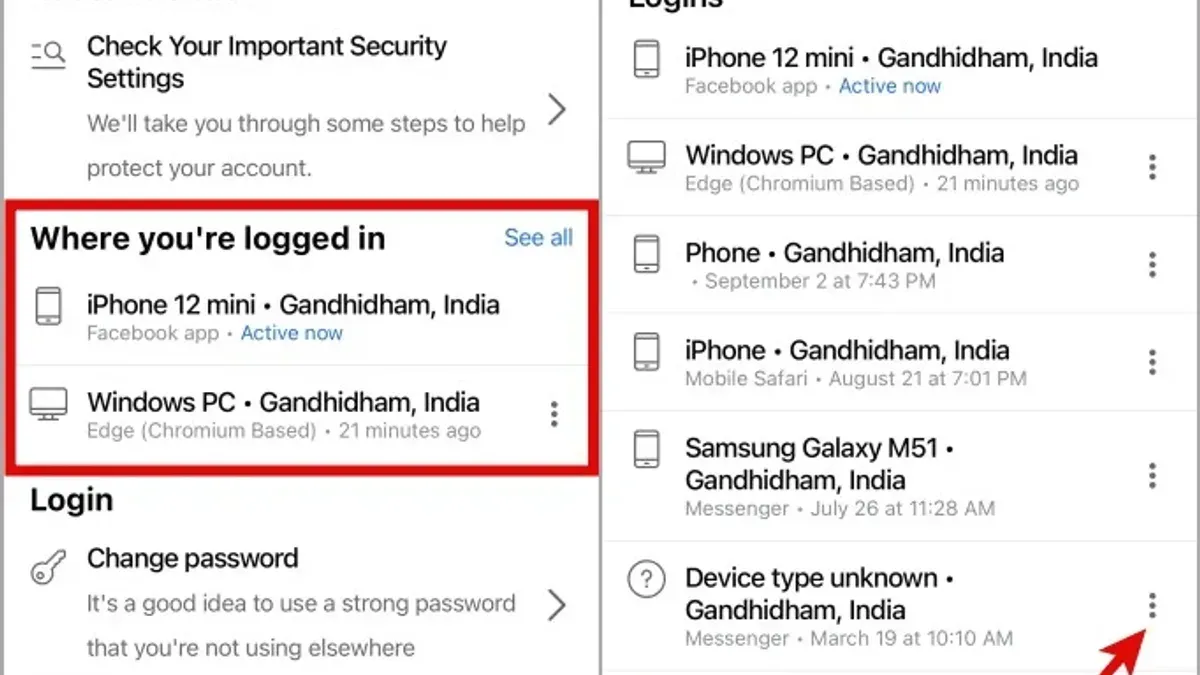
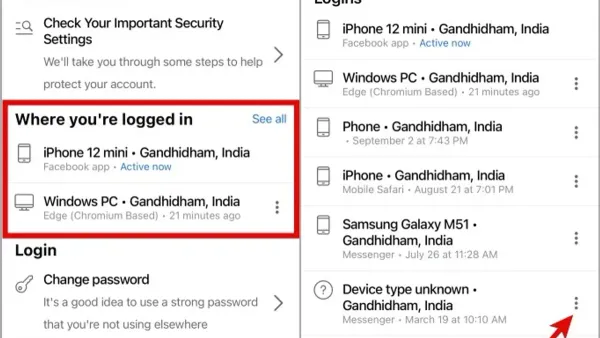
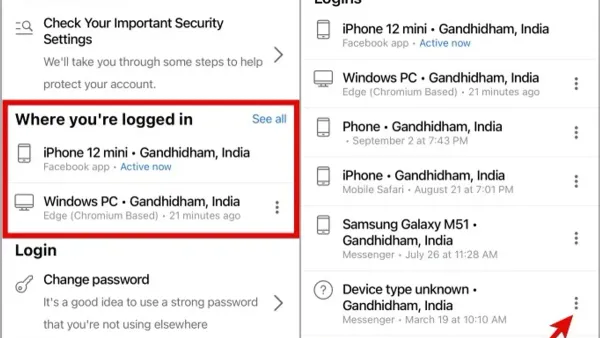
This feature helps you identify all active sessions across devices, so you can quickly spot any unfamiliar activity.
By accessing these settings, you get a snapshot of recent logins, although the data might not cover every device or session due to retention policies.
Once you locate your active sessions, managing them effectively involves a specific sequence of actions: identifying suspicious sessions first, then logging out those devices, followed by changing your password and enabling two-factor authentication. This order ensures your account stays secure without leaving vulnerabilities during the process.
What it means to see where you're logged into AliExpress
On AliExpress, viewing where you're logged in means checking your account's active sessions and the devices currently granted access. This information is found under the Security Settings section, labeled as either Login History or Device Management. Unlike some platforms that use terms like "Active Sessions" or "Where You're Logged In," AliExpress's terminology can lead to some confusion.
It helps you detect unauthorized logins from unknown devices or locations, which could indicate someone else accessing your account without permission. For example, if you see a session from a city you have never visited or a device you do not recognize, it could signal a potential security breach.
This session visibility fits into AliExpress’s broader security measures, such as password protection and two-factor authentication. However, official information does not clearly specify how long session data is retained or whether all device types—like mobile apps and desktop browsers—are shown. Because of this limitation, treat the session view as a partial snapshot rather than a complete record.
How to find where you're logged into AliExpress on mobile and desktop
To check active login sessions on AliExpress, start by opening the app or website and signing into your account. On the mobile app, tap the "My Account" tab located at the bottom right. Scroll down to find "Security Settings" and open it. Here, select either "Login History" or "Device Management" to view your recent sessions.
On the desktop site, hover over your profile name at the top right and click "Account Settings". Navigate to "Security Settings" from the left menu, then choose "Login History" or "Device Management".
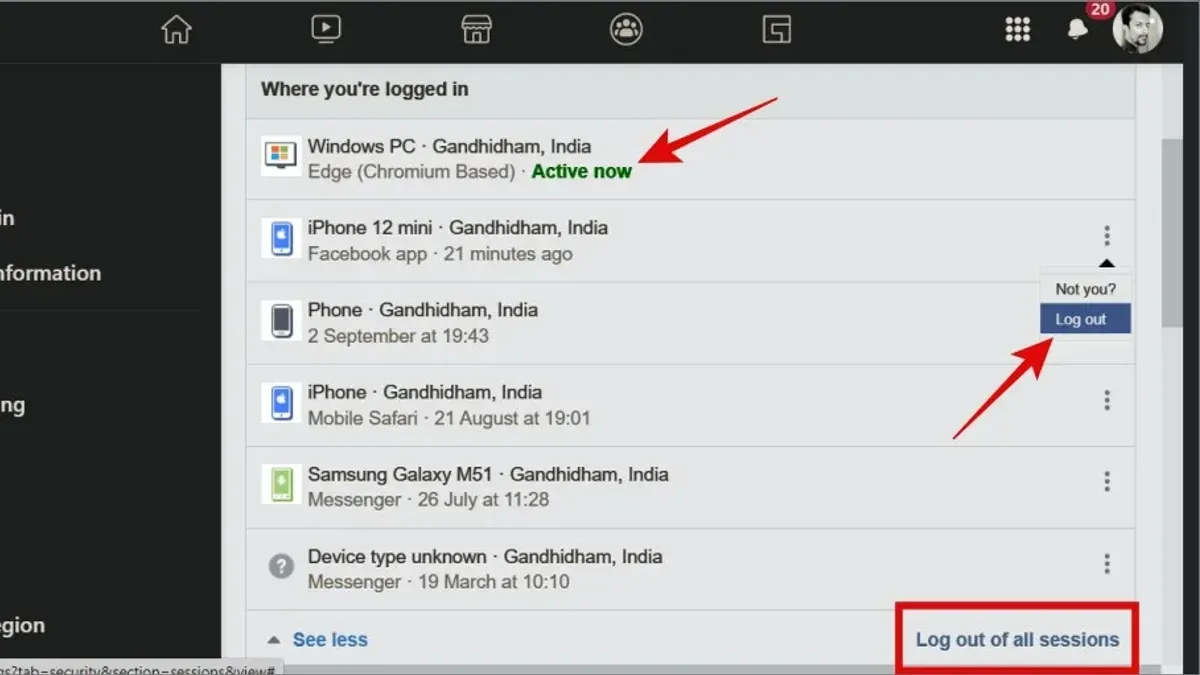
Both on mobile and desktop, the session overview lists device types (like "Windows PC" or "iPhone"), approximate login locations, and timestamps for each session. For example, you might see a session labeled "Chrome on Windows" from "New York" logged in three days ago. This helps identify unfamiliar devices or locations.
- Open AliExpress app or website and sign in
- Go to "My Account" or profile menu
- Select "Security Settings"
- Tap or click "Login History" or "Device Management"
- Review device names, locations, and login times
Actions to take after seeing your AliExpress login sessions
If you spot a suspicious session, immediately log out that device remotely. This option appears next to each session entry, allowing you to terminate access without affecting other sessions.
Changing the password before logging out devices can allow unauthorized users to remain signed in. Conversely, logging out first ensures that once you update your password, no unauthorized sessions persist.
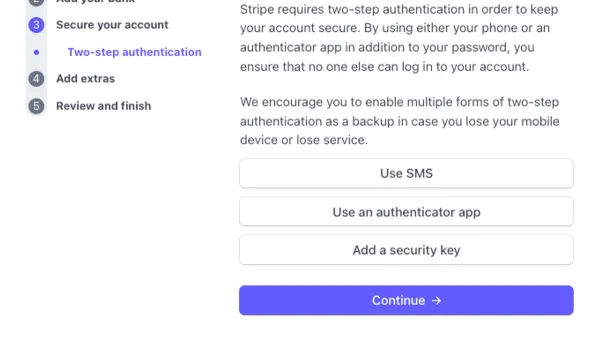
This adds an extra layer of protection by requiring a verification code on top of your password during sign-in attempts, reducing the chances of unauthorized access.
They can provide assistance to investigate and secure your account further, especially if you suspect your account has been compromised.
- Identify unfamiliar sessions in 'Login History' or 'Device Management'
- Log out those sessions remotely before changing your password
- Change your password to prevent re-entry from unauthorized devices
- Enable two-factor authentication for added security
- Contact AliExpress support if suspicious activity continues or logout options are unavailable
Only after confirming logout should you update your password and activate 2FA. Skipping the logout step first can leave your account vulnerable until the password change takes effect.
How to search on AliExpress and find stores or products efficiently
AliExpress’s search bar is your main tool for locating products or stores. Start by typing specific keywords related to the item or store you want. For example, if you are looking for wireless headphones, enter “wireless headphones” directly.
Once the initial results load, use filters located above or beside the listings to narrow choices by categories such as price range, free shipping, seller ratings, or order volume. This helps sift through thousands of items to find those most relevant to your needs.
To find a store by name, enter the exact store name in the search bar. If the name is common or misspelled, results may vary. You can also browse product categories by clicking on main categories from the homepage, then drilling down into subcategories.
Here is a checklist to improve your AliExpress search:
- Use clear, specific keywords related to the product or store.
- Apply filters like price, orders, and ratings to refine results.
- Check the product descriptions and seller ratings before selecting.
- Use category navigation if you want to explore options broadly.
How to see recently viewed items on AliExpress
AliExpress keeps a record of products you have browsed, allowing you to revisit them quickly. On the AliExpress mobile app, the Recently Viewed section is located on the homepage. Scroll down past the main banners and categories until you find a horizontal carousel labeled “Recently Viewed.” Here, you’ll see thumbnail images of products you viewed during recent sessions.
On the desktop website, you can find your recently viewed items near the bottom of the homepage or in your account menu under My AliExpress. Look for a section or link titled Recently Viewed or Browsing History. Clicking this will display a grid or list of product thumbnails with links back to their pages.
If you use multiple devices or are not logged in, the history may be fragmented or incomplete. The platform does not specify exactly how long it retains this data, but typically, only recent views within a short timeframe are shown.
For example, imagine you were browsing wireless earbuds yesterday but did not save the page. Visiting the Recently Viewed section lets you scroll through product images you looked at and easily return to compare or purchase without searching again.
- Open the AliExpress app or website.
- Scroll down the homepage or open your account menu.
- Locate the Recently Viewed section.
- Browse through the listed products and tap or click to revisit.
How to track your AliExpress order and find the tracking number
To track an AliExpress order, start by logging into your account and navigating to the My Orders section. This page lists all your recent purchases with their current status.
Click on the specific order you want to track. Within the order details, look for the Tracking Number and Carrier information. These details are typically displayed once the seller ships the item and updates the order status to "Shipped" or "In Transit."
For example, if your order shows a tracking number like LP123456789CN and the carrier as China Post, you can copy this number to check shipment progress.
Use the built-in AliExpress tracking tool by clicking the tracking number link, which opens a page with the latest scan updates. Alternatively, you can enter the tracking number directly on the carrier's website or use third-party global tracking services for more detailed information.
- Go to My Orders after logging in.
- Select the order you wish to track.
- Locate the tracking number and carrier info in the order details.
- Click the tracking number to view updates on AliExpress or use external tracking sites.
Common issues with AliExpress login and how to fix them
When you experience login problems on AliExpress, the exact message or symptom can help identify the cause and solution. For instance, if you see “Cannot sign in,” it may indicate password errors or network interruptions. A “Page not loading” error often points to connectivity problems or browser cache issues. If your password is rejected despite being correct, the account might be temporarily locked due to multiple failed attempts.
| Symptom | Possible Cause | Fix |
|---|---|---|
| Cannot sign in | Incorrect password or unstable internet connection | Check your password carefully, reset it if necessary, and ensure your network is stable |
| Page not loading | Browser cache or network problems | Clear your browser cache or app data, then reload; try a different network if possible |
| Password rejected | Account temporarily locked due to multiple wrong attempts | Wait 30 minutes before retrying or use the password reset option |
For example, if you enter your password multiple times incorrectly, AliExpress may lock your account for security, showing a rejection message. Waiting or resetting your password is required to regain access.
If issues persist, contacting AliExpress customer support with your account details is recommended. These fixes apply across platforms but some app versions may differ slightly in menu names.
How AliExpress account features like reviews and messages relate to your login security
Your AliExpress account includes features such as reviews and messages that reflect your interactions and transactions on the platform. You can manage your reviews under My AliExpress > My Reviews and access messages through My AliExpress > Messages. These sections provide insight into your recent purchases and communications with sellers or customer service.
Suspicious activity may appear as unexpected reviews you didn’t write or messages you don’t recognize, signaling that someone else might have access to your account. This makes monitoring these features an indirect way to detect unauthorized sessions.
Maintaining secure login sessions protects not only your ability to shop but also the integrity of your account content. If an unauthorized user gains access, they could post fraudulent reviews, send misleading messages, or manipulate your account data, potentially harming your reputation or causing confusion with sellers.
For example, imagine you notice a message from a seller asking about an order you never placed. This could mean someone else is logged into your account. In response, immediately check your Security Settings > Login History to identify unknown devices, log them out, then update your password and enable two-factor authentication to prevent further access.
- Regularly review your Reviews and Messages for unfamiliar activity
- Use these signs alongside session management to detect unauthorized access
- Secure your account promptly if you find inconsistencies
Note that some account types or older app versions may not display all message history, so always cross-check suspicious activity with session data for best results.
- How to See Where You're Logged Into Afterpay and Manage Your Account
- How to Secure Your Stripe Account and Protect Your Payments
Frequently asked questions
How to see recently viewed aliexpress?
You can find your recently viewed items by navigating to the AliExpress app or website and looking for the 'Recently Viewed' section, usually located in the main menu or under your account profile. This feature helps you quickly return to products you have browsed without needing to search again.
How to find a store on aliexpress?
To find a store on AliExpress, use the search bar to enter the store name or a product sold by the store. Once you see a product listing, click the seller’s name to visit their storefront. This direct approach is more reliable than searching by store name alone.
How to track aliexpress package?
Tracking your AliExpress package requires you to locate the tracking number in your order details and then enter it on the shipping carrier’s website or the AliExpress tracking page. Some shipments may use local couriers, so tracking updates might vary in detail and frequency depending on the carrier.
How to track my aliexpress order?
Order tracking is accessible via your AliExpress account under 'My Orders' by selecting the specific order and checking the provided tracking information. This section displays real-time updates when available and links to external courier tracking for more detailed status.
Why is aliexpress not working?
AliExpress may not work due to network problems, browser issues, or server maintenance. Clearing your browser cache, trying a different device or network, or waiting briefly if the site is under maintenance can resolve most access problems.
Can't sign into aliexpress?
If you cannot sign into AliExpress, the issue might be a forgotten password, account lockout, or connectivity problems. Resetting your password, ensuring your internet connection is stable, or contacting AliExpress support if your account is locked are recommended steps. See the '' section for a detailed failure map.