
Switching from Loom to Book Creator: Your Expert Transition Guide
Discover how switching from Loom to Book Creator lets you transform videos into interactive, multimedia-rich digital books effortlessly.

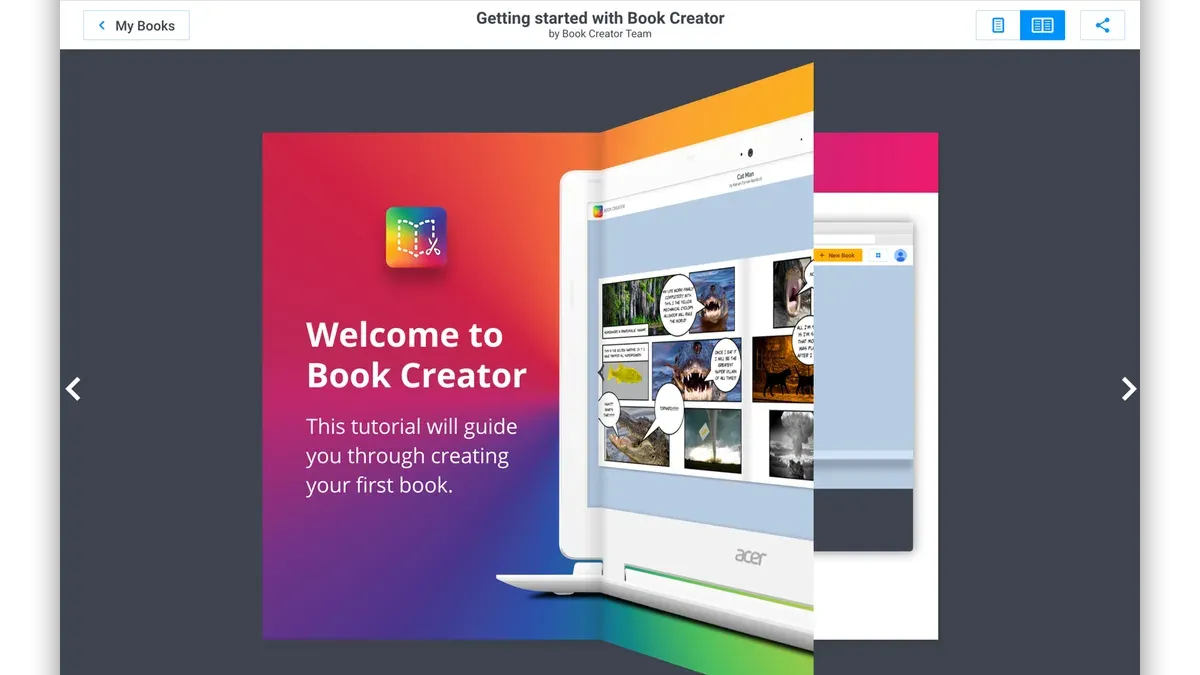
Short answer: Switching from Loom to Book Creator involves exporting your existing Loom videos, then importing and enhancing them within Book Creator’s interactive and multimedia-friendly environment. This transition lets you move beyond simple video recording to building engaging, editable digital books that combine video, text, images, and more.
This article covers why you might switch from Loom to Book Creator, how to set up and prepare your content on Loom before exporting, and how to configure Book Creator for a smooth start. You’ll find detailed steps for editing, downloading, and importing your materials, plus expert tips on leveraging Book Creator’s unique features. Finally, common pitfalls during the switch are highlighted to ensure you avoid unnecessary setbacks and maintain a seamless workflow.
Understand Why You Might Switch from Loom to Book Creator
Loom is primarily designed for quick video creation and sharing, ideal for recording presentations, tutorials, or screen captures. Its strength lies in straightforward video messaging and asynchronous communication. However, if your goals extend beyond video to include interactive storytelling, multimedia eBooks, or dynamic lesson plans, Book Creator offers a more fitting platform.
Book Creator enables you to combine text, images, audio, video, and interactive elements within a single project. This allows educators and content creators to design engaging lessons or portfolios that invite interaction rather than passive viewing. For example, instead of simply watching a Loom video about a science topic, students can explore an interactive Book Creator project that includes embedded quizzes, audio narration, and linked resources.
| Feature | Loom | Book Creator | User Scenario Example |
|---|---|---|---|
| Primary Function | Video recording and sharing | Multimedia storytelling and interactive content creation | Quick tutorial video vs. interactive lesson with quizzes and audio |
| Content Types | Video with optional webcam and screen recording | Text, images, video, audio, drawing tools, and interactive widgets | Video explanation vs. multimedia eBook |
| Editing Tools | Basic trimming and callouts | Rich editing, layout design, and multimedia integration | Simple clip edits vs. custom page layouts |
| Interactivity | None or very limited | Embedded quizzes, links, audio recording, and annotation | Passive viewing vs. active learning experience |
| Collaboration | Commenting on videos | Real-time collaboration on projects | Feedback on videos vs. co-creating interactive books |
Switching to Book Creator supports content goals that require creative control and active engagement, such as crafting portfolios or designing interactive lessons. Imagine an art teacher who used Loom to explain techniques but now wants students to submit multimedia portfolios with voice comments and embedded videos—Book Creator enables this richer experience seamlessly.
How to Create a Loom Account and Set Up Loom Before You Switch
To start using Loom, visit loom.com and click the Sign Up button in the top right corner. You can register using your Google account, Slack, or an email address. For example, selecting Google will prompt you to choose an account, simplifying the process.
After signing up, Loom directs you to the dashboard where you can begin recording immediately. The Creator Lite plan is free and allows you to record up to 25 videos with a maximum length of 5 minutes each. This limitation affects how much content you can create before needing to upgrade or export your videos.
To manage your account, click your profile icon in the upper right corner and select Settings. Here you can update your name, email, password, and notification preferences. It’s useful to check your recording settings under the Recording tab to ensure your camera, microphone, and screen options are correctly configured.
For instance, if you want to record a tutorial and explain a concept on-screen, verify that your microphone is active and the screen capture mode is set to Full Desktop or Window as needed. Missing this step often leads to silent or incomplete videos.
- Go to loom.com and click Sign Up.
- Choose Google, Slack, or Email to register.
- Access your dashboard to start recording.
- Note Creator Lite limits: 25 videos, 5 minutes max each.
- Click your profile icon > Settings to update account details.
- Check Recording settings for camera and microphone setup.
How to Edit Videos in Loom Before Exporting
Loom provides basic yet effective video editing tools that allow you to trim, cut, and add call-to-actions before exporting your content to Book Creator. These features help tighten your video’s narrative and direct viewer engagement without needing advanced software.
Trimming and Cutting Videos
To trim or cut your video in Loom, open the video from your library and click the Edit Video button. Use the trimming handles on the timeline to remove unwanted sections from the beginning or end. For example, if your original video is 5 minutes and you trim 1 minute from the start and 30 seconds from the end, the exported video will be 3 minutes 30 seconds long. This step is essential for removing any pauses or irrelevant content.
Adding Call-to-Actions
Loom allows you to insert call-to-actions such as custom links or buttons that appear at the end of your video. After trimming, click on the Call-to-Action tab in the editor, then add a URL and customize the button text. This feature is useful if you want viewers to visit a website or fill out a form directly from the video.
Limitations and Export Impact
While Loom’s editing is convenient, it does not support multi-track editing, advanced transitions, or overlays. Also, trimming and call-to-actions are the primary editable elements; you cannot add text annotations or effects. When you export, Loom maintains the original video format (usually MP4) and quality, but note that extensive trimming can slightly reduce file size and length. Complex edits should be completed in dedicated video editors before uploading to Loom if needed.
- Open video in Loom and select Edit Video
- Trim start/end by dragging timeline handles
- Use Cut to remove internal sections if needed
- Add call-to-actions under the Call-to-Action tab
- Review trimmed length and export maintaining MP4 format
How to Download from Loom and Prepare Your Content for Book Creator
To transition smoothly, you need to download your Loom videos in a format fully compatible with Book Creator. Loom exports videos primarily as MP4 files, which Book Creator supports natively, making MP4 the best choice for quality and compatibility.
Begin by logging into your Loom dashboard. Locate the video you want to export, then click the More (three dots) icon next to it. Select Download from the dropdown menu. Loom will export the video in MP4 format at the highest resolution you recorded.
MP4 files offer a balance between quality and manageable file size. For example, a 10-minute Loom video recorded in 1080p typically downloads as an MP4 file around 100-150 MB. Other formats like MOV or AVI are not available directly from Loom and are less optimal for Book Creator.
To keep your content organized for import, adopt a clear naming convention. Include the video topic, date, and version number, such as ScienceLesson_Volcano_2026-10-21_v1.mp4. Store all your video files in a dedicated folder labeled with the project or classroom name to simplify bulk uploads.
Once downloaded and named, verify each file by playing it on your device to ensure no corruption occurred during export. This step prevents import errors and saves time when assembling your Book Creator projects.
- Log into Loom and find your video
- Click the More icon and select Download
- Save the video as an MP4 file for best compatibility
- Use a consistent, descriptive file naming system
- Organize videos into clearly labeled folders
- Play each file locally to confirm it's intact before import
How to Set Up and Get Started with Book Creator
Begin by navigating to the Book Creator website and selecting the "Sign Up" option. Use your email or Google account to create your profile, then verify your email if prompted. Once logged in, you will see the dashboard presenting options such as "New Book," "My Library," and "Explore."

Click "New Book" to start your first project. Choose a format—Comic, Standard, or Interactive—to fit your content style. For example, selecting "Interactive" allows you to embed multimedia elements seamlessly. Name your book clearly, like "Science Presentation," to keep files organized.
Inside the book editor, familiarize yourself with the toolbar on the left. It includes tools for adding text, shapes, audio, and video. To import your Loom videos, click the “+” button, select “Video,” then choose “Upload” to add your MP4 files previously exported from Loom. Position videos on pages as needed, resizing or moving them to complement your text and images.
For instance, if you are creating a lesson on photosynthesis, insert a Loom video explaining the process on page two, then add text summaries and interactive quiz questions on following pages. This workflow ensures your content is engaging and comprehensive.
Remember to save your work frequently using the "Save" button at the top. Once you finish, use the "Share" option to generate a link or download a copy for distribution.
- Sign up via email or Google and verify your account
- Click "New Book" and select a format
- Name your project clearly
- Use the editor toolbar to add text, images, and videos
- Upload Loom MP4 videos through the “+” > “Video” > “Upload” option
- Arrange multimedia to complement your narrative
- Save regularly and share your finished book via link or download
How to Make the Most of Book Creator’s Features After Switching
Once you import your Loom videos into Book Creator, you can transform static content into engaging, interactive experiences. Start by adding quizzes directly within your book pages using the “Add Widget” menu. Choose from multiple-choice, true/false, or short answer quizzes to reinforce key points and check understanding.
In addition to quizzes, enhance your pages with text overlays and audio narration. Use the “Text” tool to insert explanations or context that complement your videos. The “Record Audio” button lets you add voiceover directly onto pages, which is especially helpful for creating accessible content or personalizing lessons.
Collaboration is another strength of Book Creator. Invite colleagues or students to edit your project by clicking “Share” and setting permissions to “Can Edit.” This real-time collaboration enables multiple contributors to add content, comments, or feedback within the same book, a feature Loom does not offer beyond video comments.
When it’s time to publish, Book Creator provides several options beyond simple video sharing. You can export your book as an interactive EPUB, a PDF, or embed it on websites with a unique link. This versatility allows you to reach audiences on multiple platforms and formats, unlike Loom’s primarily video-focused sharing.
For example, an educator transformed a recorded Loom lesson on ecosystems into a Book Creator project by embedding the video alongside quizzes on habitat types, audio explanations expanding on key concepts, and collaborative student reflections. The result was a dynamic, interactive resource that encouraged active learning rather than passive watching.
Common Mistakes to Avoid When Transitioning from Loom to Book Creator
One frequent error is not verifying file format compatibility before exporting from Loom. Loom exports videos as MP4 files, which Book Creator supports, but users sometimes try to import unsupported formats or files with incorrect extensions, causing import failures. For example, a user on a support forum reported repeatedly failing to upload a Loom video because the file was renamed with a.mov extension instead of.mp4. Ensuring the correct MP4 format is maintained avoids this issue.
Another common mistake is neglecting to back up Loom content before switching platforms. Users have lost valuable recordings by deleting Loom accounts or videos prematurely. It is advisable to download and store all important Loom videos in a secure location before starting the transition. This practice prevents accidental data loss and allows you to revert if needed.
Finally, many users treat Book Creator simply as a video player, overlooking its interactive and multimedia features. For instance, educators who only embed Loom videos without adding text, drawings, or quizzes miss out on Book Creator’s full potential. To avoid this, explore features like adding speech bubbles, images, and collaborative editing to enrich your projects beyond static video playback.
- Confirm Loom exports as MP4 and keep original file extensions intact
- Download and securely back up all Loom videos before deleting or switching accounts
- Explore and use Book Creator’s interactive tools instead of just embedding videos
Read next
- Switching from Loom to Adobe Express: Your Expert Transition Guide
- Moving from Google Sites to Book Creator: Your Expert Checklist
- Moving from Book Creator to Loom: Your Expert Checklist for a Smooth Transition
- Create an Effective Book Creator Implementation Timeline
Frequently asked questions
How to edit in loom?
To edit a video in Loom, open the video in your Loom library and click the "Edit Video" button beneath the player. You can trim the beginning or end by dragging the handles on the timeline or use the "Cut" tool to remove sections within the video. Once finished, save your changes to update the video; note that more advanced edits like adding overlays or transitions require exporting and using external software.
How to log into loom?
Visit loom.com and click the "Log In" button at the top right. You can sign in using your Google account, Microsoft account, Apple ID, or your Loom email and password if you registered directly. If you forget your password, use the "Forgot Password" link to reset it via email.
How to edit loom video?
Editing a Loom video involves trimming unwanted parts directly in Loom's web interface. After selecting your video, use the timeline at the bottom to drag start and end points or split clips. For anything beyond trimming, such as adding captions or annotations, export the video and edit it with dedicated video editing tools.
How to set up a loom?
Set up Loom by creating an account on loom.com or downloading the desktop or browser extension. After signing in, configure your recording preferences by selecting camera, microphone, and recording area (screen, window, or tab). Confirm permissions for camera and microphone to ensure smooth recordings.
Who made the loom?
Loom was created by a team of software developers and entrepreneurs led by CEO Joe Thomas. The company launched the product to simplify asynchronous video communication, focusing on users who need quick, shareable video messaging.
What this guide does not cover
This guide does not cover advanced video editing software beyond Loom’s native tools or deep coding/customization options in Book Creator. If you require complex video effects, multi-track editing, or custom scripting in your digital books, consult specialized resources tailored to those needs.
Quick checklist
- Review your Loom videos and finalize edits using Loom’s trim and call-to-action features.
- Download videos in MP4 format from Loom for compatibility with Book Creator.
- Create a Book Creator account and familiarize yourself with the dashboard and book creation workflow.
- Import your Loom videos into Book Creator by adding media blocks within your digital books.
- Explore Book Creator’s interactive features like text, images, audio narration, and drawing tools to enrich your content.
- Avoid common pitfalls such as neglecting to optimize video size or skipping the organizational structure of your book.
The most useful next step is to start a small project in Book Creator using one of your Loom videos. This hands-on approach helps you understand how your existing content translates into Book Creator’s interactive format and reveals practical workflow adjustments early in your transition.


