
How to Stop Spam Calls on iPhone: Practical Steps That Work
This guide shows practical, model-specific methods to stop spam calls on iPhone without paid services or extra apps.

This article explains how to stop spam calls on iPhone using practical, model-specific methods that do not require paid services or additional apps. Persistent spam calls can be frustrating, but Apple offers built-in settings that help reduce unwanted calls by filtering, silencing, or blocking numbers effectively.
Understanding the iPhone model and iOS version is key to applying the right steps, as features such as Silence Unknown Callers or Call Blocking vary. This guide covers step-by-step instructions for iPhone 11 through 17, highlights regional differences such as those in the UK, and provides realistic expectations about what these settings can achieve.
Tip: Some solutions may silence unknown callers rather than block them outright, which can reduce interruptions without missing important calls from new contacts.
Before you start: what is needed to reduce spam calls on iPhone
Effective spam call reduction on an iPhone depends largely on the model and iOS version in use. Native spam call blocking features, such as "Silence Unknown Callers" and built-in caller identification, are generally available on iPhones running iOS 13 and later. Older models or iOS versions may lack some of these capabilities.
Some settings and third-party spam call filtering apps require a stable internet connection, either Wi-Fi or cellular data, to update spam databases or verify incoming calls in real time. Additionally, carrier support plays a crucial role: certain spam protection features depend on network-level filtering or carrier-provided services that must be enabled separately.
While complete elimination of spam calls is unrealistic, users can expect a substantial decrease by combining built-in iPhone features with carrier tools and, if desired, trusted third-party apps. Studies and user reports indicate that native iPhone features can block a significant portion of spam calls, but third-party solutions often provide broader coverage by leveraging larger databases and crowd-sourced reports.
- Check the iPhone model and iOS version by going to Settings > General > About; the model and software version should support native spam features (iOS 13 or newer). Successful verification means proceeding with native settings.
- Confirm a stable internet connection is active (Wi-Fi or cellular); go to Settings > Wi-Fi or Cellular to verify. A successful connection is indicated by the Wi-Fi symbol or cellular data icon in the status bar.
- Contact the carrier or check its website for available spam protection services and activation steps. Confirmation of carrier support allows integration with iPhone settings.
How to stop spam calls on iPhone for free using built-in settings
iPhones offer several native features to reduce spam calls without any additional cost or apps. These settings can significantly cut down unwanted calls by filtering or blocking suspicious numbers.
- Enable Silence Unknown Callers: Navigate to Settings > Phone > Silence Unknown Callers and toggle it on. This sends calls from numbers not in Contacts, Messages, or Mail straight to voicemail. Expect fewer interruptions but recognize that some legitimate calls from new contacts may be silenced.
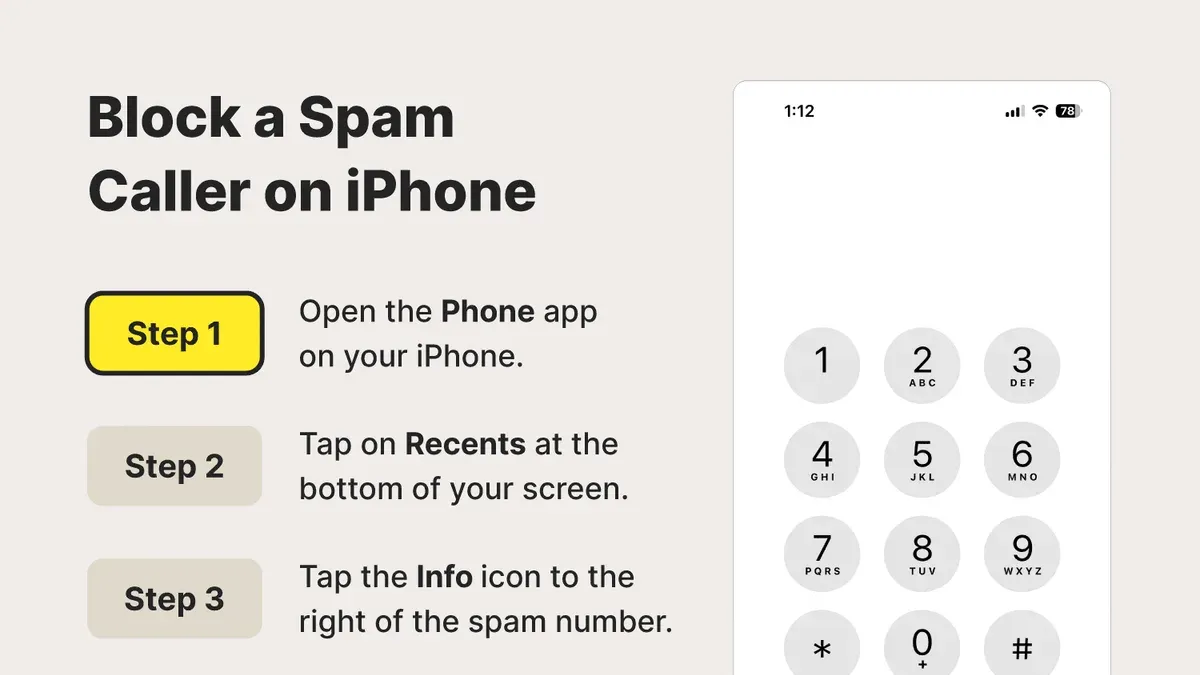
- Block specific numbers: Open the Phone app, go to Recents, find the spam number, tap the info (i) icon, and select Block this Caller. Confirm the block. Future calls from this number will be automatically declined and won’t ring the device.
- Turn on Caller ID & Spam Protection: Go to Settings > Phone > Call Blocking & Identification and enable Caller ID & Spam Protection. This feature uses Apple's database to identify and label potential spam calls, helping users decide whether to answer.
- Report spam calls to Apple: After receiving a spam call, open the Phone app, tap the info icon next to the number, scroll down, and tap Report Junk. This sends the number and call details to Apple for analysis and improves spam detection for others.
Before enabling these settings, call logs typically show frequent calls from unknown or spam numbers. After activation, many such calls are silenced, blocked, or labeled, reducing disturbances and clutter in call history.
Tip: Silence Unknown Callers works best when regularly updated contacts include trusted numbers to avoid missing important calls.
How to stop spam calls on iPhone without blocking numbers
Instead of blocking numbers outright, iPhone users can reduce spam call interruptions by silencing calls from unknown numbers and customizing call allowances through Do Not Disturb and Focus modes. These methods minimize disruptions while allowing important calls to come through.
Silence Unknown Callers
- Open the Settings app and tap on Phone.
- Select Silence Unknown Callers.
- Toggle the switch to on. Incoming calls from numbers not saved in Contacts, Mail, or Messages will be silenced and sent to voicemail, appearing in the recent calls list.
This method prevents the phone from ringing or vibrating for unknown numbers but still allows users to check missed calls and voicemails, avoiding the total cutoff caused by blocking.
Use Do Not Disturb with Allowed Contacts
- Open Settings and tap Focus.
- Select Do Not Disturb or create a new Focus mode.
- Under People, tap Calls From and choose Favorites or All Contacts to allow calls only from these groups.
- Activate Do Not Disturb manually or on a schedule. Calls outside the allowed contacts will be silenced and sent to voicemail.
This setup filters calls based on contact groups and times, giving control over when to receive calls and reducing spam call interruptions without blocking numbers.
Leverage Focus Modes for Specific Times
- In Settings, tap Focus and choose or create a custom Focus.
- Configure Allowed People and Apps to specify who can contact during the Focus.
- Set a schedule or activate the Focus manually during periods when spam calls are frequent.
Focus modes offer flexible call filtering tailored to daily routines, reducing spam call disruptions without permanently blocking any numbers.
Tip: Silencing unknown callers reduces interruptions more gently than blocking, but some legitimate calls from new numbers may also be silenced.
How to stop spam calls on iPhone 11, 13, 14, 15, 16, and 17: model-specific tips
Spam call prevention features vary slightly across iPhone models mainly due to their supported iOS versions and hardware capabilities. Models from iPhone 11 onward generally run iOS 16 or later, enabling more advanced spam detection and filtering tools.
- Check the iOS version: Go to Settings > General > About and verify the iOS version. Features like "Call Blocking & Identification" improve with newer iOS releases.
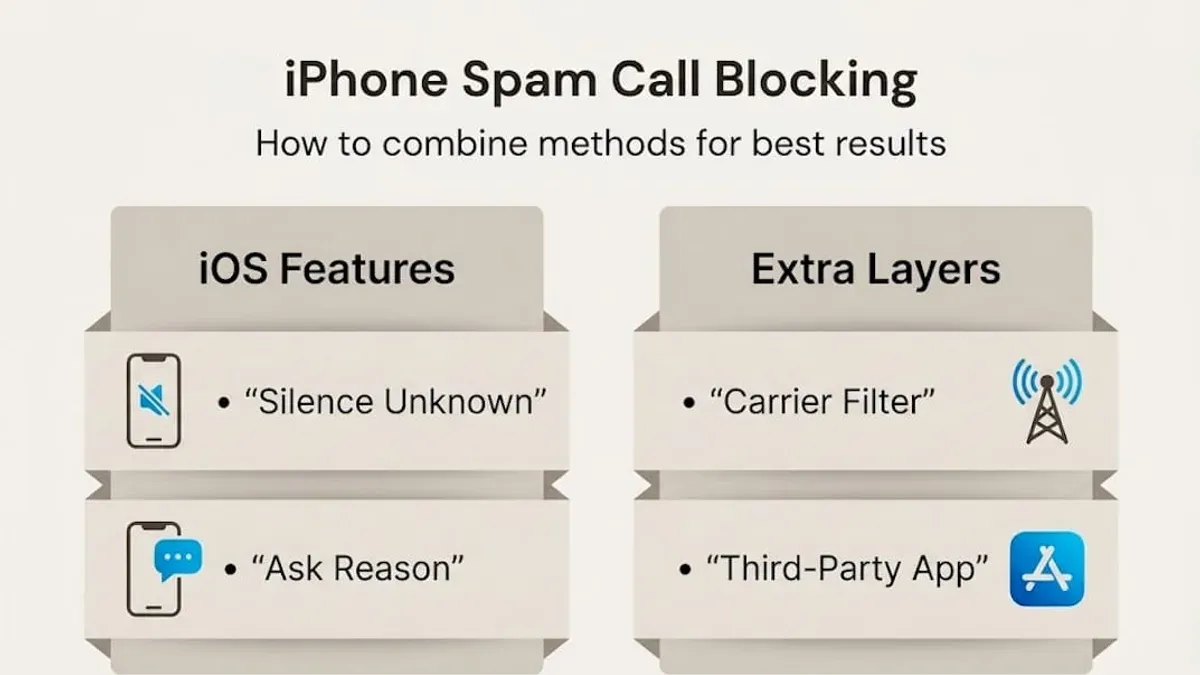
- Enable "Silence Unknown Callers": Found under Settings > Phone, this feature is available on all these models but performs better on iPhone 14 and later due to enhanced processing power, reducing false positives.
- Use Carrier Spam Protection: Some carriers provide integrated spam protection that works best on models with eSIM support, typically iPhone 13 and newer. Enable this in Settings > Phone > Call Blocking & Identification.
- Adjust Focus modes for older models: Users of iPhone 11 and 13 may find customizing Focus modes helpful to reduce interruptions, as their hardware lacks newer noise reduction features present in iPhone 15 and later.
- Consider iOS updates carefully: Upgrading to the latest iOS improves spam filtering but may affect battery life or performance on older models like iPhone 11. Downgrading risks losing recent spam call protections.
Tip: Regularly review blocked and identified calls under Settings > Phone > Call Blocking & Identification to understand how your iPhone is handling spam calls on your specific model.
How to stop spam calls on iPhone UK: carrier and regional considerations
In the UK, spam call prevention on iPhone relies heavily on carrier support and regional regulations enforced by Ofcom, the UK telecom authority. Major UK carriers such as EE, Vodafone, O2, and Three provide network-level spam call identification and blocking services that enhance built-in iPhone features.
Many UK carriers offer specific apps or settings to improve spam protection. For example, EE provides the “EE Call Protect” app, Vodafone users can use “Vodafone Call+,” and O2 offers “O2 Reassure.” These apps integrate with the iPhone’s call system to flag suspected spam or scam calls, often showing warnings or automatically blocking them.
Steps to enable carrier spam call protection on iPhone in the UK:
- Check with the mobile carrier if a spam protection app or service is available and compatible with the iPhone model and iOS version. The carrier's website or customer support should provide details.
- Download and install the carrier’s spam protection app from the App Store if required. Once installed, open the app and follow setup instructions to enable spam identification.
- Go to Settings > Phone > Call Blocking & Identification and ensure the carrier’s app is enabled to identify calls. A toggle should be visible next to the app’s name.
- Test the setup by receiving calls from unknown numbers; spam calls should show warnings or be blocked according to the carrier’s settings.
Ofcom’s regulations encourage carriers to implement measures against nuisance calls, including number blocking and caller ID verification. However, challenges remain due to number spoofing, where spam calls appear to come from legitimate or local numbers, as well as calls originating from outside the UK, which carriers have limited control over.
Tip: Combining carrier spam apps with the iPhone’s built-in settings provides the strongest defense against spam calls in the UK.
How to stop scam calls on iPhone with third-party apps
Third-party call blocking apps can complement iPhone’s native spam prevention features by providing enhanced detection and blocking of scam calls. Popular apps such as Hiya, Truecaller, and RoboKiller offer free versions with optional premium upgrades that improve identification accuracy and add features like automatic call blocking and spam number databases updated in real time.
These apps identify spam and scam calls by analyzing incoming call data against large, frequently updated databases of known spam numbers and user reports. When a suspected spam call arrives, the app can alert the user or block it outright, depending on the configuration.
Privacy is a key consideration. Most reputable apps encrypt call data and do not store personal contact information beyond what is necessary for spam detection. It is advisable to review each app’s privacy policy carefully before installation to understand data usage and sharing.
- Open the App Store and search for a trusted call blocking app like “Hiya” or “Truecaller.” Once found, tap “Get” to download and install the app. A successful download shows the app icon on the home screen.
- Launch the installed app and follow the on-screen setup instructions, which typically include granting permissions to access your calls and contacts. When permissions are granted correctly, the app confirms readiness to filter calls.
- Go to Settings > Phone > Call Blocking & Identification. Enable the toggle for the installed app so it can identify and block calls. When enabled, the app’s name will appear with a checkmark.
- Customize the app’s settings within the app itself to adjust blocking levels, notifications, and reporting preferences. Successful configuration results in the app actively screening incoming calls and reducing scam calls.
Tip: Combining third-party apps with built-in iPhone settings maximizes spam call protection but may slightly increase battery usage or delay call notifications.
Troubleshooting common issues when stopping spam calls on iPhone
Silence Unknown Callers may occasionally block legitimate calls from numbers not saved in contacts. To avoid missing important calls, temporarily disable this setting by going to Settings > Phone > Silence Unknown Callers and toggling it off. If calls resume normally, consider adding frequent legitimate callers to contacts.
Despite blocking and filtering, some spam calls can bypass protections due to caller ID spoofing or new spam numbers. Regularly updating iOS ensures the latest security patches and spam detection improvements. Navigate to Settings > General > Software Update to check for and install updates.
App permissions for third-party call blocking apps or carrier services must be correctly set for optimal function. Verify permissions in Settings > Privacy > Call Blocking & Identification and ensure the relevant apps are enabled.
To reset call blocking settings and start fresh, follow these steps:
- Open Settings and tap Phone.
- Tap Blocked Contacts.
- Swipe left on each entry and tap Delete to remove all blocked numbers.
- Return to Phone settings and toggle off Silence Unknown Callers, then toggle it back on.
- Restart the iPhone by holding the side button and volume up button until the power off slider appears; slide to power off and then turn it back on.
- After restart, add important contacts back and enable desired spam prevention settings.
This process resolves misconfigurations that may cause legitimate calls to be blocked or spam calls to pass through unexpectedly.
Understanding the limits of spam call prevention on iPhone
Spam call blocking on iPhone can significantly reduce unwanted interruptions but cannot guarantee complete elimination. One major challenge is number spoofing, where scammers disguise their caller ID to appear legitimate or local. This tactic often allows spam calls to bypass filters and reach the user.
No spam prevention method achieves 100% effectiveness. Industry data indicates a persistent volume of spam calls despite widespread use of blocking technologies, reflecting the ongoing adaptation of scammers. Users with special business needs, such as those requiring calls from unknown numbers or international contacts, may find some blocking measures impractical or counterproductive.
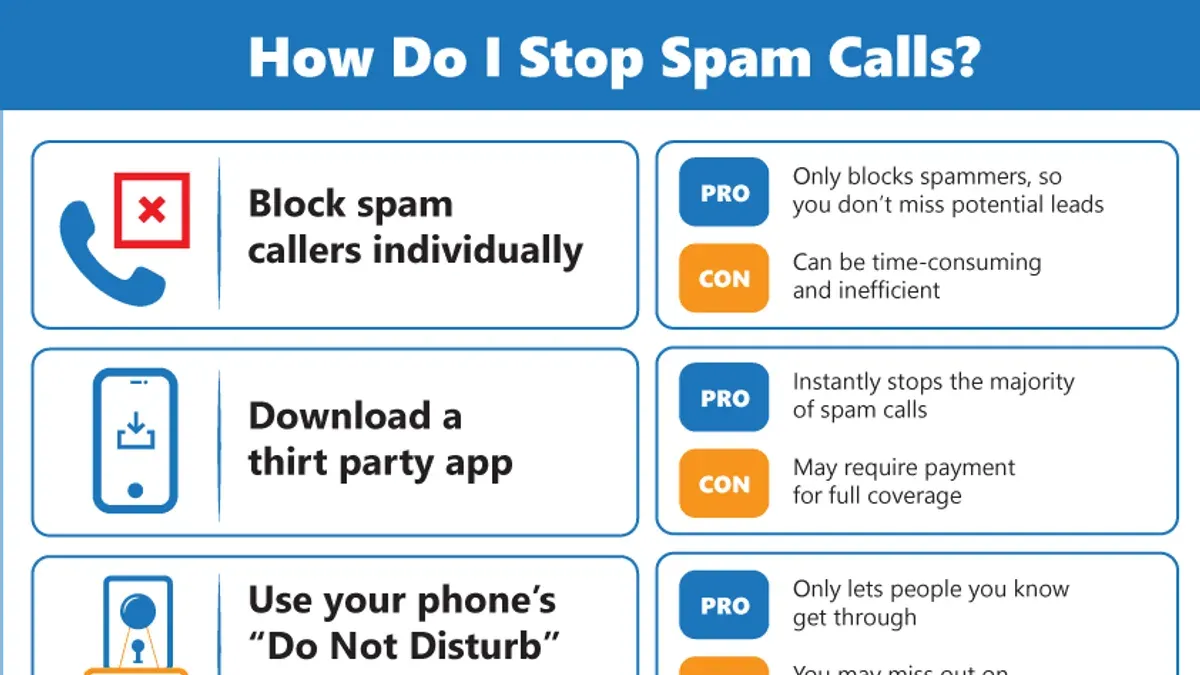
Combining multiple strategies—such as built-in settings, carrier tools, and third-party apps—offers the best chance to minimize spam. However, users should maintain realistic expectations and recognize that some unwanted calls may still get through.
Tip: Regularly review call blocking and filtering settings to adapt to changing spam patterns and preserve legitimate communication.
Further reading
- How to Delete Siri History Across All Apple Devices
- How to Turn Off App Tracking on iPhone, Android, and Computer
- Understanding Advance Fee Scams: How They Work and How to Avoid Them
Frequently asked questions
How to stop spam calls on iPhone for free?
Spam calls can be reduced by enabling built-in features like Silence Unknown Callers, found under Settings > Phone. This sends calls from numbers not in contacts, messages, or recent calls straight to voicemail. Additionally, enabling Caller ID & Spam Blocking if supported by the carrier helps identify potential spam.
How to stop spam calls on iPhone without blocking?
Using the Silence Unknown Callers feature avoids blocking but still filters calls from unfamiliar numbers. Another method is to set up a custom Do Not Disturb mode allowing calls only from contacts or favorites. These methods do not block numbers but screen calls for unwanted contacts.
What is the best way to stop spam calls on iPhone?
The most effective approach combines Silence Unknown Callers with carrier-provided spam detection services. For newer iPhone models, enabling these features alongside keeping iOS updated ensures access to the latest spam call prevention tools. Blocking persistent spam numbers can supplement these settings but may not catch all spam calls.
How to stop spam calls on iPhone ATT?
AT&T users can activate the free AT&T Call Protect app or service, which automatically warns and blocks suspected spam calls. Alternatively, enabling Silence Unknown Callers and using the carrier’s spam filtering in Settings > Phone > Call Blocking & Identification improves spam detection. The app offers additional customization but is not required for basic spam protection.
Understanding the limits of spam call prevention on iPhone
These methods significantly reduce spam calls but cannot block all due to spoofing and evolving tactics used by spammers. Some features, such as Silence Unknown Callers or carrier-specific spam filters, depend on carrier support and the iOS version, so results may vary across devices and regions. Users who rely on calls from unknown numbers for work or emergencies should exercise caution with aggressive blocking settings, as important calls may be missed.
Taking practical steps within the iPhone’s built-in settings offers a strong foundation to reduce unwanted calls without extra cost. The most useful next step is to enable Silence Unknown Callers in Settings > Phone, which sends calls from numbers not in contacts, recent calls, or Siri Suggestions straight to voicemail. This setting balances reducing interruptions while preserving legitimate calls from known contacts and recent callers.



