
How to Print a Monthly Calendar in the Calendar App and Other Tools
Step-by-step guide to printing a monthly calendar in the Calendar app on Mac and iPhone, plus Excel and Word alternatives for 2026.

You need a clean, easy-to-read monthly calendar for your upcoming appointments or work schedule. Whether you're using your Mac or iPhone, knowing how to print a monthly calendar in Calendar app can save you time and effort.
This article walks you through printing monthly calendars directly from Apple Calendar on both Mac and iPhone. It also covers alternative options using Excel and Word, offering step-by-step instructions tailored for different devices. Finally, you'll find practical troubleshooting tips to handle common printing issues and ensure your calendar looks just right.
Key takeaways
- Print a monthly calendar from Apple Calendar on Mac via File > Print with the Month view selected.
- Printing from iPhone's Calendar app requires exporting or using screenshots, as direct printing is limited.
- Excel templates offer customizable monthly calendars ideal for work or personal use.
- Word’s calendar templates provide clean layouts that you can easily edit before printing.
- Check printer settings and calendar view before printing to avoid common issues.
Before You Start: What You Need to Print a Monthly Calendar
To print a monthly calendar smoothly, you first need to confirm your devices and software are ready. You should have an iPhone running iOS 17 or later, or a Mac with macOS Sonoma (version 14) or newer. Both these OS versions include the 2026 Apple Calendar app update, which supports printing monthly views directly.
Next, ensure your printer is properly connected and recognized by your device. Common printer connections include Wi-Fi, Bluetooth, or USB. After connecting, try printing a test page to confirm the printer works with your iPhone or Mac.
If you plan to print calendars from Microsoft Excel or Word, verify that you have Microsoft 365 or Office 2026 installed. These versions include updated calendar templates and improved print formatting options. Remember, printing from the Calendar app typically produces a clean monthly layout automatically, while Excel and Word allow more customization but require manual setup.
- Check your device's software version by going to Settings > General > About on iPhone, or Apple menu > About This Mac on Mac. You should see iOS 17+/macOS 14+ displayed.
- Connect your printer to your device, then open any document or photo and select Print. If the print dialog appears and your printer shows up, it’s connected properly.
- Open Microsoft Excel or Word and verify the version under Help > About or Account > About. Confirm it mentions Microsoft 365 or 2026.
How to Print a Month from Apple Calendar on Mac
- Open the Calendar app on your Mac. Once open, click the "Month" button in the top-left corner or select View > Month from the menu bar. This displays the full month you want to print.
- Go to the menu bar and select File > Print. The print dialog box appears, showing various layout options.
- In the print dialog, choose the "Month" layout option from the Style dropdown menu. This ensures the calendar prints a clear monthly view rather than a list or weekly layout.
- Adjust the Date Range if needed to confirm the correct month is selected. You can also customize settings such as font size for readability and whether to include event details or just the dates.
- Click the Preview button to open a print preview window. Check that the calendar fits well on the page without cutting off dates or event text. Adjust settings if necessary to improve layout.
- Once satisfied, click Print to send the calendar to your printer. Alternatively, select the PDF dropdown in the print dialog and choose "Save as PDF" if you want a digital copy for later use.
Following these steps will give you a clean, readable monthly calendar from Apple Calendar on your Mac, ready for work or personal planning.
How Do I Print a Monthly Calendar from Apple Calendar on iPhone?
The Apple Calendar app on iPhone does not offer a built-in option to print monthly calendar views directly. However, you can still print a monthly calendar using a simple workaround by taking a screenshot of the month view and printing that image. This method is quick but may result in lower print quality compared to printing directly from a Mac.
- Open the Calendar app on your iPhone and switch to the monthly view by tapping the "Month" button at the top.
- Adjust the screen so the entire month is visible and clear.
- Take a screenshot by pressing the Side button and the Volume Up button simultaneously (on most iPhones). You should see a thumbnail preview of the screenshot.
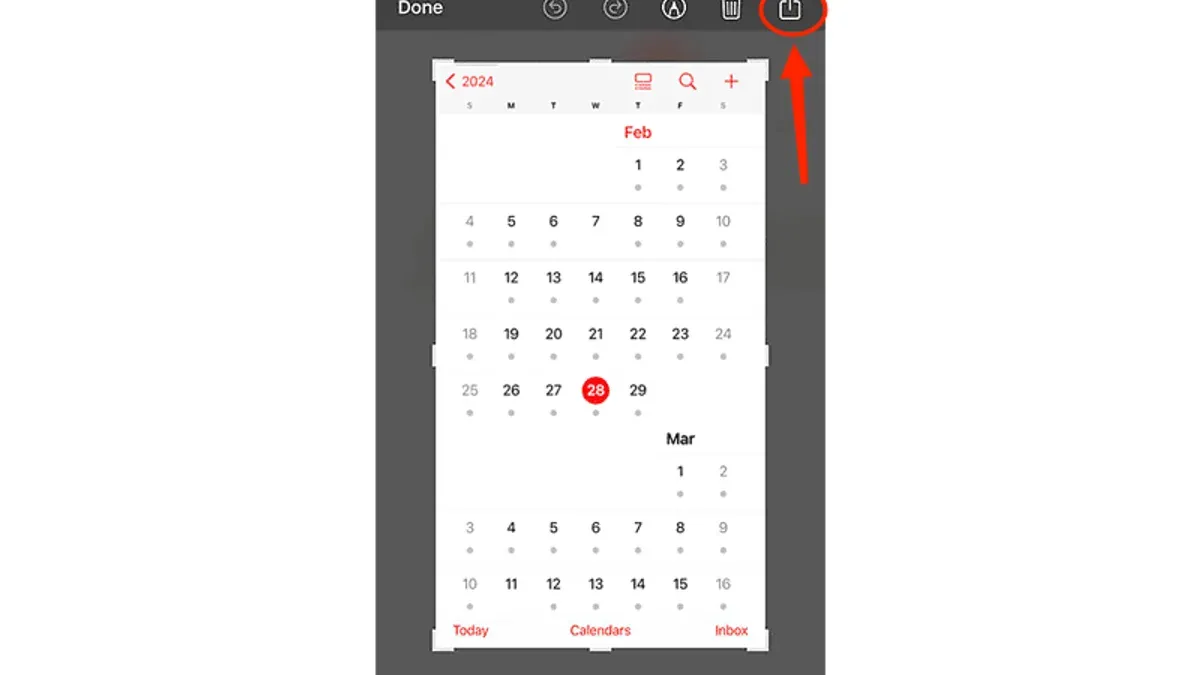
- Tap the thumbnail to open the screenshot editor, then crop the image to focus only on the calendar month, removing any unnecessary parts of the screen.
- Tap the Share icon, then select "Print" from the share options. Choose your AirPrint-enabled printer and print the cropped calendar image.
If you prefer higher print quality, syncing your calendar to a Mac and printing from the Apple Calendar app there is a better option. Alternatively, third-party calendar apps available on the App Store can offer more direct printing features on iPhone. The screenshot method is fast and convenient but may not be as crisp as Mac-based printing.
How to Print a Monthly Calendar in Excel
Excel offers ready-made monthly calendar templates that you can customize and print, providing more control over the layout and content. Alternatively, you can create a monthly calendar from scratch if you prefer full customization.
- Open Excel and go to File > New. In the search bar, type "monthly calendar". You will see several templates with different designs; choose one that suits your style and click Create. The template will open with a preformatted calendar grid.
- Enter your events or notes directly into the calendar’s cells. You can change font sizes, colors, and add borders to make important dates stand out. The template automatically adjusts the dates for the month selected, so double-check they match your target month.
- Go to the Page Layout tab to adjust printing settings. Set orientation to Landscape for wider calendars. Click Margins and select Narrow or customize margins to maximize space. Under Scale to Fit, set the width and height to 1 page each, ensuring the entire calendar prints on one page.
- Use File > Print to preview your calendar. Check that all text is legible and no cells are cut off. If needed, return to the spreadsheet to tweak font sizes or margins for better clarity.
- Once satisfied, print directly or choose Save as PDF in the printer options to export a clean, shareable monthly calendar.
Excel's default calendar templates vary from minimalist grids to colorful designs, so select one that fits your needs. Adjusting page layout settings is key to producing a clear, professional printout that fits neatly on one page.
How to Print a Monthly Calendar in Word
Word offers a variety of built-in monthly calendar templates that you can customize and print quickly. Start by opening Word and selecting New from the File menu. In the search bar, type "monthly calendar" to browse templates tailored for different styles and layouts.
- Open Word and search for calendar templates. Type "monthly calendar" in the template search box and press Enter. You should see multiple calendar options displayed.
- Choose a calendar template and open it. When the template loads, you’ll see a pre-designed calendar table with placeholder dates.
- Customize the calendar. Replace placeholder dates with your current month’s dates, add any personal or work events, and edit text as needed. Use the tab and arrow keys to navigate efficiently.
- Adjust table and font sizes for print clarity. Select the calendar table, then use the Layout tab under Table Tools to modify cell size. Increase font size in the Home tab to ensure readability when printed, typically around 12 to 14 points.
- Use Print Preview to check formatting. Go to File > Print and carefully review the preview pane to confirm the calendar fits on one page without cutting off details.
- Print or save your calendar. Click Print to produce a physical copy, or choose Save As to export it as a PDF for sharing or future printing.
Using Word’s templates combined with these formatting tips helps you create a neat, readable monthly calendar ready for printing or sharing.
Troubleshooting Common Issues When Printing Monthly Calendars
When printing monthly calendars, you may encounter blurry prints, missing events, or layout problems. First, check your printer connection and ensure ink or toner levels are sufficient. A weak connection or low ink can cause faded or incomplete prints. Verify that you have selected the correct date range and calendar before printing to avoid missing events or empty days.
Adjust print settings like scaling and orientation to prevent dates or events from being cut off. For example, if your calendar printout cuts off the last days of the month, switch from "Fit to Page" scaling to "Actual Size" or adjust margins in the print dialog. Similarly, changing orientation from portrait to landscape can help fit all calendar content properly.
If you print from iPhone screenshots, confirm the image resolution is high enough to avoid pixelation. Taking screenshots in full-screen mode and using AirPrint usually yields better results. When printing calendars created in Excel or Word, inspect margins and page breaks carefully; misaligned page breaks can split weeks awkwardly or truncate cells. Adjust these in the Page Layout tab to ensure the calendar prints cleanly on one page.
- Check your printer connection and ink or toner levels. When the printer is ready and ink is sufficient, printouts should be sharp and complete.
- Confirm the calendar and date range selected in the print dialog match your intended month. The printed calendar should show all days and events for that month.
- Adjust scaling and page orientation in the print settings. When done correctly, no dates or events are cut off, and the calendar fits neatly on the page.
- For iPhone screenshot prints, use high-resolution images and print via AirPrint. The resulting print should be clear without pixelation.
- In Excel or Word, check and modify margins and page breaks under Page Layout. When set properly, the monthly calendar prints on a single page without awkward splits.
Frequently asked questions
How to print monthly calendar in excel?
To print a monthly calendar in Excel, first open a calendar template or create your own grid with dates. Adjust the print area by selecting the cells that include the month you want. Then go to File > Print, check the print preview to ensure the calendar fits on one page, and set orientation to Landscape if needed before printing.
Is there a printable calendar in word?
Yes, Word offers printable calendar templates accessible via File > New. You can search for "calendar" and select a monthly layout to customize. After editing, use File > Print to get a clean monthly calendar on paper.
Can i print a monthly calendar from my iphone?
You can print a monthly calendar directly from your iPhone, but the Apple Calendar app doesn’t support printing. Instead, you can use third-party apps or export your calendar data to a PDF or another app like Word or Excel, then print from there via AirPrint.
Is there a printable calendar in Word?
Word includes built-in calendar templates that are easy to print. From the New Document screen, search for "calendar," choose a monthly design, edit as needed, and print via File > Print for a straightforward printed calendar.
Can I print a monthly calendar from my iPhone?
Printing a monthly calendar from an iPhone requires workarounds since the native Calendar app lacks print options. Exporting your calendar to a PDF using third-party apps or syncing with your Mac or PC to print from Calendar, Word, or Excel is the most effective method.
What This Advice Does Not Cover
This article focuses specifically on printing monthly calendars using the Apple Calendar app, Excel, and Word. It does not cover printing weekly or yearly calendars, nor does it address third-party calendar apps beyond those mentioned. Additionally, printing directly from the Apple Calendar app is fully supported only on Mac computers. If you primarily use an iPhone, you will need to rely on workarounds such as syncing your calendar with a Mac or exporting events to other apps for printing.
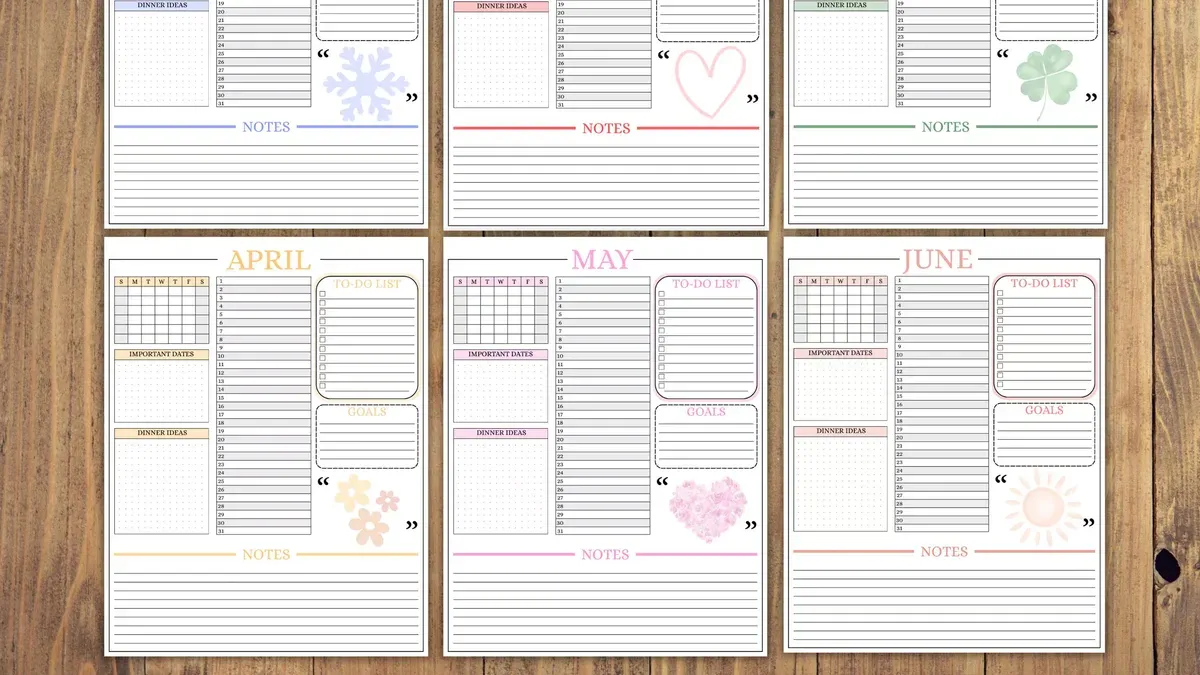
For users seeking more advanced calendar printing options or those who want to print calendars from other apps or devices, exploring specialized calendar software or online calendar services may be more effective.
Next Step to Take
Now that you understand how to print a clean and readable monthly calendar using Apple Calendar on Mac, Excel, and Word, the most useful next step is to try printing a test calendar. Select the desired month and apply the recommended print settings, such as landscape orientation and scaling to fit the page, then review the output. This hands-on approach helps you identify any adjustments needed before printing your final calendar, ensuring that it looks exactly how you want it for personal or work use.
See also: How to Share a Calendar in the Calendar App on iPhone and Mac · How to Add Google Calendar to the Apple Calendar App in 2026 · How to Delete Spam Calendar Invites in Apple Calendar App



