How to See Devices Connected to Your TP-Link Router and Secure Your Network
Discover how to see devices connected to your TP-Link router and secure your network from unauthorized access effectively.

Knowing how to see devices connected to your TP-Link router is essential for maintaining your home or small office network security. Monitoring connected devices helps identify unauthorized access, protect data, and troubleshoot network issues effectively.
Understanding Why Monitoring Connected Devices on Your TP-Link Router Matters
Regularly checking which devices are connected to your TP-Link router is key to safeguarding your network. Unknown devices linked to your network pose risks such as unauthorized bandwidth use, potential data breaches, and privacy compromises. Monitoring connected devices helps spot these problems early.
- Risks of unknown devices: Unauthorized users can consume bandwidth, slow your connection, or exploit vulnerabilities in your network.
- Benefits of regular monitoring: Awareness of connected devices improves privacy and helps prevent security incidents.
- Troubleshooting aid: Identifying devices assists in resolving connectivity and performance issues by pinpointing problematic devices.
Unsecured routers often lead to unauthorized devices joining the network, resulting in bandwidth theft or exposure of sensitive information. Being proactive about device monitoring reduces these risks.
Step-by-Step Guide: How to See Devices Connected to Your TP-Link Router
You can view connected devices on your TP-Link router using either the web-based admin panel or the TP-Link Tether mobile app. Both methods provide detailed information about each device.
Accessing the TP-Link Router Admin Panel via Browser
- Connect your computer or mobile device to your TP-Link router network.
- Open a web browser and enter the router's IP address in the address bar. Common defaults are
192.168.0.1or192.168.1.1. If these don’t work, check your router’s label or useipconfig(Windows) orifconfig(Mac/Linux) to find the gateway address. - Log in using your admin username and password. If unchanged, defaults are often
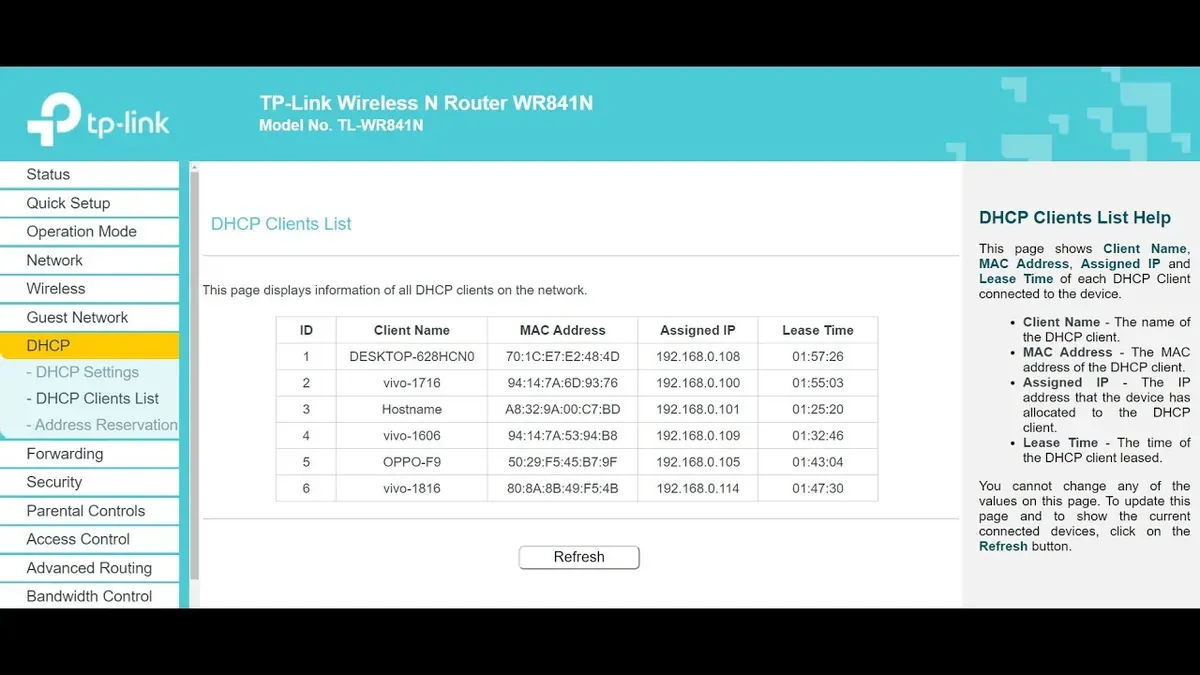
adminfor both fields. Changing these default credentials is critical for security. - Navigate to the section named exactly "DHCP Clients List" or sometimes "Attached Devices". This location varies by firmware version; some TP-Link routers place this under "Network" > "LAN" or "Status".
- View the list of connected devices, which shows IP addresses, MAC addresses, and device names if available. Note that some devices may appear with generic names or no name, especially IoT devices.
Using the TP-Link Tether Mobile App
- Download and install the TP-Link Tether app from your device’s app store.
- Open the app and sign in with your TP-Link ID or connect locally without registration.
- Select your router from the device list.
- Tap on "Clients" or "Connected Devices" to see a list similar to the web panel, including IP and MAC addresses and device names.
The mobile app often provides a more user-friendly interface and additional features like device blocking with fewer steps. However, some advanced settings may still require the web interface.
How to Identify Unauthorized or Unknown Devices on Your TP-Link Network
Distinguishing authorized from suspicious devices requires careful review of device details.
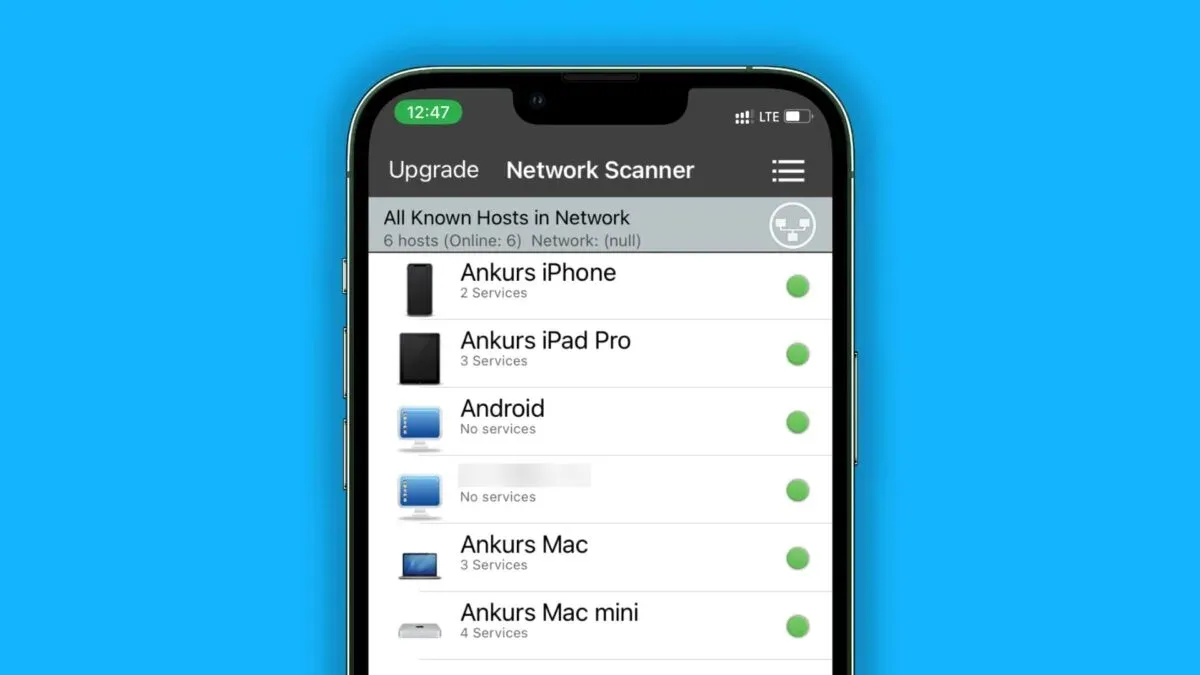
- Check device details: Examine the MAC address, device name, and connection time. Many devices show recognizable names like "John's iPhone" or "Office Printer."
- Use MAC address lookup tools: Online tools let you input a MAC address prefix to identify the device manufacturer, helping recognize trusted devices.
- Recognize legitimate devices: Household or office devices typically have known manufacturers such as Apple, Samsung, HP, or Dell.
- Spot signs of unauthorized devices: Unfamiliar manufacturers or devices with generic or missing names that appear suddenly or show unusual activity can be red flags.
Compare your device list to your actual owned devices regularly. Devices with unknown MAC prefixes or unexpected connection times warrant further investigation.
Next Steps After Spotting Unauthorized Devices: Securing Your TP-Link Router
After identifying an unknown device, take immediate action to protect your network.
- Block devices using MAC filtering: In the router’s admin panel, go to "Access Control" or "MAC Filtering" settings. Add the unauthorized MAC address to the blacklist and enable filtering. Note that MAC filtering is not foolproof as MAC addresses can be spoofed.
- Change Wi-Fi passwords: Update your Wi-Fi password to a strong, complex passphrase. Use WPA3 encryption if your router supports it, as it offers stronger security than WPA2.
- Enable guest networks: Set up a guest Wi-Fi network for visitors. This isolates guest devices from your main network, reducing security risks.
- Keep firmware updated: Regularly check for and apply firmware updates to patch security vulnerabilities and improve device detection.
- Monitor router logs: Review connection logs periodically to detect future unauthorized access attempts.
For example, to block a device via MAC filtering, log into the router admin panel, navigate to "Access Control", add the MAC address of the unknown device to the blacklist, and enable filtering. This prevents that device from reconnecting unless it spoofs another MAC address.
Troubleshooting Common Issues When Viewing Connected Devices on TP-Link Routers
Users may face issues such as devices not appearing, login difficulties, or interface changes after firmware updates.
- Devices don’t show up immediately: Some devices take a few minutes to appear after connecting. Refresh the device list or reboot the router if needed.
- Resetting router credentials: If you forget your admin password, perform a router reset by holding the reset button for about 10 seconds. This restores default login credentials but erases custom settings, so reconfiguration is necessary.
- Firmware updates affecting interface: Firmware updates may change menu layouts or feature locations. Consult the latest TP-Link support documentation for updated instructions.
- Limitations of device lists: Some IoT or hidden devices may have ambiguous or no names, making identification challenging.
Firmware updates often improve device listing accuracy and add security features. After updating, users may notice better detection of connected devices.
Important Caveats
This guide focuses on consumer-grade TP-Link routers with standard firmware. Enterprise or heavily customized routers may have different interfaces and features. Remember that MAC filtering is only one layer of security since MAC addresses can be spoofed. For comprehensive protection, combine multiple security measures. This article does not cover advanced network forensics or third-party monitoring tools.
Frequently asked questions
How do I find my TP-Link router’s IP address if the defaults don’t work?
Check your device’s network settings for the default gateway address. On Windows, run ipconfig in Command Prompt and look for "Default Gateway." On Mac/Linux, use ifconfig or check network preferences.
Why don’t some connected devices show their names?
Some devices, especially IoT gadgets, may not broadcast a recognizable name or may appear with generic labels. This is normal but can make identification harder.
Is MAC filtering enough to secure my network?
No. MAC filtering helps block unauthorized devices but can be bypassed by MAC spoofing. Use strong Wi-Fi encryption (WPA3 or WPA2), complex passwords, and keep firmware updated for better security.
Can I block devices using the TP-Link Tether app?
Yes, many TP-Link routers allow device blocking via the Tether app under the "Clients" or "Connected Devices" section, making it easier to manage your network on mobile.
What should I do if I forget my router’s admin password?
Perform a factory reset by holding the reset button for about 10 seconds. This restores default credentials but erases all custom settings, so you will need to reconfigure your router.