How to See Devices Connected to Your ASUS Router Easily
Discover how to easily see devices connected to your ASUS router to maintain network security and performance.

Checking how to see devices connected to your ASUS router is essential for maintaining your network's security and performance. Knowing which devices are on your network helps you control access, troubleshoot slowdowns, and prevent unauthorized use.
Why Knowing Connected Devices on Your ASUS Router Matters
Monitoring connected devices protects your network in several ways.
- Risks of unknown devices accessing your network: Unauthorized devices can slow your internet, steal data, or expose you to cyber threats.
- How device visibility helps optimize Wi-Fi performance: Identifying bandwidth-heavy devices allows better management of network resources.
- The decision to act on unauthorized devices: Spotting unknown connections lets you decide whether to block or limit them, improving security.
Many home networks experience occasional unauthorized access. Unknown devices may consume bandwidth unnoticed, reducing speed for legitimate users.
Accessing the ASUS Router Interface: Step-by-Step Instructions
To view connected devices, log into your ASUS router's interface via a web browser or the ASUS Router mobile app.
- Find your router's IP address: Most ASUS routers use
192.168.1.1or192.168.50.1as the default gateway. On Windows, runipconfigand look for the "Default Gateway." On macOS or Linux, useifconfigor check network settings. - Login with credentials: Open a web browser and enter the IP address. Use the default username and password (usually "admin" / "admin" or "admin" / "password") unless changed. If you forgot custom credentials, a router reset is required, which restores defaults but erases custom settings.
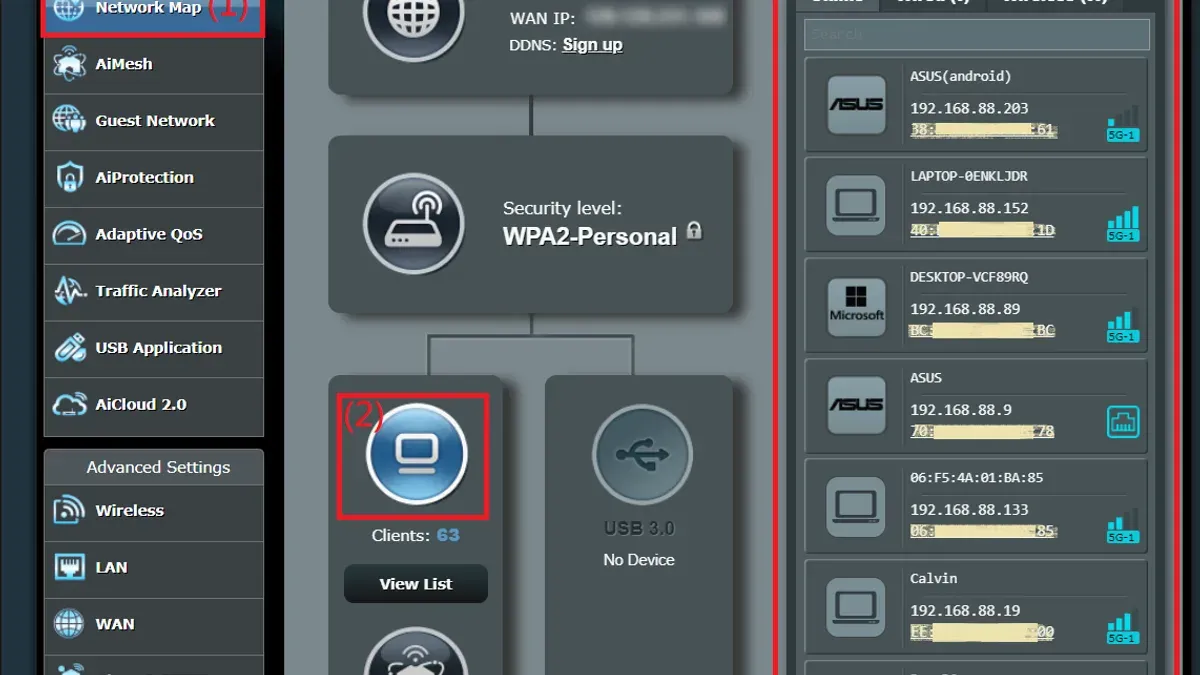
- Navigate to the device list: In the interface, go to Network Map and then select Clients or Device List under the General or Network section. Note that some ASUS firmware versions label this differently; if you don’t see these options, check under LAN or Wireless settings. The list shows devices connected via Wi-Fi or Ethernet.
Be aware that some devices may not appear immediately after connecting due to DHCP lease timing or sleep modes. Refreshing the page or waiting a few minutes can help.
How to Identify Devices: Interpreting Device Names, MAC Addresses, and IPs
After accessing the device list, use the following to identify devices:
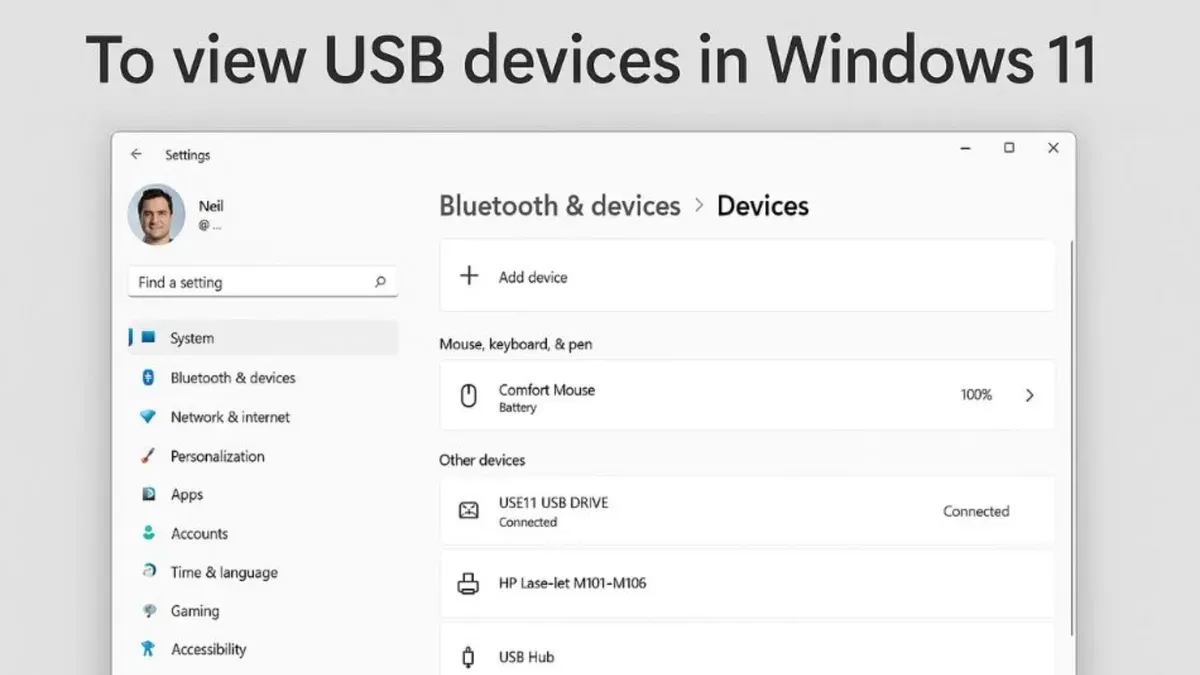
- Device names vs generic labels: Some devices display recognizable names (e.g., "John's iPhone"), while others show generic labels like "Android_1234" or "Unknown." Generic names require further investigation.
- Using MAC addresses to identify manufacturer info: Each device's MAC address starts with an Organizationally Unique Identifier (OUI) indicating the manufacturer. Use online MAC lookup tools to match MAC prefixes to brands, aiding identification.
- Cross-referencing IP addresses with device types: IP addresses assigned by your router can hint at device type based on DHCP leases or static IP assignments. For example, fixed IPs may be assigned to printers or network cameras.
Example: Your device list shows:
| Device Name | IP Address | MAC Address | Manufacturer |
|---|---|---|---|
| iPhone | 192.168.1.101 | 58:55:CA:XX:XX:XX | Apple |
| Unknown_28F4 | 192.168.1.102 | FC:FB:FB:XX:XX:XX | Xiaomi |
| Home-PC | 192.168.1.103 | 00:1A:2B:XX:XX:XX | Dell |
Using a MAC lookup tool reveals the second device is a Xiaomi phone you forgot about, so no cause for concern. The others match your known devices.
Troubleshooting: What to Do If Devices Don’t Appear or Are Misidentified
If devices are missing or misidentified, try these steps:
- Refresh the device list and reboot the router: The interface may lag behind real-time status. Logging out and back in or rebooting the router can update the list.
- Update router firmware: ASUS periodically releases firmware updates that improve device detection and security. Check the Administration > Firmware Upgrade section for updates and apply them carefully, as improper updates can disrupt your network.
- Use third-party network scanning tools: Apps like Fing or Advanced IP Scanner can provide enhanced scanning and device identification beyond the router interface, especially for devices with unclear names.
For example, a device labeled "Unknown_XXXX" before a firmware update may appear as "Samsung_Galaxy_A52" afterward, simplifying management.
Next Steps: Managing Connected Devices and Enhancing Network Security
After identifying devices, protect your network by:
- MAC address filtering and access controls: Use the Wireless > MAC Filter section to block unauthorized devices by adding their MAC addresses to the blacklist or whitelist. Note that MAC filtering can be bypassed by skilled attackers, so it should not be your sole security measure.
- Change Wi-Fi passwords and SSIDs: Regularly update Wi-Fi passwords and consider renaming your SSID to something non-identifiable. Use strong, complex passwords to reduce unauthorized access risk.
- Enable guest networks and monitor regularly: Separate guest devices from your main network with a guest SSID. This limits access to private devices while providing internet connectivity to visitors. Guest network settings often include bandwidth limits and access time controls.
Most ASUS router interfaces provide clear setup screens for these features. Remember to save changes and reboot the router if prompted.
Limitations and Important Notes
This guide applies to consumer ASUS routers running standard ASUS firmware. Enterprise-level ASUS routers or custom firmware may have different menus and capabilities.
Device visibility depends on firmware version and network setup. Some devices may show generic names or not appear if they are in sleep mode, using static IPs outside DHCP range, or connected via certain network configurations like VLANs.
This article does not cover advanced network scanning tools outside the ASUS ecosystem, which may offer deeper analysis but require additional setup and expertise.
Frequently Asked Questions
How often should I check the list of devices connected to my ASUS router?
Checking the device list monthly is a good practice for most home users. If you notice slow internet or suspect unauthorized access, check more frequently.
What should I do if I find an unknown device connected to my network?
First, confirm the device isn't one of your own or a household member's. If it is unknown, change your Wi-Fi password immediately and consider using MAC filtering to block the device. Also, monitor for repeated connections and consider enabling guest networks for visitors.
Can I see devices connected via guest networks on my ASUS router?
Yes. Most ASUS routers separate guest network device lists from the main network. Check the guest network section in your router interface to view those devices.
Does restarting my ASUS router disconnect all connected devices?
Yes. Restarting the router temporarily disconnects all devices. They will reconnect automatically if they have saved credentials and the router is functioning normally.