How to Check If an Email Sender Is Legit: Step-by-Step Guide
This guide explains practical steps to verify if an email sender is legit, helping you avoid scams and phishing threats effectively.

This article explains how to check if an email sender is legit by focusing on practical verification methods often missed by generic guides.
Everyday email users and professionals frequently encounter suspicious messages that require careful scrutiny before responding or clicking links. The process begins with analyzing the sender’s email address for subtle anomalies such as misspellings or unusual domains. Next, inspecting email headers reveals routing details that can expose spoofing attempts. Authentication protocols like SPF, DKIM, and DMARC provide technical validation of the sender’s identity, while verifying URLs and attachments helps detect malicious content. External email verification tools offer additional confirmation when manual checks are inconclusive.
Tip: Access full email headers through options like “View Original” or “Show Source” in most email clients to begin a thorough analysis.
Before you start: What is needed to check an email’s legitimacy
Verifying an email's legitimacy requires access to the full email content, including headers, which contain detailed routing information. Familiarity with the email client or webmail interface is essential to locate these headers and other relevant details.
Common email clients such as Microsoft Outlook, Gmail, and Apple Mail provide options to view full headers, often through menu items labeled “View Source,” “Show Original,” or “Message Options.” For example, in Gmail, the “Show Original” option is found under the dropdown menu beside the reply button, revealing full header information in a new tab.
Additionally, access to online tools for domain and email validation is necessary. These tools can analyze domain records and authentication protocols like SPF, DKIM, and DMARC. Examples include domain lookup services and email verification platforms.
It is important to understand that no single check guarantees an email’s legitimacy. Verification should combine multiple methods to form a comprehensive assessment.
- Open the suspicious email in the email client or webmail interface. Confirm the email content is fully loaded.
- Locate the option to view full email headers. In Gmail, click the dropdown arrow next to the reply button and select “Show Original.” In Outlook, open the message, then choose File > Properties to see Internet headers.
- Verify that the email headers display routing information such as “Received” lines, sender IP addresses, and authentication results. The presence of these details allows further technical analysis.
- Prepare to use online validation tools by copying key header information or the sender’s domain for input.
Tip: Keep screenshots or notes of where to find full headers in commonly used email clients for quick reference during verification.
How to check if email is legitimate by analyzing the sender’s email address
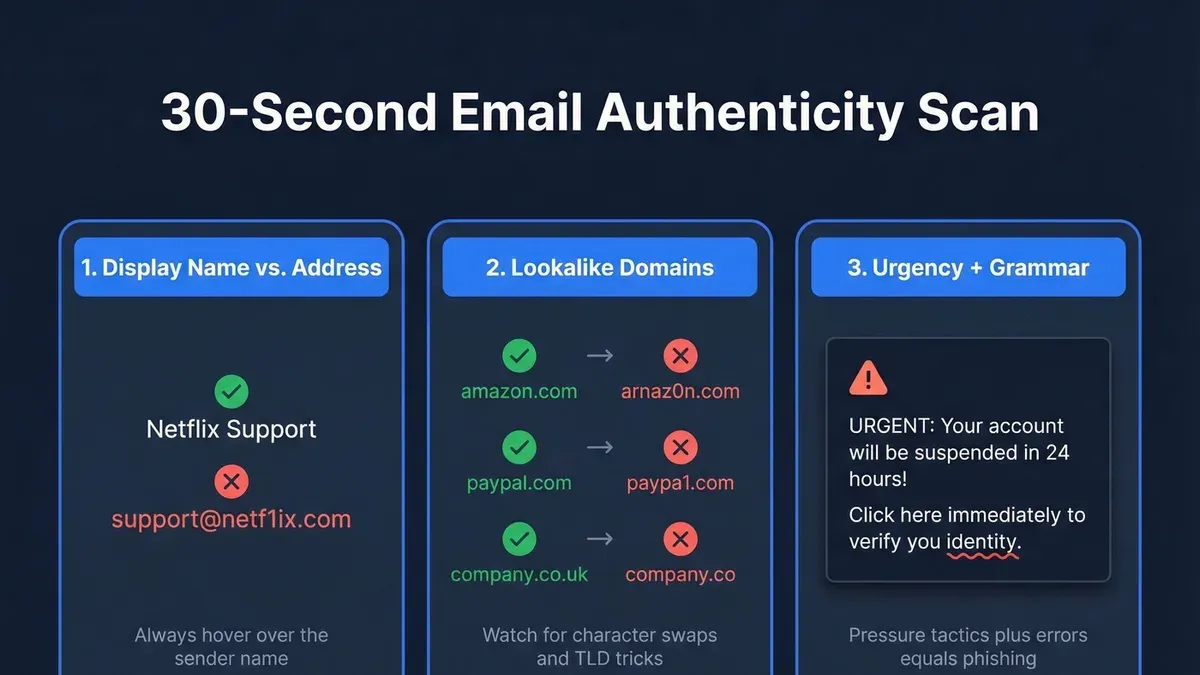
- Examine the sender’s email address carefully. Look beyond the display name, which can be easily spoofed. Instead, focus on the actual email address, visible by clicking "Reply" or checking the message source. A legitimate sender will usually have a professional-looking domain, such as "@company.com" rather than a free email service like "@gmail.com" when representing a business.
- Identify subtle misspellings or unusual domain names. Attackers often use domains that closely resemble legitimate ones, such as "@companny.com" or "@company-secure.com". Spotting these variations can reveal spoofed addresses. For example, "[email protected]" uses a zero instead of an "o", which is a common trick.
- Use a WHOIS lookup to verify domain ownership. Access a WHOIS database online, such as whois.icann.org, to check the domain's registration details. A newly registered or private domain for a supposed well-known company is a red flag. Conversely, a domain registered for many years and matching official company information supports legitimacy.
Worked example: An email appearing from "[email protected]" is likely legitimate, but if the address reads "[email protected]" (with a number 1), it is suspicious. Similarly, "[email protected]" differs from "[email protected]"; the latter should be verified through WHOIS and company websites before trust.
Tip: Always verify the sender’s actual email address and not just the display name to avoid common spoofing tricks.
How to check if an email is legit by inspecting email headers
Email headers contain detailed routing information that helps trace the path an email took from sender to recipient. The key elements to focus on are the ‘Received’ fields, which list each mail server the email passed through in reverse order, starting with the most recent.
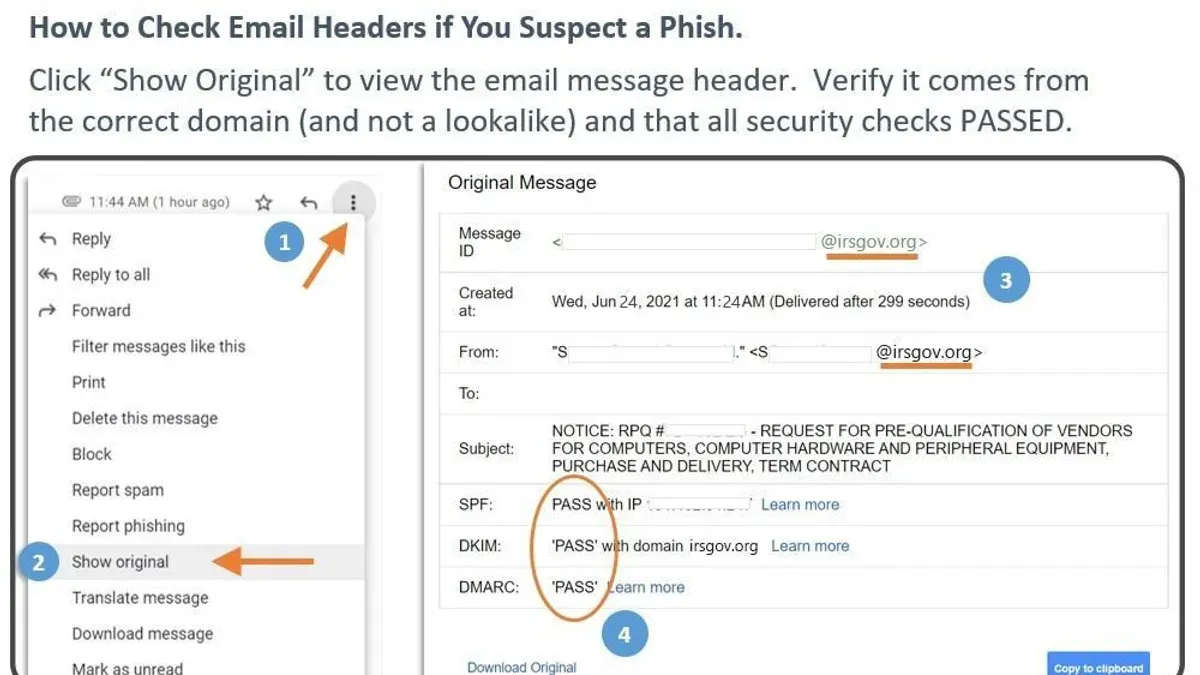
- Open the full email header in the email client. For example, in Gmail, click the three dots next to the reply button and select “Show original.” In Outlook, open the message, then click File > Properties and find “Internet headers.” Successful access shows a block of text containing routing information.
- Locate the series of “Received” lines. These begin with “Received:” and list mail servers, timestamps, and IP addresses. They appear in reverse chronological order, with the topmost being the last server that handled the email.
- Follow the path of servers from bottom to top. The first “Received” line typically shows the originating server used by the sender. Verify if these servers match the sender’s claimed domain or known mail providers. A legitimate email usually shows a consistent chain of trusted servers.
- Spot inconsistencies such as unexpected or unrelated servers, private IP addresses in public email routes, or missing usual relay servers. These can indicate spoofing or unauthorized relays.
- Compare headers of a suspicious email with a known legitimate one from the same sender or domain. Differences in server names, IP locations, or an unusual number of relay hops may signal phishing attempts.
Tip: Use online header analysis tools like MXToolbox or Google’s Email Header Analyzer to visualize and simplify header interpretation.
How to tell if email is legitimate using SPF, DKIM, and DMARC authentication
SPF (Sender Policy Framework), DKIM (DomainKeys Identified Mail), and DMARC (Domain-based Message Authentication, Reporting & Conformance) are key email authentication protocols that help verify if an email is sent from an authorized source.
SPF validates that the sending mail server's IP is authorized by the domain's DNS records. DKIM uses cryptographic signatures to verify that the email's content is unchanged and genuinely from the claimed domain. DMARC builds on SPF and DKIM by instructing receiving servers how to handle emails failing authentication and enables domain owners to receive reports.
- Open the full email headers in the email client (e.g., "View Original" or "Show Source").
Look for lines starting with "Received-SPF", "Authentication-Results", or "DKIM-Signature". - Check the SPF result: it should say "pass" if the sending server is authorized.
A "fail" or "softfail" indicates the sender IP is not authorized. - Verify the DKIM status: look for "dkim=pass" in the Authentication-Results.
If DKIM fails, the signature may be missing or altered. - Review the DMARC outcome: typically found as "dmarc=pass" or "dmarc=fail".
A pass means the domain owner’s policy is met; a fail suggests potential spoofing.
Tip: Some email providers summarize authentication results in the message header or next to the sender’s name, making quick checks easier.
Below is a comparison of authentication results from real emails:
| Email Type | SPF Result | DKIM Result | DMARC Result | Legitimacy Indication |
|---|---|---|---|---|
| Trusted corporate email | pass | pass | pass | Highly likely legitimate |
| Phishing attempt | fail | fail | fail | Likely fraudulent |
| Third-party marketing email | pass | fail | pass | Possibly legitimate but verify content |
| Forwarded personal email | softfail | pass | fail | May be legitimate, but caution advised |
Authentication protocols are not foolproof. False negatives occur when legitimate emails fail checks due to misconfigured DNS records or forwarding. Therefore, SPF, DKIM, and DMARC results should complement other verification methods.
How to check if an email address is legit by verifying URLs and attachments
- Hover over links without clicking to view the destination URL, typically displayed in the browser’s status bar or near the cursor. The visible URL should match the sender’s domain and not contain misleading characters such as extra letters, numbers, or substitutions like “rn” instead of “m.”
- Use online URL scanning services like VirusTotal or Google Safe Browsing to analyze suspicious links. Copy the link address, paste it into these tools, and review the scan results for reports of malware or phishing. A clean report suggests the link is safer but not guaranteed.
- Avoid opening unexpected attachments. If an attachment is necessary, save it first and scan it with updated antivirus software before opening. Be especially cautious with executable files (.exe,.scr), macros in documents, or files with double extensions (e.g., “invoice.pdf.exe”).
Malicious URLs often impersonate legitimate sites by using subtle misspellings or adding extra words, such as “paypa1.com” instead of “paypal.com” or “amazon-secure-login.com” that does not belong to Amazon. Verifying these details can prevent falling victim to phishing or malware.
Tip: When unsure, open links in a secure, isolated environment or a virtual machine to avoid compromising your main system.
How to check if email is legit using external email verification tools
External email verification tools offer an additional layer of validation by checking if an email address is active, correctly formatted, and associated with known domains. Popular services include Hunter.io, NeverBounce, ZeroBounce, and EmailListVerify. These tools often provide batch verification, deliverability scores, and spam trap detection.
Using these tools generally involves entering the suspicious email address into their search or verification field. The service then returns results indicating whether the email is valid, risky, or invalid. A “valid” result suggests the address exists and is likely legitimate, while “risky” flags potential issues like temporary status or role-based addresses.
Tip: Use multiple verification services for cross-checking, as accuracy and detection methods vary.
Accuracy and usability vary between providers. Hunter.io is user-friendly, offering domain search and verification with moderate accuracy. NeverBounce and ZeroBounce focus on deliverability and spam trap detection, providing detailed reports but sometimes longer processing times. EmailListVerify balances speed and accuracy with straightforward results.
Privacy considerations are important; some tools store or share data, which may expose sensitive information. It is advisable to review each tool’s privacy policy before use. Additionally, no tool guarantees 100% accuracy—results should be combined with other verification methods for a comprehensive assessment.
- Navigate to the email verification tool's website (e.g., hunter.io or zerobounce.net).
- Enter the suspicious email address into the provided verification field.
- Submit the query and wait for the result, which typically appears within seconds to minutes.
- Review the status: “valid,” “risky,” or “invalid.”
- For more detailed insight, explore additional reports such as domain health or spam trap warnings if available.
Common signs that an email is not legit
Emails that are not legitimate often exhibit clear warning signs. One frequent red flag is the use of urgency or threatening language, such as demands for immediate action to avoid negative consequences. This tactic pressures recipients to act without proper scrutiny.
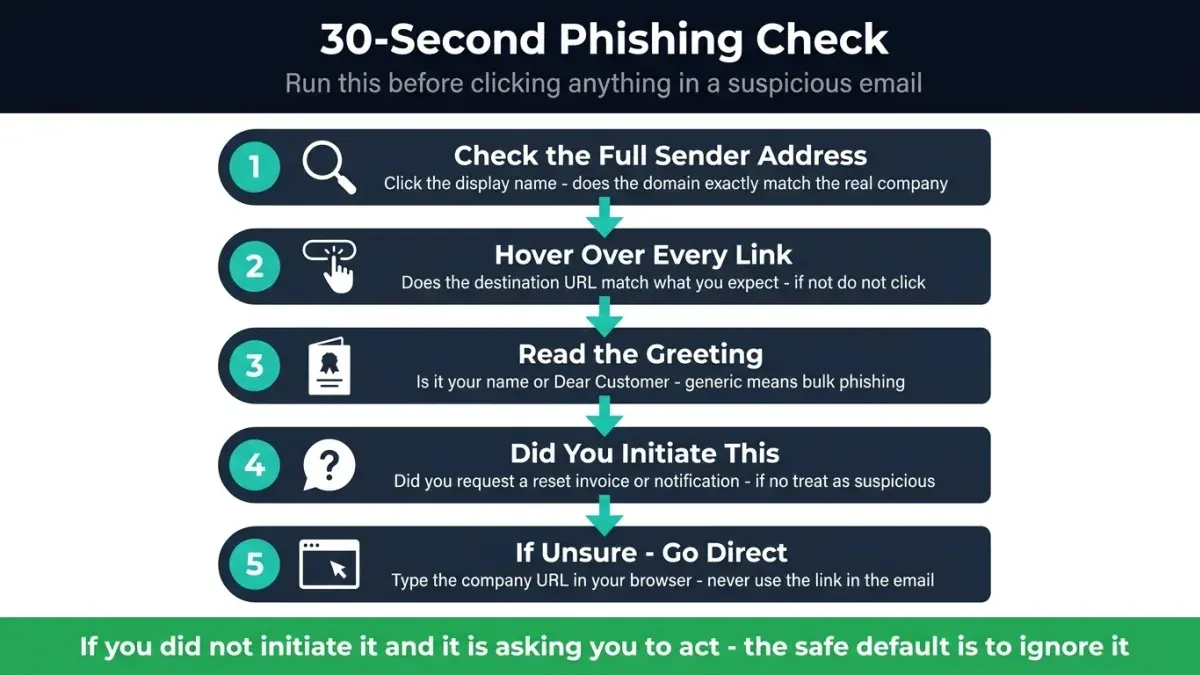
Requests for sensitive information like passwords, social security numbers, or banking details are another indicator. Legitimate organizations rarely ask for such data via email.
Poor grammar and spelling mistakes are common in fraudulent emails. These errors can appear in the subject line, body text, or sender’s name and often signal a lack of professionalism or automated generation.
A mismatch between the sender’s displayed name and the actual email address also raises suspicion. For example, the sender might appear as a known company but use a personal or unrelated domain.
Tip: Carefully compare the sender’s name with the email address by viewing the full address in the email client.
- Check the email content for language that creates a sense of urgency or threats.
When detected, treat the email with caution as scammers often use this to rush decisions. - Look for any requests asking for sensitive personal or financial information.
Legitimate entities typically direct such requests to secure portals, not email. - Scan the email for spelling and grammar errors.
Multiple mistakes may indicate a phishing attempt. - Verify that the sender’s displayed name matches the actual email address domain.
Discrepancies suggest the email might be spoofed or fraudulent.
Troubleshooting: What to do if verification steps are inconclusive
When verification methods do not clearly confirm or dismiss an email's legitimacy, additional caution is necessary. Follow these steps to handle suspicious emails safely.
- Contact the sender through a trusted channel. Use a phone number, official website contact form, or known email address—not the contact details provided in the suspicious email. Successful contact with a confirmation of the email's authenticity indicates legitimacy.
- Consult IT or security professionals. Forward the email and any analysis results to an organization's IT department or cybersecurity expert. Their specialized tools and knowledge can often detect subtle signs of phishing or spoofing that are not obvious.
- Report the suspicious email to appropriate authorities or email providers. Use features like "Report Phishing" in email clients or forward the email to anti-phishing organizations such as the Anti-Phishing Working Group ([email protected]). Proper reporting helps improve detection systems and protect others.
For example, a user received an email with a familiar company logo but unusual sender details. After inconclusive header and domain checks, the user contacted the company via the official website. The company confirmed the email was a phishing attempt, enabling the user to avoid potential harm.
Tip: When in doubt, err on the side of caution by verifying through separate channels before interacting with suspicious content.
Further reading
- How to Check If a Website Is Legit: A Step-by-Step Guide
- How to Verify an App’s Legitimacy Before Downloading
- How to Recognize and Handle DHL Scam Texts Safely
- How to Identify and Protect Yourself from Chase Scam Texts
Frequently asked questions
How to check legit email address?
Check the sender's email address by comparing it to known contacts or official domains. Analyze the domain part after the @ symbol for subtle misspellings or suspicious variations. Verify the email headers and authentication records like SPF, DKIM, and DMARC to confirm if the sender is authorized to use that address.
How to know if email is legit?
Look beyond the visible sender name and inspect the email headers for the origin IP and routing details. Confirm if the message passes domain authentication protocols such as SPF, DKIM, and DMARC. Also, scrutinize links and attachments for legitimacy before taking any action.
Is this email legit checker?
“Is this email legit checker” likely refers to online tools that verify email authenticity. These tools typically analyze email headers and domain reputation but may not catch all sophisticated spoofing attempts. Use them as one part of a broader verification process rather than sole proof of legitimacy.
How to check an email is legit?
Begin with verifying the sender’s email address and domain. Next, inspect the email headers for inconsistencies in the sender’s IP or relay path. Check for proper SPF, DKIM, and DMARC authentication results, and carefully examine any included URLs and attachments for signs of phishing or malware.
Can you check if an email is real?
Yes, by analyzing the email’s technical details such as headers and authentication records, it is possible to determine if an email is genuinely from the claimed sender. Additional checks include confirming domain ownership and using external verification tools to assess email reputation.
Limitations of these verification steps
These steps reduce risk but cannot guarantee 100% certainty. Sophisticated attacks may bypass technical checks, such as advanced spoofing or zero-day exploits. Users without technical expertise should exercise caution and seek professional help when in doubt. This guide does not cover email account compromise or malware infections resulting from clicking links or attachments.
When verification is inconclusive, the single most useful next step is to contact the sender through an independent channel, such as a phone call or a separate email address obtained from an official website. This direct confirmation helps avoid falling victim to impersonation or phishing tactics that evade automated checks.