Is ctfmon.exe a Virus? How to Tell and Stay Safe
Discover how to identify if ctfmon.exe is a virus and learn practical steps to keep your Windows PC safe from malware impersonating this process.

If you’ve noticed ctfmon.exe running on your Windows PC, you might wonder: is ctfmon.exe a virus? This process is a legitimate part of Windows, but malware can impersonate it to avoid detection. This article explains how to identify the genuine ctfmon.exe, recognize signs of malicious versions, and verify your system’s safety with practical steps.
What Is ctfmon.exe and Its Legitimate Role in Windows?
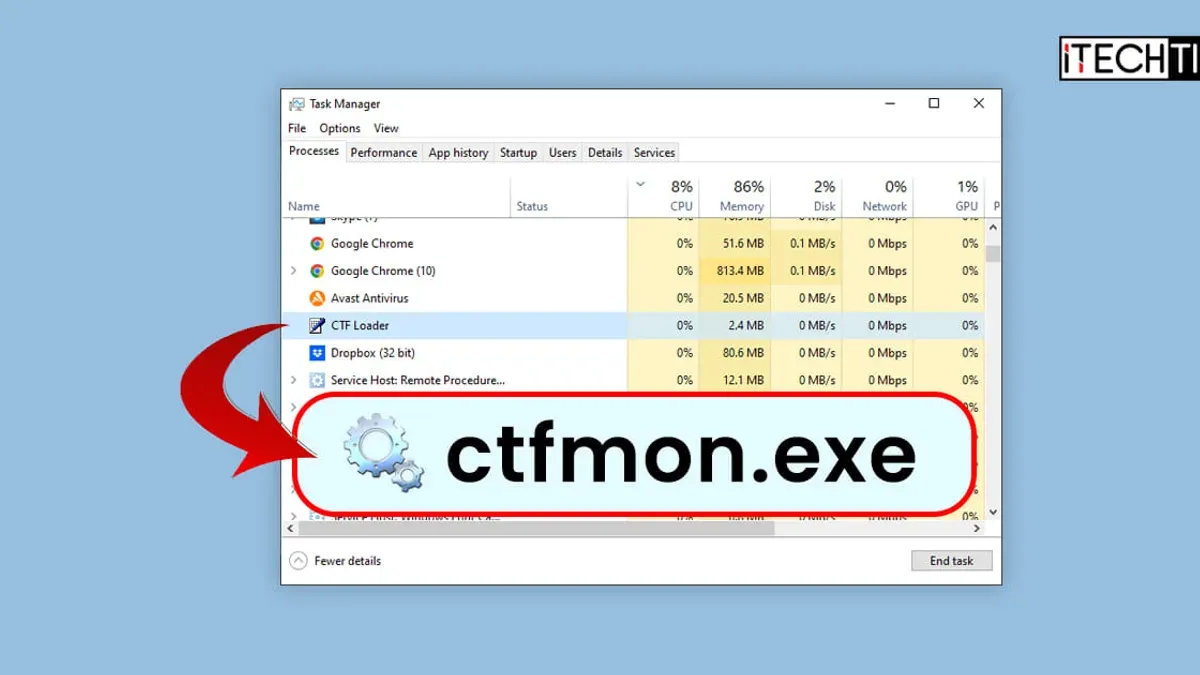
ctfmon.exe is a system process responsible for managing Alternative User Input and the Microsoft Office Language Bar. It activates the Text Services Framework and controls input methods such as speech recognition, handwriting recognition, and keyboard layouts for different languages.
- Role: Manages input processors enabling multilingual and alternative input functionality.
- Typical file location: The legitimate
ctfmon.exefile is located in theC:\Windows\System32folder on 64-bit systems orC:\Windows\SysWOW64on 32-bit systems. - Necessity: It is normally safe and necessary for proper language input and Office features. Disabling it may affect text input services.
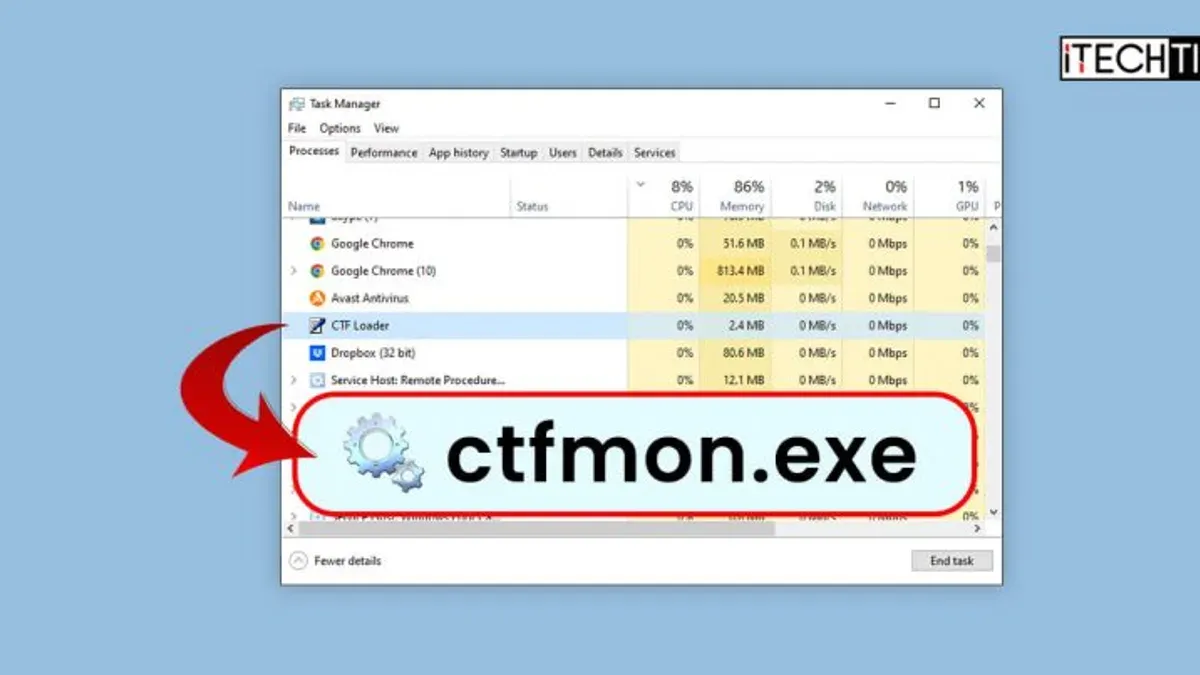
Official Microsoft documentation identifies ctfmon.exe as part of the Text Services Framework. In Task Manager, the genuine process typically consumes minimal CPU and memory, running silently in the background.
How Malware Can Impersonate ctfmon.exe
Malware authors often name malicious executables ctfmon.exe to blend in with legitimate system processes, helping evade detection by users and some security tools.
- Malware examples: Some Trojans and spyware have been detected using the
ctfmon.exename to disguise themselves. - File path tricks: Malicious files may run from unusual locations like user folders or temporary directories, differing from the standard system32 path.
- Digital signatures: Legitimate
ctfmon.exefiles are signed by Microsoft. Malware may lack valid signatures or have altered ones. - Behavioral signs: Suspicious
ctfmon.exeprocesses might cause high CPU usage, network connections to unknown servers, or unexpected pop-ups.
| Aspect | Legitimate ctfmon.exe | Malicious Impostor |
|---|---|---|
| File Location | C:\Windows\System32 |
User folders, temp directories, or other unusual paths |
| Digital Signature | Signed by Microsoft Corporation | Unsigned or invalid signature |
| Resource Usage | Minimal CPU and memory | High CPU, memory spikes |
How to Check If Your ctfmon.exe Is Safe: Step-by-Step Verification
Follow these steps to verify the authenticity of ctfmon.exe on your PC:
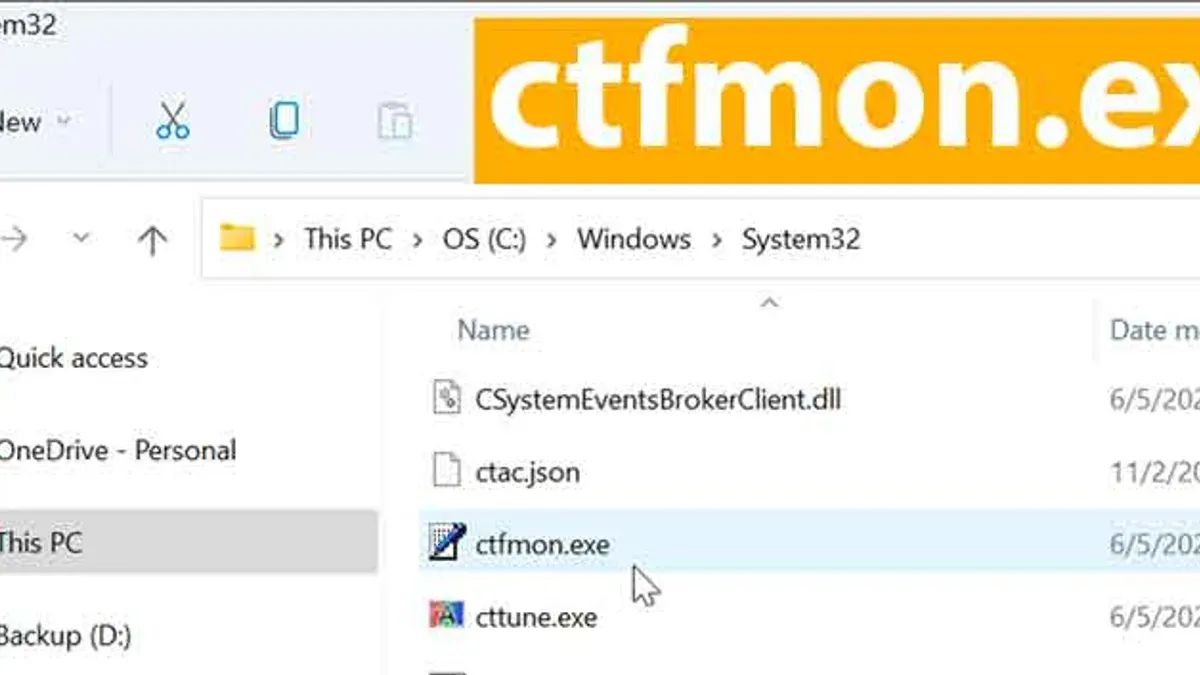
- Locate the file: Open Task Manager (
Ctrl+Shift+Esc), findctfmon.exeunder Processes, right-click and select "Open file location." Confirm it points toC:\Windows\System32or equivalent system folder. A common mistake is overlooking the exact folder; some users mistakenly trust files inC:\Windowsroot or user directories. - Check file properties: Right-click the file, select Properties, then the Digital Signatures tab. Verify the signer is Microsoft Corporation. Also check the file size and creation date—legitimate files generally have consistent sizes (around 20-40 KB) and creation dates matching Windows installation or updates. Recent creation dates in unusual paths are red flags.
- Analyze resource usage: In Task Manager or Resource Monitor, observe CPU, memory, and network activity of
ctfmon.exe. Legitimate instances use minimal resources and do not initiate outbound connections. Unexpected spikes or network activity should prompt further investigation. - Run antivirus scans: Use updated antivirus and antimalware tools to scan the
ctfmon.exefile and related directories. Note that some malware can evade detection, so multiple scans or specialized tools may be necessary. - Use command line verification: Tools like Microsoft's Sigcheck or PowerShell scripts can verify file signatures. For example, run
sigcheck -q -m C:\Windows\System32\ctfmon.exeto check signature details. Note that valid signatures do not guarantee safety if the file has been replaced by sophisticated malware.
These checks help distinguish genuine processes from suspicious ones, but no single step is foolproof.
When to Be Concerned and What to Do If ctfmon.exe Is Malicious
Be alert to these behavioral red flags indicating potential malware:
- Unexpected CPU spikes or memory use by
ctfmon.exe - Network connections initiated by
ctfmon.exeto unknown or suspicious IP addresses - Pop-ups, system instability, or error messages linked to this process
If you suspect a malicious ctfmon.exe, take these remediation steps:
- Disconnect from the internet to prevent data leaks or further infection.
- Run a full system scan with reputable antivirus and antimalware software to detect and quarantine threats.
- Use specialized malware removal tools if recommended by your security software.
- If removal is uncertain, seek professional cybersecurity assistance to avoid data loss or system damage.
Note: This advice does not cover deep forensic analysis or advanced persistent threats. Users experiencing critical data issues or system instability should consult cybersecurity professionals.
Why ctfmon.exe Is Rarely a Virus but Vigilance Is Still Necessary
ctfmon.exe is a core Windows component, and genuine infections are uncommon. Most antivirus alerts involving this file result from impostor malware rather than the legitimate process.
- False positives can occur when security software flags legitimate system files due to heuristic rules or file corruption.
- Maintaining up-to-date security software and cautious online behavior reduces infection risks.
- Regular system checks and verification help distinguish safe processes from threats.
Malware impersonation of system processes remains a common evasion tactic. Staying informed and vigilant is the best defense.
Frequently asked questions
Can ctfmon.exe cause harm if it’s legitimate?
The legitimate ctfmon.exe process is safe and necessary for input services. It does not harm your system or data.
How can I permanently disable ctfmon.exe if I don’t use language bar features?
Disabling ctfmon.exe is not recommended as it may impact text input functionality. However, you can disable text services via Control Panel > Language settings or by editing registry entries carefully. For example, disabling "Touch Keyboard and Handwriting Panel Service" in Services.msc can stop it, but this may affect input features. Always back up your system before making changes.
What are the best free tools to verify the authenticity of ctfmon.exe?
Tools like Microsoft's Sigcheck utility, Windows Defender Antivirus, and PowerShell commands are effective for verifying file signatures and scanning for malware.
Can malware still hide if I don’t see ctfmon.exe running?
Yes. Malware can use different process names or techniques to hide. Not seeing ctfmon.exe does not guarantee absence of threats. Comprehensive security practices are essential.
Important Caveats
This article does not provide exhaustive forensic malware removal instructions. Users facing complex infections, data loss, or system instability should seek professional cybersecurity assistance.