How to Stop Amazon from Tracking Your Activity: A Step-by-Step Guide
This guide explains how to stop Amazon from tracking you by adjusting privacy settings on your account, devices, and apps to protect your data.

This article explains how to stop Amazon from tracking you by detailing specific steps to limit data collection across Amazon’s website, apps, and devices.
Amazon tracks browsing history, search queries, and device interactions to personalize recommendations and ads, but this can raise privacy concerns. Managing these settings requires navigating Amazon’s privacy dashboard, adjusting website preferences, and controlling device permissions such as those on Alexa or Fire TV.
Understanding the scope of Amazon’s tracking helps users weigh the trade-offs between convenience and privacy. Disabling tracking features may reduce personalized experiences or some functionality. This guide provides clear instructions for each step, along with how to verify what data Amazon collects and additional tips to minimize tracking beyond Amazon’s ecosystem.
Before you start: What is needed to manage Amazon tracking
Controlling Amazon tracking requires access to several key accounts and devices, as well as a basic understanding of privacy tools and settings. Amazon uses a range of tracking technologies including cookies, device identifiers, and voice data to personalize user experiences and advertising.
To begin, an Amazon account with valid login credentials is essential since most privacy controls and data management options reside within the account settings on Amazon’s website or app. Without access to the account, it is impossible to adjust or review tracking preferences.
In addition to the account, access to any Amazon devices such as Echo smart speakers, Fire TV streaming devices, or Kindle e-readers is necessary. These devices collect usage data and voice commands, which are stored and used for personalization. Adjusting privacy settings at the device level can reduce some types of tracking.
Basic familiarity with web browsers and privacy tools like ad blockers or virtual private networks (VPNs) can also help limit tracking beyond Amazon’s platform. These tools can block tracking cookies and mask IP addresses, adding layers of privacy.
It is important to understand that some tracking is deeply integrated into Amazon’s ecosystem and cannot be completely disabled. For example, certain data collection is required for order processing and service functionality. Managing tracking is about minimizing exposure rather than fully eliminating it.
- Ensure possession of Amazon account credentials and confirm the ability to log in; successful login grants access to privacy and security settings.
- Identify all Amazon devices in use (Echo, Fire TV, Kindle) and have them available for settings adjustments; device menus should be accessible for privacy controls.
- Review current browser settings and install privacy tools if desired, such as ad blockers or VPN software; these should be active and operational.
How to stop Amazon from tracking your searches and browsing on its website
Limiting Amazon’s tracking of browsing and search activity involves adjusting account settings and using browser tools to restrict cookies and scripts. While these steps reduce personalized tracking, they cannot fully prevent Amazon from collecting some data when using its services.
- Sign in to the Amazon account and navigate to Advertising Preferences under Account & Lists > Your Account > Advertising Preferences. The page displays options related to ad personalization and interest-based ads.
- Toggle off the option labeled "Personalized ads based on your Amazon activity". Once switched off, the page will indicate that Amazon will no longer use browsing or purchase history to tailor ads.
- Return to the account menu and select Browsing History from Your Account. Use the Manage history button to clear all browsing records. Confirm the deletion when prompted; the page will then show an empty history.
- Enable the setting Turn Browsing History on/off to off, preventing Amazon from saving future browsing activities. The page will reflect this status change immediately.
- In the web browser, enable privacy settings to block third-party cookies. For example, in Chrome, go to Settings > Privacy and security > Cookies and other site data and select Block third-party cookies. This limits cookie-based tracking across sites, including Amazon.
- Consider installing privacy-focused browser extensions such as uBlock Origin or Privacy Badger. These tools block tracking scripts and trackers embedded in Amazon pages, reducing data collection beyond account settings.
Limitations: Disabling personalized ads and clearing browsing history reduce visible tracking but do not stop Amazon from collecting data necessary for service operations and fraud prevention. Using Amazon services inherently shares some information, which cannot be fully blocked without avoiding the platform entirely.
Tip: Regularly review and clear browsing history and advertising settings to maintain control over tracked data.
How to stop Amazon devices from tracking you
Amazon devices such as Echo, Fire TV, and Kindle collect various data types, including voice recordings, device usage logs, and interaction history. Managing these settings allows for reduced tracking but may limit some device functions.
Managing Alexa device voice recordings
- Open the Alexa app and tap More at the bottom right.
- Select Settings, then Alexa Privacy.
- Tap Review Voice History to see stored recordings.
- Use the Delete All Recordings option to clear stored voice data.
- To prevent future storage, go back to Alexa Privacy, select Manage Your Alexa Data, and disable Use Voice Recordings to Improve Amazon Services. A confirmation message will indicate voice recordings are no longer saved.
Tip: Disabling voice recording storage means Alexa may not improve recognition of voice commands over time.
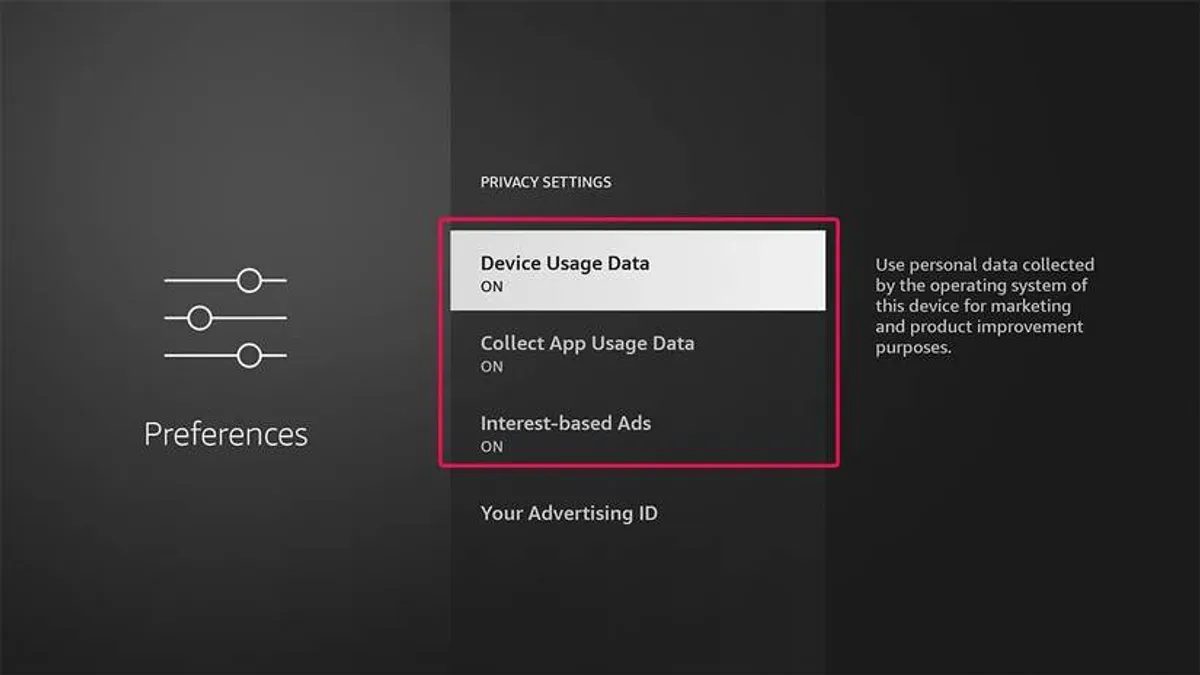
Adjusting Fire TV privacy settings
- On the Fire TV home screen, go to Settings > Preferences > Privacy Settings.
- Turn off Device Usage Data and Collect App Usage Data.
- Return to Settings > Applications > Appstore, and disable Interest-Based Ads to limit ad tracking.
- Restart the device to apply changes. The device will stop sending usage and app interaction data to Amazon.
Disabling usage logging on Kindle and other devices
- On a Kindle device, tap Settings > Device Options > Advanced Options > Privacy.
- Disable Send Diagnostic & Usage Data and Personalized Ads.
- For other Amazon hardware, check the device-specific settings for similar options to stop sending usage or diagnostic data.
Disabling these data collection features reduces the personalization and some convenience aspects, such as tailored recommendations and faster voice recognition. Users must balance privacy preferences with device functionality.
Tip: Some settings can be reversed if device features are impacted more than desired.
How to check Amazon tracking and confirm what data is collected
Amazon provides tools to review the information it collects about user activity, enabling verification of tracking settings and data transparency.
- Sign in to the Amazon account and navigate to the Privacy Dashboard at https://www.amazon.com/privacy. The dashboard displays recent activity such as browsing history, voice recordings, and advertising preferences.
- Click on Manage Your Data within the Privacy Dashboard to access detailed records of stored information. Here, users can see categories like Browsing History, Voice Recordings, and Ad Preferences with timestamps and settings summaries.
- To download a comprehensive personal data report, select Request Your Data from the Privacy Dashboard. Amazon will prepare a downloadable file, typically delivered by email within a few days, containing a structured archive of collected data.
- After obtaining the data report, open the files (commonly in CSV or JSON format) to examine entries such as search queries, device interactions, and purchase history. This helps identify the extent and type of data Amazon stores.
- For ongoing monitoring, install reputable browser extensions like Lightbeam or Ghostery. These tools reveal real-time tracking attempts by Amazon scripts and third-party trackers when browsing.
- Regularly revisit the Privacy Dashboard and review downloaded reports after changing tracking settings to confirm whether data collection practices have adjusted accordingly.
Tip: Screenshots of the Privacy Dashboard show sections labeled Browsing History, Voice Recordings, and Advertising Preferences, which reflect active tracking data.
How to stop using Amazon to reduce tracking exposure
Reducing reliance on Amazon services can significantly lower tracking exposure, but it requires thoughtful planning and consideration of alternatives. This section outlines practical steps for transitioning away from Amazon while balancing privacy with convenience.
Evaluating alternatives for shopping, streaming, and smart home devices
Several alternatives offer varying levels of privacy compared to Amazon. For shopping, local retailers, specialized e-commerce sites, or platforms with stronger privacy policies like Etsy or eBay can reduce data sharing. Streaming services such as Netflix, Disney+, or smaller platforms typically have distinct tracking practices, often with clearer user controls. For smart home devices, brands focused on privacy—like those supporting local control without cloud dependency—offer less tracking risk but may lack some features.
| Service Type | Amazon | Alternative Example | Privacy Notes |
|---|---|---|---|
| Shopping | Amazon.com | Etsy, eBay | Less centralized tracking; user data often limited to transactions and messaging |
| Streaming | Prime Video | Netflix, Disney+ | Tracking varies, but often more transparent privacy policies and controls |
| Smart Home Devices | Echo, Ring | Local control hubs, privacy-focused brands like Home Assistant compatible devices | Reduced cloud data collection; may require more user setup |
Steps to close or deactivate Amazon accounts safely
- Review and download all personal data via Amazon's Privacy Dashboard to retain needed information. Successful completion allows data backup before account closure.
- Cancel all active subscriptions including Prime, Audible, and others to avoid ongoing charges. Confirmation appears in the subscriptions section.
- Redeem any gift card balances or pending credits to prevent loss. Account balance should show zero after redemption.
- Visit Amazon's account closure page under "Close Your Amazon Account" and follow prompts to submit a closure request. A confirmation email will follow acknowledging the request.
- Wait for the account closure period (typically up to 7 days) during which the account is deactivated but can be reopened if needed. After completion, account access is permanently disabled.
Understanding privacy benefits and drawbacks of switching platforms
Switching from Amazon can reduce cross-service data aggregation and tracking intensity. However, alternative services might still collect data, sometimes without the same scale but also with fewer integrated controls. Some alternatives may lack Amazon's convenience or device ecosystem, requiring trade-offs in usability or features.
Planning gradual reduction of Amazon dependency
Gradual transition enables users to maintain needed services while testing alternatives. For example, starting with shopping or streaming alternatives before moving smart home devices allows adjustment to new platforms. This staged approach helps avoid abrupt loss of access and better manages privacy improvements.
Tip: Keep track of service cancellations and data downloads during the transition to prevent unexpected data loss or billing issues.
How to stop general online tracking beyond Amazon
Online tracking extends far beyond Amazon, using technologies like cookies, browser fingerprinting, and behavioral profiling to monitor user activity across websites. Taking control of these tracking methods helps reduce the overall digital footprint and indirectly limits Amazon's ability to profile users through third-party data.
Using privacy tools can significantly decrease tracking. Virtual private networks (VPNs) mask IP addresses, making it harder to link browsing behavior to a single user. Ad blockers prevent many tracking scripts and advertisements from loading, while privacy-focused browsers offer built-in protections against trackers and fingerprinting techniques.
Managing cookie settings is critical. Users should configure browsers to block third-party cookies and clear cookies regularly. Popular browsers like Google Chrome, Mozilla Firefox, and Microsoft Edge allow users to adjust cookie permissions in settings under Privacy and Security sections. For example, Firefox’s Enhanced Tracking Protection blocks many trackers by default and allows stricter cookie controls.
- Install a reputable VPN and activate it before browsing; successful activation typically shows a connected status icon and a changed IP address.
- Enable an ad blocker extension such as uBlock Origin or AdGuard; the extension icon should indicate active blocking on visited sites.
- Switch to or configure a privacy-focused browser like Mozilla Firefox or Brave; these browsers display tracker blocking statistics on their privacy dashboard or toolbar.
- Access browser settings and navigate to Privacy and Security > Cookies and Site Data; select options to block third-party cookies and clear cookies on exit.
- Regularly review browser permissions for location, camera, and microphone and disable any unnecessary access to reduce data exposure.
Tip: Combining multiple privacy tools enhances protection, but may occasionally disrupt website functionality, requiring manual adjustments or site-specific exceptions.
Troubleshooting common issues when Amazon tracking is not stopping
Amazon tracking may persist despite privacy setting changes due to several factors, including delayed updates, device-level overrides, and tracking outside logged-in sessions. Users often report that changes in settings like “Ad Preferences” or “Browsing History” do not immediately reflect in reduced tracking or personalized content.
Amazon explains that some tracking data, such as device identifiers or cookies, can remain active for hours or days after settings are changed, causing a lag before the effects are visible. Additionally, if Amazon devices are used without consistent account login or with multiple accounts, tracking controls may not apply uniformly.
Device-level tracking on Amazon’s hardware, such as Fire tablets or Echo devices, can override account-level preferences if settings like “Use Device History” or voice recording permissions are not fully disabled. This is a common oversight that leads to continued data collection despite account privacy adjustments.
- Clear browser cookies and cache related to Amazon.
Expected result: Reduced tracking cookies and refreshed session data. - Verify that the Amazon account is fully logged in and that all privacy settings under “Your Account > Privacy Settings” are updated.
Expected result: Confirmation that tracking preferences are set and saved. - Check Amazon devices for device-specific privacy options (e.g., “Manage Your Content and Devices” > “Device Settings”).
Expected result: Device-level tracking features are disabled or minimized. - Restart the device or browser to ensure new settings take effect.
Expected result: Tracking changes become active and noticeable. - Test browsing Amazon in a private or incognito window to see if tracking behavior differs.
Expected result: Limited tracking signals when not logged in or in private mode.
Tip: Tracking may continue if third-party tools, like browser extensions or other apps, interact with Amazon data; review and adjust these tools accordingly.
Further reading
- How to Stop Alexa from Recording and Control Its Listening Behavior
- How to Delete Alexa Recordings: A Complete Step-by-Step Guide
Frequently asked questions
Why is amazon tracking so bad?
Amazon tracking is often seen as problematic because it collects extensive data on browsing habits, searches, and purchases, which can be used to build detailed user profiles. This level of tracking raises privacy concerns, especially when data is shared across Amazon's ecosystem and with third parties for targeted advertising. Users may feel a loss of control over their personal information and face increased exposure to personalized ads.
Is amazon tracking down?
Amazon tracking is generally operational and not known to be down as a service. However, users may experience issues if their privacy settings are not configured correctly or if browser extensions and ad blockers interfere. Checking account privacy settings and device permissions can help determine if tracking is currently active or restricted.
How to stop online tracking?
Stopping online tracking involves multiple steps such as adjusting privacy settings on websites, using browser features like Do Not Track, installing privacy-focused extensions, and regularly clearing cookies and cache. Additionally, using virtual private networks (VPNs) and privacy-centric browsers can limit data collection by advertisers and third-party trackers.
How to stop tracking?
Stopping tracking requires managing permissions and settings on individual platforms and devices. Within Amazon, this includes disabling browsing history, controlling ad preferences, and turning off voice recording features on devices like Alexa. It is also helpful to regularly review and delete collected data through the account's privacy dashboard.
Why is amazon tracking not working?
Amazon tracking may not work properly if cookies are blocked, browser privacy settings are overly restrictive, or ad blockers are active. Network issues or software glitches on Amazon devices can also interrupt tracking functions. Ensuring that cookies and JavaScript are enabled and reviewing device settings often resolves these problems.
Limits of this advice
This article does not cover legal or corporate-level tracking mechanisms that users cannot control, such as data sharing agreements between Amazon and third parties or government requests. Complete anonymity from Amazon tracking cannot be guaranteed due to the deeply integrated nature of its services across devices, apps, and platforms. Users seeking total privacy may need to consider more extensive measures beyond the scope of this guide, including using separate accounts, alternative services, or specialized privacy tools.
The most effective next step is regularly reviewing and updating privacy settings within the Amazon account, especially the "Advertising Preferences" and "Manage Your Content and Devices" sections. Consistent management of these controls helps minimize tracking exposure and maintain better oversight of personal data shared with Amazon.