How to Stop Alexa from Recording and Control Its Listening Behavior
This guide explains how to stop Alexa from recording and control its listening behavior while troubleshooting common music playback issues.


This article explains how to stop Alexa from recording and provides clear steps to control its listening behavior while addressing common issues with music playback interruptions.
Alexa devices are designed to listen for wake words and record commands to improve user experience, but this can raise privacy concerns and cause unexpected music stoppages. Managing these settings requires navigating through the Alexa app, where options exist to mute the microphone, delete voice recordings, and adjust privacy preferences.
In addition to controlling recordings, this guide covers troubleshooting methods for when Alexa stops music randomly, helping users maintain both privacy and seamless functionality.
Before you start: Preparing to manage Alexa’s listening and recordings
Effective management of Alexa’s listening and recording settings requires preparation and awareness of certain conditions. Begin by ensuring the Amazon Alexa app is installed on a compatible smartphone or tablet. This app must be linked to the Alexa-enabled device to access its settings and control privacy features.
A stable Wi-Fi connection is essential because changes made in the Alexa app or device settings need to be synchronized online. Without a reliable connection, adjustments may not take effect immediately or could fail altogether.
It is important to understand the trade-offs involved in disabling or limiting Alexa’s voice activation. Alexa’s core functionality relies on voice commands triggered by the wake word (usually "Alexa"). Disabling or restricting this feature can prevent the device from responding to hands-free requests, limiting capabilities such as controlling smart home devices, asking questions, or setting timers.
For example, when voice activation is enabled, users can say, "Alexa, play music" and receive an immediate response. With voice activation disabled, Alexa will not listen actively and can only be controlled via the app or physical buttons, significantly reducing convenience.
- Install and open the Amazon Alexa app on a smartphone or tablet. Successful installation will show an Alexa home screen with device options.
- Sign in with the Amazon account linked to the Alexa device. After signing in, the app should display the connected Alexa devices under the "Devices" tab.
- Ensure the Alexa device is connected to Wi-Fi by checking the device’s status in the app. A green or "Connected" status indicates a stable connection.
- Review Alexa’s current voice activation settings via the app under Devices > Echo & Alexa > [Device Name] > Wake Word. Confirm whether voice activation is enabled or disabled.
Tip: Disabling voice activation can improve privacy but will require manual interaction with the device or app for most commands.
How to stop Alexa from recording everything
To protect privacy, Alexa users can disable or limit the device’s recording and storage of voice interactions. Several methods exist within the Alexa app and on the device itself.
- Open the Alexa app and tap on More in the bottom right corner, then select Settings. Under Alexa Privacy, choose Manage Your Alexa Data. Here, toggle off Use Voice Recordings to Improve Alexa to prevent Amazon from storing voice inputs for service improvement. A confirmation message should appear.
- In the same Manage Your Alexa Data section, set Automatically Delete Voice Recordings to a preferred time frame such as every 3 or 18 months. This limits how long recordings are kept without manual intervention.
- To delete existing recordings, go to Review Voice History within Manage Your Alexa Data. Select specific recordings or use the Delete All Recordings option to clear stored voice interactions. The app will confirm once deletions are complete.
- Physically mute Alexa’s microphone by pressing the Microphone Off button on the device. This disables listening, indicated by a red light on the device, and prevents all voice recordings until unmuted.
Tip: Muting the microphone stops all Alexa voice commands but is the most effective way to prevent recordings entirely.
How to stop Alexa from listening or get Alexa to stop listening
Alexa continuously listens for its wake word but does not record or send audio until activated. To prevent Alexa from listening or responding, several device features can be adjusted.
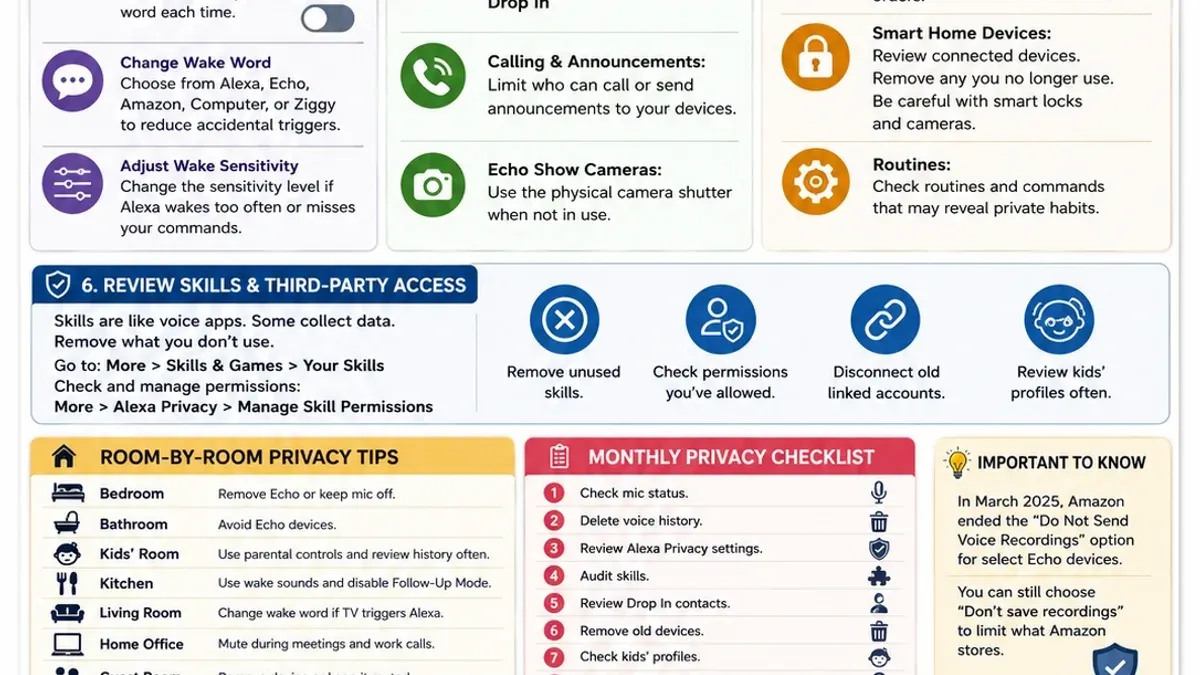
- Use the microphone off button: Press the physical microphone button on the Echo device. When the microphone is off, the device shows a red indicator light and stops listening entirely until the microphone is re-enabled.
- Disable or change the wake word: Open the Alexa app, go to Devices > Echo & Alexa > select the device > Wake Word. Here, disable the wake word or select an alternative such as "Echo," "Amazon," or "Computer." Disabling reduces accidental activations but also disables hands-free voice interaction.
- Enable Do Not Disturb mode: In the Alexa app, select Devices > Echo & Alexa > device > Do Not Disturb. Turning this on limits Alexa’s responses to notifications and calls but does not stop wake word detection.
- Manage communication features like Drop In: Drop In allows instant voice connections to and from your device. Disable Drop In by navigating to Devices > Echo & Alexa > device > Communications > Drop In and turning it off to prevent uninvited listening through this feature.
When the microphone is enabled with the wake word active, Alexa listens passively for commands, indicated by a blue light when activated. With the microphone off, Alexa stops listening until manually reactivated. Disabling the wake word removes hands-free interaction but prevents accidental responses triggered by similar-sounding words.
Tip: Use the microphone off button for immediate privacy, and adjust wake word or communication settings for longer-term control.
How to delete Alexa recording conversations
Removing past voice recordings from Amazon’s servers can help maintain privacy and control over personal data. This process can be completed using the Alexa app or through a web browser.
- Open the Alexa app and tap on the "More" menu located at the bottom right corner. You should see additional options appear.
- Select "Settings" from the menu, then choose "Alexa Privacy." This will open privacy-related controls.
- Tap on "Review Voice History." The voice history interface will list recorded interactions by date.
- To delete individual recordings, tap the recording entry and then tap "Delete Voice Recordings." A confirmation message should appear once deleted.
- To delete the entire history, use the "Delete All Recordings" option, typically found at the top of the voice history screen. Confirm the deletion to clear all stored recordings.
- For automatic deletion, go back to "Alexa Privacy" and select "Manage How Your Data Improves Alexa." Enable the option to automatically delete recordings older than 3 or 18 months, depending on preference.
Alternatively, voice history can be managed online by logging into the Amazon Alexa Privacy Settings page on the Amazon website, where similar options for reviewing and deleting recordings are available.
Tip: Deleting voice recordings may reduce Alexa’s ability to personalize responses and improve speech recognition accuracy, as Amazon uses these interactions to enhance service quality.
Users should weigh privacy benefits against potential limitations in Alexa’s performance when deciding how often to delete recordings.
How to stop music on Alexa and keep Alexa from stopping music
To control music playback on Alexa devices effectively, start by using clear voice commands. Saying "Alexa, stop" or "Alexa, pause" will halt the music immediately, while "Alexa, resume" will continue playback.
Unexpected music stoppages often result from network instability or software glitches. Ensuring a stable Wi-Fi connection and updating the Alexa device software can significantly reduce interruptions.
- Check the Wi-Fi connection by opening the Alexa app and navigating to Devices > Echo & Alexa > select the device > Status. A strong connection status confirms network stability.
- Update the device software: In the Alexa app, go to Devices > Echo & Alexa > select the device > Device Software Version. If an update is available, follow the prompts to install it. Successful update prevents bugs that cause playback issues.
- Verify linked music services and accounts: In the Alexa app, go to Settings > Music & Podcasts > Manage Services. Ensure accounts like Amazon Music, Spotify, or Apple Music are properly linked and active. Disconnect and reconnect services if playback stops unexpectedly.
- Reset music settings by disabling and re-enabling the music service within the Alexa app. This can resolve authorization errors causing interruptions.
Common causes for music stopping randomly include weak Wi-Fi signals, outdated device software, and account authorization problems. Addressing these factors helps maintain continuous music playback without unexpected stops.
Tip: Regularly restarting the Alexa device can clear temporary glitches affecting music playback.
Troubleshooting Alexa stopping music randomly
Unexpected interruptions in Alexa’s music playback often trace back to connectivity, account, or app issues. Addressing these can restore smooth listening experiences.
- Check Wi-Fi and internet connection quality. Ensure the Alexa device shows a stable connection in the Alexa app under Devices > Echo & Alexa > [Device Name] > Status. If connection indicators show weak or no signal, music may stop abruptly.
- Restart the Alexa device and router. Power cycling these devices can clear temporary glitches. Unplug the Alexa device for 30 seconds, then plug it back in and wait for it to reconnect. Similarly, restart the router and confirm internet access is restored. Successful reconnection is confirmed when Alexa responds normally and the app shows an active device status.
- Verify linked music service subscriptions and credentials. Access the Alexa app's More > Settings > Music & Podcasts to confirm accounts like Amazon Music, Spotify, or Apple Music are linked properly. Expired subscriptions or incorrect login credentials often cause playback interruptions. Re-link any service showing errors and test playback to confirm resolution.
- Clear the Alexa app cache and reinstall if needed. On mobile devices, clearing the app cache can resolve app-related issues causing playback stops. If problems persist, uninstall and reinstall the Alexa app. After reinstalling, sign in and verify device controls function correctly.
Tip: Regularly updating the Alexa device firmware and app can prevent many common playback issues caused by software bugs.
Privacy trade-offs and limits of stopping Alexa from recording or listening
Alexa's core functionality depends on its ability to listen for wake words and store voice recordings temporarily or permanently to improve responses and personalize interactions. Fully disabling recordings or muting the microphone enhances privacy but reduces or eliminates some features.
When voice recordings are disabled via the Alexa app settings under Alexa Privacy > Manage Your Alexa Data, personalized responses such as tailored music recommendations, routines triggered by voice history, and improved speech recognition accuracy may be limited. Alexa cannot learn from past interactions, resulting in more generic responses.
Physical muting by pressing the microphone off button on the device offers the strongest privacy protection by stopping all audio capture. However, this also disables voice commands until unmuted, forcing manual control via the app or device buttons.
Some Alexa features require voice data storage to function properly or improve over time. These include voice purchasing confirmation, voice profile recognition, and certain smart home automations.
| Alexa Feature | Full Recording Enabled | Recording Disabled or Microphone Muted |
|---|---|---|
| Wake word detection | Active and responsive | Active unless microphone muted |
| Personalized music and content recommendations | Available | Unavailable or less accurate |
| Voice profile recognition | Enabled | Disabled |
| Voice purchasing | Enabled with voice confirmation | Disabled or requires manual confirmation |
| Smart home voice control | Fully functional | Limited or manual control required |
| Routine automation based on voice history | Enabled | Disabled |
Tip: Evaluate which Alexa features are essential before disabling recordings or muting to balance privacy with usability.
Further reading
- How to Check If an Online Store Is Legit: A Step-by-Step Guide
- How to Delete Google Assistant Recordings and Manage Privacy Settings
- How to Delete Siri History Across All Apple Devices
Frequently asked questions
How to keep alexa from stopping music?
To prevent Alexa from stopping music unexpectedly, check for network stability and ensure the device firmware is updated via the Alexa app under Device Settings > About > Software Version. Disable any routines or notifications that might interrupt playback by reviewing the Alexa app's Routines section and Notification settings. Additionally, avoid enabling skills or features that could conflict with music playback.
How to get alexa to stop listening?
Alexa can be stopped from listening by pressing the microphone off button on the device, which disables the microphone and lights a red indicator. Alternatively, mute Alexa via the Alexa app under Device Settings by toggling Microphone off. Keep in mind, when Alexa is muted, voice commands will not be recognized until the microphone is re-enabled.
How to listen to alexa recordings?
Alexa recordings can be reviewed by opening the Alexa app, navigating to Settings > Alexa Privacy > Review Voice History. Here, users can listen to individual voice recordings and see the date and time of each request. Recordings can be deleted individually or in bulk from the same menu.
How to turn off alexa from listening?
To turn off Alexa from listening entirely, press the microphone off button on the device or select the microphone toggle in the Alexa app under Device Settings. For a more permanent solution, disable the Alexa skill or disconnect the device from Wi-Fi, but this will also disable all Alexa functions. Physically unplugging the device ensures it is off and not listening.
How to keep alexa from listening?
Keeping Alexa from listening involves using the microphone off button on the device or muting it through the Alexa app under Device Settings. For continuous privacy, consider setting up voice purchasing and personal information restrictions in Alexa Privacy settings to limit data collection. Note that disabling listening also impacts the device's responsiveness to voice commands.
Privacy limitations and when to seek alternative solutions
Completely stopping Alexa from listening disables most voice-activated features and significantly reduces the device’s usefulness. Privacy controls such as deleting voice recordings or disabling certain settings require ongoing user attention to maintain desired privacy levels. Additionally, music playback problems are not always related to recording or listening settings; network issues or Amazon account problems can also cause interruptions.
For users needing strict privacy or uninterrupted music playback beyond these steps, considering alternative devices or dedicated privacy-focused assistants may be necessary. Enterprise users or those with sensitive data concerns should evaluate device use carefully and consult professional guidance.
The most practical next step is to regularly review the Alexa app’s Privacy section under Settings > Alexa Privacy, ensuring that automatic deletion is enabled and monitoring any new recordings. This habit helps balance privacy with functionality and keeps control over Alexa’s behavior consistent.