How to Enable Device Encryption on Windows 11 Home
This guide shows how to enable device encryption on Windows 11 Home to protect your files from unauthorized access.

Securing your data is essential. Enabling device encryption on Windows 11 Home protects your files from unauthorized access. While Windows 11 Home lacks full BitLocker capabilities, device encryption offers a simplified alternative to safeguard your device’s content. This guide explains how to enable device encryption on Windows 11 Home, verify its status, and explore options if it’s unavailable.
Understanding Device Encryption vs BitLocker on Windows 11 Home
Device encryption and BitLocker both encrypt data but differ in scope and availability. Device encryption, built into Windows 11 Home, encrypts your device’s storage to prevent data access without proper authentication. BitLocker, available in Windows 11 Pro and higher editions, offers advanced management, configuration, and recovery options.
Windows 11 Home does not include full BitLocker features. Instead, Microsoft provides device encryption on supported hardware to offer basic protection without complex setup.
To use device encryption, your system must meet these hardware requirements:
- TPM 2.0 (Trusted Platform Module): A security chip that securely stores encryption keys. Note that TPM must be enabled in the UEFI/BIOS settings, as it is often disabled by default.
- UEFI firmware with Secure Boot enabled: Ensures the device boots using trusted software. Secure Boot is also typically disabled by default and must be manually enabled.
- Modern standby support: Found on recent devices supporting InstantGo or Connected Standby.
- Microsoft account sign-in: Required to back up recovery keys to the cloud. Using a local account will disable device encryption availability.
| Feature | Device Encryption (Home) | BitLocker (Pro) |
|---|---|---|
| Full disk encryption | Yes | Yes |
| Management controls (group policy) | No | Yes |
| Ability to encrypt removable drives | No | Yes |
| Recovery key customization | Limited, backed up to Microsoft account | Full control over recovery keys |
| Support for network unlock and multifactor authentication | No | Yes |
Checking If Your Device Supports and Has Device Encryption Enabled
Before enabling device encryption, verify if your device supports it and if it’s already active.
How to Check Device Encryption Status
- Open Settings by pressing Win + I.
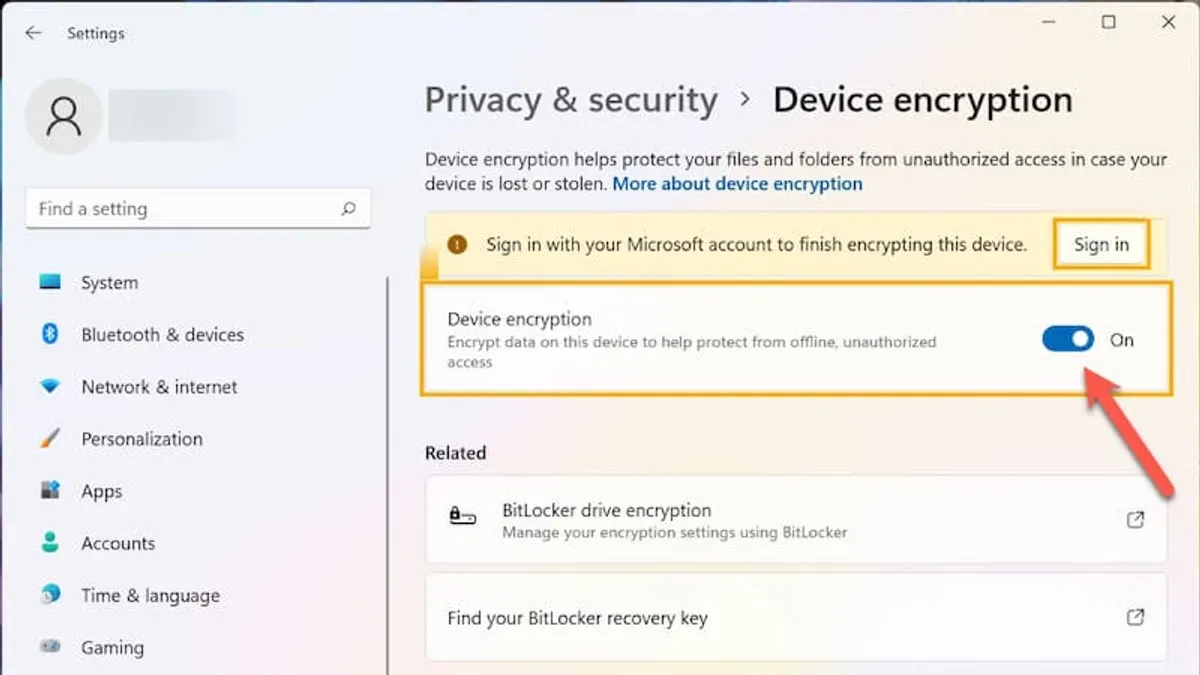
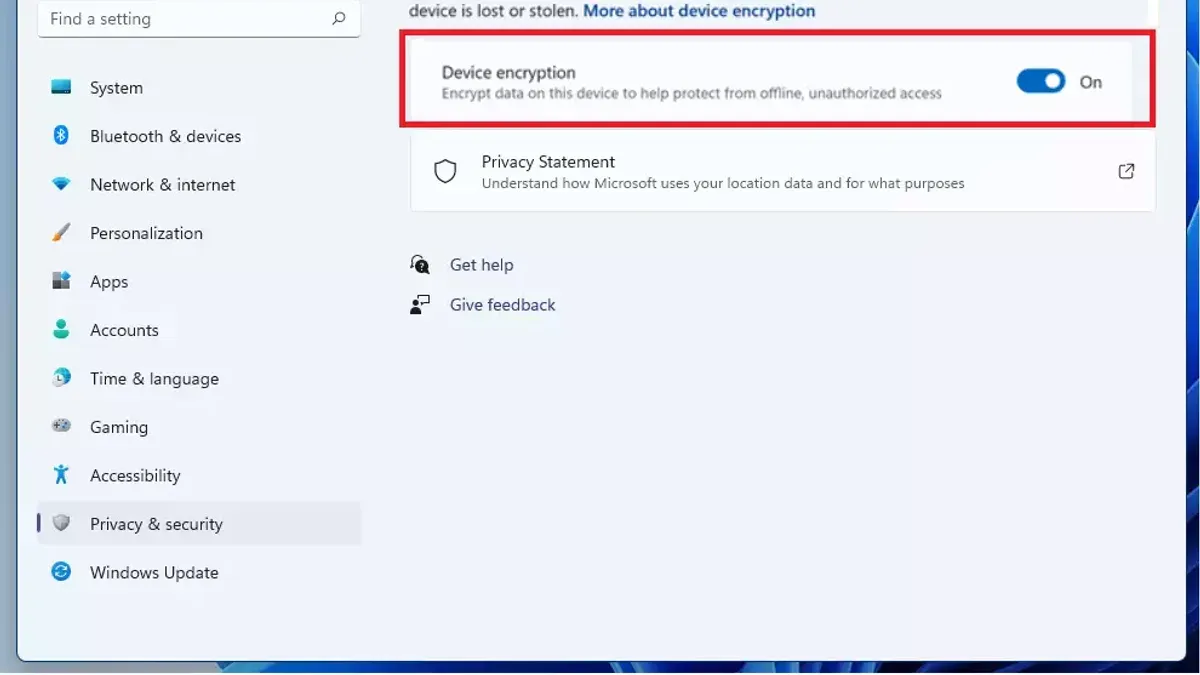
- Go to Privacy & Security > Device encryption.
- If the page shows an option to turn on device encryption, your device supports it but it’s currently off.
- If it states device encryption is already on, your data is protected.
- If the option is grayed out or missing, your device may not meet requirements or TPM/Secure Boot is disabled.
Common reasons for device encryption being unavailable include TPM being disabled in firmware, Secure Boot turned off, or hardware lacking necessary support.
How to Enable TPM and Secure Boot
- Restart your PC and enter UEFI/BIOS settings (usually by pressing F2, Del, or Esc during startup).
- Locate the Security or Boot tab.
- Enable TPM 2.0 or PTT (Platform Trust Technology) if available.
- Enable Secure Boot.
- Save changes and restart.
Note that some devices label TPM as "Security Device" or "Intel PTT". If these options are missing, your hardware might not support TPM 2.0.
How to Enable Device Encryption on Windows 11 Home: Step-by-Step Instructions
When prerequisites are met, follow these steps to enable device encryption.
Prerequisites Checklist:
- TPM 2.0 enabled in firmware
- Secure Boot enabled
- Windows 11 Home fully updated
- Signed in with a Microsoft account (not a local account)
Enabling Device Encryption
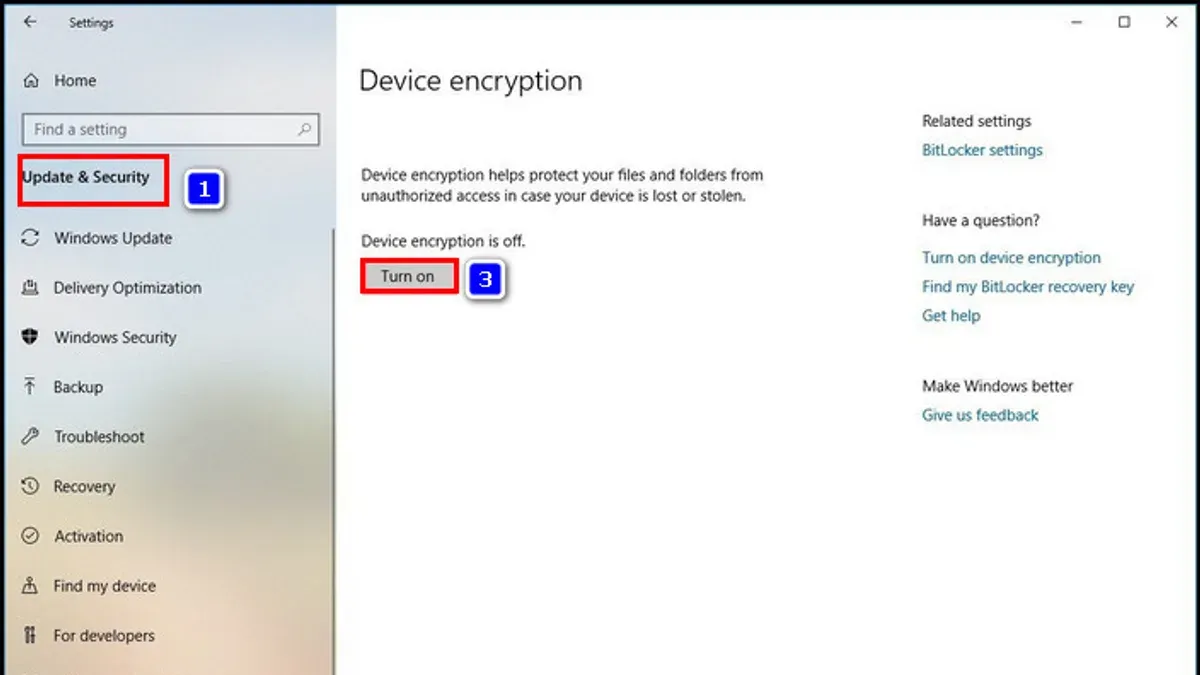
- Open Settings (Win + I).
- Navigate to Privacy & Security > Device encryption.
- If the toggle is off, click Turn on.
- Windows will begin encrypting your device in the background; this process can take several minutes to hours depending on disk size and usage.
Backing Up Your Recovery Key
Device encryption automatically backs up the recovery key to your Microsoft account. To confirm or manually back it up:
- Visit Microsoft's recovery key page and sign in.
- Verify your recovery key is listed for your device.
- Optionally, save the key to a secure location, such as an external drive or printed copy.
Having the recovery key is critical to regain access if Windows detects a security risk or system changes. Losing this key may result in permanent data loss.
Alternatives When Device Encryption Is Not Available on Windows 11 Home
If your device does not support device encryption or you want stronger features, consider these options.
Trusted Third-Party Encryption Tools
- VeraCrypt: Open-source full disk and container encryption with strong algorithms.
- Symantec Endpoint Encryption: Enterprise-grade with advanced policy control.
- DiskCryptor: Lightweight full disk encryption supporting multiple algorithms.
These tools provide encryption independent of Windows edition but require manual setup and careful key management.
Upgrading to Windows 11 Pro
Windows 11 Pro includes full BitLocker support with management features and broader encryption options.
| Edition | Approximate Upgrade Cost | Encryption Features |
|---|---|---|
| Home | Included with device | Device encryption (limited) |
| Pro | Varies, typically $99–$120 USD | BitLocker full disk encryption, removable drive encryption, advanced management |
Consider your security needs and budget before upgrading.
Security Considerations
- Third-party tools may lack seamless integration with Windows features.
- Recovery key management is your responsibility with most third-party encryption.
- Verify software credibility to avoid introducing vulnerabilities.
What Device Encryption Does and Does Not Protect Against on Windows 11 Home
Device encryption protects your data primarily from offline attacks. Here is what it does and does not safeguard.
Protection Offered
- Physical theft: Encrypting the drive prevents attackers from accessing data by removing the drive or booting alternative operating systems.
- Offline data access: Without the recovery key or user credentials, encrypted data remains inaccessible.
Limitations
- Device encryption does not replace antivirus or firewall protections.
- It does not protect against malware or network-based attacks when the device is unlocked.
- Recovery scenarios can be limited; losing the recovery key can result in permanent data loss.
Example Scenario:
A laptop is stolen. Without encryption, the thief could remove the hard drive, connect it to another system, and access files. With device encryption enabled, the data remains encrypted and unreadable without authentication, protecting sensitive information.
Device encryption is a vital security layer but should be combined with other security measures for comprehensive protection.
Frequently asked questions
Can I enable BitLocker on Windows 11 Home without upgrading?
No. BitLocker is not included in Windows 11 Home. Enabling it requires upgrading to Windows 11 Pro or using third-party encryption software.
What hardware features do I need to enable device encryption on Windows 11 Home?
Your device must have TPM 2.0 enabled in firmware, Secure Boot active, and support modern standby. Additionally, signing in with a Microsoft account is necessary to back up the recovery key.
How do I find and back up my device encryption recovery key?
Sign in to your Microsoft account at https://account.microsoft.com/devices/recoverykey to view and save your recovery key. You can also save it locally or print a copy for safekeeping.
Are third-party encryption tools as secure as Windows’ built-in options?
Many reputable third-party tools offer strong encryption. However, they may lack the seamless integration, user experience, and management features built into Windows. Security depends on correct configuration and key management.
Important Caveats
This article focuses exclusively on Windows 11 Home and does not address enterprise-level encryption solutions or other Windows editions. Users with specialized compliance or security needs should consult IT professionals before implementing encryption strategies.