How to Enable Windows Sandbox: Secure Testing Made Simple
This guide shows how to enable Windows Sandbox, providing a safe, isolated environment for testing untrusted software securely.

Windows Sandbox offers a lightweight, isolated environment for safely testing untrusted software on supported Windows systems. This guide explains how to enable Windows Sandbox, focusing on precise steps, common pitfalls, and performance and security considerations.
What is Windows Sandbox and Who Should Use It?
Windows Sandbox is a temporary, virtualized environment that runs separately from your main Windows installation. It allows users to run risky applications or open suspicious files without affecting the host system. When closed, all contents are discarded, leaving no trace on your PC.
This feature suits security-conscious users who want to test software or browse potentially unsafe content without setting up a full virtual machine. Developers can also use it to verify application behavior in a clean Windows environment.
Requirements:
- Windows 10 Pro or Enterprise (build 1903 or later), or Windows 11 Pro or Enterprise editions
- Virtualization enabled in the BIOS/UEFI, often labeled "Intel Virtualization Technology," "VT-x," or "AMD-V"
- 64-bit architecture with at least 4GB RAM recommended for smooth operation
Compared to traditional virtual machines, Windows Sandbox uses fewer resources and launches faster but offers less persistent storage and limited customization.
| Feature | Windows Sandbox | Full VM (Hyper-V, VMware) |
|---|---|---|
| Startup Time | Seconds | Minutes |
| Resource Usage | Lightweight | Heavier (dedicated RAM, CPU) |
| Persistence | No (cleared on close) | Yes |
| Isolation Level | Strong but limited | Strong (customizable) |
Step-by-Step Guide to Enabling Windows Sandbox
Follow these steps to enable Windows Sandbox on a supported device:
- Check Windows Edition and Build:
- Press
Win + R, typewinver, and press Enter. - Confirm you have Windows 10 Pro/Enterprise build 1903 or later, or Windows 11 Pro/Enterprise.
- Press
- Verify Virtualization Support:
- Open Task Manager (
Ctrl + Shift + Esc), go to the Performance tab. - Look for "Virtualization: Enabled" under the CPU section.
- If disabled, restart and enter BIOS/UEFI settings (commonly via
DelorF2during boot). Enable hardware virtualization, often named "Intel Virtualization Technology," "VT-x," or "AMD-V." Save changes and reboot.
- Open Task Manager (
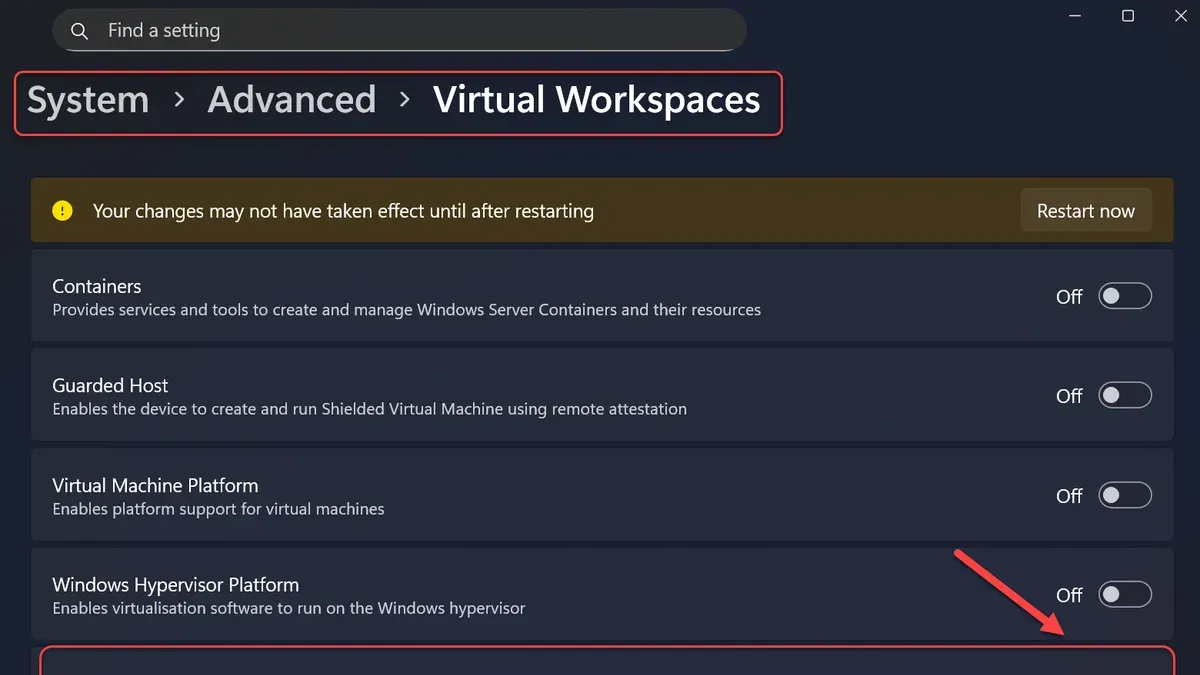
- Enable Windows Sandbox Feature:
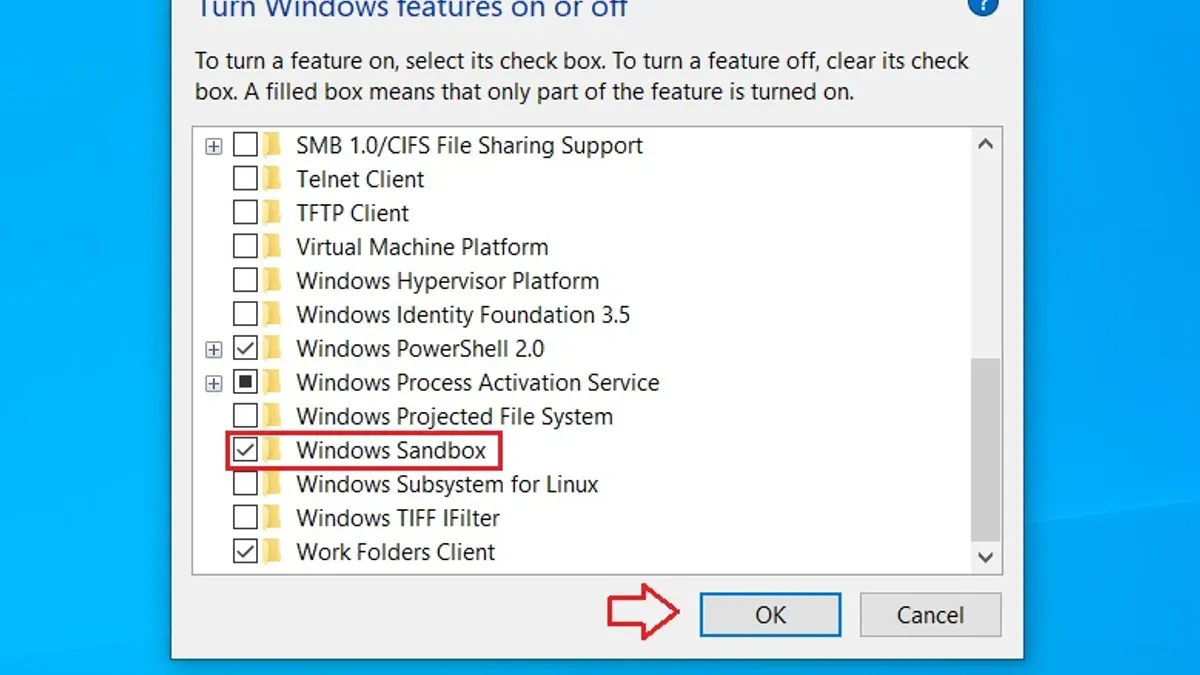
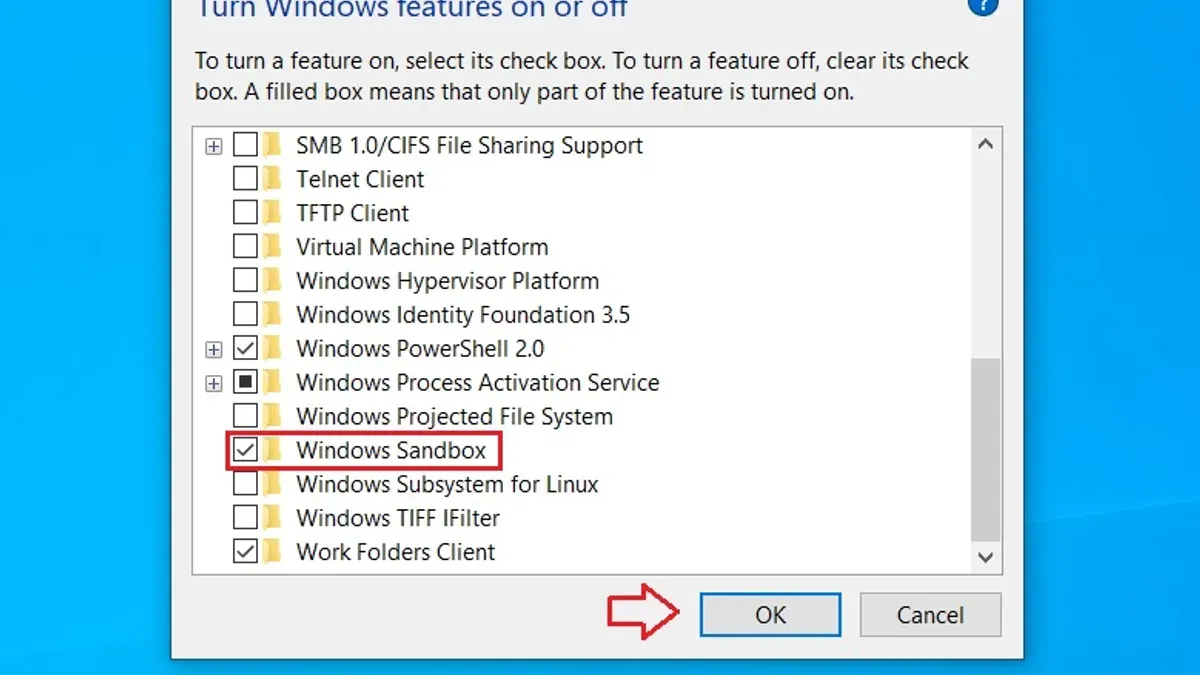
- Open Start, search "Turn Windows features on or off," and select it.
- Scroll down and check "Windows Sandbox," then click OK.
- Alternatively, run PowerShell as administrator and enter:
Enable-WindowsOptionalFeature -Online -FeatureName "Containers-DisposableClientVM" -All - Restart the PC if prompted.
- Launch Windows Sandbox:
- Search for "Windows Sandbox" in the Start menu and open it.
- A clean, isolated desktop environment will appear.
- Copy files or installers into the Sandbox window and run them safely.
Troubleshooting Common Issues When Enabling Windows Sandbox
Virtualization Disabled in BIOS
If virtualization shows as disabled in Task Manager, enter BIOS/UEFI setup during boot (usually by pressing Del or F2). Locate settings labeled "Intel Virtualization Technology," "VT-x," or "AMD-V" and enable them. Save changes and reboot.
Windows Sandbox Greyed Out or Missing
This usually means your Windows edition does not support Sandbox (e.g., Windows Home) or virtualization is not enabled. Confirm your edition with winver and check BIOS virtualization settings. Also, ensure your system is updated with the latest Windows updates.
Performance Issues
If Sandbox runs slowly, close other memory-intensive applications. Windows Sandbox shares resources dynamically but benefits from at least 4GB RAM and a modern CPU. Using an SSD improves launch times. Note that GPU acceleration in Sandbox is limited, which can affect graphics-heavy applications.
Sandbox Fails to Launch with Errors
Errors like "Cannot start Windows Sandbox" or "The virtual machine could not be started" often relate to conflicts with other virtualization software or outdated drivers. Temporarily disable other virtualization platforms and update device drivers. Reviewing Windows Event Logs can help identify specific error codes.
Performance and Security Considerations When Using Windows Sandbox
Windows Sandbox is designed to be lightweight by sharing the host kernel while isolating processes in a disposable container. This results in faster startup and lower CPU and memory use than traditional virtual machines.
Limitations include:
- No persistence: all changes are lost when the Sandbox closes.
- Limited GPU acceleration, which can affect performance of graphics-intensive apps.
- Not designed to protect against firmware-level attacks or deeply embedded rootkits.
Sandbox provides strong isolation, preventing tested applications from accessing host files or registry. However, it should be part of a layered security approach that includes updated antivirus software, secure browsing habits, and regular system updates.
Best Practices:
- Use Sandbox only for running untrusted or risky files.
- Keep Windows updated to benefit from security patches.
- Do not rely on Sandbox as your sole malware defense.
Alternatives to Windows Sandbox for Enhanced Isolation
Windows Sandbox suits many users, but others may require stronger isolation or persistent environments. Alternatives include:
- Full Virtual Machines: Hyper-V, VMware Workstation, and VirtualBox provide complete OS environments with persistent storage and extensive configuration options. They require more resources but offer stronger isolation.
- Third-Party Sandboxing Tools: Tools like Sandboxie Plus sandbox individual applications with varying levels of isolation and persistence.
| Feature | Windows Sandbox | Full VM | Third-Party Sandboxes |
|---|---|---|---|
| Ease of Use | High | Moderate to Complex | Moderate |
| Persistence | No | Yes | Depends on tool |
| Resource Usage | Low | High | Low to Moderate |
| Isolation Level | Medium | High | Varies |
Choose alternatives when persistent test environments, advanced networking, or granular control are required.
Known Caveats
Windows Sandbox is unavailable on Windows Home editions and requires virtualization enabled in BIOS. It does not provide persistent storage or protection against all malware types, especially firmware or kernel-level threats. Use it as one tool within a comprehensive security strategy.
Frequently Asked Questions
Can I enable Windows Sandbox on Windows 11 Home edition?
No, Windows Sandbox is not supported on Home editions. It requires Windows 10 or 11 Pro or Enterprise.
Does Windows Sandbox save any data after closing it?
No, all data and changes are discarded when the Sandbox closes. Each session starts fresh.
What hardware features are required to run Windows Sandbox smoothly?
A 64-bit processor with virtualization support (Intel VT-x or AMD-V), BIOS virtualization enabled, at least 4GB RAM, and preferably an SSD are needed for optimal performance.
Is Windows Sandbox safe from all types of malware?
No. While it isolates most malware from the host system, it does not protect against firmware attacks or rootkits. It should not replace comprehensive security measures.