
Moving from Google Sites to Canva for Education: Your Expert Checklist
This checklist guides educators through shifting from Google Sites to Canva for Education, focusing on design-driven content and collaboration.

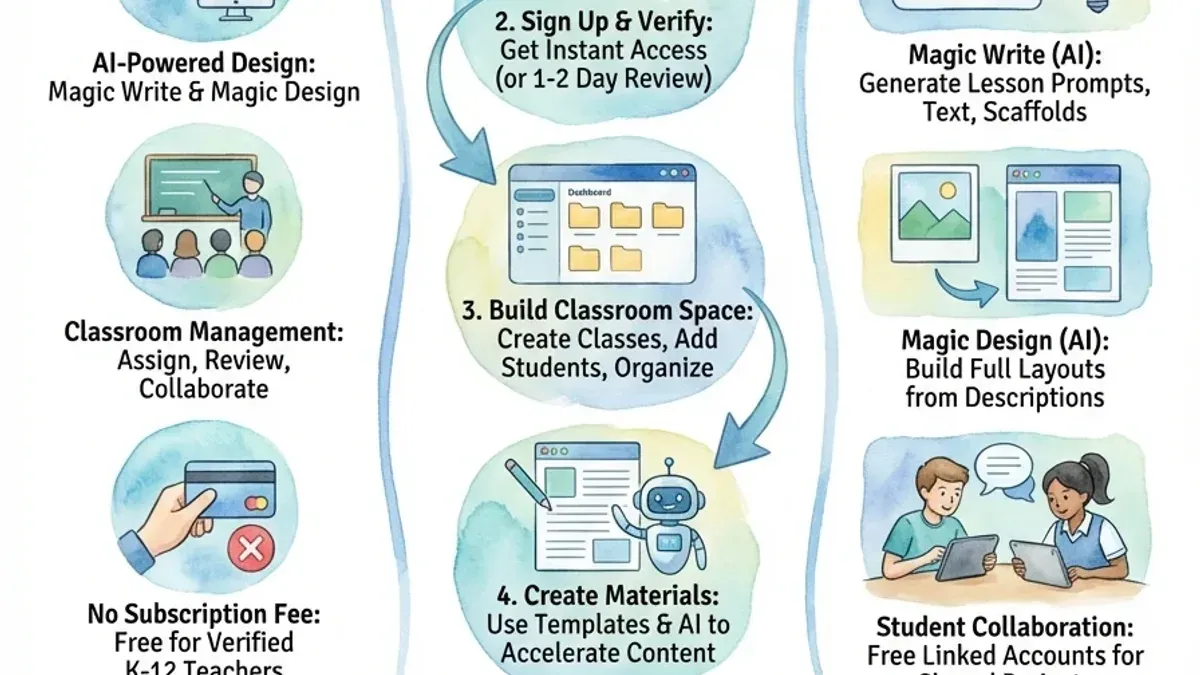
Short answer: Moving from Google Sites to Canva for Education requires a shift from a traditional website-building mindset to a design-centered, interactive platform approach. This moving from Google Sites to Canva for Education checklist helps you focus on rethinking how you present content, engage students, and manage collaboration within your classroom workflows.
This guide covers the key mindset changes and practical steps you must take to transition smoothly. You'll learn how to assess your existing Google Sites content, prepare your Canva for Education environment, rebuild and redesign projects using Canva’s versatile tools, and train yourself and your students on new collaborative features. The focus lies on integrating design thinking into your educational environment to enhance engagement and streamline submissions, not just copying over old materials.
Understand the Fundamental Differences Between Google Sites and Canva for Education
Google Sites is primarily a website builder designed for straightforward information dissemination. It allows you to create structured pages with embedded content, ideal for hosting class resources, announcements, and static information. In contrast, Canva for Education is a design-centric platform focused on visual projects and collaboration. It offers a wide range of templates, graphic elements, and multimedia tools that encourage creativity and interactive learning experiences.
This shift affects how you create and share content. Instead of building linear websites, you design visually rich presentations, infographics, and interactive assignments that students can actively participate in. For example, rather than publishing a static project overview on Google Sites, you might design a dynamic infographic or collaborative poster on Canva that students can edit and submit directly.
| Feature | Google Sites | Canva for Education |
|---|---|---|
| Main purpose | Website creation and hosting | Visual design and collaborative projects |
| Content type | Text, embedded files, simple layouts | Graphics, presentations, videos, interactive designs |
| Collaboration | Page editing by limited users | Real-time collaboration with commenting and version control |
| Student engagement | Primarily viewing and reading | Active creation and design participation |
| Typical projects | Class websites, resource hubs | Posters, presentations, digital portfolios |
Understanding these core differences prepares you to rethink your approach. Moving to Canva means embracing design thinking and interactive workflows that promote student creativity rather than just delivering information.
Assess Your Current Google Sites Content and Identify What to Migrate
Begin by conducting a thorough inventory of your Google Sites content. List every page, noting embedded media such as videos, images, and documents. Identify interactive elements like forms, calendars, or embedded apps. This audit reveals which parts are essential and how they might fit Canva’s design-focused framework.
For example, a typical school Google Site might have a homepage with announcements, a calendar page linked via an embedded Google Calendar, a resources page with downloadable PDFs, and a student project showcase using embedded Google Slides. While Canva supports rich visual layouts and media uploads, embedded live calendars or forms may not translate directly and require alternative approaches.
Decide what to archive (like outdated announcements), what to recreate in Canva’s templates (such as resource pages redesigned as interactive infographics), and what to discard (elements that don’t fit Canva’s strengths or classroom goals).
- List all site pages and note content type (text, media, interactive)
- Identify media files that can be uploaded to Canva
- Flag embedded tools that need alternative solutions
- Mark content to archive, redesign, or remove
Set Up Your Canva for Education Environment for Seamless Transition
Begin by creating your Canva for Education account and verifying your school email to access education-specific features. Next, organize your workspace by setting up class teams under the “Teams” tab. For example, create separate teams for each grade or subject, such as “Grade 8 Science” or “English Literature.” This structure streamlines content sharing and collaboration.
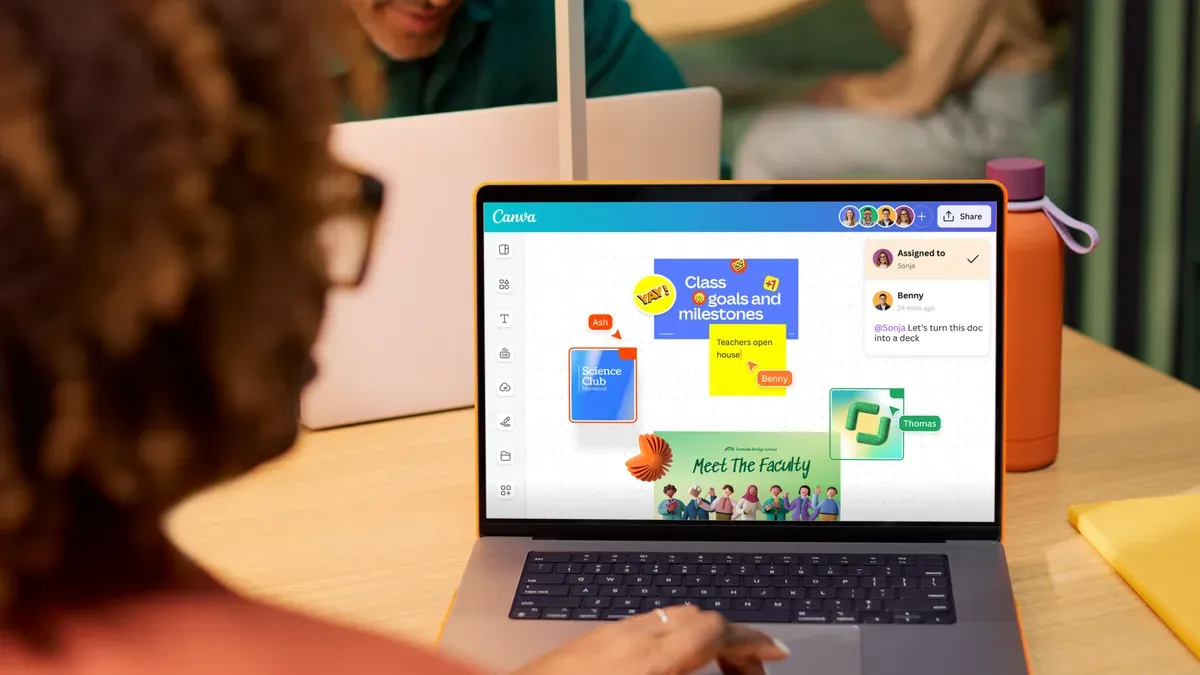
Configure collaboration settings by navigating to the team’s “Settings” where you can assign roles: “Admin,” “Member,” or “Template Designer.” Admins control team permissions and content management, while Members can create and edit designs. Template Designers can create reusable templates, allowing you to standardize assignments and projects.
Integrate Canva with Google Classroom by selecting “Apps” from the Canva dashboard, then connecting your Google Classroom account. This enables seamless assignment distribution and student submissions directly through Canva, reducing workflow friction.
As a practical example, setting your “Grade 8 Science” team with 2 Admins and 20 Members ensures clear roles and smooth collaboration. Don’t overlook verifying sharing permissions to allow students to edit or comment as needed, balancing control and creativity.
- Create class teams within Canva under the “Teams” tab
- Assign roles: Admin, Member, Template Designer
- Verify sharing and editing permissions per team
- Connect Canva to Google Classroom via the “Apps” menu
- Test collaboration by sharing a design and confirming access levels
Migrate Content and Rebuild Projects Using Canva’s Design Tools
When moving content from Google Sites to Canva for Education, think beyond static pages. Rebuild your informational content as dynamic presentations or interactive posters that invite student interaction. For example, a teacher’s syllabus page can transform into a colorful multi-slide presentation with embedded videos, clickable links, and clear visual hierarchy that enhances comprehension.
Leverage Canva’s extensive template library—accessed via the "Templates" tab—to jumpstart your design process and maintain consistency across projects. Use elements such as icons, charts, and frames to improve visual appeal while reinforcing key messages. Embedding multimedia is straightforward: use the "Uploads" feature to add videos or images, and insert hyperlinks through the "Link" icon to guide students to external resources or assignments.
Side-by-side comparisons often show Canva projects engaging students more effectively with interactive elements and polished visuals, while educators report saving time by reusing templates and drag-and-drop tools instead of coding or lengthy editing on Google Sites.
- Identify Google Sites pages to convert into Canva presentations or posters
- Choose a relevant Canva template to match your content type
- Use Canva’s "Uploads" and "Link" features to embed multimedia and external resources
- Apply consistent design elements to create a cohesive look
- Preview and test interactive features before sharing with students
Train Yourself and Your Students on Canva’s Collaboration and Submission Features
To maximize Canva for Education’s potential, you must master assigning projects and collecting student work within its platform. Use the “Assignments” feature under your class team to create and distribute tasks, setting deadlines and instructions clearly. Students submit their work directly through Canva, making it easy to track progress without juggling multiple platforms.
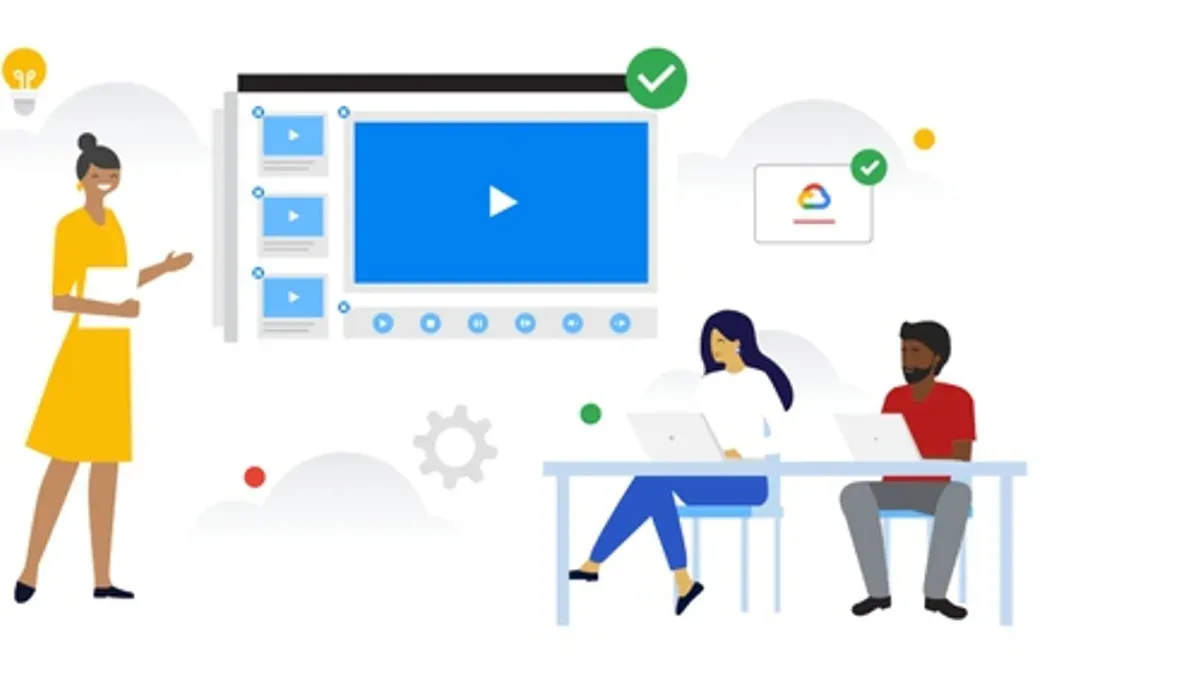
Canva supports real-time collaboration, allowing multiple users to edit and comment simultaneously. Encourage your students to use comment threads for peer feedback and questions, which keeps communication organized and visible. As the educator, you can leave targeted comments on specific elements, streamlining revision cycles and reducing email exchanges.
For example, a middle school science teacher reported smoother project iterations after shifting to Canva’s comment and version history tools, enabling students to respond to feedback promptly. While the learning curve exists, regular practice with these features leads to more dynamic student engagement and efficient grading workflows.
- Create assignments via the “Assignments” tab in your Canva class team
- Set clear deadlines and detailed instructions
- Encourage use of comment threads for feedback
- Review and return work directly in Canva using comments and version history
- Model collaboration by co-editing a sample project with your class
Avoid Common Mistakes When Transitioning from Google Sites to Canva for Education
One frequent mistake is trying to replicate the exact website structure from Google Sites within Canva. Canva’s platform emphasizes visual storytelling and interactive design, not rigid page hierarchies. For example, a teacher who rebuilt a multi-level menu in Canva found it cluttered and confusing, losing the simplicity of Google Sites’ navigation.
Neglecting file organization and version control causes chaos once projects multiply. Without consistent naming conventions or designated folders in Canva’s Content Planner and Folders, locating resources becomes time-consuming and frustrating.
Overlooking training needs is a critical pitfall. Both staff and students require familiarization with Canva’s assignment tool, comment threads, and shared folders to collaborate effectively. One coordinator noted that initial rollout stalled because teachers expected Canva to function like Google Sites, delaying integration.
Top 5 migration mistakes educators face:
- Recreating Google Sites’ static page layout exactly, limiting Canva’s design potential.
- Failing to establish a clear folder structure and file naming system early on.
- Skipping training sessions that clarify Canva’s collaborative features.
- Underestimating time needed to redesign content for visual engagement.
- Ignoring the importance of ongoing support to troubleshoot user challenges.
Avoid these by embracing Canva’s strengths and preparing your team with structured guidance and realistic expectations.
Read next
- Moving from Google Sites to Book Creator: Your Expert Checklist
- Moving from Google Sites to Adobe Express: Your Essential Checklist
- Switching from Canva for Education to Google Sites: Your Expert Transition Guide
- Master Canva for Education Implementation Timeline: A Step-by-Step Guide
Frequently asked questions
Can I import Google Sites content directly into Canva for Education?
No, Canva for Education does not support direct import of Google Sites content. You will need to manually recreate or adapt your content using Canva’s design tools. Export text, images, and other assets from Google Sites first, then build your projects within Canva’s templates and features.
What types of projects are better suited to Canva than Google Sites?
Canva excels at visually rich projects like presentations, infographics, posters, and interactive assignments. Unlike Google Sites, which focuses on website creation and navigation, Canva provides extensive design flexibility and multimedia integration, making it ideal for creative classroom materials and student portfolios.
How do I manage student collaboration in Canva for Education?
Use Canva’s Team feature to create groups where students can co-edit projects in real time. Assign roles with specific permissions under the “Share” menu, such as Editors or Viewers, to control access. Additionally, utilize Canva’s comment and feedback tools to facilitate communication and submission review.
What are the cost implications of switching to Canva for Education?
Canva for Education is free for eligible schools, offering premium features without additional cost. However, confirm your institution’s eligibility and account setup requirements beforehand. Consider potential training time and transitional resources as indirect costs during the switch.
What this guide does not cover
This guide does not cover advanced website development needs that Google Sites may fulfill better. Schools requiring complex web hosting, custom scripting, or extensive third-party integrations should evaluate carefully before switching to Canva for Education. If your digital presence relies heavily on custom code or specialized web services, maintaining Google Sites or exploring other platforms may be more suitable.
Quick checklist
- Review your Google Sites content for critical resources versus outdated pages.
- Create a dedicated Canva for Education team and set permissions under "People" in account settings.
- Familiarize yourself with Canva’s templates and design features suited for educational content.
- Plan content migration by exporting media and re-creating key pages as Canva projects.
- Train staff and students on Canva’s collaboration tools, especially Comments and Assignments features.
- Test sharing workflows and submission processes before full rollout.
- Monitor usage and gather feedback to adjust workflows continuously.
Start by setting up your Canva for Education environment with clear team roles and project folders. This foundational step ensures smooth collaboration and efficient content rebuilding. Once your workspace is organized, migrating content and training users will proceed more effectively, minimizing disruptions to your teaching and communication workflows.


