
Moving from Google Sites to Adobe Express: Your Essential Checklist
This checklist guides you through moving from Google Sites to Adobe Express, focusing on content assessment, asset prep, and workflow adjustments.

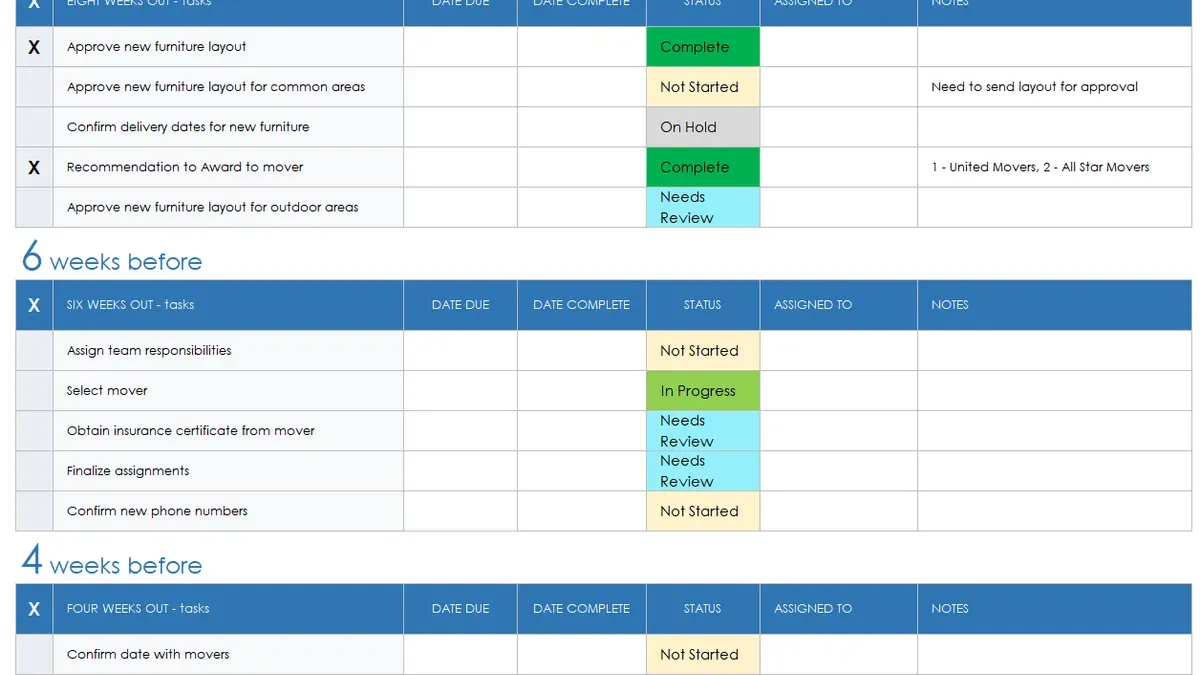
Short answer: Moving from Google Sites to Adobe Express requires more than just transferring content; it involves adapting to a platform designed for creative projects rather than traditional website structures. A clear moving from Google Sites to Adobe Express checklist helps you navigate this shift by focusing on content assessment, asset preparation, and workflow adjustments to ensure your projects remain effective and engaging.
This guide covers the essential steps to make your migration smooth and efficient. You'll learn to understand the core differences between the two platforms, evaluate your existing Google Sites content, set up your Adobe Express workspace, rebuild your projects thoughtfully, optimize for audience engagement and accessibility, and avoid common pitfalls that often disrupt the transition.
Understand the Core Differences Between Google Sites and Adobe Express
Google Sites is primarily a structured web page builder designed to create and host simple websites with ease. It offers predefined templates, drag-and-drop layout controls, and integrated Google Workspace tools, focusing on navigation menus, embedded documents, and consistent site architecture.
Adobe Express, by contrast, is a creative design platform centered on producing multimedia content like social graphics, videos, and branded materials. It emphasizes flexible visual storytelling with templates, customizable design assets, and a rich library of photos, icons, and fonts.
These fundamental differences mean your content’s format and functionality will shift after moving. For example, a Google Sites homepage with multiple linked pages and embedded forms will need to be reimagined as a series of standalone Adobe Express projects focused on visual impact rather than site navigation.
| Feature | Google Sites | Adobe Express |
|---|---|---|
| Primary Use | Website creation and hosting | Creative content and branding |
| Content Format | Multi-page sites with navigation | Single-page visuals and multimedia |
| Templates | Structured site templates | Design and social media templates |
| Integration | Google Workspace apps | Adobe Creative Cloud ecosystem |
| Interactivity | Embedded forms and links | Animated graphics and videos |
Assess Your Existing Google Sites Content for Migration
Begin by creating a detailed inventory of your Google Sites content: list all pages, embedded media such as videos or Google Drive files, and any third-party integrations like calendars or forms. This step clarifies what you currently have and reveals elements that may not transfer directly.
Next, identify which content types align with Adobe Express's strengths—primarily single-page visuals, graphics, and short-form narratives. For example, a Google Sites page featuring a photo gallery with captions can be effectively recreated as an Adobe Express project, but complex, multi-page navigation structures cannot.
Decide what to update, repurpose, or retire. A lengthy FAQ page might be better summarized into an engaging infographic, while outdated announcements should be discarded. This streamlining reduces clutter and focuses your new content.
Here is a sample content audit checklist with notes on Adobe Express compatibility:
| Content Type | Example | Adobe Express Compatibility | Action |
|---|---|---|---|
| Static Text Pages | About Us | High – can be converted into a visual story or flyer | Update and repurpose |
| Embedded Videos | YouTube tutorials | High – embed links or recreate thumbnails | Repurpose with fresh graphics |
| Multi-page Navigation | Product Catalog | Low – Adobe Express doesn’t support multi-page sites | Archive or extract key visuals |
| Google Forms | Feedback Surveys | Low – no form creation; link externally | Link externally or replace |
By systematically auditing, you avoid migrating incompatible elements blindly and set realistic expectations for your new Adobe Express projects.
Prepare Your Adobe Express Workspace and Assets
Adobe Express offers a flexible environment to set up your brand identity through customizable templates, color palettes, and fonts, unlike Google Sites which centers on structured website templates. Start by navigating to the "Branding" section under your Adobe Express dashboard to create or upload your brand’s colors and fonts. For example, you might define your primary and secondary brand colors using exact hex codes to ensure consistency across projects.
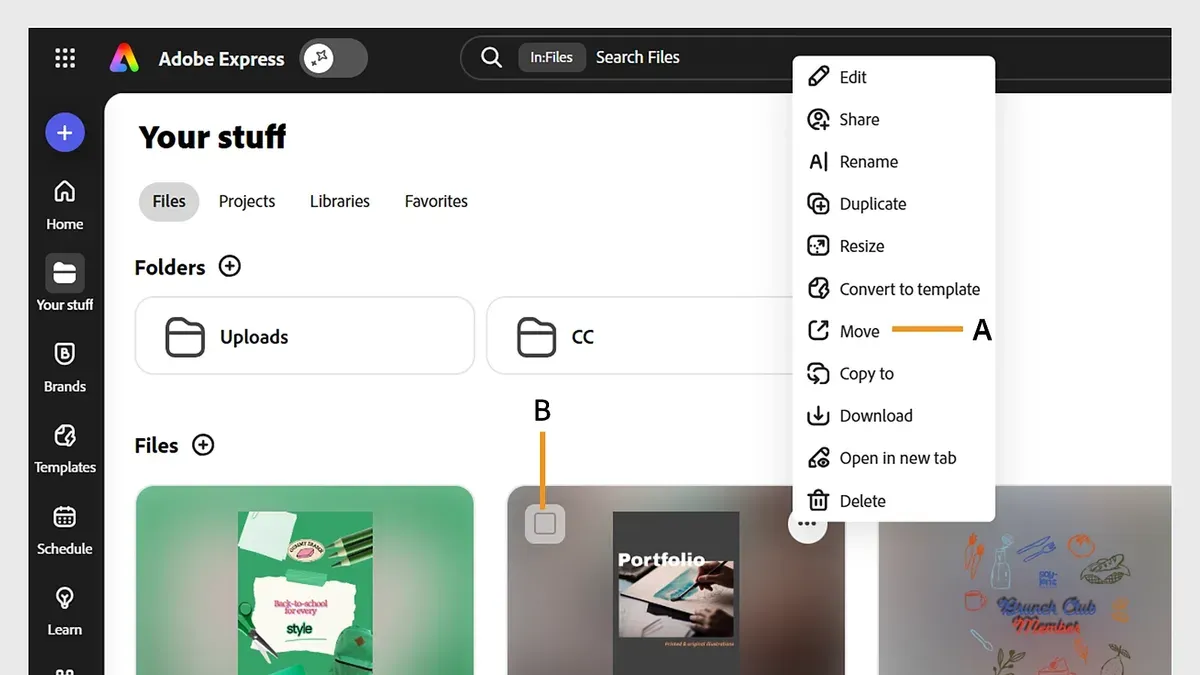
Next, organize your assets efficiently. Adobe Express allows you to upload and categorize images, logos, and videos in the "My Library" panel, making them readily accessible across all projects. This contrasts with Google Sites, where assets are typically scattered within site pages or linked externally, often complicating reuse.
Familiarize yourself with Adobe Express’s project types like social graphics, web pages, and short videos, and explore export options under the "Download" menu, which include PNG, JPEG, PDF, and MP4. This variety supports diverse content needs beyond static web pages, so plan your assets accordingly to fit these formats.
- Create or customize brand templates, color palettes, and fonts under the "Branding" tab.
- Upload and organize images, logos, and videos in "My Library" for easy access.
- Explore project types and export options to align assets with intended content formats.
Step-by-Step Content Migration and Rebuilding Process
Start by exporting your text and media from Google Sites. Use the "More actions" menu (three dots) in Google Sites and select "Download site content" or manually copy text from each page and save images via right-click > "Save image as." For example, extract text blocks and screenshots separately to maintain clarity.
Next, open Adobe Express and recreate your layouts by selecting the appropriate project type, such as "Web page" or "Custom size graphic." Use Adobe Express’s drag-and-drop interface to add text, images, and other media. For instance, rebuild a Google Sites homepage by placing a headline, descriptive text, and an image block in Adobe Express, matching the original flow but adapting to Adobe’s visual style.
Finally, test all interactive elements. Check that links open correctly by selecting each hyperlink in Adobe Express’s editing mode and verifying the URL. Preview your project on different devices to ensure responsive design. Missing this step may leave broken links or misaligned elements that confuse your audience.
- Export text and media from Google Sites via download or manual copy
- Create new Adobe Express projects matching your original content’s structure
- Insert text blocks, images, and media using Adobe Express’s tools
- Verify and adjust all links and interactive elements
- Preview projects across devices for consistent appearance
Optimize Your New Adobe Express Projects for Engagement and Accessibility
Adobe Express offers tools that enhance visual storytelling, such as dynamic layouts, animated text, and integrated stock images. Use the "Design Assets" panel to add engaging graphics and the "Animation" feature under the "Effects" menu to catch your audience’s attention without overwhelming them.
For accessibility, enable the "Accessibility Checker" found in the "Review" tab. This tool helps ensure color contrasts meet WCAG standards and prompts you to add alternative text to images. Skipping these steps can reduce content reach and impact.
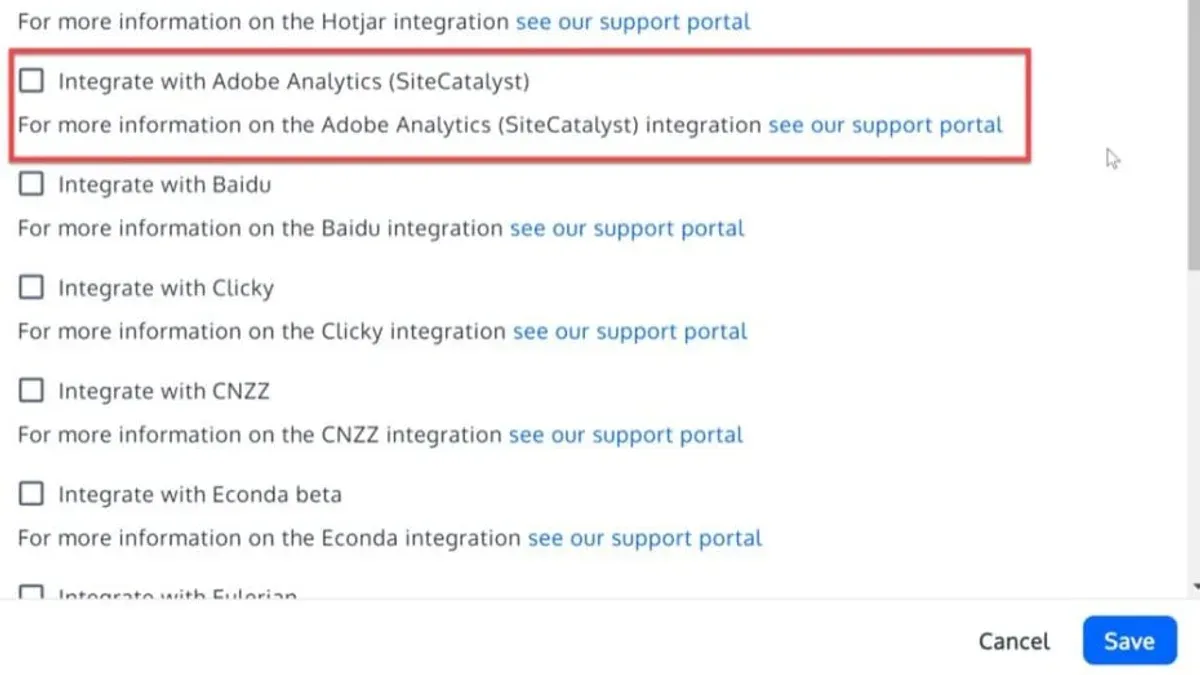
Leverage Adobe Express’s built-in analytics by connecting your projects to Adobe Analytics or collecting user feedback via embedded forms. For example, redesigning a promotional flyer using Adobe Express’s templates and animations often results in noticeably higher interaction rates—users tend to spend more time viewing content and respond more to calls to action.
A common oversight is neglecting to preview projects on multiple devices using the "Preview" button to confirm design integrity and accessibility before publishing.
- Use dynamic layouts and animations from the "Effects" menu
- Run the "Accessibility Checker" in the "Review" tab and add alt text
- Connect projects to analytics tools or embed feedback forms
- Preview projects on various devices before publishing
Avoid Common Mistakes When Moving from Google Sites to Adobe Express
One frequent error users make is attempting to directly copy Google Sites content without redesigning it for Adobe Express's creative format. For example, transplanting a multi-page site layout into single-page visuals can confuse your audience and dilute your message. Adobe Express demands a fresh approach to storytelling with visuals, not just a replica of web pages.
Another pitfall is overlooking platform-specific limitations and features. Adobe Express does not support embedded HTML widgets or multi-page navigation like Google Sites, so relying on these can break functionality. Users often report frustration when interactive forms or calendars fail to work as expected after migration.
Failing to back up your original Google Sites content before starting the migration can lead to irreversible data loss. Export your content using the Google Takeout tool or download key documents and images manually. One educator shared how losing their site’s content meant recreating months of work from scratch, causing significant delays.
- Redesign content instead of copying layouts directly
- Review Adobe Express limitations like no embedded HTML or multi-page navigation
- Back up all Google Sites content via Google Takeout or manual downloads before migrating
Read next
- Switching from Canva for Education to Adobe Express: Your Expert Guide
- Switching from Book Creator to Adobe Express: Your Expert Guide
- How to Roll Out Adobe Express for Volunteers: A Step-by-Step Guide
- Mastering Adobe Express Implementation Timeline: A Complete Guide
Frequently asked questions
Can I migrate my entire Google Sites website directly into Adobe Express?
No, there is no direct migration tool to transfer an entire Google Sites website into Adobe Express. You will need to manually export your content, such as text and images, and then rebuild your projects within Adobe Express using its creative design tools. This manual process allows you to adapt your content to the different format and capabilities of Adobe Express.
What types of content do not transfer well between Google Sites and Adobe Express?
Interactive elements like embedded calendars, forms, and custom scripts from Google Sites do not transfer well to Adobe Express. Adobe Express focuses on visual content creation rather than full website functionalities, so dynamic content and complex page structures often require redesign or alternative solutions.
How do I maintain SEO or discoverability after moving to Adobe Express?
Maintaining SEO requires you to recreate key metadata manually, such as page titles, descriptions, and alt text for images within Adobe Express projects. Since Adobe Express is not primarily a website platform, linking your Adobe Express content from a domain with established SEO value or integrating it with your existing site structure can help preserve discoverability.
Is Adobe Express suitable for hosting full websites like Google Sites?
Adobe Express is designed for creating visually rich content and social media assets, not for hosting full multi-page websites. While you can create landing pages or single-page projects, it lacks the comprehensive site management, navigation, and hosting features that Google Sites offers for full websites.
What this advice does not cover
This guide focuses on transitioning static or moderately interactive Google Sites content to Adobe Express, a creative content platform. It does not cover migrating complex web applications, databases, or dynamic site features like user authentication or backend integrations. If your site relies heavily on such elements, consider specialized web development tools or professional services tailored to full website hosting and backend management.
Quick checklist
- Review all Google Sites pages to identify content types and interactive features.
- Download or export images, videos, and documents used in your Google Sites pages.
- Set up your Adobe Express workspace, including brand assets and templates.
- Rebuild content blocks in Adobe Express, adapting layout and interactivity to the platform’s strengths.
- Optimize media files for web performance and accessibility settings.
- Test your Adobe Express projects on multiple devices and browsers.
- Check links and navigation flow to ensure a seamless user experience.
- Backup original Google Sites content before finalizing migration.
Begin by thoroughly auditing your current Google Sites content and assets. This foundational step ensures you understand what can be directly migrated and what needs rethinking or redesigning to fit Adobe Express’s creative content framework effectively.


