Is SearchHost.exe a Virus? What It Is and How to Handle It
Learn what SearchHost.exe is, why it’s usually safe, and how to detect and handle potential malware using this name.

This article explains what SearchHost.exe is, addressing the common question: is SearchHost.exe a virus? It clarifies the process's legitimate function as a core component of Windows Search, which indexes files and powers search features in Windows.
SearchHost.exe is usually safe, but malware can disguise itself using this name, making it crucial to verify its file location and behavior. Users experiencing crashes or high resource use will find guidance on troubleshooting and safely disabling the process if necessary.
Understanding the nature of.exe files and how malware exploits system processes helps in distinguishing genuine system files from threats, ensuring informed decisions about system security and performance.
Is SearchHost.exe a virus?
SearchHost.exe is not a virus; it is a legitimate Windows system process integral to the Windows Search feature that helps users find files and applications quickly. However, its name is sometimes used by malware to disguise malicious software. The genuine SearchHost.exe file is usually located in the C:\Windows\SystemApps\Microsoft.Windows.Cortana_cw5n1h2txyewy folder or similar Windows system directories.
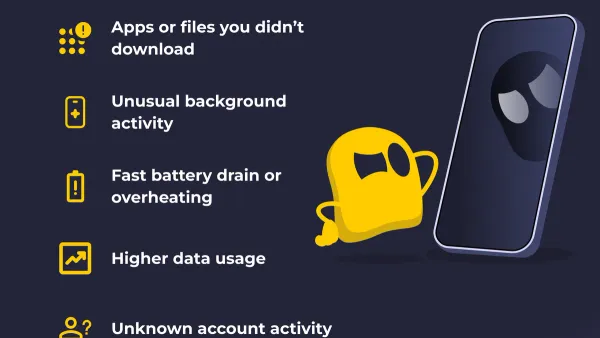
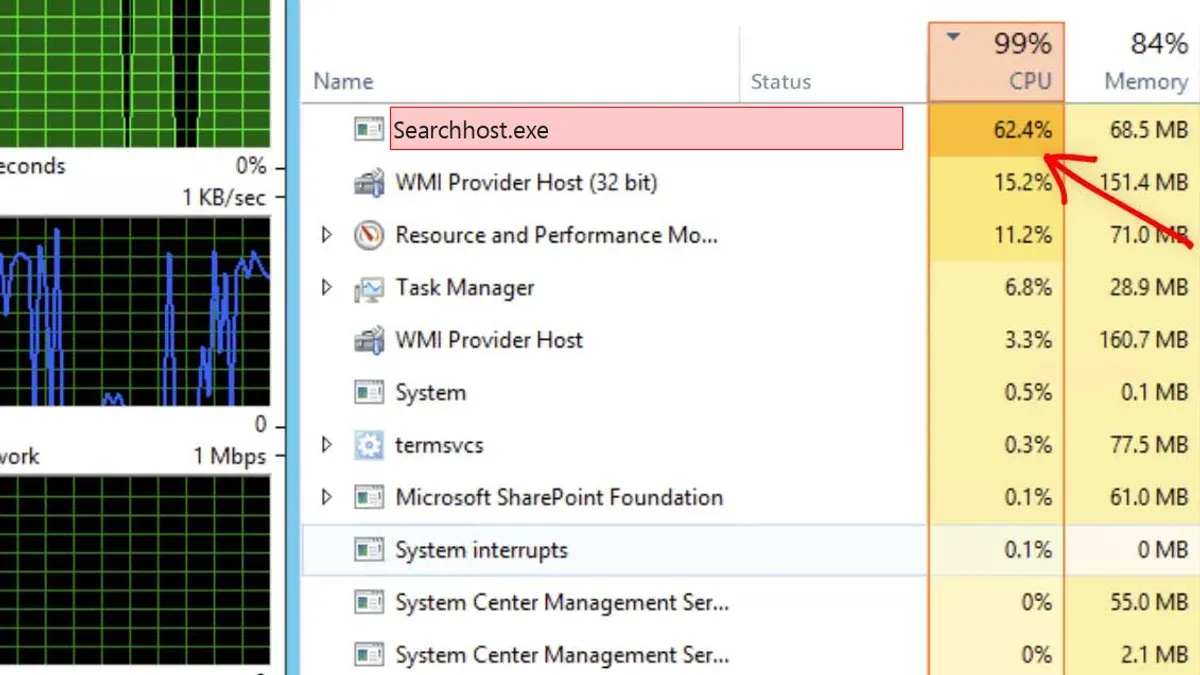
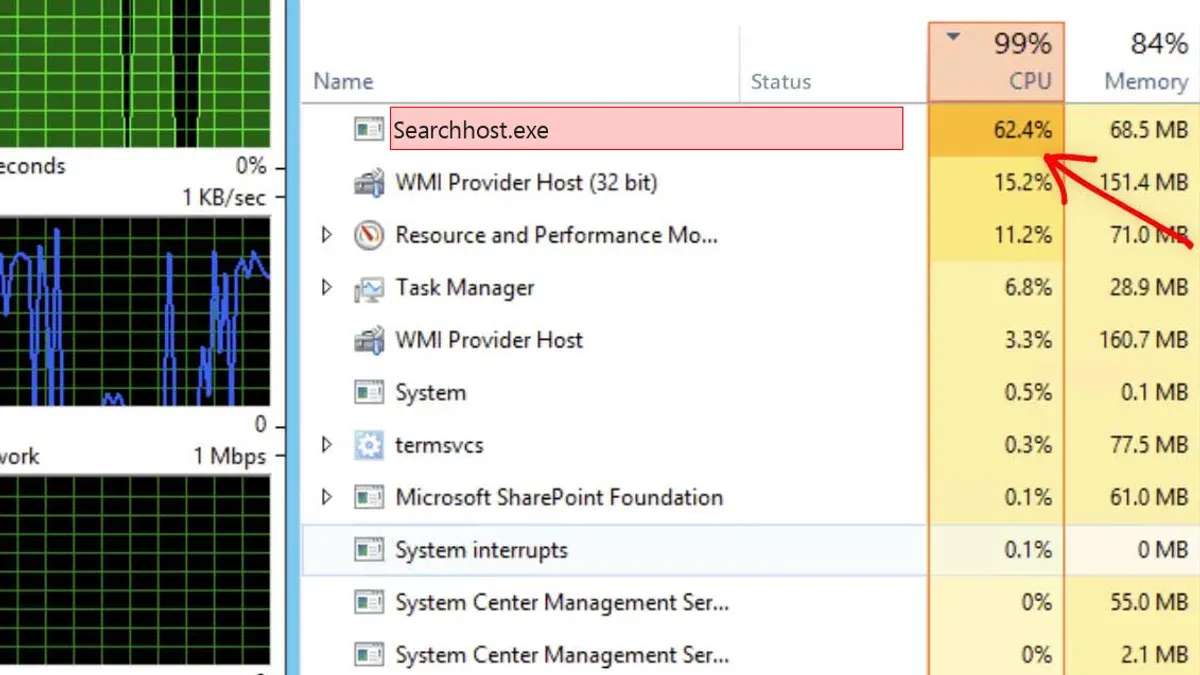
Malware posing as SearchHost.exe often appears in unusual locations such as C:\Users\[username]\AppData or temporary folders. Verifying the file path and checking the process behavior, like high CPU usage or unexpected network activity, can help identify imposters. Security software and Windows Defender often flag suspicious instances.
While SearchHost.exe itself is safe and vital for search functions, caution is warranted because malicious actors frequently use similar names to evade detection. Users should confirm the file’s origin and run scans if unsure.
Where is SearchHost.exe located?
The authentic SearchHost.exe is typically found in the Windows system directory, specifically at C:\Windows\SystemApps\Microsoft.Windows.Search_cw5n1h2txyewy. This location is part of the core Windows Search feature and is consistent across standard Windows installations.
Files named SearchHost.exe appearing outside this directory, especially in user folders like C:\Users\[Username]\AppData\Local\Temp or other temporary and downloads folders, may be indicators of malware attempting to disguise itself. Such suspicious placements have been documented in various malware reports where malicious actors exploit the trusted filename to avoid detection.
To further confirm authenticity, users can check the file properties by right-clicking on SearchHost.exe and selecting "Properties," then reviewing details such as the company name (should be Microsoft) and the digital signature under the "Digital Signatures" tab. A valid signature from Microsoft strengthens the case for legitimacy, while its absence or a mismatched signature suggests caution.
Tip: Using Task Manager’s "Open file location" option on the running SearchHost.exe process helps quickly verify its path without manual searching.
Why does SearchHost.exe crash and how to fix it
SearchHost.exe crashes typically result from corrupted system files, conflicts with third-party software, outdated Windows components, malware infections, or corrupted user profiles. Addressing these issues involves several troubleshooting steps.
System File Integrity and Windows Components
Corrupted or missing system files can destabilize SearchHost.exe. Running the System File Checker (SFC) with the command sfc /scannow in an elevated Command Prompt scans and repairs integrity violations. If SFC reports unfixable errors, the Deployment Image Servicing and Management (DISM) tool can restore system health using commands like DISM /Online /Cleanup-Image /RestoreHealth. Successful SFC and DISM runs often restore SearchHost.exe stability by repairing underlying system issues.
Restarting Services and Rebuilding the Search Index
Conflicts or glitches in Windows Search services can cause crashes. Restarting the “Windows Search” service via Services.msc often resolves transient faults. Additionally, rebuilding the search index through Settings > Search > Searching Windows > Advanced Search Indexer Settings > Rebuild can improve performance and prevent crashes. Users typically observe faster search responsiveness and fewer errors after index rebuilding.
Malware and User Profile Issues
Malware masquerading as SearchHost.exe or corrupted user profiles may also trigger crashes. Running a comprehensive malware scan with trusted antivirus software is recommended. Creating a new user account can help identify if profile corruption is the cause, as a clean profile often eliminates crashes tied to user-specific data.
Tip: Combining system repair tools with service restarts and malware scans provides the most effective approach to fixing SearchHost.exe crashes.
How to stop or disable SearchHost.exe safely
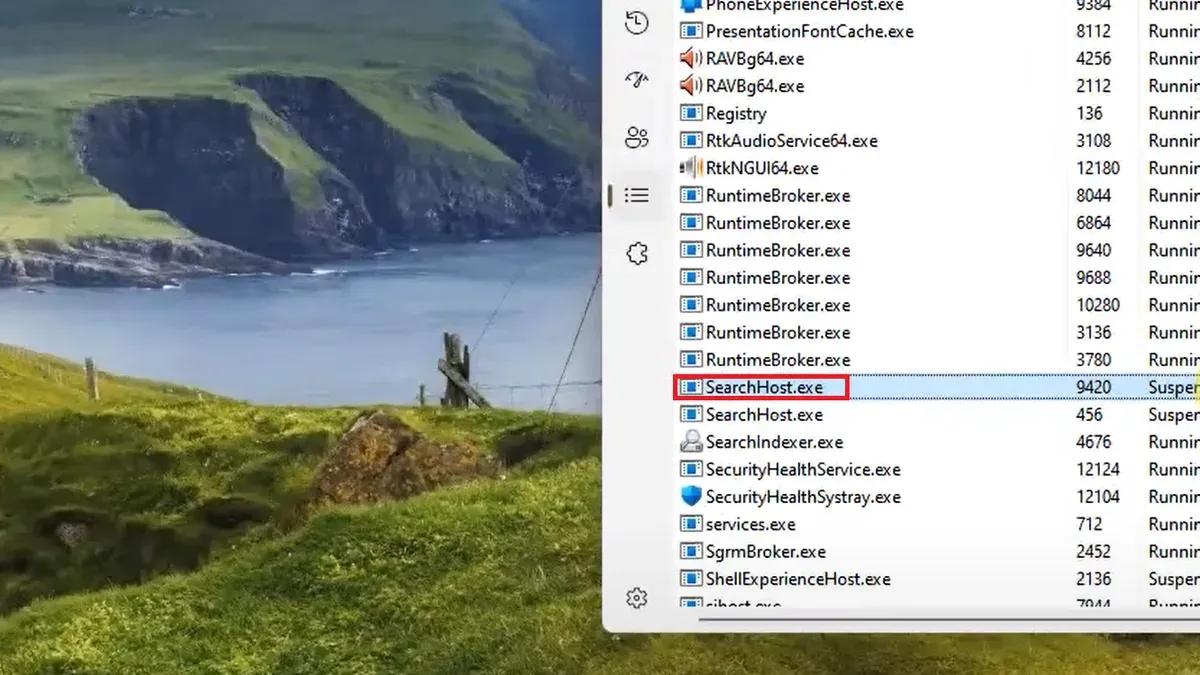
SearchHost.exe can be stopped temporarily using Task Manager, but it will restart automatically with the Windows Search service or at the next user logon. To stop it, open Task Manager by pressing Ctrl + Shift + Esc, locate SearchHost.exe under the Processes tab, select it, and click End Task. This action only halts the process until it restarts.
For a more permanent solution, disabling the Windows Search service via Services.msc will stop SearchHost.exe from running. Launch Services by pressing Win + R, typing services.msc, and pressing Enter. Find Windows Search in the list, double-click it, set the Startup type to Disabled, and click Stop if the service is running. Confirm with OK. This will disable all Windows Search features, impacting file indexing and search speed.
Alternatively, users can prevent SearchHost.exe from starting by disabling Windows Search in startup apps through Task Manager’s Startup tab. For enterprise environments, Group Policy Editor (gpedit.msc) allows administrators to disable Windows Search with policies, providing centralized control.
Caution is advised because disabling Windows Search can reduce the responsiveness of search functions in File Explorer, Start Menu, and other system components. Users should weigh the trade-off between stopping SearchHost.exe and the loss of search capabilities.
Example comparison: Before disabling, searching files is near-instant due to indexing; after disabling, search queries take longer and may not return all results promptly.
Understanding.exe files and virus risks
An.exe file is an executable Windows program and is not inherently a virus.
This file type is the standard format for running applications on Windows, including essential system processes like SearchHost.exe and popular software such as Notepad.exe or Explorer.exe. While many malware programs are distributed as.exe files, the vast majority of.exe files are safe and necessary for normal computer operation.
Determining if an.exe file is malicious requires more than checking the file extension. Users should verify the file’s source, look for valid digital signatures by right-clicking the file, selecting Properties, and checking the Digital Signatures tab. Suspicious behavior—such as unexpected CPU usage, network activity, or failure to open with standard software—also indicates potential issues.
Antivirus software and system monitoring tools play a critical role in identifying harmful.exe files masquerading as legitimate Windows processes. For example, malware like Trojan droppers often use.exe files with names similar to system files but are located outside standard folders such as SystemApps or System32.
Tip: Use Task Manager’s "Open file location" option to verify if an.exe process is running from a legitimate Windows directory.
Further reading
- Is RuntimeBroker.exe a Virus? What It Is and How to Know
- Is dwm.exe a Virus? Understanding Its Role and Safety
- Is dllhost.exe a Virus? Understanding Its Role and Risks
Frequently asked questions
What is search host exe?
SearchHost.exe is a legitimate Windows system process related to the Windows Search feature, responsible for indexing and enabling fast search results within the operating system. It helps users find files, apps, and settings quickly by managing search queries and indexing data.
How to stop searchhost.exe?
To stop SearchHost.exe safely, open Task Manager by pressing Ctrl+Shift+Esc, locate SearchHost.exe under the Processes tab, and select End Task. However, this will temporarily disable Windows Search functionality until the process restarts or the system reboots.
How to fix searchhost.exe?
If SearchHost.exe crashes or causes errors, running the System File Checker tool via the command prompt (sfc /scannow) can repair corrupted system files. Additionally, rebuilding the Windows Search index through Settings > Search > Searching Windows > Advanced Indexing Options may resolve persistent issues.
Is searchhost exe a virus?
SearchHost.exe itself is not a virus; it is a genuine Windows process. However, malware can disguise itself using similar names. To verify legitimacy, check the file location—authentic SearchHost.exe resides in the C:\Windows\SystemApps\Microsoft.Windows.Cortana_cw5n1h2txyewy folder.
What is.exe virus?
An.exe virus is a type of malicious software disguised as or attached to an executable (.exe) file that can run harmful code when opened. These viruses can damage files, steal data, or control the system, so it is important to scan suspicious.exe files with reputable antivirus software before executing them.
Limits of this advice and when to seek expert help
This advice does not cover advanced malware removal techniques or deep system repairs requiring professional IT support. Users unfamiliar with system administration should proceed cautiously and consider expert help before disabling system services, as improper changes can affect system stability and security.
The most useful next step for anyone concerned about SearchHost.exe is to verify its file location via Task Manager or File Explorer. The genuine SearchHost.exe should reside in the Windows\SystemApps\Microsoft.Windows.Search_cw5n1h2txyewy folder. Any instance running from a different path warrants further investigation using trusted antivirus or anti-malware tools to detect potential threats.